
 Community
 Video Library
 Agent Training
 Freshservice
 Freshdesk
 Freshchat
 Freshcaller
 Freshsales
 Freshteam
 Freshworks Neo
 Freshsurvey
 Freshservice for MSP
 TABLE OF CONTENTS
- Overview
- Benefits of field validations
- Types of field validations
- Supported field types
- How field validations are enforced
- Limitations
- Administrative guidance
Overview
Field validations allow administrators to define rules on Service Item fields in the Freshservice Service Catalog, ensuring that users enter accurate, complete, and correctly formatted data before a request is submitted.
When a user fills out a Service Request — whether on the portal or via an agent — field validations check the input against the configured rules when the form is submitted. If the input does not meet the defined criteria, the field is highlighted and an inline error message is displayed, prompting the user to correct it before proceeding.
By configuring field validations, administrators can enforce data standards, reduce errors, and ensure that service requests are processed without downstream failures.
Benefits of field validations
Improved data quality: Catch incorrect or incomplete input at the point of entry, before it affects downstream workflows, automations, or integrations.
Better requester experience: Requesters receive instant, clear feedback — such as "Please enter a valid phone number" — so they can correct errors without needing to resubmit or contact support.
Workflow and automation reliability: Ensure that service requests flowing into workflows, business rules, and third-party integrations carry clean, correctly formatted data — reducing logic failures and unexpected errors.
Consistent data formats: Enforce standard formats for fields like email addresses, IP addresses, phone numbers, or URLs across all service requests.
Less manual intervention for admins: Fewer malformed submissions means less time spent on data cleanup, ticket corrections, and back-and-forth with requesters.
Types of field validations
Freshservice supports two types of field validations for Service Item fields — Regex validation and Custom validation. The right type depends on what you want to validate.
Regex validation
Regex validation lets administrators enforce specific patterns or formats for data entered in a field using regular expressions. It is supported for both custom fields within a Service Item and shared fields.
How to configure
To set up a regex validation, open any existing field within a Service Item or add a new field. Toggle on Add validation to start building the rule.
Key capabilities
Most used expressions: Quickly apply common patterns — such as Email, Alphanumeric, or IP Address — from the Most used expressions link. These can also be used as a starting point to build more specific rules.
Expression tester: Test your regex pattern against sample values before saving to make sure it behaves as expected.
Custom error messages: Define an inline error message (up to 255 characters) that is shown to users when their input fails validation — for example, "Enter the 10 digit number in this format: (123) 456-7890".
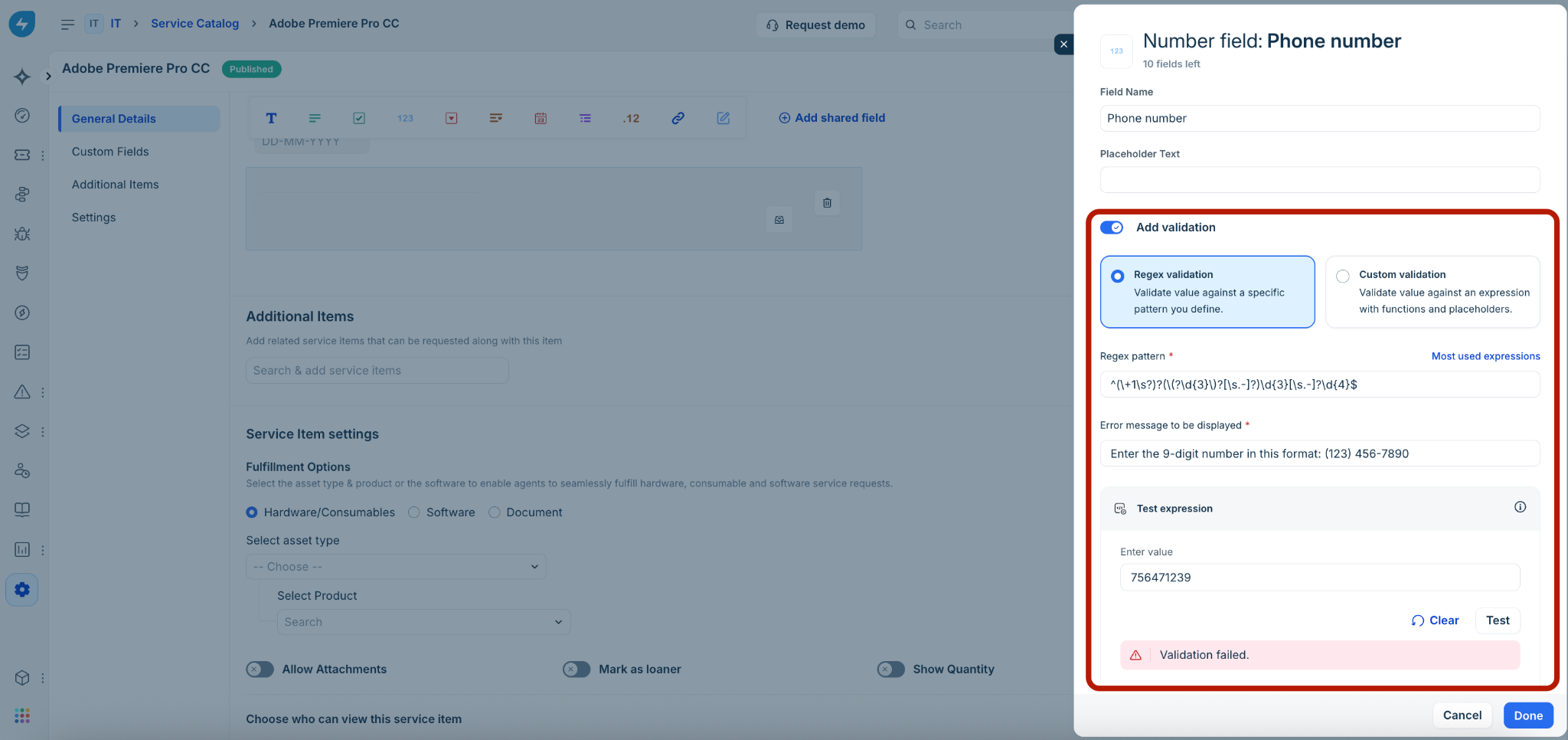
How it appears to users
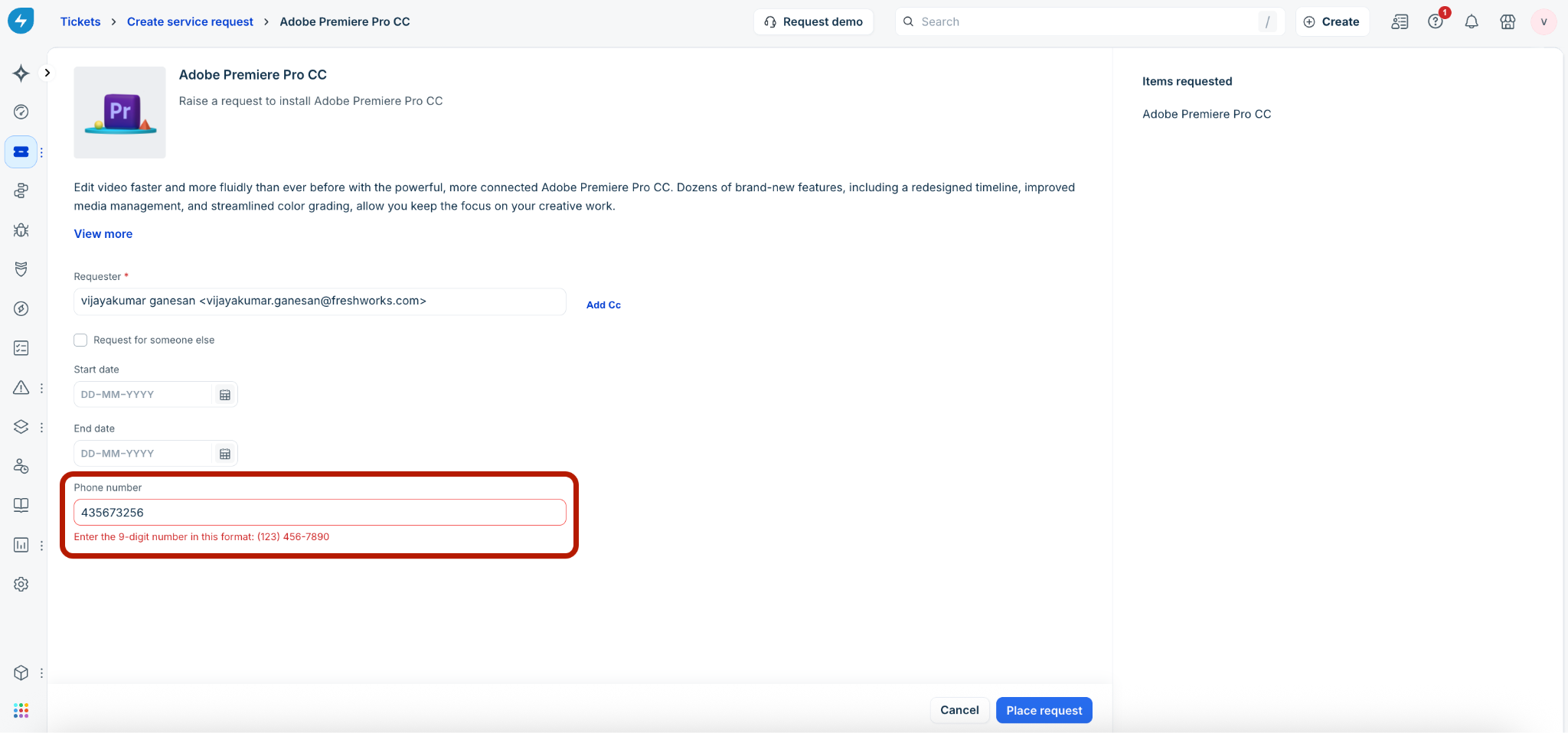
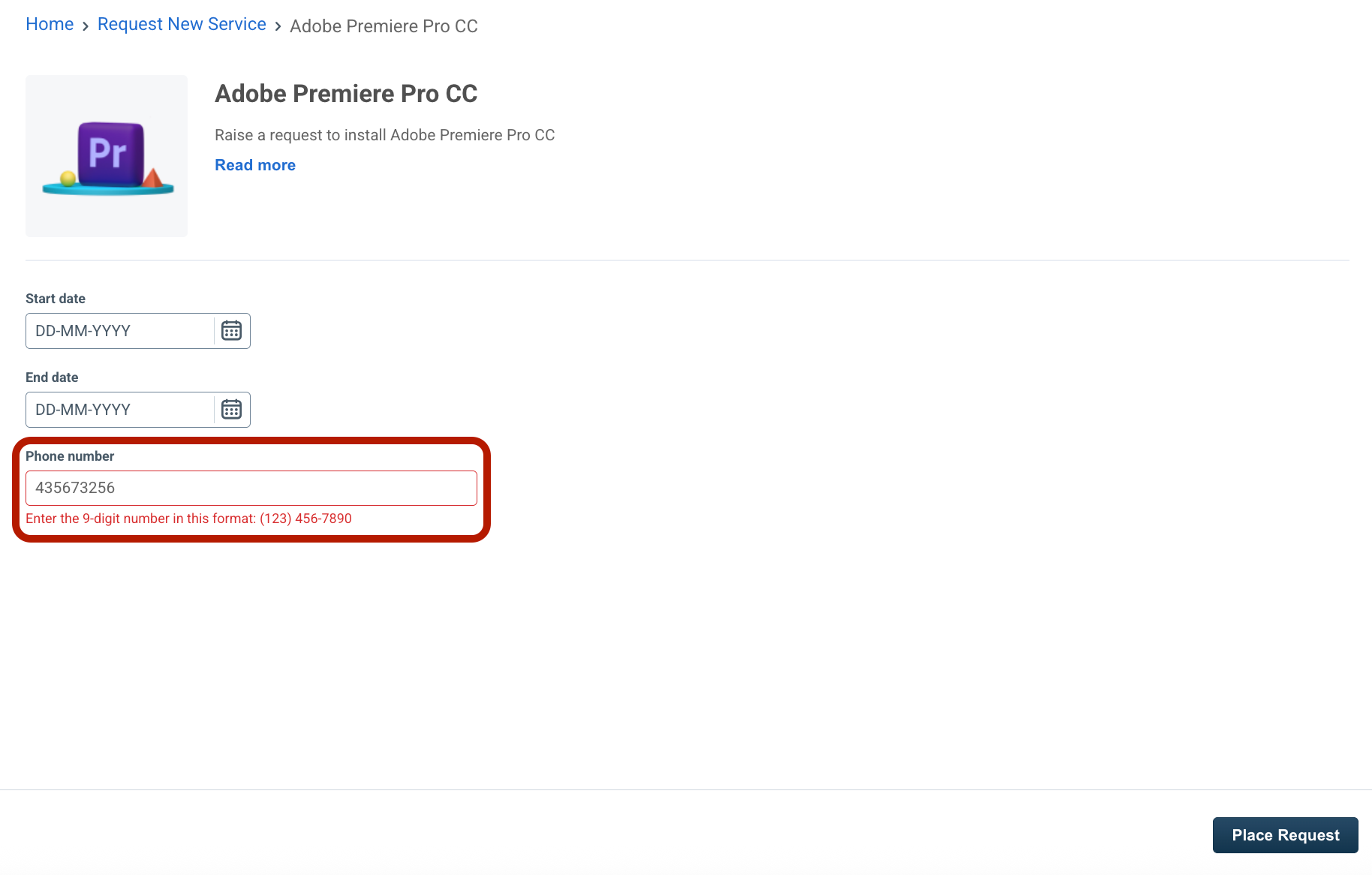
Once configured, the validation is enforced when the user submits the form. The field is highlighted in red and the custom error message is displayed if the input does not match the pattern.
Agent–Create service request
Requester–Request new service
Custom validation
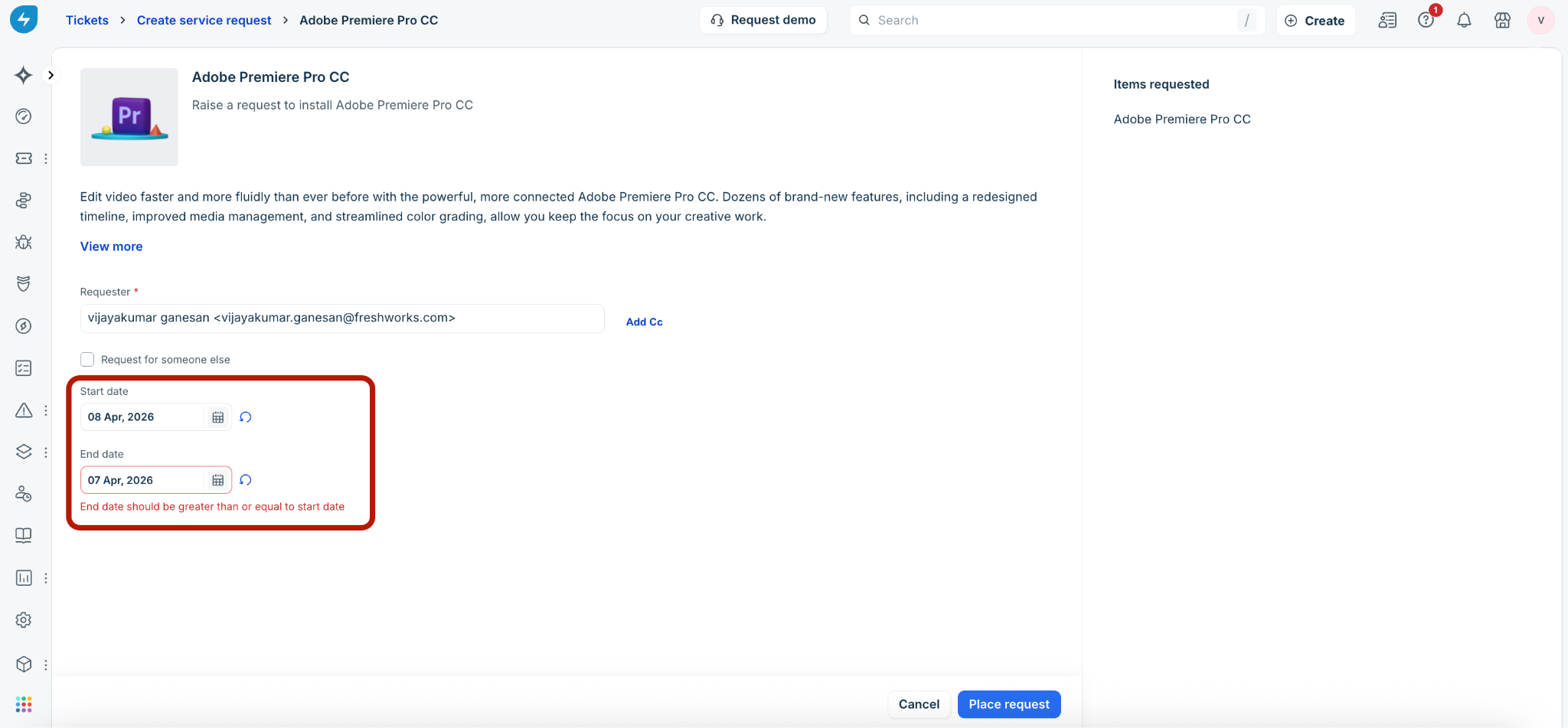
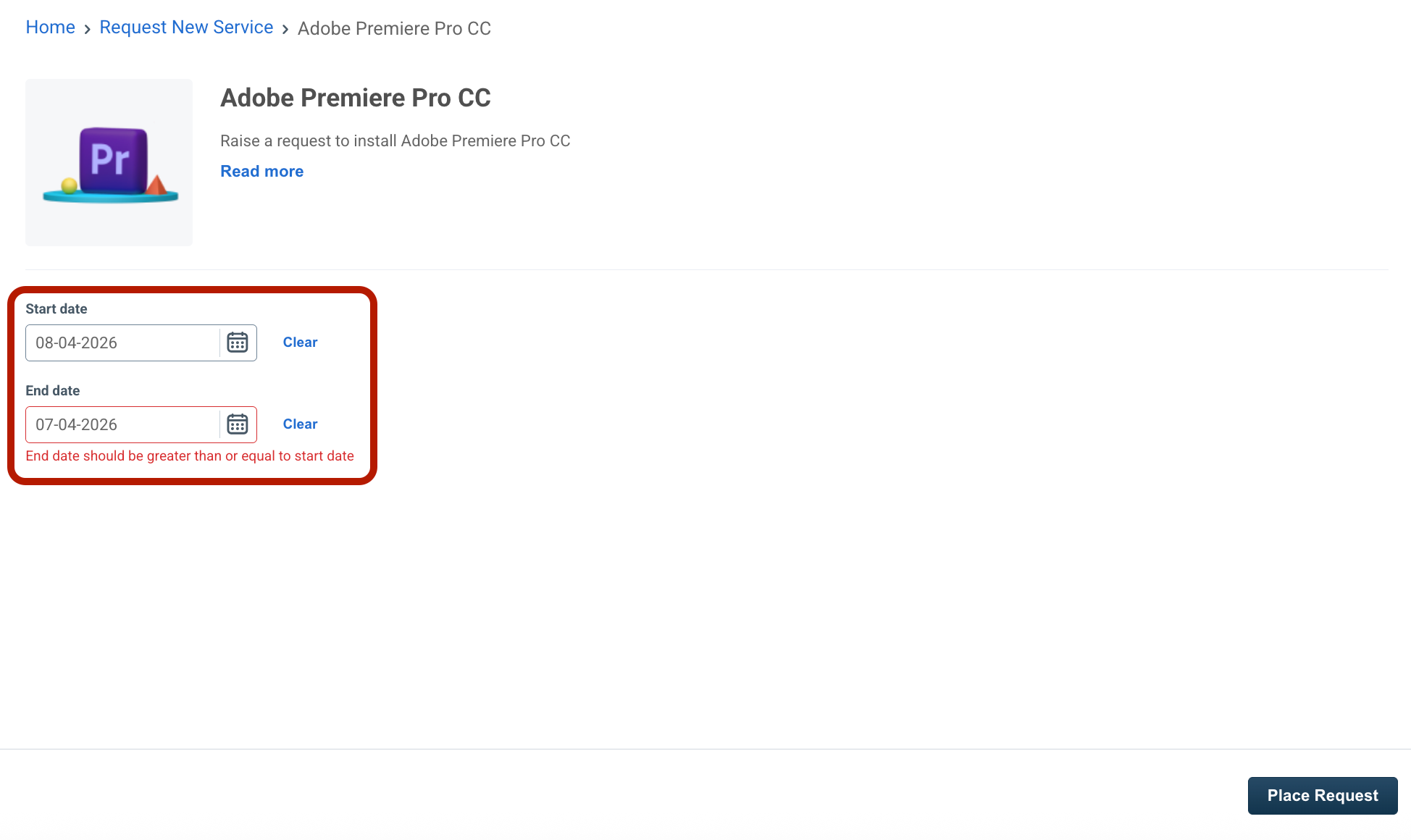
Custom validation lets administrators build expression-based rules that compare or evaluate data across multiple fields in the same Service Item form. This is useful for cross-field logic — for example, ensuring that an End Date is always after a Start Date.
Custom validations are supported only for custom fields within a Service Item and are not available for shared fields.
How to configure
Open the field you want to validate within a Service Item and toggle on Add validation. Use the expression builder to construct your rule using functions, operators, and placeholder fields.
Key capabilities
Functions and operators: Build expressions using string, mathematical, date, and logical functions, along with arithmetic and logical operators.
Placeholders: Reference other fields from the same Service Item form as variables in your expression. Note that RTE, Attachment, Multi-select, Lookup, Paragraph, and Content field types cannot be used as placeholders.
Self-reference: The field currently being configured is available via the Insert current field option, whether or not it has been saved yet.
Expression tester: Test your custom expression against sample values before saving to make sure it evaluates as expected.
Custom error messages: Define an inline error message (up to 255 characters) that is shown to users when their input fails validation — for example, "End Date must be after Start Date."
Note:
For URL fields, the system runs a built-in format check first, followed by your custom validation rule.
Fields that have been added but not yet saved at the Service Item level will not appear as placeholders in the expression builder. Save and publish the Service Item first before referencing newly added fields in a custom expression.
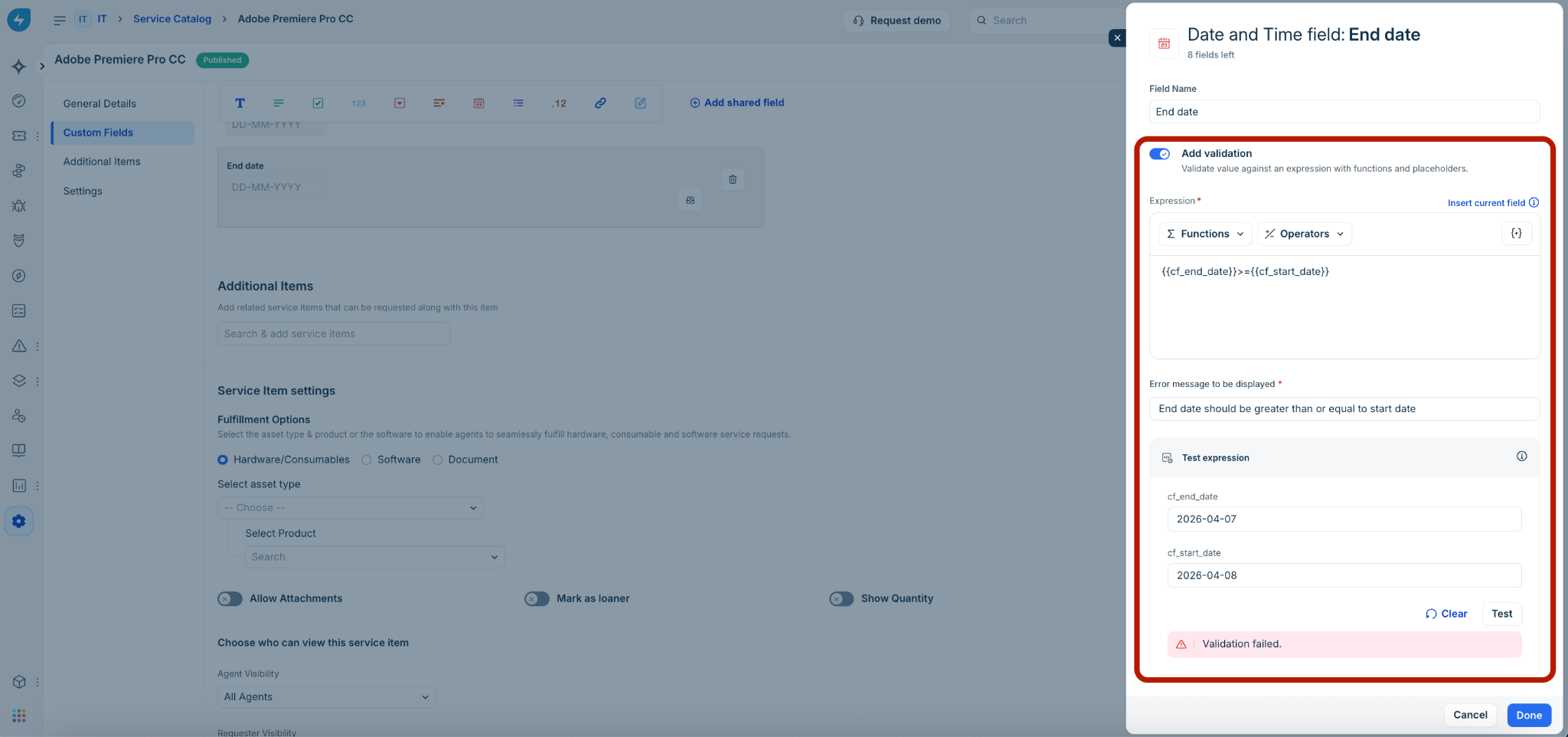
How it appears to users
Agent–Create service request
Requester–Request new service
Supported field types
Field validations are supported for select field types within Service Items. The supported validation type — Regex, Custom, or both — depends on the nature of the field.
Note: A maximum of 15 custom fields per Service Item can have validation rules configured. Additionally, validation rules can be configured for up to 10 shared fields.
Supported custom fields
Supported shared fields
Only Regex validation is supported for shared fields. Custom validations cannot be configured directly on shared fields — however, a shared field can be referenced as a placeholder in a custom validation expression within a Service Item.
Note: Validation rules configured on a shared field automatically apply to all Service Items that use that field and cannot be overridden at the individual Service Item level.
How field validations are enforced
Understanding when and how validations are triggered helps administrators configure rules with confidence and set the right expectations for agents and requesters.
Trigger and user interface (UI) behavior
When validations trigger: Validations are evaluated when the user clicks Submit on the form.
Validation failure: If a field fails validation, it is highlighted in red and the configured inline error message is displayed, prompting the user to correct the input before resubmitting.
Dependencies and placeholder behavior
Empty or unavailable placeholders: If a placeholder field referenced in a custom validation expression is empty, deleted, or archived, the validation rule is skipped automatically to prevent false errors.
Interaction with business rules: If a business rule hides or disables a field, the validation configured for that field is bypassed. However, if a business rule hides or disables a placeholder field used in the expression, the validation is not bypassed — it continues to be evaluated.
API and integration enforcement
Field validations are not limited to the Freshservice UI — they are enforced consistently across APIs and backend.
Any data created or updated via REST APIs, integrations, imports, or scripts must comply with the same validation rules configured on the fields. This ensures data integrity regardless of how a service request is submitted or updated.
Limitations
The following limitations apply to field validations in the Service Catalog. Admins should account for these when designing validation rules for their Service Items.
Administrative guidance
The following details cover system behavior and best practices admins should be aware of when configuring and managing field validations.
Deletion and archival of placeholder fields
If you attempt to delete or archive a field that is currently used as a placeholder in another field's validation expression, the system will block the action and display a message identifying the affected fields.
Validation expression integrity
The system validates that every saved expression produces a Boolean (True/False) output. If an expression does not evaluate to a Boolean, it cannot be saved. This prevents misconfigured rules from being applied to live forms.
Orphaned placeholders
If a shared field that is used as a placeholder in a Service Item's custom validation expression is deleted at the catalog level, the system flags the error in the Service Item field manager. Further saves are blocked until the expression is updated to remove or replace the deleted field.
Audit logs
All changes to validation rules are captured in audit logs, including:
Enabling or disabling a validation rule
Modifications to a validation expression
This applies to both custom fields and shared fields.
Sandbox
Field validations are available in the Sandbox environment for both custom fields and shared fields, allowing admins to test and validate rules before deploying them to production.