
 Community
 Video Library
 Agent Training
 Freshservice
 Freshdesk
 Freshchat
 Freshcaller
 Freshsales
 Freshteam
 Freshworks Neo
 Freshsurvey
 Freshservice for MSP
 TABLE OF CONTENTS
- Overview
- Supported connectors
- Prerequisites
- Install the app
- Task consumption, dashboard, dependency, and activity
- Create connections and recipes
Overview
Freshservice DevOps Connector apps enable integration with external DevOps tools to track pull requests, work items, and pipelines.
Supported connectors
Prerequisites
Ensure you have the following, as part of the prerequisites for integration.
Install the app
To install a DevOps connector app, follow the procedure outlined in this section.
Note: This section utilizes the Azure DevOps Connector app as an example.
To install the connector app:
Log in to your Freshservice account.
Go to Admin > DevOps Management > DevOps Tools.
Click Install under Azure DevOps Connector App.
(In the Configuration slider > Connect Freshservice tab) Enter your API Key in the API Key field.
Note:
The Domain URL field is auto-populated.
Ensure your Freshservice API Key is enabled before initiating the installation.
To fetch your API Key, click the profile icon at the top-right corner and go to Profile settings. Click Show API Key on the right panel to copy your API Key.
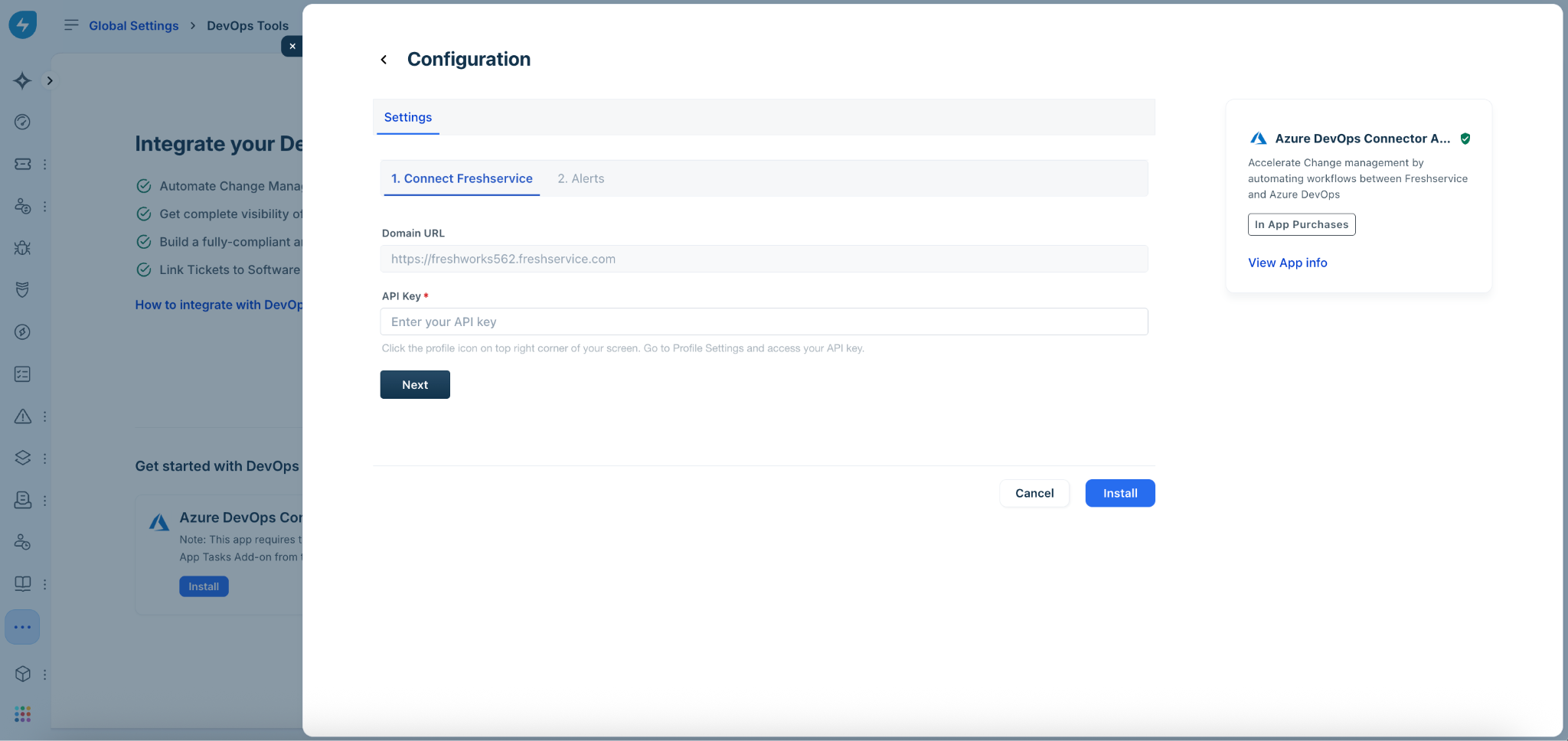
Click Next.
Note: Clicking Next after entering the API Key is mandatory for successful installation. Do not click Install directly after entering the API Key.
(In the Configuration slider > Alerts tab) Enable the Alerts toggle, if you want to receive email notifications on any errors that are detected within the configured recipes.
Enter the recipient email id(s) in the Email ID field.
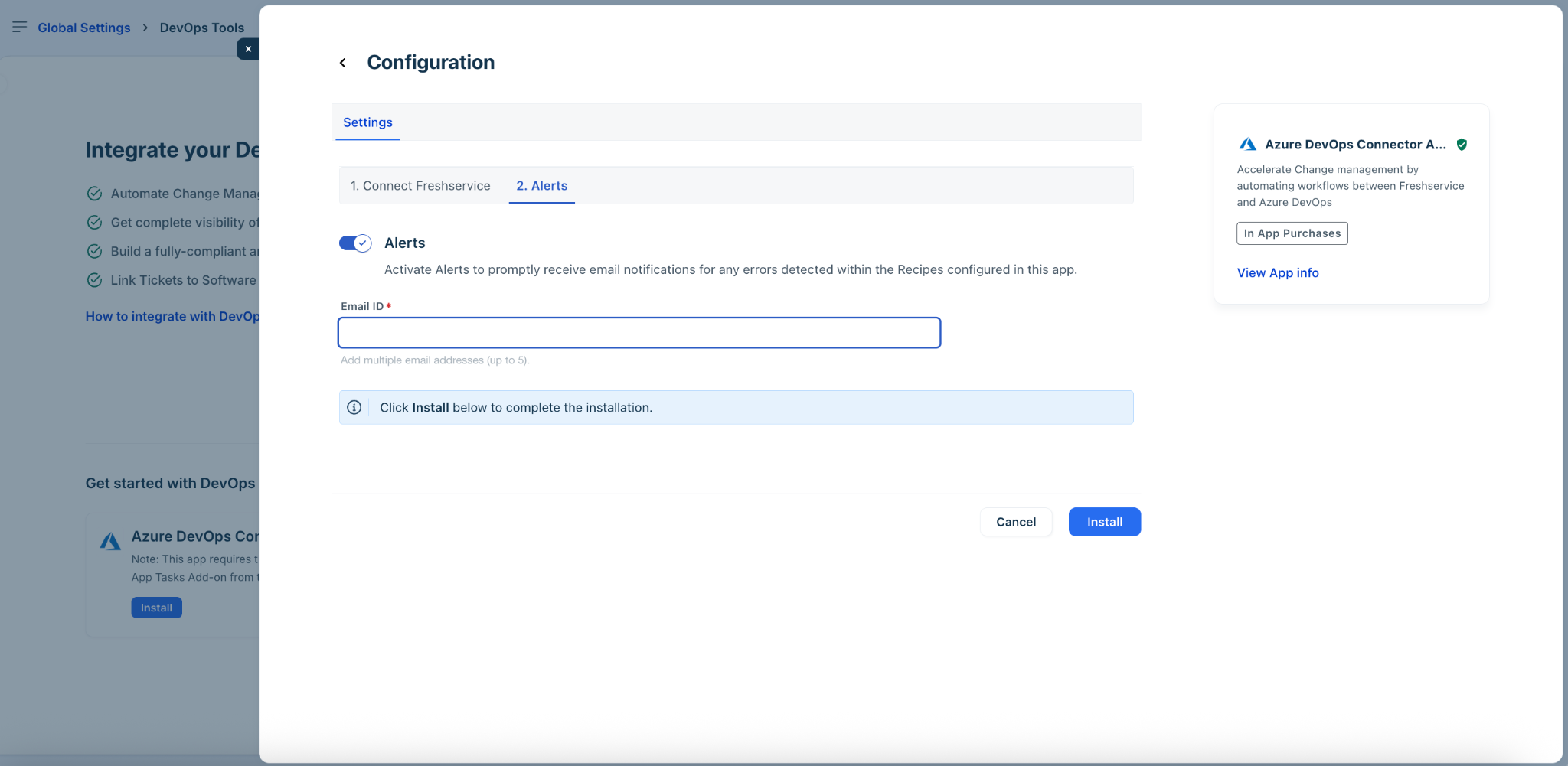
Click Install.
After installation, the Overview > Dashboard page of the connector app is displayed.
Task consumption, dashboard, dependency, and activity
The Overview page of a DevOps connector app includes the Dashboard, Dependency graph, and Activity audit tabs.
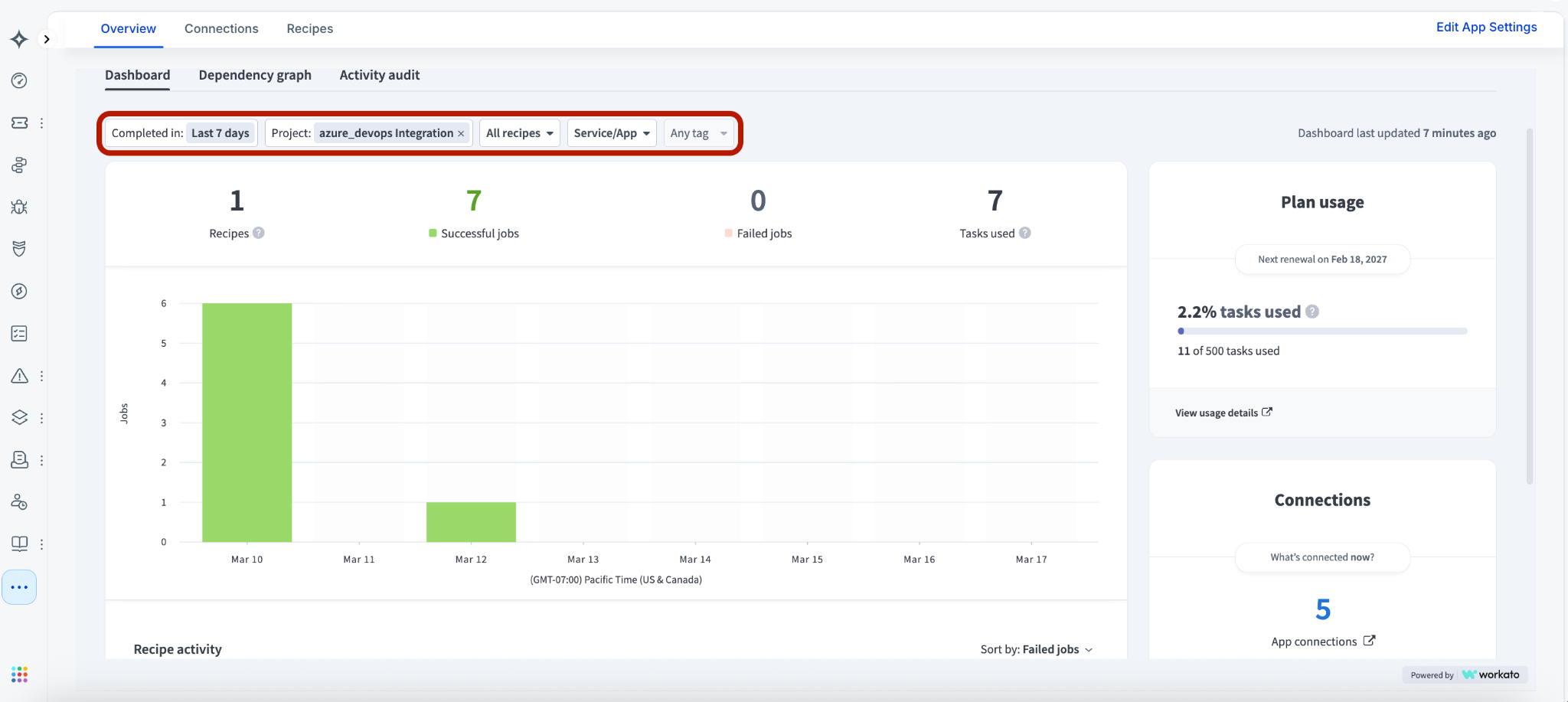
The Dashboard helps you understand the total number of tasks you've consumed (this is the basis for your app usage billing), and also provides a consolidated graph view of the number of recipes, successful jobs, failed jobs, and tasks used.
Note:
This section utilizes the Azure DevOps Connector app as an example.
A total of 500 tasks would be available (out-of-the-box) for an account across all your connector apps.
Once all your tasks are consumed, you will need to purchase additional tasks. Therefore, it is recommended to consume tasks with caution.
Tasks will not be consumed when you only test jobs in a recipe.
To view the dashboard, dependency graph, and activity audit:
Log in to your Freshservice account.
Go to Admin > DevOps Management > DevOps Tools.
Click Go to dashboard next to Azure DevOps Connector under the Installed apps section.
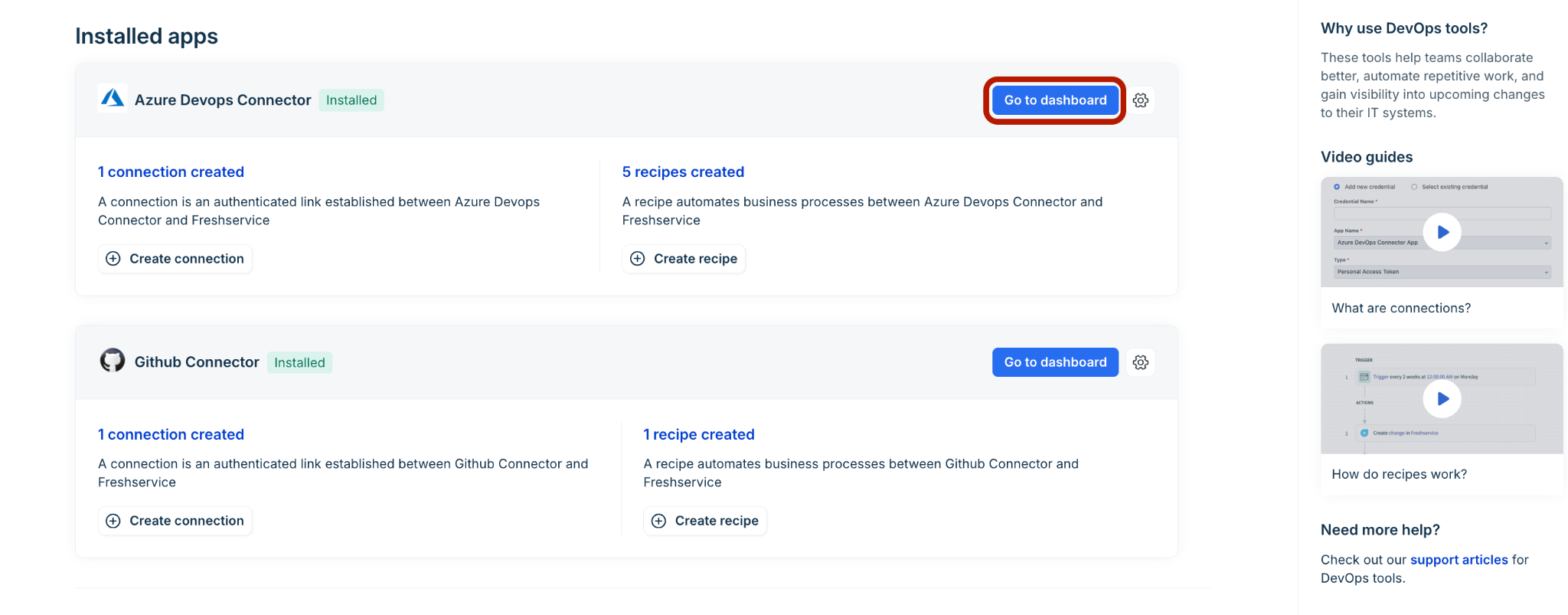
Note:
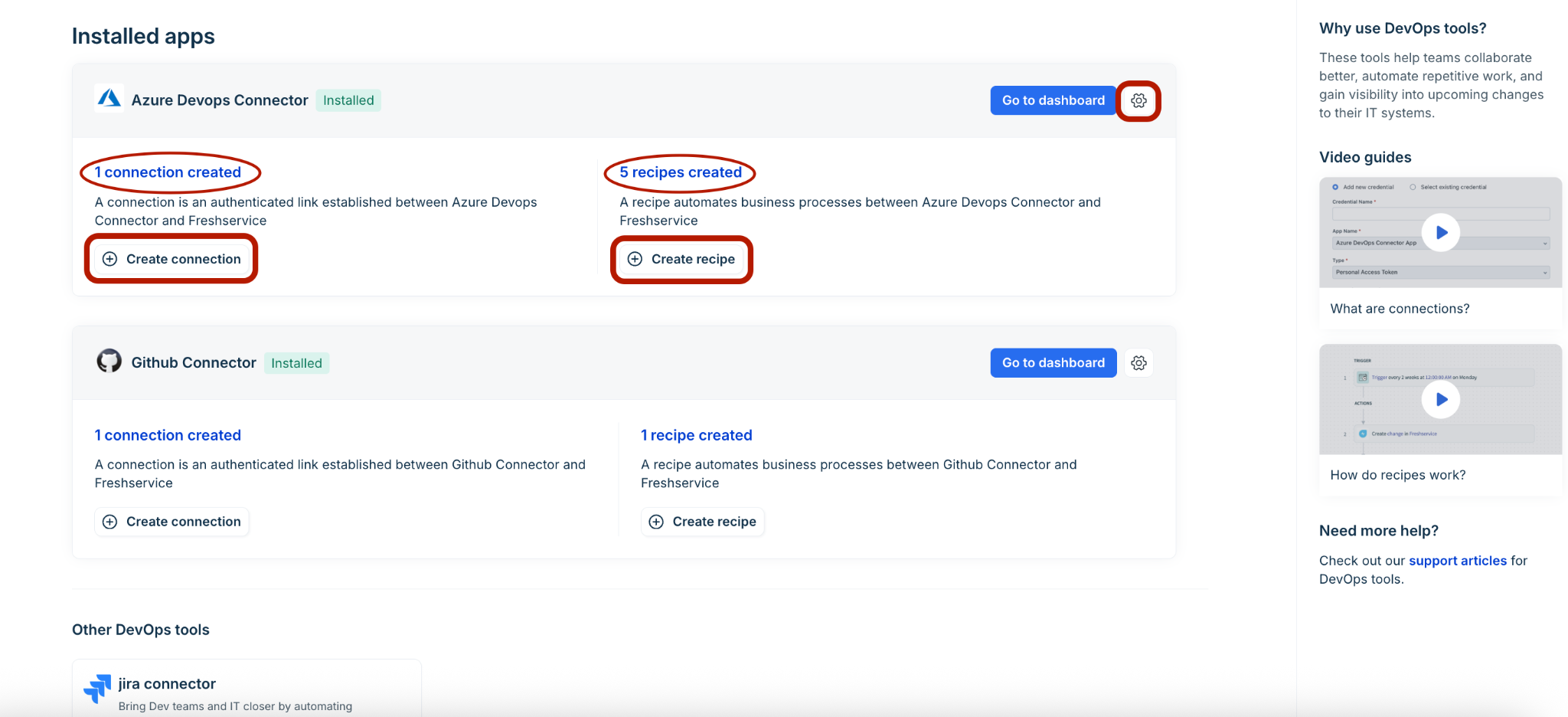
To edit the DevOps connector configuration settings (such as API Key or Email ID for Alerts), click the settings icon. Then, click Edit settings, and update and save the changes.
To create a connection or recipe, click Create connection or Create recipe. Note that to create a recipe, there must be a connection created.
If you have connections and recipes created, click the respective links to go to the created connections or recipes.
On the Dashboard page, use the Completed in, Project, All recipes, Service/App, or Tag filters to modify the graph view.
Note:
You can hover over the graph to view recipe, jobs, and task usage details by timeline.
You can also sort and view the required data in a tabular format under Recipe activity (below the graph), and view your plan usage and connection details (on the right side of the graph).
Go to the Dependency graph tab to view the dependencies in a grid layout.
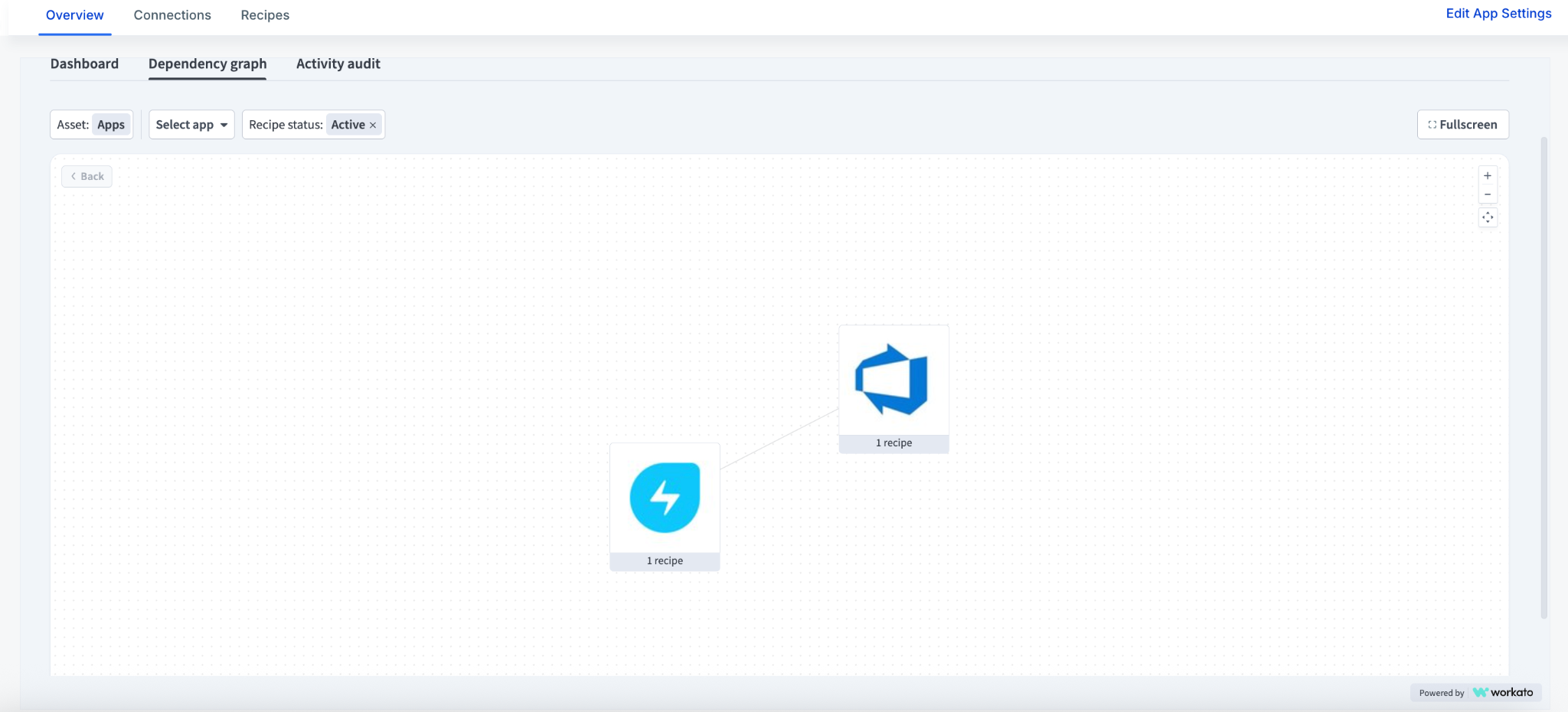
Click any icon in the grid to view all dependencies, such as Connection and Recipe.
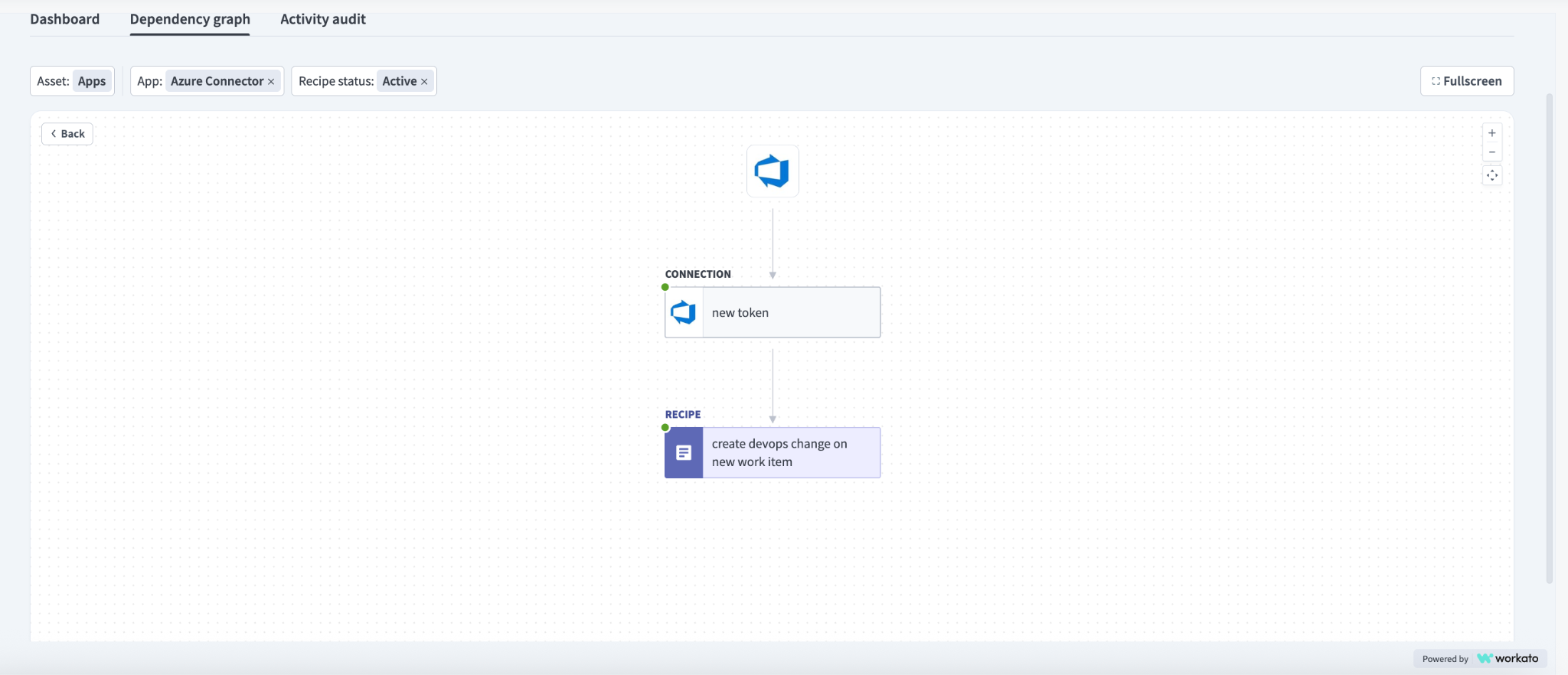
Note: Use the Asset, App, or Recipe status filters to modify the grid view.
Go to the Activity audit tab to view the audit trail.
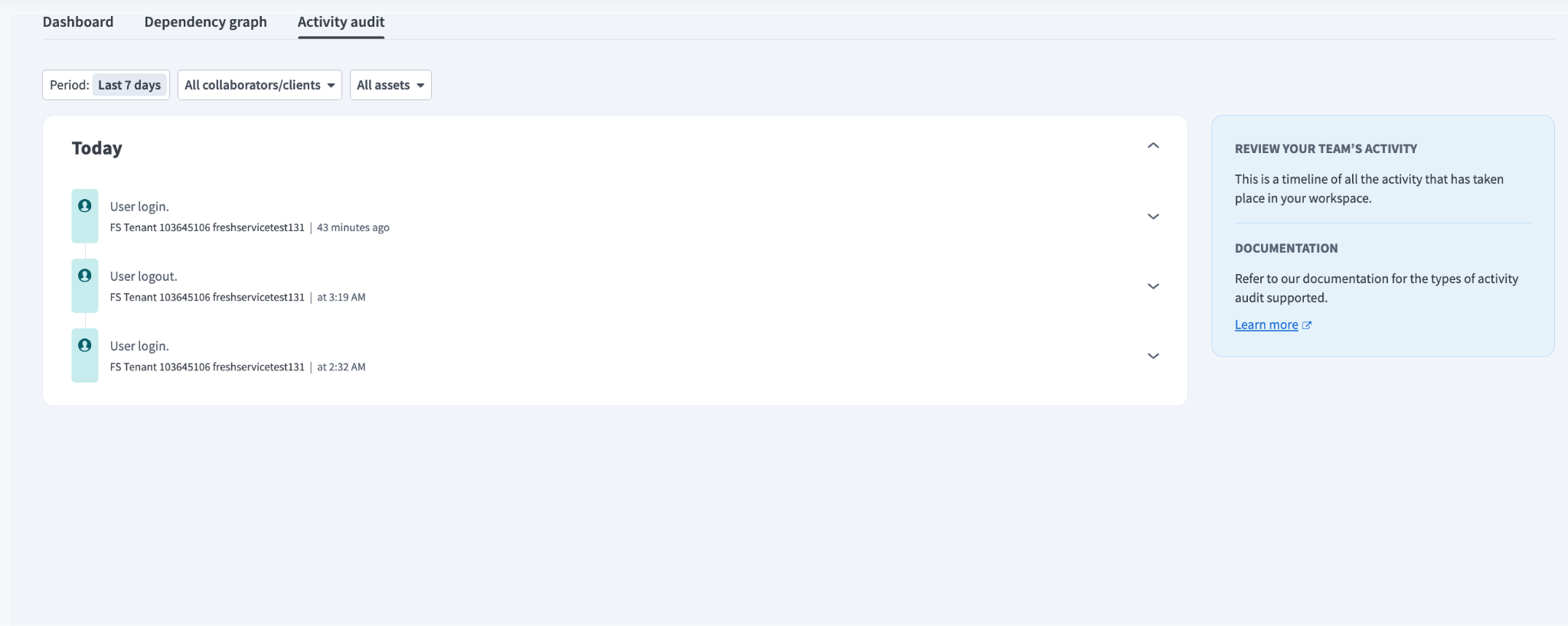
Note: Use the Period, Collaborators/Clients, or Assets filters to modify the audit trail.
Create connections and recipes
Refer to the specific knowledge articles below to learn how to set up connections and configure recipes for your DevOps Connector apps: