
 Community
 Video Library
 Agent Training
 Freshservice
 Freshdesk
 Freshchat
 Freshcaller
 Freshsales
 Freshteam
 Freshworks Neo
 Freshsurvey
 Freshservice for MSP
 Search rules enable you to define conditions on individual knowledge sources so the AI Agent retrieves content matching the specific conversation context.
When your AI Agent serves employees across regions and departments, not all knowledge sources are relevant to every conversation. Search rules define logic on individual knowledge sources, ensuring the AI Agent retrieves content that matches the current conversation context without requiring separate agents or duplicated knowledge bases.
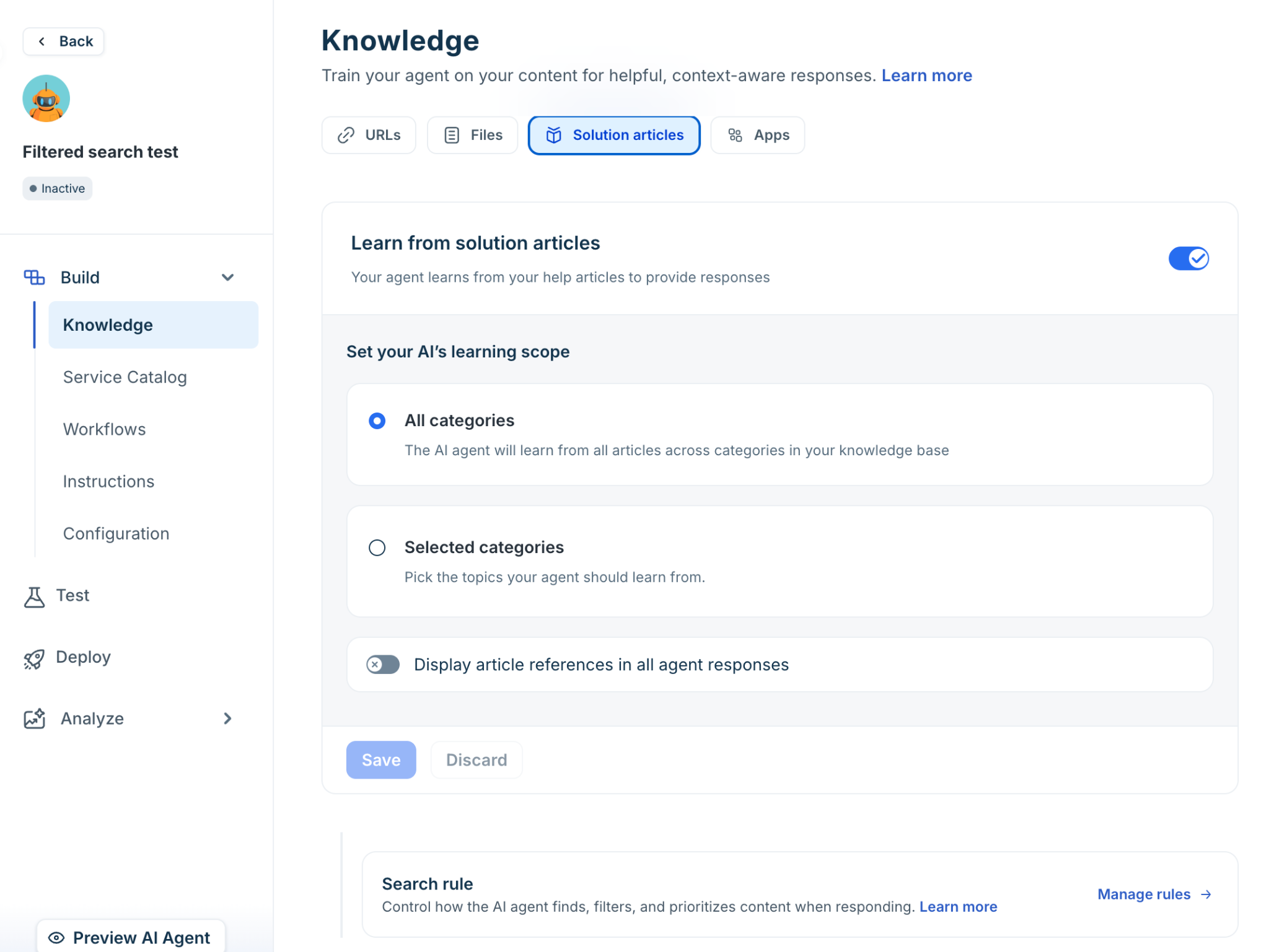
Rules are configured at the source level. At runtime, the AI Agent evaluates those rules against the requester and fetches content only from sources that match the conditions. Knowledge sources with no rules configured are included in searches by default.
TABLE OF CONTENTS
Rule conditions and match logic
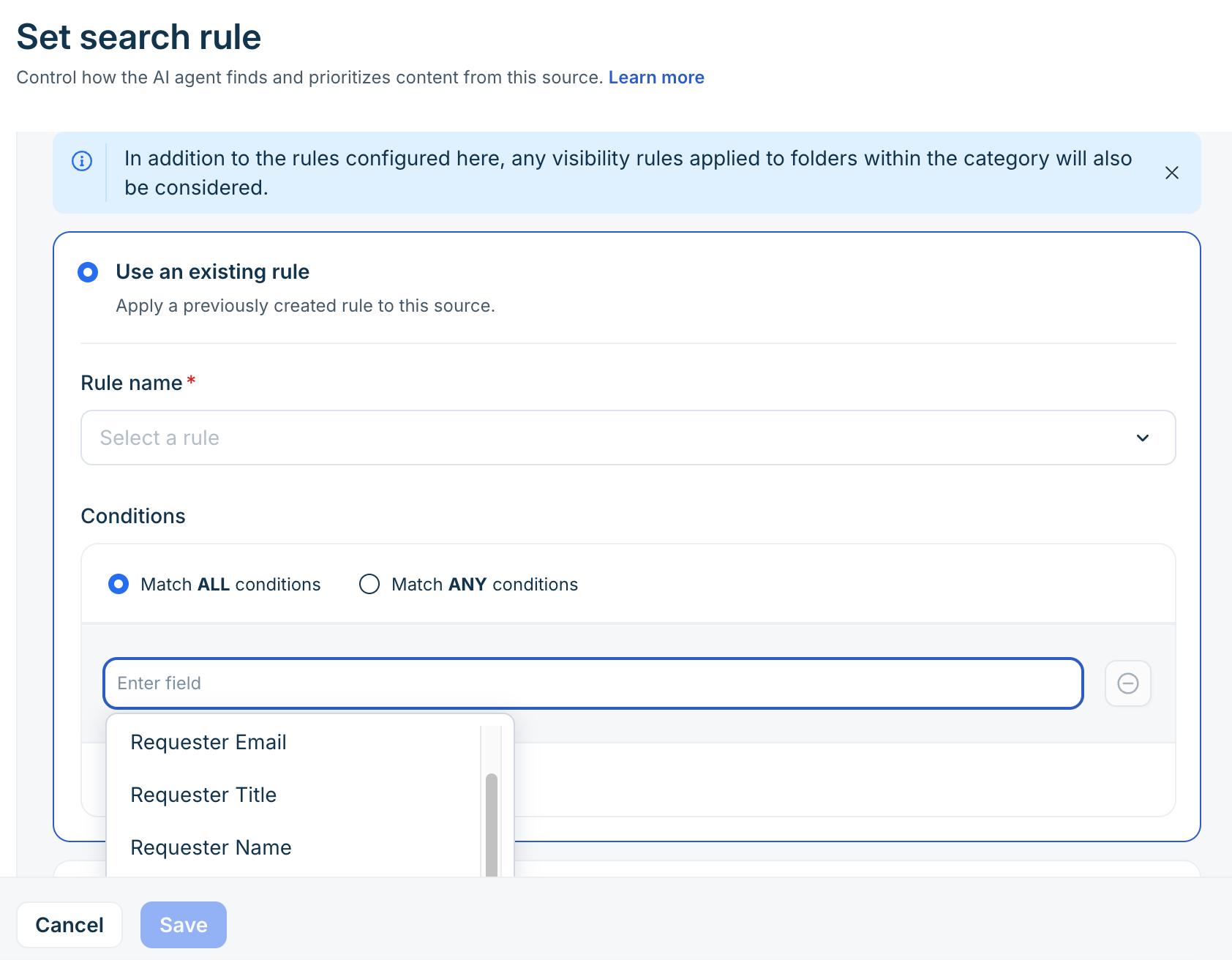
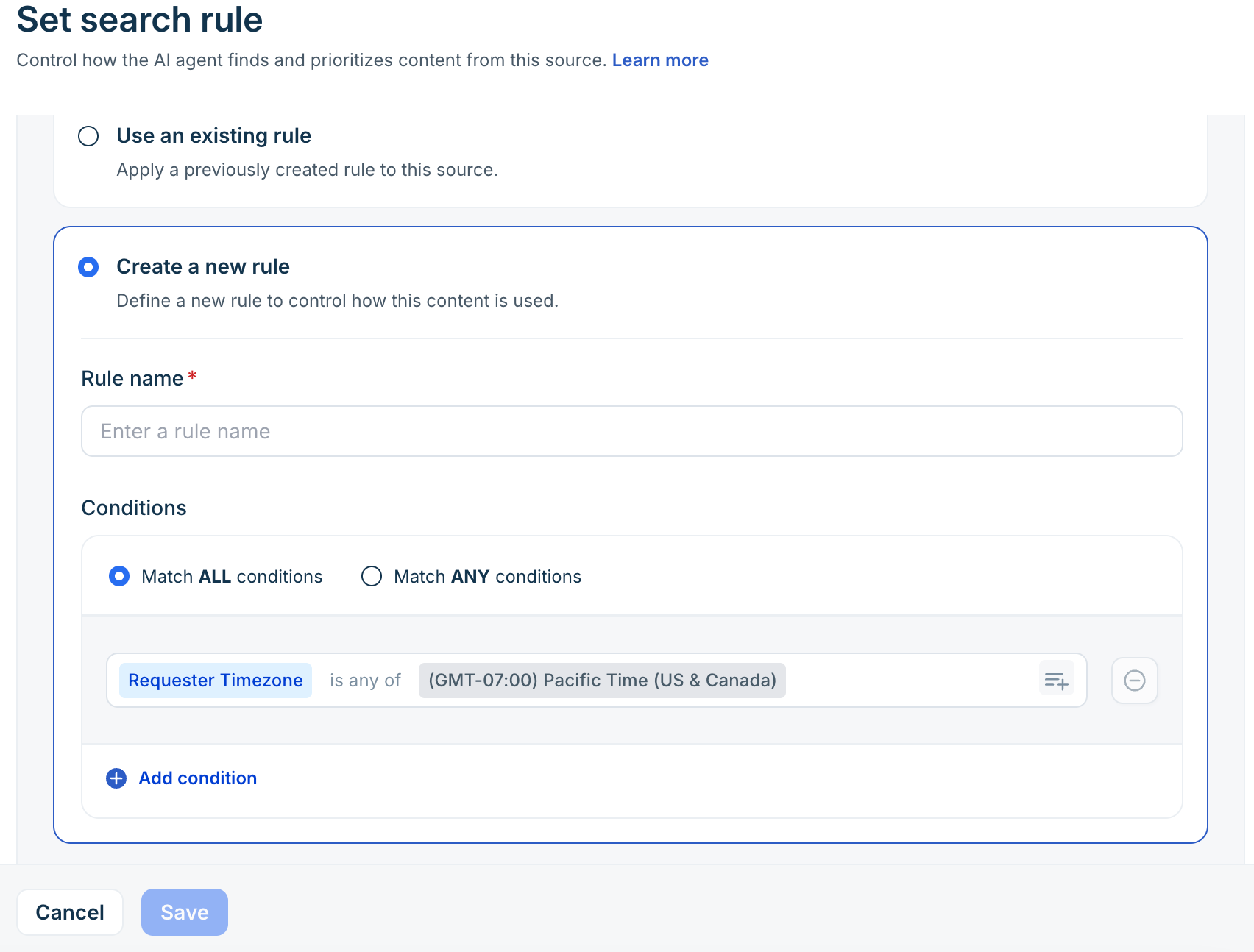
Each rule can contain one or more conditions composed of a requester property, an operator, and a value.
The system supports the following operators for condition building:
is: Exact match. For example, Location is United States matches only "United States" and excludes "United States - West".
is any of: Matches any item in a specified list. For example, Location is any of [United States, Canada, United Kingdom] matches if Location is United States, Canada, or United Kingdom.
includes: Partial string match within a text property or list. For example, Location includes US matches values like US-East or US-West.
Note: The includes operator is currently supported for URLs and file sources.
Match logic applies at the rule level:
Match ALL conditions: Every condition must be true for the source to be eligible.
Match ANY conditions: At least one condition must be true for the source to be eligible.
Note: Each source supports exactly one rule. However, a single rule can contain multiple conditions using Match ALL or Match ANY logic to cover complex filtering scenarios.
Supported property types
Rule conditions support the following property types: Text, Numeric, and Dropdown (including custom fields). Date, checkbox, lookup, multiselect, formula, and auto-number fields are not supported and will not appear in the attribute picker.
For solution articles, you can also use tag-based conditions in addition to property-based ones:
Article tags - available across all account types
Category tags - available in accounts
Manage filtered search rules
Once you understand how rules work, you can configure them for each knowledge source. All rule configuration happens inside AI Agent Studio > Build > Knowledge.
Set a rule on files
File rules use requester and conversation property values. Tag-based conditions are not supported for files.
In the Files tab, locate the file and open its options menu.
Select Set search rule.
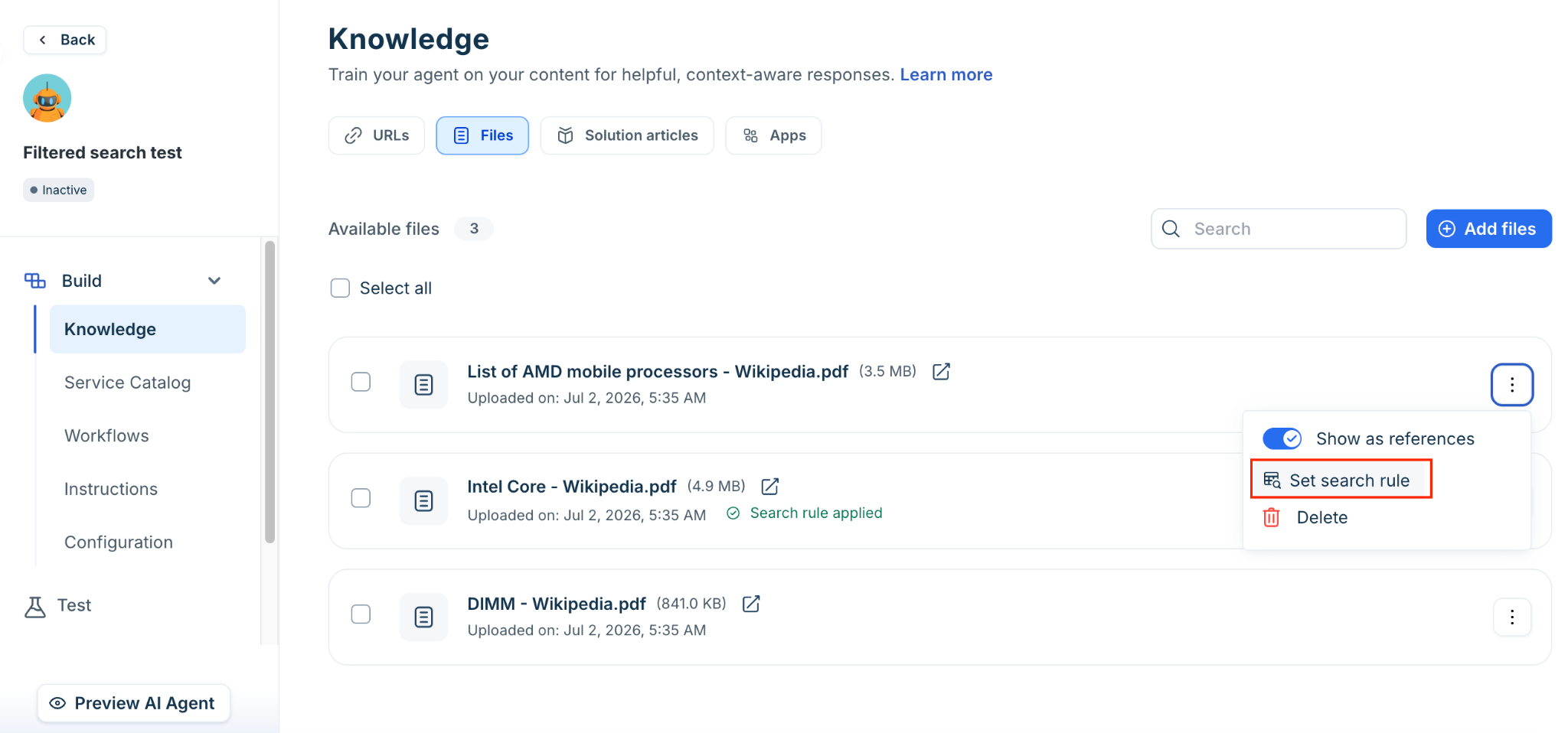
In the Apply search rule to this source panel, choose one of the following:
Use existing rule — select a rule from the dropdown and select Save.
Create new rule — enter a Rule name, select Match ALL conditions or Match ANY conditions, add one or more conditions, then select Save.
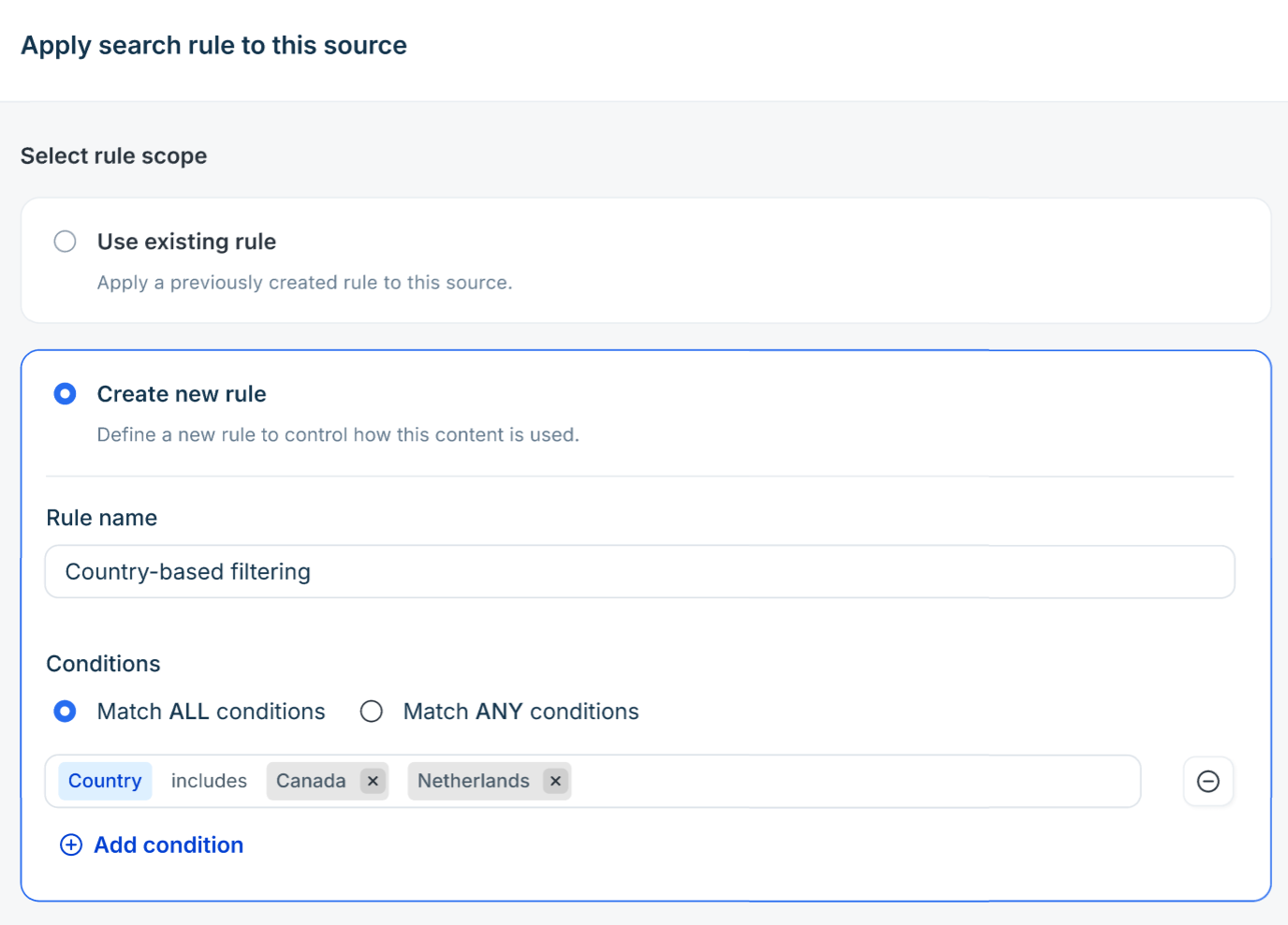
Set a rule on URLs
URL rules follow the same steps as file rules.
In the URLs tab, locate the URL and open its options menu.
Select Set search rule.
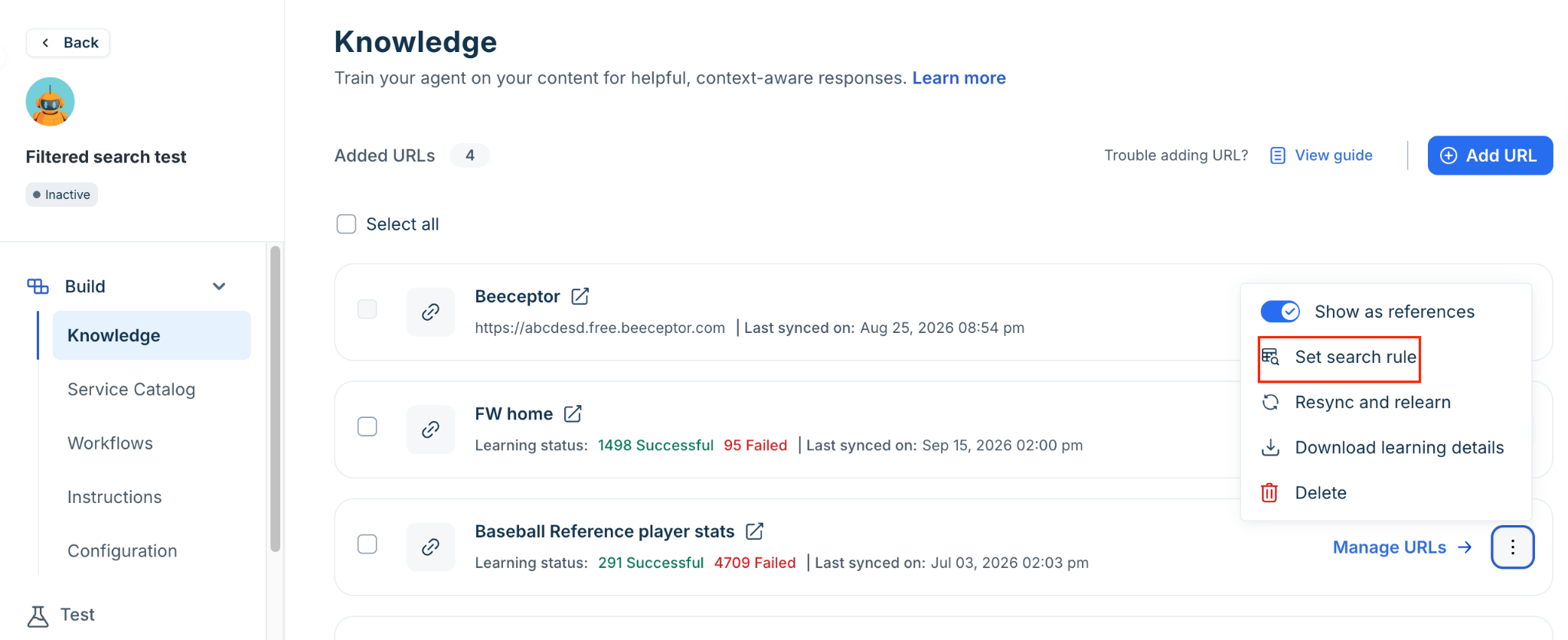
Choose Use existing rule or Create new rule, configure conditions, and select Save.
Set rules on solution articles
Solution article rules are applied at the category level. Each category can have its own rule, and you can use both property-based and tag-based conditions.
In the Solution articles tab, select Manage search rule.
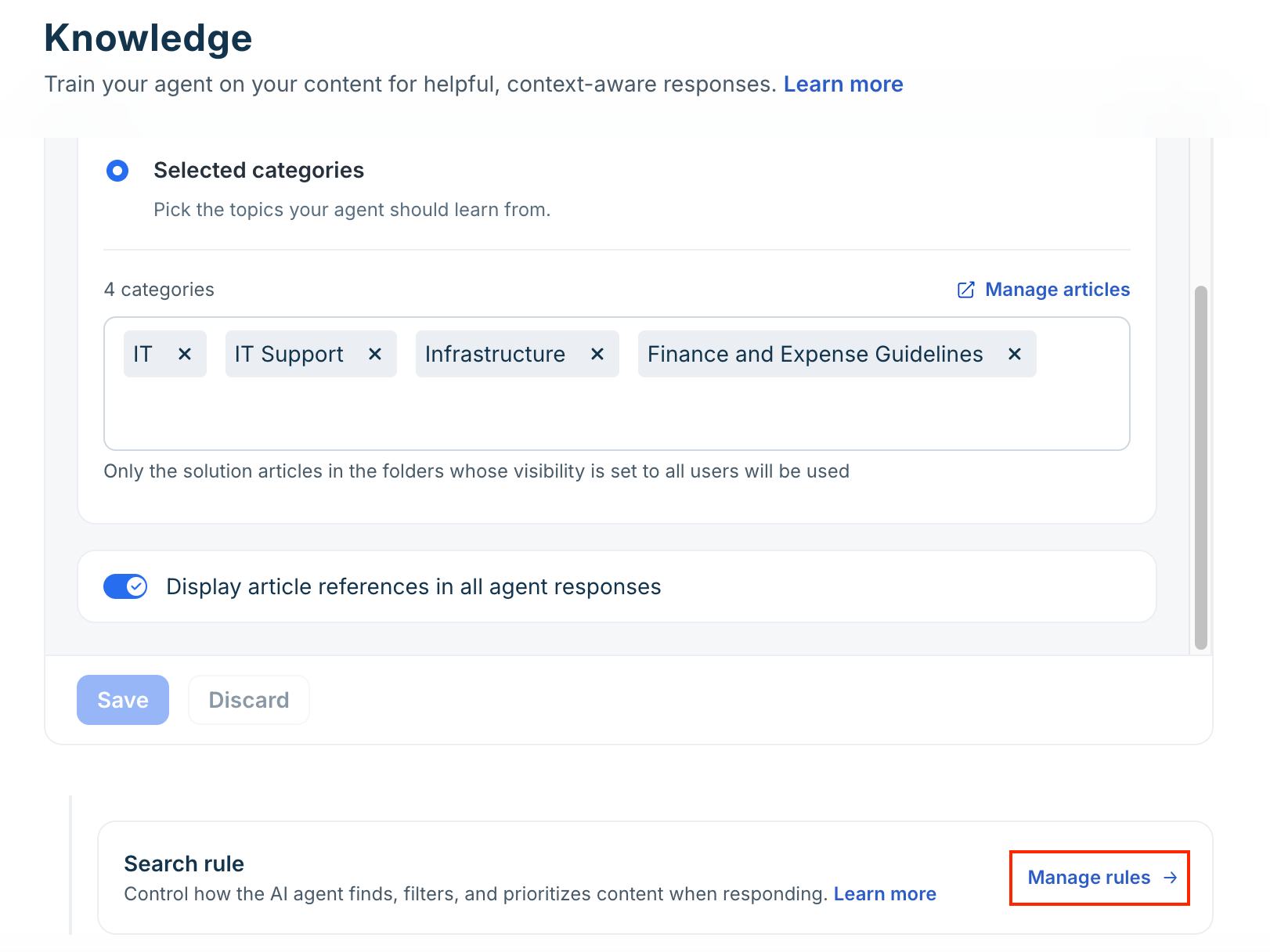
For each category, select Set rule.
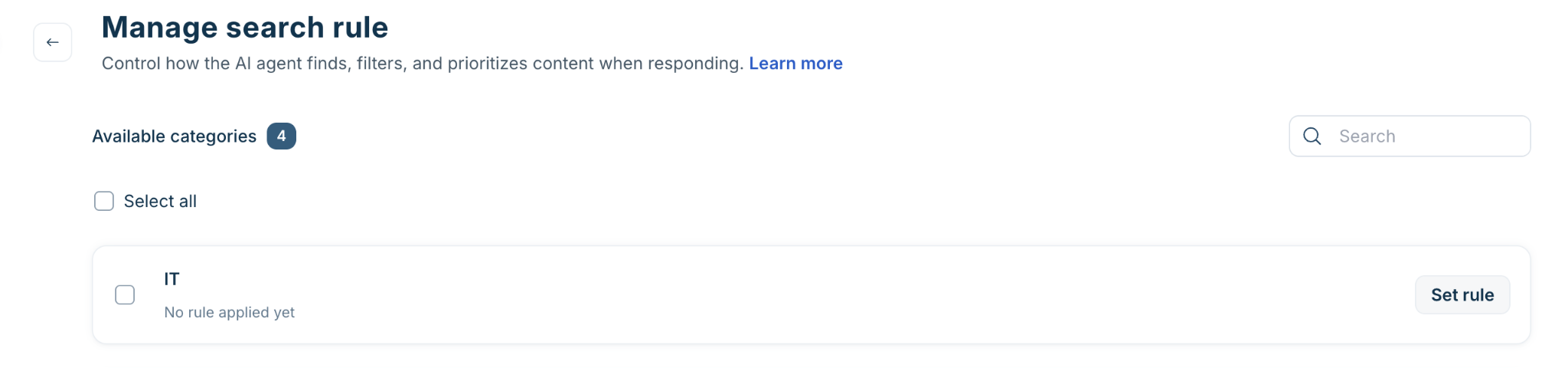
Choose Use existing rule or Create new rule. For a new rule, enter a Rule name and choose the match logic.
Add conditions. To use tag-based conditions, select Article tags, Category tags etc from the attribute picker.
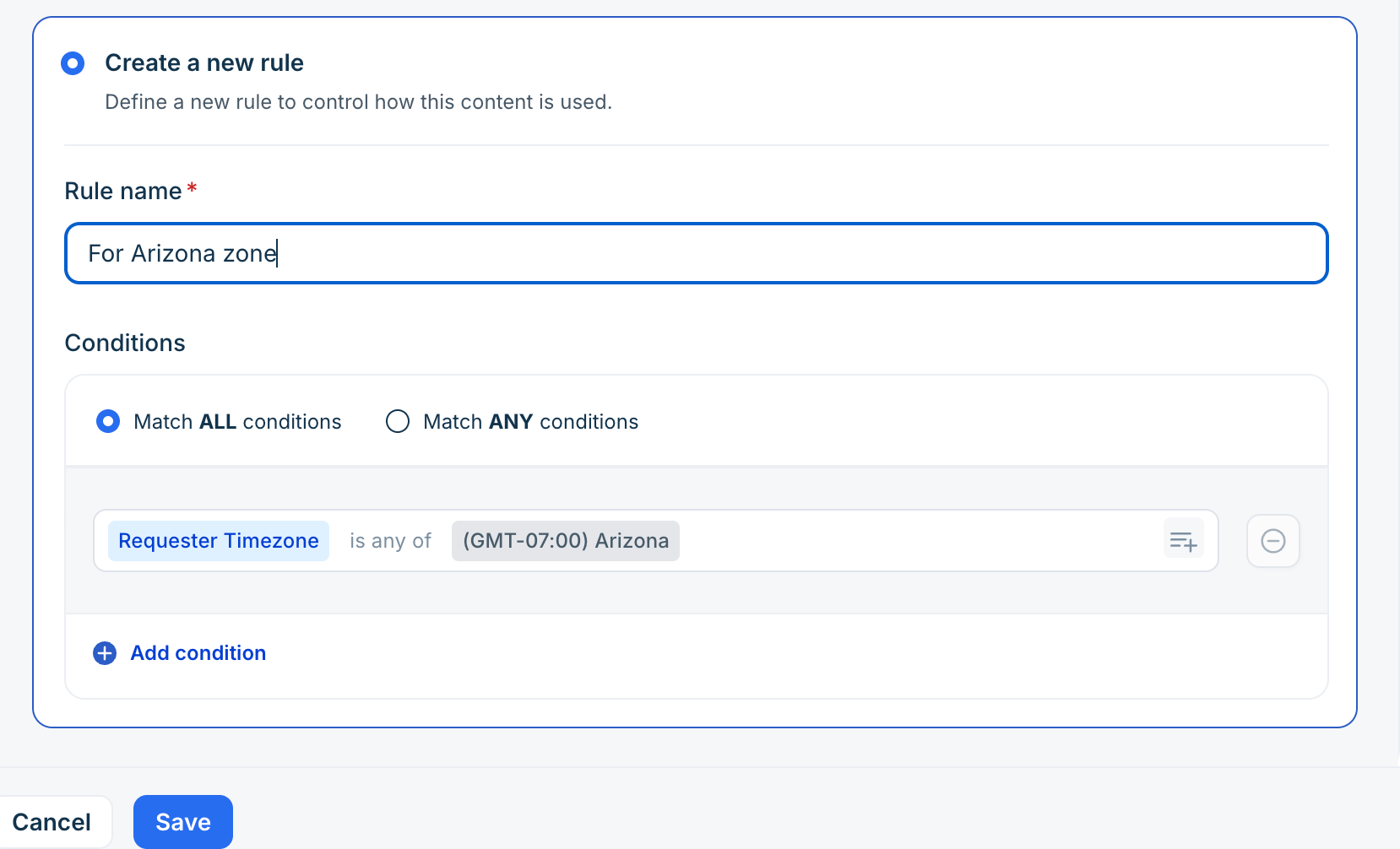
Select Save. A confirmation message appears when the rule is applied
Note: Rules applied to categories that are later deselected from the learning scope will have their rule associations removed on save.
Edit a rule
Open the Knowledge source’s options menu and select Set search rule > Edit search rule. Make your changes and select Save.
Note: If a rule is shared across multiple AI Agents, a confirmation dialog appears before saving. Changes apply automatically to all agents using that rule.
Remove a rule from a source
Removing a rule unlinks it from the source without deleting the rule itself. The source returns to default behavior and is included in all retrievals.
Open the source’s options menu and select Set search rule.
Select Remove rule from source.
Confirm in the dialog. A success message appears.
Note: If the rule panel has unsaved changes, the Remove rule from source option is unavailable until you discard or save those changes first.
Bulk apply or remove rules
For large knowledge bases, you can apply or remove rules across multiple sources at once.
In the source list, select Select all or check individual sources.
Select Set search rule from the bulk actions bar.
Choose Use existing rule to apply a rule to all selected sources, or Remove rule from source to unlink rules.
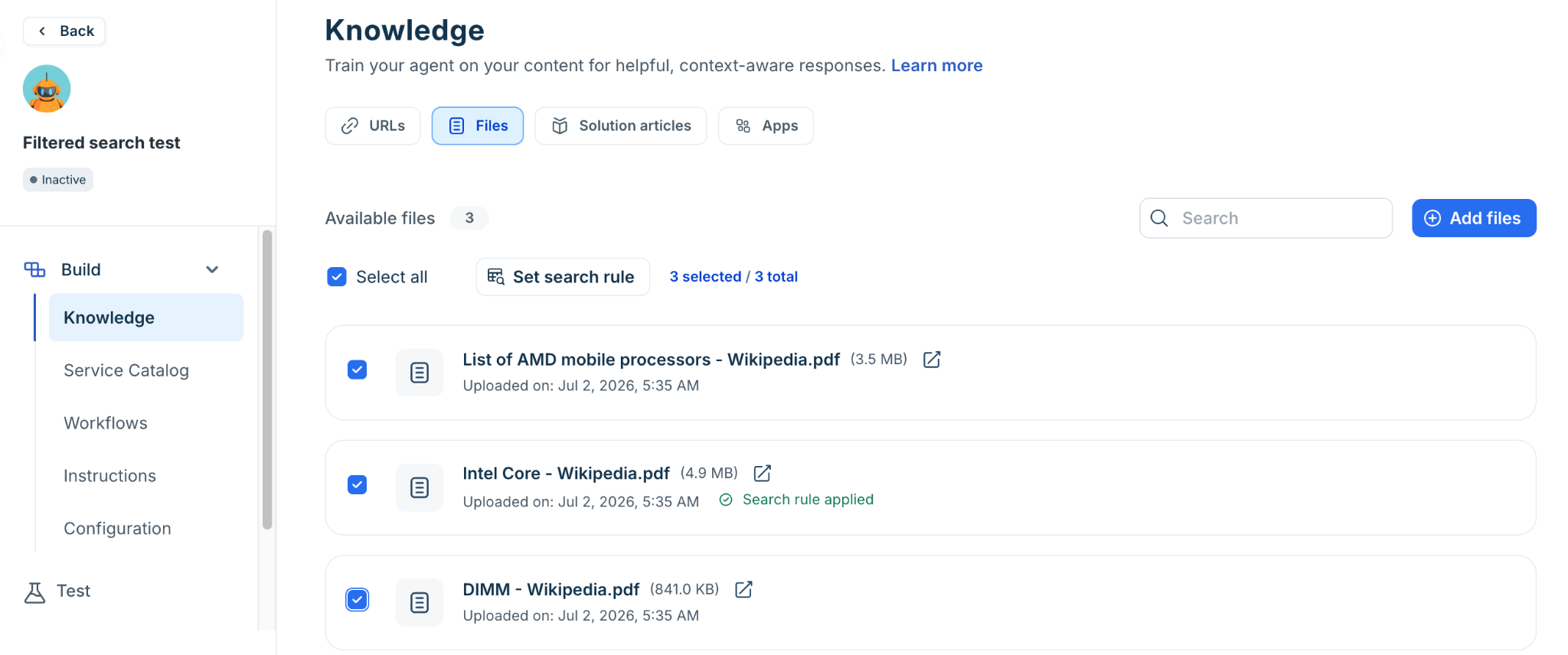
Select Save. A confirmation message shows how many sources were updated.
Filtered search examples by source type
Review the following examples to understand how filtering applies across different knowledge sources. The examples below use standard requester fields. Where your setup requires more granular targeting, you can extend any rule by adding conditions based on custom requester properties configured in your account.
Filter URLs by language and department
Consider a global company that maintains separate employee intranet URLs for English- and French-speaking employees across HR and IT departments.
Without filtered search, the AI Agent could retrieve content from all departments and language variants. This increases the possibility of retrieving documentation intended for a different department or language.
Configure a Match ALL rule for each URL using Requester Language and Department.
If Requester Language and Department are already populated in the requester profile or conversation, no additional information-collection step is required.
You can add additional conditions when more granular routing is required. For example, add a custom requester property such as Country and use the is any of operator to route employees to country-specific policy URLs.
Filter files by support tier and operating system
Consider an IT Service Desk with separate Tier 1 Admin and Tier 2 Technical Support teams. Each team maintains runbooks for Windows and macOS environments.
A Tier 1 Admin handling a macOS issue should retrieve the Tier 1 macOS runbook rather than a Tier 2 Windows SOP.
Configure a Match ALL rule for each file using Support Tier and OS.
The Support Tier value must be available when the rule is evaluated. If a ticket arrives without a tier assignment, the rule won't match until the ticket is assigned or routed to the appropriate tier.
Note: File rules support requester and ticket property conditions only. Tag-based conditions are not available for files.
Maintain knowledge sources
Filtered search controls which sources are eligible for retrieval. Regular knowledge maintenance ensures that the eligible sources continue to contain accurate and current information.
Control how knowledge appears in responses
Configure whether knowledge sources are displayed as references in AI Agent responses:
Show as references (enabled) - Display source links in responses
Show as references (disabled) - Uses the source content for learning without displaying source links in responses.
Use this setting to control the visibility of source information in AI Agent responses.
Keep knowledge up to date
When source content changes, resync the knowledge source so the AI Agent can learn the latest content. Use Resync and relearn when:
Website content is updated.
Documents are revised.
Source content has changed significantly.
Remove knowledge types
To permanently delete or remove a file or URL:
Go to Admin Settings > AI Agent Studio > Knowledge > Files / URLs.
Locate the specific file or URL you wish to remove.
Click the three-dot menu next to it and select Delete.
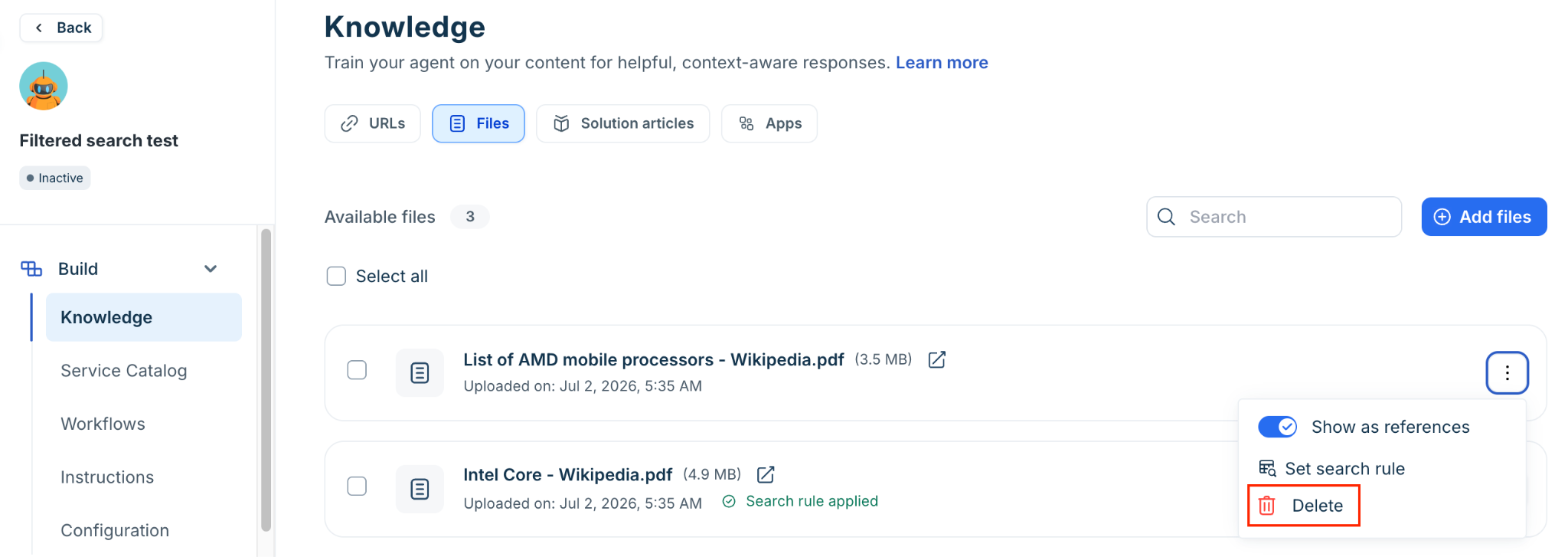
Note: Removing a file or URL from this section permanently deletes it from the AI Agent’s learning pool. This means the bot will no longer refer to this source for any responses. Be cautious while deleting, as this action cannot be undone.
Restore removed knowledge
If previously removed content becomes relevant again:
Go to the respective knowledge type (e.g., URLs).
Open Removed URLs.
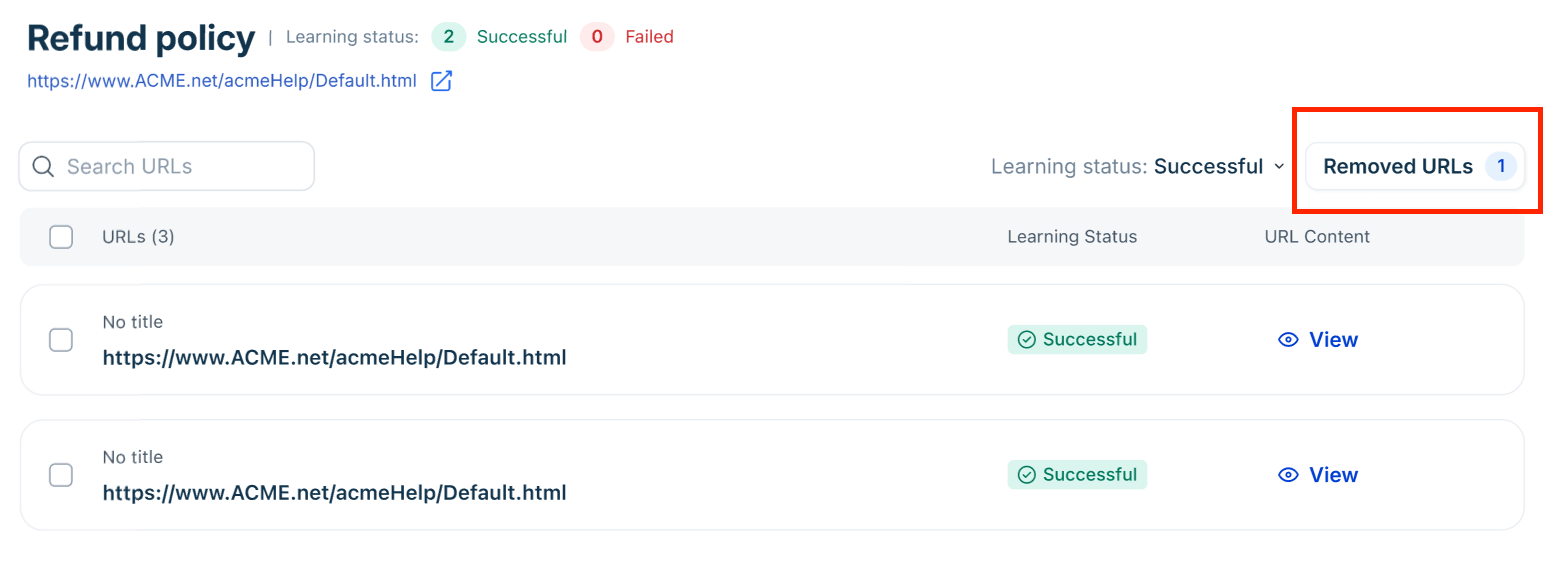
Select and restore. Restored content is reintegrated into the AI Agent’s learning pool.
Review knowledge performance
For each knowledge type (especially URLs), you can monitor:
Learning status (success/failure)
Last synced timestamp
Extracted content preview
This visibility helps you validate whether the AI Agent is correctly learning from your sources.
View filtered search activity in conversation details
After a conversation is resolved, you can review which search rules were applied and which knowledge sources the agent retrieved from. In Conversation details, the right panel shows:
Applied search rules - the names of rules that were evaluated during the conversation
Knowledge sources referred - the specific sources the agent retrieved content from
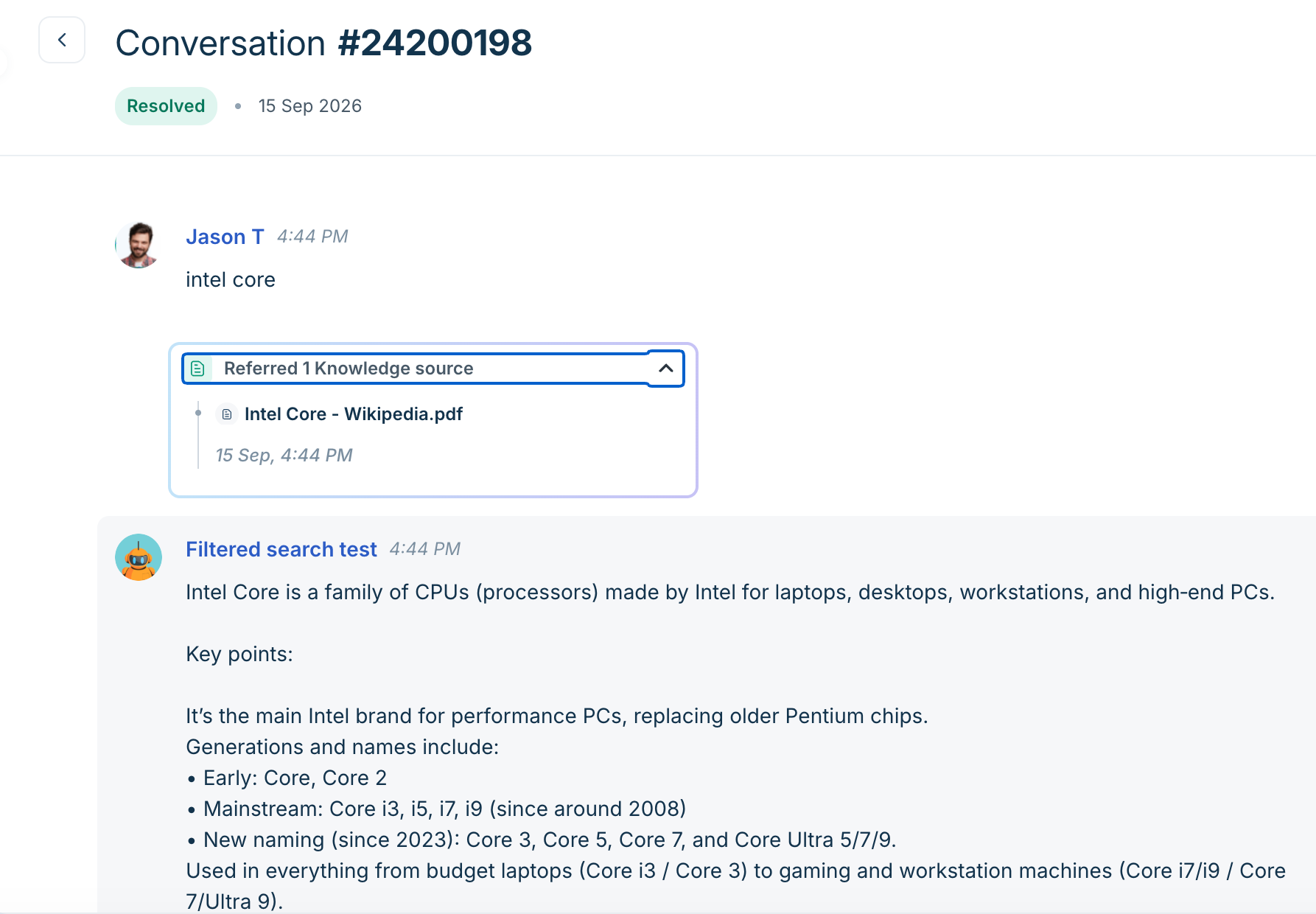
This visibility helps you verify that rules are working as expected and debug cases where the agent may have retrieved from an unintended source.