
 Community
 Video Library
 Agent Training
 Freshservice
 Freshdesk
 Freshchat
 Freshcaller
 Freshsales
 Freshteam
 Freshworks Neo
 Freshsurvey
 Freshservice for MSP
 Note: Available only for new signups after the 31 March, 2026 release. If you signed up earlier, refer to the existing ITAM documentation.
Automation rules help you automatically manage old and possibly stale data in Freshservice. If an object, such as a device or an IP address, is not found by a subsequent autodiscovery job or modified manually, it may be out of service. This feature allows you to define custom rules to identify these objects and take specific actions, such as archiving or deleting them.
Freshservice includes several system-defined, disabled automation rules related to Application Dependency Mapping (ADM) data that you can use as templates or enable to maintain cleaner data.
This article provides an overview of the automation feature and instructions on how to create rules, define search criteria, and select automated actions for your configuration items.
Prerequisites
You need the following before the configuring automation rules:
Administrative privileges to access the Automation rules section.
A clear understanding of your organization's data retention and decommissioning policies.
Supported configuration items
Automation rules can target a wide variety of Configuration Items (CIs), including:
Administrators
Assets
Certificate Instances
Certificates
Device Hardware Model
Devices
End Users
IP Addresses
IP NAT/Map
Operating Systems
Parts
Ports
Power Units
Resources
Scheduled Tasks
Service Communications
Service Instances
Service Listener Ports
Software Components
Software In Use
Subnets
VLANs
View existing rules
To view current automation rules, go to Admin > Asset Management > CMDB > Automation Rules.
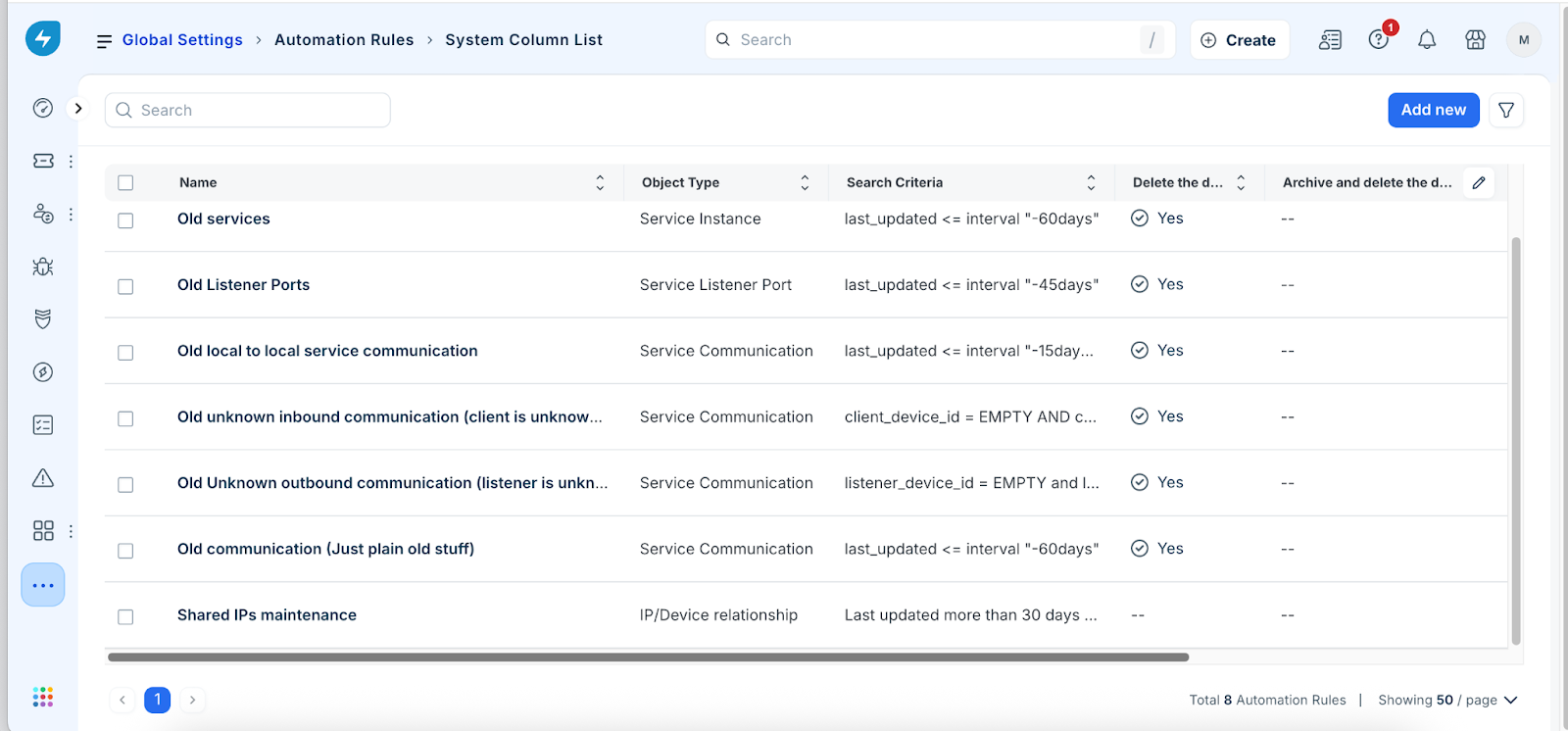
Note: The system rule, Shared IPs maintenance, uses a Number of Days option instead of the Modify Search option.
Create a new automation rule
To define a new rule and its target objects, follow these steps:
Go to Admin > Asset Management > CMDB > Automation Rules and click Add new.
On the Add Automation Rules page, enter a name for the rule in the Name field.
Under the Search Criteria section, click Add.
In the Add Search Criteria pane, select an object type (for example, Devices) from the Object Type dropdown menu.
Build search criteria using the basic dropdown filters or the Advanced filter feature.
For example, for Devices, you can select physical under the Type dropdown.
Click More Filters to display additional basic dropdown options.
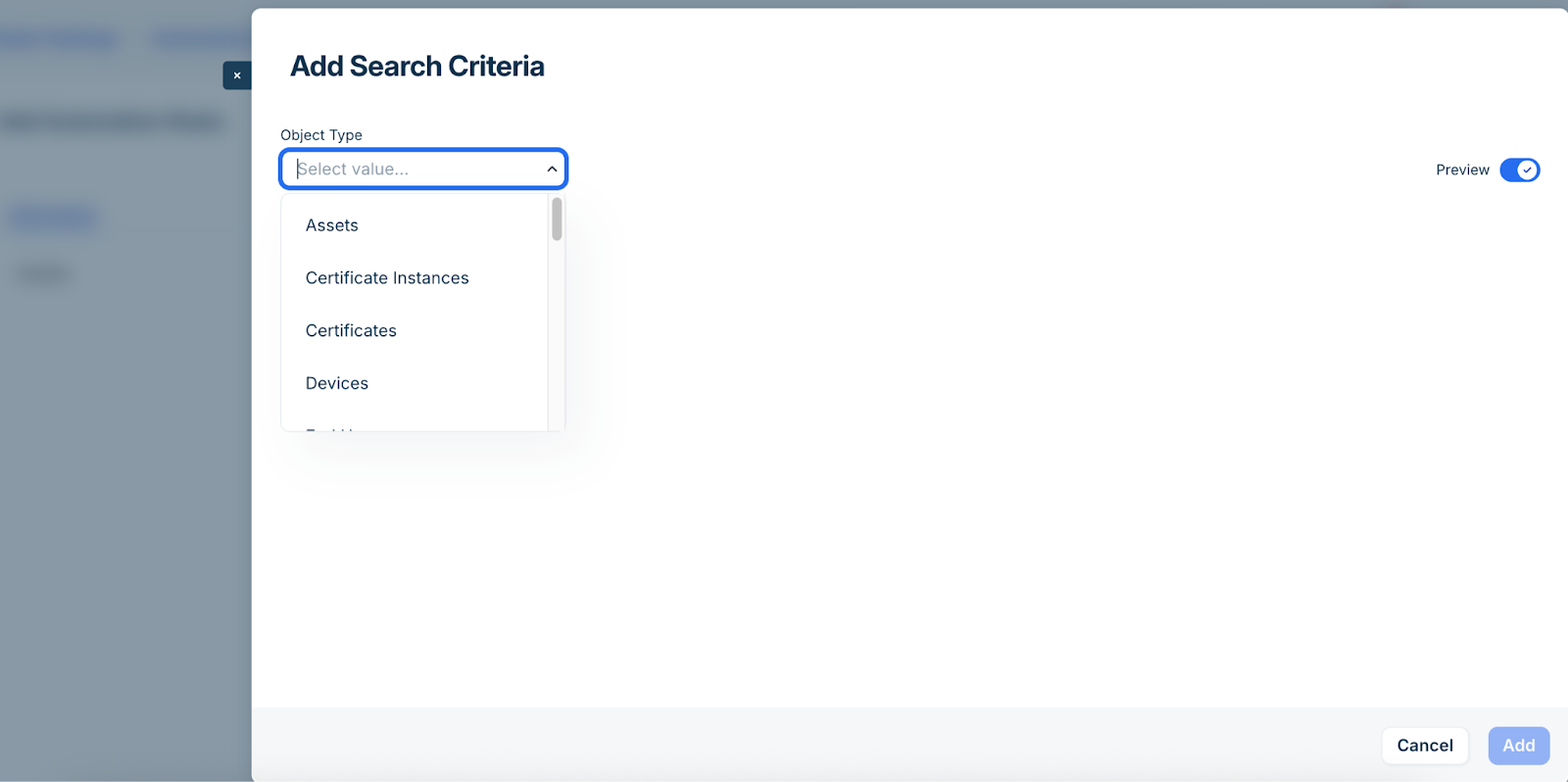
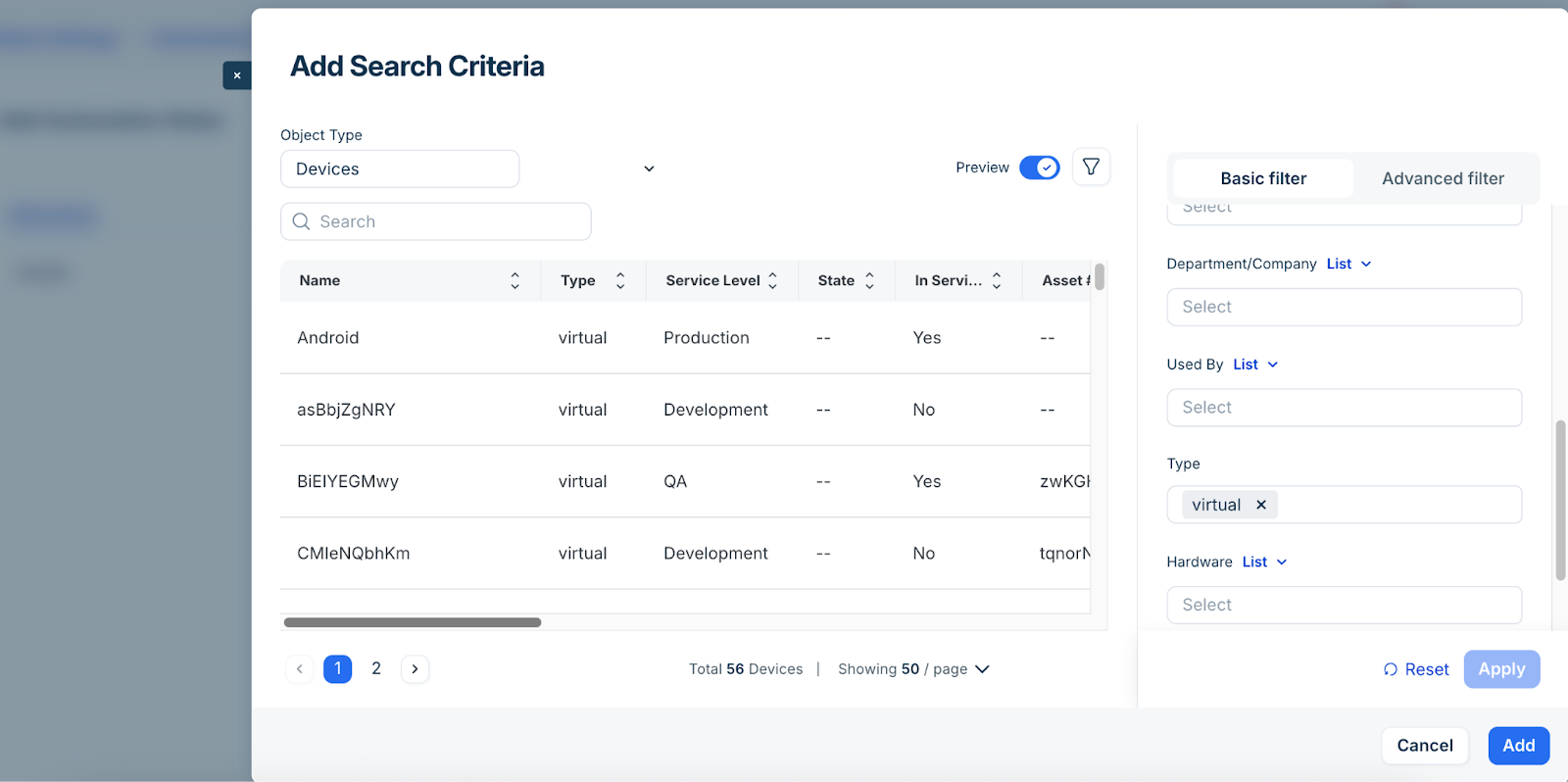
Click Add to apply the search for the object type.
To edit the criteria or add another object type, click the pencil icon.
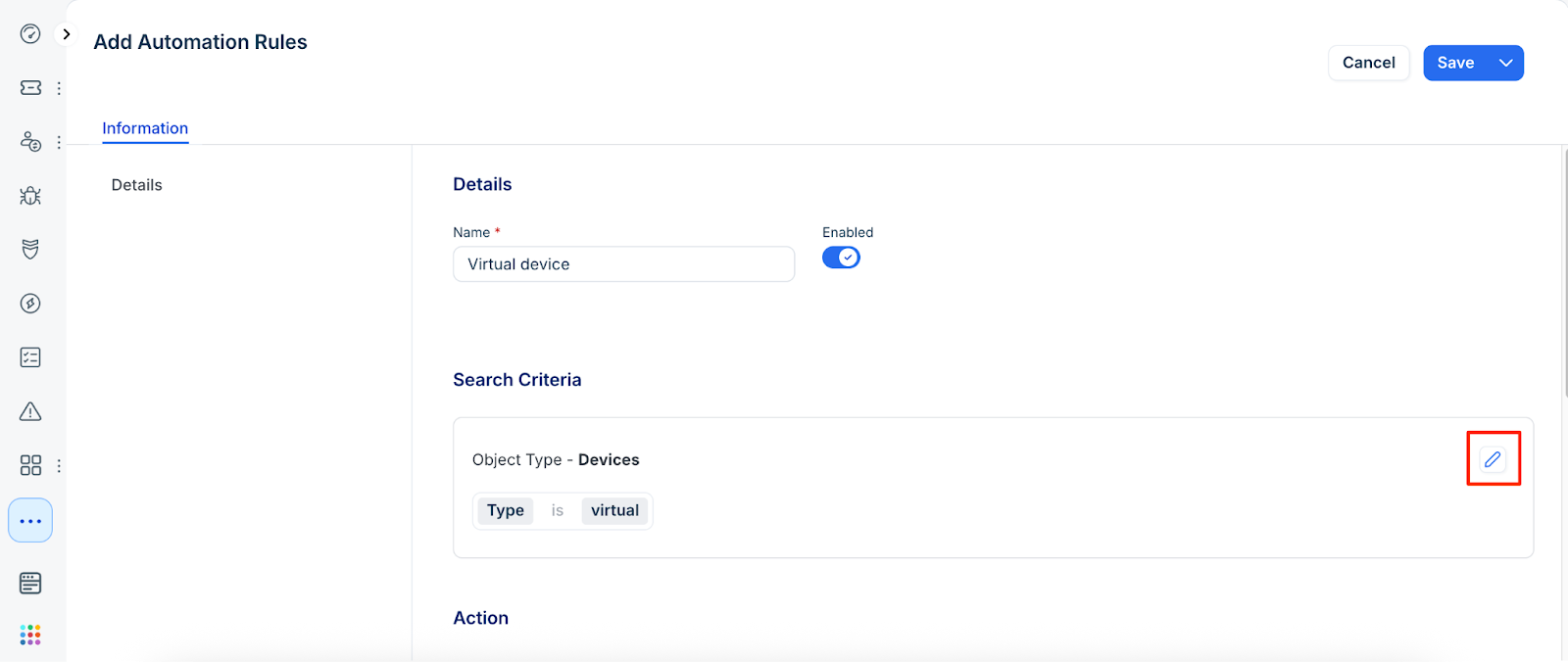
In the Action section, select the actions to perform on CIs that match your criteria. Available actions vary by object type.
Common options for Device objects include:Delete the data: Permanently delete the object.
Archive and delete the data: Create an archive record (found under Analytics > Archived Objects) before deleting the object.
Clear all IPs: Remove all IP addresses associated with the device.
Clear all IPs for this subnet: Clear device IPs from a specific entered or selected subnet.
Clear all Connectivity: Remove all connectivity mappings for the device.
Change to not in service: Update the device status to "not in service."
Change device service level to: Automatically move the device to a specified service level.
Send email to: Trigger a notification when the rule runs.
Webhook AutoClean Endpoints: Trigger a webhook when the rule runs.
Note: Automation rules run once per day. If a rule is configured only to send an email or webhook without taking a corrective action (like deleting the object), the notification will repeat daily until the object is manually modified or removed.
Click Save.