
 Community
 Video Library
 Agent Training
 Freshservice
 Freshdesk
 Freshchat
 Freshcaller
 Freshsales
 Freshteam
 Freshworks Neo
 Freshsurvey
 Freshservice for MSP
 Application Groups provide an opinionated view of the impactful applications and their dependencies in your environment. These groupings are calculated based on communication patterns observed between clients and services listening on TCP or UDP ports. By defining calculation rules and logic templates, you can transform raw discovery data into a visualized grouping of communication patterns. This allows you to see exactly how services and servers interact to support your business functions.
This article provides an overview of Application Groups and instructions on how to use calculation rules, visualize dependency charts, and configure business service alerts.
Prerequisites
You need the following before the installation:
Administrator privileges to manage application settings and discovery.
We recommend a minimum of 30 days of collected discovery data to ensure accurate communication patterns are captured.
Identification of critical services, devices, or components to serve as starting points.
Use Application Groups
Application Groups are calculated with Calculation Rules based on Logic Templates, offering advanced capabilities and customizations beyond the previous reliance on pinning services as a starting point and DOQL queries. You can use a range of services, devices, and Application Components as starting points for your Application Groups.
For more information, refer to the Calculation Rules page to learn how to create and manage Calculation Rules and Logic Templates.

Manage the Application Group list
Navigate and organize your discovered application clusters.
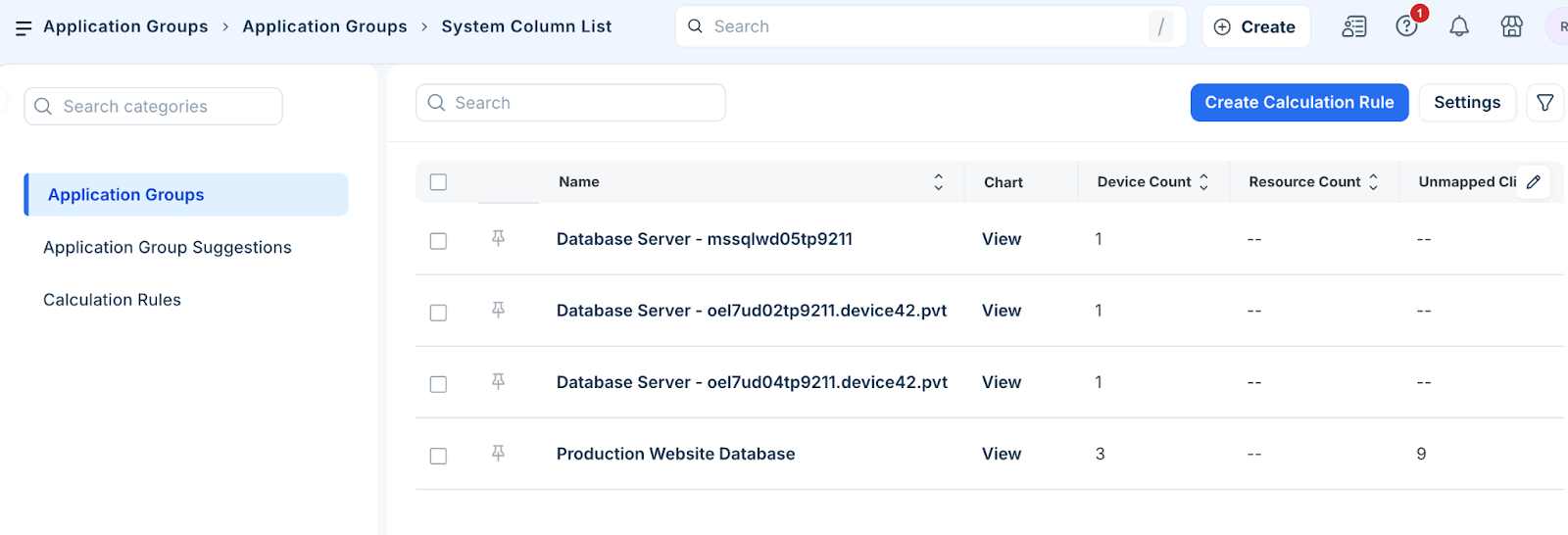
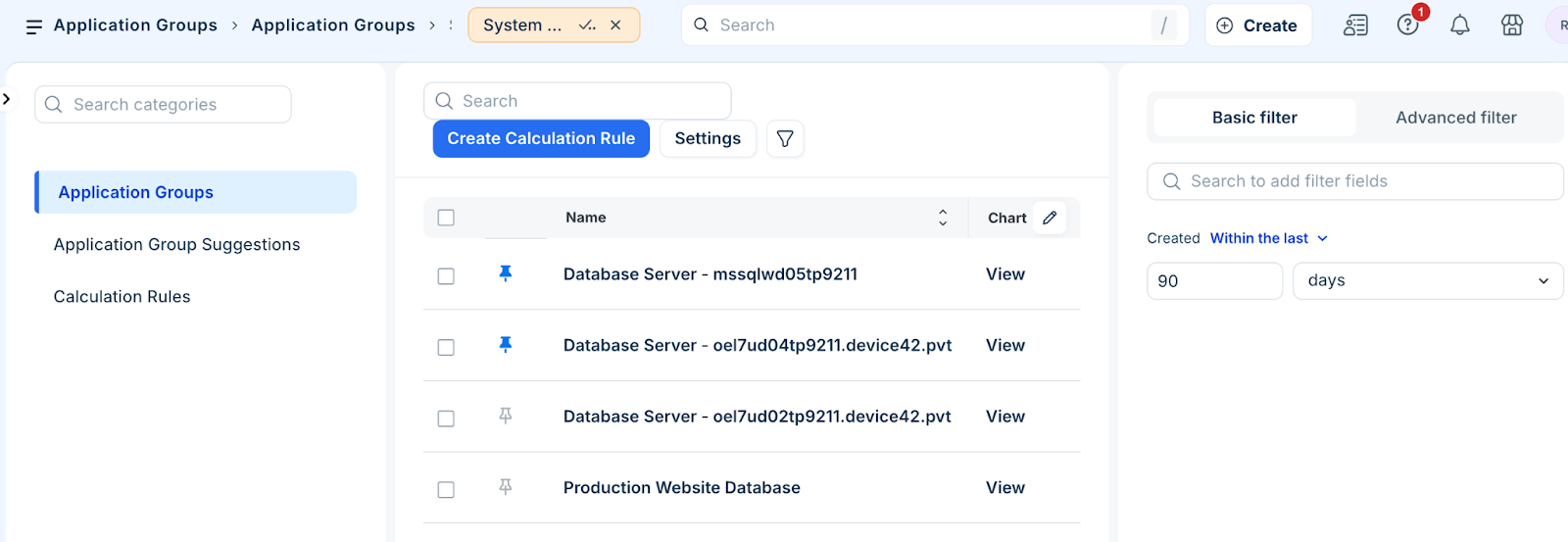
Go to Applications > Application Groups.
Click Calculation Rule to generate new Application Groups and suggestions.
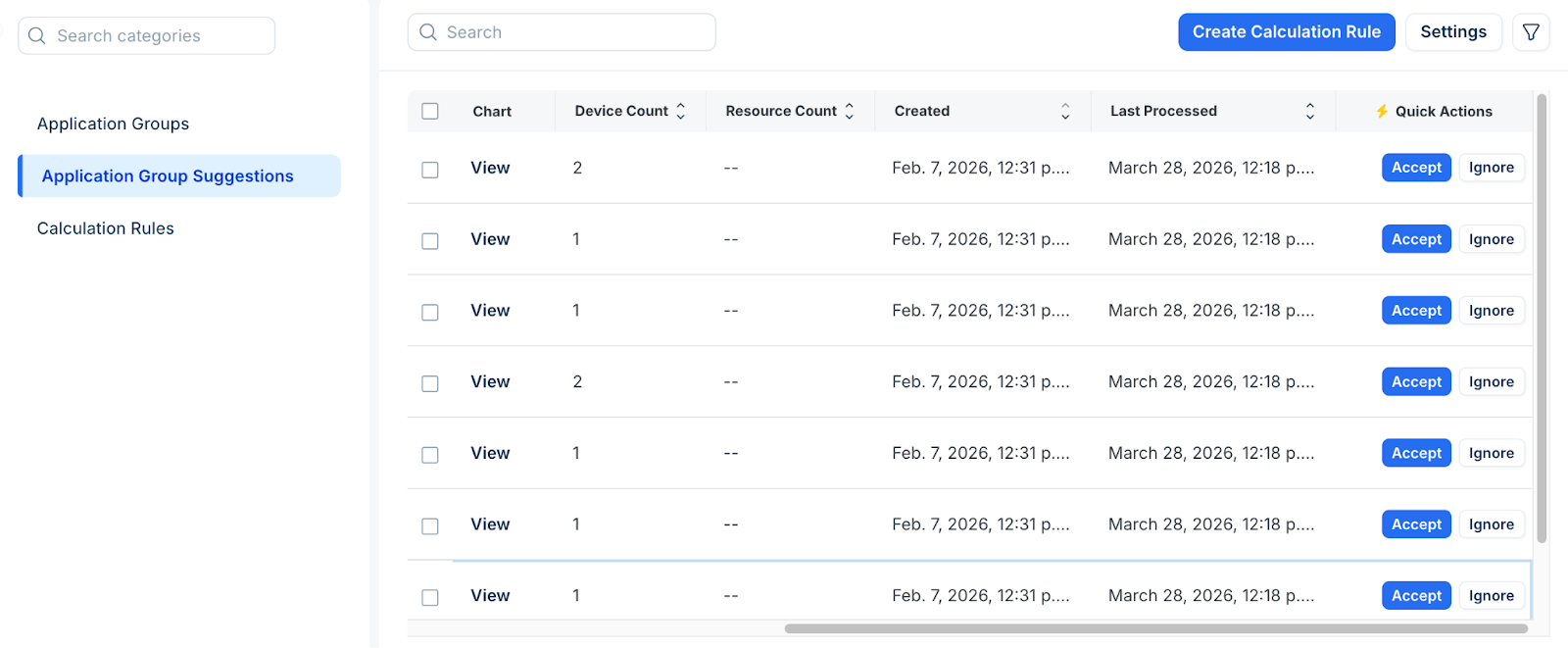
In the Application Suggestions tab, click Accept or Ignore on the suggested Application Group. If you select Ignore, an Undo button pops up so you can revert the action.
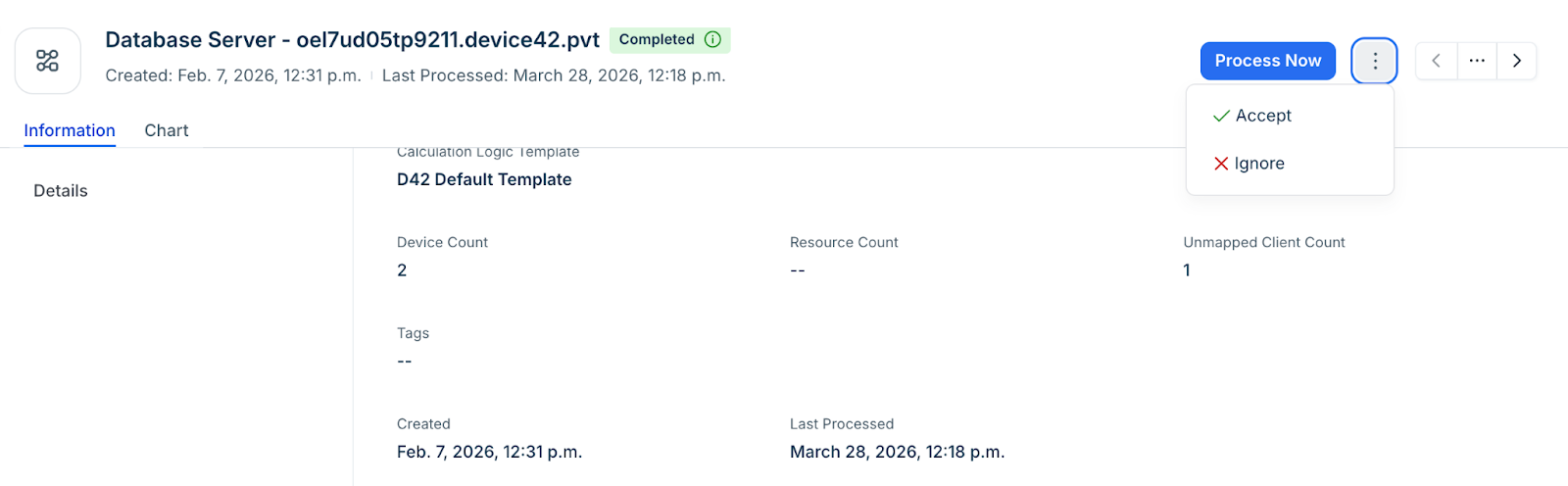
Click Accept or Ignore on the View or Edit page for each suggestion.
Optionally, you can do the following in the Application Groups page:
Pin important groups to the top of the list.
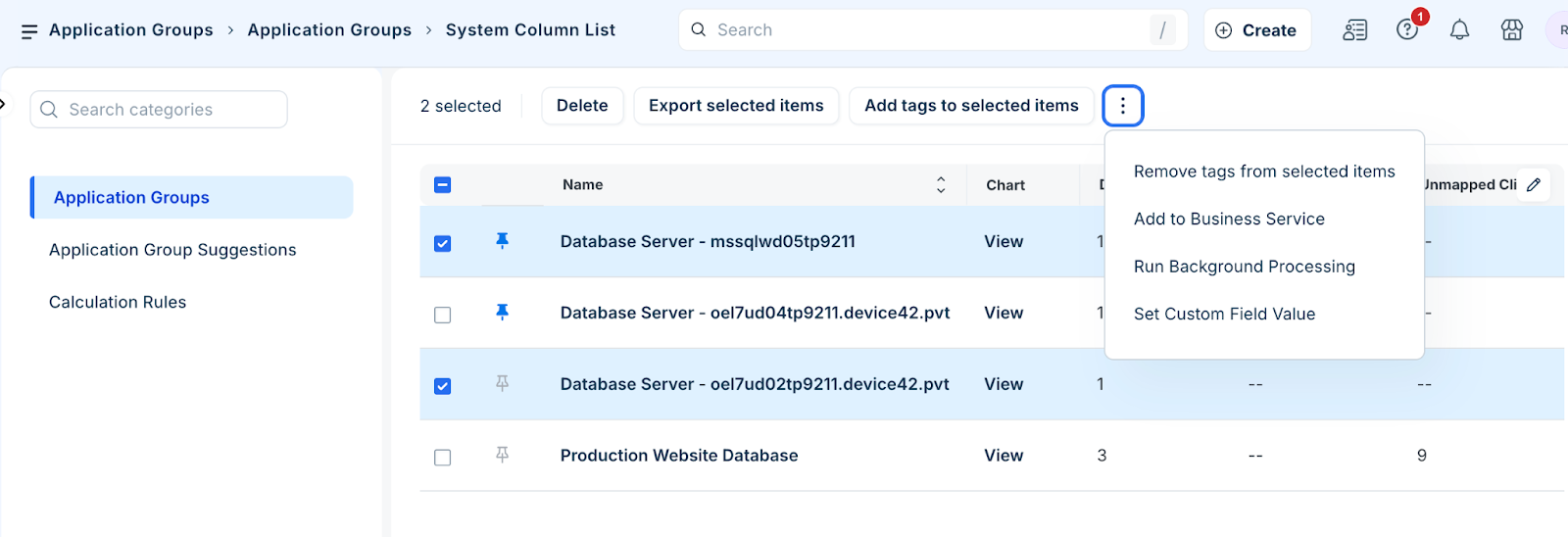
Click the more option for bulk management.
Search and filter records based on your requirement.
Configure settings and logic templates
Define the underlying rules that govern how dependencies are calculated.
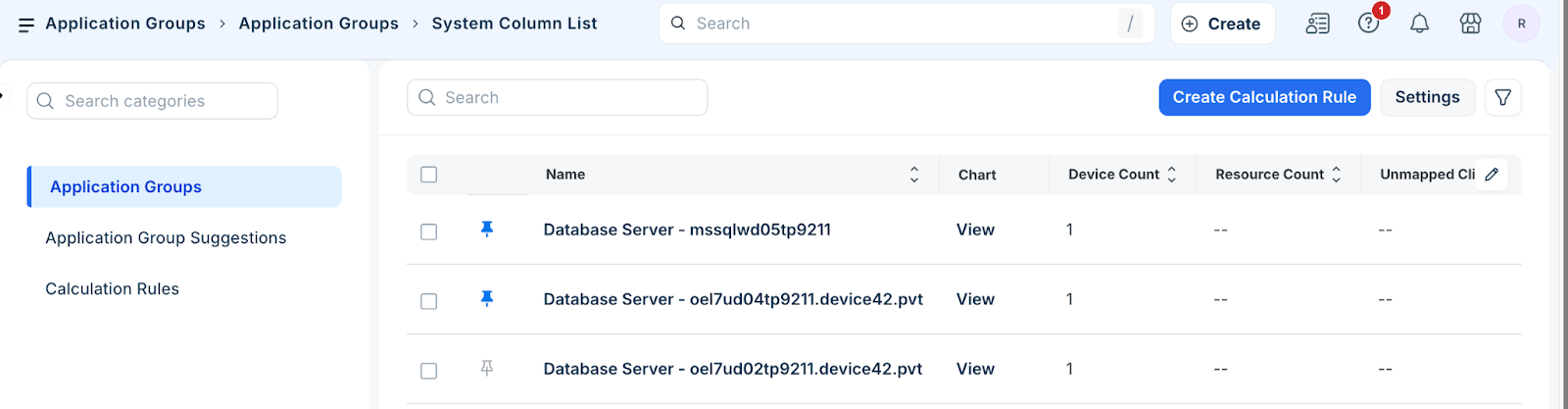
Click Settings in the top-right corner of the Application Groups page.
Enable or disable the Application Group Enabled option.
Review the Status and Last Processed timestamps.
Click Calculation Logic Templates to define the rules and conditions regarding Application Group dependencies.
Specify which Logic Template to use when configuring a Calculation Rule to generate Application Groups.
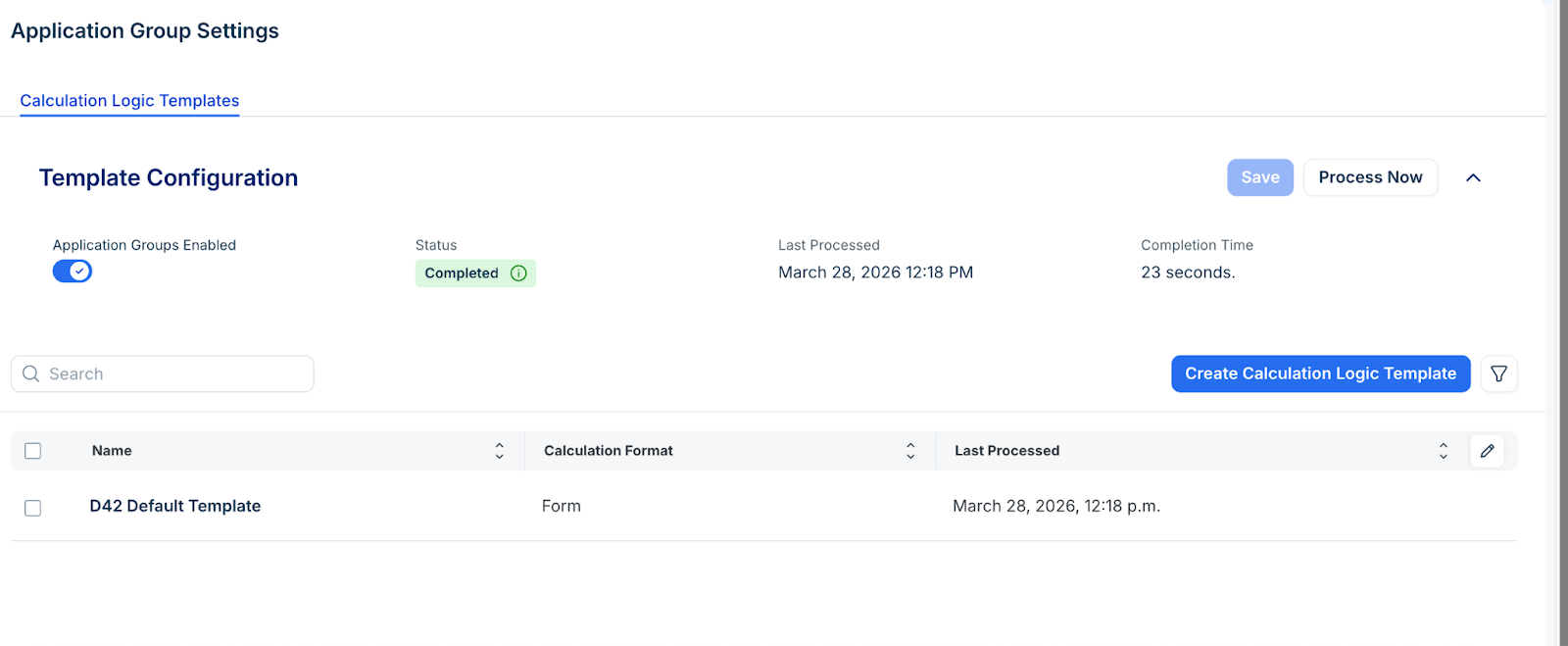
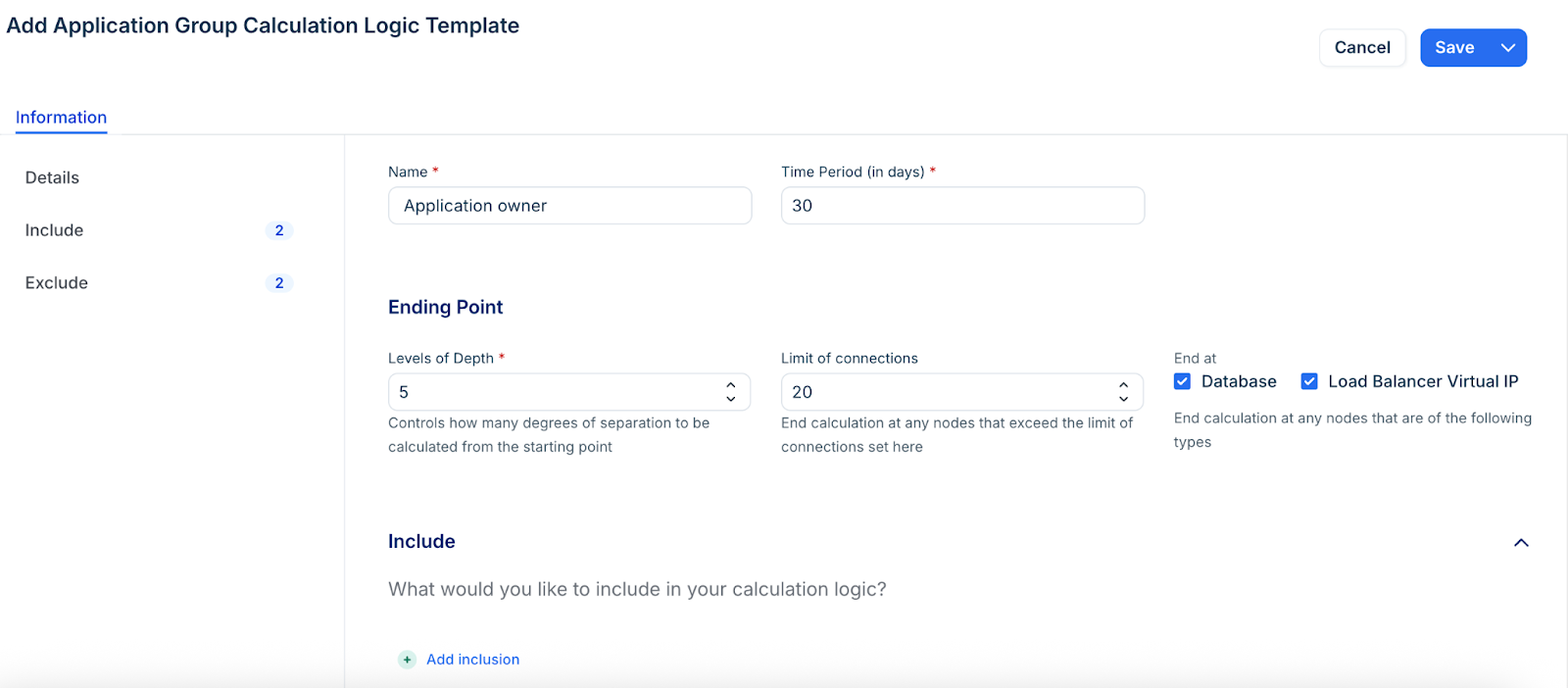
You can use the predefined D42 Default Template or create your own. Refer to the Calculation Rules for descriptions of the Logic Template fields and how the templates fit into the ADM workflow.
Process Application Groups
By default, the system calculates enabled groups daily at 2 AM. To run them manually:
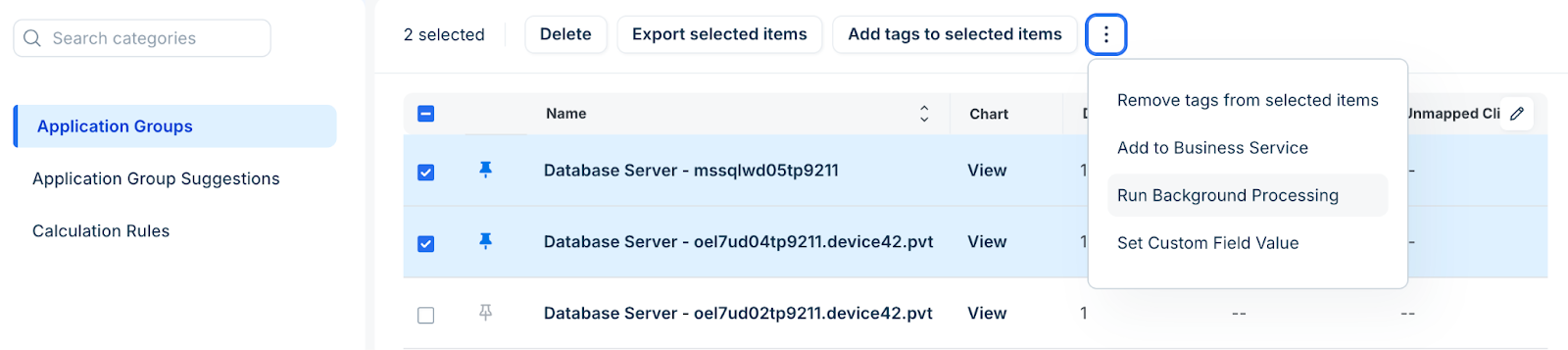
Click the ellipsis icon and select Run Background processing.
Select one or multiple groups to run processing.
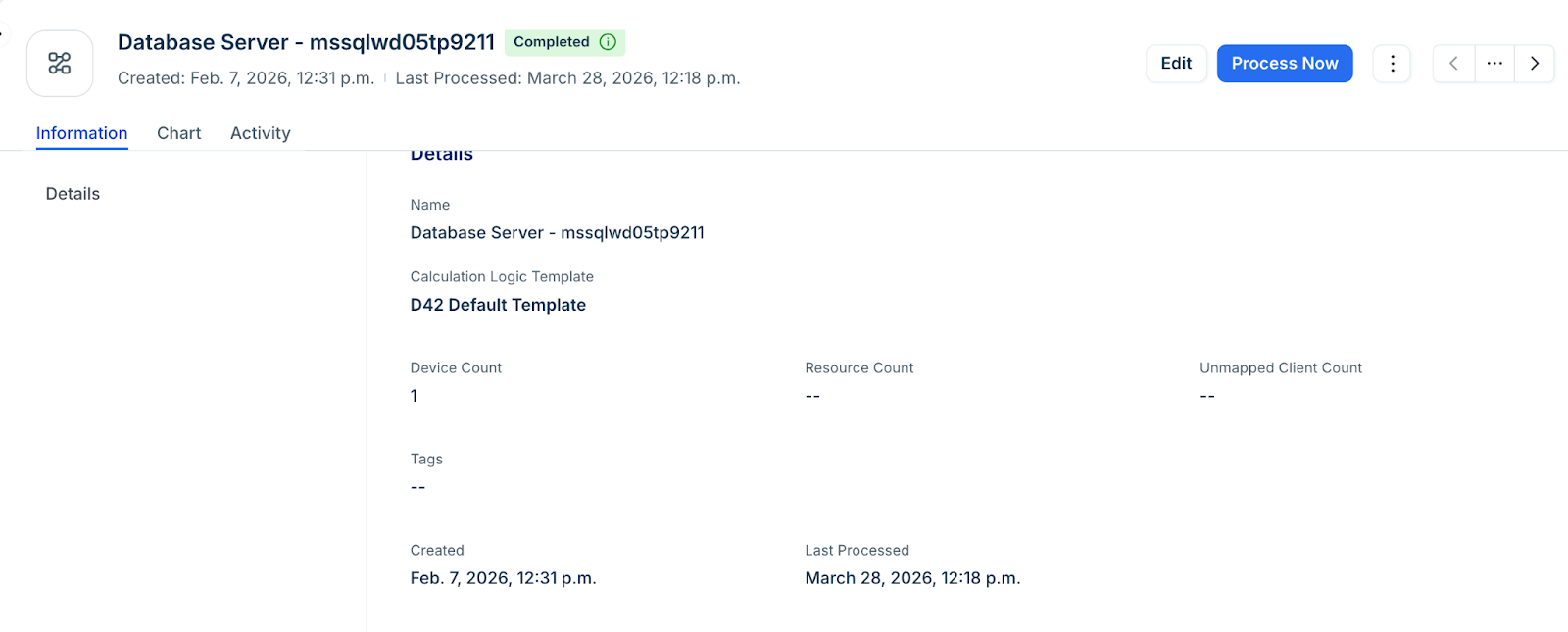
.Select an Application Group from the list page and click Process Now.
Visualization and charts
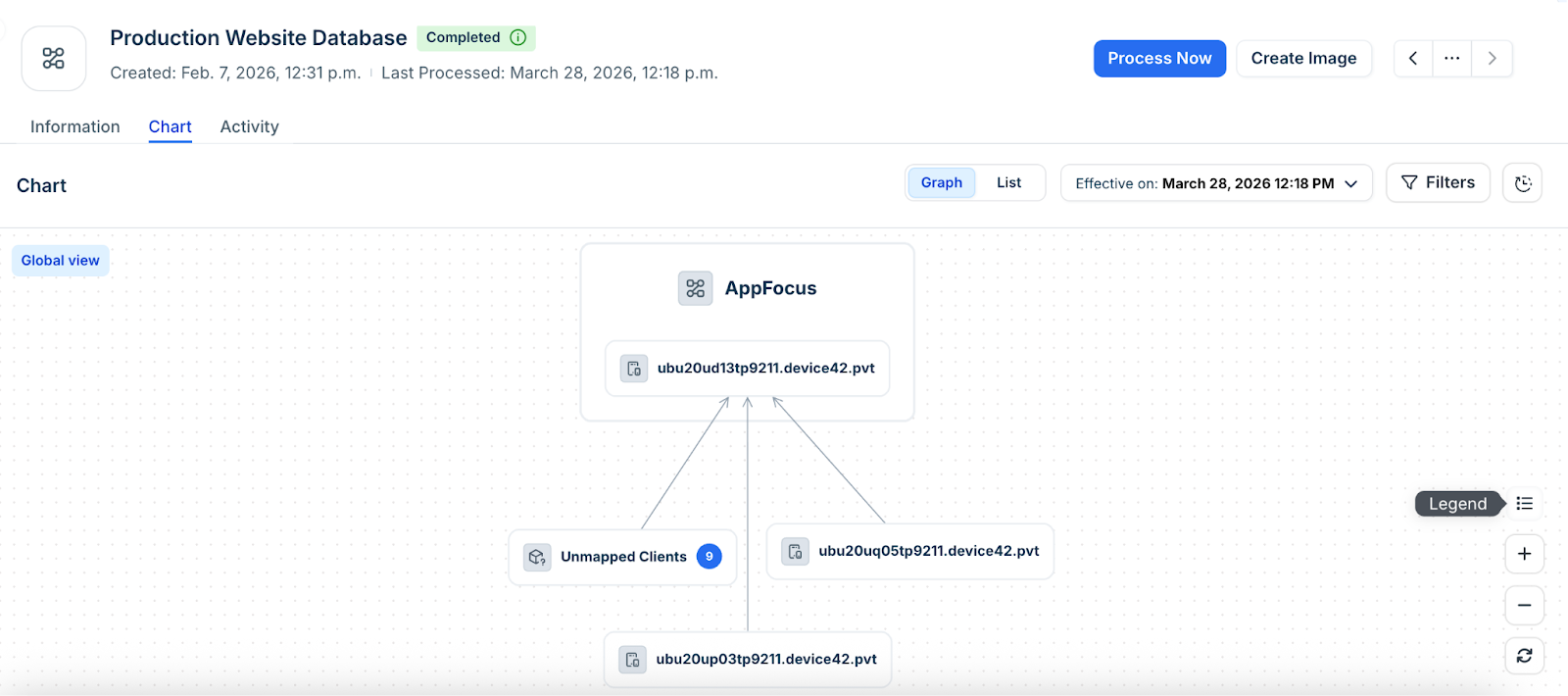
The Application Group Chart displays the relationships between Application Components, Services, and Devices.
Click Chart to to view the Application Group chart.
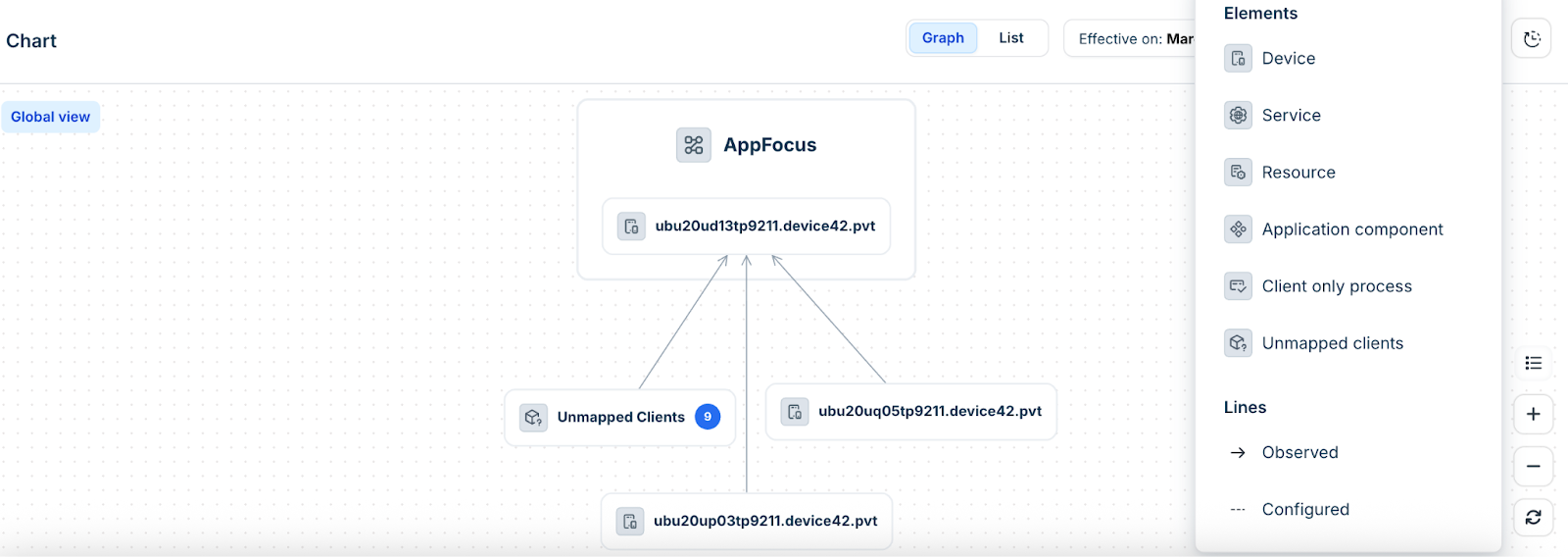
Click the Legend icon to search for specific dependencies.
Click a single node to view more details.
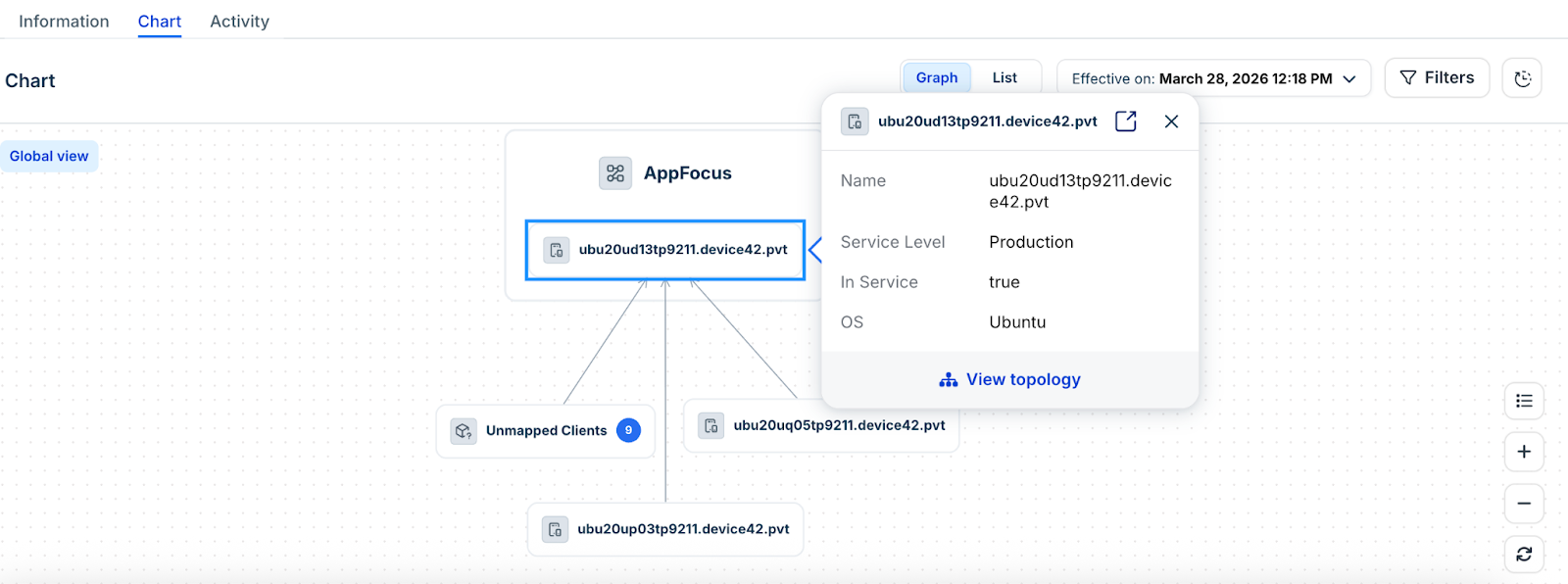
Relationship lines and metadata
Application Components are displayed as stand-alone nodes, and are connected to any associated services and devices via dotted lines.
Click a node to view the Topology of the component.
Do the following actions based on your requirement:
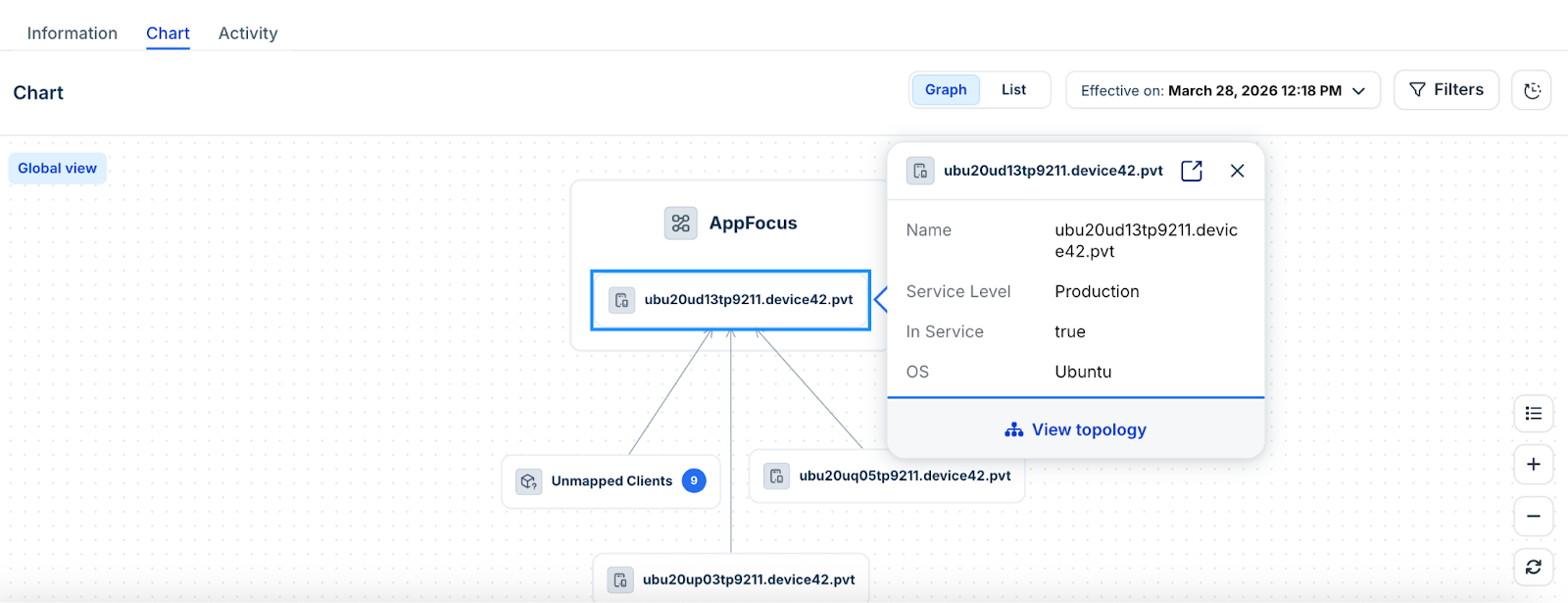
Global View: Displays only Application Components that are focus items. Click the dependency lines in the Global View to open the Local View panel displaying those relationships.
Local View: Click the dependency lines between services, processes, and devices to see connection-related details and statistics: Listener IP/FQDN, Protocol, Port, and Net* Average Connections over time (if available).
Dotted Lines: Links to Application Components: the Reason and What is affected values are displayed (if available).
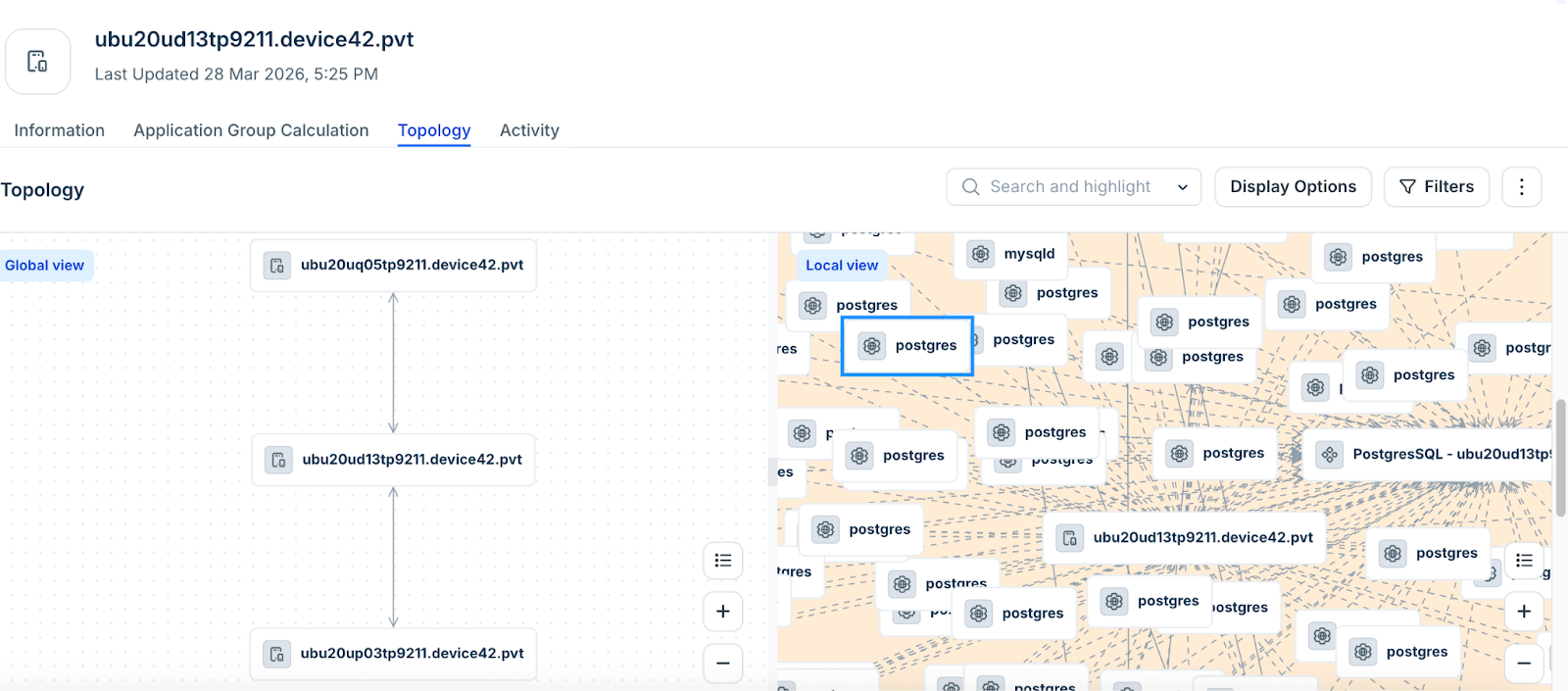
Note: If you don't see this historical communication metadata, make sure you have the Store and Display Connection Metadata option enabled in the Visualization section of that Application Group's Calculation Rule.
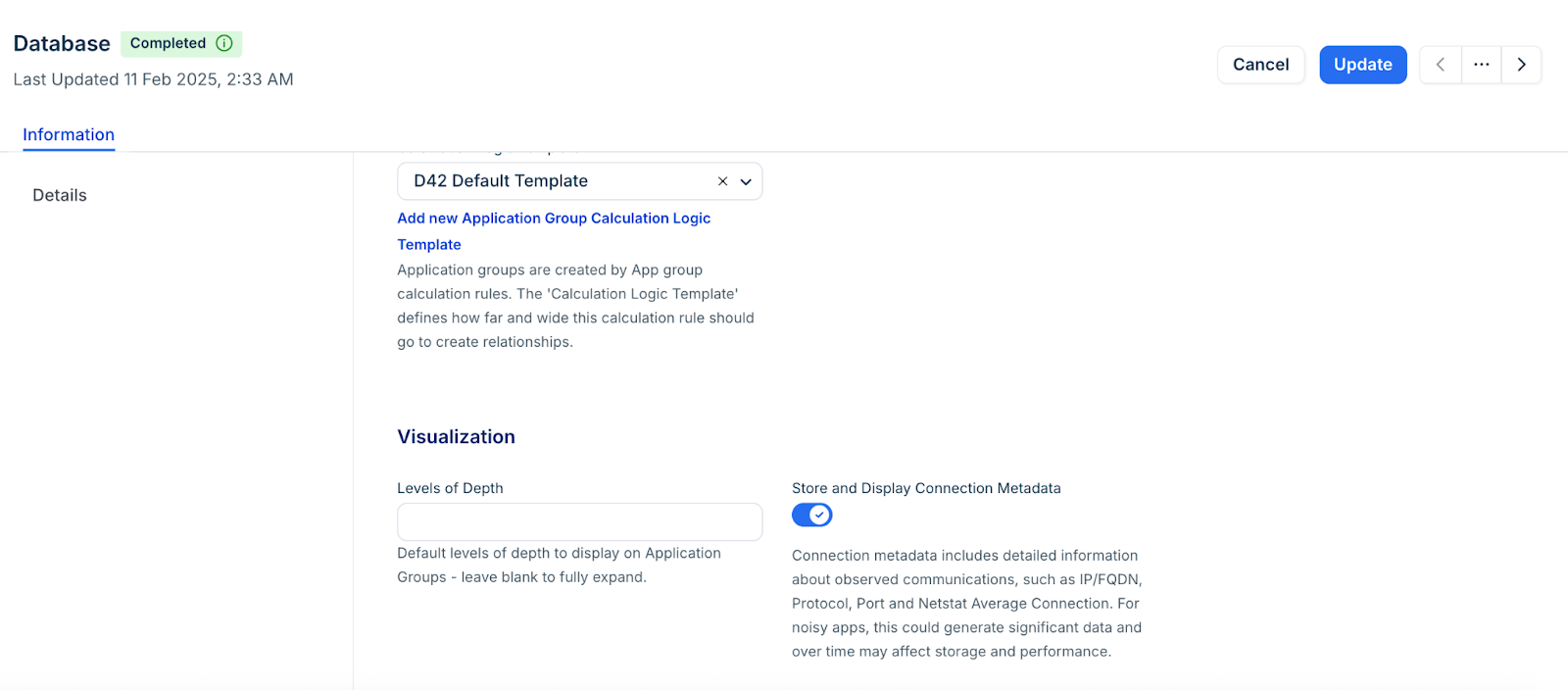
Switch between list and graph view
You can switch between list and graph view. The list view provides a tabular details about the device as shown in the image below.
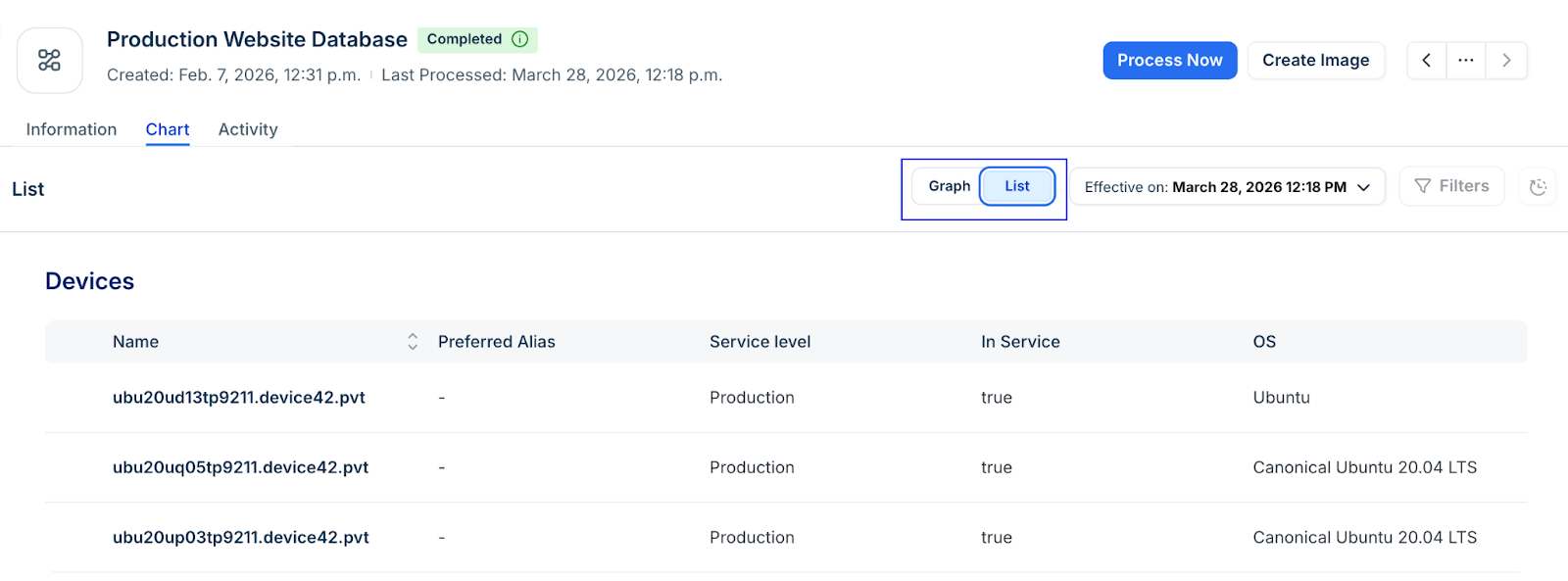
View devices with Application Group Calculations
On the Application Group Calculation page, you can see the dependencies of the selected device or database. You can click on a node to view its details and click on a connection line to open the Local View panel of the chart.
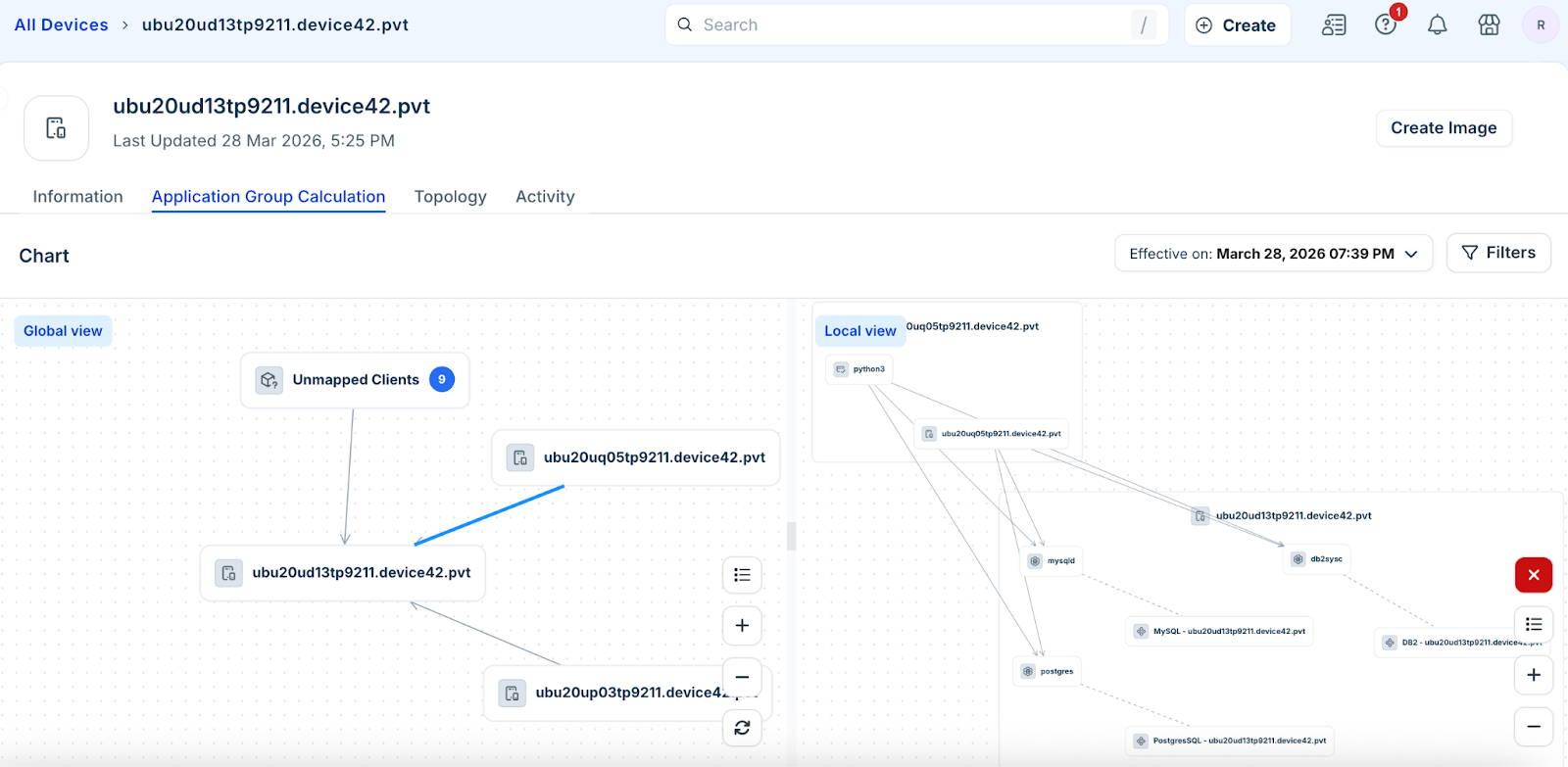
You can easily switch to the following tabs from this view:
Information
Application Group Calculation
Topology
Activity
Filter devices by recent calculations
You can filter the Devices list page to find any records that show Application Group calculations associated with client or listener devices in the last 30 days. Follow these steps:
Click the Filter icon to view the Advanced Filter.
Enter the following in the Advanced Filter tab.
Click Apply.
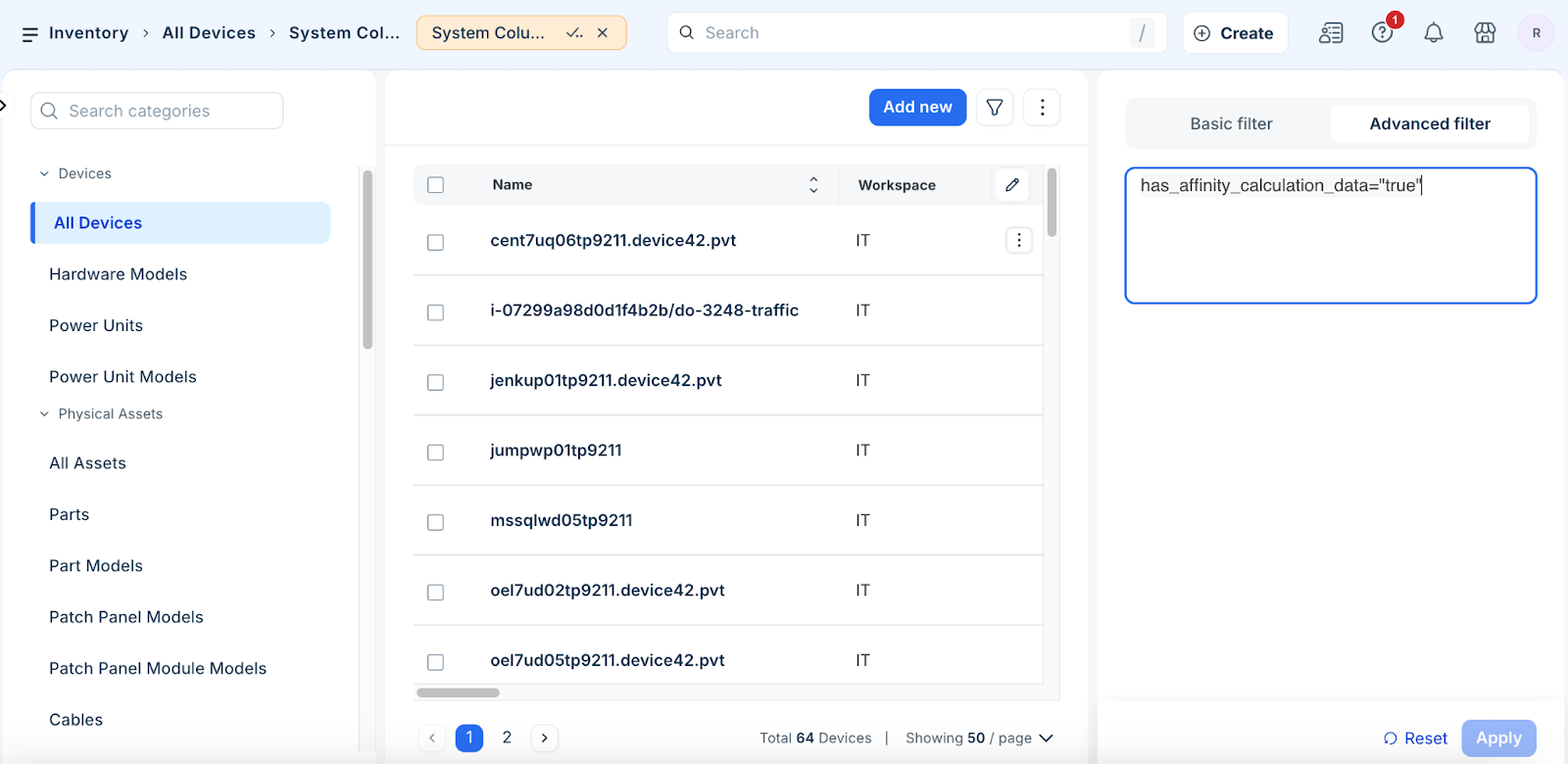
Add Application Groups to Business Services
You can add multiple Application Groups to an existing or new Business Service. Follow these steps:
Select the one or multiple groups and click the more options.
Click Add to Business Services from the drop-down.
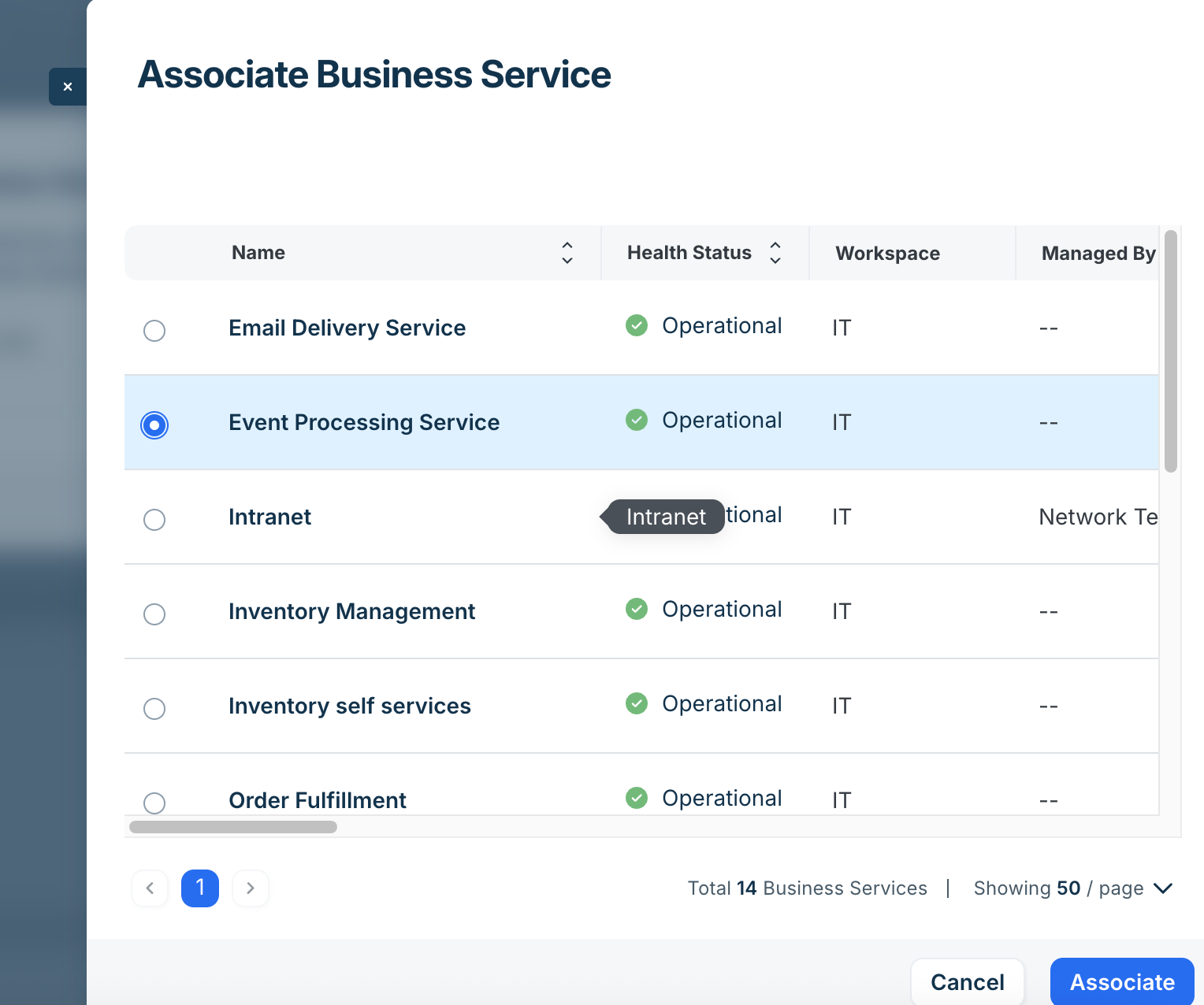
Select a service name from the drop-down or click Advanced to view the more detailed information.
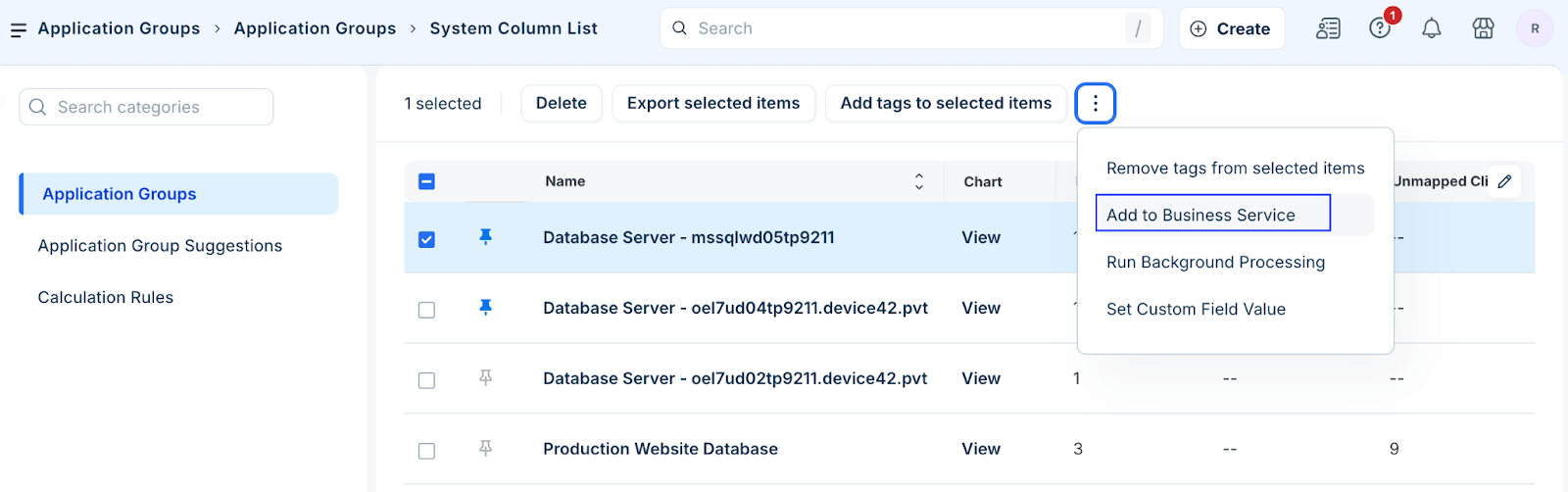
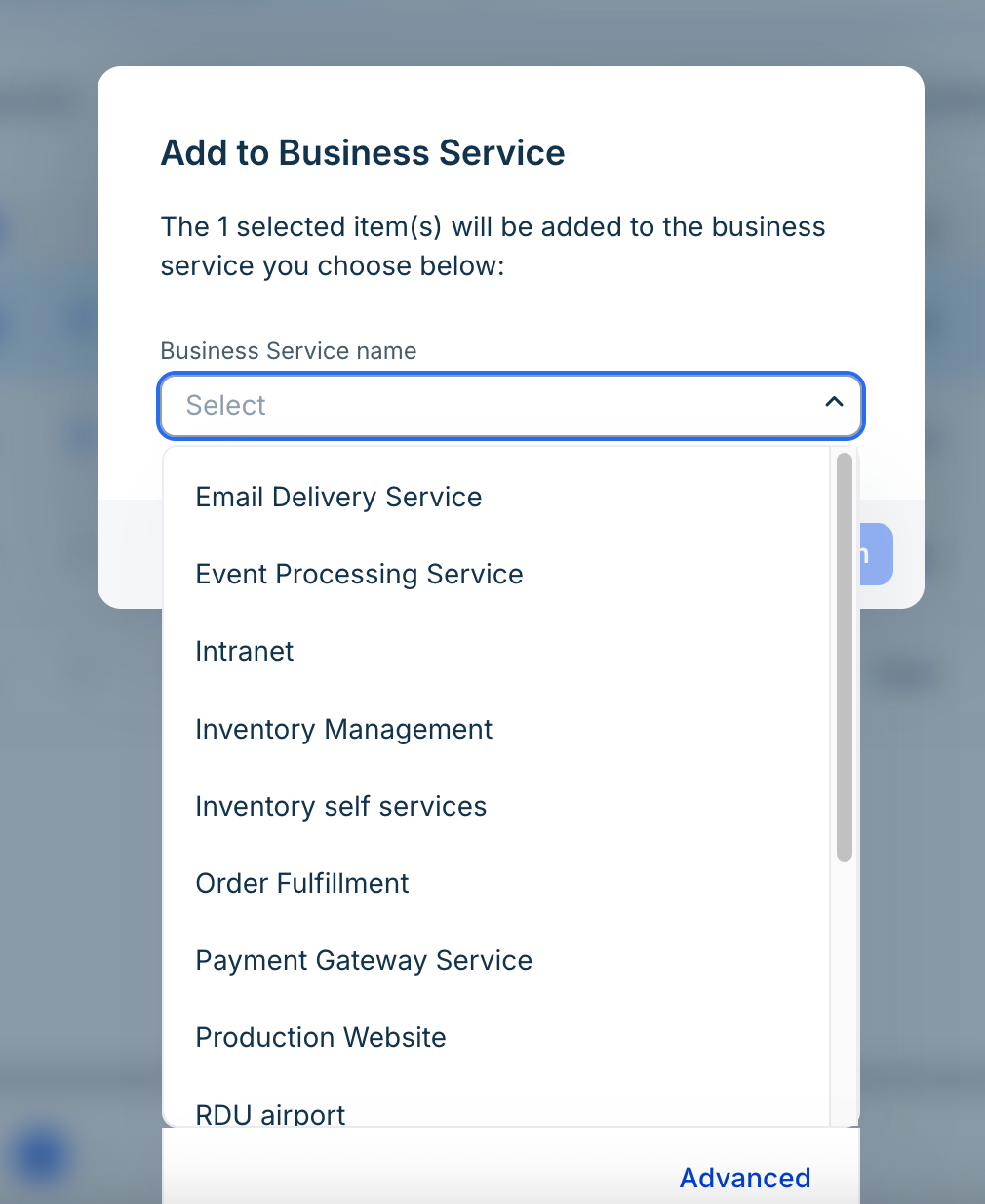
Select one of the existing services and click Associate.
The Application Groups added will be visible on the Business Application canvas. The added devices are given colors based on their Application Groups. Up to five different colors can be used to indicate which devices are from which Application Groups.
Category associated with Application Components
Any Application Component Categories associated with a device used to create an Application Group will also be associated with that Application Group.
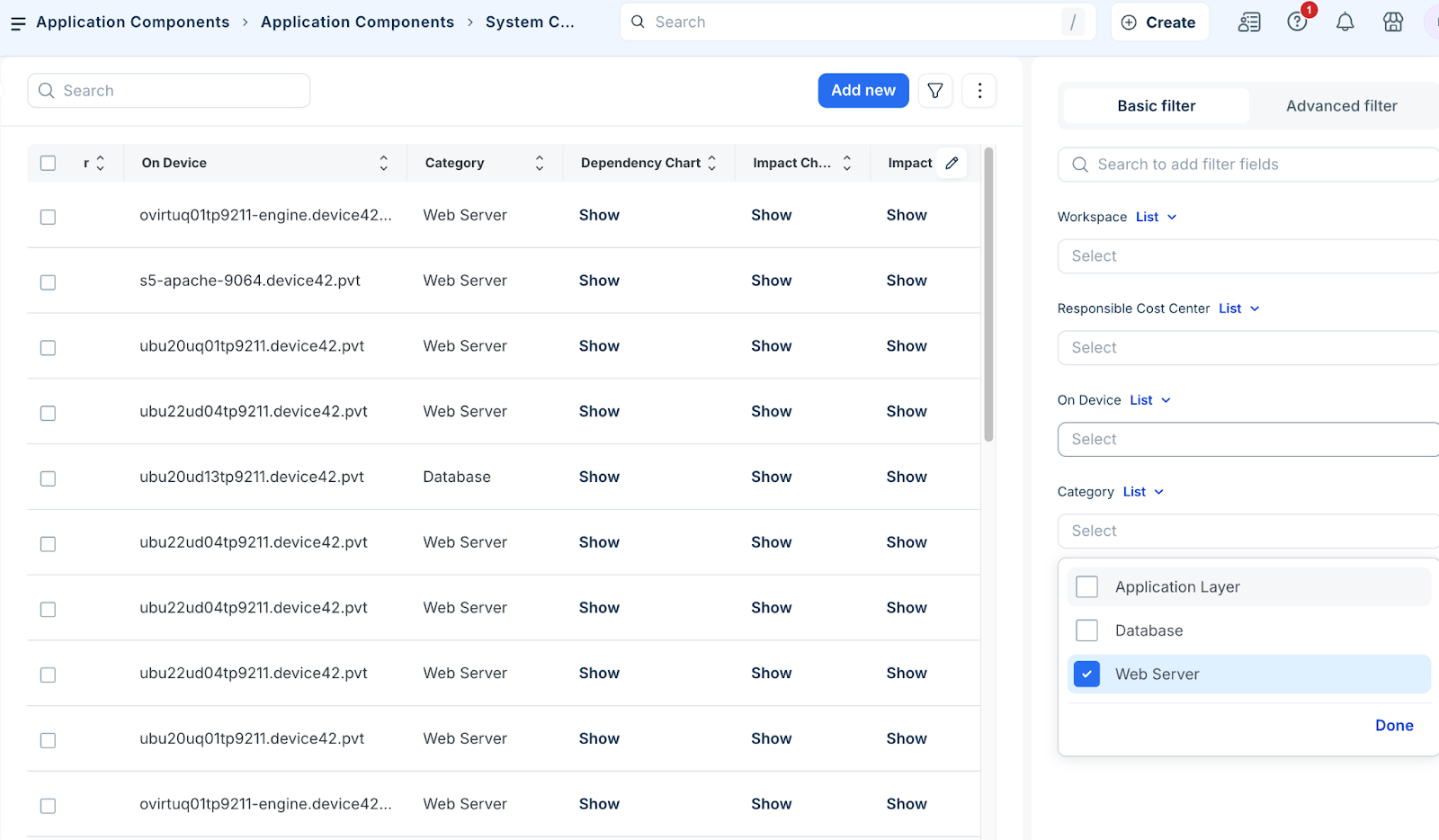
You can drill down to your discovered database impact Application Groups or Web Server dependency Application Groups.
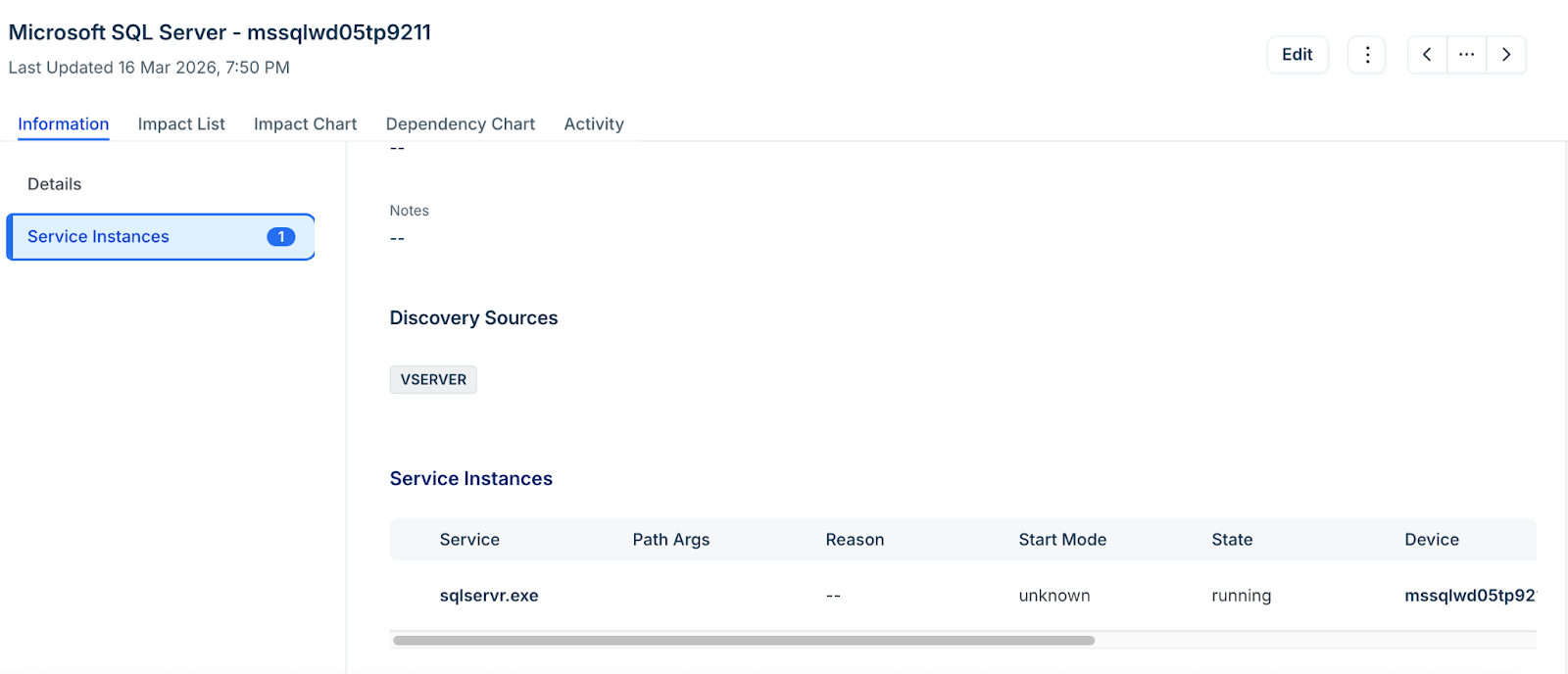
Pinned Services
Application Groups use the concept of pinned services. Pinned services represent the core dependencies of your infrastructure, and discovered database services are automatically pinned by default.
Pin core services
Application Groups are generated only for Core services that have been pinned. If the expected Application Group Impact Chart is not visible, ensure that the relevant services are pinned. Only pinned service listeners contribute to the creation of an Application Group.
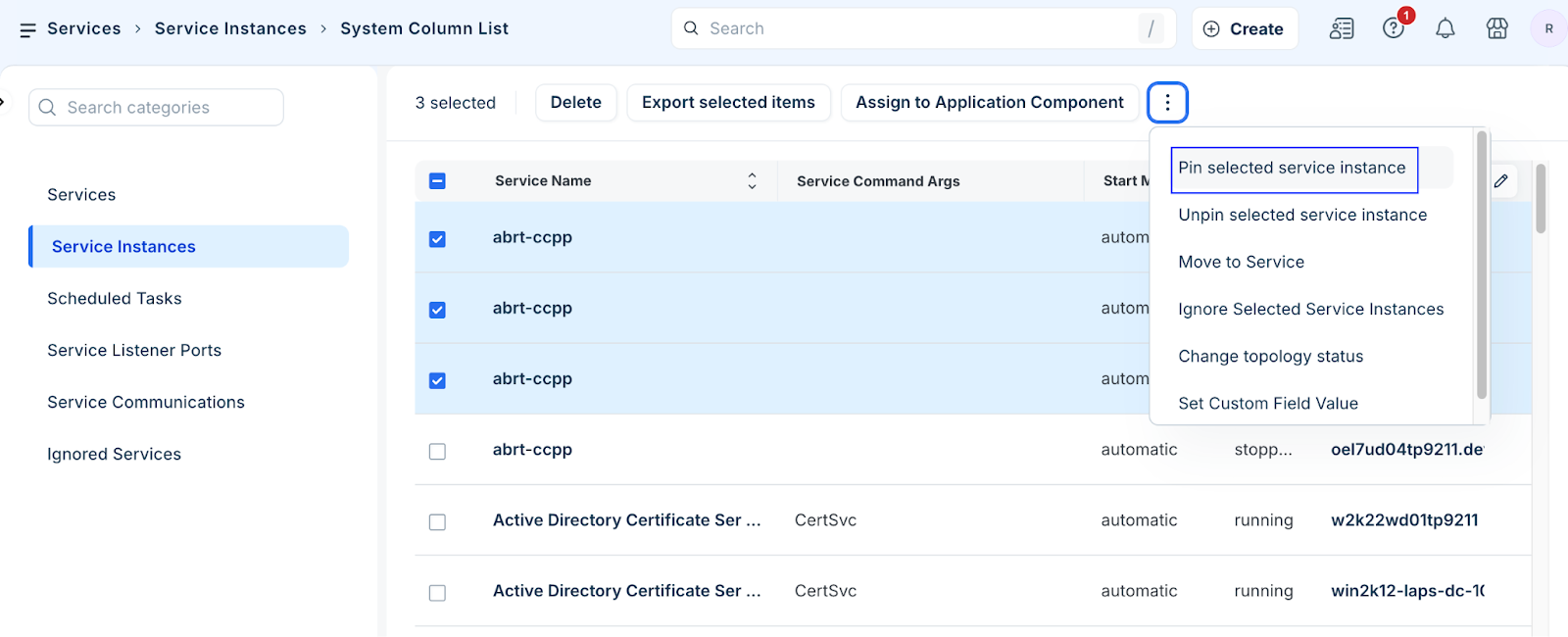
To enable this, navigate to Service instances and pin the core services using the Pin selected service instance option from the drop-down.
Database Services are pinned by default
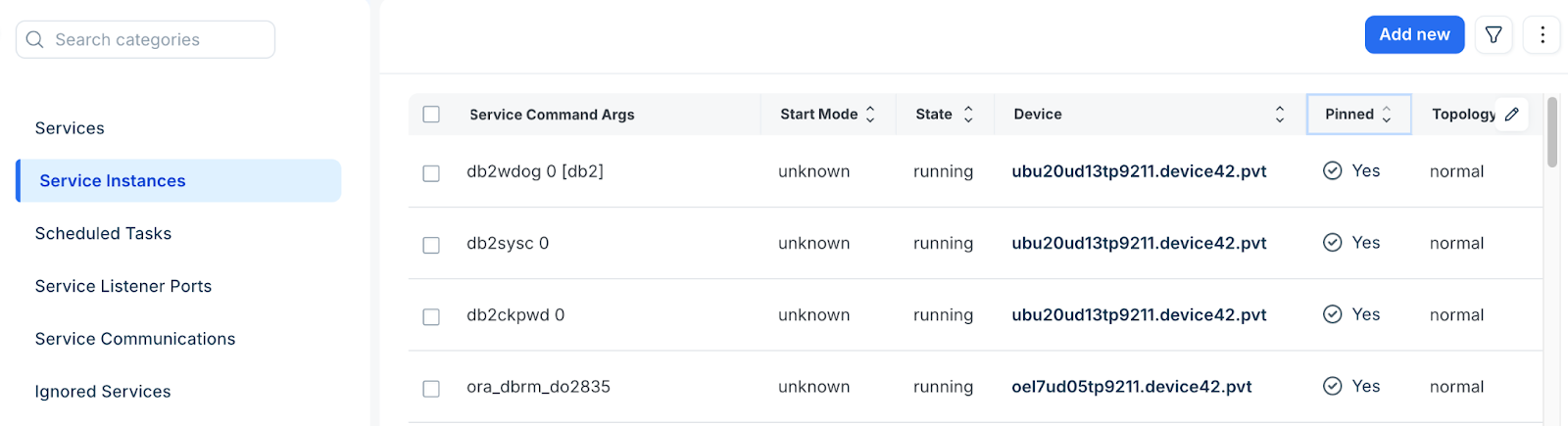
Database services are classified as Core services and are pinned by default. These services are automatically included in Application Group generation. Yes indicates that the service is already pinned.
Troubleshooting and validation
The following use case and solution will help you to troubleshoot Application Groups.
Unmanaged Application Groups
Application Groups will not run unless they are associated with a Calculation Rule. If a rule is deleted or a legacy group is orphaned, you will receive a notification:
The Application Group is unmanaged as it has no Calculation Rule associated. In order to add it to processing, add a fixed rule with the items in focus.
Solution: Edit an existing rule or create a new one with a Fixed starting point, then add the orphaned resource to the rule.
Invalidated Application Groups
Changing the Group By configuration in a Calculation Rule will invalidate existing groups.
Solution: Revert to the original "Group By" value to reactivate the group. If a Custom Field used for grouping is deleted, you must update the Calculation Rule configuration.