Community
 Video Library
 Agent Training
 Freshservice
 Freshdesk
 Freshchat
 Freshcaller
 Freshsales
 Freshteam
 Freshworks Neo
 Freshsurvey
 Freshservice for MSP
 TABLE OF CONTENTS
Monitor platform infrastructure usage using the Data Usage Analytics dashboard to view API consumption and MCP activity. Gain visibility into usage trends, identify cost drivers, prevent overages, and make informed decisions to optimize performance and spending.
Access and manage your saved, shared, and curated reports to organize frequently used reports, collaborate with other users, and quickly return to relevant insights for ongoing monitoring and decision-making.
View data usage reports
Access comprehensive reports to monitor key usage metrics across Freshservice, including API activity, and MCP usage. There are two reports: API Usage Overview and MCP Usage Overview.
View API Usage Overview
Track API consumption across modules and methods. Use this report to monitor usage patterns, detect spikes, and manage API limits.
Prerequisites: Ensure that you have administrator access to Freshservice.
Follow these steps to view API usage reports in Freshservice:
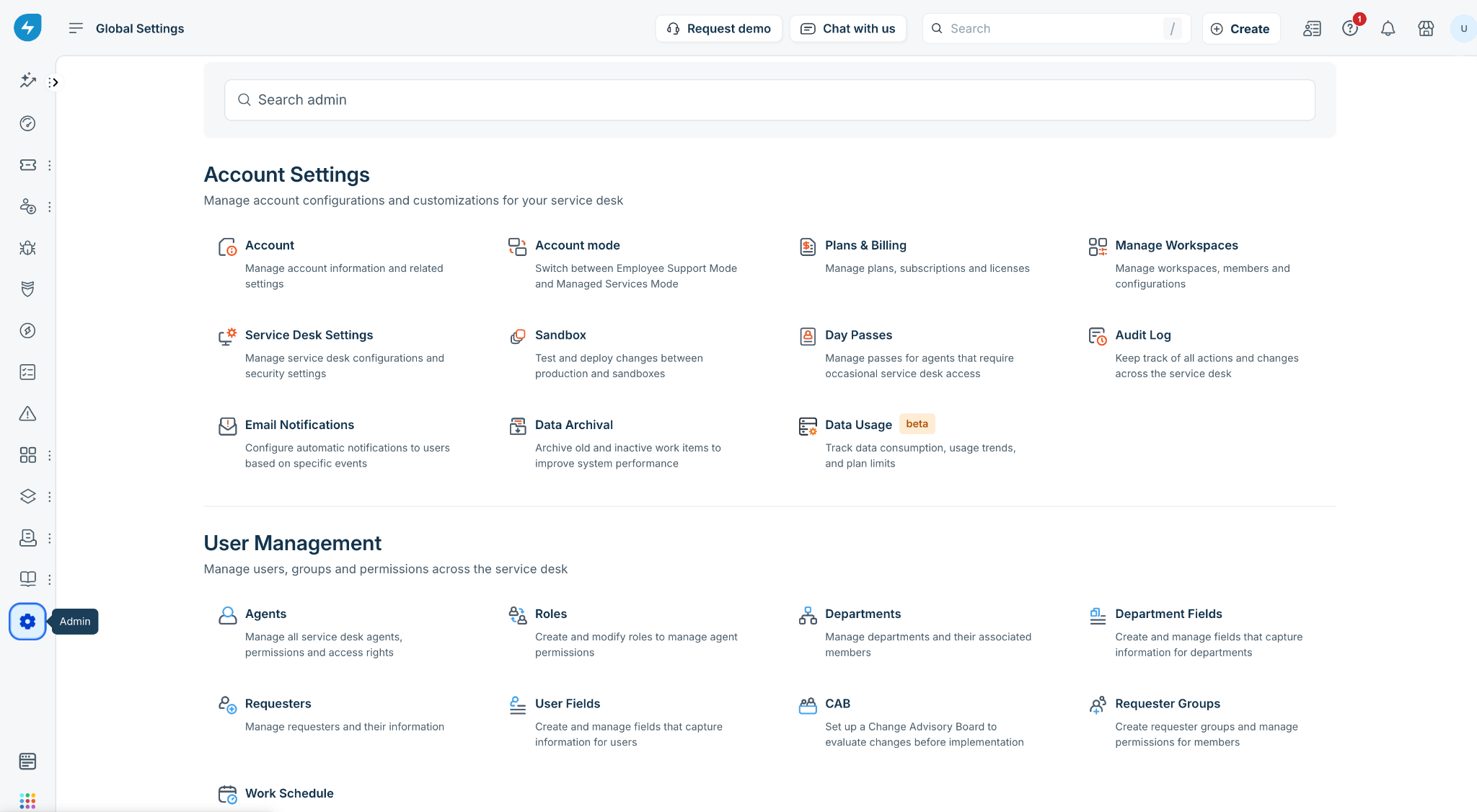
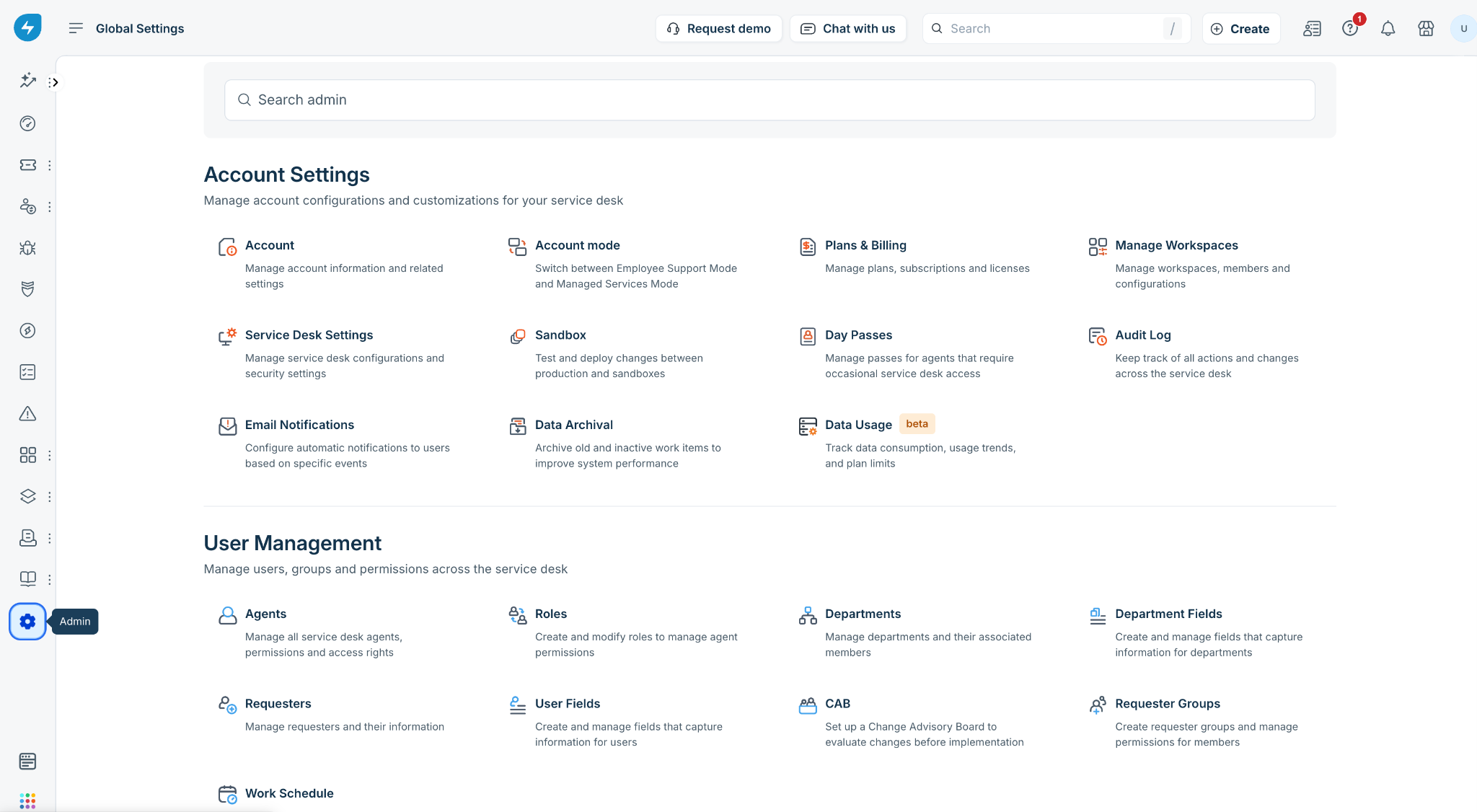
Log in to Freshservice and go to Admin.
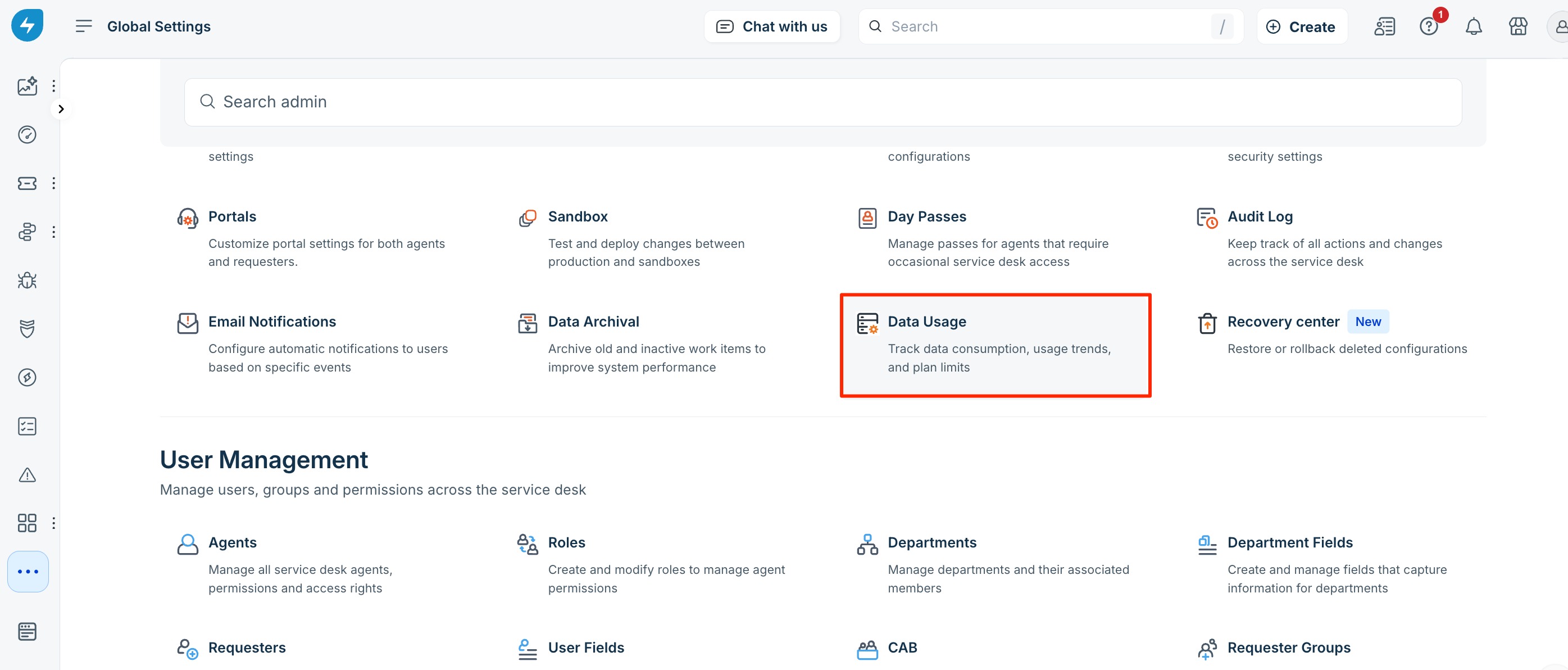
Under Account Settings, click Data Usage.
You are redirected to the Analytics page.
Click API Usage Overview to open the API usage report.
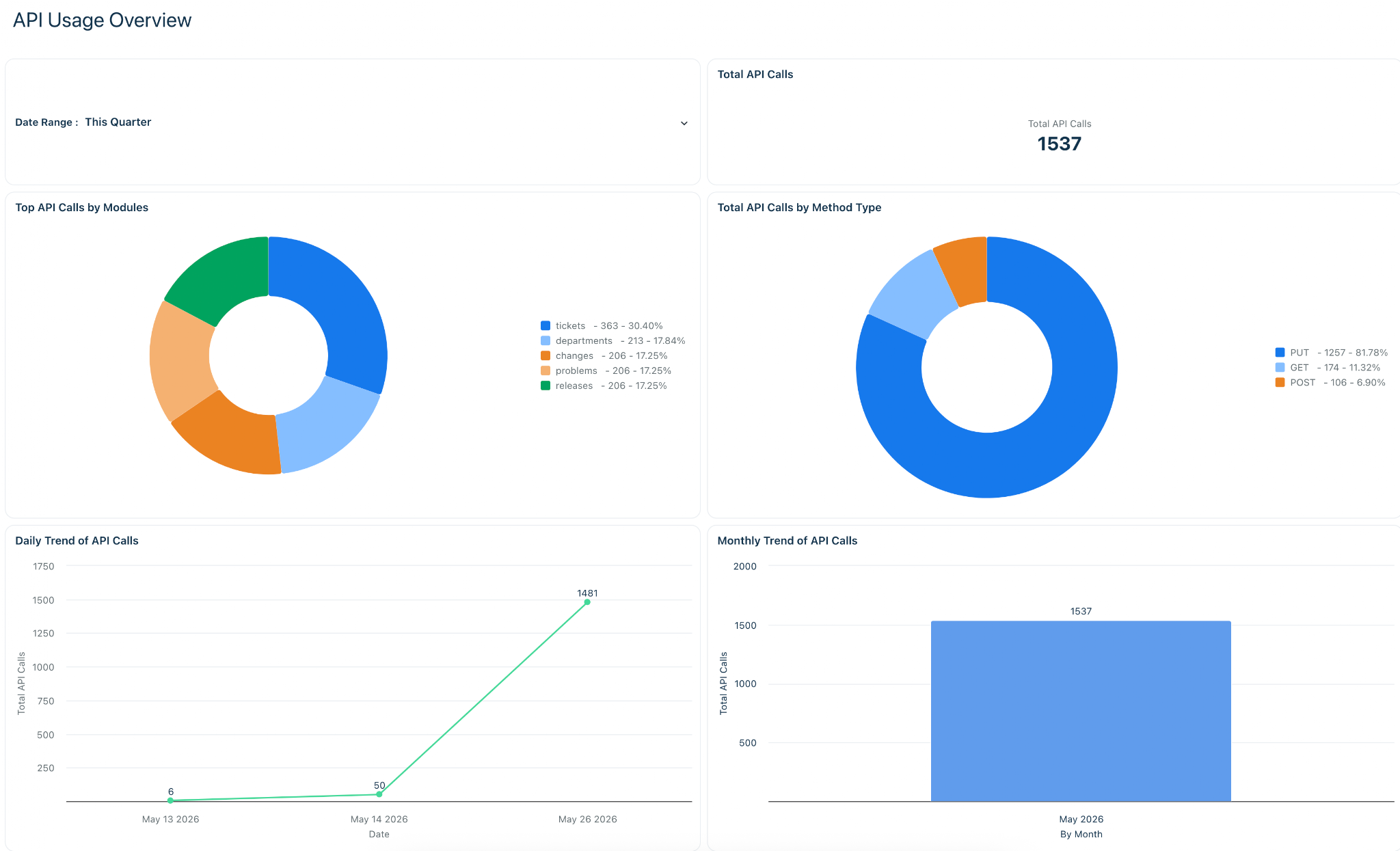
The following API usage report appears and gives insights into API consumption across modules and methods in your Freshservice account.
View MCP Usage Overview
Monitor Model Context Protocol (MCP) activity across your platform. Track inbound and outbound tool calls, execution status, and usage trends.
Prerequisites: Ensure that you have administrator access to Freshservice.
Follow these steps to view MCP usage reports in Freshservice:
- Log in to Freshservice and go to Admin.
Under Account Settings, click Data Usage.
You are redirected to the Analytics page.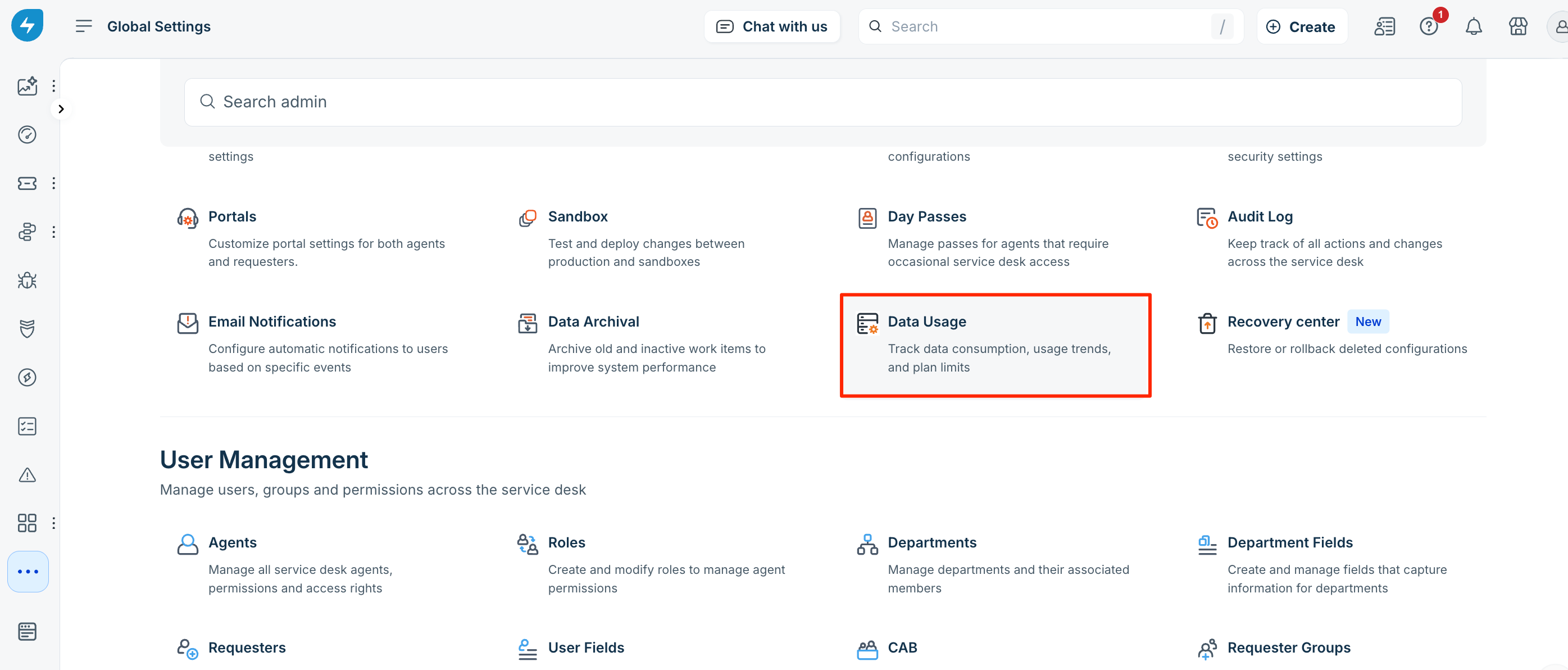
Click MCP Usage Overview to open the MCP usage report.
You can view the following MCP usage reports:
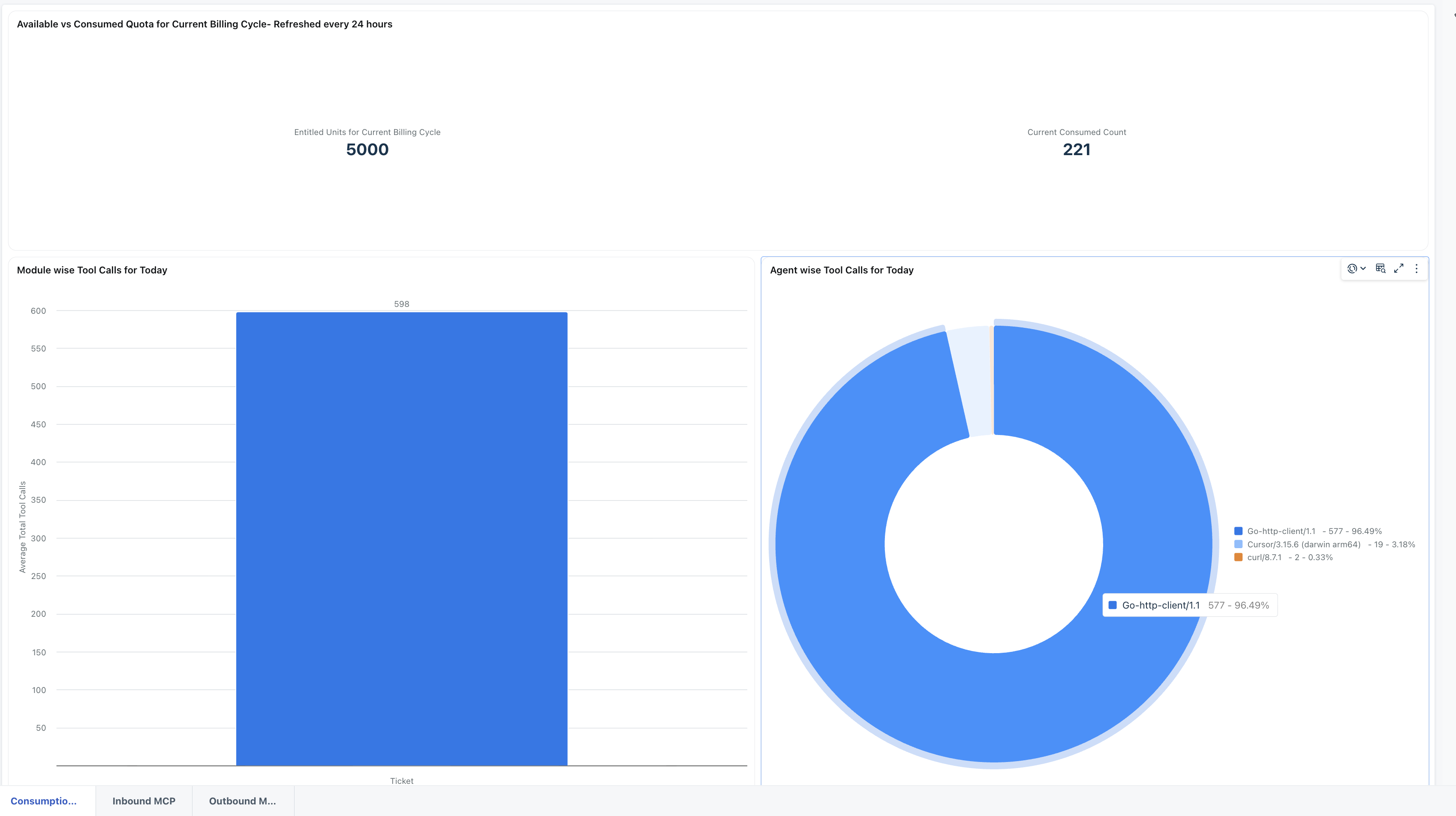
Consumption Details: Use the Consumption Details report to audit your overall available versus consumed quota for the current billing cycle, along with daily tool call usage split across modules and individual agents.
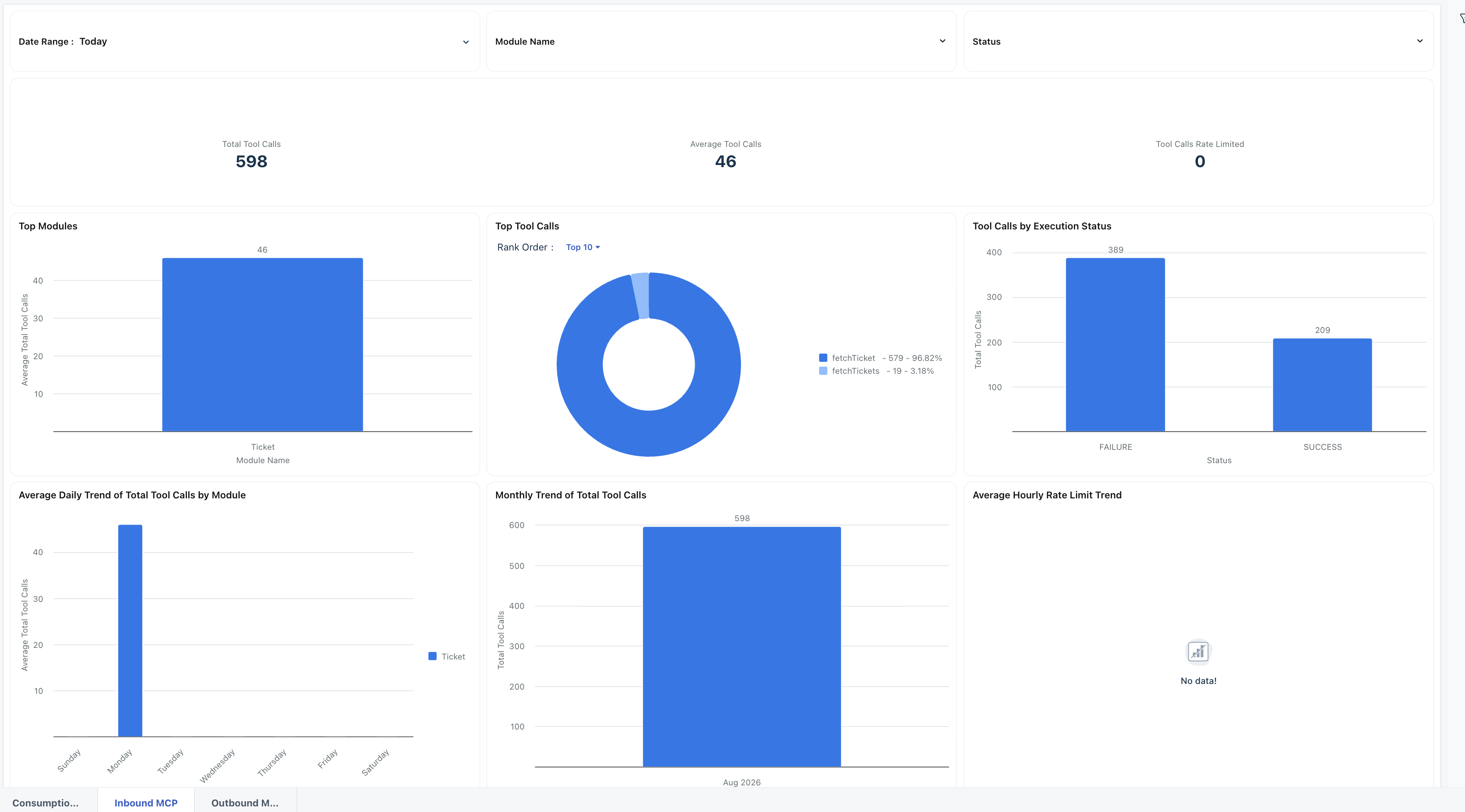
Inbound MCP: Use this Inbound MCP usage report to audit MCP tool call volumes, usage split across modules, across tool calls, execution status and daily and monthly trend.
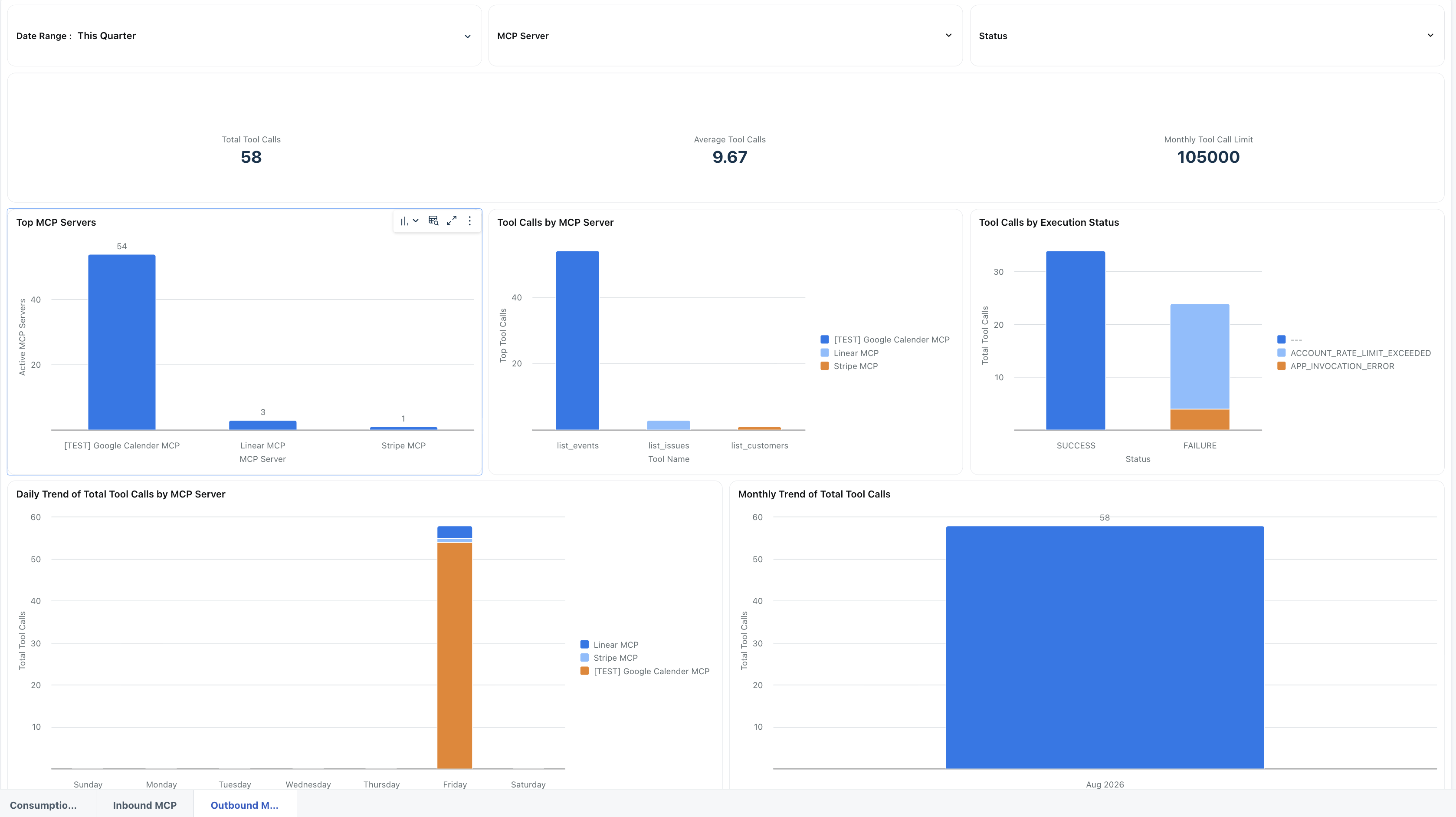
Outbound MCP: Use this Outbound MCP report to audit MCP tool call volumes, usage split across outbound MCP servers, across tool calls, execution status and daily and monthly trend.