
 Community
 Video Library
 Agent Training
 Freshservice
 Freshdesk
 Freshchat
 Freshcaller
 Freshsales
 Freshteam
 Freshworks Neo
 Freshsurvey
 Freshservice for MSP
 TABLE OF CONTENTS
- Supported plans
- Overview
- Prerequisites
- Open the timeline
- Understand the timeline
- Filter the timeline
- Event states you might see
- Empty and high-volume timelines
- Frequently asked questions
- Known limitations
The Timeline helps agents view a requester's activity across Freshservice from a single location. This article explains how to access, navigate, and filter the timeline to review tickets, journeys, assets, and generated documents.
Supported plans
Freshservice Starter, Growth, Pro, and Enterprise
Overview
Use the Timeline to view a requester's activity across Freshservice in a single, consolidated view. The Timeline brings together the requester's tickets, journey requests, assigned assets, and generated documents, helping you understand their interactions and current context without switching between modules.
You can access the Timeline from the Requester information panel in both the ticket requester view and the admin requester view. The Timeline displays up to 12 months of requester activity, including tickets, journeys, assets, and documents. To view activity older than 12 months, open the corresponding record in its source module.
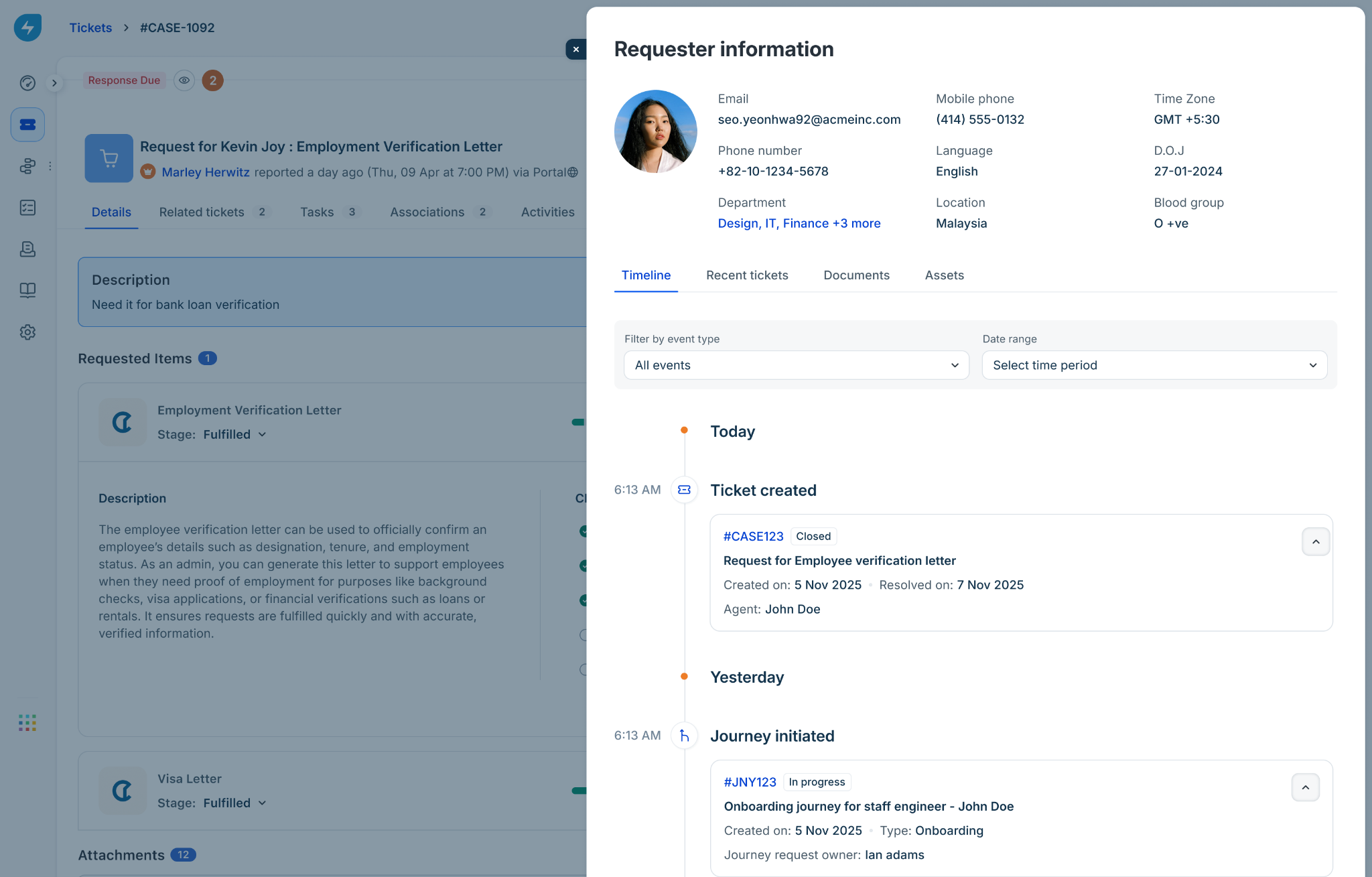
Use the timeline to:
View requester activity in one place.
Understand the context behind ongoing requests.
Track onboarding and other journey-related activities.
Review generated documents and asset assignments.
Maintain visibility for audit and compliance purposes.
Prerequisites
What you see in the timeline depends on your permissions. It follows the access controls (ACLs) of your agent group and workspace, so it shows only the events and modules you’re allowed to view.
Module access: If you can’t view a module, such as journeys or assets, those events don’t appear.
Journey access: Journey events appear only if you have the View journey request permission.
Event-level access: If you can see that an event happened but can’t view its details, the entry stays in the timeline with its links and expand control disabled.
Open the timeline
To open the timeline, follow these steps:
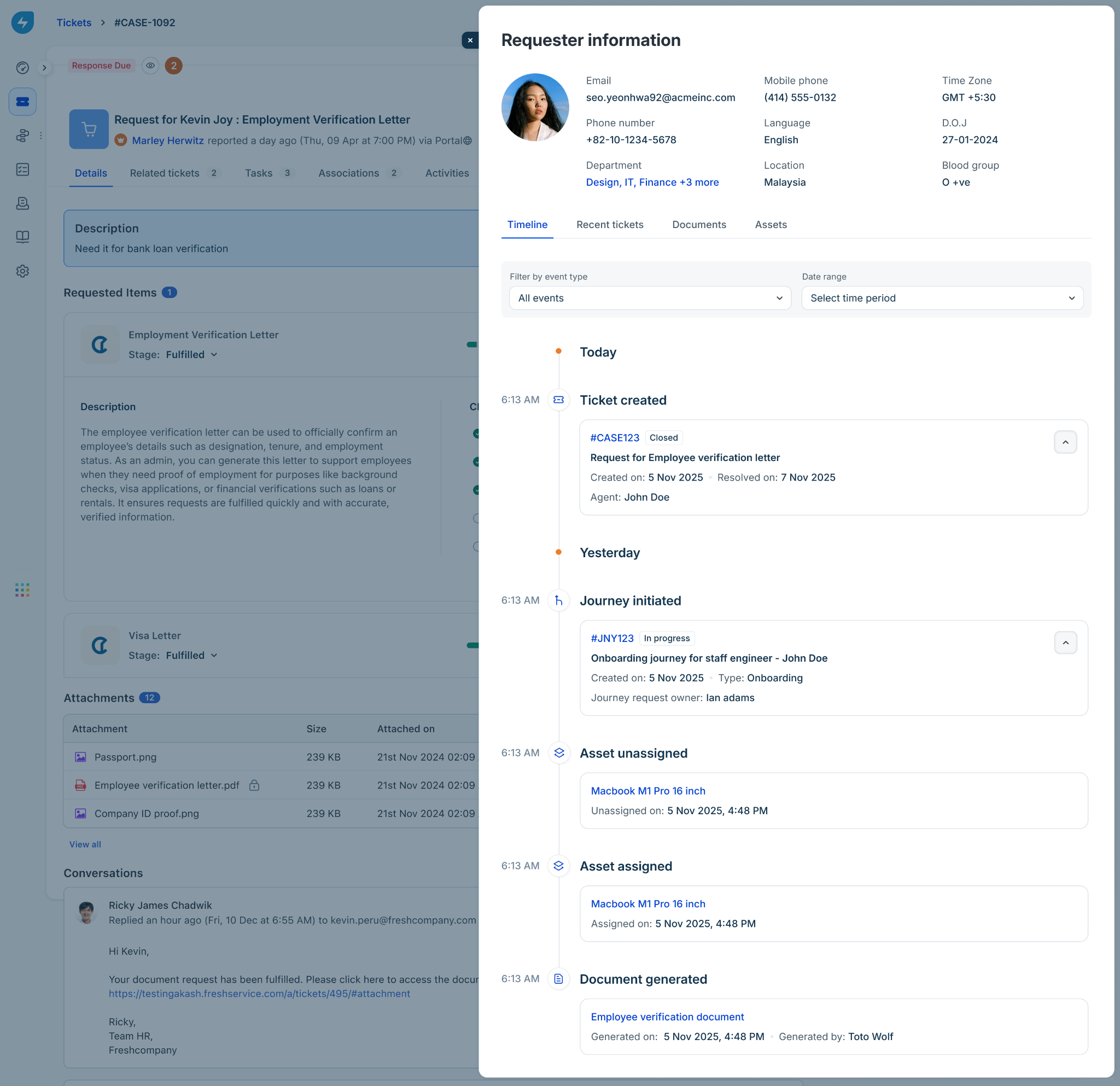
On a ticket, select the requester’s name to open the Requester information panel. In the admin requester view, open the requester’s profile.
Select the timeline tab. It sits next to Recent tickets, Documents, and Assets.
Review the events, newest first.
Understand the timeline
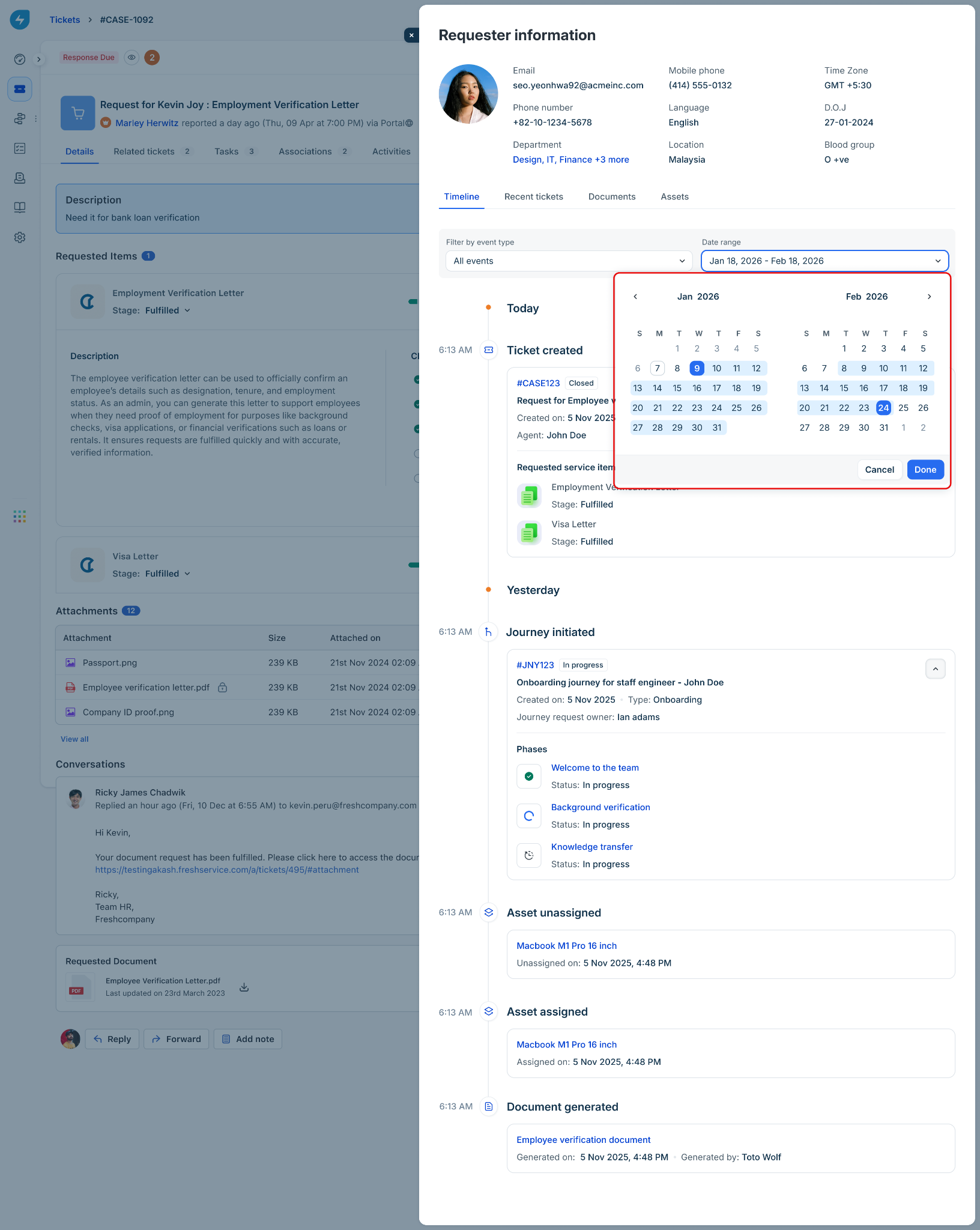
Events appear newest first and are grouped under headings such as Today, Yesterday, and older dates. Each entry shows a timestamp, an icon, a short title, and key details. Where there’s more to see, the entry has a link to open the full record or an expand control to show more inline.
Event types
The timeline can include these event types, depending on your permissions:
Note: If a requester changes after a ticket or journey is created, the timeline shows the requester who is currently associated with the record.
Expand an entry and drill down
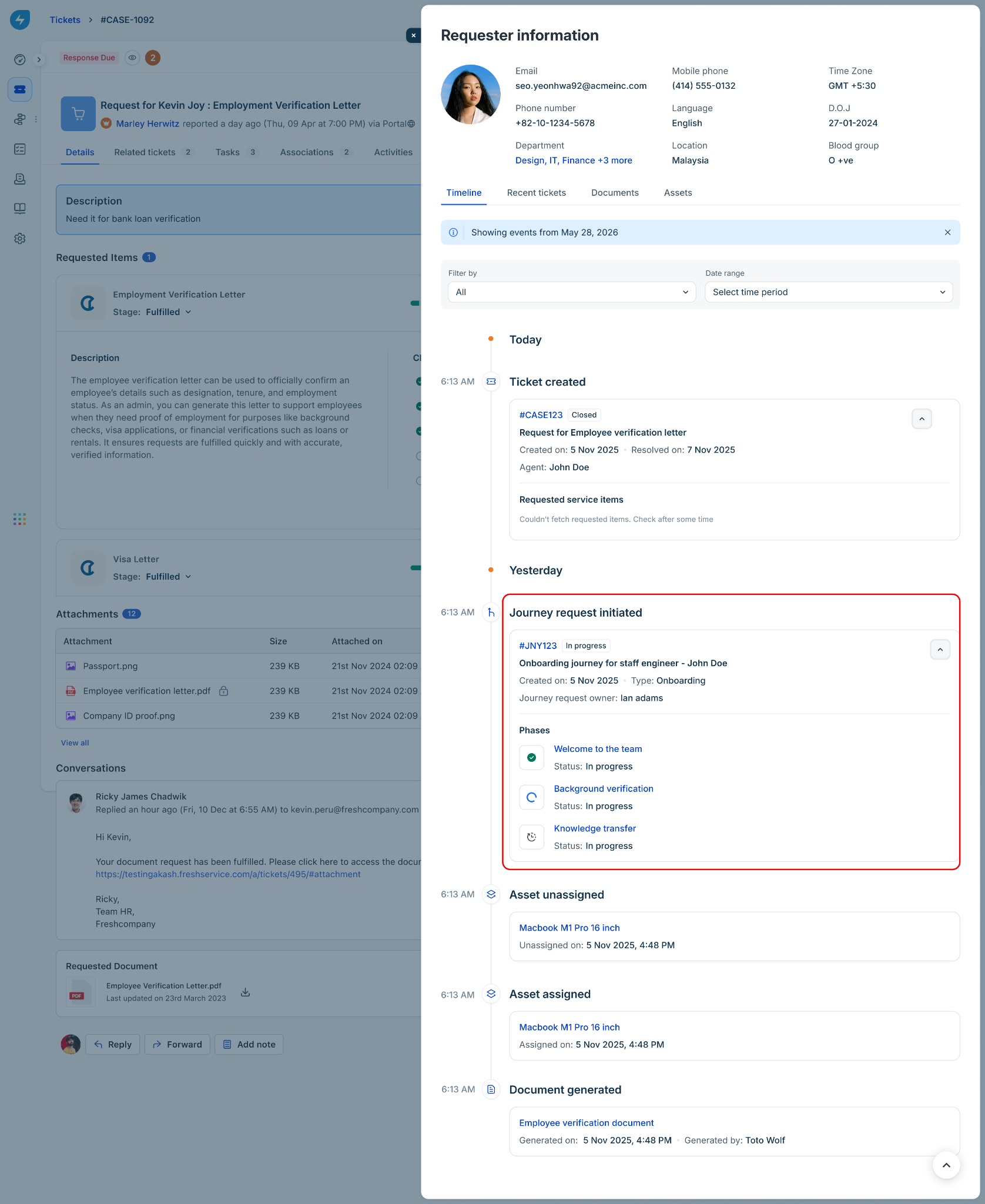
Expand or collapse a card. Some entries, such as tickets and journeys, include an expand control (a chevron). Select it to see more details without leaving the panel.
Open the full record. Select a linked title, a ticket ID, an asset name, or a document name to open the full record in the right panel.
Filter the timeline
Two filters help you focus on what matters.
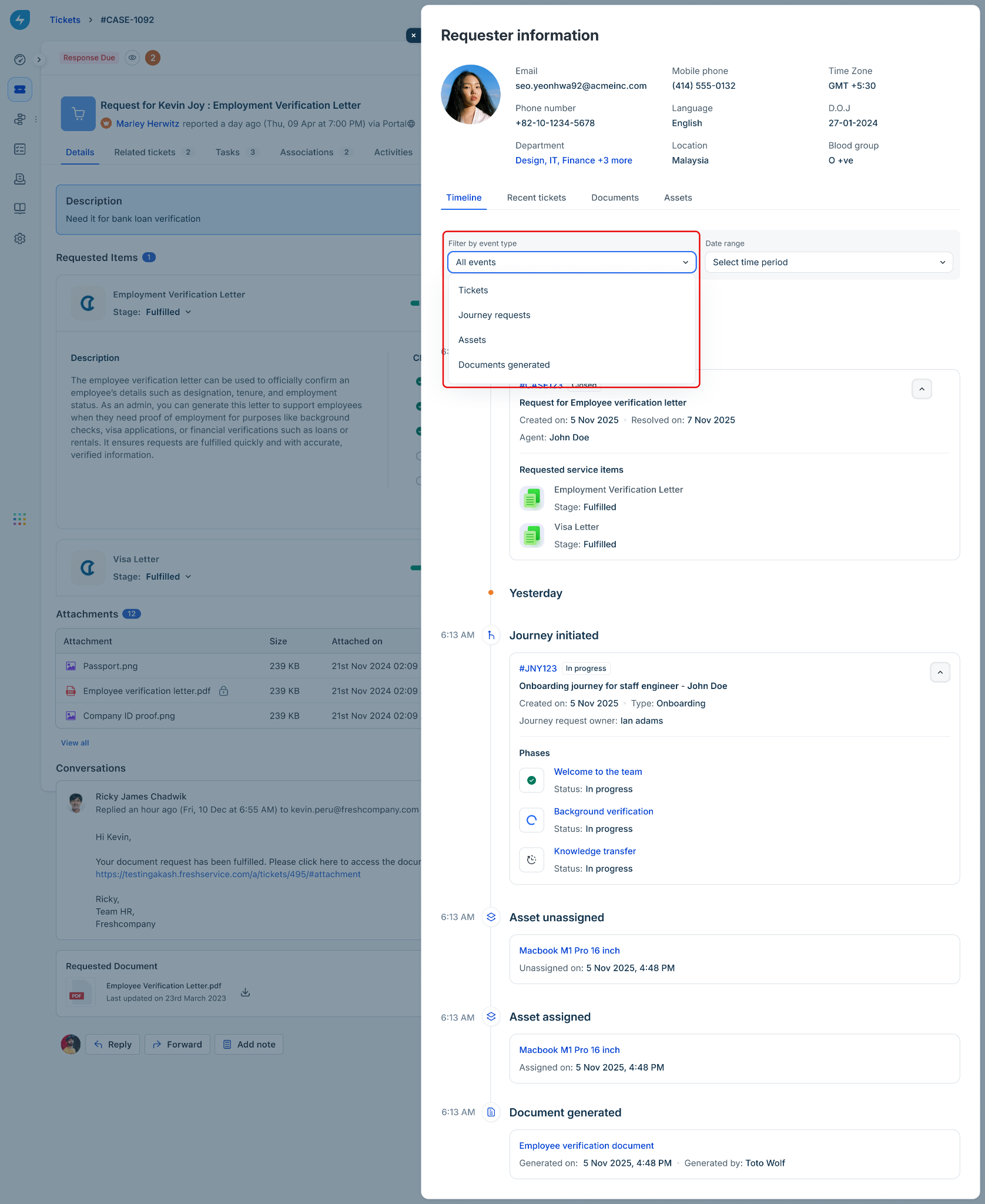
Filter by event type
Select the Filter by event type list.
Choose an option. For example, Tickets, Journey requests, Assets, or Documents generated.
Choose All events to clear the filter.
Filter by date range
Select the Date range list, then choose Select time period.
Pick a start and end date, then select Done.
The timeline shows only events in that range, grouped by date. A banner confirms the range. For example, showing events from May 28, 2026.
Event states you might see
Depending on the data and your access, an entry can appear in one of these states:
Empty and high-volume timelines
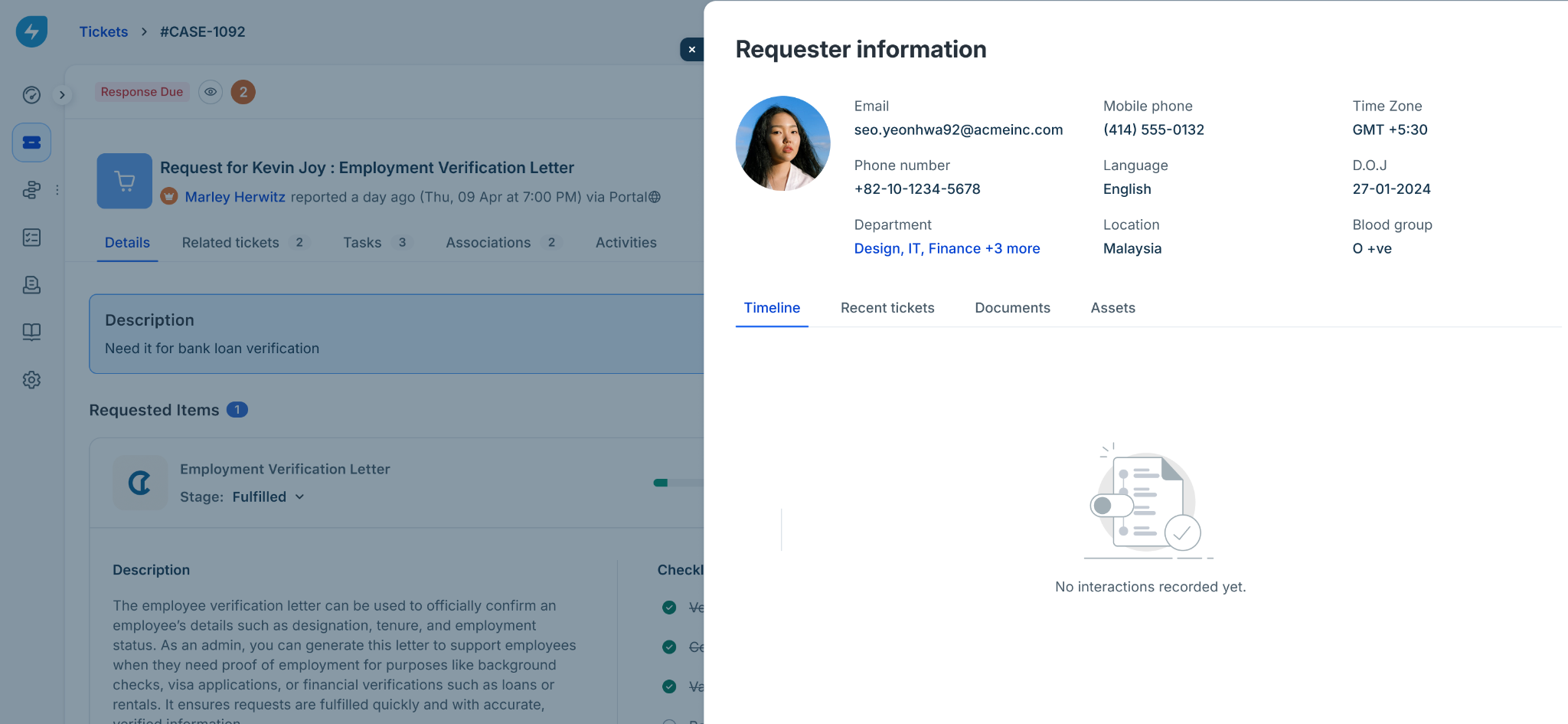
No activity yet: If the requester has no events, you see the message “No interactions recorded yet.”
Many events: For requesters with more than 200 events, the timeline loads in batches of 20 as you scroll and keeps your place.
Frequently asked questions
1. How far back does the timeline go?
It shows the last 12 months of activity. For older activity, open the relevant module.
2. Why can’t I see a particular event or module?
The timeline follows your permissions. If you can’t access a module, its events don’t appear. If you can see an event but not its details, the entry appears with its links and expand control disabled.
3. Does the timeline work for an agent who is also a requester?
Yes. When an agent is the requester, their activity as a requester appears in the timeline.
4. What happens if a ticket’s requester changes?
The timeline shows the records currently linked to the requester. If a ticket moves to another requester, it no longer appears in the original requester’s timeline.
5. Are restricted documents shown?
Yes, if you have access to view them. Access still follows the existing sharing and permission rules for each document.
Known limitations
This version of the timeline has the following limitations:
Activity is shown for the last 12 months only.
Events you don’t have permission to view aren’t shown.
Events with missing source data appear as “Event no longer available” and can’t be opened.
For high-volume requesters, events load in batches of 20 as you scroll.