
 Community
 Video Library
 Agent Training
 Freshservice
 Freshdesk
 Freshchat
 Freshcaller
 Freshsales
 Freshteam
 Freshworks Neo
 Freshsurvey
 Freshservice for MSP
 TABLE OF CONTENTS
- Overview
- Add an approval activity to a Journey
- Set up approval outcomes and branches
- Outcome actions
- Building the branches
- Track approval status from the Journey view
- Frequently asked questions
- Known limitations
Overview
Many business processes managed through Journeys require sign-off before they can proceed. A hiring manager may need to approve a non-standard laptop request during onboarding, or a department head may need to sign off on a severance package during offboarding. With the new Request Approval activity, you can add approval checkpoints directly into any stage of a Journey. When the Journey reaches that point, it pauses, sends notifications to the appropriate approvers, and waits for a decision before moving on.
This helps teams in a few important ways:
Approvals become part of the Journey, not a separate process that agents have to track on their own.
Approvers are assigned based on context, for example, the requester’s reporting manager, so you do not have to hard-code names into every workflow.
You can set up sequential multi-level approvals when multiple sign-offs are required.
The Journey automatically follows the right path based on whether the request is approved or rejected.
Agents can see exactly where a Journey is waiting and who still needs to act, all from the Journey view.
Add an approval activity to a Journey
The Request Approval activity is a new activity type in the workflow builder. When a Journey reaches this activity, the workflow engine creates an approval request linked to the parent Journey ticket and pauses until the approver responds.
Prerequisites
Admin access to the Journey workflow builder.
At least one Journey already configured in your Freshservice instance.
To add an approval activity
To add an approval activity to a Journey, follow these steps:
Go to Admin > Journeys.
Open the Journey you want to edit.
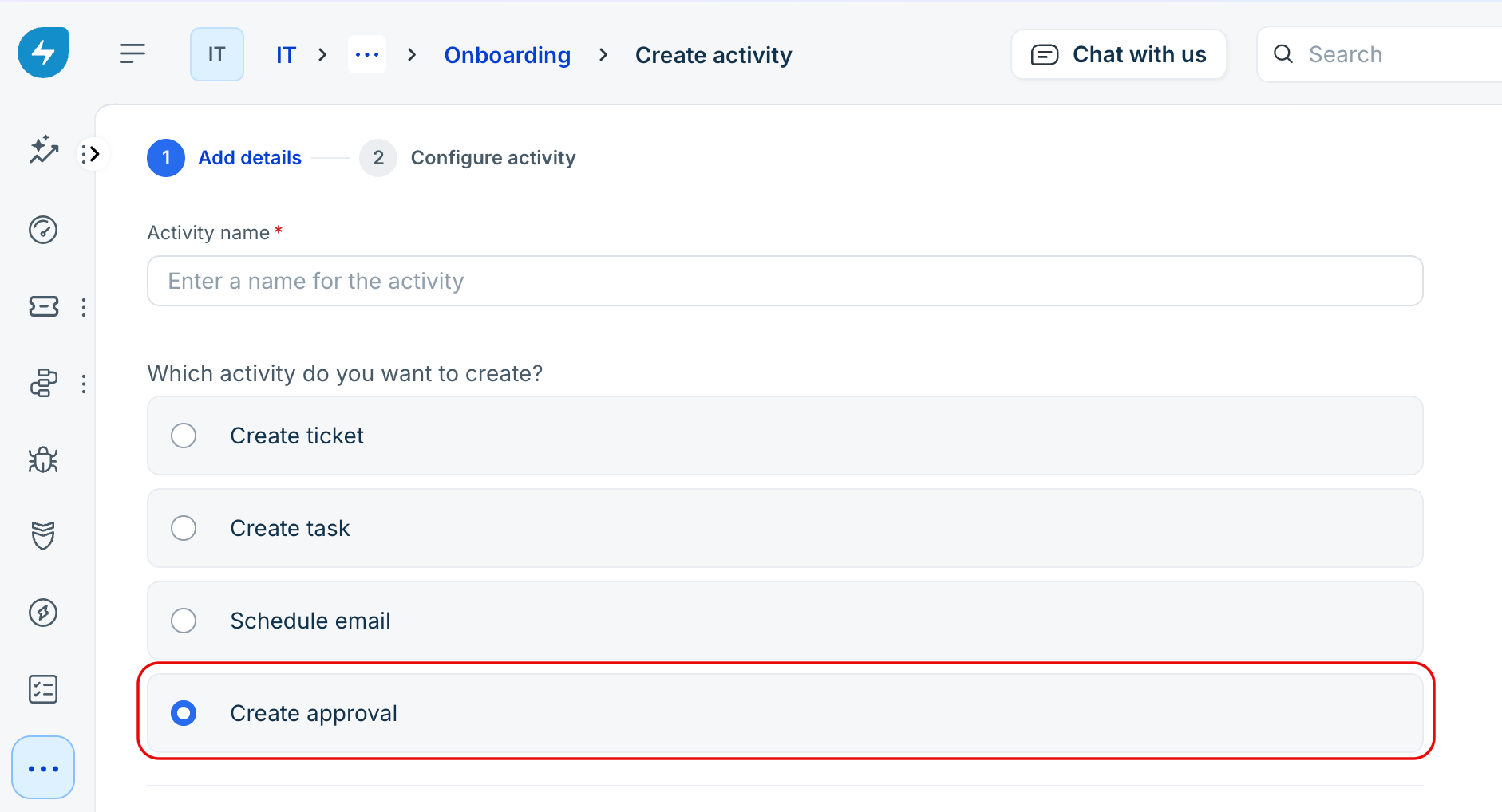
In the workflow builder, select + Create activity and choose Create approval.
Configure the activity:
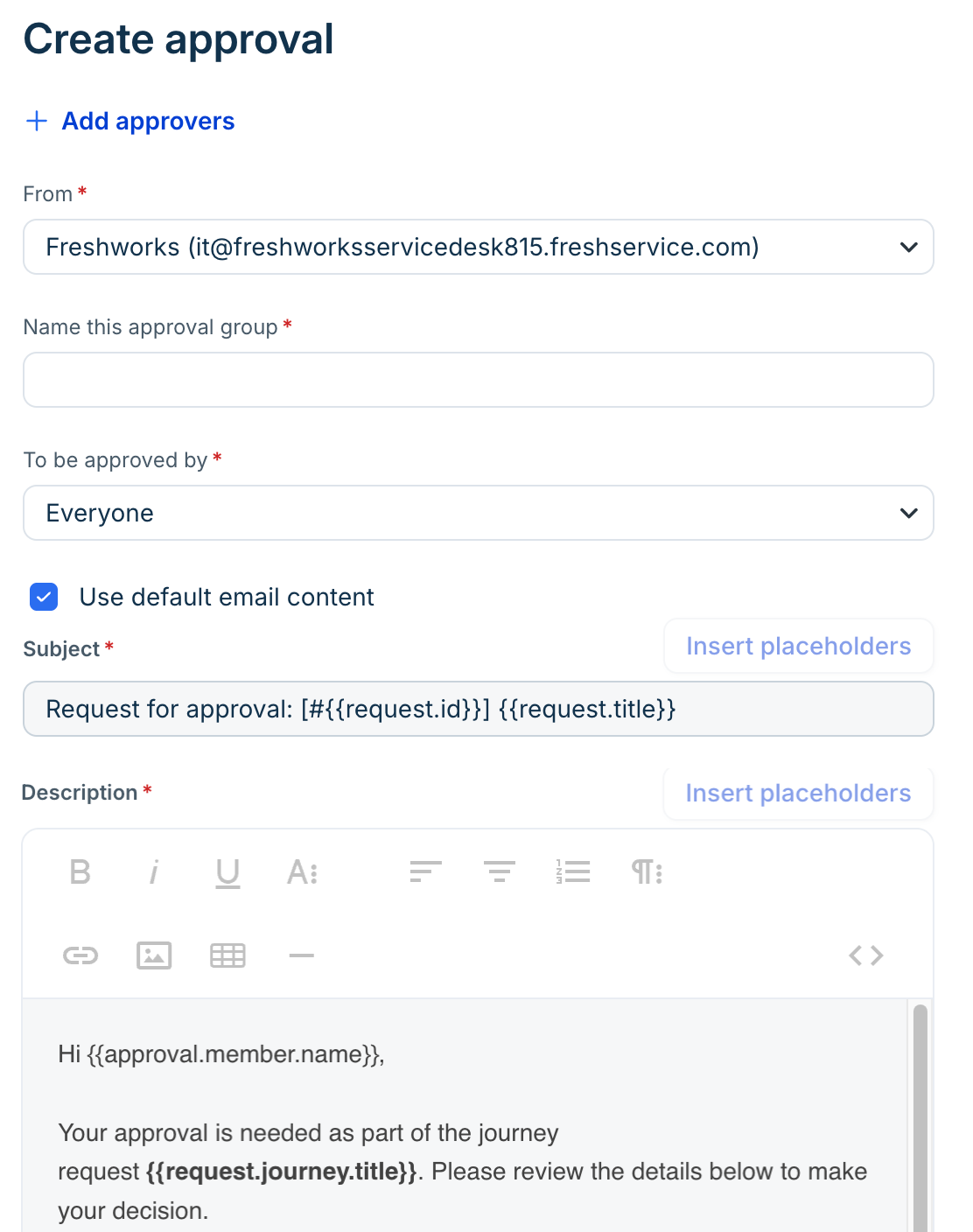
From – Select the email address the approval notification is sent from.
Name this approval group – Enter a name for this approval group to identify it within the Journey.
Add approvers – Click + Add approvers to select approvers from one of the following categories:
Stakeholders – Dynamic roles such as the requester's reporting manager.
Users – Individual users in your Freshservice account.
Agent groups – Groups of agents configured in your account.
Requester groups – Groups of requesters configured in your account.
To be approved by – Choose who must approve: Everyone (all approvers must agree), Anyone (the first response decides), or Majority.
Use default email content – Check this box to use the default email subject and description. Uncheck it to customize the notification content.
Subject – Write the subject line of the notification that approvers receive. Click Insert placeholders to add Journey data such as {{request.id}} or {{request.title}}.
Description – Write the body of the approval notification using the rich text editor. Click Insert placeholders to insert dynamic data, such as the approver's name, journey title, request ID, and requester name, so approvers have the context they need. The default template includes a journey request summary and links to the approval and the complete request.
Select Save.
Note: The approval request is linked to the parent Journey ticket. When approvers open the notification, they can see the full Journey context before making a decision.
Set up approval outcomes and branches
Once you have added an approval activity, the next step is to define what happens after the approver makes a decision. There are two parts to this: choosing the outcome action and building the branch paths.
Outcome actions
You control what happens to the Journey when an approval is rejected. Select one of the following options in the approval activity configuration:
Note: When an approval is approved, the Journey always moves forward to the next activity on the approved path. You only need to configure the rejection behavior.
Building the branches
Branches aren't created by setting an "outcome" trigger on the downstream activities. Instead, you configure each path on the activities that should run in it, using both a trigger and a condition.
For the approved path, take the activities you want to run after approval (for example, a "Create ticket" activity to provision a laptop) and set:
Trigger → On completion of [Approval Activity A]
Condition → If [Approval Activity A] → Property → Status = Approved
For the rejected path, take activities such as "Send rejection email" and set:
Trigger → On completion of [Approval Activity A]
Condition → If [Approval Activity A] → Property → Status = Rejected
(Available only when the outcome action is set to Continue Journey.)
So to run B and C on approval, you'd configure both B and C with the completion trigger on A and the Status = Approved condition.
Track approval status from the Journey view
Both agents and approvers can see what is happening with an approval without leaving their usual workflow.
What agents see
When an agent opens the Journey view for a ticket that is waiting on an approval:
The Journey remains “In progress”.
The pending approver’s name is displayed alongside the status.
Once the approver acts, the status updates to “Approved” or “Rejected” and the Journey moves to the next step on the appropriate path.
What approvers see
When a Journey reaches an approval activity, the approver:
Receives an email and a notification in their Freshservice dashboard.
Can open the request and review the details, including any Journey context that the admin included in the notification.
Selects Approve or Reject to complete the step.
Frequently asked questions
1. Can I add more than one approval activity to a Journey?
Yes. You can place approval activities at any stage, and each one is configured independently with its own approvers, rules, and outcome settings.
2. How does dynamic approver assignment work?
When you configure the approval activity, you can use stakeholders instead of picking a specific person. Freshservice resolves the placeholder at runtime based on the Journey context, automatically assigning the right approver.
3. What happens if an approver does not respond?
If the approval activity is mandatory, the phase remains In Progress until the approver approves or rejects it. Any other phases or activities that depend on this approval activity will not be initiated until this activity is completed. You can set up reminders to nudge approvers who have not yet responded.
4. Can I require approval before a Journey starts?
Yes. Enable the Require approval after form submission toggle on the initiator form. The Journey will not begin until the request is approved, and if it is rejected, the Journey Request is canceled.
5. Does this support multi-level approvals?
Yes. You can define multiple stages within a single approval activity. The stages run one after another, and the Journey only moves forward once all stages are complete.
6. Which plans include this feature?
Approvals in Journeys are included in the Pro and Enterprise plans — the same plans that already include access to Journeys.
Known limitations
The current version has the following limitations:
You cannot re-initiate a previous activity based on an approval rejection. If an earlier step needs to run again, you will need to handle that outside the Journey.
Requesters cannot resubmit a Journey Request with updated data after a rejection. They need to create a new Journey Request instead.