
 Community
 Video Library
 Agent Training
 Freshservice
 Freshdesk
 Freshchat
 Freshcaller
 Freshsales
 Freshteam
 Freshworks Neo
 Freshsurvey
 Freshservice for MSP
 Conversation logs provide a centralized dashboard for reviewing and monitoring all AI agent interactions. Every conversation a user has with the AI agent is recorded on the Conversation logs page. This provides visibility into real-time messages exchanged, allowing you to filter conversations, access requester details, review activity logs, and see the skills and knowledge sources used by your AI agent.
TABLE OF CONTENTS
Prerequisites
The following are the prerequisites:
Enable the AI agent on your account.
Get Manage AI Agent Studio permissions to access AI Agent Studio.
Overview of conversation logs
Use conversation logs to analyze AI agent performance and take decisive action. View past interactions between your AI agent and requesters, including resolved, handed-off, and open conversations.
For example, if multiple conversations are handed off to human agents, you can:
Inspect the log to pinpoint the handoff location.
Review referenced knowledge sources.
Identify triggered skills such as service catalogs or app connectors.
Use these insights to update knowledge base articles or workflows and improve future interactions.
Note: Access to conversation logs depends on explicit role permissions. Anyone with access to the AI Agent Studio can view the entire history of conversation logs without any conversation-level restriction. For more information, see Introduction to AI Agent Studio in Freshservice.
Track and analyze interactions
View specific logs to understand the exact responses provided by the AI agent.
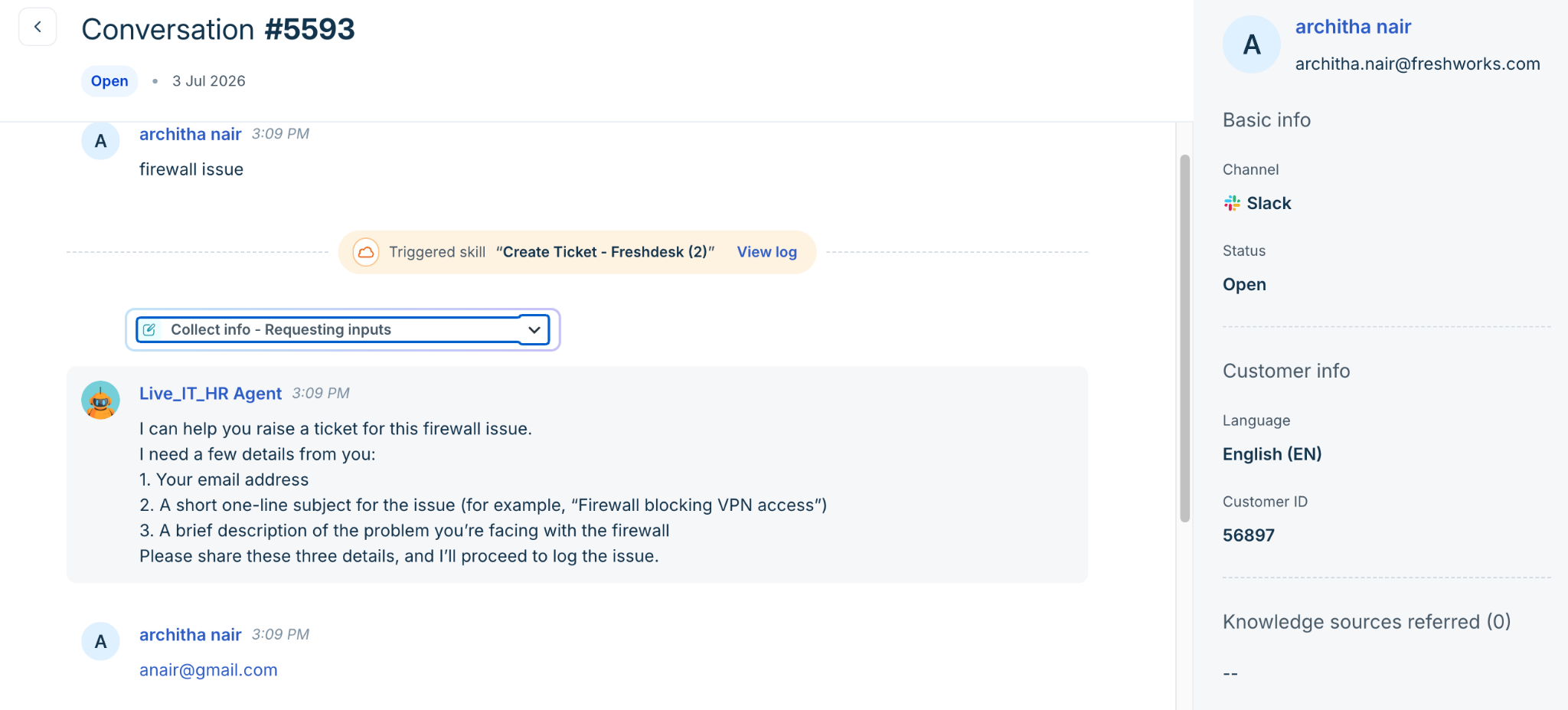
When you open a conversation log, you can:
View the complete chat transcript and requester details.
See which knowledge sources the AI agent referred to to answer the query.
Identify any triggered skills.
If the conversation was handed off, you can navigate to the ticket to review the human agent's follow-up.
Additional details
The following table describes the fields available on the Conversation logs page. The page displays several columns to help you identify the right interaction.
Notes:
If you have access to AI Agent Studio, you can view AI agent conversation logs for all conversations across the workspace.
Role-Based Access Control (RBAC) does not apply to conversation logs. RBAC is enforced when you navigate to the associated ticket details.
You can view the conversation audit history for any conversation.
Your access to the linked ticket depends on your ticket permissions.
Grant AI Agent Studio access only to users who need visibility into all AI agent conversations.
View conversation logs
Follow these steps to access and view the details of a specific AI agent conversation:
Go to AI Agent Studio and select an AI Agent.
Click Analyze > Conversation logs.
Review the list of conversations sorted by the latest timestamp.
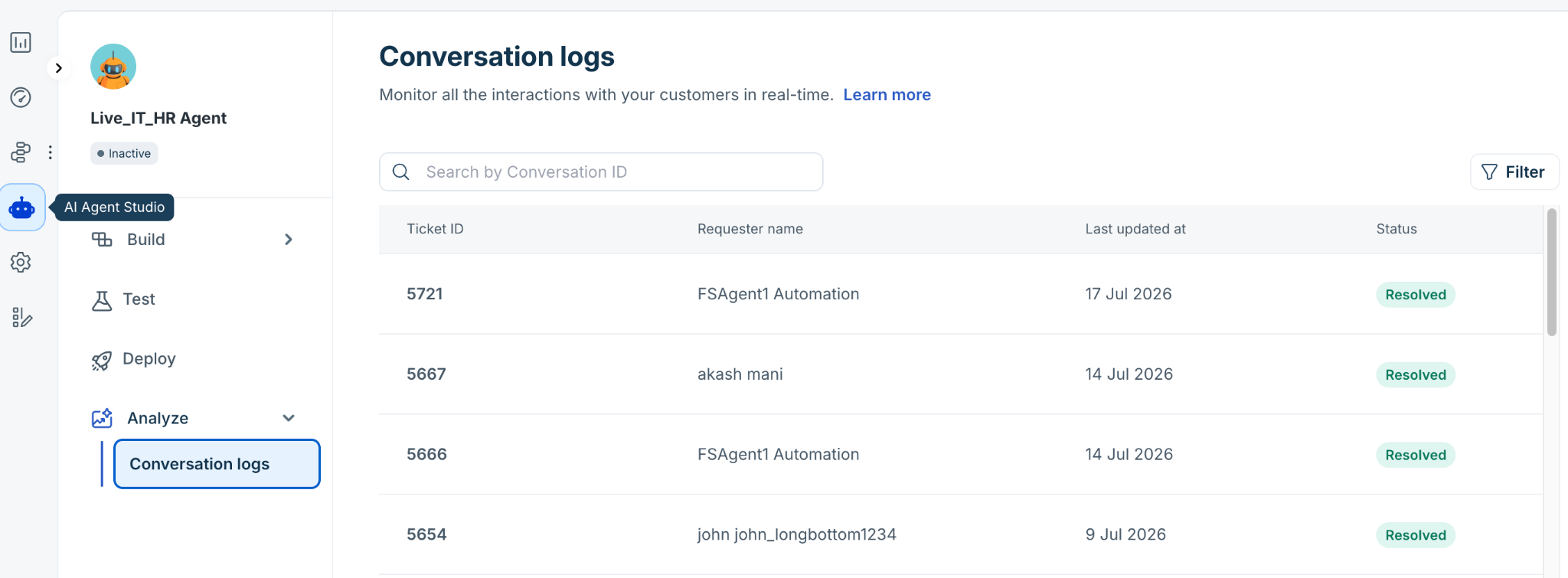
Click any Conversation ID to open the chat transcript and view the complete interaction.
On the Conversation ID page, you can:
View the basic and customer info. For example, Channel, Status, Language, Customer ID.
Review the Knowledge sources referred section to see which articles the AI agent used.
Review the Skills triggered section to see if any service catalog items or app connectors were utilized.
Click the Ticket navigation icon next to the Ticket ID to open the related ticket if the status is marked as handed off.
Filter conversation logs
Follow these steps to narrow down the list of conversations based on specific criteria:
Go to AI Agent Studio and select an AI Agent.
Click Analyze > Conversation logs.
Click Filter.
In the Filter pane, you can:
- Select a specific Time range to filter conversations from a particular date or time frame.
- Select any Conversation status option such as New, Open, Closed, or Handed off.
- Enter the required Ticket ID/Conversation ID.
- Select the required option from Show customer conversations or Show preview conversations.
- Click Apply to view the revised list of conversations.