
 Community
 Video Library
 Agent Training
 Freshservice
 Freshdesk
 Freshchat
 Freshcaller
 Freshsales
 Freshteam
 Freshworks Neo
 Freshsurvey
 Freshservice for MSP
 TABLE OF CONTENTS
- Prerequisites
- Overview of Conversational Insights
- Enable Conversational Insights
- Choose the right mode
- Generate charts
- Use the Ask mode
- Manage usage limits
- Optimize your queries for better results
- Review terms and conditions
- Related articles
This article provides an overview of Conversational Insights in Freshservice and explains how to use the Ask and Charts modes to retrieve, analyze, summarize, compare, and visualize your service desk data using natural language.
Prerequisites
Before you use Conversational Insights, ensure the following:
Your account is on the Enterprise plan.
Freddy AI Insights is enabled for your account.
You have permission to access Conversational Insights.
An administrator has enabled the Ask mode for your account if you want to use it.
You complete the Freshworks OAuth authorization the first time you use the Ask mode.
Overview of Conversational Insights
Conversational Insights transforms how you interact with Freshservice by enabling you to explore your service desk data using natural language. Instead of manually building reports or searching through records, simply ask your question in plain English.
Conversational Insights provides the following modes to help you answer different types of questions:
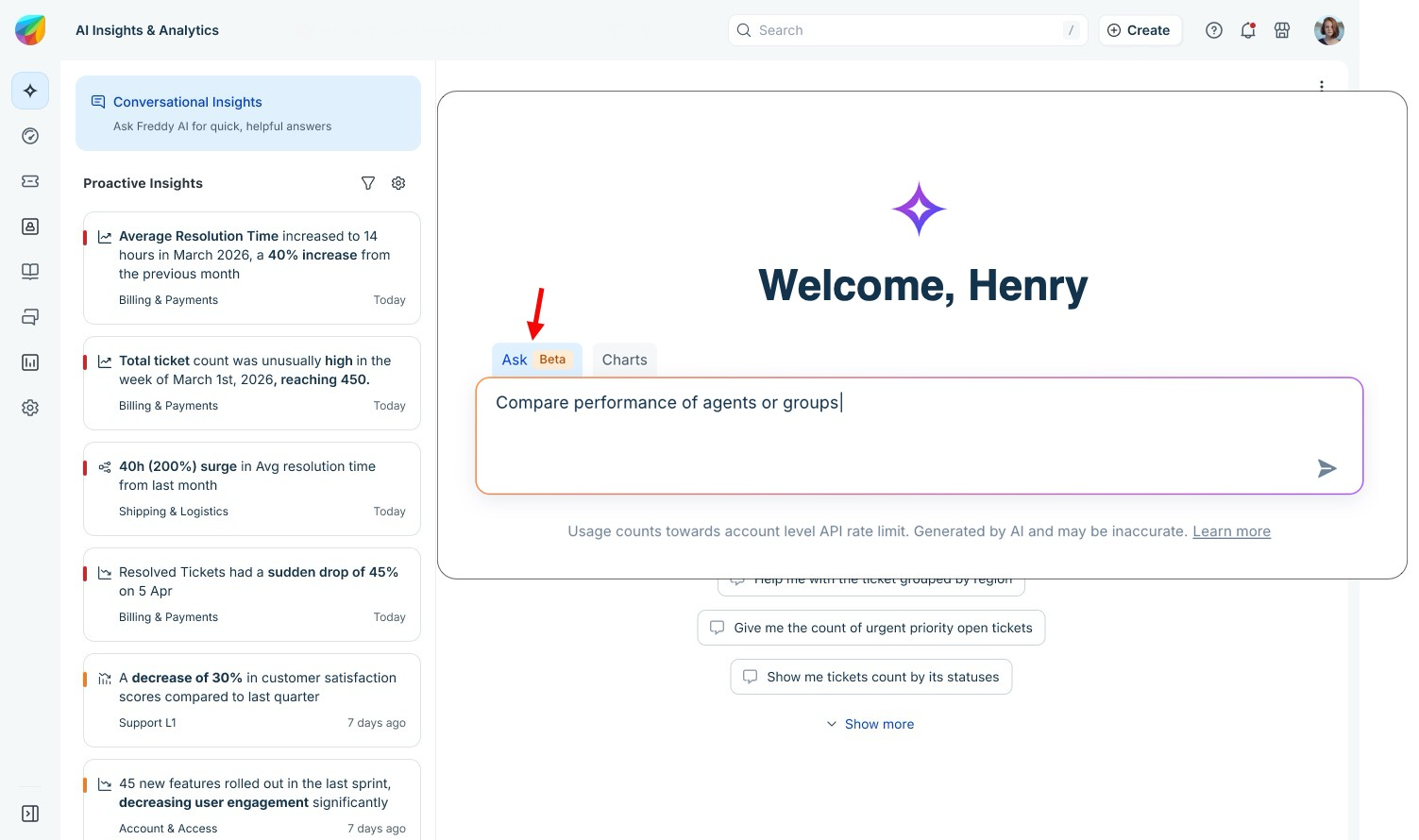
Ask: Retrieves, summarises, compares, and analyses information across your Freshservice data. Use Ask to find tickets, assets, agents, requesters, knowledge base articles, and service catalog items, and receive direct answers based on your queries. This mode is available only if an administrator has enabled it for your account.
Charts: Generates charts and visualizations from your questions. Use Charts to analyze trends, compare metrics, and monitor operational performance.
Note: This is the default mode. If your administrator has not enabled the Ask mode for your account, all queries are answered in Charts mode.
Enable Conversational Insights
Conversational Insights is available as part of Freddy AI Insights. Before you can use Conversational Insights, ensure that Freddy AI Insights is enabled for your account and the required permissions are assigned to agents.
To enable Freddy AI Insights for your account, follow these steps:
Go to Admin > Global Settings.
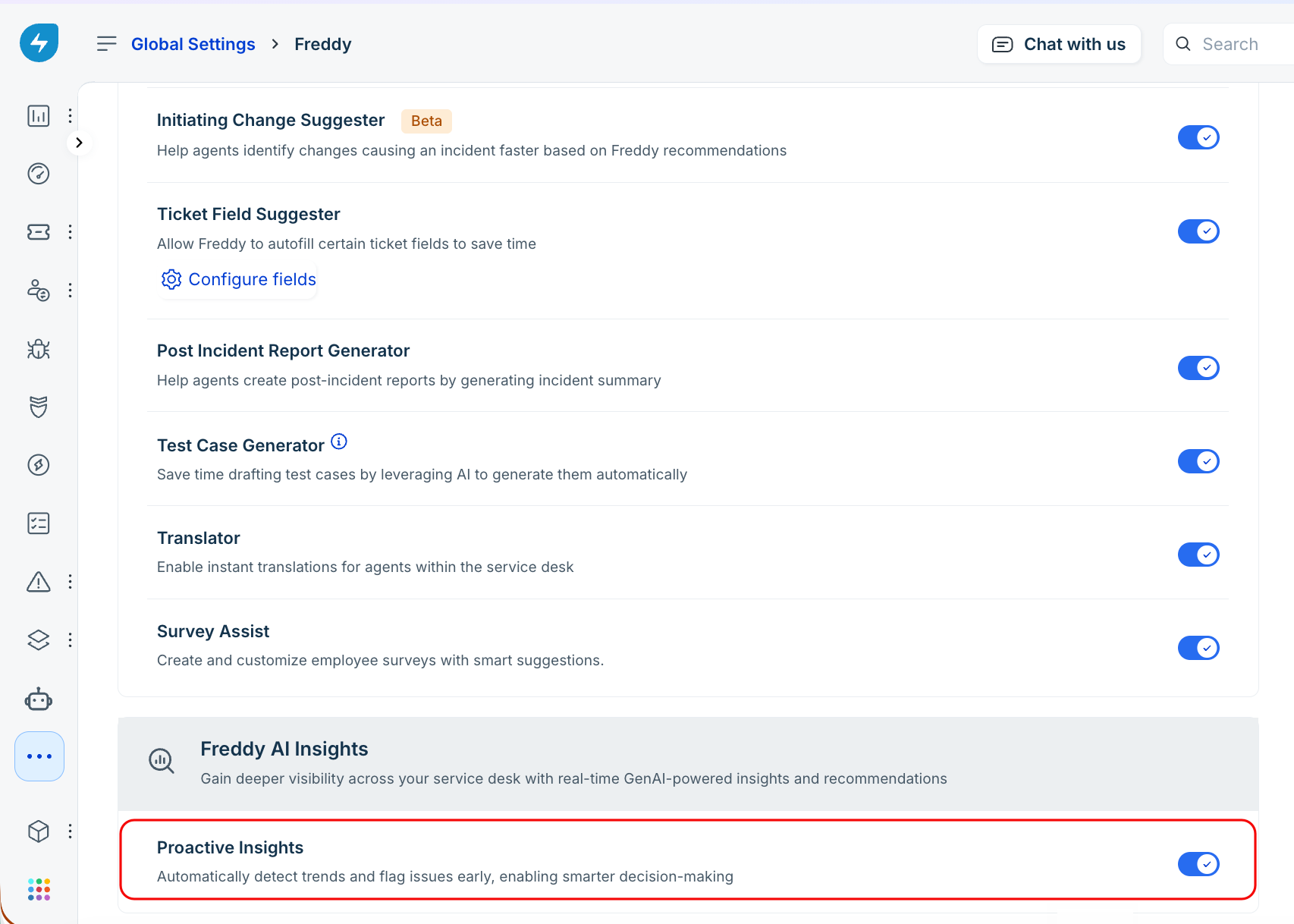
Navigate to Freddy AI > Freddy > Freddy AI Insights.
Toggle on Proactive Insights. Once enabled, Conversational Insights becomes available for your account.
Grant Conversational Insights access to agents
To grant additional agents access to Conversational Insights, follow these steps:
Go to Admin > User Management.
Select the required agent.
Click Edit Permissions.
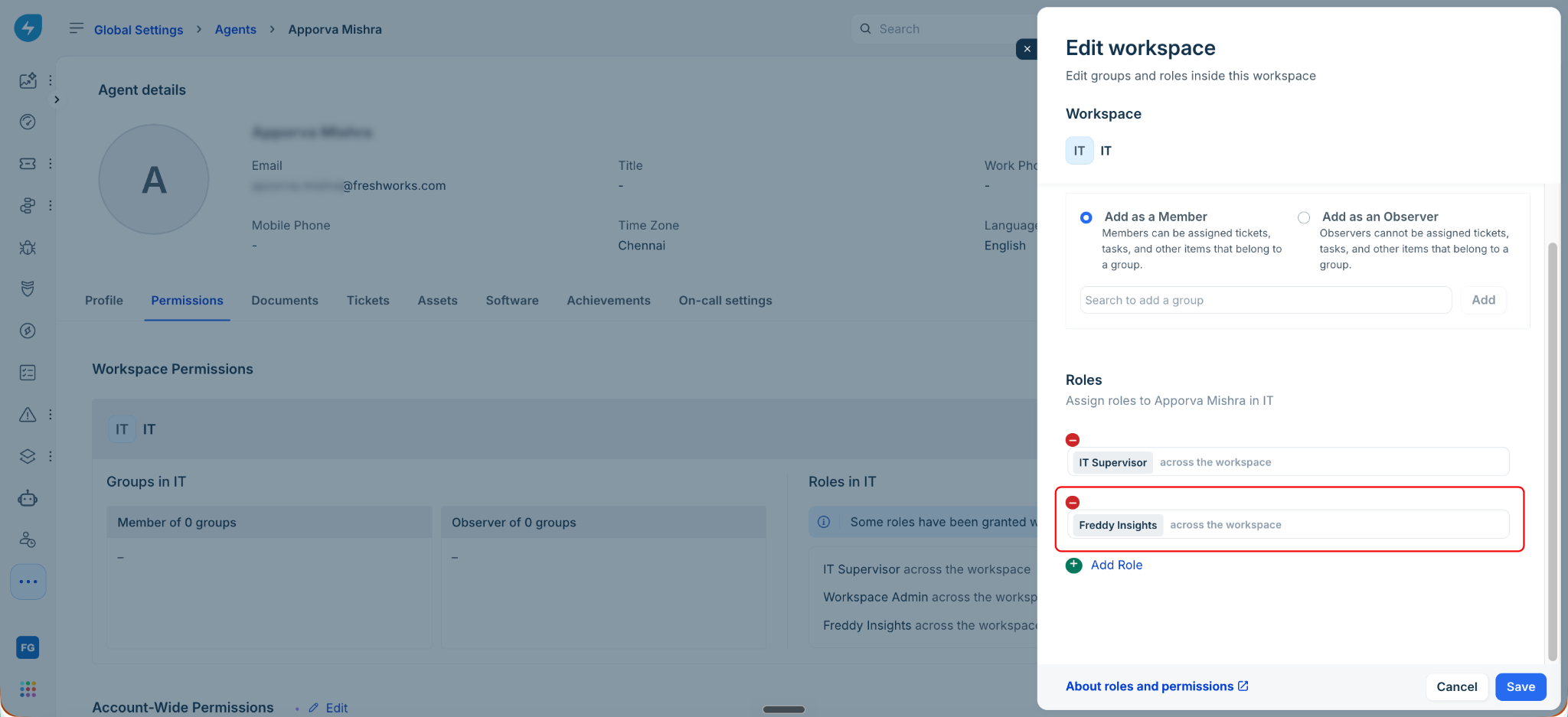
Under Groups and Roles, assign the Freddy Insights permission.
Save your changes.
Agents with the Freddy Insights permission can access Conversational Insights.
Enable the Ask mode
Note: Ask is currently available as a beta feature.
The Ask mode is disabled by default. An administrator must enable it once for the account before users can access it.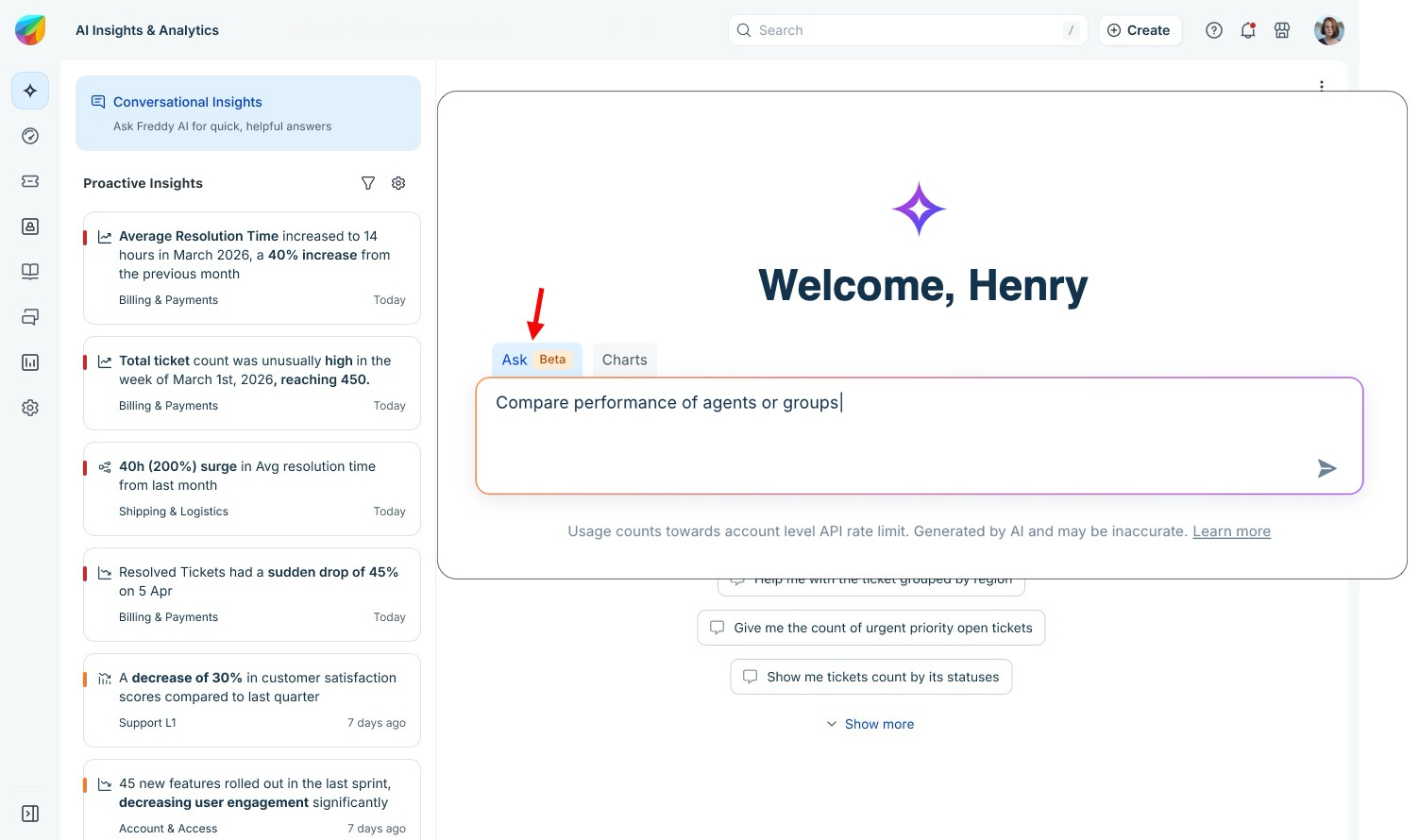
To enable the Ask mode, follow these steps:
Go to Conversational Insights.
Click More options in the upper-right corner.
Click Enable Ask mode.
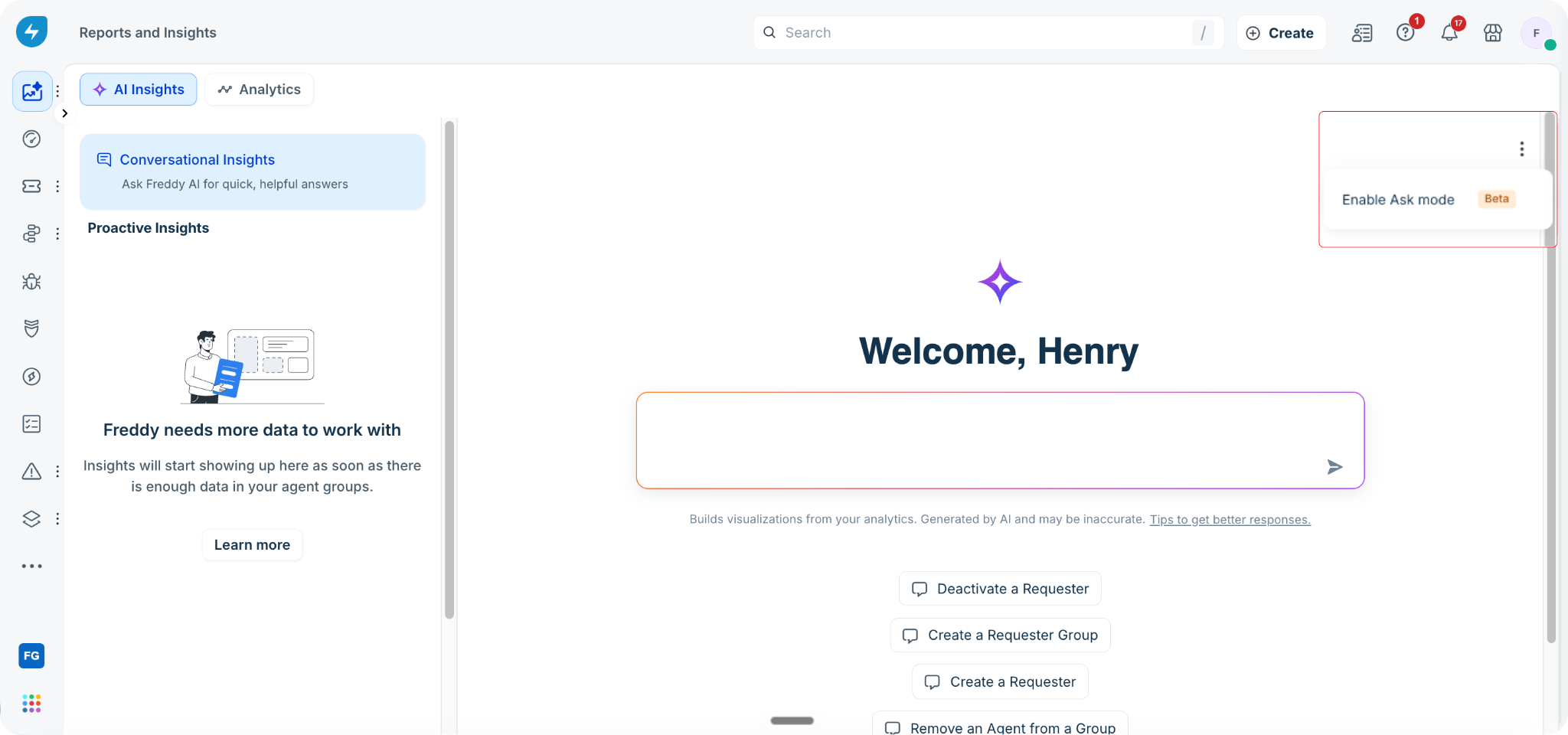
Review the information in the consent dialog. The dialog explains that:
Ask will be available to all users who have access to Conversational Insights.
Ask uses your account's shared Freshservice API rate limit.
Click Enable for everyone.
Complete the Freshworks OAuth authorization to authorize your own access.
Disabling Ask does not remove access to Conversational Insights. Users can continue using Charts mode.
Choose the right mode
Choose the mode based on the type of answer you need. If your question requires a visual representation of your data, use Charts (default mode). If your question requires a direct answer or information lookup, use Ask.
Generate charts
Use Conversational Insights to generate charts and visualizations from natural language queries.
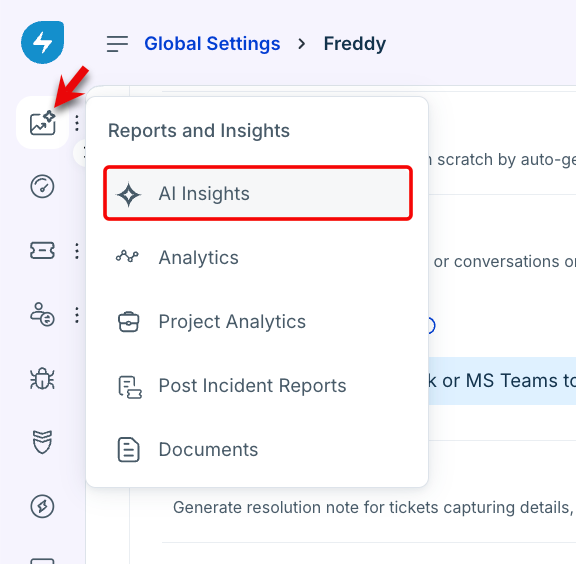
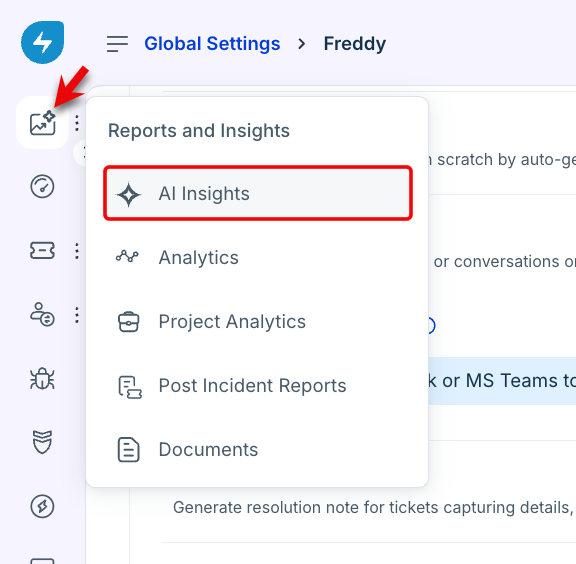
In Freshservice, click Reports and Insights in the left navigation pane, and then select AI Insights.
If the Ask mode is enabled for your account, select Charts. Otherwise, continue with the default view, which is Charts mode.
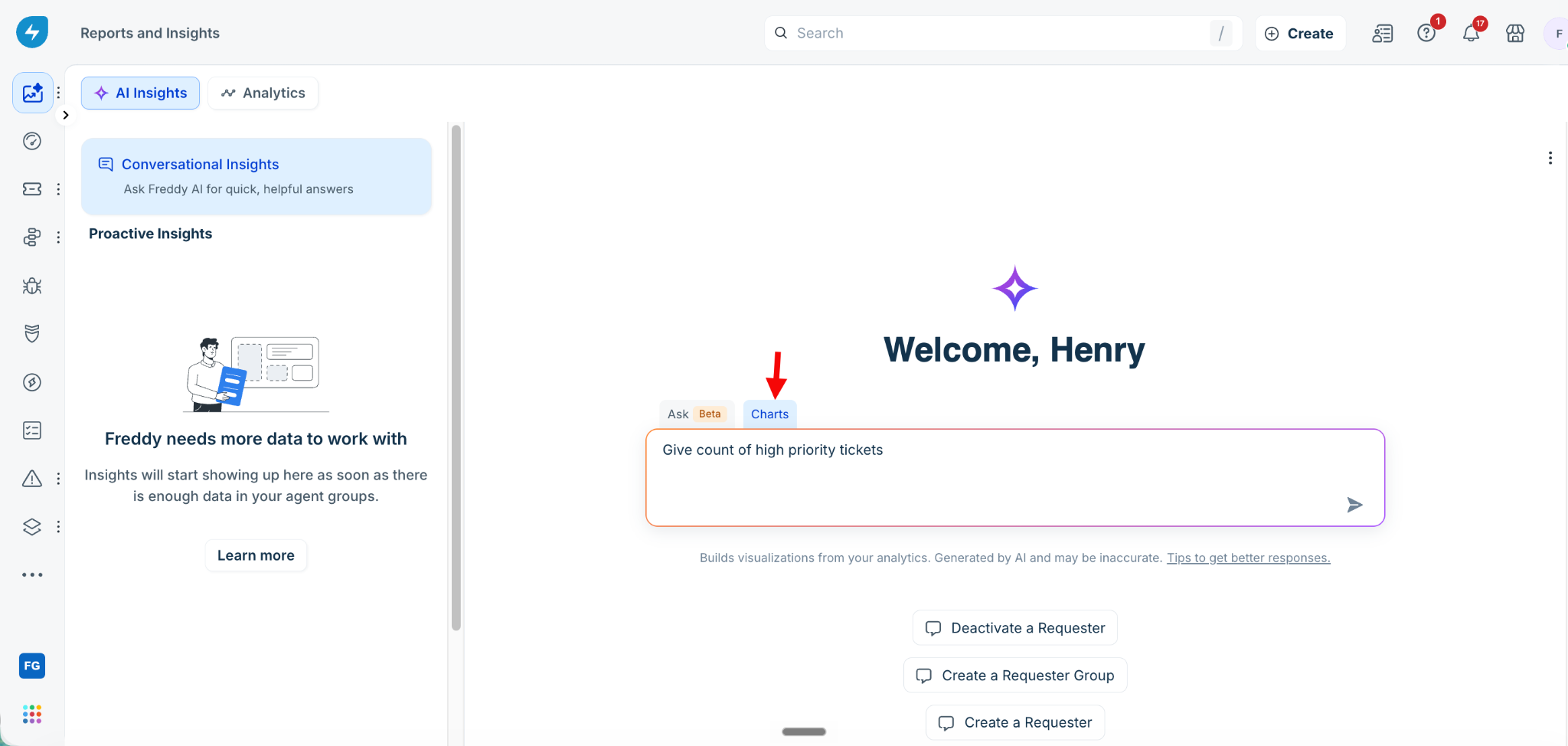
Enter your question in natural language. For example, "Show me the number of unresolved tickets by priority."
Conversational Insights generates the most appropriate chart to visualize the requested data.
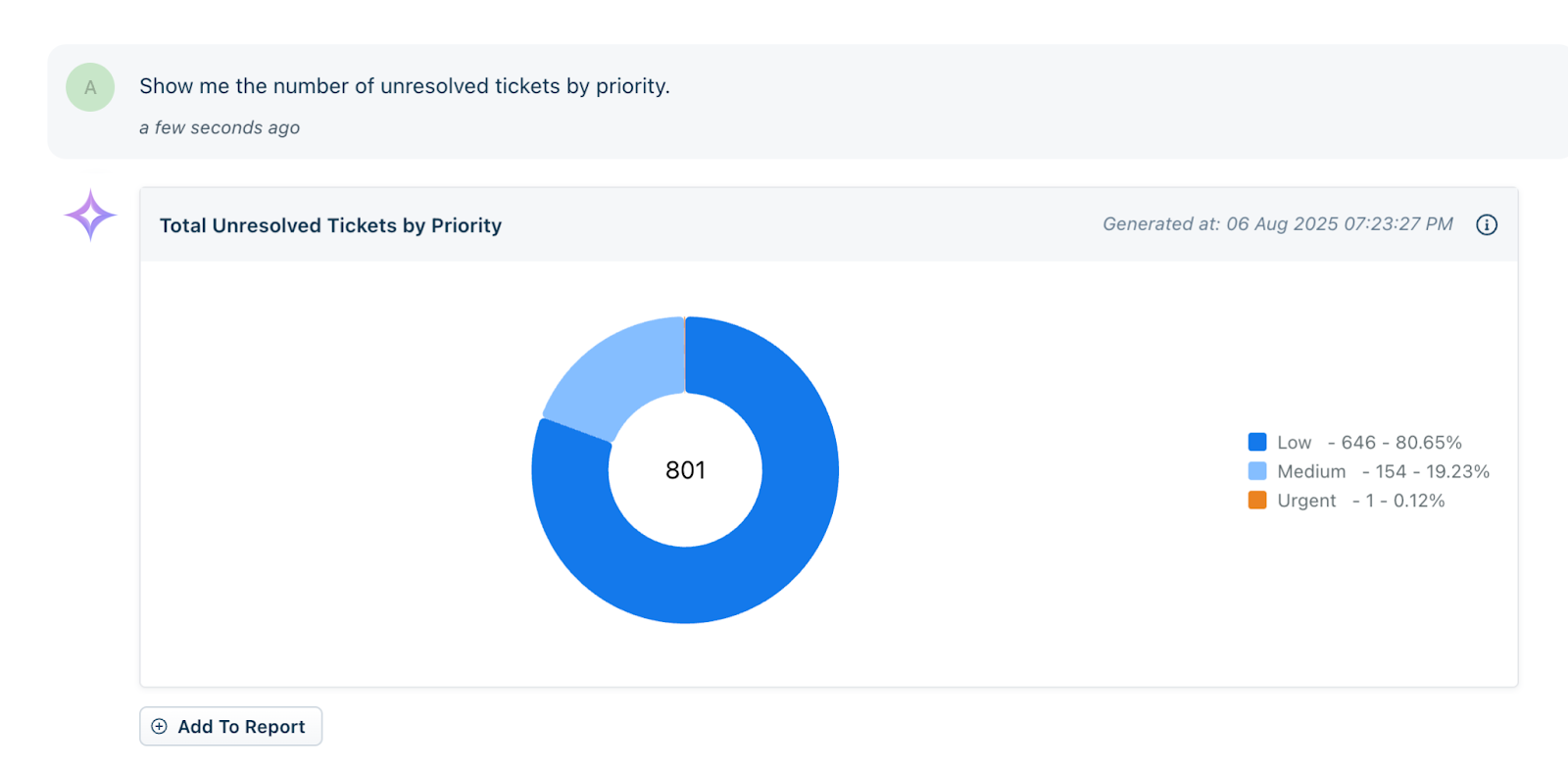
Ask follow-up questions to refine the results.
Click the Info (ⓘ) icon to view the query used to generate the chart.
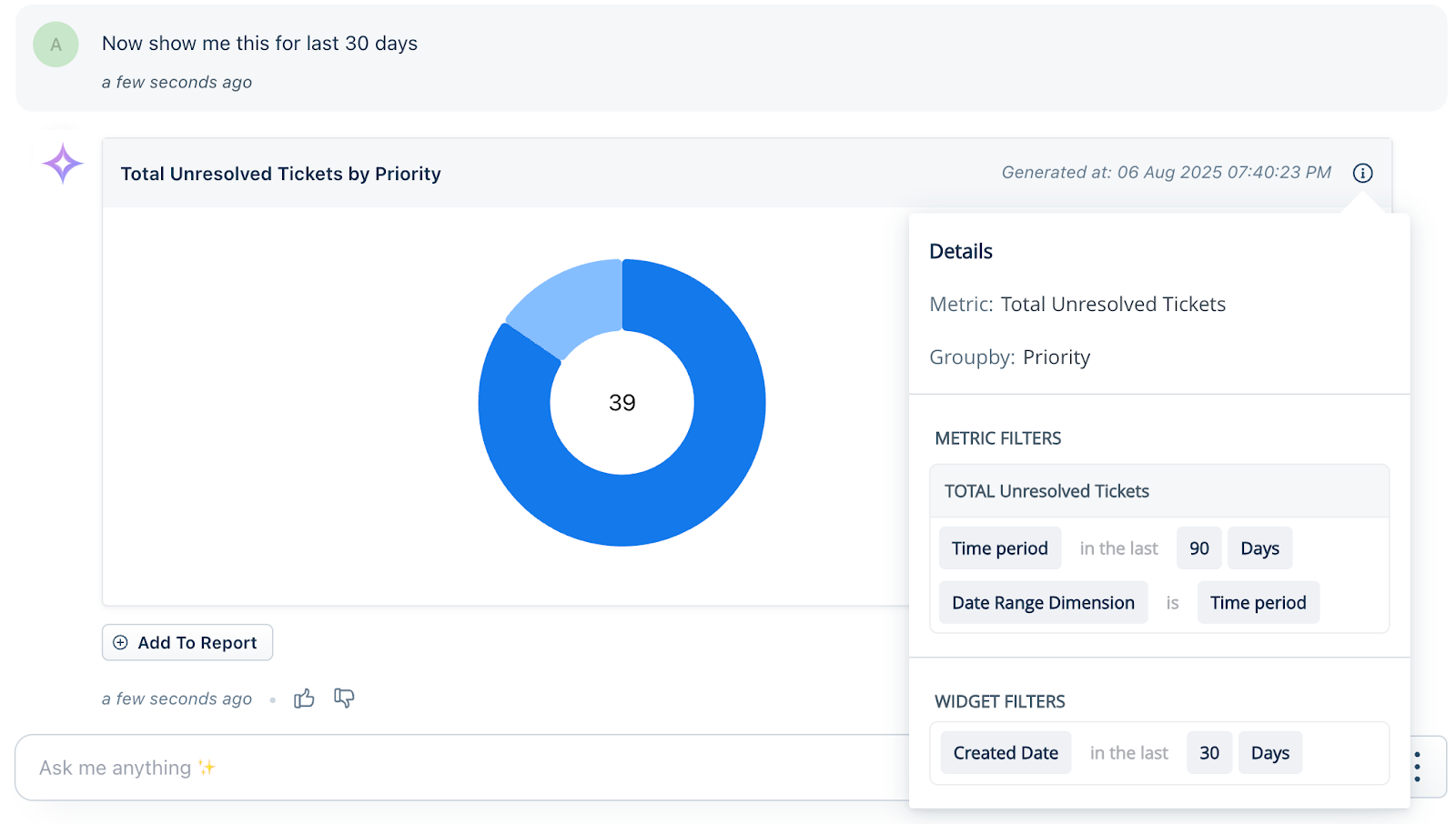
To add the chart to an Analytics report, click Add to Report.
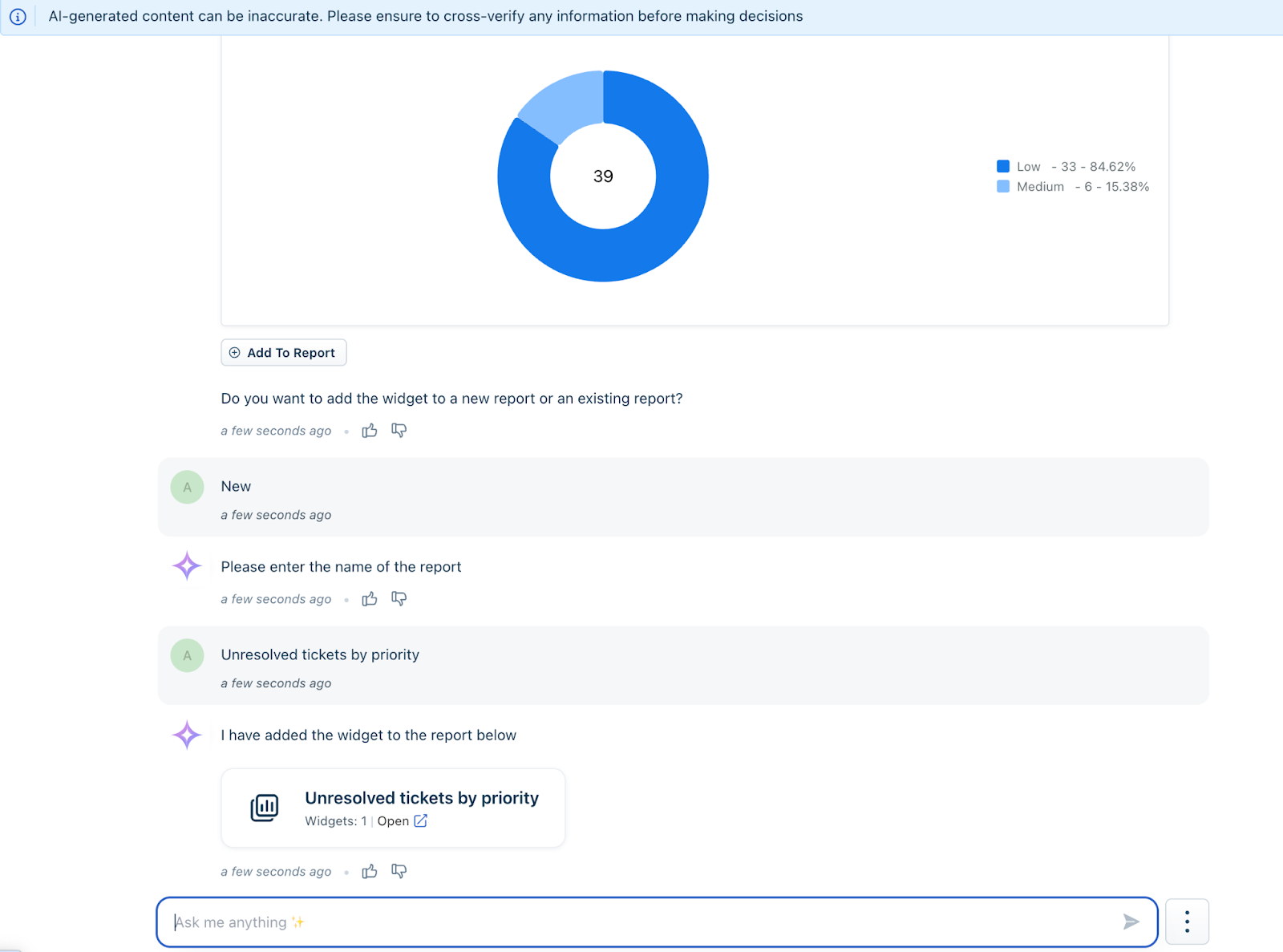
To start a new conversation without using the previous context, click Clear Conversation.
Conversational Insights uses the current conversation as context when responding to follow-up questions.
Use the Ask mode
After an administrator enables the Ask mode for your account, use it to retrieve, summarize, compare, and analyze information across your Freshservice data. To do so, follow these steps:
After an administrator enables the Ask mode for your account, you can use it to retrieve, summarise, compare, and analyze information across your Freshservice data. To use Ask, follow these steps:
In Freshservice, click Reports and Insights in the left navigation pane, and then select AI Insights.
By default, you land on the AI Insights tab, where the Conversational Insights window is displayed.
Ensure that the Ask mode is selected.
Enter your question in plain English. For example, "Show me all the open P1 tickets."
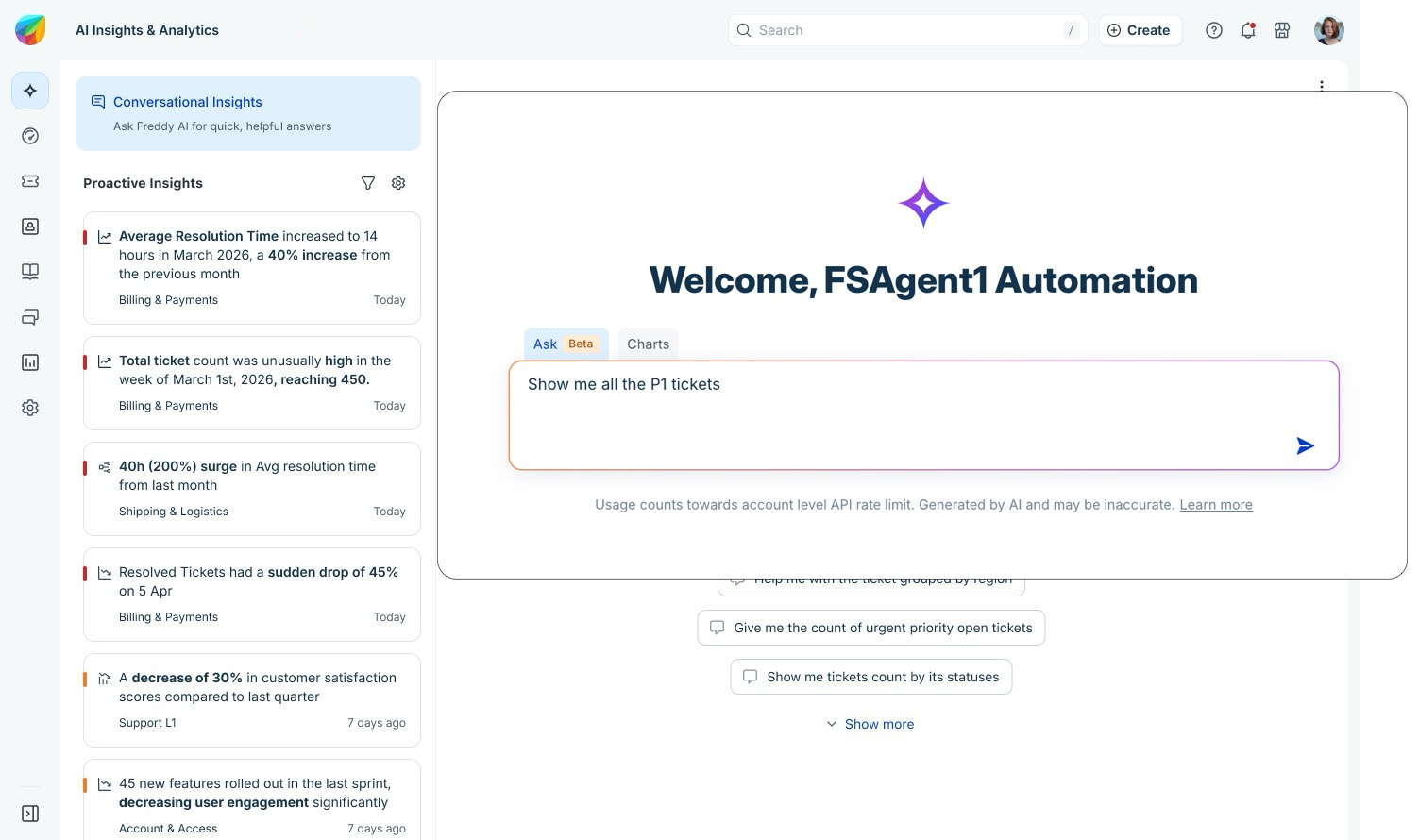
The following example shows a typical response.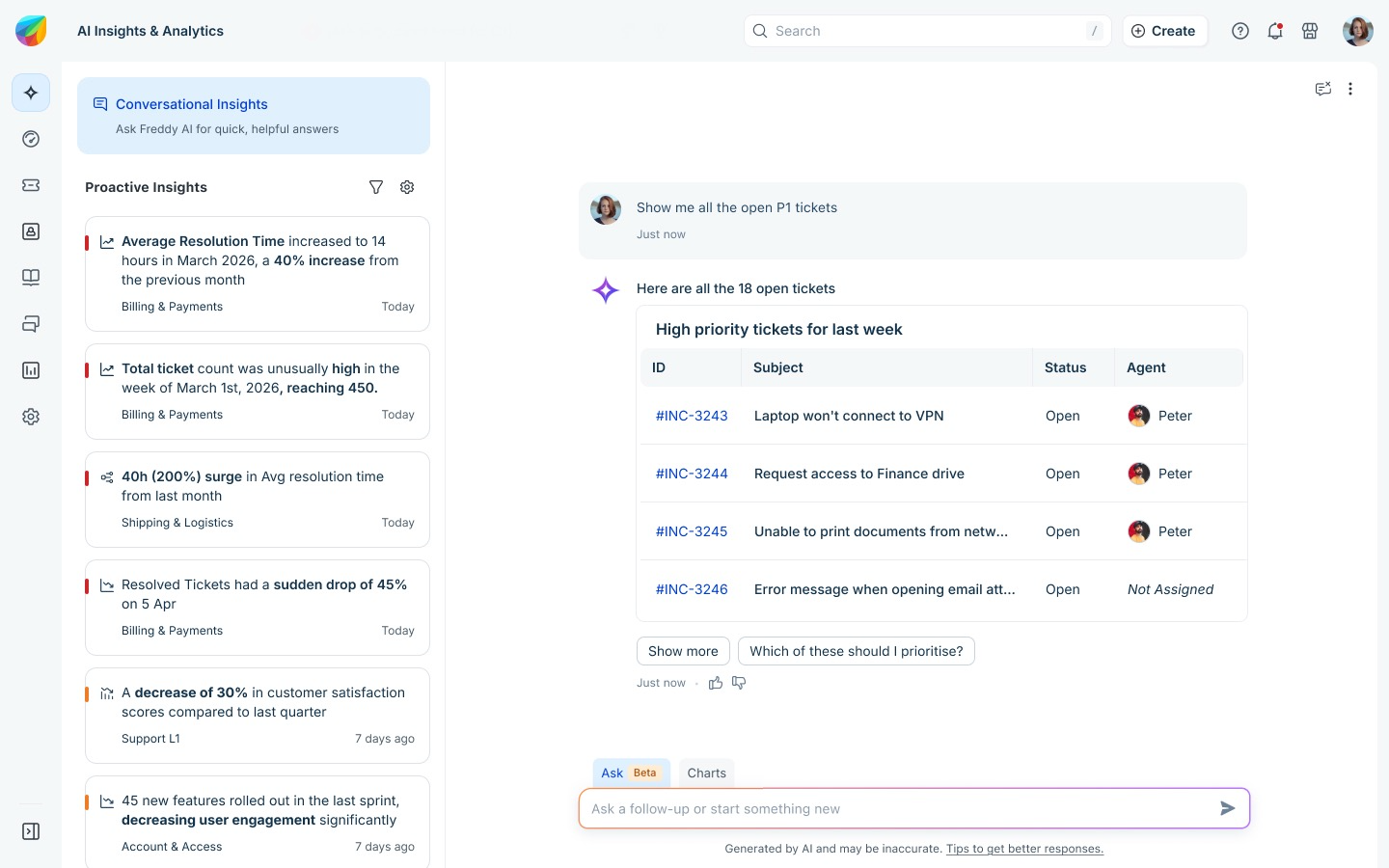
Ask uses the current conversation as context when responding to follow-up questions. To start a new conversation, click Clear Conversation.
Manage usage limits
Conversational Insights includes a service limit of 100 queries per account per month. The Service limit is a threshold that provides a benchmark to help you evaluate the service while maintaining full access to all features. To ensure our early adopters can realize the full value of the tool without friction, this limit is currently not enforced during the promotional period.
Because we are prioritizing a seamless experience at this stage, you can expect the following:
No service interruptions: Your team can continue to run queries beyond the 100-query threshold without being blocked or throttled.
Full exploration: The experience remains open and unrestricted to allow for comprehensive testing of the service's capabilities.
No current in-product indicators: During this promotional phase, you will not see usage counters or "limit reached" messages within the user interface.
Advanced notice: We are committed to transparency regarding your usage. We will send a formal notification one month prior to enforcing these limits.
Optimize your queries for better results
For the most accurate results in Conversational Insights:
For complex queries, break them into simpler questions and use follow-up queries.
The feature supports only English and cannot answer questions about data outside Freshservice.
Ask mode example queries
Use the following examples to get started with Ask.
Retrieve records: Find records that match specific criteria.
Example: "Show me open P1 tickets and flag the ones breaching SLA."Summarise records: Generate a concise summary of one or more records.
Example: "Summarise ticket 44213 and its latest update."Analyse patterns: Identify recurring issues or trends across your data.
Example: "What are the common themes across these open tickets?"Compare data: Compare records across users, groups, or time periods.
Example: "Compare this month's performance for Agent A and Agent B."Prioritise work: Identify the most important records based on context.
Example: "Which of these should I focus on first, and why?"Search knowledge base articles: Find relevant articles and retrieve key information.
Example: "Find the KB article on VPN setup and give me the steps."Search the service catalog: Locate service catalog items using natural language.
Example: "Find the laptop request item in the service catalog."
Charts mode example queries
Use the following examples to generate charts and visualisations.
Identify top issues: View the categories generating the highest ticket volume.
Example: "What are the top categories of tickets customers are facing right now?"Analyse trends: Visualise changes in ticket volume over time.
Example: "Show me the weekly trend of incoming tickets over the last 30 days."Monitor SLA performance: Identify groups with the most SLA breaches.
Example: "Give me the top 5 agent group names that are missing Resolution SLA targets the most."Analyse ticket distribution: View how tickets are distributed across categories.
Example: "Show a breakdown of tickets created by category and sub-category."Identify ticket sources: Understand which channels generate the most tickets.
Example: "What are the top 3 sources that drive the most tickets?"Monitor agent performance: Compare agent performance using key metrics.
Example: "Which 5 agents have the highest ticket resolution time?"Compare historical data: Compare metrics across different time periods.
Example: "Compare ticket volume from March 2025 to March 2026."Compare performance by ticket type: Analyse performance across different ticket categories.
Example: "How does agent performance vary by ticket type?"
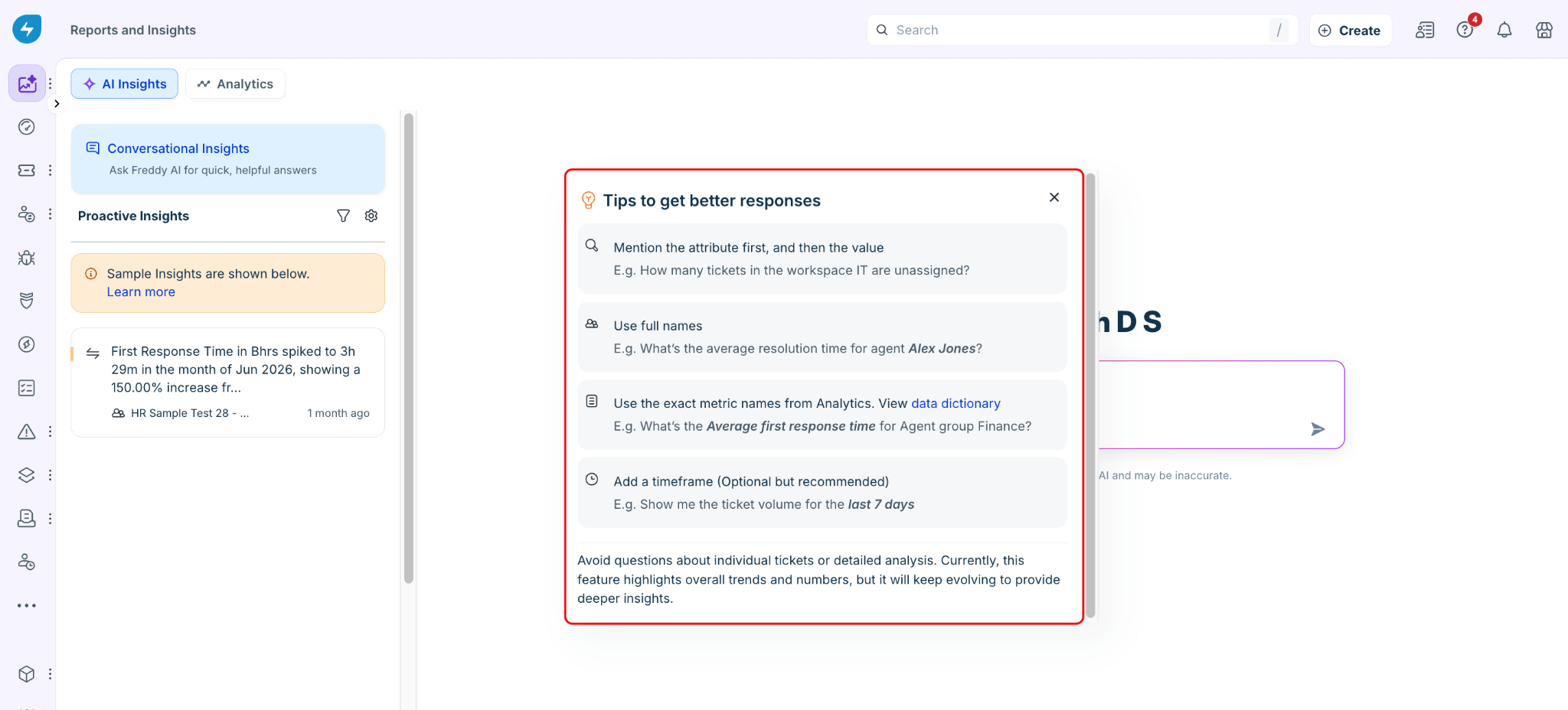
You can view sample tips by selecting the bulb icon shown below.
Review terms and conditions
Effective May 14, 2026, Conversational Insights is officially Generally Available (GA) for all customers on the Freshservice Enterprise Plan. Use of this feature is subject to our Service limits to ensure consistent performance and reliability for all users.
Starting July 28, 2026, the Ask mode is available as a Public Beta feature within Conversational Insights. Administrators of Enterprise accounts can enable the Ask mode for their account. The existing Conversational Insights capabilities continue to be available through the Charts mode.
Activation Timelines
Pre-enabled Accounts: Customers who enabled Freddy AI Insights prior to August 25, 2025, will receive automatic access to the Conversational Insights on May 14, 2026.
New Activations: For eligible accounts enabling Freddy AI Insights after May 14, 2026, the Conversational Insights feature will be provisioned and accessible within 24 hours of enablement.
Data Accuracy & AI Usage
Data Quality: The precision of the generated charts and insights depends directly on the quality and completeness of the data maintained in your Freshservice instance.
Validation: While Freddy AI is a powerful tool for data synthesis, AI-generated responses can occasionally contain errors. We recommend reviewing and validating the insights before taking business actions based on the responses.