
 Community
 Video Library
 Agent Training
 Freshservice
 Freshdesk
 Freshchat
 Freshcaller
 Freshsales
 Freshteam
 Freshworks Neo
 Freshsurvey
 Freshservice for MSP
The Improve page shows AI-generated recommendations that help you create or update knowledge articles. Each recommendation is based on employee conversations that the AI agent could not resolve. Use Improve to find missing or inaccurate content, fix it, and confirm the result.
TABLE OF CONTENTS
Prerequisites
Make sure the following requirements are met before you use Improve.
Ensure you have access to AI Agent Studio and permission to edit knowledge base (KB) articles.
Ensure you have the relevant role-based access control (RBAC) permission if you plan to assign articles for review.
Ensure the AI agent has enough conversation data to generate insights.
Note: To generate meaningful recommendations, approximately 500 conversations are needed. These are conversations that the AI Agent was unable to resolve and escalated to a human agent, where the human agent performed additional actions to resolve the issue. A sufficient number of conversations across each issue category is also needed so that the insights are representative and actionable. Until this volume and diversity of data is available, the system may not be able to generate reliable insights or recommendations for improving the agent’s performance.
Overview of Improve
Improve gives you one place to see which knowledge gaps cause the AI agent to hand off to human agents. Instead of reviewing conversations manually, you work from a prioritized list of insights.
An insight is one AI-identified content gap or improvement opportunity. For example, an insight might state that employees struggle to reset passwords after device changes, which leads to repeated IT tickets. Each insight links to the conversations that support it, so you can verify the recommendation before you act on it.
The flow is as follows:
Open the Improve page and review the Available insights.
Validate an insight against its conversations.
Review the content and act on the recommendation.
Complete or discard the insight.
Measure the impact of your change.
Access the Improve page
Use the Improve page to see all available insights for your AI agent. To open it, follow these steps:
Go to AI Agent Studio and select your AI agent.
Go to Analyze > Improve.
The page lists the Available insights, sorted by conversation volume with the highest volume first.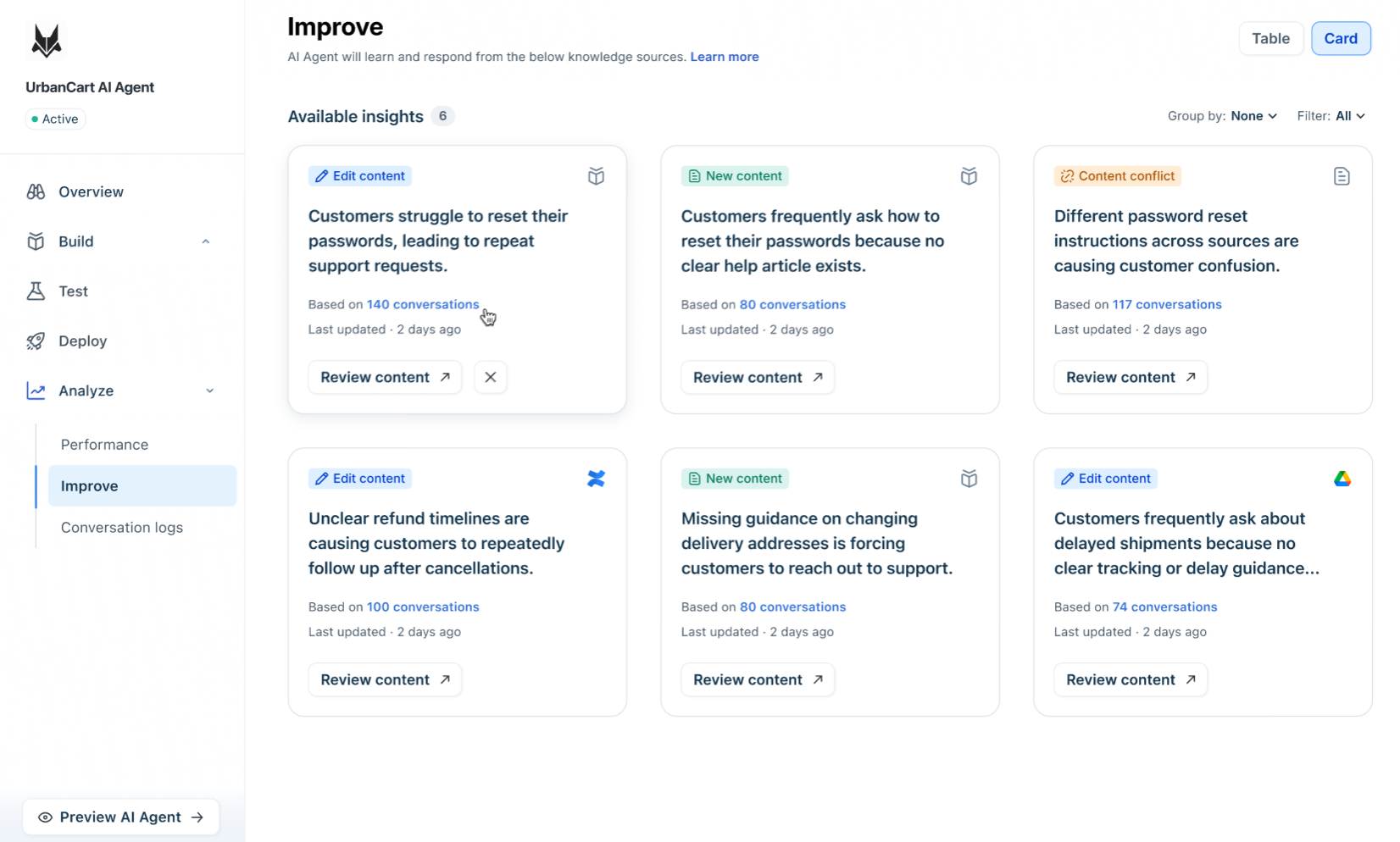
Review available insights
Each insight shows what the gap is, how many conversations support it, and what kind of change is recommended. You can view insights as cards or as a table. Use the Card and Table buttons at the top right of the page to switch between the views.
Understand insight types
Each insight has a type that shows you what the AI recommends. The following table describes each type and the action you take.
Use card view
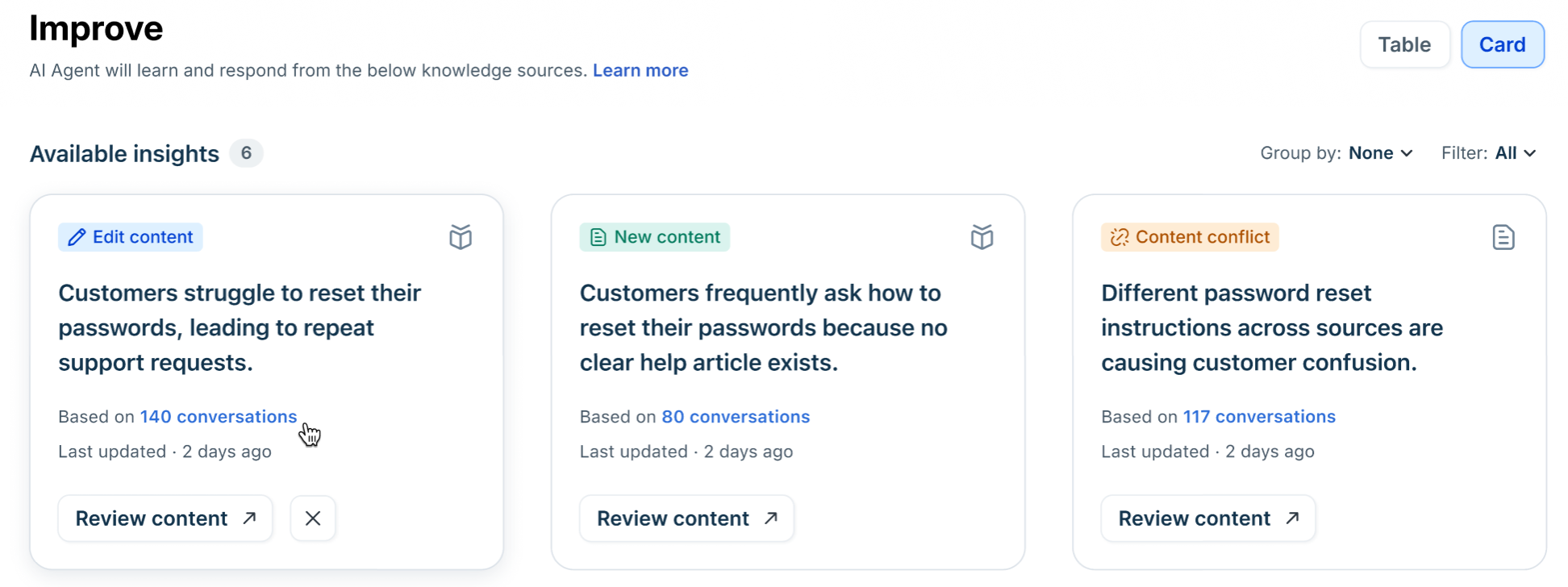
Card view shows each insight as a card. Each card displays the insight type, the knowledge source involved (such as a Freshworks KB, Confluence, or Google Drive), a plain-language title, the number of supporting conversations, and when the insight was last updated. Select Review content on a card to act on it. To discard a card, hover over it and select the discard icon.
Use table view
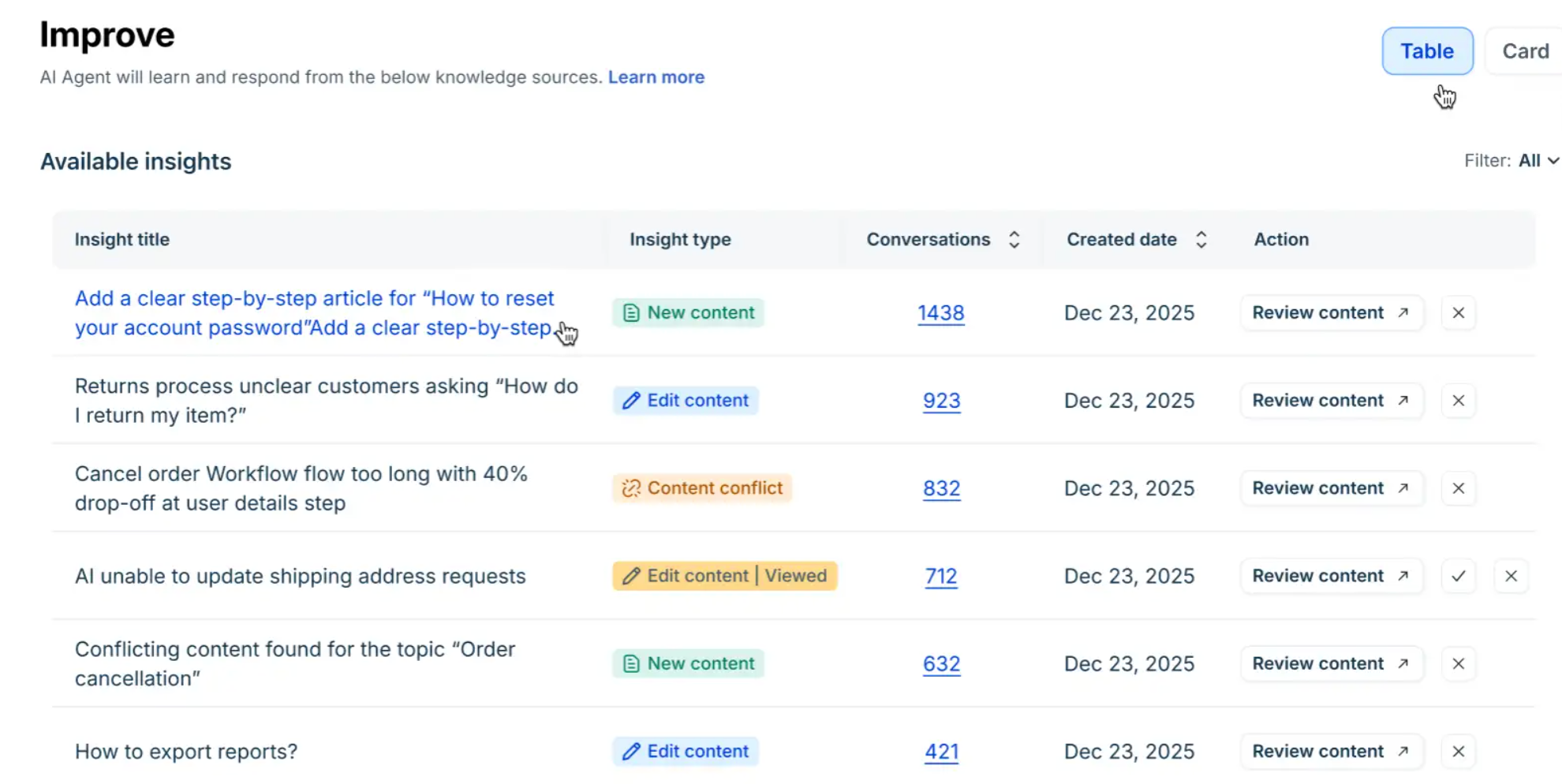
Table view lists each insight as a row with its title, type, number of conversations, and created date. This view is useful when you want to compare insights by volume or date. Select Review content in a row to act on it. Use the check mark (✓) to mark an insight as completed, and the discard icon (✕) to discard it. Insights that you have already opened show a Viewed label next to the type.
Manage insights
You can organize the list based on your requirement:
Sort by conversation volume (default) or by created date.
In card view, group insights by a field.
Filter by topic, sub-topic, insight type, or status (Available, In Progress, Completed, Discarded).
Validate an insight against conversations
Before you act on an insight, check the supporting conversations to confirm the recommendation is accurate. To validate an insight, follow these steps:
On the card or table row, select the conversations link. Conversation logs opens, filtered to the conversations linked to that insight.
Select a conversation to open its details.
On the Summary tab, review the issue summary, the resolution brief, and the Recommended fix section that lists the linked insights.
On the Conversation tab, review the full message thread between the employee and the AI agent, including the triggered skills and the knowledge sources referred.
One conversation can be linked to more than one insight. Insights that you have already actioned appear greyed out with the label Already actioned.
Act on an insight
When you select Review content, the insight status changes to In Progress. The page that opens depends on the insight type.
Create a new article
Use this procedure for a New content insight. The KB editor opens with a draft that the AI has prepared from conversation evidence. To create the article, follow these steps:
On the insight, select Review content. The KB editor opens with the title, draft content, supporting conversation count, suggested category, and suggested tags already filled in.
Edit the title, content, category, and tags as required. You can freely expand or restructure the draft.
Select one of the following options:
Save as draft
Assign for review (requires RBAC permission)
Publish
When you publish the article, the insight is marked Completed and no longer appears on the Improve page.
Edit an article from the Freshworks KB
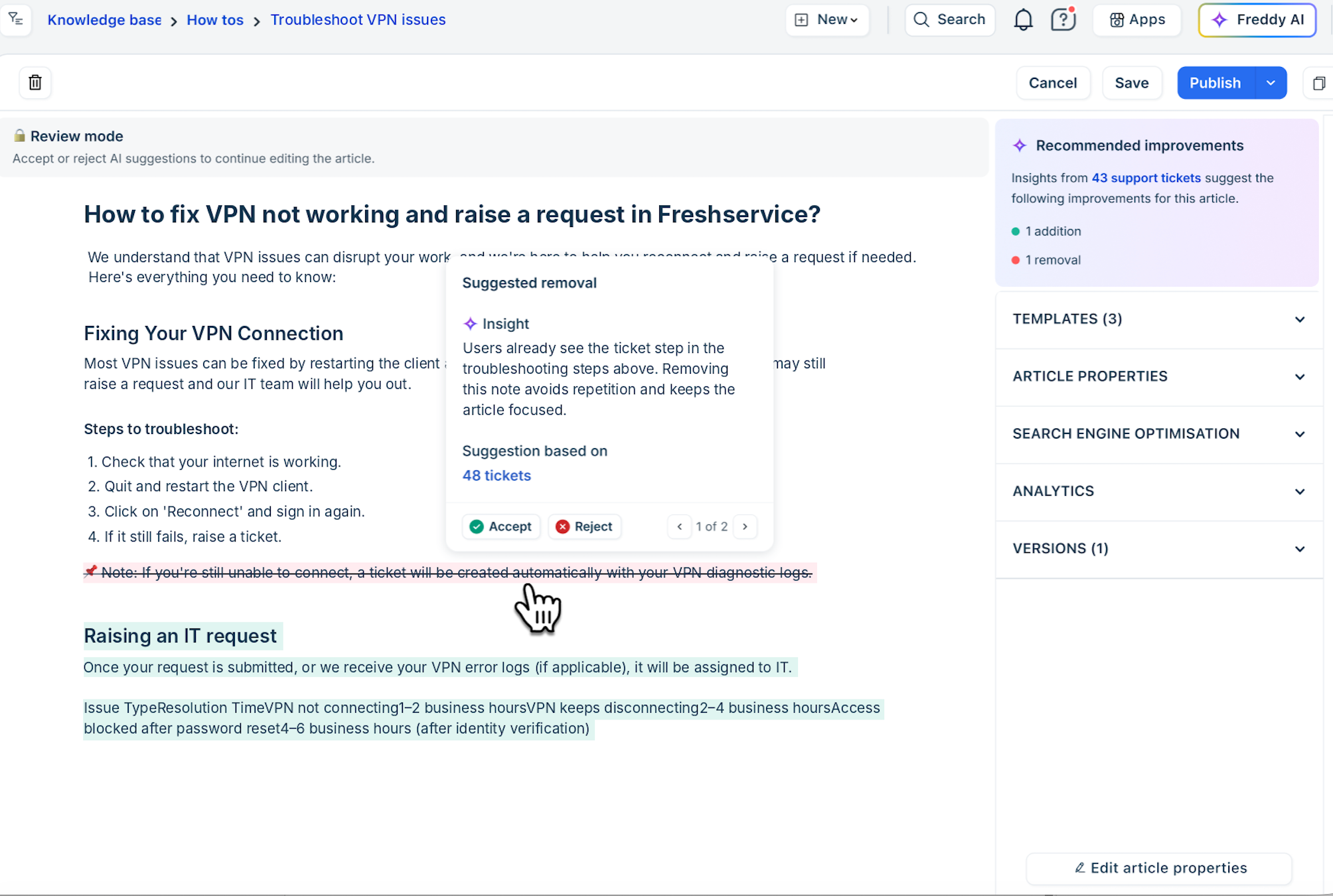
Use this procedure for an Edit content insight where the article is in the Freshworks KB. The editor shows AI suggestions inline so that you can accept or reject each one. To review the suggestions, follow these steps:
On the insight, select Review content. The article opens with the AI suggested edits panel on the right. The panel summarizes the suggestions, for example, 1 addition and 1 removal.
Use the toggle to show or hide the recommendations. They are shown by default.
For each suggestion in the article, review the rationale, the number of supporting conversations, and the referred data source, such as Password Policy.pdf.
Select Accept or Reject for each suggestion.
Save or publish the article.
Saving or publishing removes any remaining suggestions and completes the insight.
Note: The article is locked for free-form editing until you accept or reject every suggestion. This prevents a partially resolved state.
The editor displays the following messages:
If you save while some suggestions are unaddressed, a warning states: Saving will remove all unattended suggestions.
If you leave the page with partially accepted suggestions, an error states: Unsaved changes will be lost.
Review changes to an external source
Use this procedure for an Edit content insight where the content comes from files, URLs, Confluence, or Google Drive. The editor opens in view-only comparison mode. To review the changes, follow these steps:
On the insight, select Review content. The comparison view opens.
Review the previous version in the left panel. Deletions are highlighted in red.
Review the AI-recommended version in the right panel. Additions are highlighted in green.
For each change, review the rationale and select the citations link to see the supporting conversations.
Update the content in the source system, and then re-sync it.
Note: You cannot edit external content in AI Agent Studio.
Review conflicting content
Use this procedure for a Content conflict insight. The conflict view is view only, so you cannot merge or retire articles from it. To review the conflict, follow these steps:
On the insight, select Review content. A panel lists all articles that contain conflicting information on the topic.
For each article, review the title, folder path, author, last updated date, and an excerpt of the conflicting text.
Select more to expand the full conflicting passage.
Resolve the conflict by updating the articles directly in your knowledge source.
Complete or discard an insight
You can close an insight manually when you no longer need to act on it. Select the option that fits your situation.
To mark an insight as completed, select the check mark (✓). This option is available after you open the insight. The status changes to Completed.
To discard an insight, select the discard icon (✕), and then select a reason: Insight incorrect or Insight correct but drafted content incorrect. The status changes to Discarded, and the insight moves to Viewed insights.
Measure the impact of your changes
After you publish an article that originated from an insight, the system tracks how the change affects the AI agent. It tracks the following for 30 days:
Change in the deflection rate for the affected topic
Change in employee CSAT for the topic
Percentage of recommendations that improved metrics compared with the baseline before the change