Community
 Video Library
 Agent Training
 Freshservice
 Freshdesk
 Freshchat
 Freshcaller
 Freshsales
 Freshteam
 Freshworks Neo
 Freshsurvey
 Freshservice for MSP
 Discovery Hub allows you to quickly start assessing your environments by scanning IPs, IP ranges, or CIDR blocks. This article provides an overview of how to configure scans, understand asset categorization, and transition from initial scoping to automated discovery jobs.
Prerequisites
You need the following before the installation:
Administrator privileges to access Discovery settings.
At least one active Remote Collector (RC) configured in your environment.
A list of target IPs, IP ranges, or CIDR blocks for the environment you wish to scan.
Discovery Hub provides a high-level view of your IT environment by performing a preliminary scan of your network. It groups returned information into six categories:
- Windows
- Linux (Nix)
- Network Devices
- Hypervisors
- Other/Unknown
- Unreachable
This helps you identify the OS type and Fully Qualified Domain Name (FQDN) for assets before committing to full discovery jobs.
The scan results are based on Nmap data. While Nmap attempts to produce accurate results, the insights are based on packets returned by target machines or firewalls, which may occasionally result in fingerprinting variability.
Set up a Discovery Hub scan
To set up your first scan and identify assets in your network, follow these steps:
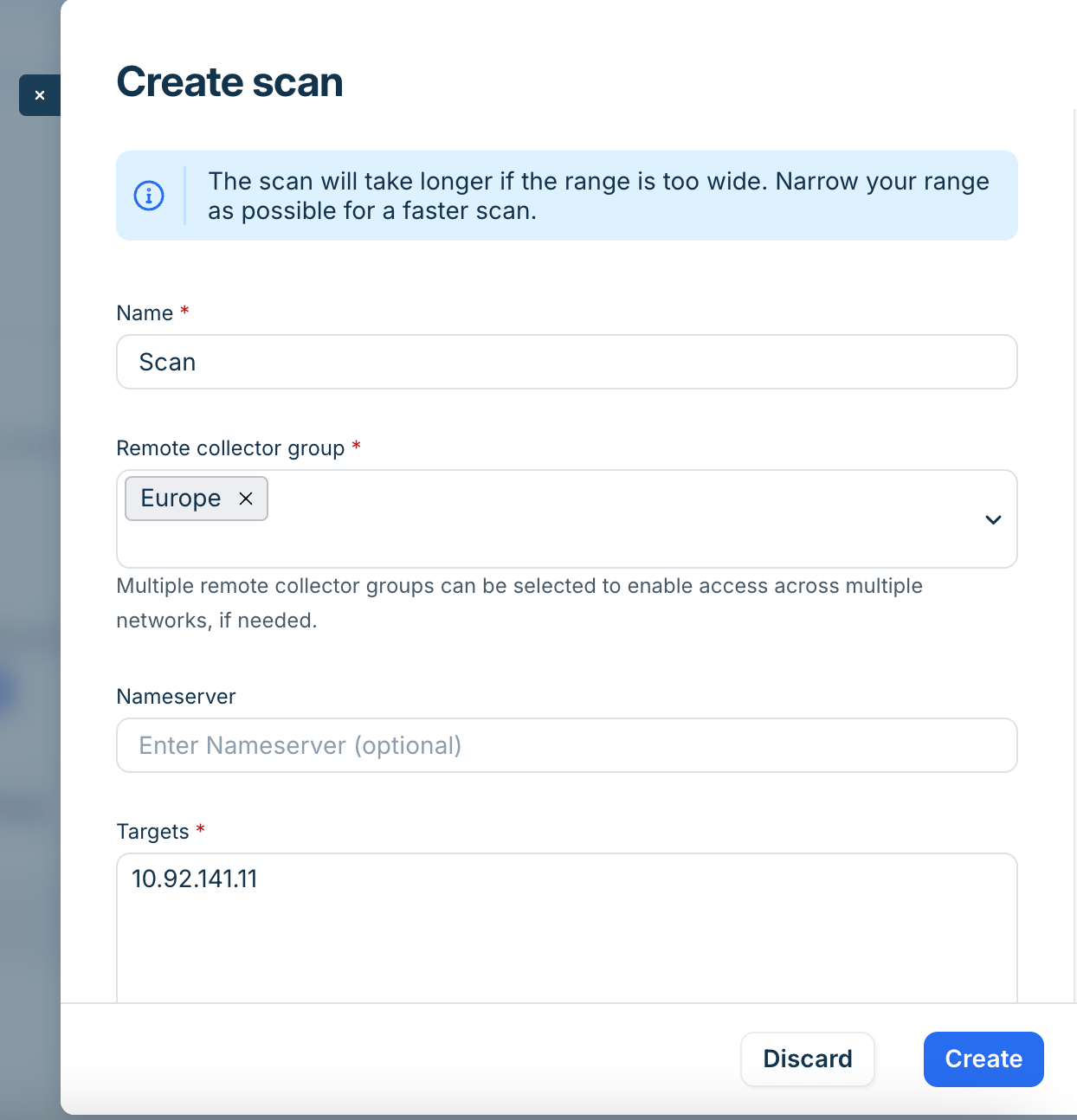
Go to Admin > Asset Management > Discovery Hub > Scan and discover and click Create a scan.
Enter a unique name for the scan.
Select the Remote Collector you want to use from the dropdown menu.
In the IP target box, enter the IPs, IP ranges.
Click Create to begin the scan immediately.
The scan time varies based on the number of targets, typically averaging two minutes per IP for large ranges.
Configure network scan options
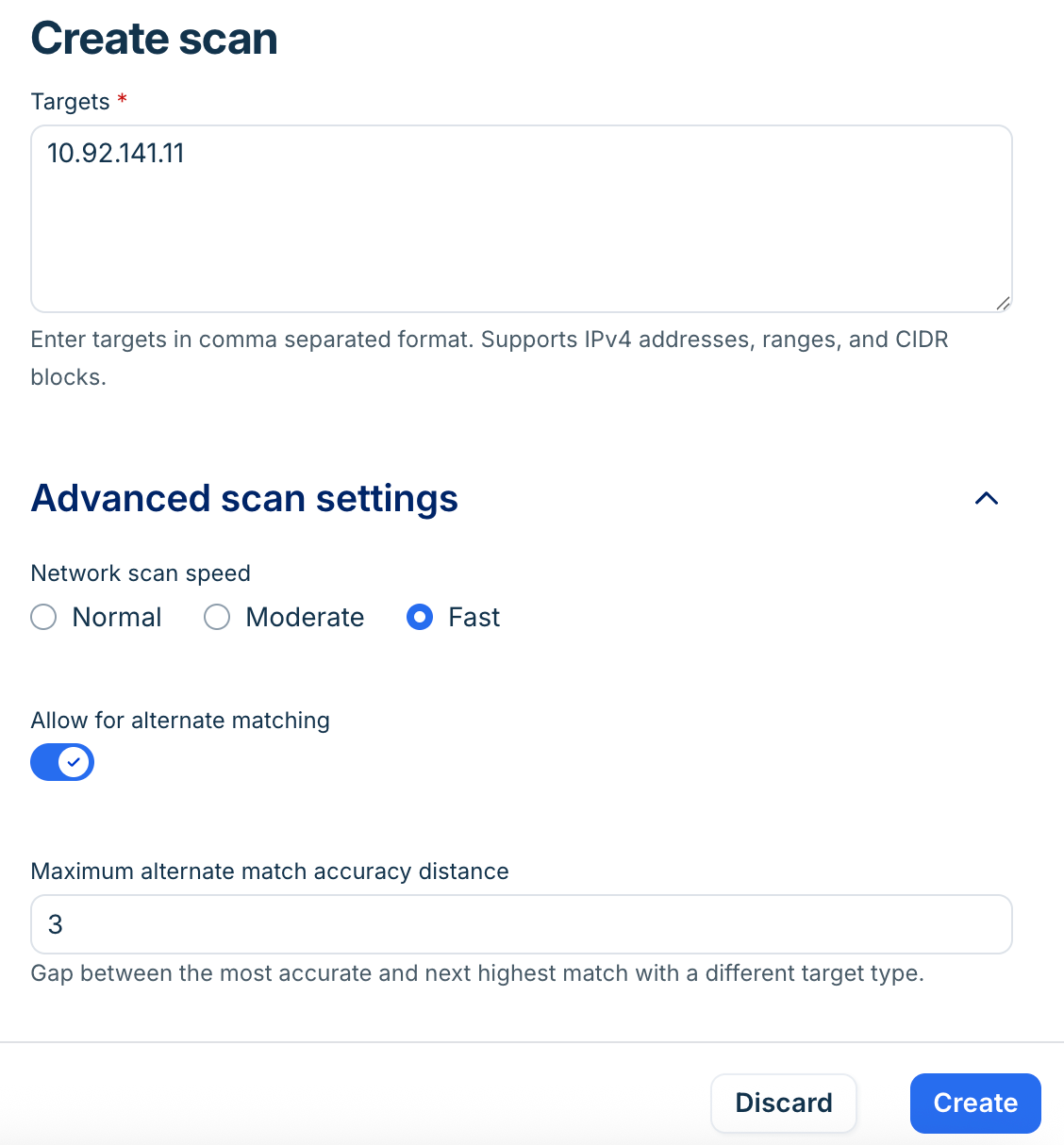
You can adjust the scan speed and matching logic to improve accuracy for devices.
Select a scan speed based on your network environment:
Fast: Increases parallel requests and reduces timeouts for rapid results. Best for high-bandwidth, reliable networks.
Moderate: Balances speed and accuracy; recommended for most standard enterprise environments.
Normal: Uses longer timeouts and a cautious packet delivery rate. Best for unstable networks or those with strict security filtering.
Enable the Alternate Matching toggle as required. By default, this is enabled and uses the highest accuracy match returned by Nmap.
Set the Accuracy Distance to define the percentage points of accuracy allowed for alternate matches.
View and manage scan results
Once a scan is running or completed, you can review the findings.
Select a scan from the left-hand column to view its summary screen.
Review the six categories:
Windows, Linux, Network Devices, and Hypervisors: Devices clearly identified by their OS or hardware type.
Other/Unknown: Devices that do not fit the main categories or lack an Nmap mapping.
Unreachable: IPs that did not return any response.
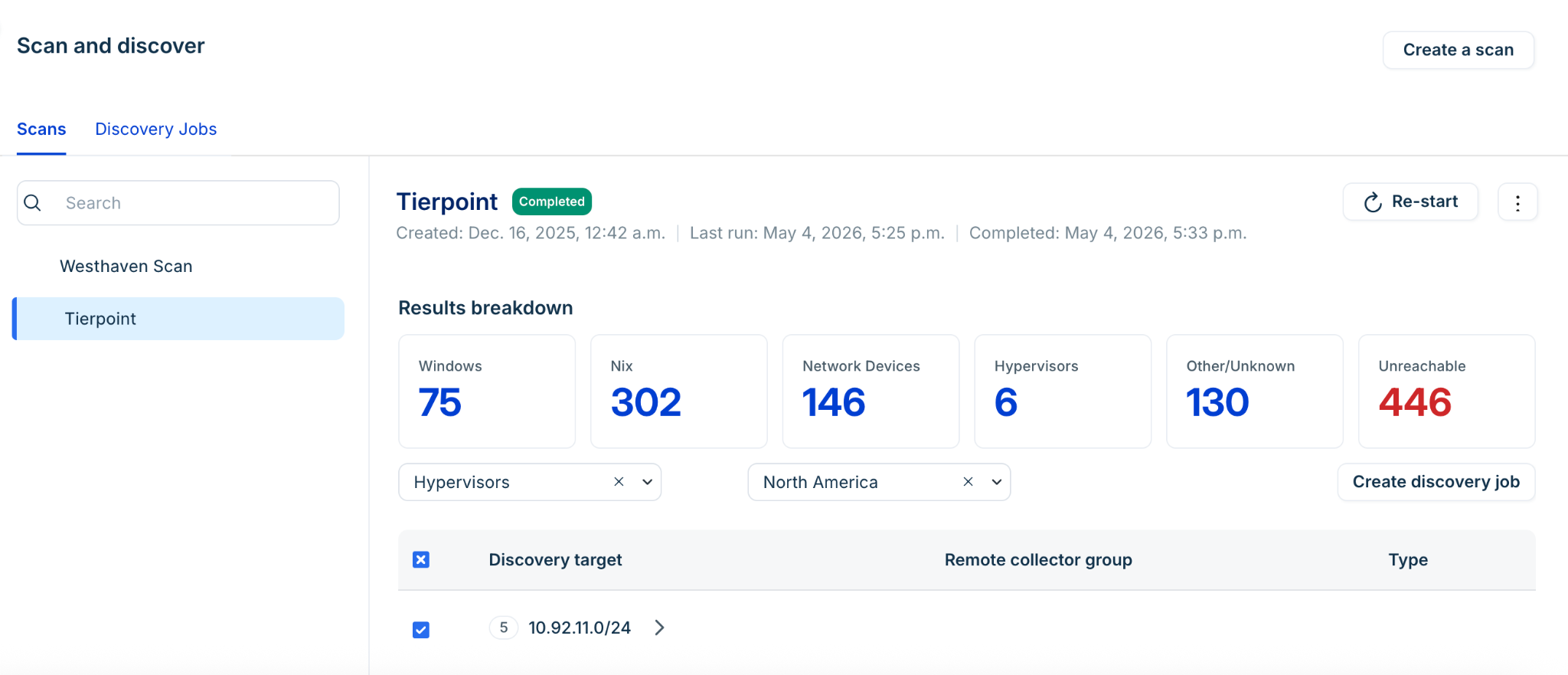
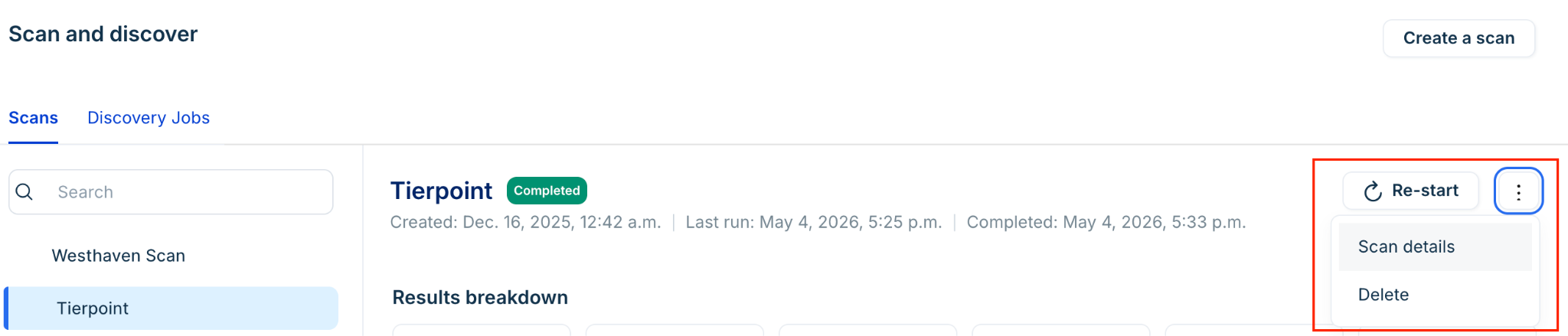
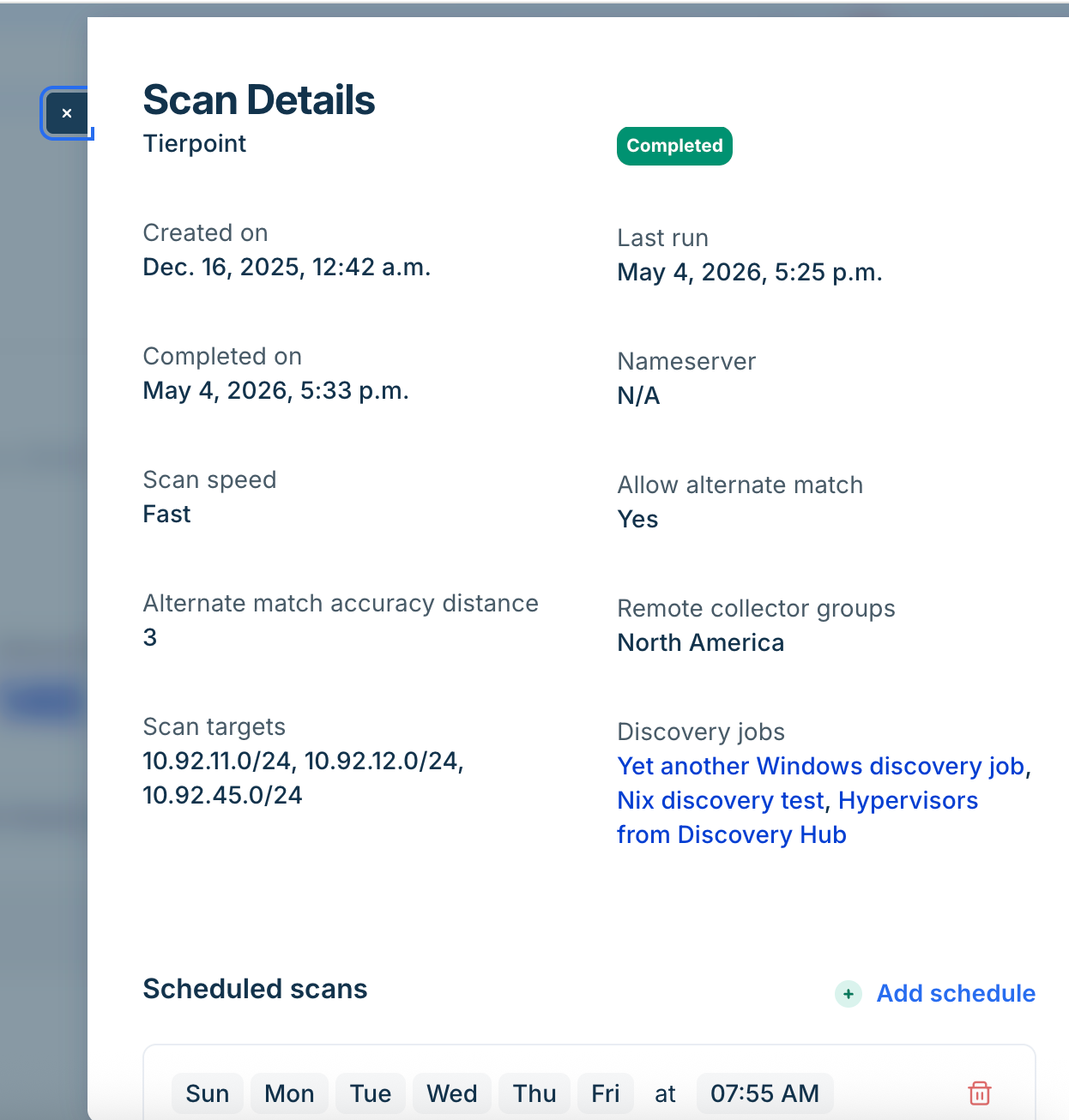
Click More options > Scan details to view the original scan parameters or schedule a recurring scan.
Click + Add schedule to set a recurring interval for the scan.
Note: If a scan is stopped, it cannot be resumed or edited; a new scan must be created to cover remaining targets. It is recommended to run one scan at a time to prevent network congestion.
Convert scan results into discovery jobs
After identifying your assets, you can move them into formal discovery jobs to begin deep scanning.
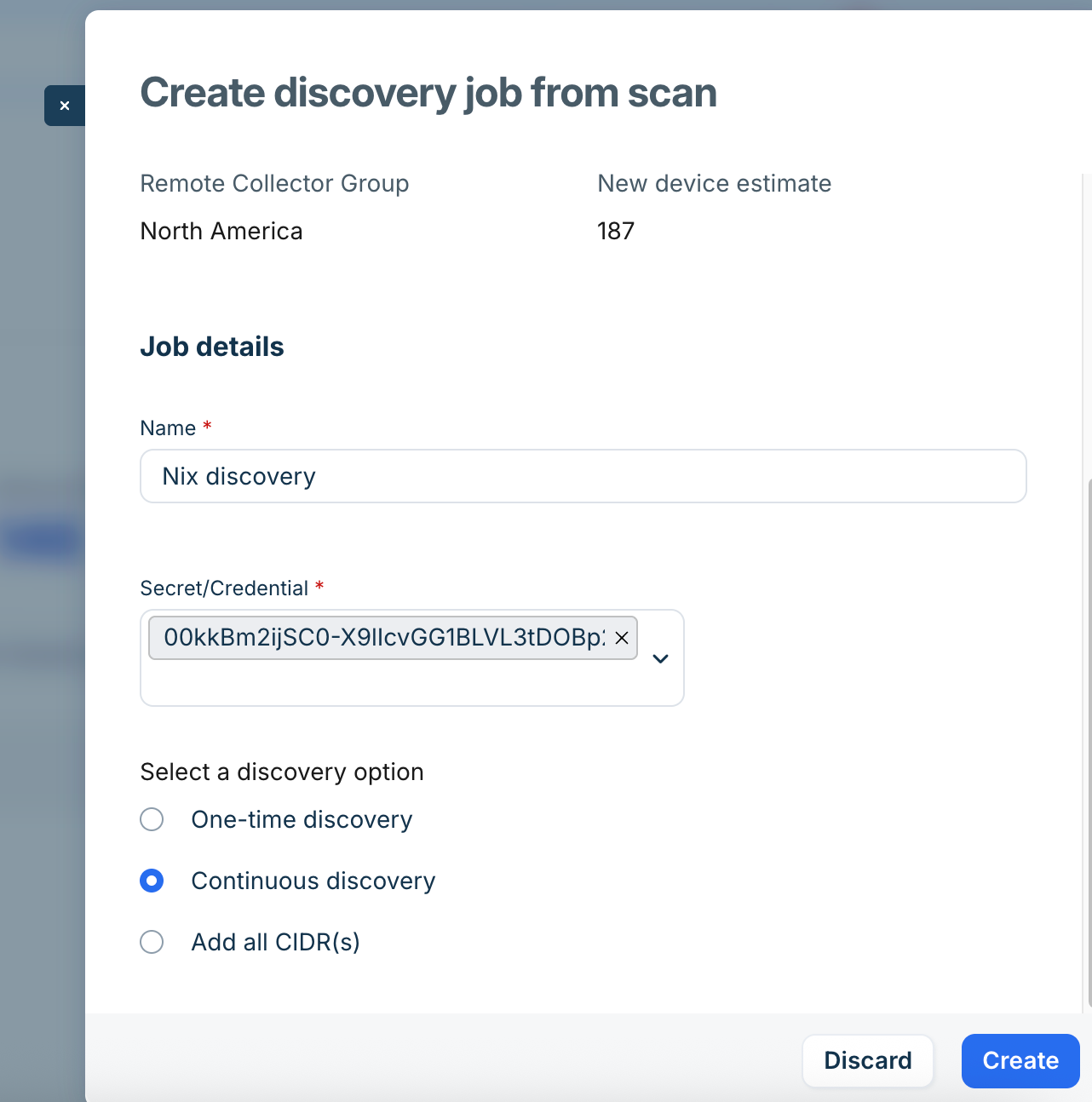
Select a discovery type, for example, Windows or Nix from your scan results.
Select the Remote Collector and the specific IPs you want to onboard.
Click Create a discovery job.
Enter a name for the discovery job and provide the necessary credentials for authentication.
Select one of the the following CIDR configurations:
One-time discovery: Moves only the specific information found during the current Hub scan into the new job.
Continuous discovery: Moves current scan info and ensures the job updates with any new data found during future scheduled scans.
Add all CIDR(s): Pulls the entire CIDR block into the discovery job regardless of whether the Hub scan successfully fingerprinted every IP.
Click Create.
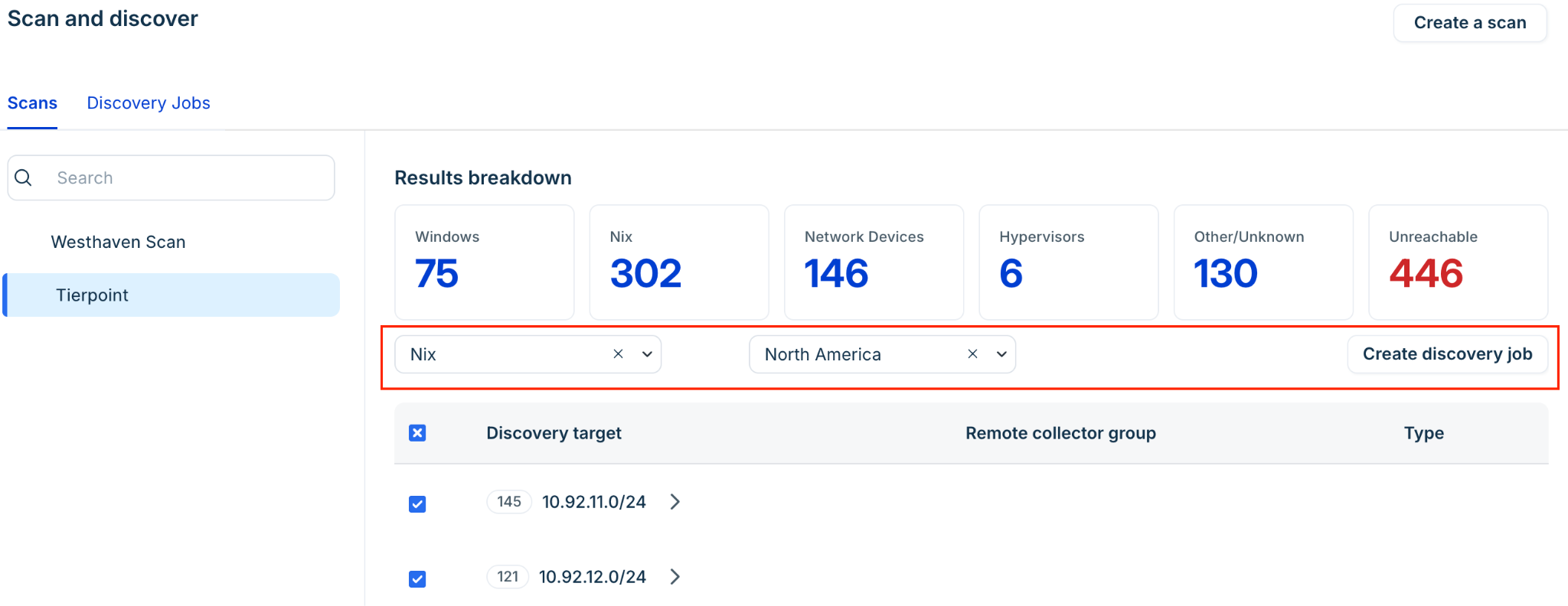
Once the job is created, you can view it under the Linked Jobs section in the scan settings or navigate to the Discovery Jobs tab to further refine settings.
Note: Transitioning scan results to discovery jobs will begin consuming your core licenses. Ensure you have sufficient license counts to avoid impacting discovery results.