
 Community
 Video Library
 Agent Training
 Freshservice
 Freshdesk
 Freshchat
 Freshcaller
 Freshsales
 Freshteam
 Freshworks Neo
 Freshsurvey
 Freshservice for MSP
 Applies to: Freshservice, Freshservice for Business Teams.
The Freshworks Model Context Protocol (MCP) server enables AI tools like Cursor and Claude to securely connect and interact with Freshservice. The MCP server acts as middleware to expose specific capabilities, such as creating tickets, by using public APIs and supported authentication methods. Freshservice supports API key and OAuth authentication for MCP integration requests.
Watch this video for a quick overview of querying your Freshservice account directly from Claude using MCP.
This article provides details about supported MCP integrations and how to configure them in your AI tools.
TABLE OF CONTENTS
- Supported plans and limits
- Supported MCP integrations
- Option 1: Set up MCP integration with Claude Connector
- Option 2: Set up MCP integration with Gemini Connector
- Option 3: Set up MCP integration with ChatGPT
- Option 4: Set up MCP integration with Claude Code
- Option 5: Set up MCP integration with Claude Desktop
- Option 6: Set up the MCP integration with Cursor
- Option 7: Set up MCP integration with Microsoft Copilot Studio
- Option 8: Set up MCP integration with Visual Studio Code
- Troubleshoot issues
- List of available tools
- Pagination in MCP
- Example prompts
- Frequently Asked Questions (FAQs)
- Freshworks MCP security
- More resources
Supported plans and limits
Starting September 10, 2026, the Freshworks MCP integration is generally available. The rate limits and monthly action allowances for each plan are outlined in the table below.
What counts as an MCP action?

An action is defined as a successful tool invocation via MCP. Examples of tool invocations. Examples:
• Update status of the ticket ID 1001 to Resolved (1 action)
• Fetch details of an asset whose ID is 112 (1 action)
Note on pricing & EAP transition:

• To view current pricing and purchase add-on action packs, see Pricing.

• If you were on the Early Access Program (EAP), standard pricing and limits take effect on October 5, 2026.
Supported MCP integrations
Freshservice supports MCP integration with any AI tool that provides MCP support. This section highlights a selection of commonly used integrations that you can connect to Freshservice.
Recommended: For the simplest setup and best user experience, we recommend connecting through the Claude Connector or Gemini Connector or ChatGPT
- Claude Connector (Recommended)
- Gemini Connector (Recommended)
- ChatGPT (Recommended)
- Claude Code
- Claude Desktop
- Cursor
- Microsoft Copilot Studio
- Visual Studio Code
Option 1: Set up MCP integration with Claude Connector
Custom connectors allow Claude to interact with external tools and data sources. Use this method if you need to authorize requests using OAuth.
Prerequisites
Before you begin, ensure you have an active Claude account.
Note: Currently, custom domains are not supported for MCP endpoints.
Create an MCP connection
To use the Connector to connect Claude to your MCP server, follow these steps:
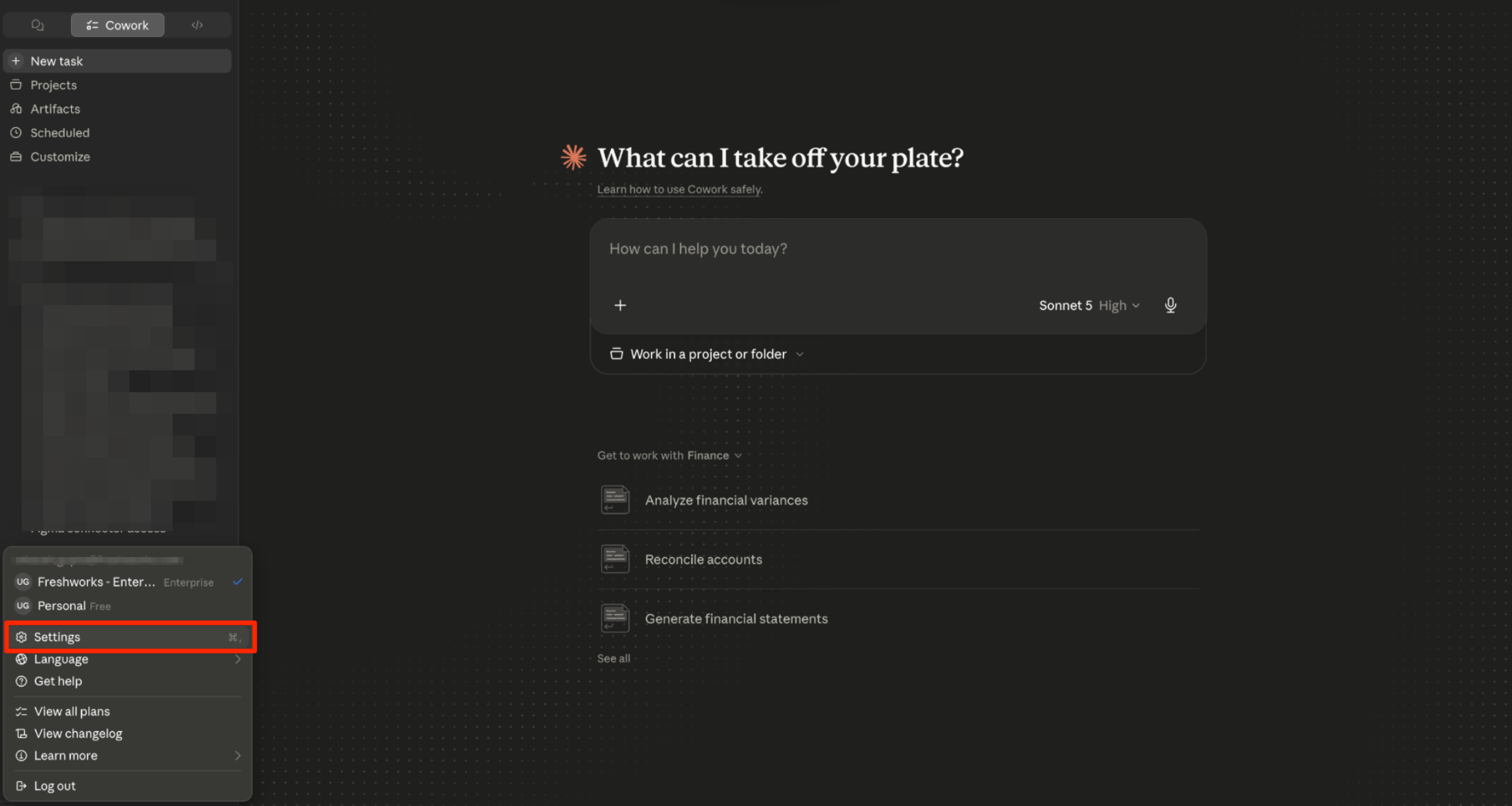
Open Claude, click your profile/workspace menu in the bottom-left corner, and select Settings.
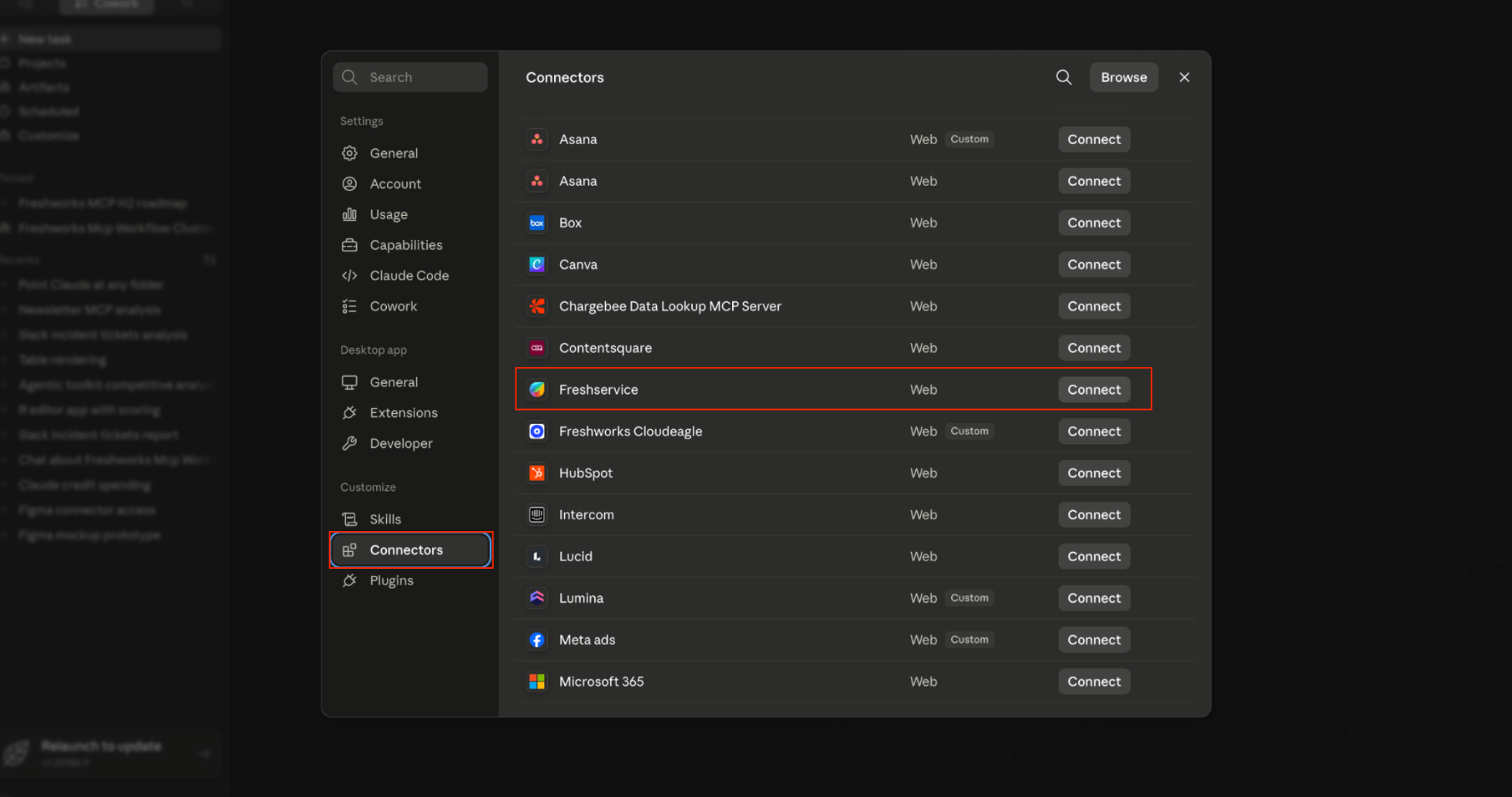
In the Settings window, click Connectors in the left sidebar, locate Freshservice, and click Connect against the Freshservice connector.
When redirected to the Freshservice authorization page, complete the authentication steps.
A Configure button appears next to your connector name once the setup is successful.
Verify the connection
On the Connectors page, select Configure next to your connector.
Review the list of available tools.
(Optional) For each tool, set the desired permission level: Always allow, Needs approval, Blocked, or Custom.
To test, open the chat interface and enter a prompt.
Tip: If you have multiple connectors, specify the name in your prompt. For example: "Use the Freshservice connector to fetch a list of unresolved tickets.
After you establish the MCP connection, you can invoke MCP tools using Claude on the web, Claude Code, or Claude Desktop.
Option 2: Set up MCP integration with Gemini Connector
You can integrate your Freshservice MCP server with Gemini to directly interact with your service desk, search data, and run tasks from the Gemini chat interface.
Prerequisites
Before you begin, ensure the following requirements are met:
An active Gemini account with access to Workspace extensions or connectors.
Administrator access to Google Cloud to configure the Freshservice data store in Gemini Enterprise. This setup needs to be completed before users can connect the integration. For instructions, see: Set up a Freshservice data store.
Note: Currently, custom domains are not supported for MCP endpoints.
Create an MCP connection
After the Freshservice data store is configured by an administrator, follow these steps to connect and authorize the integration in Gemini:
Open your Gemini chat interface.
Below the main chat input box, click on the Connectors (stacked cylindrical shape) icon to manage your integrations.
A menu titled Enable all connectors will appear, displaying your available applications.
Scroll through the list to locate Freshservice.
Click Authorize next to the Freshservice listing.
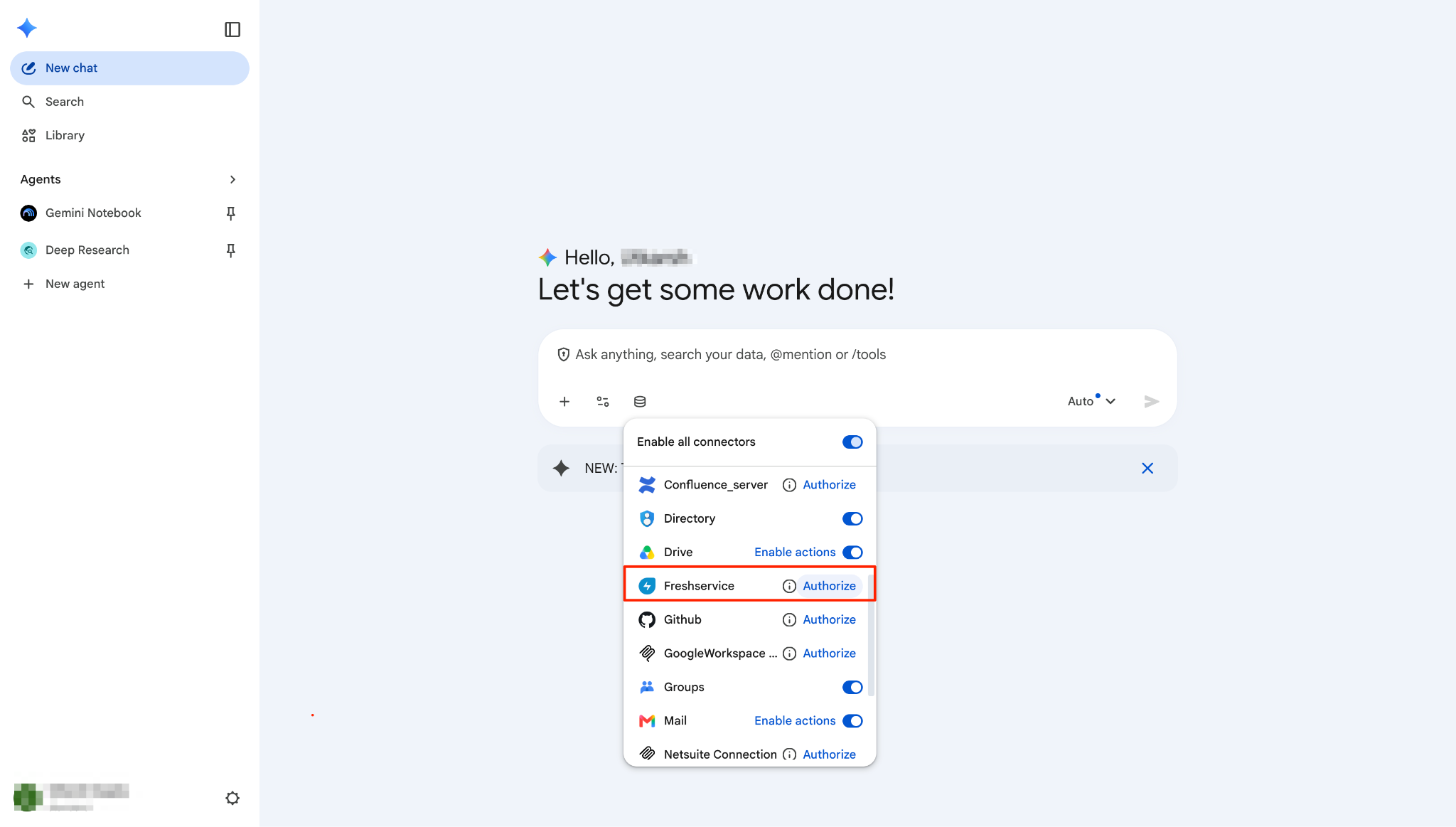
When redirected to the Freshservice authorization page, complete the required authentication steps.
Once successfully authorized, ensure the toggle switch next to Freshservice is turned on to enable it for your current chat session.
After establishing the connection, you can invoke Freshservice MCP tools by typing your request or using @mention or /tools directly within your Gemini prompts.
Option 3: Set up MCP integration with ChatGPT
You can integrate your Freshservice MCP server with ChatGPT to manage tickets, search knowledge base articles, and streamline IT service management tasks directly from your ChatGPT workspace.
Because this integration requires a connection to your specific Freshservice tenant, a ChatGPT workspace administrator needs to configure the custom plugin before users can authorize and use it.
Prerequisites
Administrator access to your ChatGPT workspace (to configure the plugin).
A ChatGPT Enterprise workspace.
An active ChatGPT account with access to Plugins or Skills (to use the plugin).
Your Freshservice MCP Server URL.
Note: Currently, custom domains are not supported for MCP endpoints. Ensure to use your Freshservice base domain in the following format: https://<subdomain>.freshservice.com/mcp
Configure the custom plugin (Administrators)
To set up the Freshservice plugin for your workspace, an administrator needs to create a custom plugin from the Freshworks template. To do so, follow these steps:
Go to the ChatGPT admin plugins page and search for freshservice.
Select the Freshservice app published by Freshworks Inc.
On the plugin details page, select + New custom plugin.
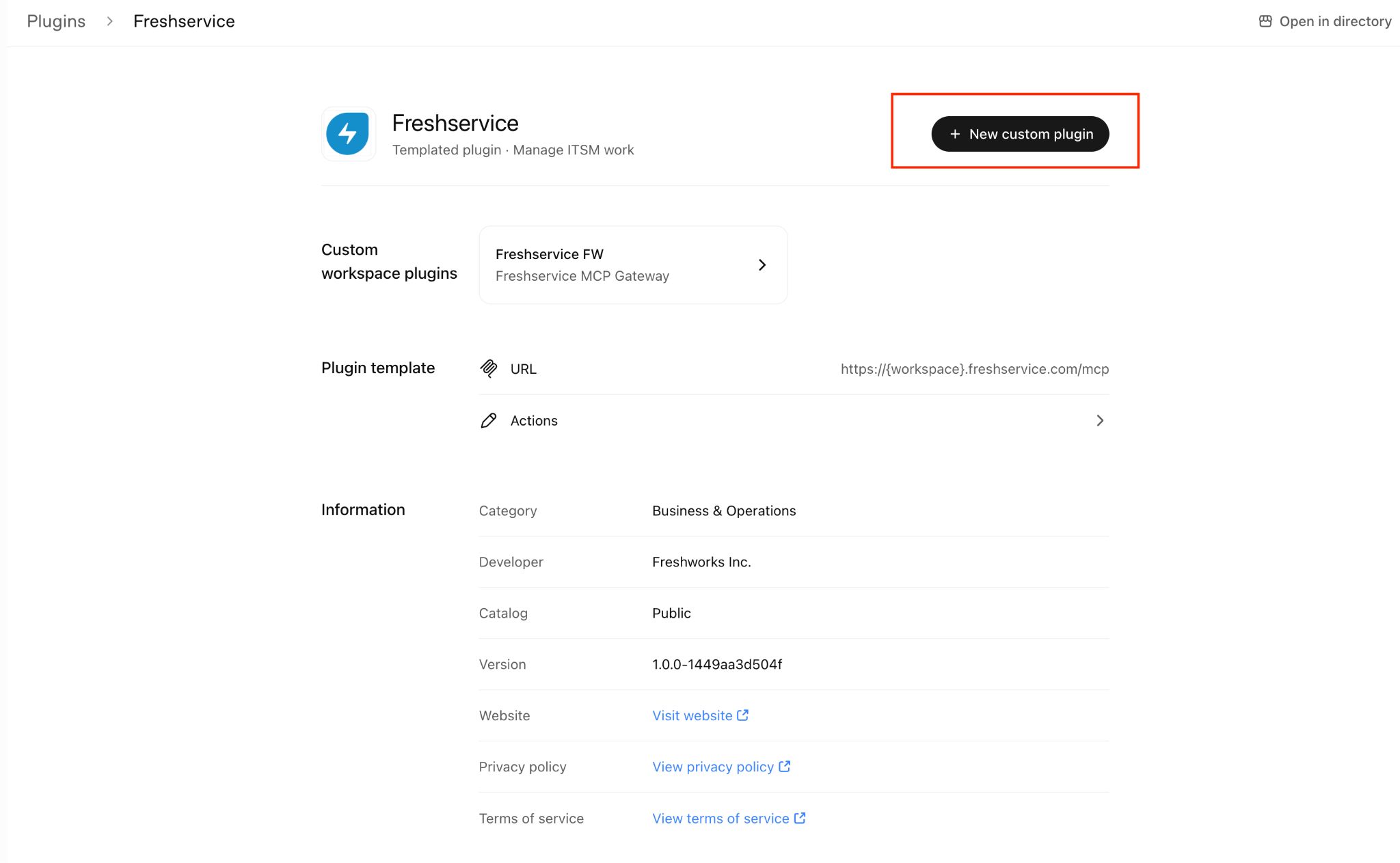
In the New custom plugin dialog, enter a Custom name and Description for your environment (for example, Freshservice Devops).
Under Connection, enter your Freshservice MCP server URL.
Note: Use your Freshservice base domain when specifying the MCP server URL. Format: https://<subdomain>.freshservice.com/mcp.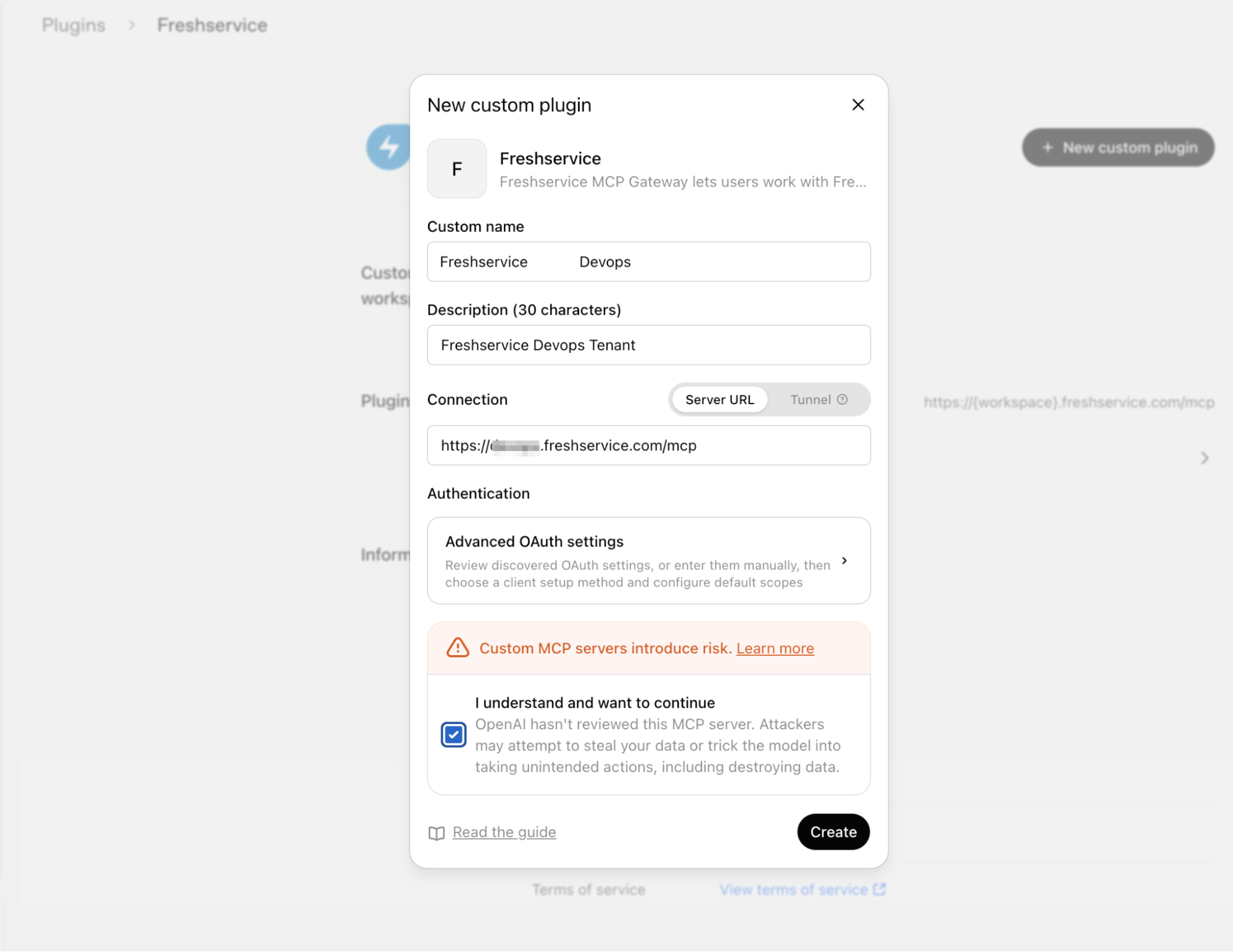
Review the custom MCP server warning, select the I understand and want to continue checkbox to acknowledge the risk, and then click Create.
In the configuration window, adjust the settings for Role access, Configure actions, and Configure approvals according to your organization's security requirements.
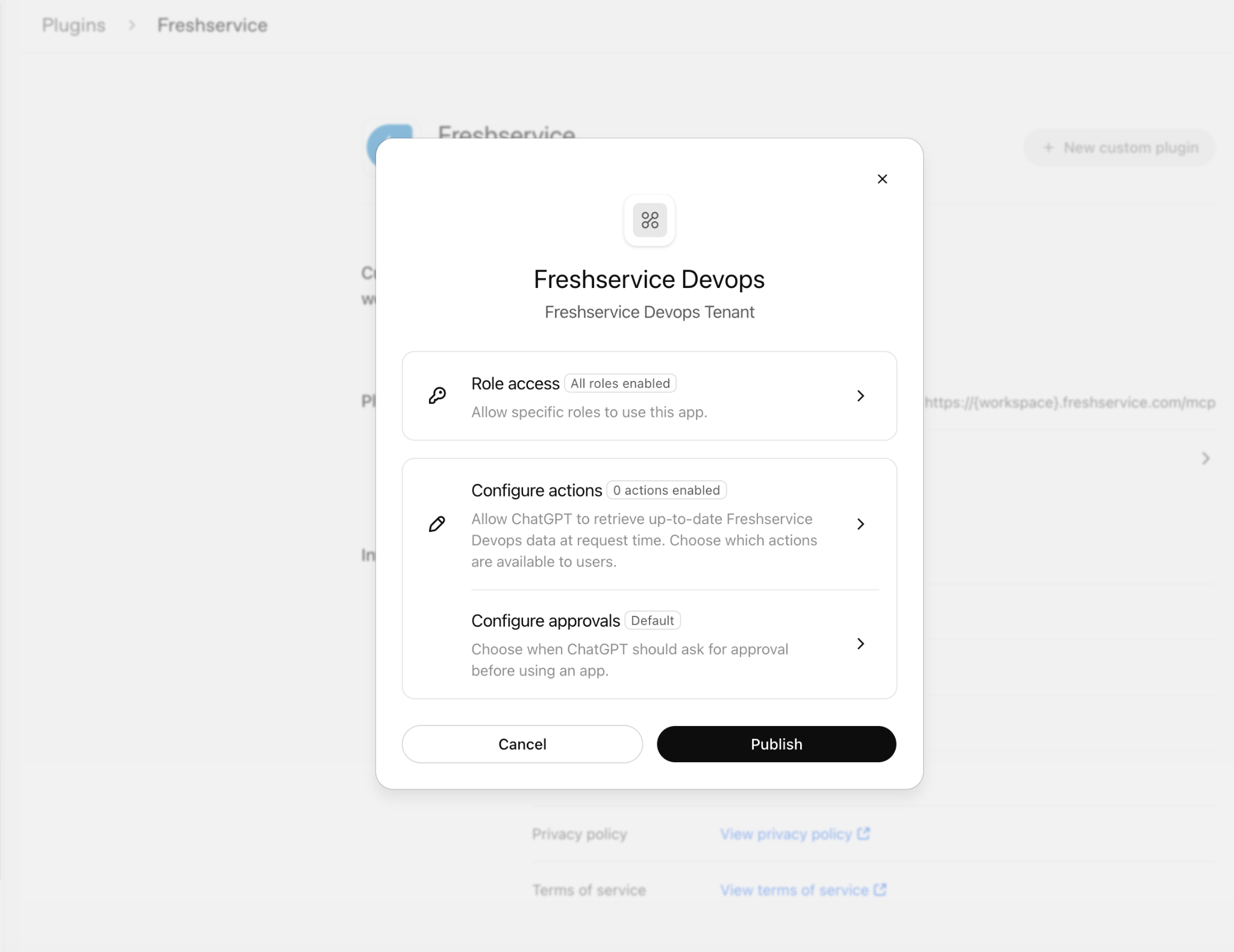
Click Publish to make the plugin available to your workspace.
Install and authorize the plugin (Users)
After the administrator publishes the plugin, you need to install and authenticate it to connect your Freshservice account.
In ChatGPT, go to your workspace Plugins directory and search for the custom plugin published by your administrator.
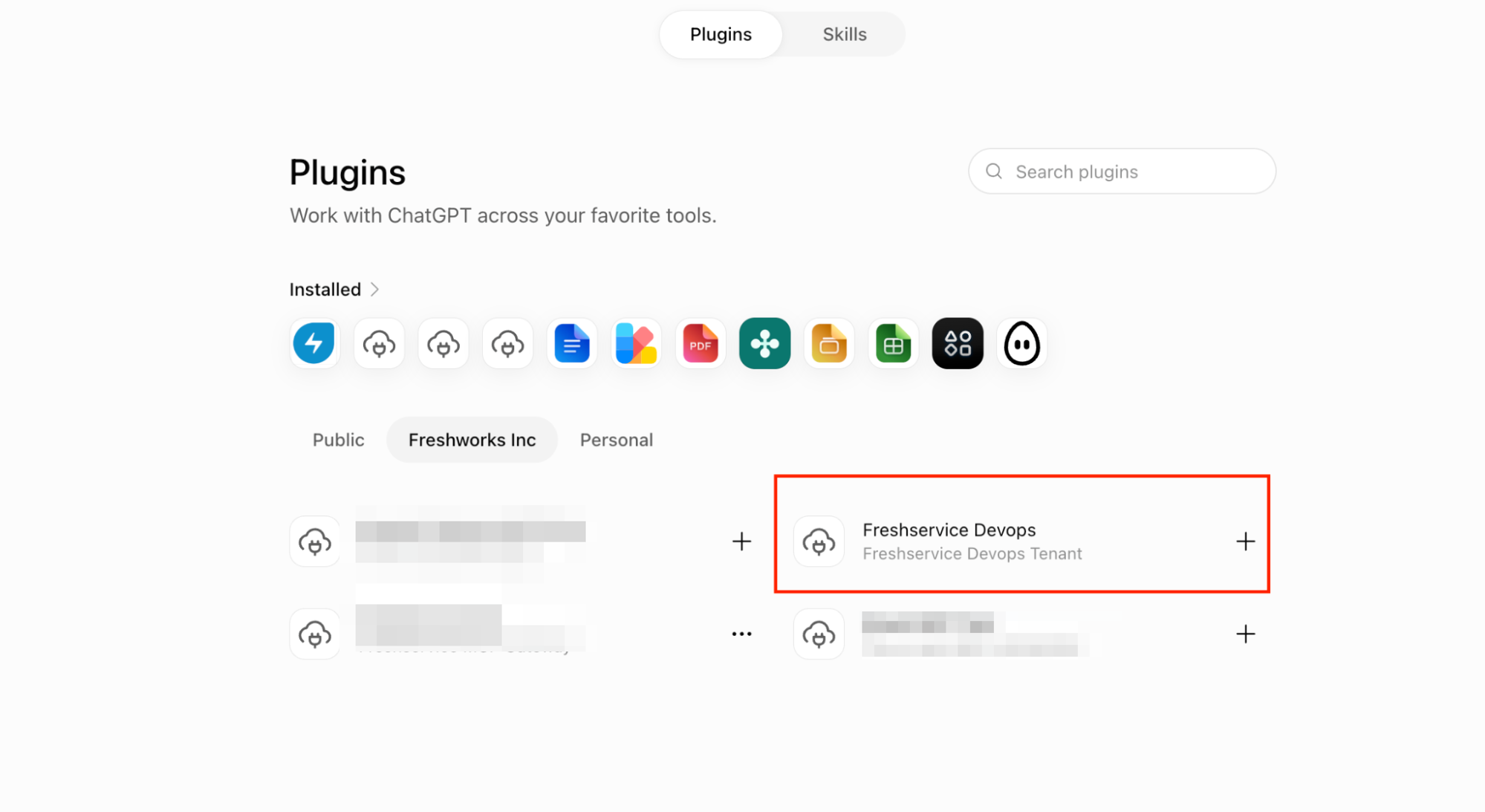
Select the plugin to add it to your chat.
When the Authorization dialog appears, select your specific Freshworks account URL from the provided list.
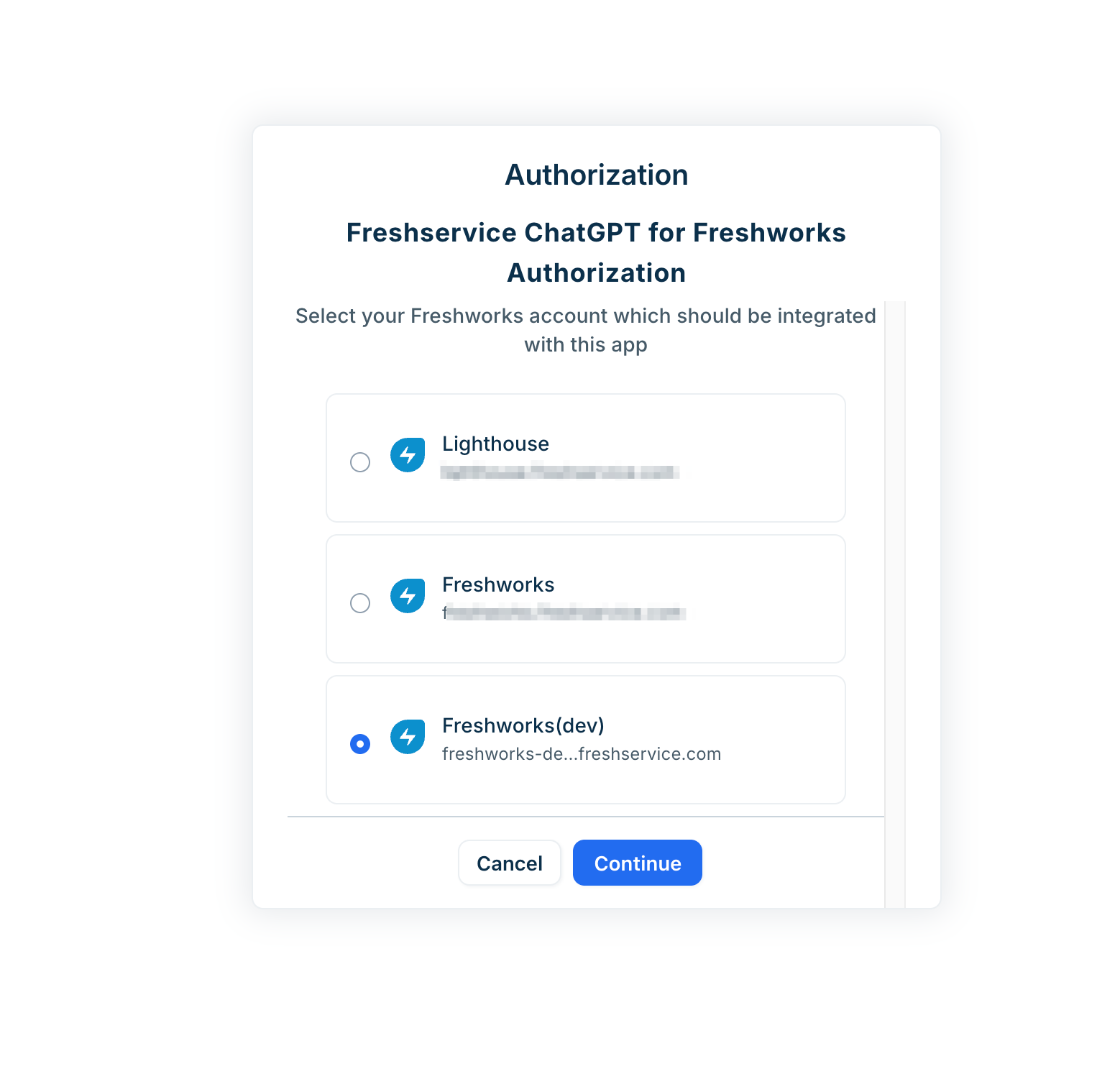
Click Continue and complete any required authentication steps.
Use the Freshservice integration
After you connect the accounts, you can interact with your Freshservice environment directly from your chat interface.
Open a new chat in ChatGPT.
Click the Plugins menu and select your custom Freshservice plugin from the dropdown list to ensure it's active.
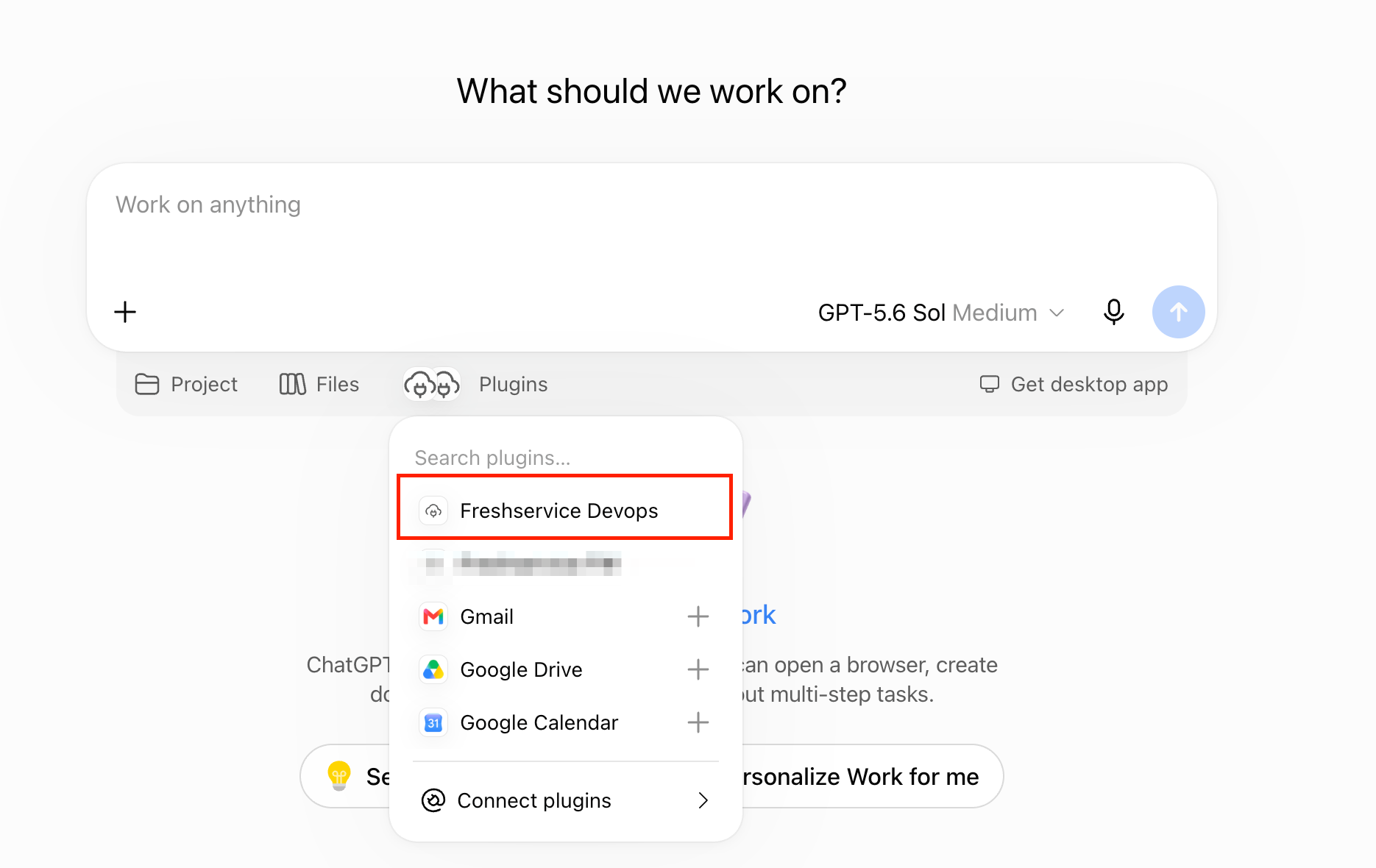
Invoke the integration by typing @Freshservice (or the custom name your administrator provided) followed by your request.
Option 4: Set up MCP integration with Claude Code
Connect and verify the MCP server within the Claude Code editor. After the setup is complete, Claude Code can use tools exposed by the MCP server directly within the editor.
Prerequisites
Before you begin, ensure you have the following:
- The Claude Code app installed.
An active Claude account.
The Freshservice MCP URL.
Note: Currently, custom domains are not supported for MCP endpoints. Ensure to use your Freshservice base domain in the following format: https://<subdomain>.freshservice.com/mcp
Method 1: Connect using OAuth
To connect Claude Code to your MCP server, register the server using the stdio transport.
Run the following command in your terminal to register the Freshservice MCP server:
claude mcp add my-remote-server --transport stdio -- npx -y mcp-remote https://<subdomain>.freshservice.com/mcp
Expected Output:
The studio MCP server, designated as my-remote-server, has been successfully incorporated into the local configuration via the command: npx -y mcp-remote https://<domain>/mcp.
The modification was applied to the file located at: /Users/<username>/.claude.json within the project path: /Users/<username>.
Verify the connection
After adding the server, perform a two-step verification to ensure the proxy is established and the server status is active.
Run the following mcp-remote command to trigger the discovery and authentication flow to test the remote connection directly:
npx -y mcp-remote https://<subdomain>.freshservice.com/mcp
Expected output:
[xxxxx] Using existing client port: 13757
[xxxxx] Discovering OAuth server configuration...
[xxxxx] Discovered authorization server: https://umang-confluence.freshservice.com
[xxxxx] Connecting to remote server: https://umang-confluence.freshservice.com/mcp
[xxxxx] Using transport strategy: http-first
[xxxxx] Connected to remote server using StreamableHTTPClientTransport
[xxxxx] Local STDIO server running
[xxxxx] Proxy established successfully between local STDIO and remote StreamableHTTPClientTransport
Use the following get command to confirm the server is listed as connected within the application:
claude mcp get my-remote-server
Expected output:
my-remote-server:
Scope: Local config (private to you in this project)
Status: ✓ Connected
Type: stdio
Command: npx
Args: -y mcp-remote https://umang-confluence.freshservice.com/mcp
Environment:
Method 2: Connect using an API key (OAuth alternative)
If you are using an API key instead of OAuth, run the following command in your terminal:
claude mcp add my-remote-server --transport http https://<subdomain>.freshservice.com/mcp --header "Authorization: <api-key>"
Expected Output:
Added HTTP MCP server my-remote-server with URL: https://<subdomain>.freshservice.com/mcp to local config
Headers: {
"Authorization": "<api-key>"
}
File modified: /Users/<username>/.claude.json [project: /Users/pmm]
Verify the connection
Run the following get command to confirm the server is listed as connected within the application:
claude mcp get my-remote-server
Expected output:
my-remote-server:
Scope: Local config (private to you in this project)
Status: ✓ Connected
Type: http
URL: https://<domain>/mcp
Headers:
Authorization: <api-key>
Option 5: Set up MCP integration with Claude Desktop
Connect and verify the MCP server within the Claude Desktop editor. After the setup is complete, Claude Desktop can use tools exposed by the MCP server directly within the editor.
Prerequisites
Before you begin, ensure you have the following:
- The Claude Desktop app installed.
An active Claude account.
The Freshservice MCP URL.
Note: Currently, custom domains are not supported for MCP endpoints. Ensure to use your Freshservice base domain in the following format: https://<subdomain>.freshservice.com/mcp
Create an MCP connection
To connect Claude Desktop to your MCP server, follow these steps:
Open Claude Desktop and go to Claude > Settings > Developer.
Select Edit Config. The claude_desktop_config.json file opens in your system's default text editor.
Copy and paste the following JSON configuration into the file. If other servers are already listed, add this as a new entry in the mcpServers object without making any changes to preferences or other objects in the JSON file.
Note: Replace <mcp-url> with your specific server URL (for example, https://<subdomain>.freshservice.com/mcp).
{
"mcpServers": {
"freshservice": {
"command": "npx",
"args": [
"-y",
"mcp-remote",
"<mcp-url>"
]
}
}
}
Save the file and close the text editor.
Exit Claude Desktop by right-clicking the icon in the taskbar (Windows) or menu bar (macOS) and selecting Quit.
Relaunch Claude Desktop.
Follow the authentication prompts in your browser. After successful authentication, you can verify the connection status under Claude > Settings > Developer.
Option 6: Set up the MCP integration with Cursor
Connect and verify the MCP server within the Cursor editor. After the setup is complete, Cursor can use tools exposed by the MCP server directly within the editor.
Prerequisites
Before you begin, ensure you have the following:
- The Cursor app installed.
An active Cursor account.
The Freshservice MCP URL.
Note: Currently, custom domains are not supported for MCP endpoints. Ensure to use your Freshservice base domain in the following format: https://<subdomain>.freshservice.com/mcp
Create an MCP connection
To connect Cursor to the MCP server, add the server details to your application configuration file.
Open Cursor and go to the root folder of your project or user home directory for global configuration.
Create or update the .cursor/mcp.json file.
Add the following JSON object to the file:
Schema
{
"mcpServers": {
"<name of the object>": {
"type": "http",
"url": "https://<subdomain>.freshservice.com/mcp"
"headers": {
"Authorization": "<API_KEY>"
}
}
}
}
Sample configuration using OAuth
{
"mcpServers": {
"freshservice": {
"type": "http",
"url": "https://<subdomain>.freshservice.com/mcp"
}
}
}
Sample configuration using API key
{
"mcpServers": {
"freshservice": {
"type": "http",
"url": "https://<subdomain>.freshservice.com/mcp",
"headers": {
"Authorization": "<API-KEY>"
}
}
}
}
The following table describes the attributes used to configure the MCP server:
Verify the configuration
After you save the configuration file, follow these steps to verify that Cursor can access the server and its tools:
In Cursor, go to View > Command Palette
Enter View: Open MCP Settings and select it from the list.
On the Tools page, locate the Installed MCP Servers section and verify your server name appears.
Click Connect to initiate the OAuth flow.
Once authenticated, expand the server card to view available tools.
Once the connection is established, Cursor automatically retrieves the tools. You can invoke them through natural language prompts or allow Cursor to suggest them based on your current task.
If the server is offline or the configuration is incorrect, Cursor displays an error message provided by the MCP server in the settings view.
Option 7: Set up MCP integration with Microsoft Copilot Studio
Connect and verify the MCP server within the Microsoft Copilot Studio editor. After the setup is complete, Microsoft Copilot Studio can use tools exposed by the MCP server directly within the editor.
Prerequisites
Before you begin, ensure you have the following:
Access to Microsoft Copilot Studio.
An active Microsoft Copilot Studio account.
An existing agent created within Microsoft Copilot Studio.
The Freshservice MCP URL.
Note: Currently, custom domains are not supported for MCP endpoints. Ensure to use your Freshservice base domain in the following format: https://<subdomain>.freshservice.com/mcp
Create an MCP connection
To link Copilot Studio to your MCP server, follow these steps:
In the Copilot Studio dashboard, select Agents from the left navigation pane.
Select your agent from the list.
Open the Tools page for the agent.
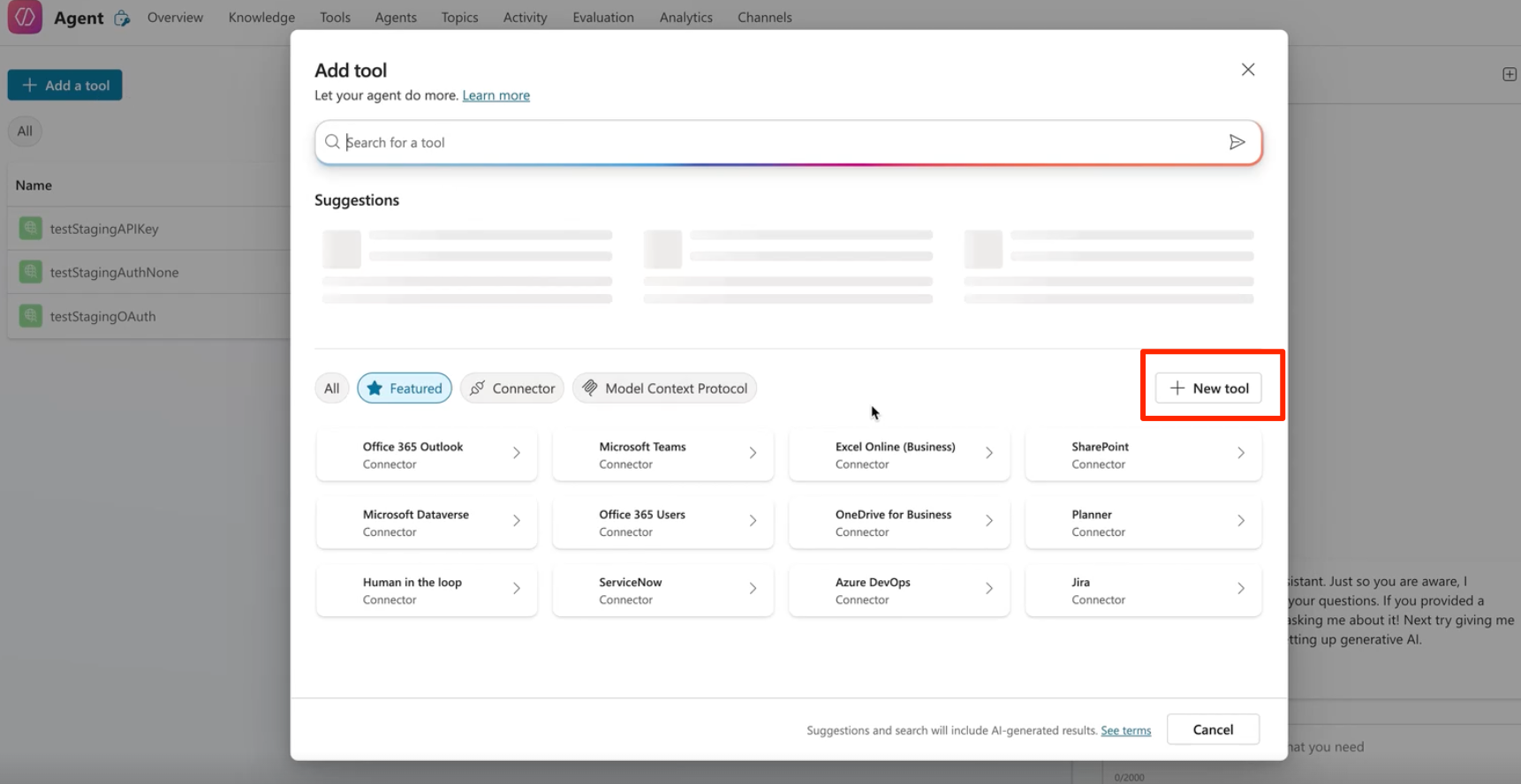
Click + Add a tool at the top left of the page.
The Add tool window appears.Select + New tool > Model Context Protocol.
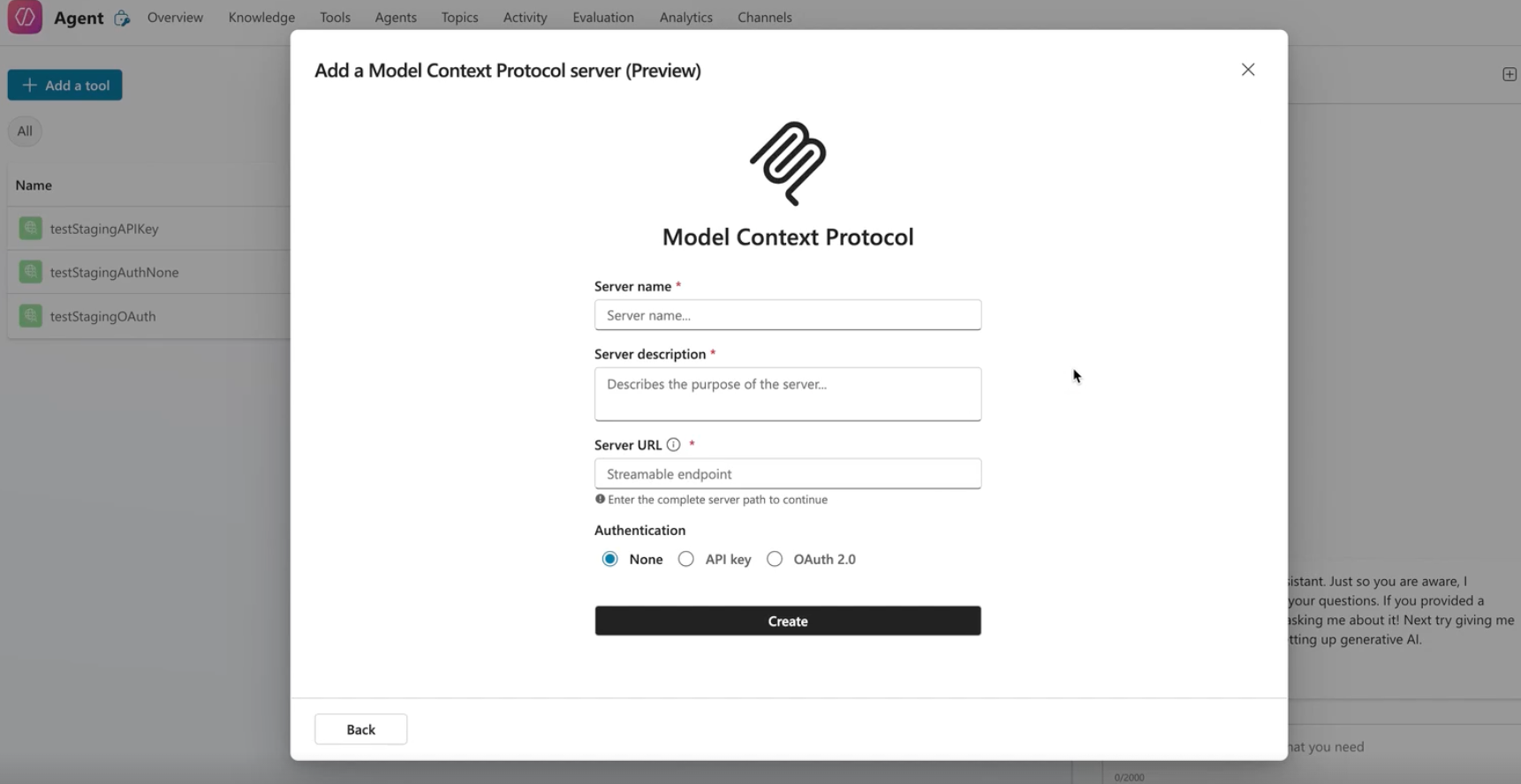
The Add a Model Context Protocol server window appears.Enter the following details:
Server name: Enter a name for the server.
Server description: Provide a short description of why the server is required.
Server URL: Enter the endpoint where the MCP client can reach your MCP server. For example, https://<subdomain>.freshservice.com/mcp.
Authentication: Select the authentication mode. As a best practice, choose OAuth 2.0 > Dynamic discovery.
Click Create.
After successful creation, the Add tool window appears to configure the connection.In the Connection dropdown, you will see No connections available.
Click the dropdown and select Create new connection > Create.In the authorization window, select your account name and click Continue.
After authorization succeeds, click Add and configure on the Add tool window.
You are redirected to the page for the newly created tool. Under the Tools section, you can view the list of available tools.
Verify the MCP connection
To confirm that your agent is actively connected to the Freshworks MCP server, follow these steps:
Go to your agent in Copilot Studio by selecting Agents and choosing the agent you want to verify.
The agent overview page opens.Select Settings to open the agent settings page.
In the left navigation pane, select Connection Settings.
A table displays all connections associated with your agent.For the newly configured connection, if the status is Not connected, click Connect.
The Create or pick a connection window appears.Select the newly created connection and click Submit.
The status updates to Connected once the link is successfully established.
Option 8: Set up MCP integration with Visual Studio Code
Connect and verify the MCP server within the Visual Studio Code editor. After the setup is complete, Visual Studio Code can use tools exposed by the MCP server directly within the editor.
Prerequisites
Before you begin, ensure you have the following:
- The Visual Studio Code app installed.
The MCP extension for VS Code installed.
The Freshservice MCP URL.
Note: Currently, custom domains are not supported for MCP endpoints. Ensure to use your Freshservice base domain in the following format: https://<subdomain>.freshservice.com/mcp
Method 1: Connect using OAuth
To integrate the MCP server into your VS Code environment using OAuth, follow these steps:
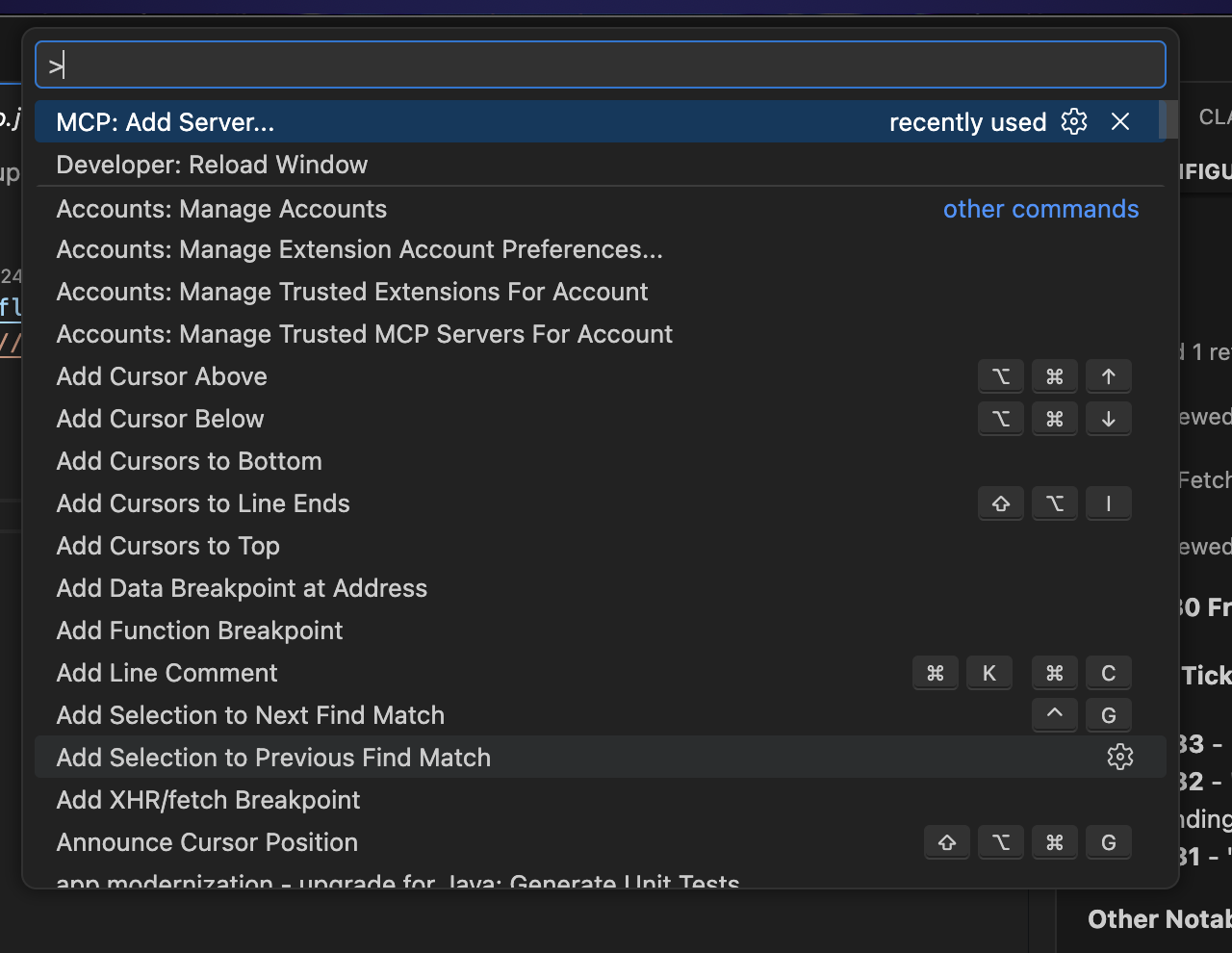
Open the Command Palette by pressing Ctrl+Shift+P (Windows) or Cmd+Shift+P (macOS).
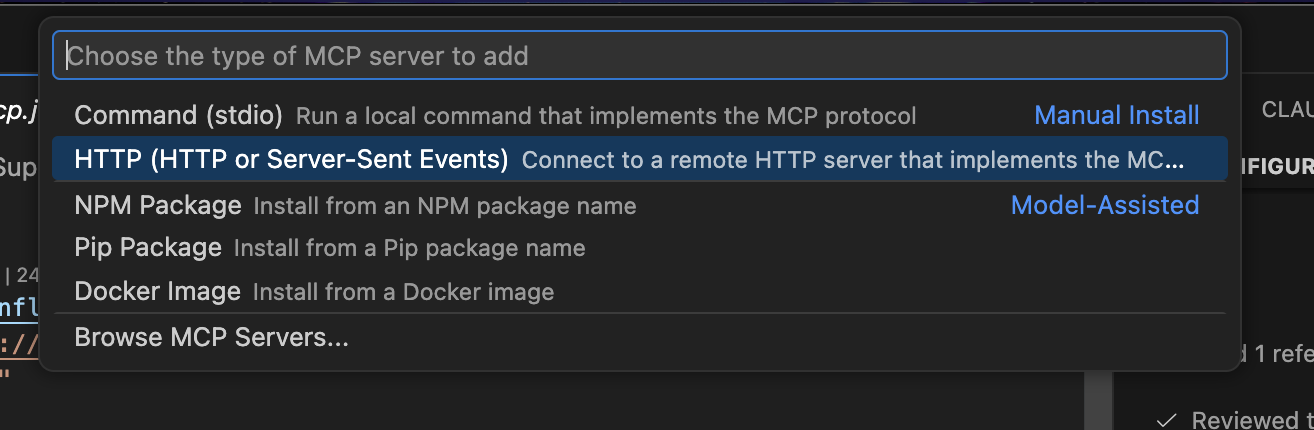
Enter and select MCP: Add Server....
In the Select Type prompt, choose HTTP (HTTP or Server-Sent Events).
In the Enter URL field, enter your MCP server URL (for example, https://<subdomain>.freshservice.com/mcp).
In the Server ID prompt, press Enter to accept the auto-generated ID or enter a custom name for the server.
Select a Configuration Target:
Global: The server is available across all VS Code windows.
Workspace: The server is only available for the current project.
Authenticate the connection
Once the server details are defined, follow these steps to authorize VS Code to access the server.
When the HTTP authentication popup appears, select Allow.
Your default browser opens. Enter your credentials and authorize access for VS Code.
After you are redirected back to VS Code, the server is ready to use.
Method 2: Connect using an API key (OAuth alternative)
To integrate the MCP server into your VS Code environment using an API key, follow these steps:
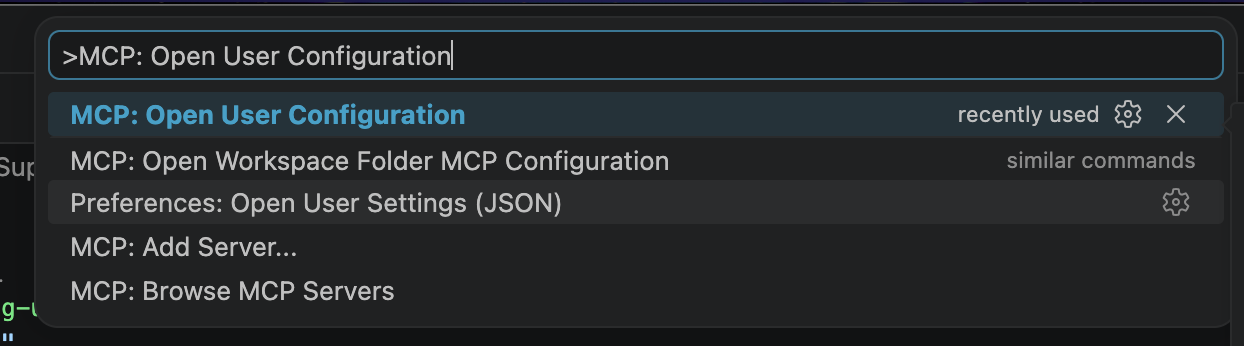
Open the Command Palette and select MCP: Open User Configuration.
In the mcp.json file, add your server details to the servers object:
{
"servers": {
"my-remote-server": {
"type": "http",
"url": "https://<subdomain>.freshservice.com/mcp",
"headers": {
"Authorization": "<api-key>"
}
}
}
}
Save the file.
Select the Start button that appears above the my-remote-server entry to initialize the connection.

The following output appears to confirm the server is active:
Verify the configuration

After setting up your connection, you can confirm the server is running using either of the following methods:
View active servers: Open the Command Palette and select MCP: List Servers. Ensure your Freshservice server is listed as active.
Review raw config: Open your mcp.json file to verify the server details and configuration target.
You can now run MCP-specific commands directly within your VS Code terminal or command palette to interact with Freshservice data.
Troubleshoot issues
Issue: Connection failures
If the connection verification fails, check the following:
Network: Check your active internet connection and VPN status.
URL Accessibility: Open https://<domain>/mcp in your browser to ensure the endpoint is live.
Node Environment: Ensure npx is installed correctly by running npx -v in your terminal.
Issue: Authentication errors in Claude
If you encounter OAuth errors during setup, try the following:
Session context: Ensure you run the /mcp command from within an active Claude Code session.
Prompt expiration: Complete the browser-based authentication prompt immediately. Authentication links are time-sensitive and will expire if not used.
Account permissions: Verify that your developer account has the required permissions for the tools you are attempting to access.
Issue: MCP connection fails due to IP restrictions
Symptoms
MCP server connection fails despite correct endpoint configuration
Timeout or connection refused errors when running mcp-remote
Connection works in some networks but fails in restricted environments
Possible cause
Your Freshservice or your organization’s network, enforces IP restrictions that block requests to or from the MCP server. If the required IP ranges are not allowlisted, the connection cannot be established.
Resolution
Allowlist required IP ranges:
Add the following IP ranges to your allowlist based on your data center/region:
Core rangesAU: 10.3.0.0/16
IN: 10.44.0.0/16
EUC: 10.113.0.0/16
USE: 10.111.0.0/16, 10.113.0.0/16
EUN: 10.96.80.0/20
Additional ranges
US:
10.17.144.0/20
10.25.128.0/18
EUC:
10.17.104.0/21
10.25.192.0/18
IN:
10.17.128.0/20
AU:
10.17.96.0/21
EUN:
10.97.216.0/21
Update IP restriction settings:
Configure IP allowlisting in your Freshworks account.Verify network access
Ensure outbound HTTPS (port 443) is allowed
Confirm no firewall or proxy is blocking these IP ranges
Retry the connection
Run: npx -y mcp-remote https://<subdomain>.freshservice.com/mcp
Verification
MCP connection succeeds without timeout or network errors
MCP client shows the server status as Connected
Next steps
If the issue persists after allowlisting:
Verify region alignment between your Freshservice account and configured IP ranges
Check with your network administrator for additional firewall or proxy restrictions
List of available tools
The following table lists the tools provided by Freshworks MCP server for Freshservice.
Pagination in MCP
When an MCP tool returns many results, such as a list of solution articles, sending the entire payload at once can exceed token limits or cause the LLM to truncate the data. Large payloads can also slow down response times and reduce the accuracy of the AI.
To prevent this, the MCP server uses pagination to deliver results in smaller, manageable batches. This ensures the LLM processes information efficiently while staying within its operational limits.
The pagination process provides the following benefits:
Automatic processing: The MCP client and the LLM handle subsequent data requests automatically using the nextCursor parameter.
No manual configuration: You don't need to manage page numbers, cursors, or page sizes manually.
Optimized performance: Smaller response batches ensure more reliable processing and faster response times from the AI tool.
Example prompts
You can use the following prompts to interact with the Freshservice MCP server through your AI tool. These are samples only; you can modify them to suit your specific requirements.
Manage tickets:
"Get all open tickets assigned to me."
"Show details for ticket 10234."
"Add an internal note to ticket 1023: 'The issue is caused by a sudden router reboot.'"
Use the service catalog:
"Search the service catalog for 'laptop'."
"Request a software installation for Zoom for john@acme.com."
Search the knowledge base:
"Find solution articles for 'VPN issue'."
"Get all articles in the 'Laptop Issues' folder."
Frequently Asked Questions (FAQs)
To view frequently asked questions related to MCP integration, see MCP FAQs.
Freshworks MCP security
To learn how various aspects of MCP security work, see Freshworks MCP Security.
More resources
- Use MCP servers with API actions
- View MCP usage analytics
- Model Context Protocol (MCP) integration in Freshservice (requester)