
 Community
 Video Library
 Agent Training
 Freshservice
 Freshdesk
 Freshchat
 Freshcaller
 Freshsales
 Freshteam
 Freshworks Neo
 Freshsurvey
 Freshservice for MSP
 TABLE OF CONTENTS
- Where to find Instructions
- Define your business context
- Set custom instructions
- Full custom instructions example: IT support agent
- Voice and tone: quick reference
- Best practices
- Frequently asked questions
The Instructions page is where you shape how your AI agent presents itself and communicates with employees. Two settings work together to define this: Define your business context establishes the agent's persona and the world it operates in, and Set custom instructions defines the voice, tone, and behavioral rules the agent follows in every conversation.
Getting these two settings right means employees receive responses that feel consistent, helpful, and appropriate for your organization, rather than generic or robotic.
This article explains what each setting does, how to fill it in effectively, and provides IT support examples you can adapt for your own context.
Where to find Instructions
Instructions are configured within your agent's Build section. To get there:
Open AI Agent Studio and select the agent you want to configure.
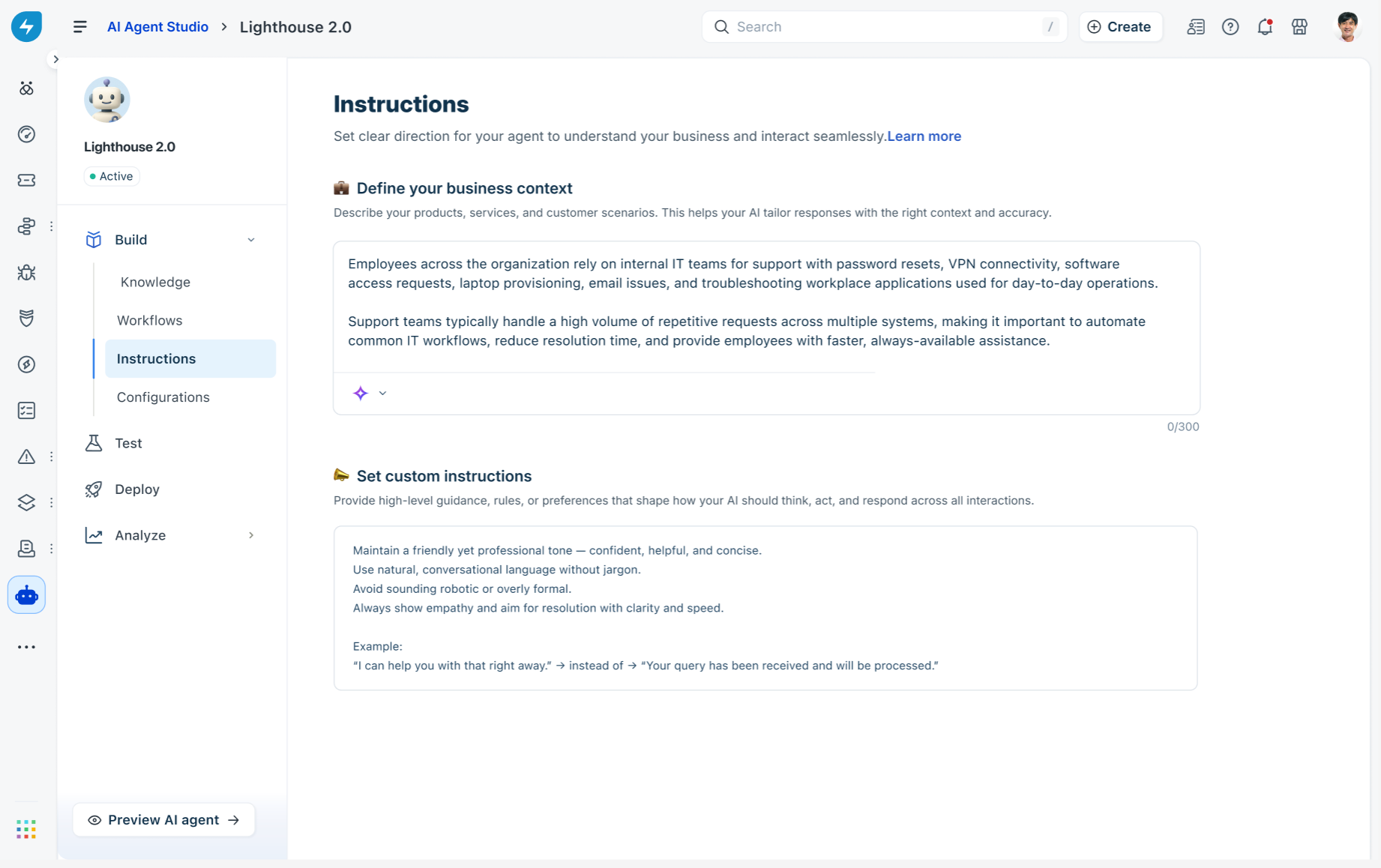
In the left navigation, expand Build and click Instructions.
Define your business context
The Define your business context field is where you describe the environment the agent operates in: what your organization does, what kinds of requests the agent handles, and who it is talking to. This is the agent's persona foundation.
The field accepts up to 300 characters. Keep it focused and factual. The agent reads this context every time it responds, so the clearer and more specific this description is, the more accurately the agent will interpret employee requests and tailor its replies.
What to include
A strong business context description covers three things:
Who the agent supports. Name the audience. For example: employees across the organization, new joiners, or the IT support team.
What it helps with. List the main request types the agent handles. Be specific rather than broad.
Why speed and accuracy matter. A sentence about the nature of the service, such as high request volumes or the need to reduce manual effort, helps the agent prioritize resolution over conversation.
Example: IT support context
This example tells the agent it is operating in an internal IT support context, gives it a clear list of the request types it will encounter, and signals that speed and automation are priorities. That context shapes how the agent interprets ambiguous requests and how it frames its responses.
Use the AI assist button
Below the business context field there is a sparkle icon (AI assist) with a dropdown arrow. Click it to let the AI generate a business context description based on your agent's existing configuration, such as the workflows and knowledge sources already connected.
Use AI assist as a starting draft rather than a final answer. Review the generated text and edit it to reflect your organization's specifics before saving.
Tip: The character limit is 300. If your first draft is too long, cut anything that describes how the agent should behave — that belongs in custom instructions, not here. Business context should only describe the situation, not the rules.
Write the business context
On the Instructions page, click inside the Define your business context field.
Type a description of your organization's service context, or click the AI assist sparkle button to generate a draft.
Review and edit the text. Check that it names the audience, lists the main request types, and reflects the service's nature.
The character counter below the field shows your usage against the 300-character limit.
Set custom instructions
The Set custom instructions field is where you define the agent's voice and tone, and set the behavioral rules it follows across every interaction. While business context tells the agent what it is working with, custom instructions tell it how to communicate and how to behave.
These instructions apply globally. Every response the agent generates, across all workflows and all channels, is shaped by what you write here.
Voice and tone
Voice is the consistent personality of the agent. Tone is how that personality adjusts to context. An IT support agent might have a voice that is knowledgeable and reassuring, but its tone when handling an urgent system outage should be calm and direct, while its tone for a routine password reset can be warm and quick.
When writing your custom instructions, define both:
Voice: the qualities that stay the same in every response, such as being professional, approachable, and clear.
Tone adjustments: how the agent modulates based on the situation, such as being more empathetic when an employee is frustrated, or more concise when responding to a straightforward request.
What to cover in your custom instructions
Strong custom instructions address four areas:
1. Communication style
Tell the agent how to phrase its responses. Specify whether it should use plain language, avoid technical jargon, keep responses short, or always confirm before taking action.
2. Empathy and handling frustration
Define how the agent should respond when an employee is clearly frustrated, has been waiting a long time, or has a recurring issue.
3. Escalation behavior
Tell the agent when and how to hand off to a human agent, and what to say when it does.
4. Boundaries and data handling
Set clear rules about what the agent should and should not do, especially around sensitive information.
Full custom instructions example: IT support agent
The following is a complete example of custom instructions for an IT support agent. Use it as a reference when writing your own.
Voice and tone: quick reference
The table below shows the difference between instructions that produce natural responses and those that produce robotic ones.
Save your instructions
Instructions are saved automatically as you type. There is no separate save button on the Instructions page. Changes take effect immediately and apply to all new conversations the agent starts after the update.
Note: Instructions apply to all workflows and channels the agent is deployed on. If you want different behavior for a specific workflow, use the custom response node within that workflow to override the global instructions for that step.
Best practices
Be specific, not general. "Be helpful" gives the agent no useful direction. "Confirm the employee's issue before starting resolution steps" is actionable and produces a measurable difference in responses.
Write instructions the way you would brief a new team member. If it would make sense to say it to a person joining your support team on their first day, it belongs in custom instructions.
Separate context from behavior. Business context describes the situation. Custom instructions describe the rules. Keep them distinct to avoid confusion.
Test after every change. Use Preview AI agent to run through a few common IT requests after updating instructions. Check that the tone matches what you intended before the change goes live.
Revisit instructions after deployments. As you add new workflows or deploy to new channels, check that the existing instructions still produce the right behavior across all scenarios.
Frequently asked questions
1. Do custom instructions override workflow-level behavior?
Custom instructions set the global defaults. Individual workflows can include custom response nodes that override the global tone for a specific step, but the overall voice and behavioral rules in custom instructions remain in effect everywhere else.
2. Is there a character limit for custom instructions?
The business context field has a 300-character limit. The custom instructions field does not display a character limit in the product, but keeping instructions focused and concise produces better and more consistent agent behavior than very long or complex rule sets.
3. Can I use the AI assist button for custom instructions too?
The AI assist button is available in the business context field. For custom instructions, you write the rules yourself. Use the example in this article as a starting template and adapt it to your organization's requirements.
4. How quickly do instruction changes take effect?
Changes to instructions apply immediately to new conversations. Conversations already in progress are not affected by mid-session changes.
5. Should instructions be written in first person or second person?
Write instructions in the imperative form, as direct rules: "Use plain language." "Confirm identity before making changes." This is the clearest format for the agent to follow. Avoid writing instructions as descriptions of what the agent might do.