
 Community
 Video Library
 Agent Training
 Freshservice
 Freshdesk
 Freshchat
 Freshcaller
 Freshsales
 Freshteam
 Freshworks Neo
 Freshsurvey
 Freshservice for MSP
 The AI agent you build in Freddy AI Agent Studio does more than answer questions. It detects the language your employees write in, decides what to do when it cannot find an answer, and knows when to hand a conversation to a human. The Configurations section is where you control everything.
This article walks you through each configuration area: multilingual support, conversation behavior, human handover, and agent identity. Work through them in order when setting up a new agent, or jump to the section that matches what you need to change.
TABLE OF CONTENTS
- Key concepts
- Where to find these settings
- Manage multilingual support
- Configure conversation behavior
- Set up human handover
- Customize your agent identity
Key concepts
The following terms come up throughout this article.
Where to find these settings
All the settings in this article are located under Configurations in AI Agent Studio.
Open AI Agent Studio and select the agent you want to configure.
In the left navigation, expand Build.
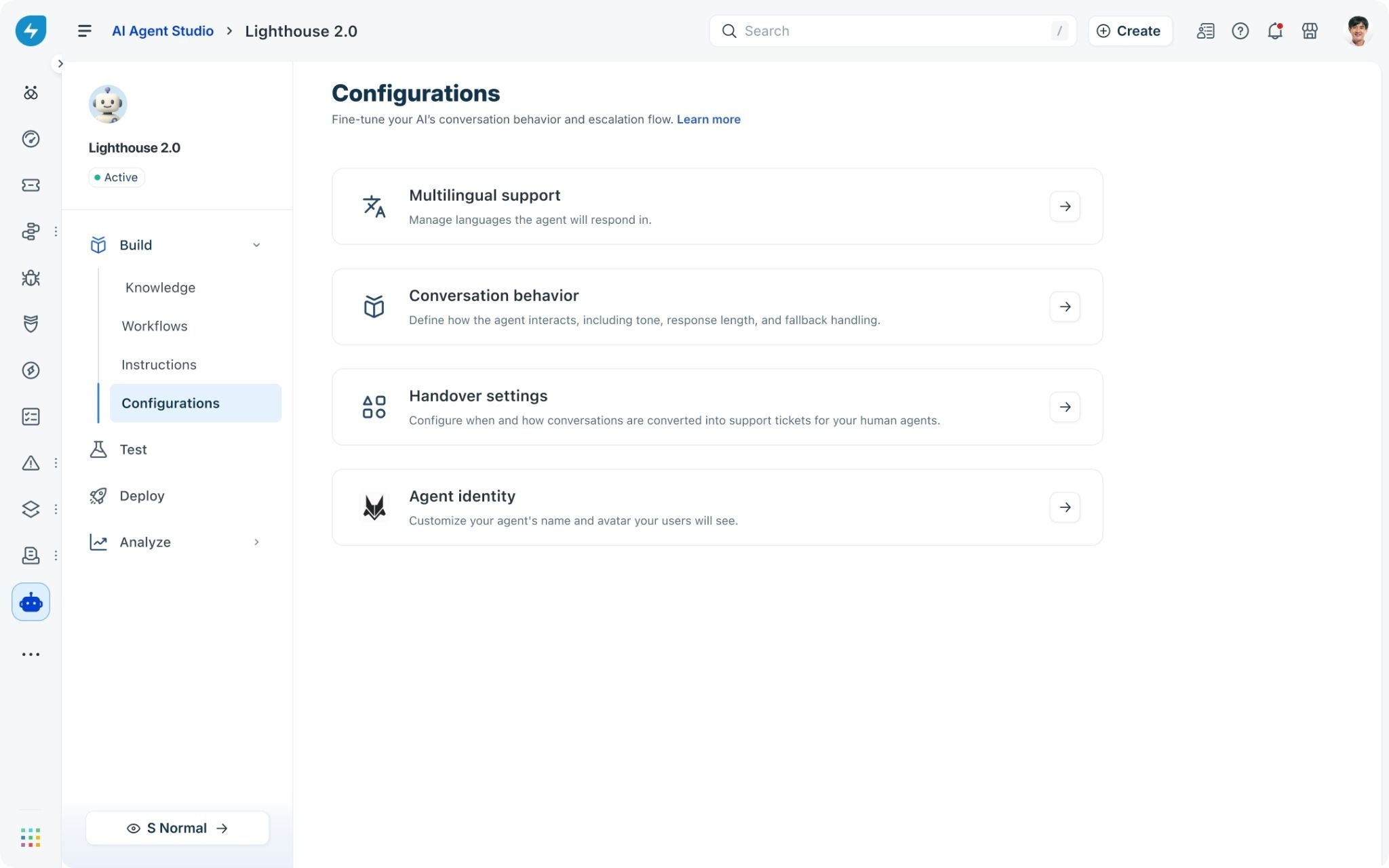
Click Configurations. The Configurations page lists four options: Multilingual support, Conversation behavior, Handover settings, and Agent identity. Click any option to open it.
Manage multilingual support
Multilingual support lets you define which languages the agent responds in. English is always the primary language. When you add additional languages, the agent detects what language an employee is writing in and matches its response to that language automatically.
Add or remove languages
On the Configurations page, click Multilingual support.
The Language configuration section shows the languages currently selected. English (Primary) is always present and cannot be removed.
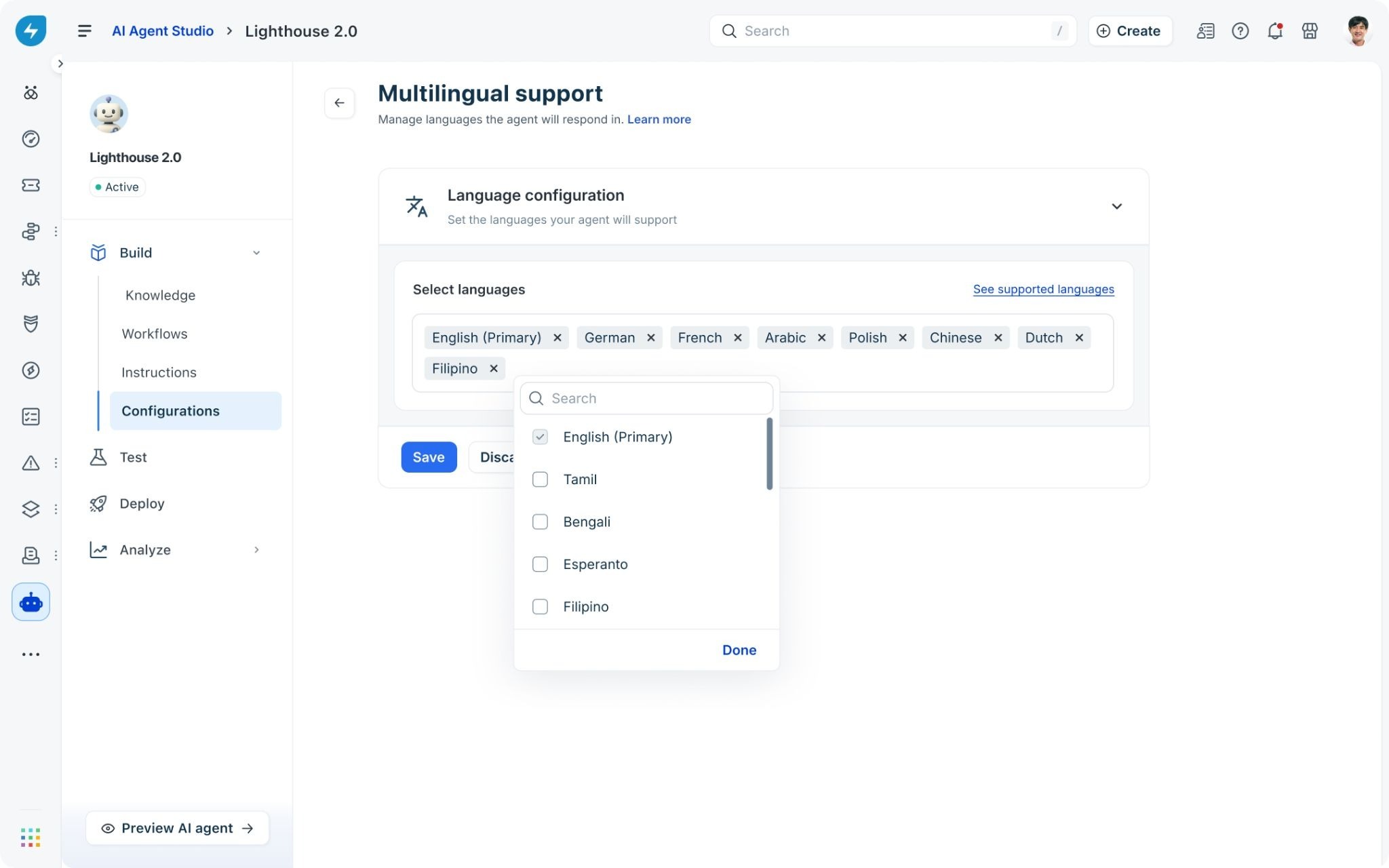
Click inside the language field to open the language picker. Use the Search box to find a language by name, or scroll through the list.
Check the box next to each language you want to add. You can add languages including German, French, Arabic, Polish, Chinese, Dutch, Filipino, Tamil, Bengali, Esperanto, and others. Checked languages are already selected.
Click Done to close the picker. The selected languages appear as tags in the language field.
To remove a language, click the X on its tag.
Click Save.
To see the complete list of languages the agent supports before making your selection, click See supported languages in the top-right corner of the Language configuration section.
Configure conversation behavior
Conversation behavior settings define two things: what the agent says when it cannot answer a question, and whether it asks users for feedback at the end of a conversation. Click Conversation behavior on the Configurations page to open these settings.
Set the fallback message
The fallback message is what the agent sends when it cannot find an answer. It gives users a clear next step rather than leaving them without a response.
Expand Send fallback message by clicking its row.
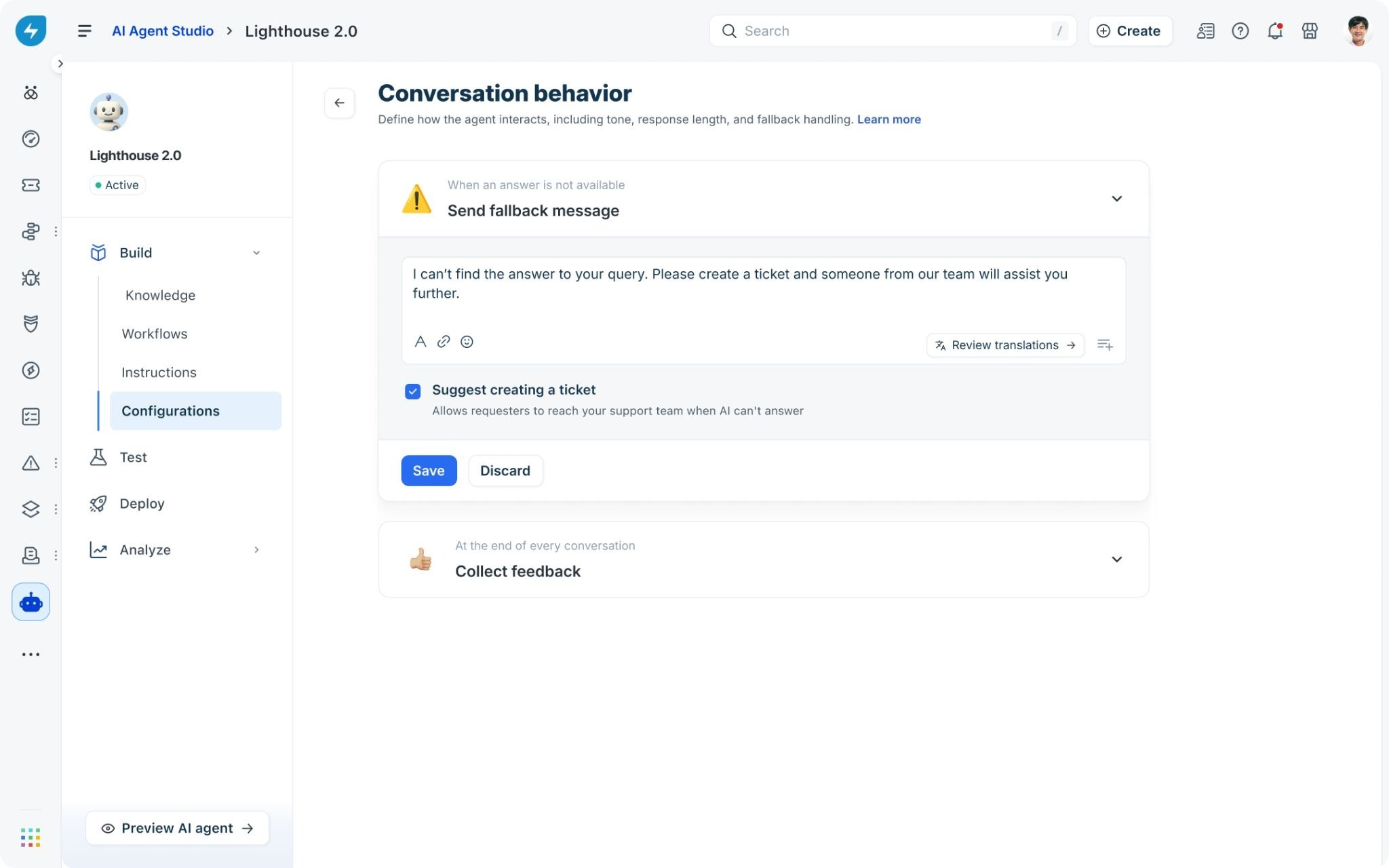
Edit the message text in the field. The default message reads: I can’t find the answer to your query. Please create a ticket and someone from our team will assist you further. Update this to match your organization’s tone and support process.
If you want the agent to offer users the option to raise a support ticket when the fallback message appears, check Suggest creating a ticket. This gives users a direct path to human support when the agent cannot help.
Click Save.
If you support multiple languages, click Review translations next to the fallback message to review and edit the message in each of your configured languages. This ensures users always see a fallback message in their own language.
Configure feedback collection
The Collect feedback setting controls whether the agent asks users to rate its response at the end of each conversation, and what the agent does based on their answer.
Expand Collect feedback by clicking its row.
Toggle Always ask for feedback on. The toggle turns blue and the feedback configuration fields appear below it.
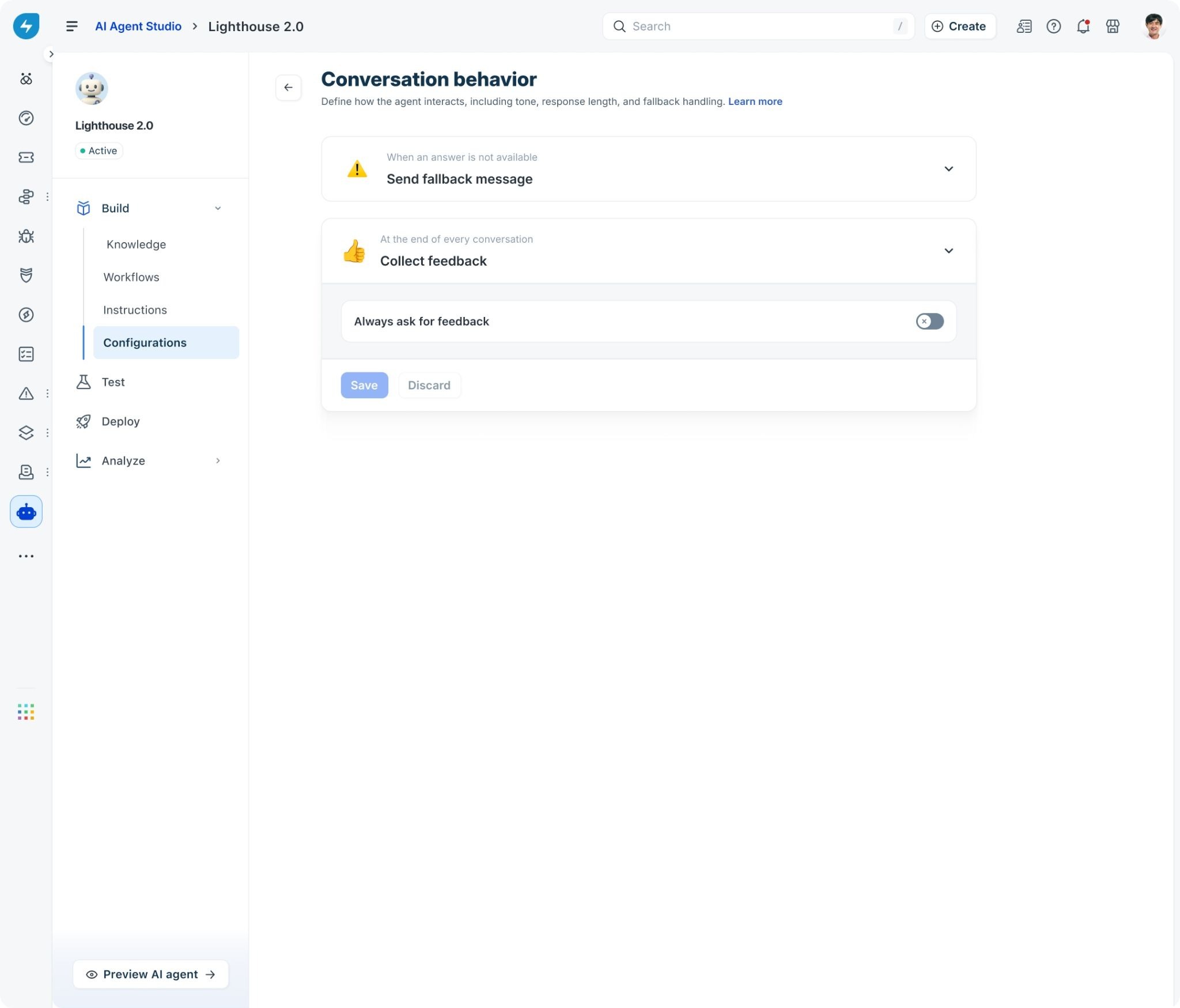
In the Feedback message field, enter the question you want the agent to ask. The default is: Was this helpful?
Under When response is Yes, choose what the agent does when a user says the conversation was helpful:
Only send a message: the agent displays a confirmation message and ends the interaction.
Resolve conversation: the agent marks the conversation as resolved in Freshservice.
In the Display a message field under the Yes response, enter the confirmation message to show. For example: I’m glad to hear that I could assist you!
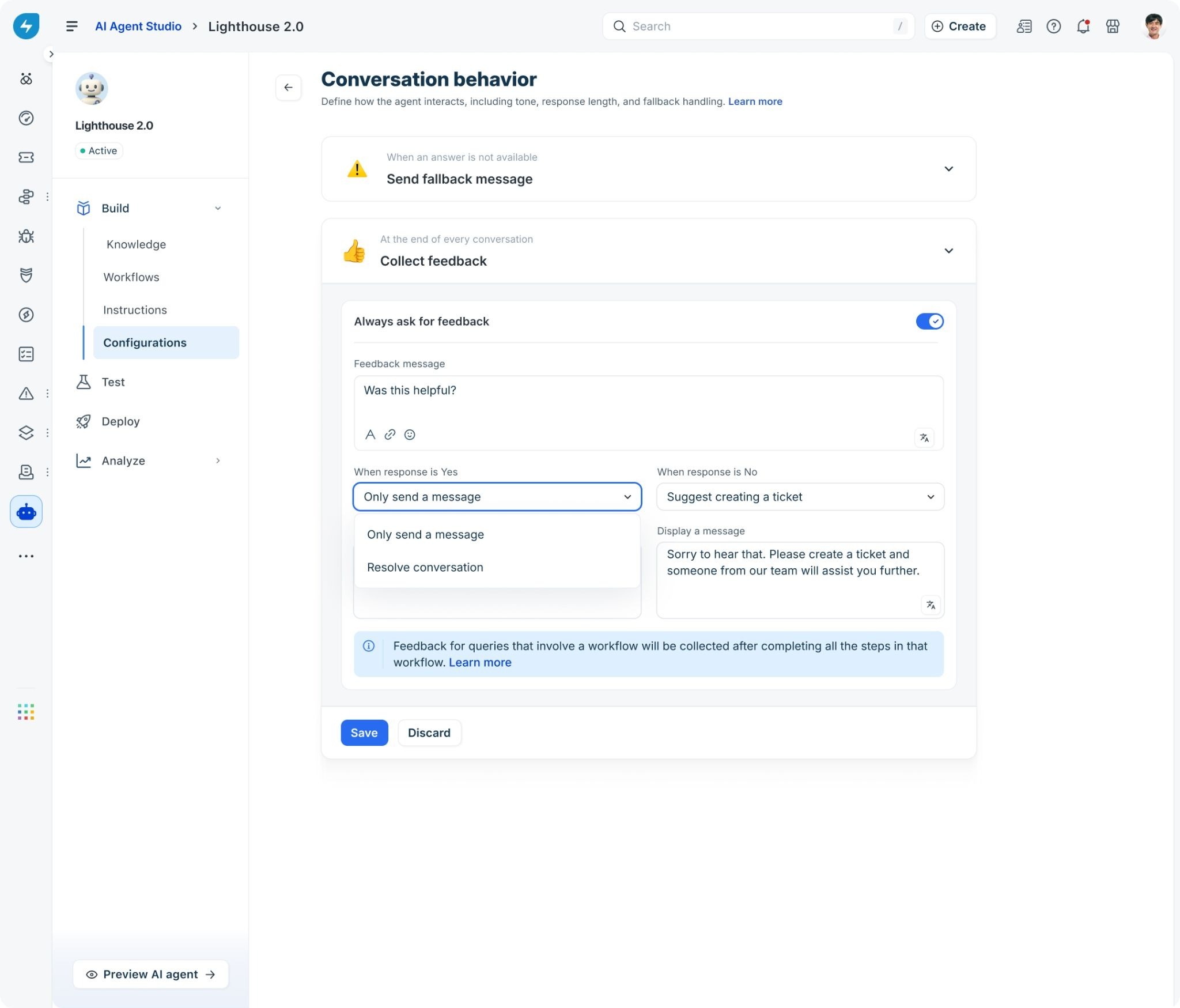
Under When response is No, choose what the agent does when a user says the conversation was not helpful. The default action is Suggest creating a ticket, which gives the user a path to human support.
In the Display a message field under the No response, enter the message to show. For example: Sorry to hear that. Please create a ticket and someone from our team will assist you further.
Click Save.
Feedback for queries that involve a workflow is collected after all steps in that workflow are completed, not when the question is first asked. This ensures the rating reflects the full interaction.
Triggering a workflow based on user feedback
When collecting feedback at the end of a conversation, you can automate follow-up actions by linking workflows directly to user responses. For example, a positive response ("Yes") can trigger a workflow to confirm resolution or close a ticket, while a negative response ("No") can trigger an escalation workflow that updates ticket priority or routes the request to a higher support tier.
To trigger a workflow from user feedback:
Navigate to Build > Configurations > Conversation behavior.
Expand Collect user feedback and toggle Always ask for feedback on.
Go to When response is Yes or When response is No depending on when you want the action to execute.
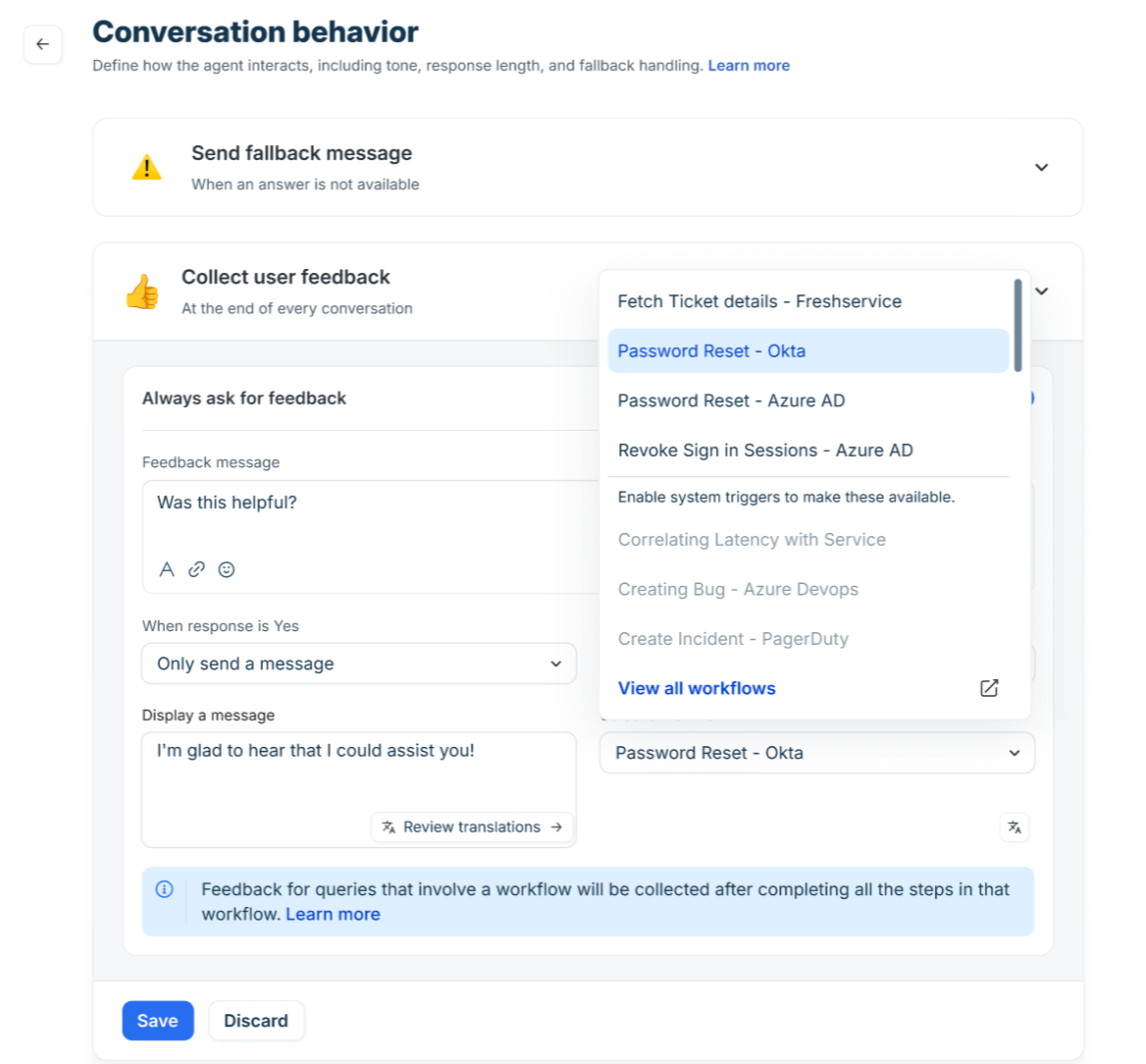
Select Trigger Workflow from the response action dropdown.
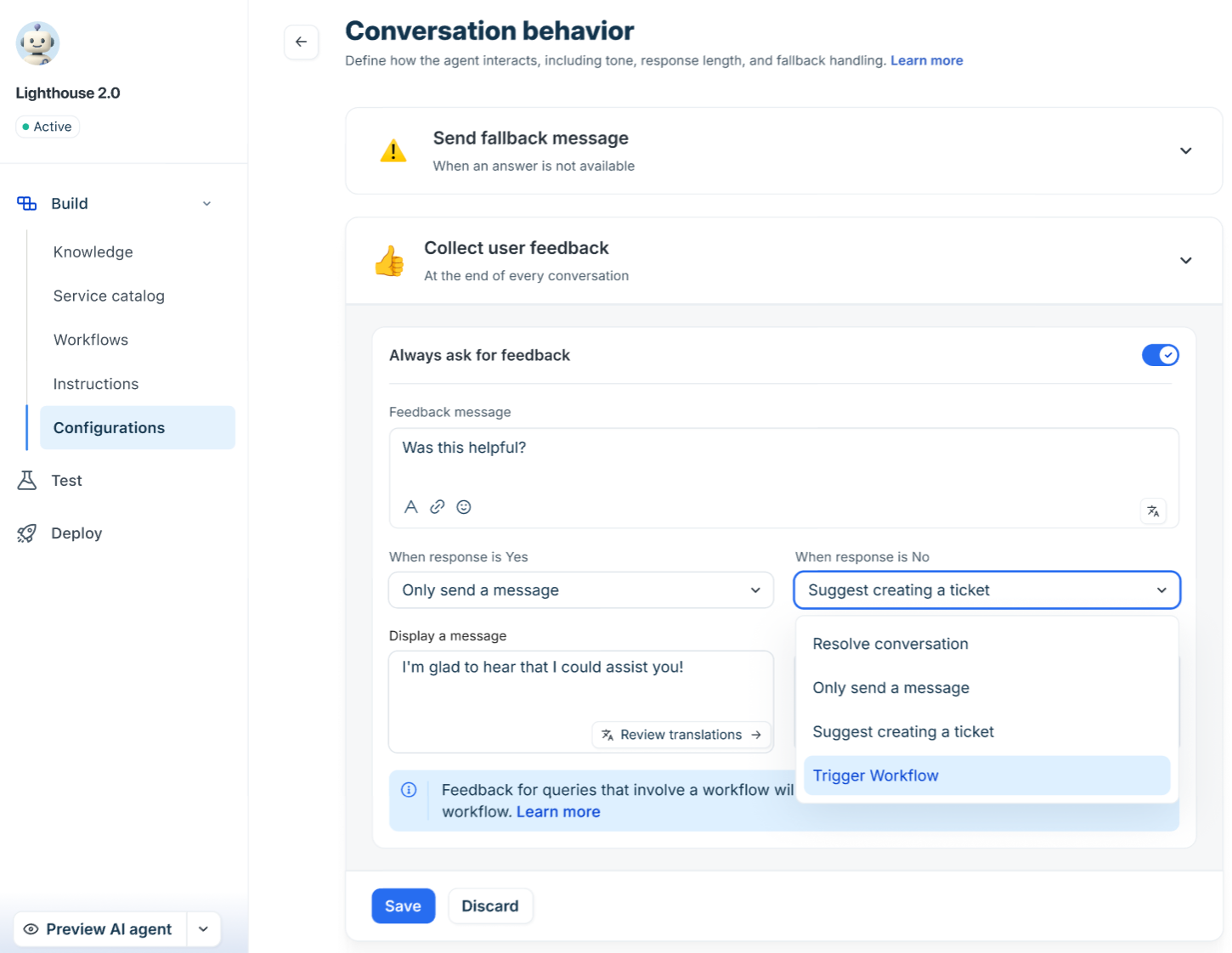
Under Select a workflow, select the relevant workflow from the list.
Click Save.
Set up human handover
Handover settings control when and how the agent converts a conversation into a support ticket for a human agent to handle. This is the primary escalation path when the AI cannot resolve an issue on its own.
On the Configurations page, click Handover settings.
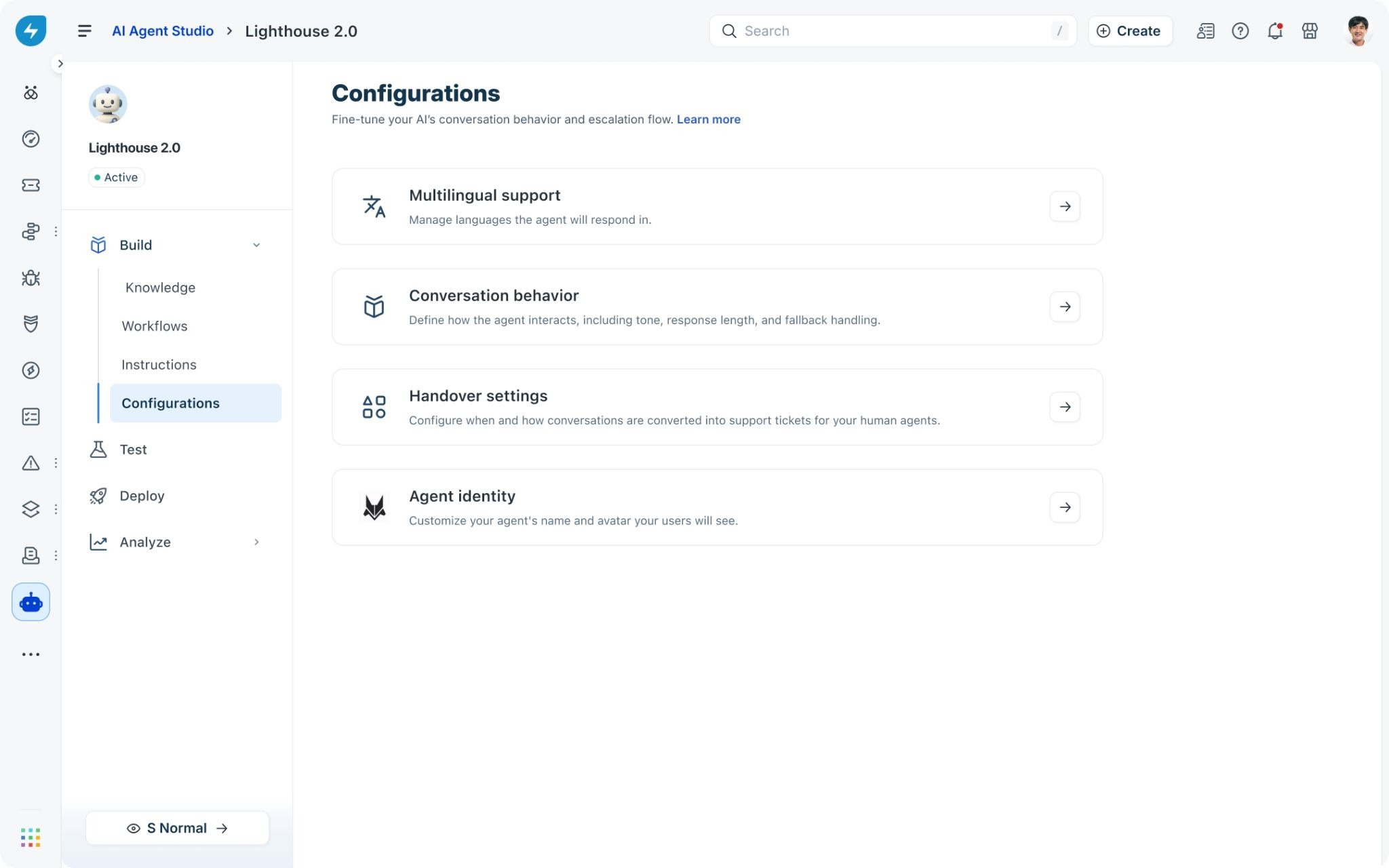
Configure the conditions that trigger a handover, the ticket details that are created on escalation, and any routing or priority rules your team uses.
Click Save.
Make sure your Freshservice ticket routing and assignment rules are configured before enabling handover. The AI agent creates the ticket, but your existing Freshservice workflows determine which team or agent receives it.
Triggering a workflow during human handover
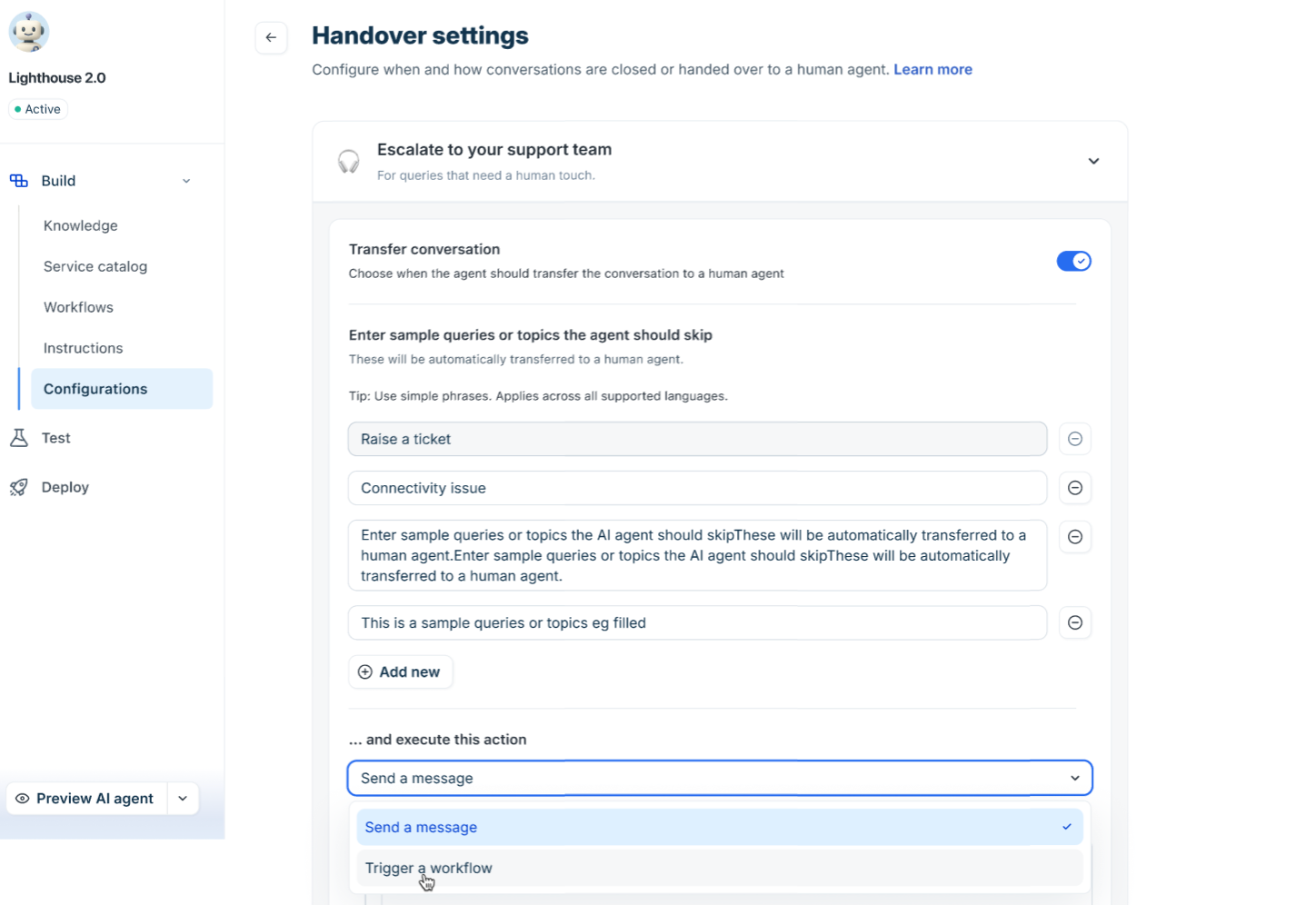
You can configure the AI agent to trigger an automated workflow instead of sending a default text message when transferring a conversation or skipping specific topics. This allows you to automatically execute actions across external systems, such as creating or updating tickets enriched with requester context and conversation transcripts.
To trigger a workflow during handover:
Go to Build > Configurations > Handover settings.
Expand Escalate to your support team and ensure Transfer conversation is enabled.
Enter sample queries or topics that the AI agent should skip and automatically transfer.
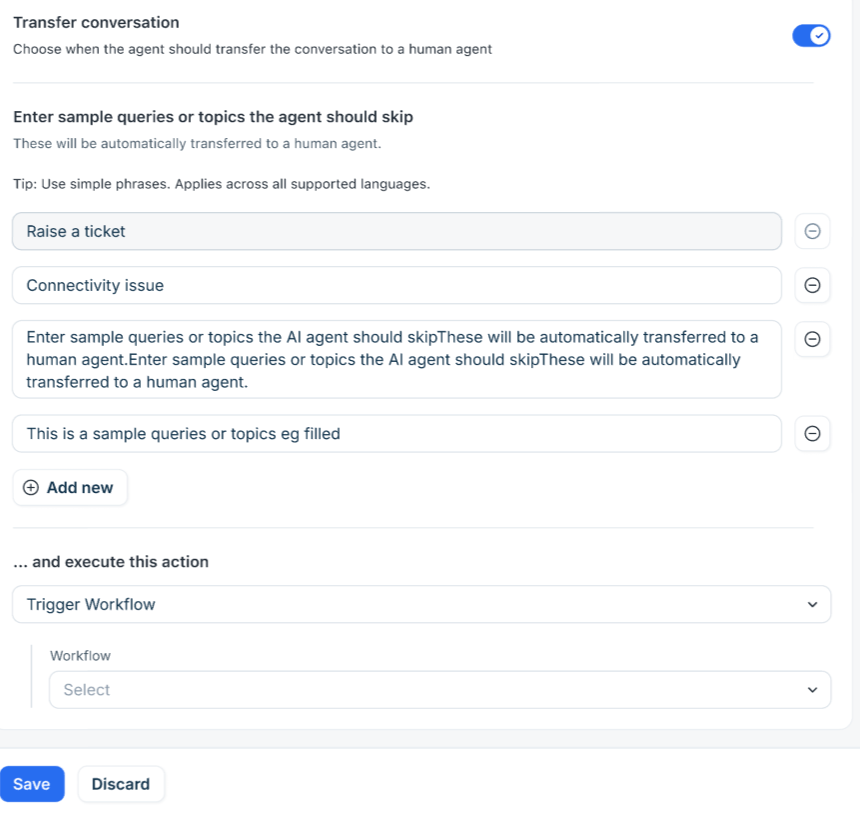
Under ... and execute this action, click the dropdown menu and select Trigger a workflow.
Under Workflow, select the desired workflow from the list (or click View all workflows to browse).
Click Save.
Customize your agent identity
Agent identity lets you set the name and avatar that employees see when they interact with the agent. A clear, recognizable identity helps users understand who they are talking to and reinforces your organization’s brand.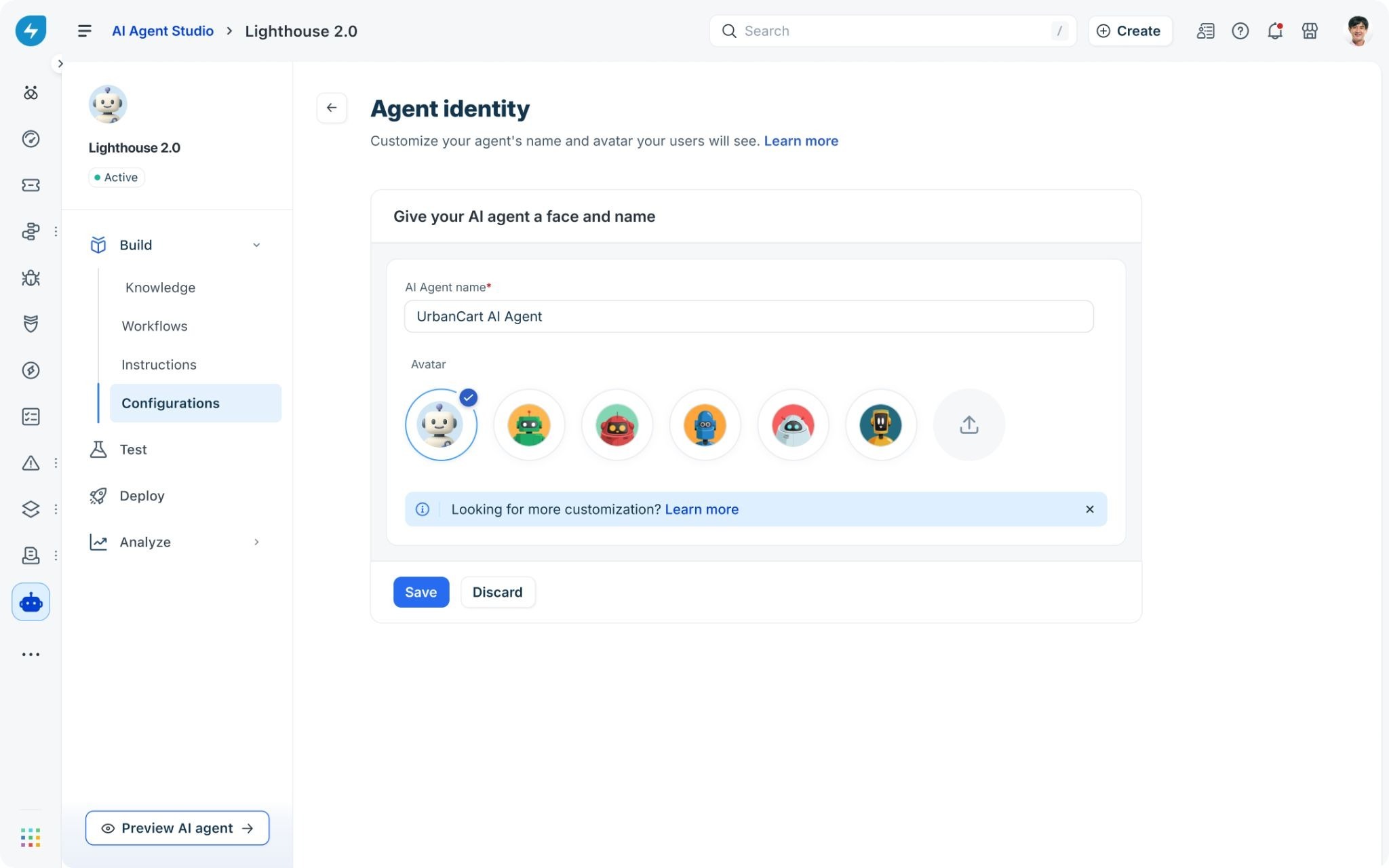
Set the agent name
On the Configurations page, click Agent identity.
In the name field, enter the name you want to display. Keep the name short and easy to recognize.
Click Save.
If your organization runs more than one AI agent — for example, one for IT and one for HR — give each a distinct name so employees can tell them apart.
Set the agent avatar
On the Configurations page, click Agent identity.
In the avatar section, select an image from the available options or upload your own branded image.
Click Save.
The name and avatar you set here appear in every channel where the agent is deployed, including the support portal, Microsoft Teams, and Slack.
Best practices
Start with the fallback message. Before going live, customize the fallback message to match your organization’s tone and point users to a clear next step. The default message is a starting point, not a final version.
Enable feedback collection from day one. Turning on Collect feedback from the start gives you data immediately. Use the Yes and No response rates to identify where the agent performs well and where knowledge gaps exist.
Add languages based on actual need. Add a language when you have employees who regularly write support requests in it, and when you have knowledge content in that language to back it up. Adding languages without supporting knowledge can produce lower-quality responses.
Test after every configuration change. Use Preview AI agent to simulate conversations after saving any configuration. Verify that the fallback message, feedback prompt, and language detection all behave as expected before changes reach employees.
Keep agent identity consistent. Use the same name and avatar across all channels. If you change the agent’s name or avatar after deployment, communicate the change to employees so they are not confused.