
 Community
 Video Library
 Agent Training
 Freshservice
 Freshdesk
 Freshchat
 Freshcaller
 Freshsales
 Freshteam
 Freshworks Neo
 Freshsurvey
 Freshservice for MSP
 TABLE OF CONTENTS
- Where to find pre-built agents
- Available pre-built agents
- Add a pre-built agent to your workspace
- Customize a pre-built agent after adding it
- Best practices
- Frequently asked questions
Pre-built agents are fully configured starting points built around common employee service scenarios. When you select one, you get an agent that includes:
Preloaded workflows that cover the most common requests for that service area. You can activate them immediately or open any workflow and adjust it to match your processes.
Connected apps added by default to the relevant workflows so integrations are already wired in. You supply your organization's credentials to activate them.
Preset instructions that tell the agent how to respond, what tone to use, and how to handle escalations, right out of the box.
You can use a pre-built agent as-is or customize any part of it after adding it. Either way, you start from a working foundation rather than a blank canvas.
Where to find pre-built agents
Pre-built agents are available on the AI agents landing page in AI Agent Studio, under Explore pre-built AI agents. To get there:
Open AI Agent Studio from the Freshservice navigation.
Click AI agents in the left navigation.
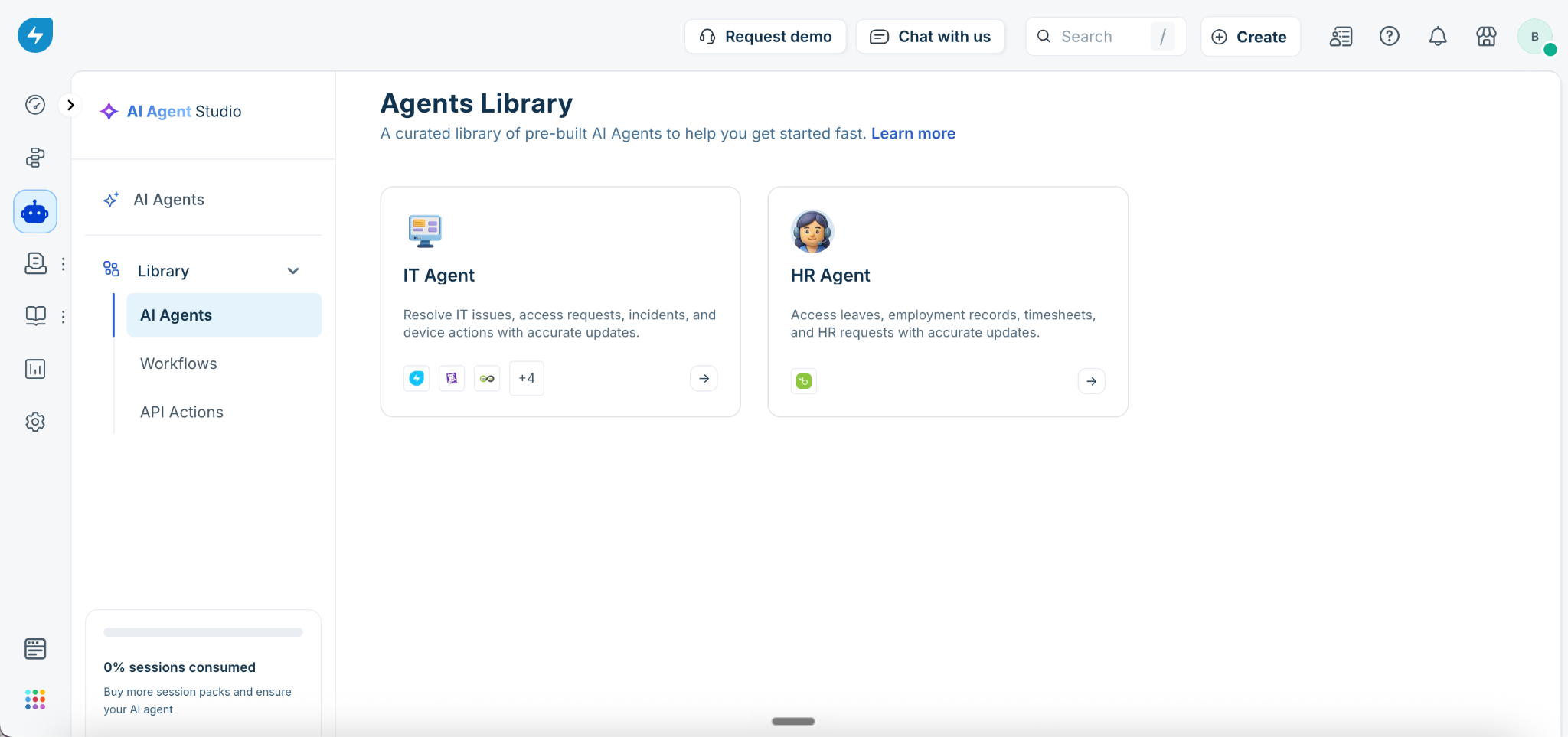
Each agent card shows its name, category, a short description, and the icons of its default app integrations. Click any card to open a preview panel with the full list of preloaded workflows, connected apps, and preset instructions. When you are ready to proceed, click Use Agent in the panel.
Available pre-built agents
Freshservice currently provides two pre-built agents, each targeting a distinct employee service area.
HR Agent
Category: Human Resources
Apps: BambooHR for AI Agents
The HR Agent helps employees access leaves, profile, timesheet, dependents, and job-related information with accurate and reliable updates. It handles routine HR requests conversationally and reduces the volume of manual work for HR teams.
Preloaded workflows:
Default apps:
IT Agent
Category: IT Service Management
Apps: Freshservice, Datadog, Azure DevOps, Exchange Online, Microsoft Entra ID, Jamf Pro, PagerDuty (all for AI Agents)
The IT Agent helps employees resolve IT support requests, incidents, access issues, and device-related operations with accurate and reliable updates. It comes preloaded with IT support workflows that reduce resolution time and deflect repetitive tickets from your IT team.
Preloaded workflows:
Default apps:
Add a pre-built agent to your workspace
Adding a pre-built agent takes only a few steps. Once added, the agent is fully configured and ready to customize.
On the AI agents page, locate the agent you want under Explore pre-built AI agents.
Click the agent card to open the preview panel.
Review the preloaded workflows, default apps, and preset instructions. Click View next to any workflow to inspect it before proceeding.
When you are ready, click Use Agent.
The agent is added to your AI agents list. From there you can connect apps with your organization's credentials, adjust workflows, update instructions, and add knowledge sources before deploying.
Note: App connection status shown in the preview panel reflects default integrations for the template. You need to connect each app using your organization's credentials after adding the agent.
Customize a pre-built agent after adding it
Pre-built agents are starting points. After adding one, you can adjust any part of its configuration.
Workflows: Open any preloaded workflow in the workflow builder to modify the trigger, add or remove steps, or change condition logic.
Apps: Go to Build and open any workflow to update app credentials or replace a default app with a different integration.
Instructions: Go to Build and click Instructions to edit the preset guidance the agent follows for tone, escalation behavior, and response style.
Knowledge sources: Go to Build and click Knowledge Sources to add URLs, files, solution articles, or apps like SharePoint, Google Drive, or Confluence, specific to your organization.
Tip: Test the agent in Preview AI agent before making any changes. This shows you what the agent already handles well and helps you focus your customizations where they matter most.
Best practices
Review workflows before going live. Open each preloaded workflow and check that the trigger description and steps match how your employees are likely to phrase requests.
Connect apps before testing. Preloaded workflows cannot execute until each app is connected with valid credentials. Set up app connections as the first step after adding an agent.
Add knowledge sources early. Pre-built agents do not come with knowledge sources attached. Adding relevant policies, articles, and Q&A pairs early improves the quality of answers significantly.
Enable workflows in phases. Start with the two or three workflows that cover your highest-volume requests. Validate those before activating the full set.
Adjust preset instructions to match your tone. The default instructions work out of the box, but editing them to reflect your organization's voice makes the agent feel consistent with your other communications.
Frequently asked questions
1. Can I add more than one pre-built agent to my workspace?
Yes. Each pre-built agent is independent. You can add multiple agents, each scoped to a different service function, and deploy them on separate channels.
2. Can I rename a pre-built agent after adding it?
Yes. Open the agent's settings after adding it to update the name, description, and avatar to match your organization's branding.
3. Do preloaded workflows count toward my workflow limit?
Yes. Each preloaded workflow counts the same as a workflow you build manually. Disable any preloaded workflows you do not plan to use to keep your agent lean.
4. What happens to my customizations if Freshservice updates a pre-built template?
Updates to a template in the library do not affect agents you have already added. Your configuration is independent from the moment you click Use Agent.
5. Can I add a workflow from a different agent to my current agent?
Yes. Go to Build, click Workflows, and then click Add Workflow. You can browse the Workflow library and add individual workflows from any template to your agent, regardless of which pre-built agent you started with.