
 Community
 Video Library
 Agent Training
 Freshservice
 Freshdesk
 Freshchat
 Freshcaller
 Freshsales
 Freshteam
 Freshworks Neo
 Freshsurvey
 Freshservice for MSP
 You can configure and customize automated email notifications to keep requesters, agents, and stakeholders informed about updates. Depending on your organization's setup, you can manage these notifications at two levels:
Global settings: Account-wide configurations that apply across all your workspaces. These settings manage core features such as account activations and global journeys. For example, you can change your account-wide Default font from the global settings.
Workspace settings: Workspace-specific configurations tailored to individual department workflows (for example: IT, HR, Facilities) for modules like Tickets, Problems, Changes, and Releases.
This article provides a list of available email notification events for the Problems, Changes, and Releases modules at the workspace level.
TABLE OF CONTENTS
- Enable email notifications
- Key configurations and customization
- Problem notifications
- Change notifications
- Release notifications
Enable email notifications
To enable your email notification settings, follow these steps:
Go to Admin > [Workspace Name] > click Email Notifications under the Workspace Settings section.
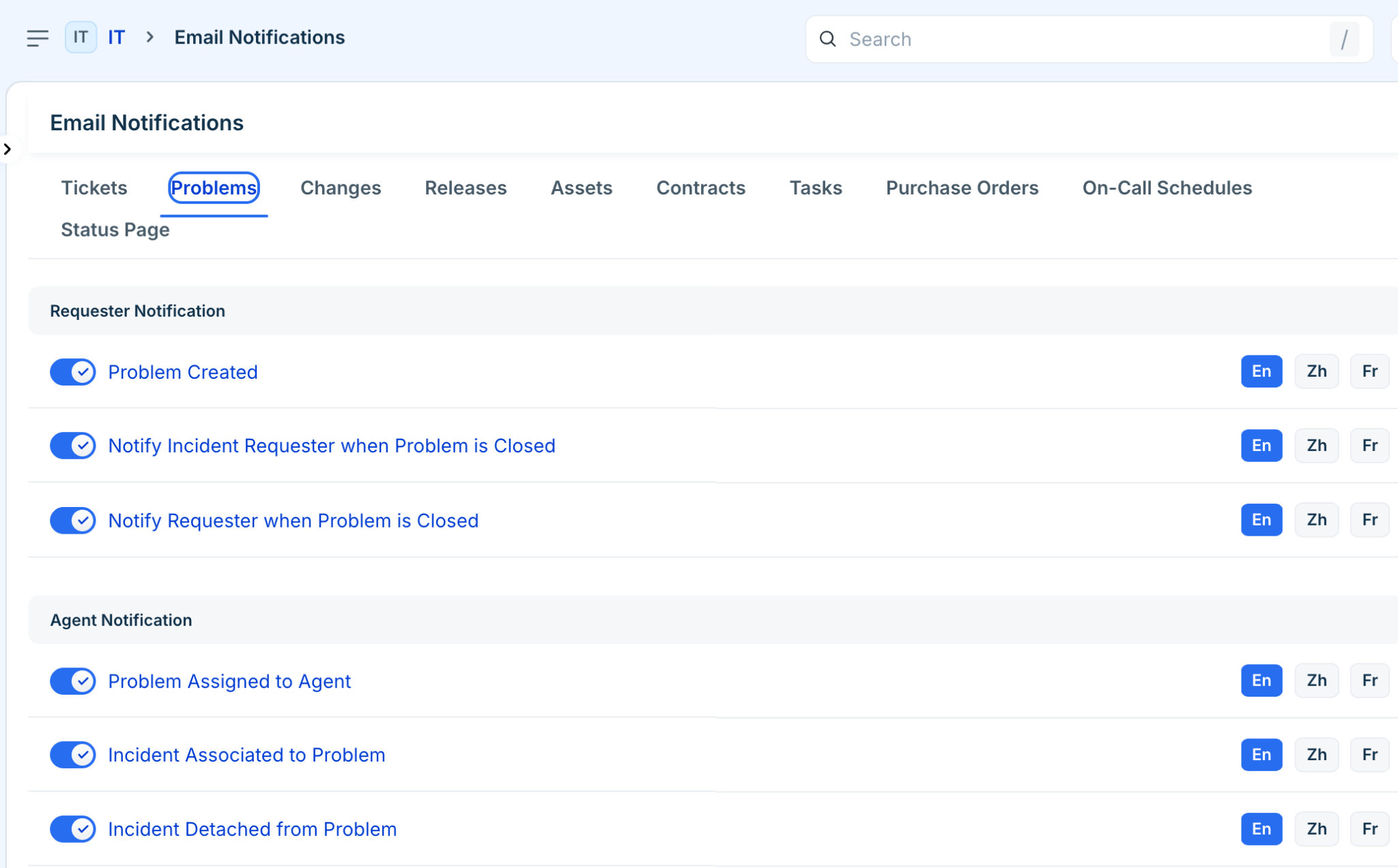
Enable notifications for Problems, Changes, and Releases from the respective tabs based on your requirements. For more details on each notification, refer to the sections below.
Key configurations and customization
Once you have configured the relevant notifications, you can modify their operational behavior, content layout, and language localizations to align with your business workflows.
Enable and disable notifications
You can use the toggle switches next to any notification name to enable or disable it instantly.
Customize email templates
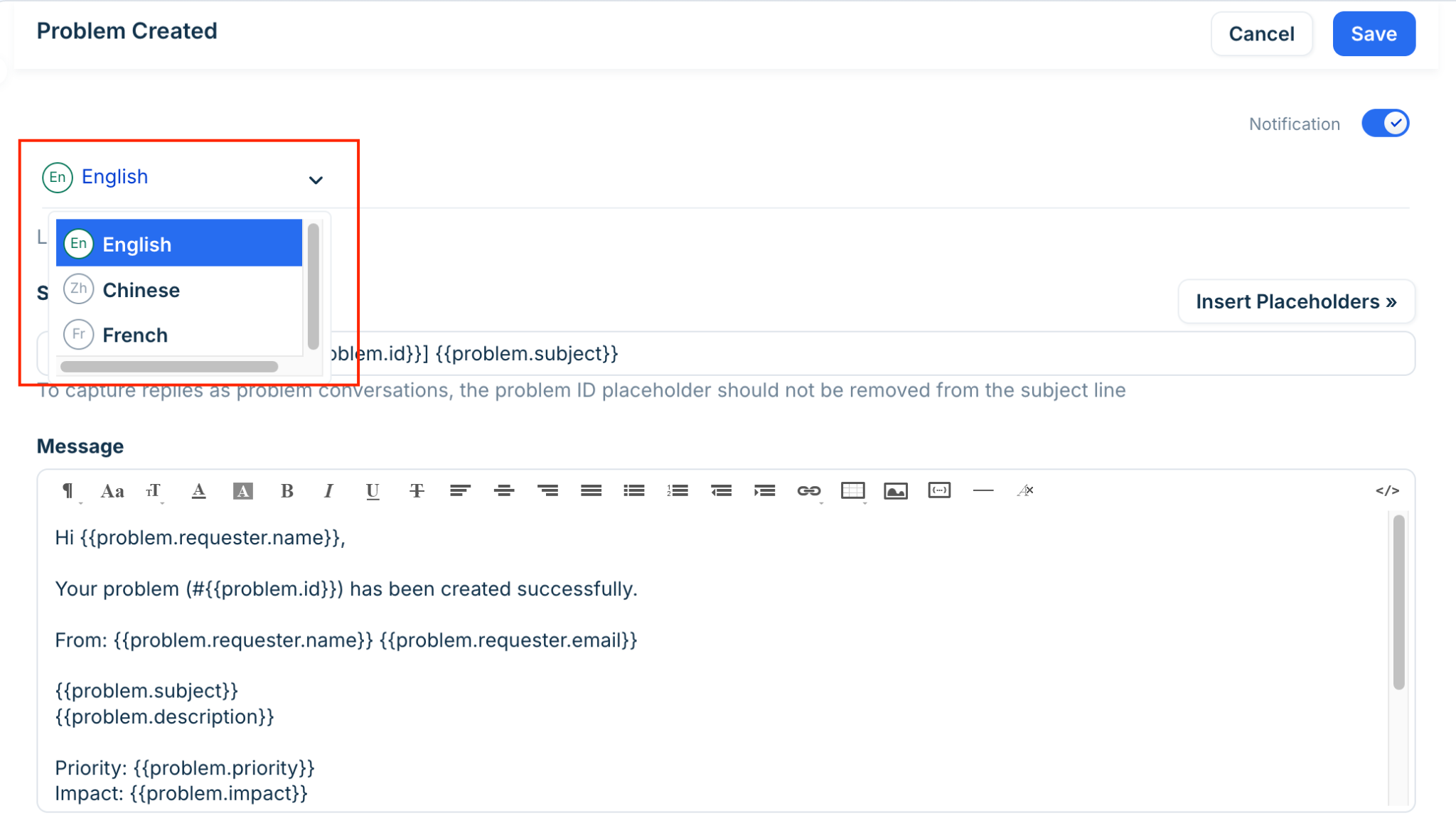
Click on any notification title to open the template editor. Here you can edit the email body, modify the subject line, incorporate placeholders (dynamic data fields like Ticket ID or Requester Name), and match the styling with your organization's branding. For more details, refer to How to insert placeholders for dynamic content.
Multilingual support
If your service desk supports global teams across multiple regions, you can translate your automated email notifications. Click En (Language) and change the email language based on your requirements.
Note: Only languages configured as supported languages in your system settings will appear in the dropdown menu. For more information, refer to Configuring Multilingual Email Notifications.
Problem notifications
These alerts keep your service desk team and related incident owners aligned during root-cause investigations and problem resolutions.
You can enable the following problem notifications:
Requester notifications: Alerts sent to the initial requester regarding problem progress or resolutions.
Agent notifications: Alerts sent to service desk agents or assigned owners managing the problem record.
Change notifications
These alerts track configuration modifications and authorization steps throughout the change management lifecycle, including updates sent to Change Advisory Board (CAB) members.
You can enable the following change notifications:
Requester notifications: Alerts sent to the requester about change implementation progress or final outcomes.
Agent notifications: Alerts sent to assigned agents, change managers, or CAB members handling the change request.
CC/Share notifications: Alerts sent to additional stakeholders or team members copied on the change record.
Release notifications
These alerts coordinate implementation rollouts, build deployments, and final handoffs back to change owners.
You can enable the following release notifications:
Requester notifications: Alerts sent to inform stakeholders when a release rollout is successfully deployed or completed.
Agent notifications: Alerts sent to release managers, developers, or change owners coordinating the active deployment phase.