
 Community
 Video Library
 Agent Training
 Freshservice
 Freshdesk
 Freshchat
 Freshcaller
 Freshsales
 Freshteam
 Freshworks Neo
 Freshsurvey
 Freshservice for MSP
 TABLE OF CONTENTS
- Key concepts to know before you start
- Where to find knowledge sources in Agent Studio
- Choosing the right knowledge source
- Add URLs
- Add files
- Connect solution articles
- Best practices
- Frequently asked questions
Knowledge sources are the foundation of every AI agent. They're the content your agent reads to understand requests, ground its responses, and answer questions accurately. Freddy AI Agent Studio gives you different ways to add knowledge to an agent: URLs, files, solution articles from your Freshservice knowledge base, and apps like Google Drive, SharePoint, and Confluence.
Learn how each knowledge source works, when to use it, and the steps to add it to your agent.
Key concepts to know before you start
A few terms appear throughout this article. Knowing them up front makes setup much easier.
Where to find knowledge sources in Agent Studio
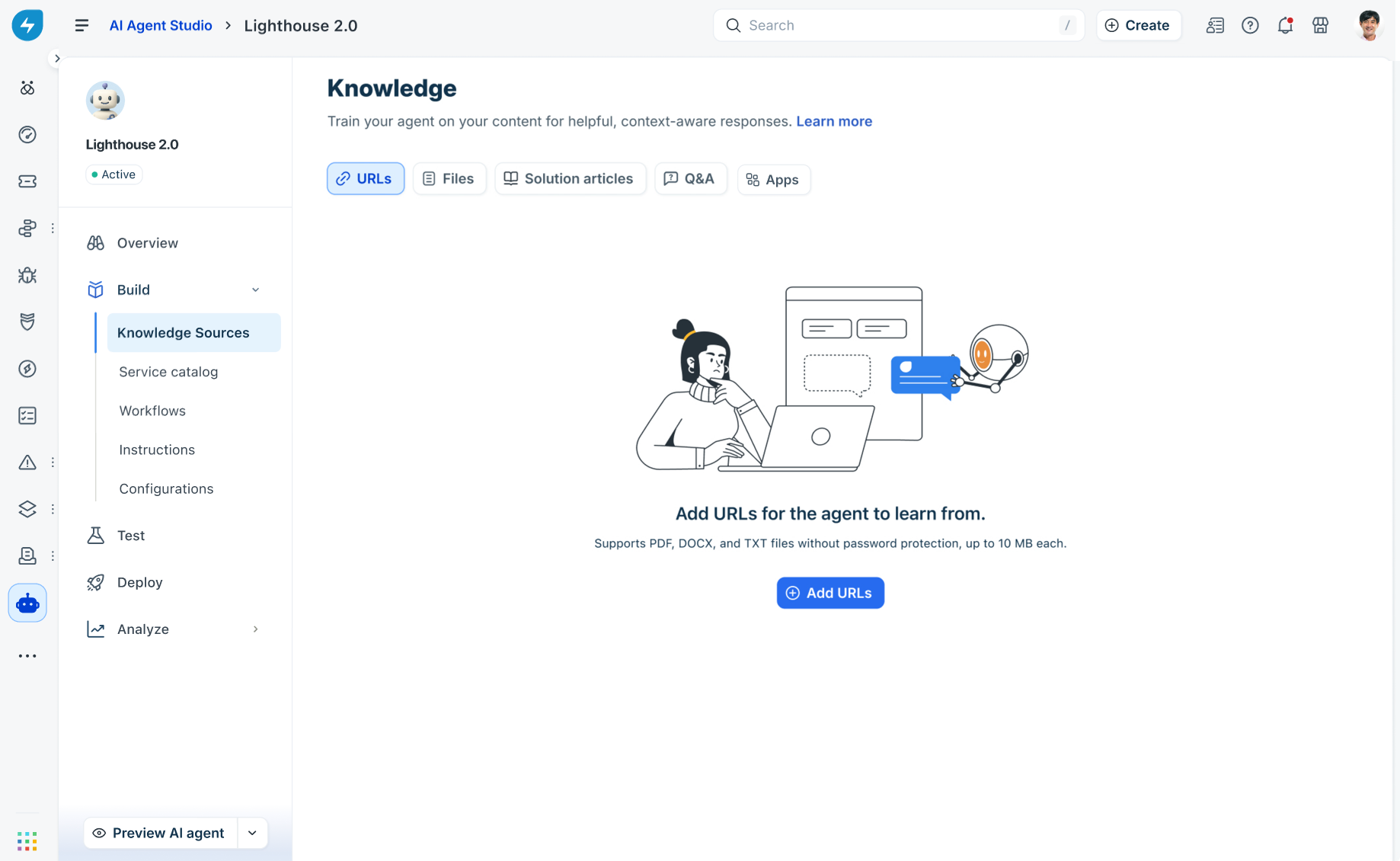
All four knowledge source types live in the same place. To get there:
Open AI Agent Studio and select the agent you want to configure.
In the left navigation, expand Build and click Knowledge.
Use the four tabs at the top of the page: URLs, Files, Solution articles, and Apps to switch between knowledge source types.
The agent learns from every source you add across all four tabs. You don't have to choose one; combining them usually produces the best results.
Choosing the right knowledge source
Each source type has its strengths. The table below shows which one fits which kind of content. You can add up to 7,000 total items across files, child URLs, and solution articles combined.
Add URLs
URLs are best for content you publish on the web and want to keep in sync with your agent. The agent crawls the URL you provide and learns from the content it finds there, including child pages on the same domain.
You can add up to 25 parent URLs, and each parent URL can include up to 3,000 child links discovered during crawling.
Add a URL to your agent
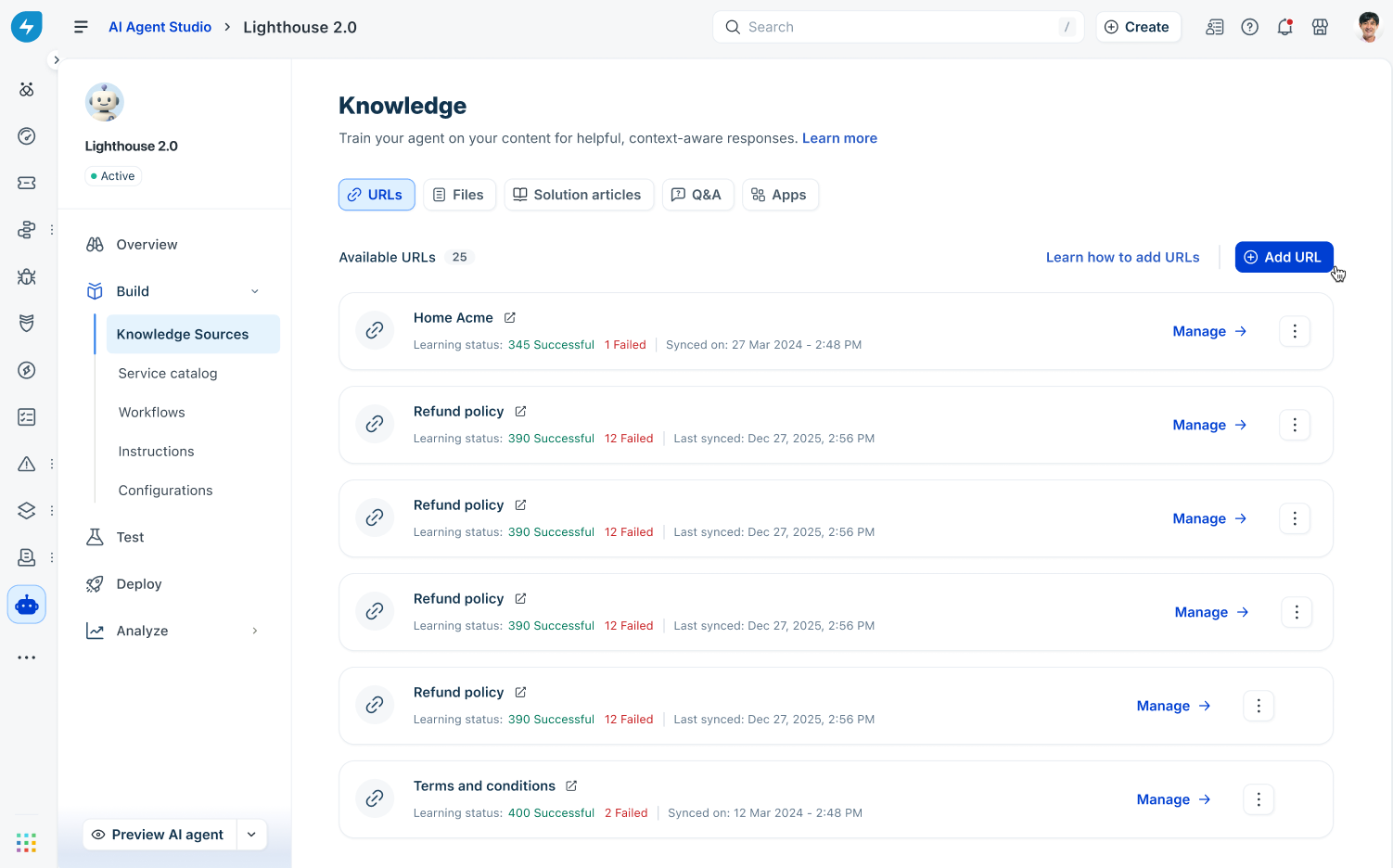
On the Knowledge page, open the URLs tab.
Click Add URL in the top right.
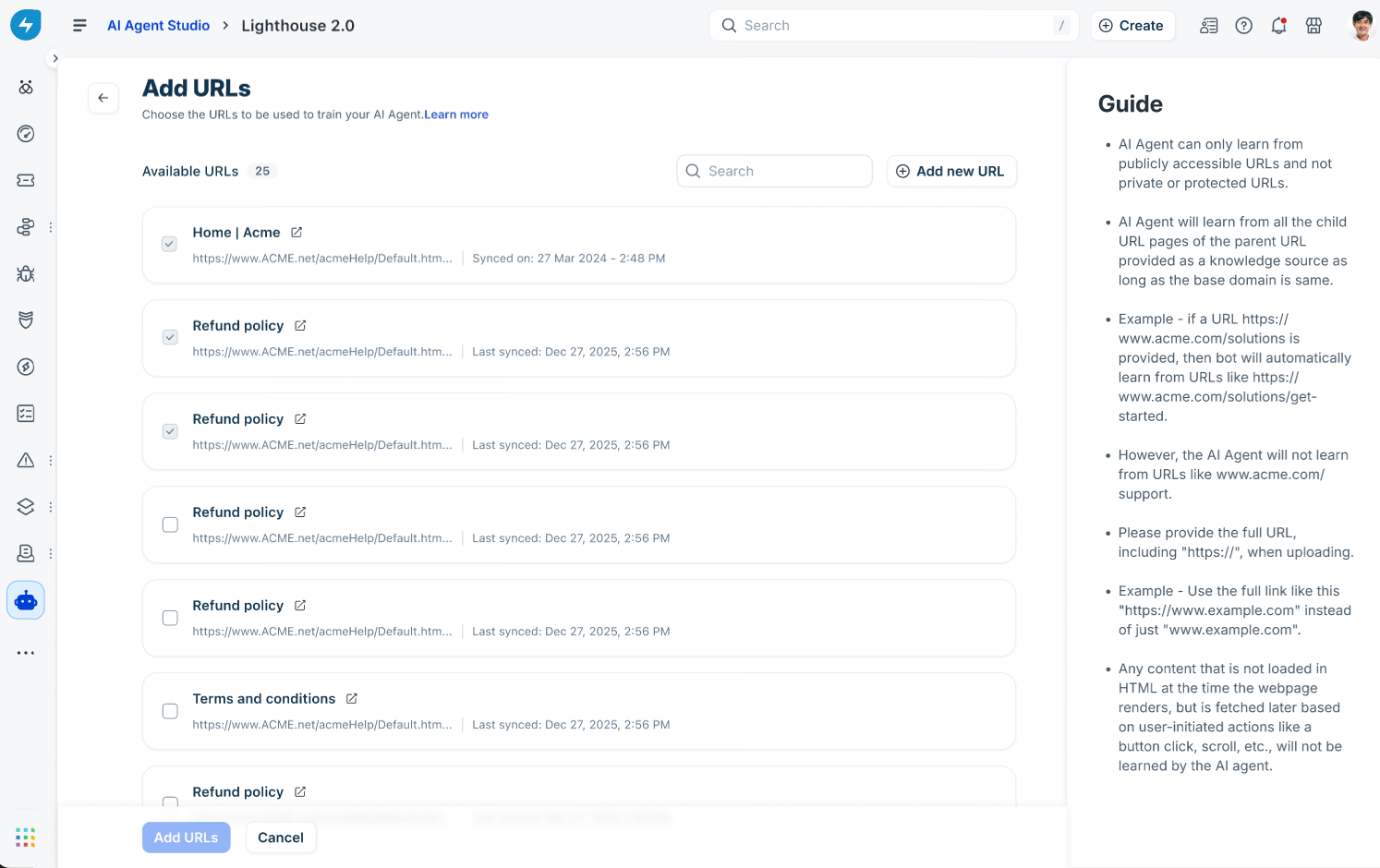
Select URLs you've previously added, or click Add new URL to enter a new one. Make sure to include the full URL with https://.
Click Add URLs to confirm. You'll see a notification when the URLs have been queued for learning, and another once learning is complete.
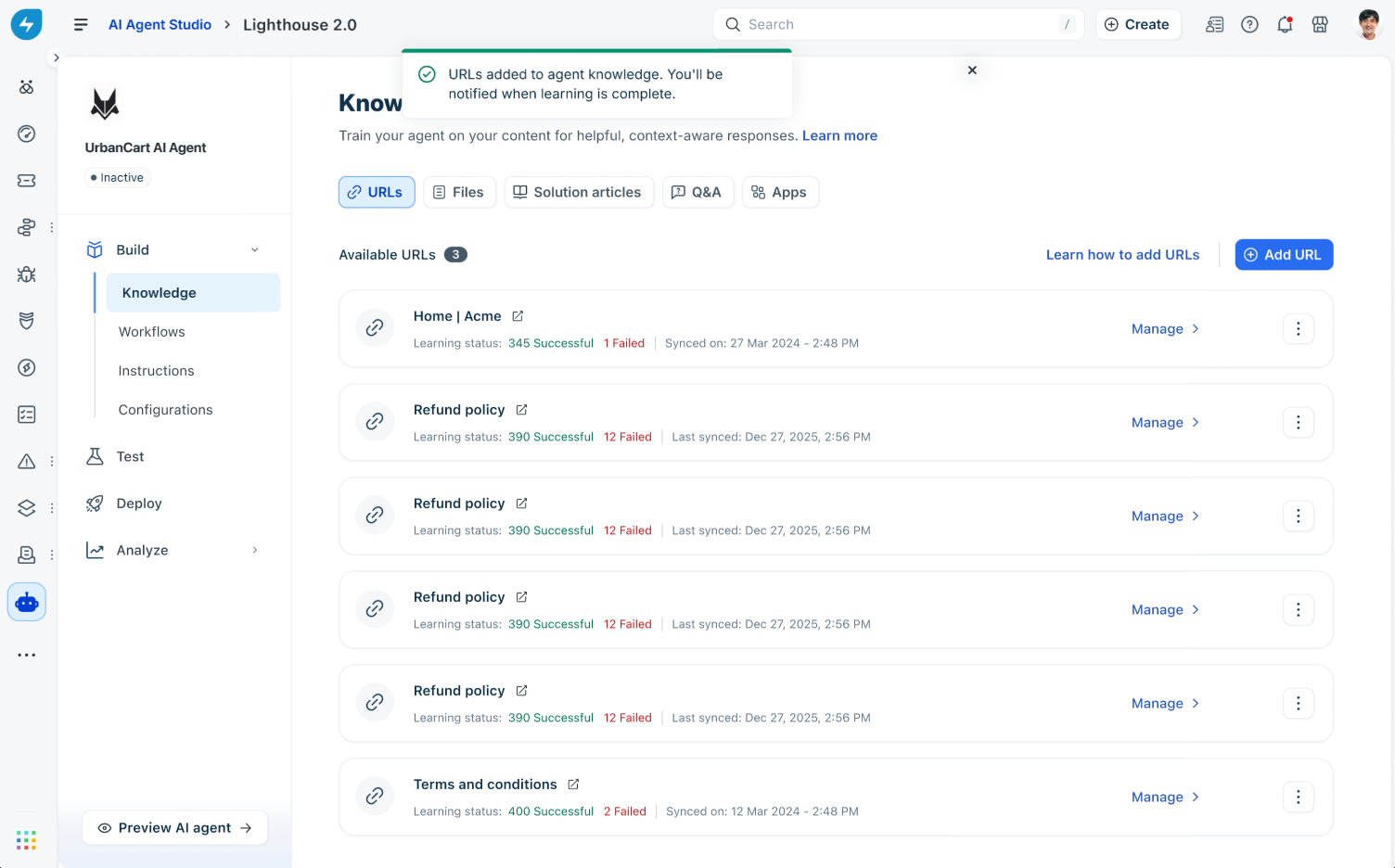
Once added, each URL appears in the list with its learning status (successful or failed) and the date and time it was last synced. Click Manage on any URL to review the pages the agent learned from or to remove pages you no longer want included.
How URL learning works
AI agents can only learn from publicly accessible URLs. Pages behind a login or other authentication won't be learned.
The agent learns from all child pages on the same parent domain. For example, if you provide https://www.acme.com/solutions, the agent will also learn from https://www.acme.com/solutions/get-started.
The agent will not learn from pages outside the parent path: https://www.acme.com/support wouldn't be learned in the example above.
Always enter the full URL, including the protocol (https://). Just www.example.com won't work.
Content loaded dynamically after the page renders, through user actions such as clicks, scrolls, or in-page navigation, won't be picked up. The agent only reads what's in the HTML when the page loads.
Add files
Files are best for content that isn't published on the web, internal policies, process documents, onboarding material, or any reference content your team maintains as a document.
You can add up to 200 files per AI agent. Each file must be 35 MB or lower.
Supported formats
Freddy AI Agent Studio supports PDF, DOCX, and TXT files. Files must not be password-protected.
Upload files to your agent
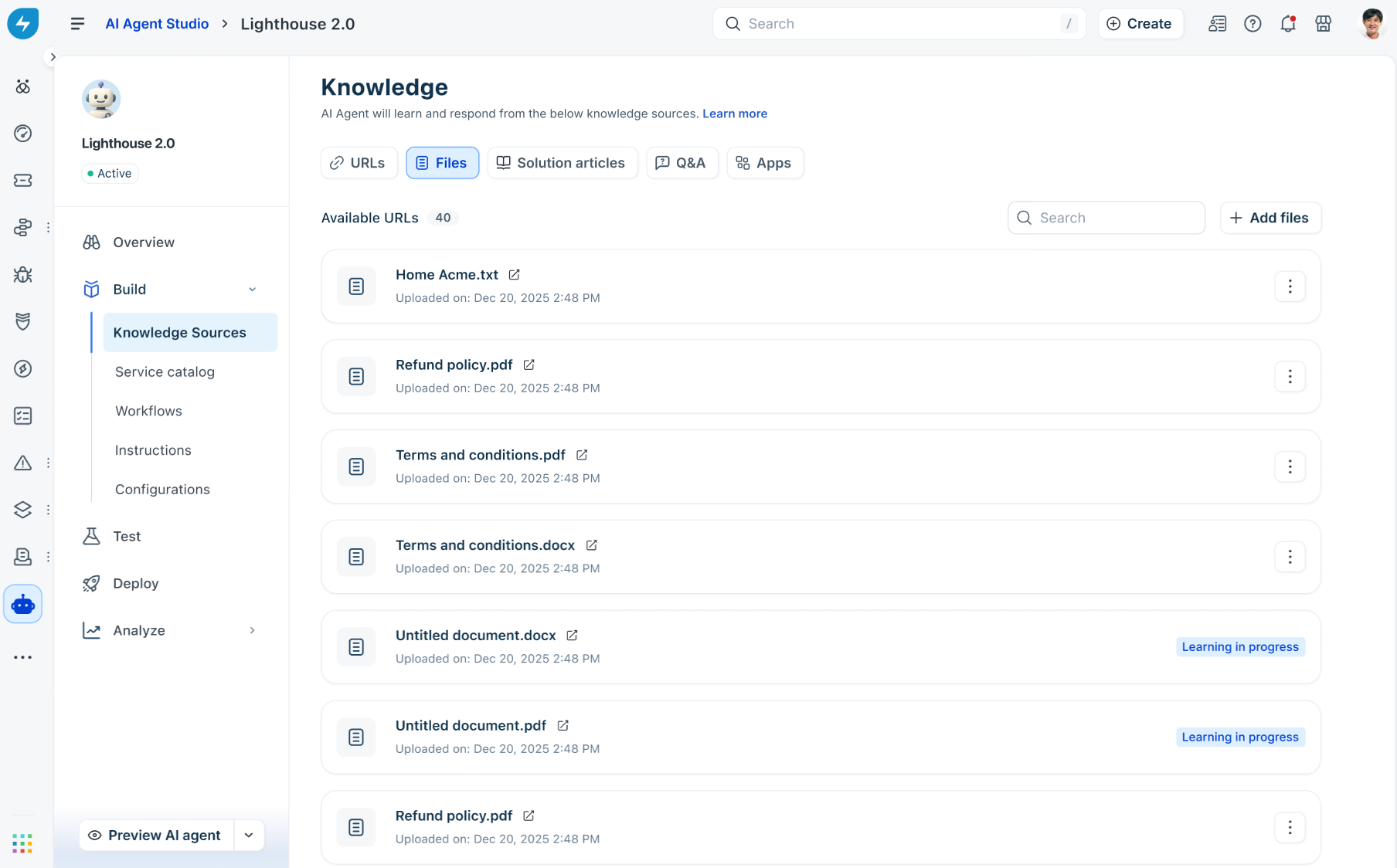
On the Knowledge page, open the Files tab.
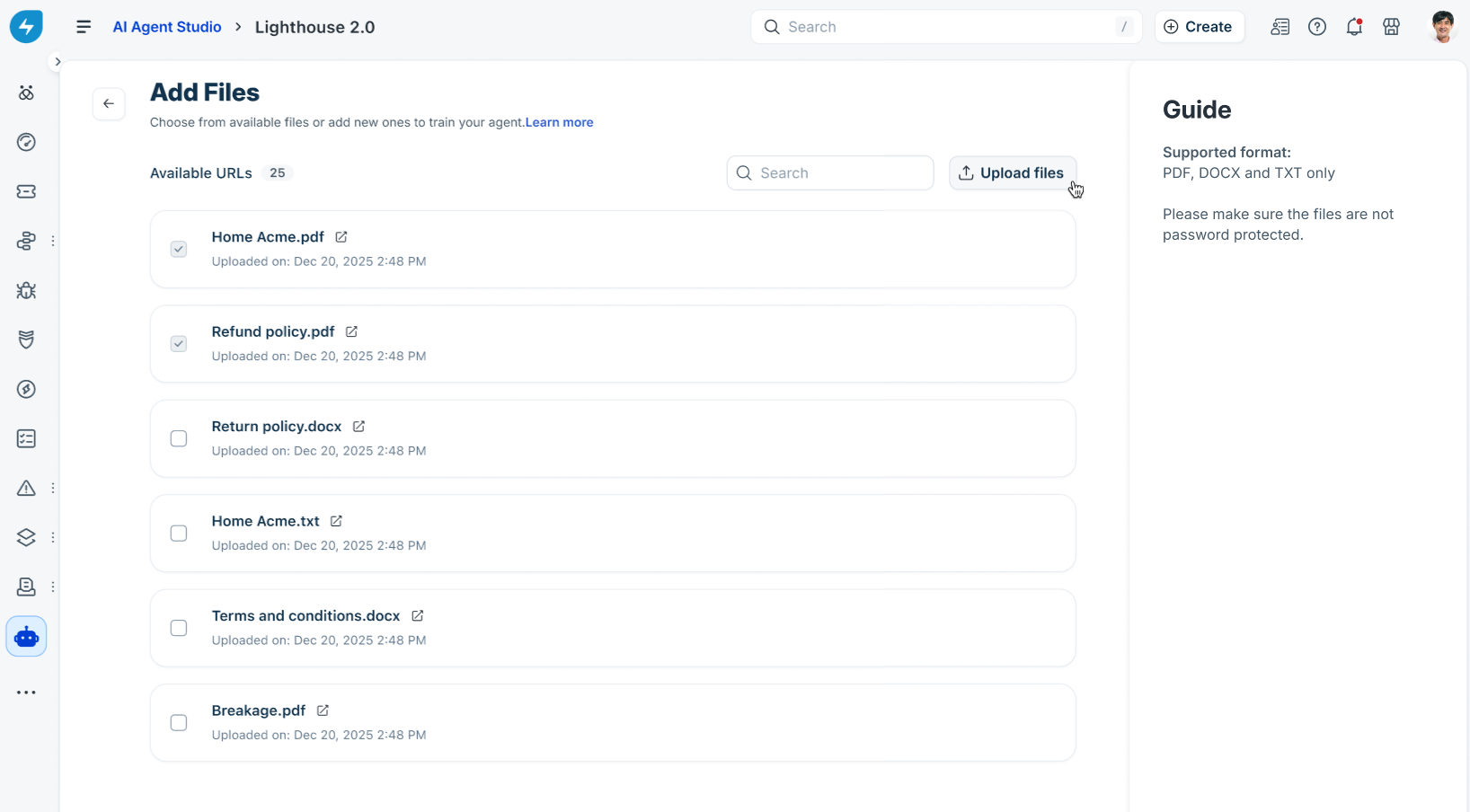
Click Add files in the top right.
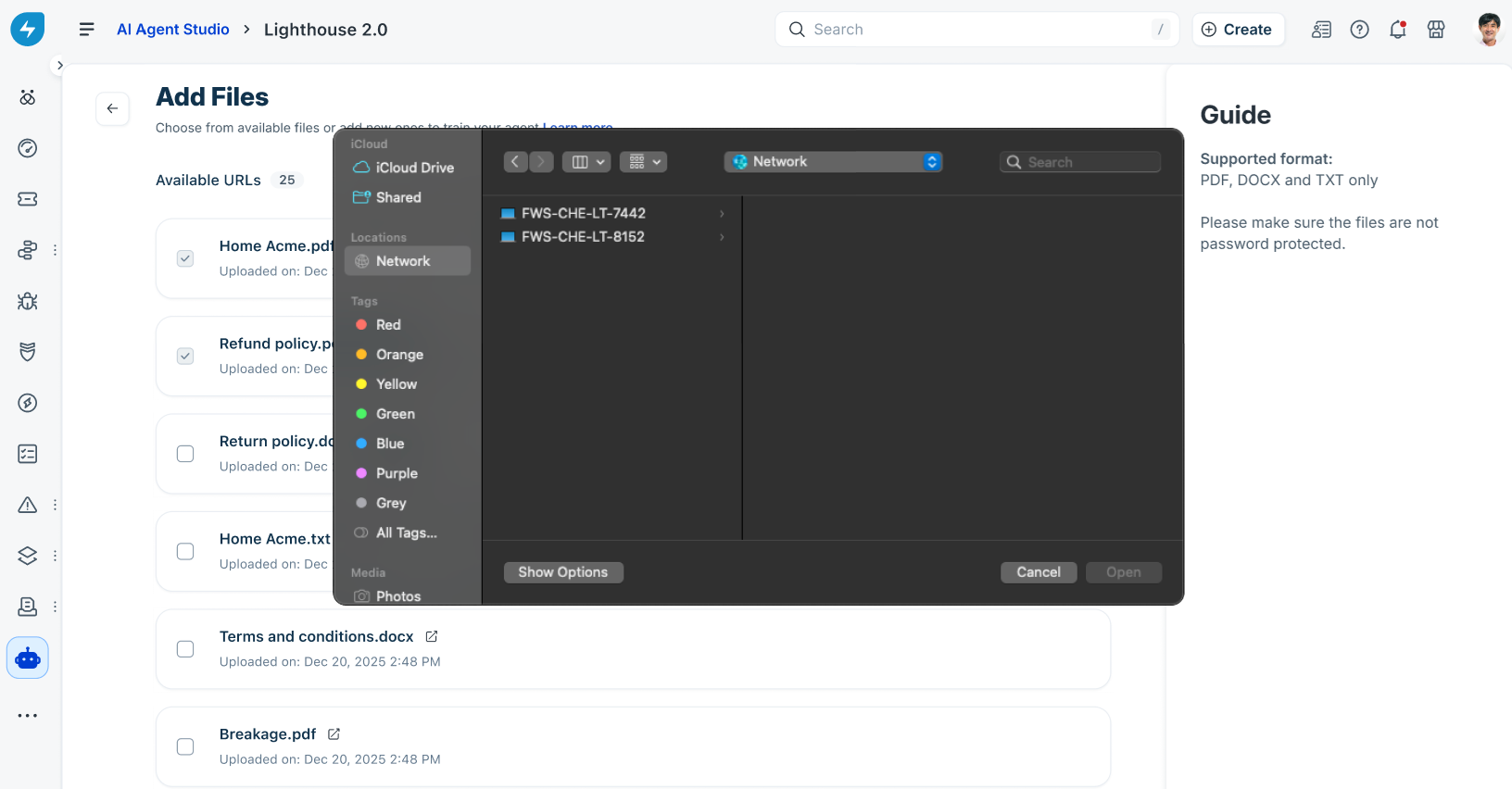
Select files you've previously uploaded, or click Upload files to add new ones from your computer.
Choose the files you want to include and confirm. You'll see a notification confirming how many files were added, and another once learning is complete.
Each file appears in the list with the date and time it was uploaded. While the agent is processing a file, it displays a 'Learning in progress' badge. Use the menu next to any file to remove it from the agent's knowledge.
Tip: If you maintain the same content in both a file and a URL. For example, a refund policy that's in a PDF and on a help center page, pick one source. Connecting both adds duplication and can produce inconsistent answers if the two versions drift apart.
Connect solution articles
If you already maintain a Freshservice knowledge base, solution articles are the fastest way to give your agents strong, well-curated content. The agent learns directly from your published articles, so updates you make in the knowledge base flow through automatically without re-uploading anything.
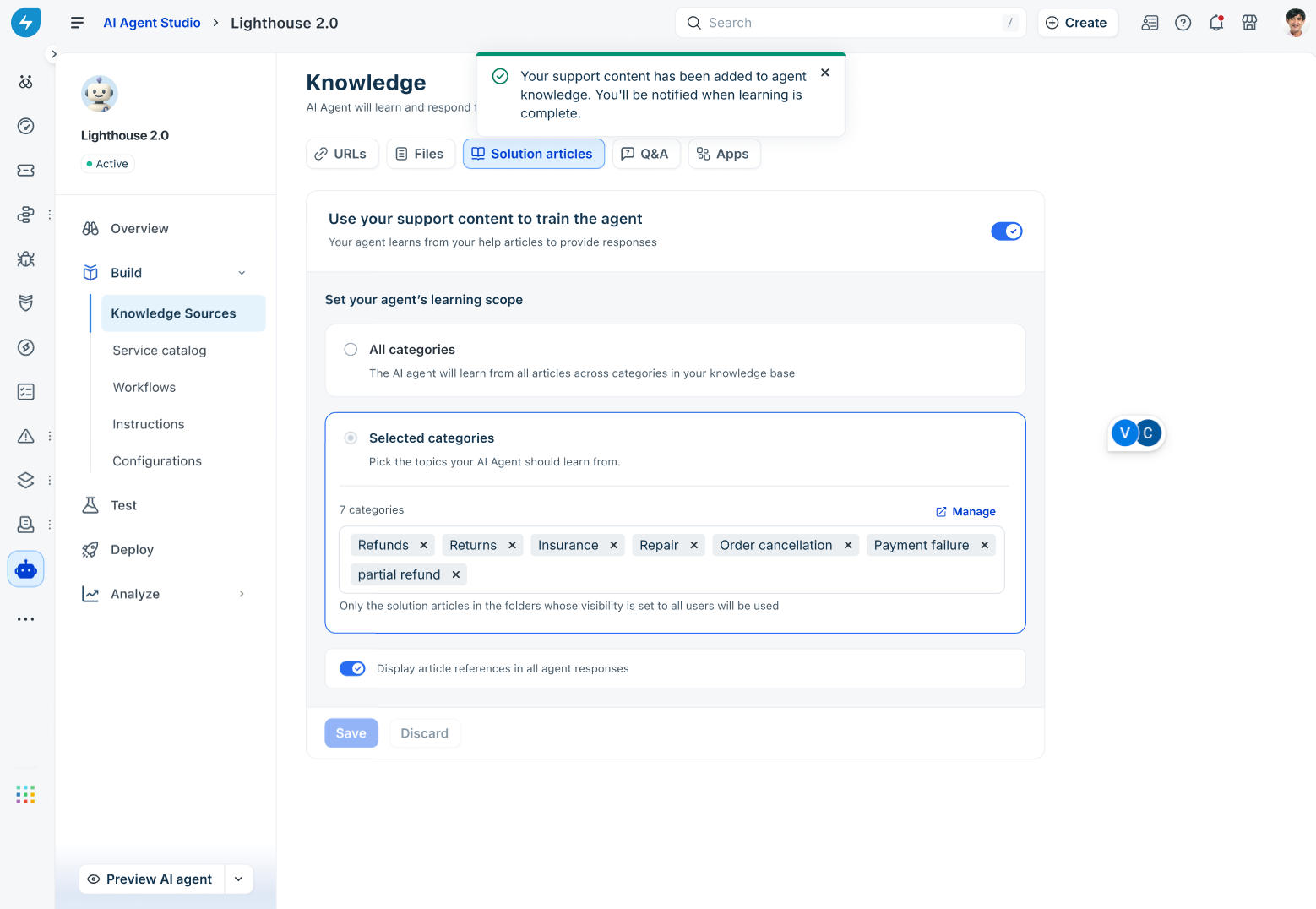
Connect the knowledge base and select articles
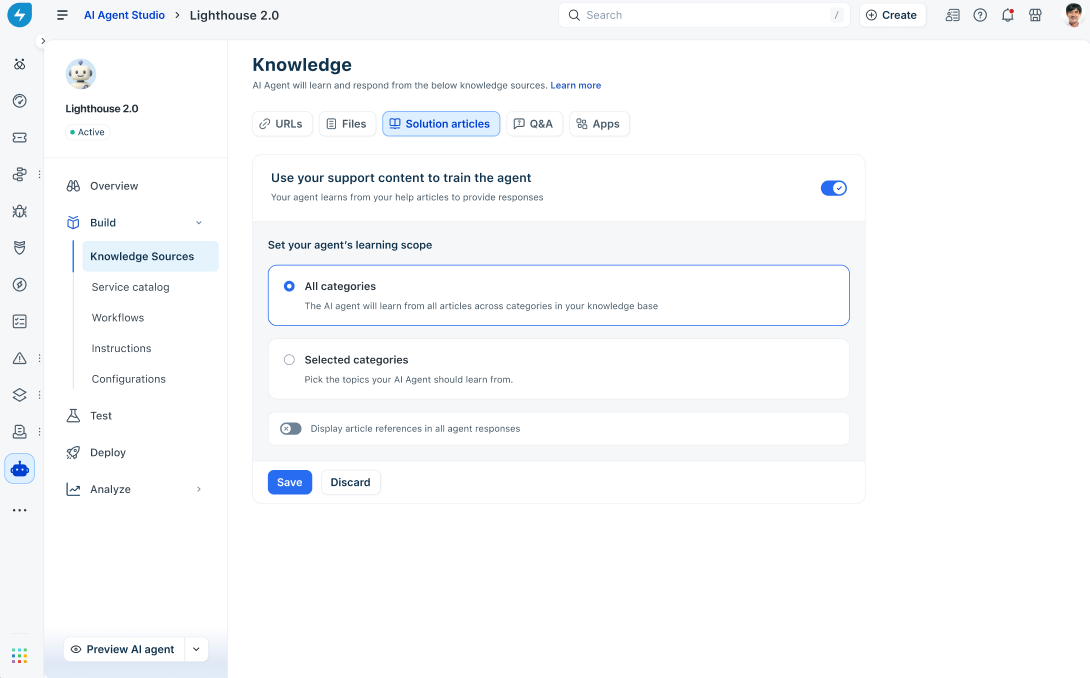
On the Knowledge page, open the Solution articles tab.
Turn on Use your support content to train the agent.
Under Select a portal, choose the knowledge base you want the agent to learn from. You can connect one portal per agent.
Choose a learning scope:
All categories: the agent learns from every article across every category in the portal. Use this when your knowledge base is well-curated end-to-end.
Selected categories: Pick the specific topics the agent should learn from. Use this when you want the AI agent to focus on a defined scope, such as onboarding, leave policies, or workplace IT support.
Optionally, turn on Display article references in all responses so the agent links the source article whenever it answers from solution content.
Click Save. You'll see a confirmation, and another notification once learning is complete.
How solution article learning works
The agent honors the visibility settings configured for solution articles and learns only from content it has permission to access.
When you update an article in the knowledge base, the agent picks up the change on the next sync. You don't need to re-add the source.
To add or remove categories later, return to the Solution articles tab, edit your selection, and click Save again.
Use the Manage articles link on the page to jump straight into your knowledge base if you want to edit the underlying articles.
Note: To learn how to connect apps such as SharePoint, Confluence, and Google Drive to your knowledge base, refer to this page.
Best practices
Treat knowledge as the foundation. Your agent is only as good as what it knows. Curate every source you connect to, and update them when users raise gaps.
Combine source types. URLs and files cover broad reference content; solution articles bring in your curated knowledge base, and Apps cover knowledge from external connectors.
Avoid duplication. If the same content lives in multiple sources, the agent can return inconsistent answers when versions drift. Pick one source per topic and keep it current.
Wait for learning to finish before testing. New sources show a Learning in progress status until they're ready. Test the agent only after learning completes; the source won't be reflected in responses.
Refresh sources after changes. URLs and solution articles re-sync automatically. For files, replace the file when the content changes.
Validate with bulk testing. After adding or updating knowledge, run bulk test queries to confirm the agent answers as expected. It's much easier to catch gaps before users do.
Frequently asked questions
Can the agent learn from authenticated or private URLs?
No. Only publicly accessible URLs can be added as knowledge sources. If a page requires a login, the agent won't be able to read it.
How long does learning take?
Learning time depends on the size and number of sources. Most files and URLs finish within a few minutes. You'll receive a notification when learning is complete.
What happens if a URL or file fails to learn?
Failed sources appear in the list with a failure count. Common causes are private pages, dynamic content, or unsupported file content. Remove the source, fix the underlying issue, and add it again.
Can I connect more than one portal for solution articles?
No. Each AI agent can connect to one knowledge base at a time. If you need solution articles from multiple portals, consider deploying separate agents for each.
Will updates to my solution articles be automatically applied?
Yes. When you update an article in your knowledge base, the agent picks up the change on the next sync. You don't need to reconfigure the source.