
 Community
 Video Library
 Agent Training
 Freshservice
 Freshdesk
 Freshchat
 Freshcaller
 Freshsales
 Freshteam
 Freshworks Neo
 Freshsurvey
 Freshservice for MSP
 Apps connect your agent to enterprise content systems your team already uses — Google Drive, SharePoint, and Confluence. Once connected, the agent can search across these systems and use what it finds to answer questions, without you having to upload files or paste in URLs one by one.
This is the right knowledge source when your reference content lives in shared drives or collaboration spaces and is too large or too dynamic to upload manually.
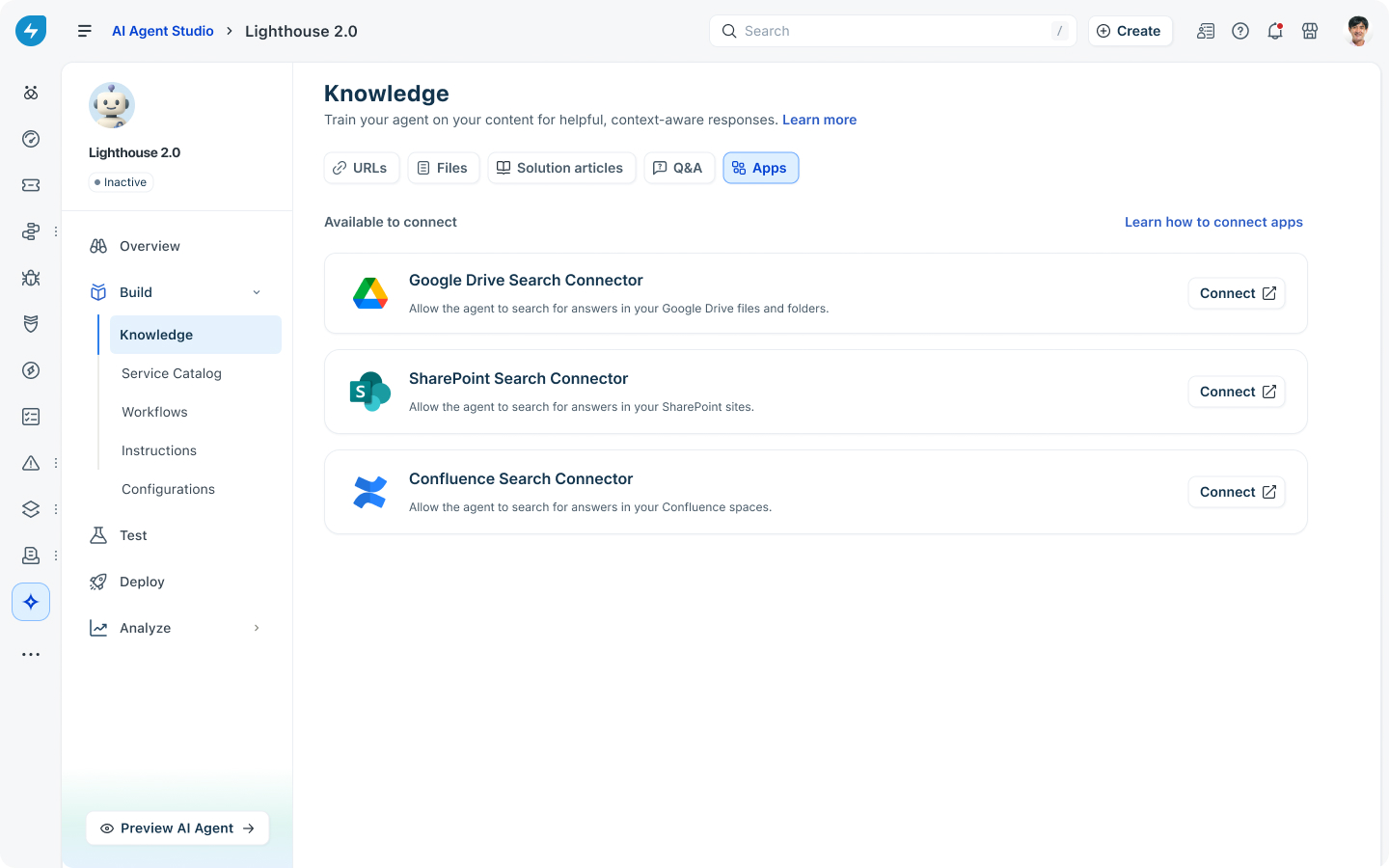
At launch, three connectors are available out of the box:
Google Drive Search Connector — lets the agent search for answers in your Google Drive files and folders.
SharePoint Search Connector — lets the agent search for answers in your SharePoint sites.
Confluence Search Connector — lets the agent search for answers in your Confluence spaces.
Connect an app to your AI agent
On the Knowledge page, open the Apps tab.
Under Connected apps, select the connector you want, then use the toggle to enable.
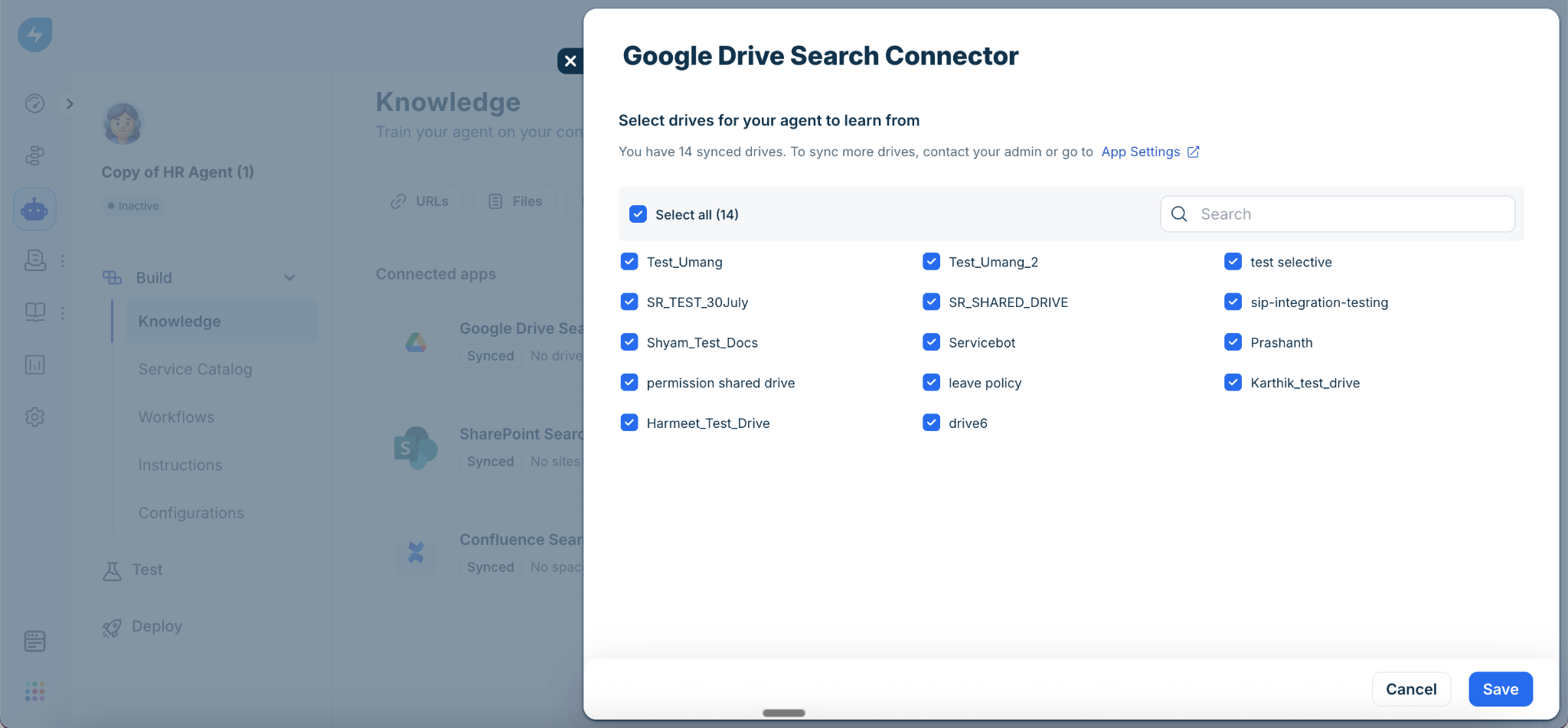
In the panel that appears, select the content the AI agent should learn from. For Google Drive, this is the list of synced drives; for SharePoint, the sites; for Confluence, the spaces.
Note: The connector uses the integration your admin has already set up at the account level, so you don't need to enter credentials manually to authenticate.Click Save. You'll see a confirmation when the content has been added to the agent's knowledge, and another notification once learning is complete.
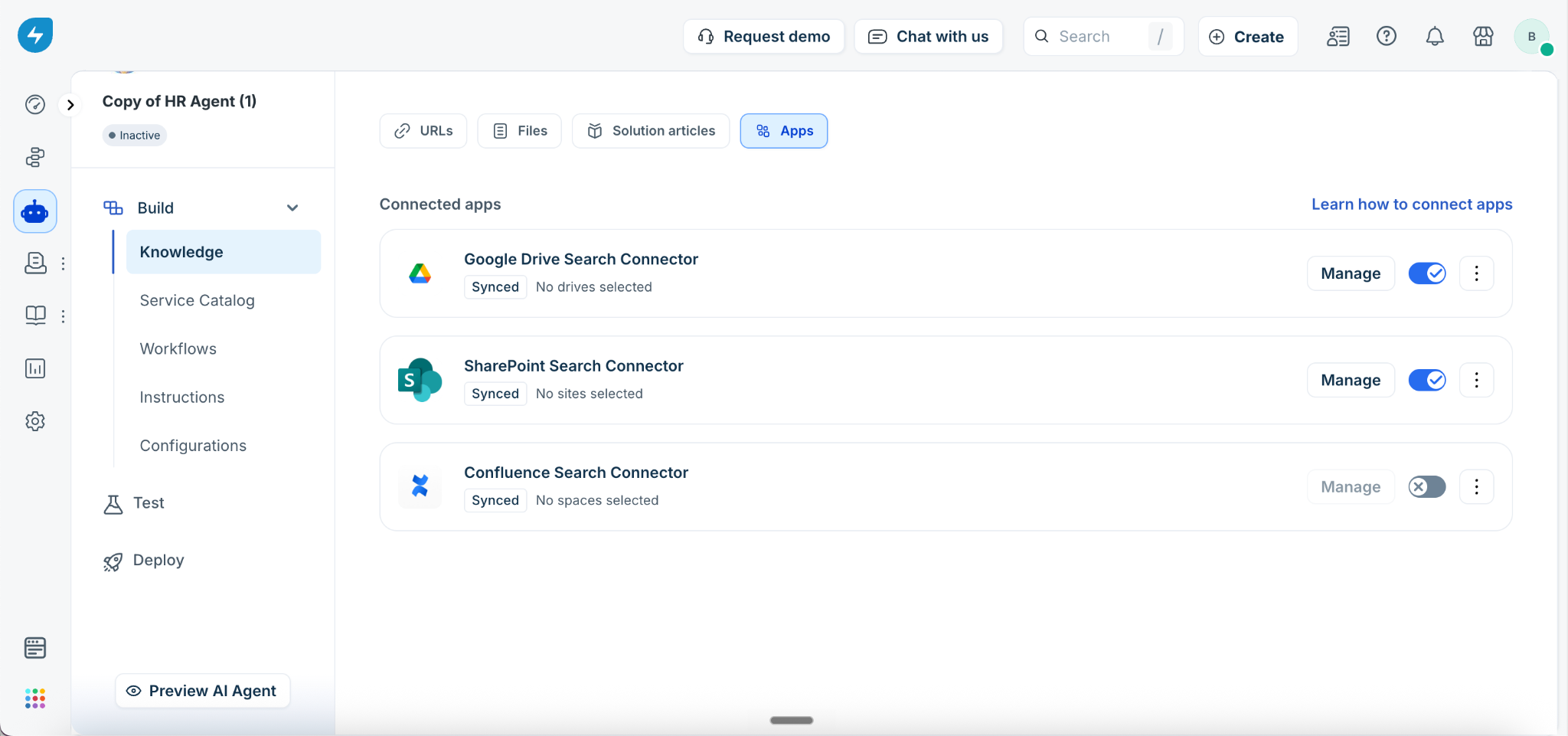
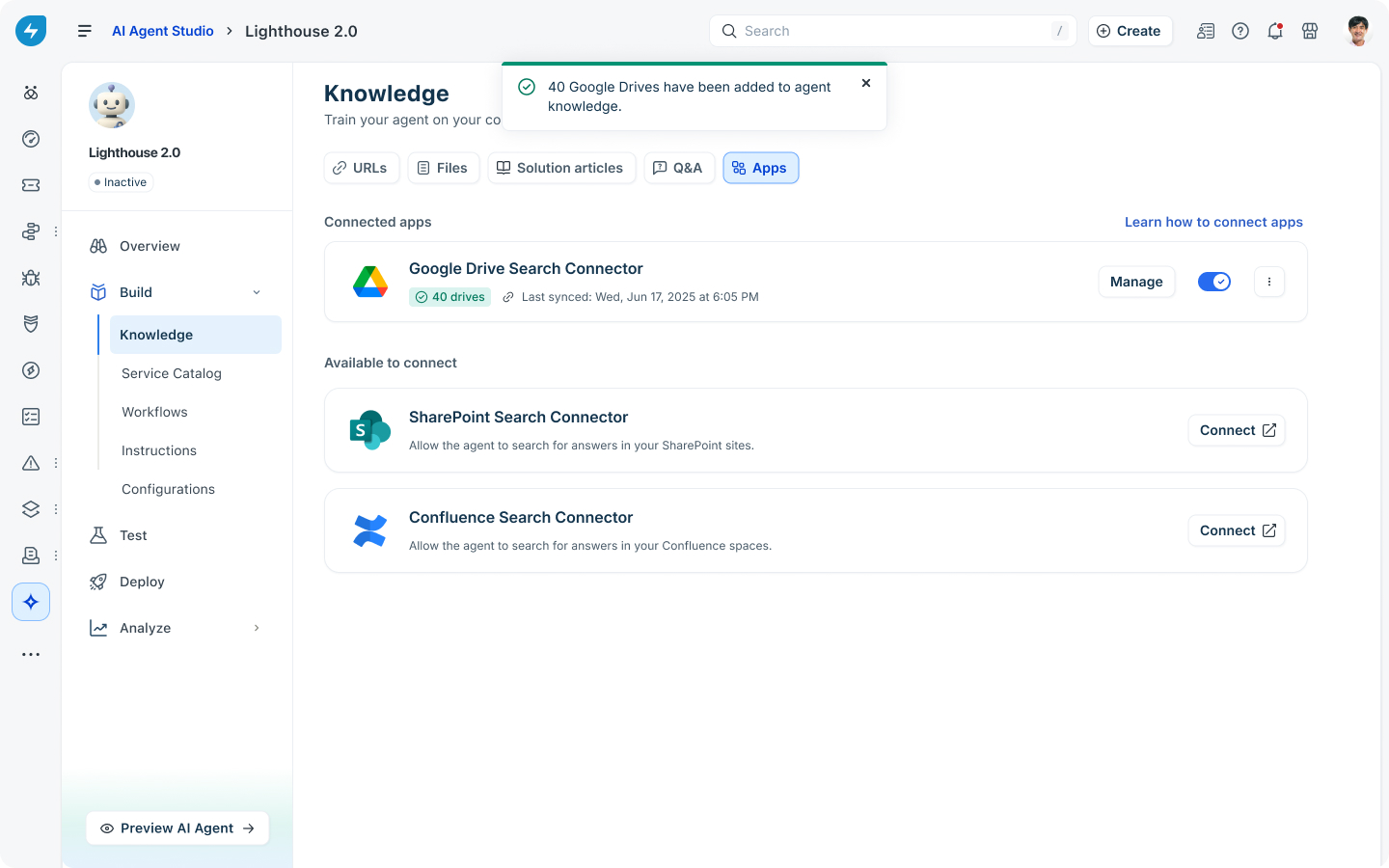
Once connected, the app appears under Connected apps, showing the number of items the AI agent is learning from and the last sync timestamp. Use Manage to change which items are included, toggle the connector on or off for this agent, or use the menu next to it for additional actions.
Frequently asked questions
My Google Drive (or SharePoint or Confluence) doesn't show up when I try to connect it. What should I do?
The list of available drives, sites, and spaces is controlled by your admin at the account level. Ask your admin to sync the source from App Settings; once synced, it becomes available to every agent that uses that connector.
Will the agent expose content that a user isn't supposed to see?
No. App connectors respect the existing permissions in the source system. The agent only surfaces content that the asking user is allowed to see in the original app.