
 Community
 Video Library
 Agent Training
 Freshservice
 Freshdesk
 Freshchat
 Freshcaller
 Freshsales
 Freshteam
 Freshworks Neo
 Freshsurvey
 Freshservice for MSP
 Supervisor rules automate actions on tickets based on time-based or event-based conditions. They help you perform follow-up tasks automatically without requiring agent intervention.
For example, if a requester has not responded to a ticket for 24 hours, you can create a supervisor rule to automatically send a reminder email.
Prerequisites
Keep the following behavior in mind when working with supervisor rules:
Supervisor rules run once every hour.
Only tickets updated within the last 30 days are evaluated.
Rules run sequentially. Actions performed by one rule can trigger subsequent rules.
Note: Workspace administrators can view both global and workspace-level supervisor rules that apply to their workspace. Global rules run first, followed by workspace-level rules. This execution order allows workspace-level rules to override or extend global automation where applicable.
For example, you can use a global rule to route tickets to the appropriate workspace based on the ticket subject or description.
Create a supervisor rule
Perform the following steps to create a supervisor rule:
Go to Admin > Automations & Productivity > Automation > Supervisor Rules.
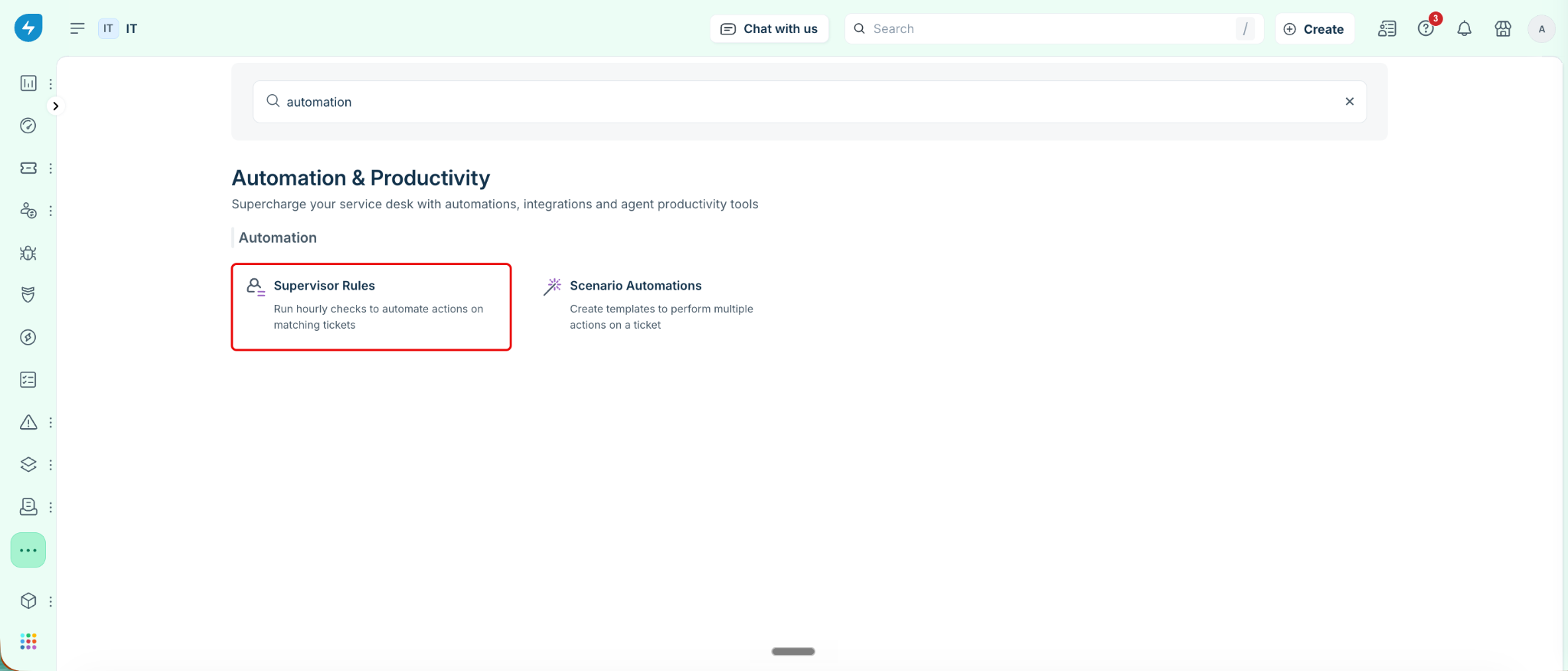
If your account has multiple workspaces:
To manage global rules, go to Admin > Global Settings > Automations & Productivity > Automation > Supervisor Rules.
To manage workspace-level rules, go to Admin > Workspace Settings > <Workspace name> > Automations & Productivity > Automation > Supervisor Rules.
Click New Rule.
Enter a Name and Description.
Define the rule conditions:
Select a condition field.
Configure the required condition.
Click Add new condition to add additional conditions.
Specify whether All conditions or Any condition must match.
To remove a condition, click the Delete (-) icon.
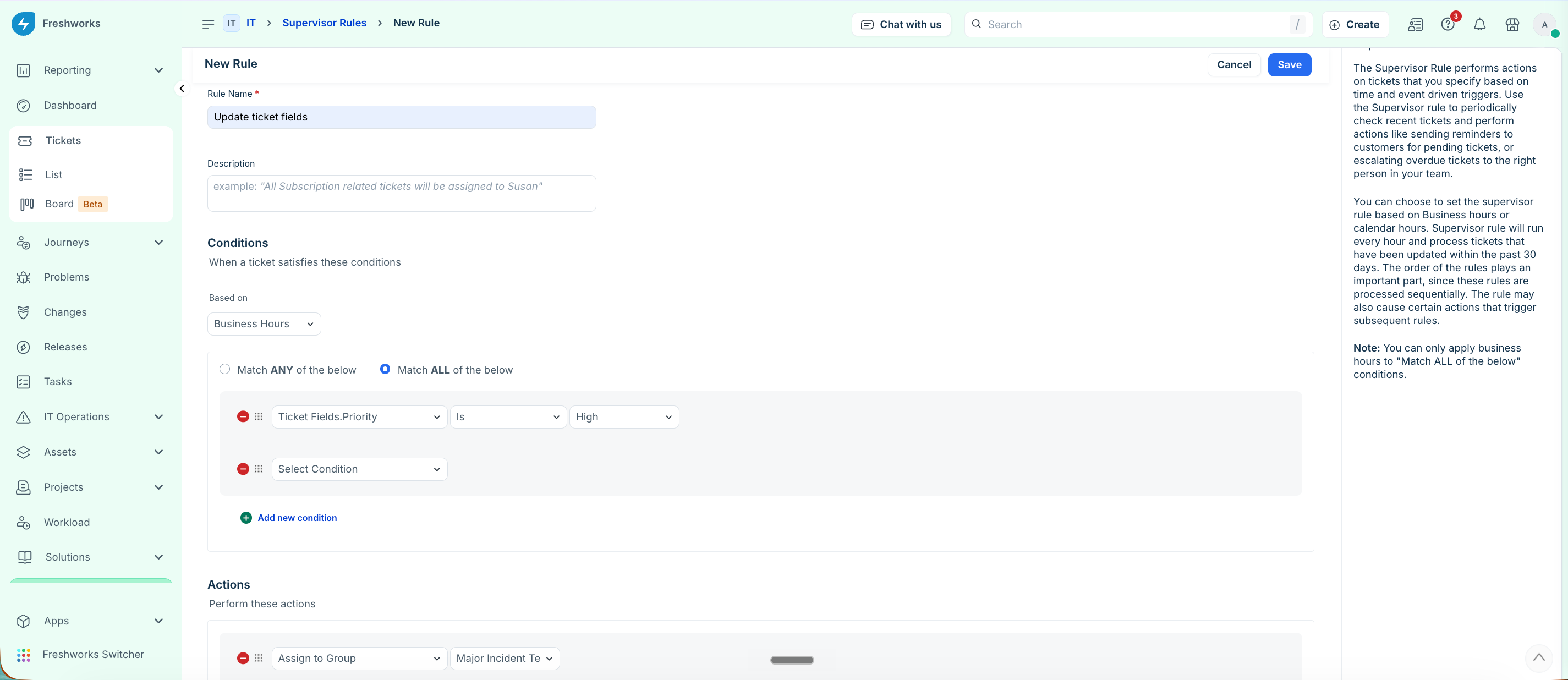
Add the actions to perform when the conditions are met:
Select an action from the list.
Configure the action.
Click Add new action to add additional actions.
To remove an action, click the Delete (-) icon.
Note: You can add one Add note action to a supervisor rule. The note can include placeholders such as Ticket ID, Subject, and Ticket URL.
Click Save.
The rule appears on the Supervisor Rules page. To modify an existing rule, hover over the rule and select Edit. You can also Deactivate or Delete the rule from the same menu.