
 Community
 Video Library
 Agent Training
 Freshservice
 Freshdesk
 Freshchat
 Freshcaller
 Freshsales
 Freshteam
 Freshworks Neo
 Freshsurvey
 Freshservice for MSP
 Note: Available only for new signups after the 31 March, 2026 release. If you signed up earlier, refer to the existing ITAM documentation.
Custom column views allow you to personalize how data is displayed across all list pages in the IT Asset Management module. You can create and save multiple custom views for each list page, which helps in focusing on the most relevant data points for your specific workflow. These views can be set as a global default or assigned as specific default views for individual users.
This article provides an overview of the custom column views feature and instructions on how to create new views and adjust column ordering to your list pages.
Prerequisites
You need the following before customizing the column list view:
Ensure you have the necessary permissions to modify view settings on list pages.
Access to the specific modules (such as Devices or Software) you intend to customize.
Create a custom column view
To configure a custom column view, follow these steps:
Go to a list page, such as IT Asset Management > Inventory > All Devices.
Note: To see the list pages where customization is supported, see the Available list pages section later in the article.Click the Edit icon located to the right of the column names. The Customize columns window appears and displays the default selected columns.
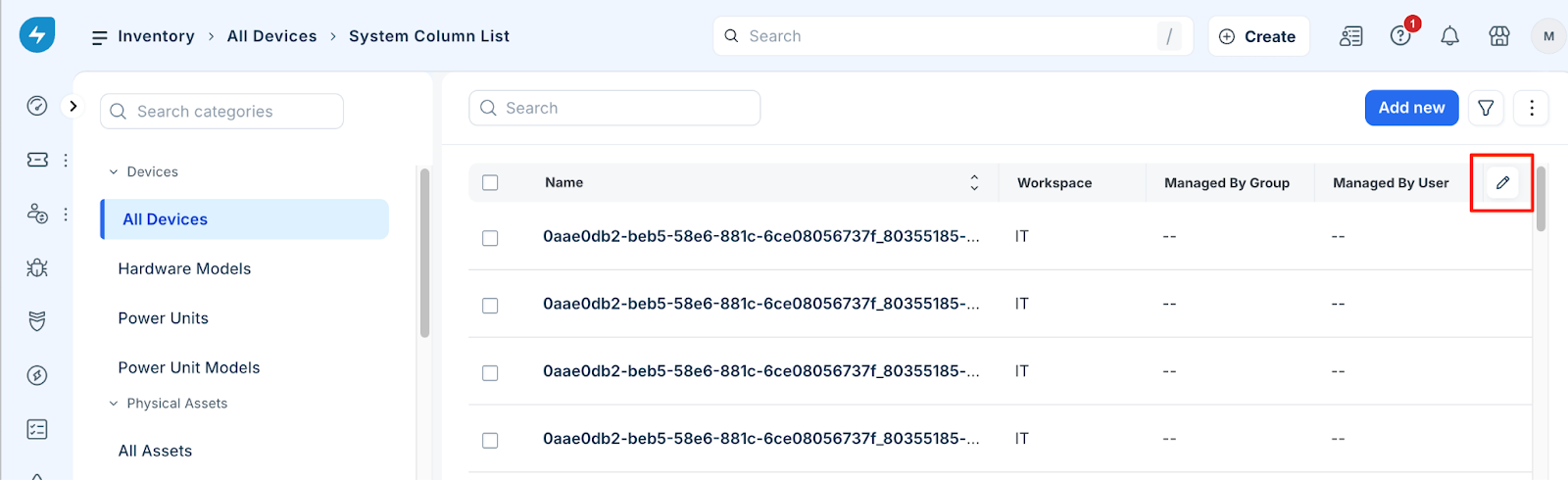
Perform any of the following to customize the view:
Add or remove columns: Select or deselect columns based on your requirements.
Reorder columns: Click and drag the column headings to a new position.
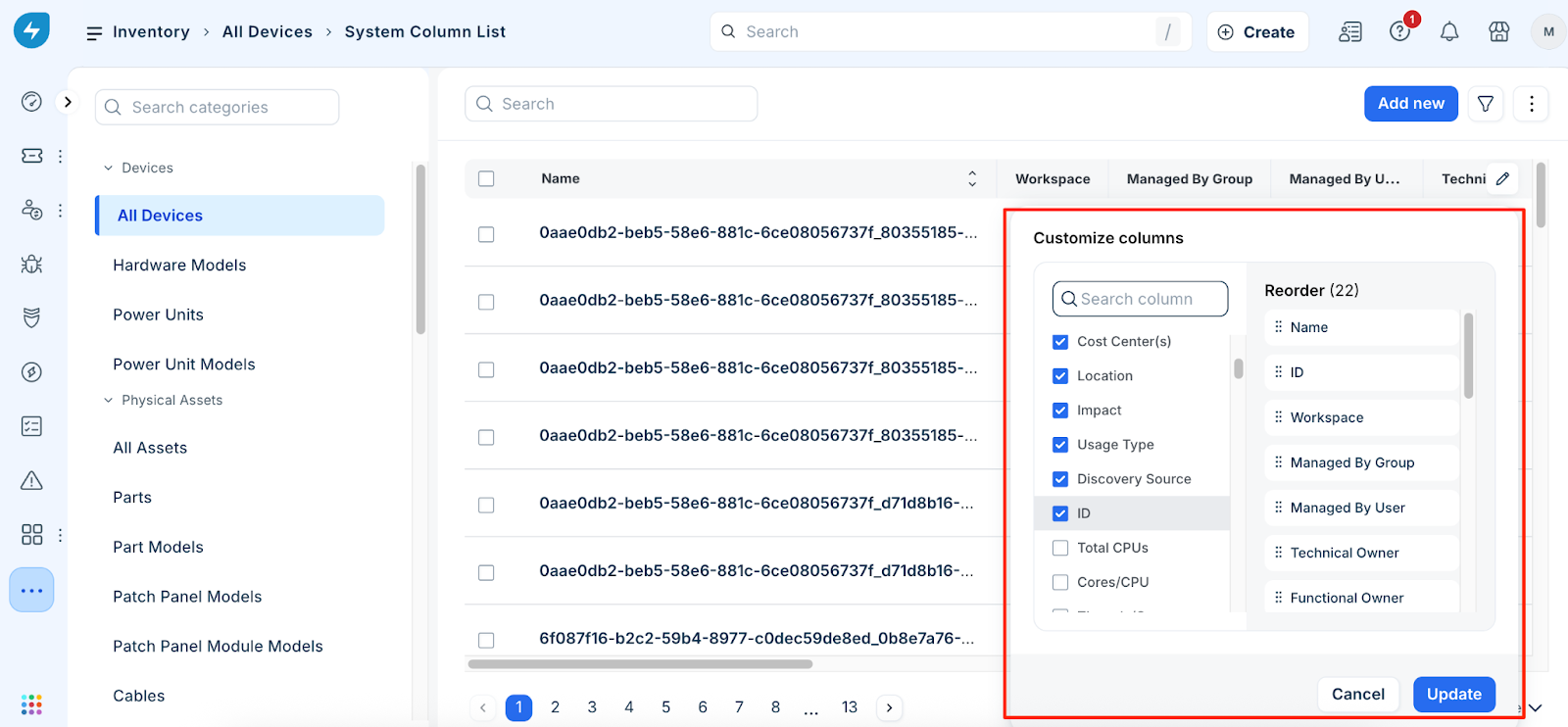
Click Update. The list updates, and the option to save or discard the view appears at the top of the page beside the list name.
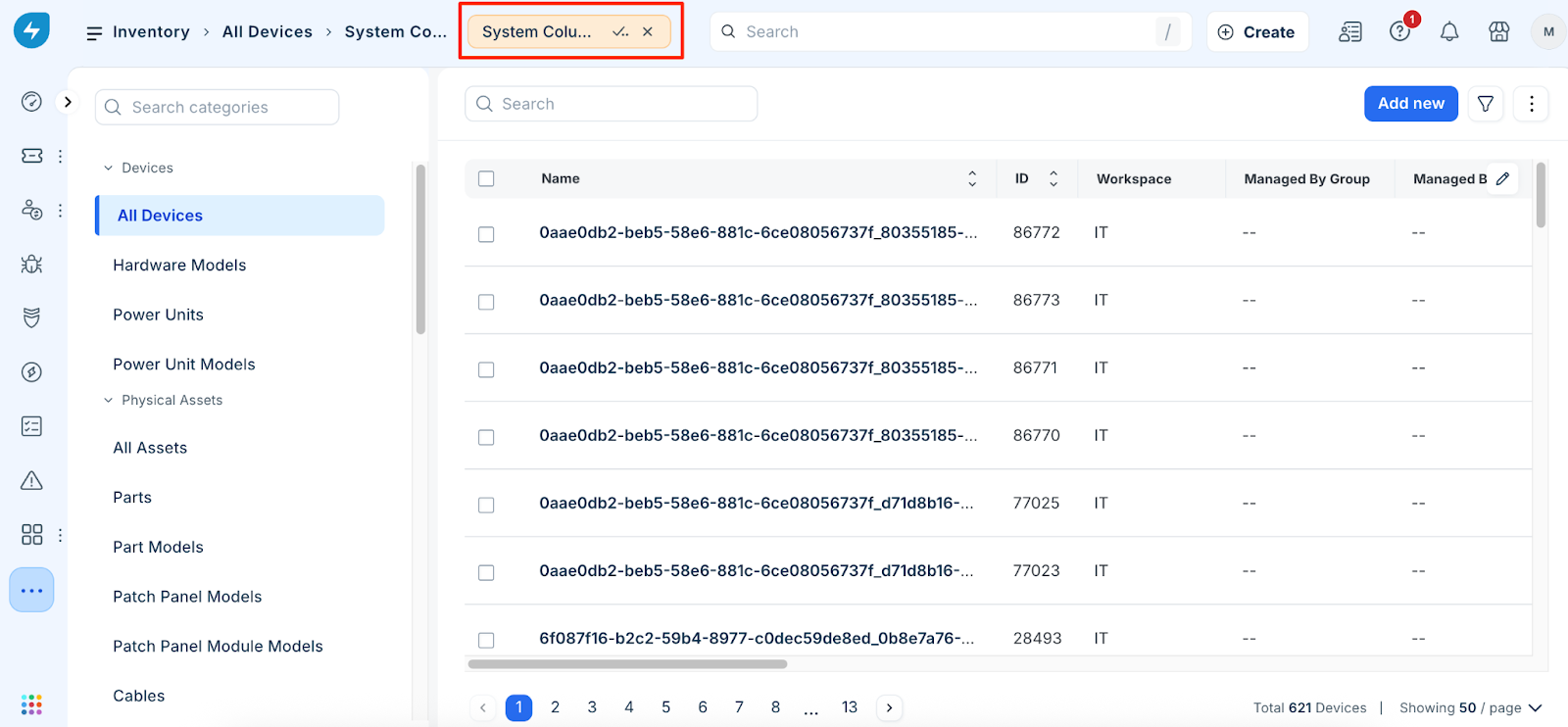
To save the changes,
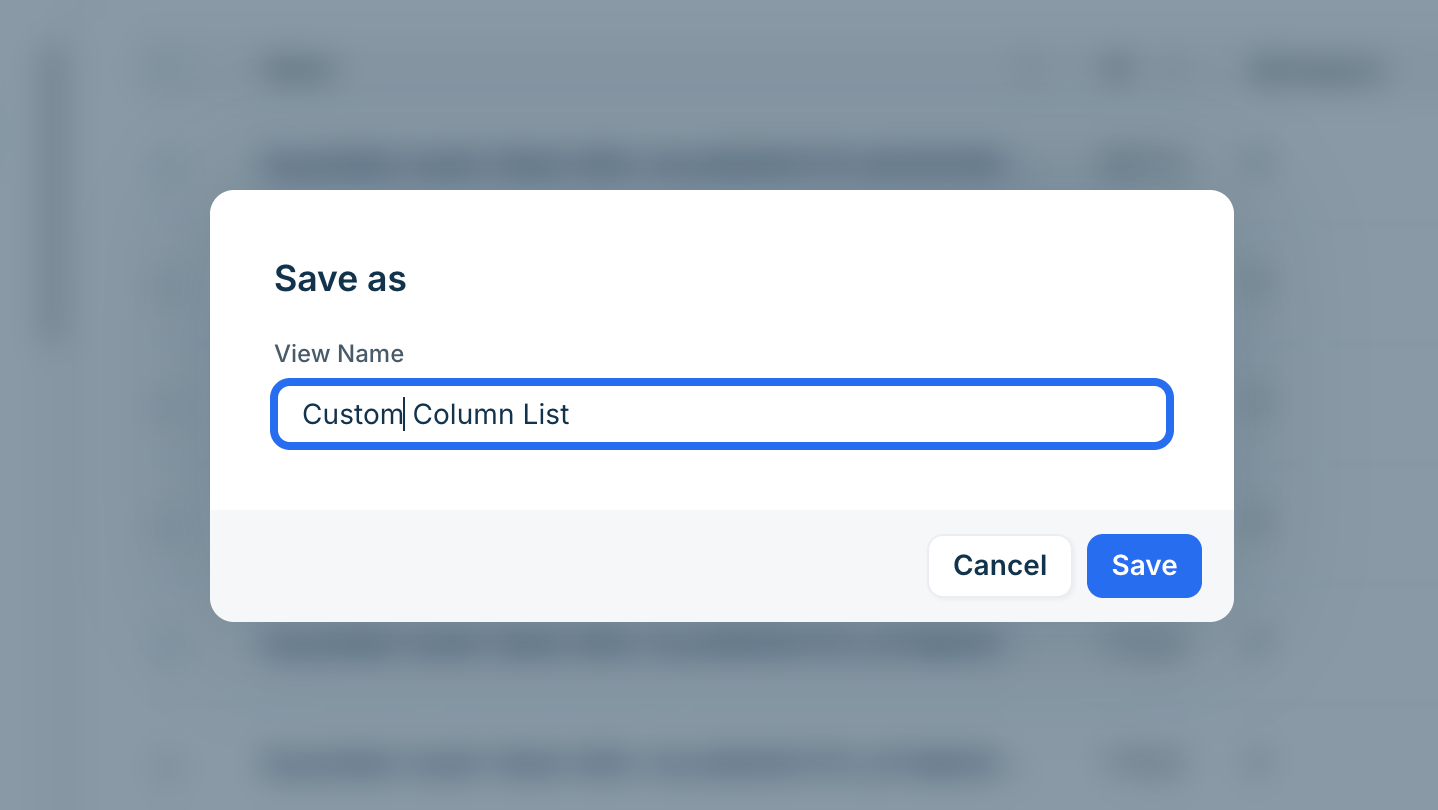
Click the Checkmark (✓) icon and click Save As.
In the Save As pop-up window, enter a name for the customized view.
Click Save.
To discard the changes, click the Cancel (x) icon.
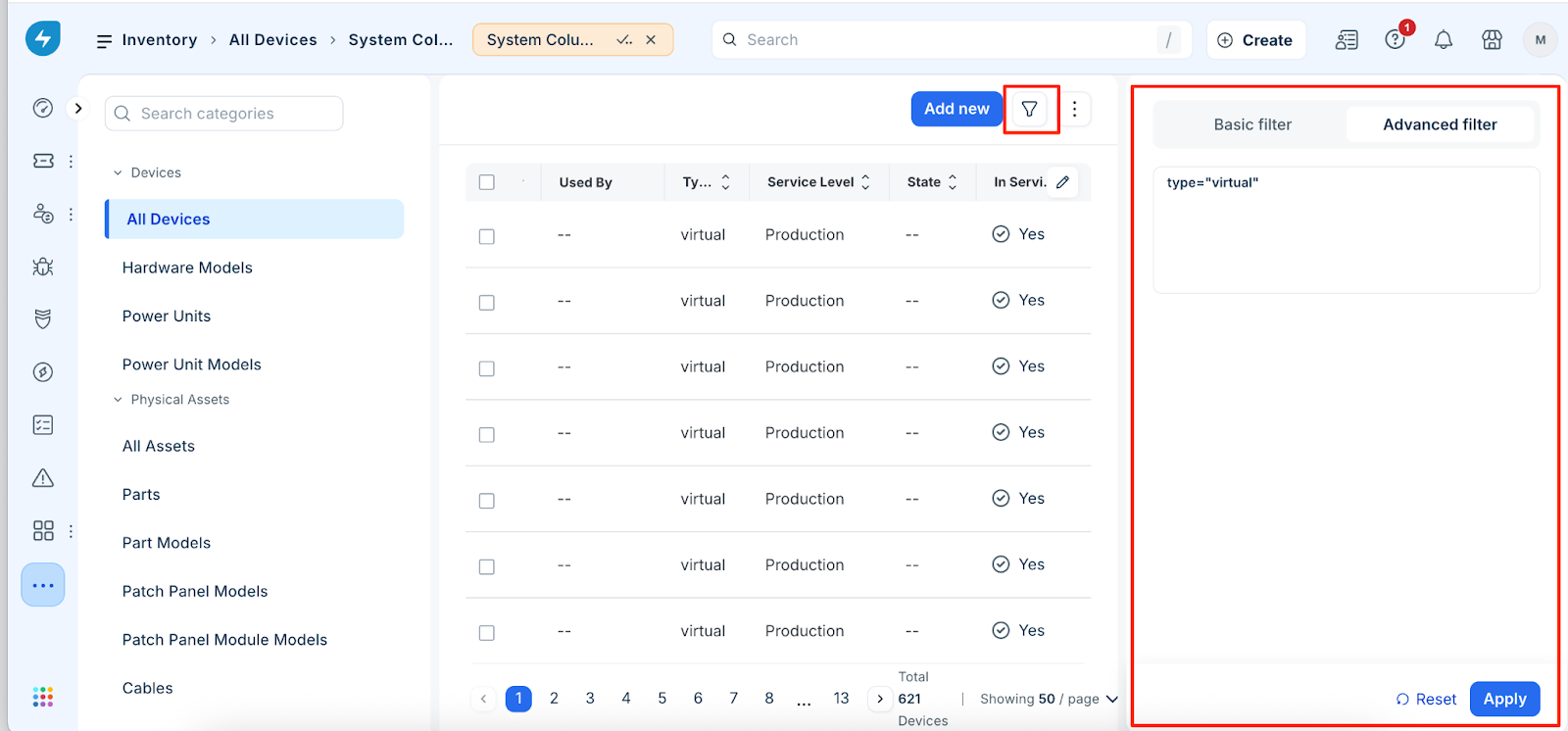
Apply advanced filters to views
To display specific field values using conditionals and equality selectors, follow these steps:
On the list page, click the Filter icon.
Click the Advanced filter tab.
Enter the required condition and click Apply.
To save these filters as part of your view, follow the save process described in the previous section. This ensures that the specific data subset loads automatically each time you select the saved view.
Adjust column widths
To adjust column widths, drag the column edges to the desired size. Note that these adjustments are temporary.
Available list pages
Customizable column views are available on all list pages, including:
Application Components
Assets
Blade Devices
Buildings
Certificates
Cluster Devices
Customers
Departments
Device Hardware Models
Devices
DNS Records and Zones
End Users
IP Addresses and NAT/Maps
MAC Addresses
Operating Systems
Other Devices
PDUs
Purchases
Racks and Rooms
Service Instances, Ports, and Schedules
Software In Use and Licensing Models
Subnets and VLANs
Switch Ports
Telco Circuits
Vendors and VRF Groups
Virtual Devices