
 Community
 Video Library
 Agent Training
 Freshservice
 Freshdesk
 Freshchat
 Freshcaller
 Freshsales
 Freshteam
 Freshworks Neo
 Freshsurvey
 Freshservice for MSP
 Note: Available only for new signups after the 31 March, 2026 release. If you signed up earlier, refer to the existing ITAM documentation.
You can add complex or advanced routing for your appliance or delete it using the VM console menu. This allows for manual network path configuration directly from the appliance interface.
This article provides instructions on how to add a new route, apply routing changes, and manage deleted routes through the Freshservice virtual machine (VM) console.
Prerequisites
You need the following before the installation:
Access to the Freshservice VM console.
Login credentials for the VM console.
Add a new route
To add a new route, follow these steps:
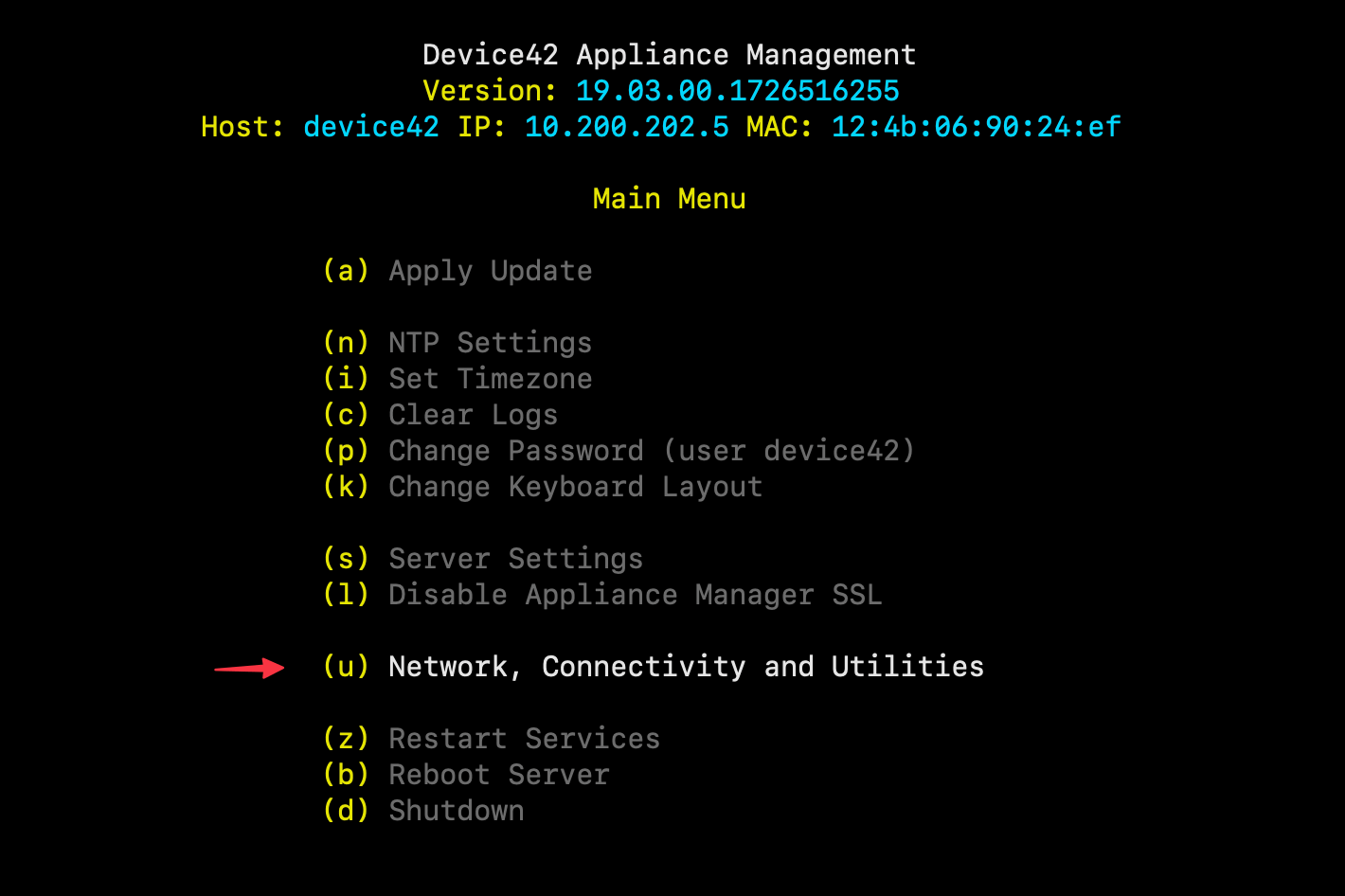
Log in to the VM console.
Choose (u) Network, Connectivity and Utilities.
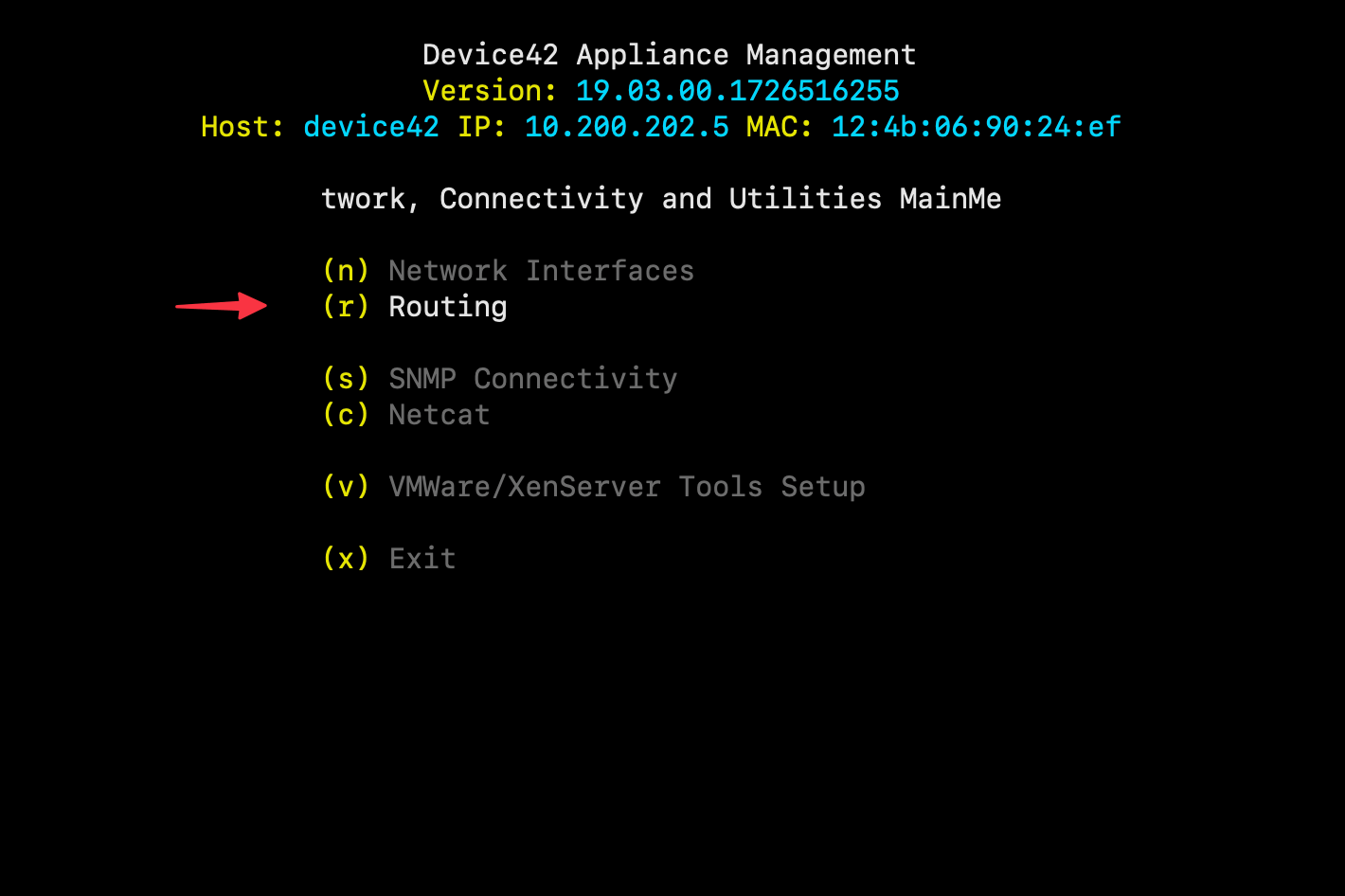
Select (r) Routing.
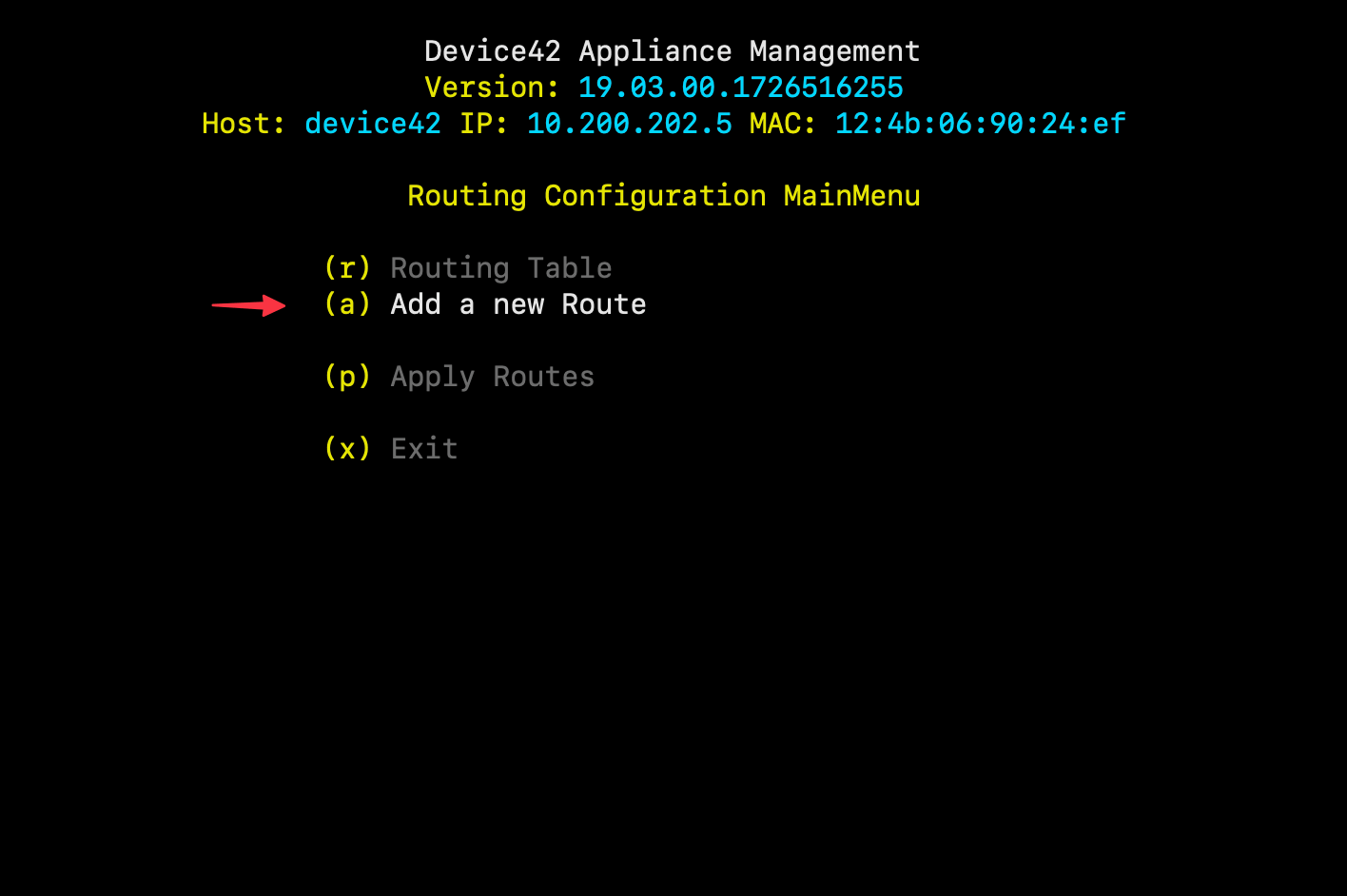
Select (a) Add a new Route from the Routing Configuration Main Menu.
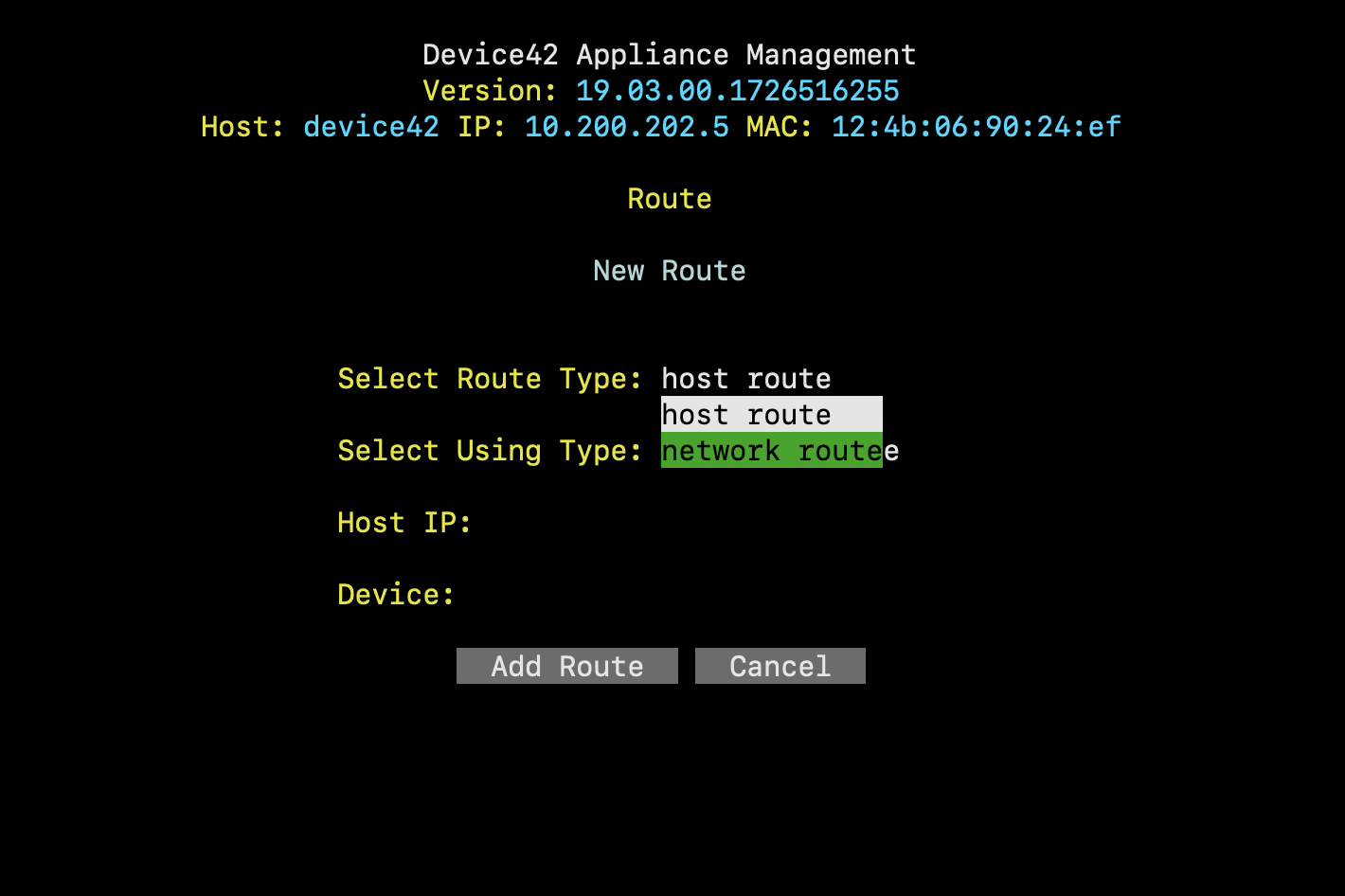
Fill in the new route details and click Add Route.
Note: Use the Tab key to navigate to the next field.Return to the previous menu and enter option (p) Apply Routes to apply the changes.
Delete routes
After deleting a route through the console menu, the Freshservice VM must be manually rebooted to clear the deleted routes from the system.