Community
 Video Library
 Agent Training
 Freshservice
 Freshdesk
 Freshchat
 Freshcaller
 Freshsales
 Freshteam
 Freshworks Neo
 Freshsurvey
 Freshservice for MSP
 Note: Available only for new signups after the 31 March, 2026 release. If you signed up earlier, refer to the existing ITAM documentation.Managing SSL certificates is a vital part of maintaining security and uptime across your network. Freshservice allows you to centralize your certificate inventory, track expiration dates, and map certificates to specific devices and IP addresses.
This article covers how to navigate the certificate inventory, and understand certificate instances.
Prerequisites
You need the following before managing certificates:
Access to the Applications module in your Freshservice instance.
Administrator privileges or specific permissions to create and edit certificate records.
View certificates list page
To view all discovered and imported certificates, go to Applications > Certificates in the left navigation pane. This page provides a high-level overview of your certificate environment and the current validity status of each certificate.
Key certificate fields
The list captures technical details for each record, including:
Serial Number
Is Key Encipherment
Is Key CERT Sign
Subject Alternative Name
First Detected
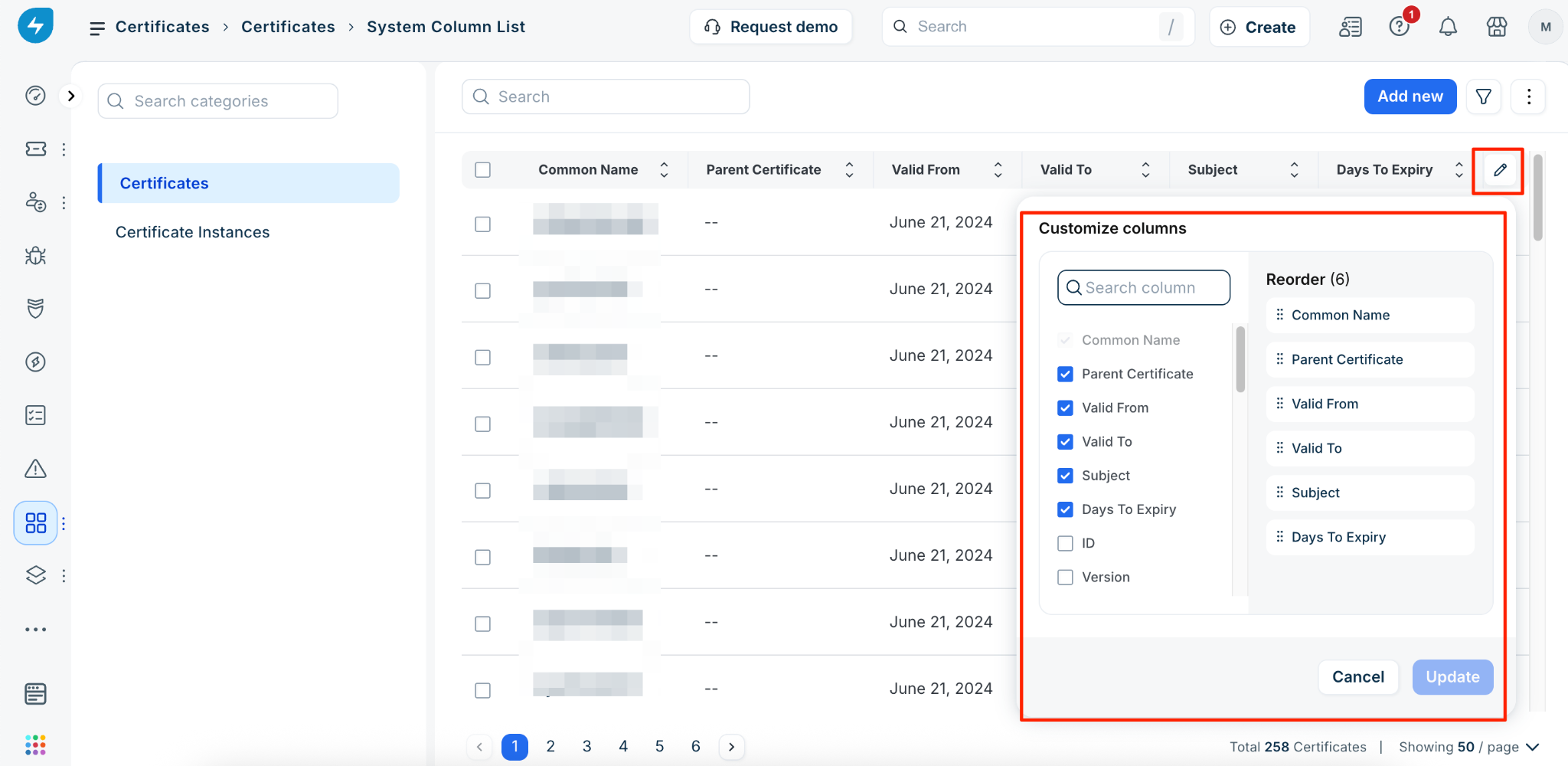
To customize the information displayed in the list view, click the Edit icon beside the column headers. From there, you can select or deselect specific columns, reorder them to your preference, and click Update to save your changes.
Export certificate data
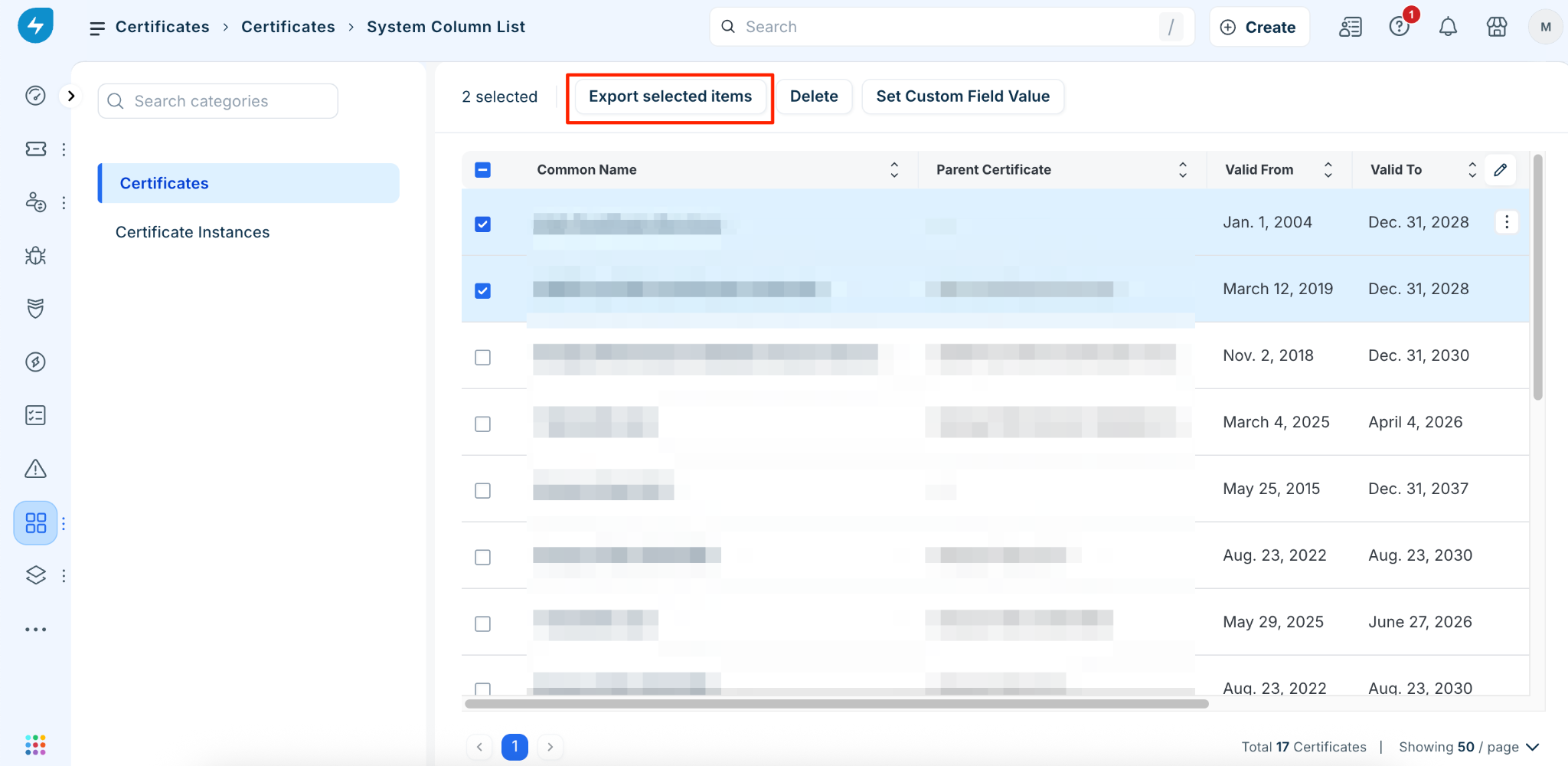
If you need to perform an external audit, you can export your data by selecting records from the list and clicking Export selected items.
View certificate details
Select a certificate name from the Certificates list page to view its full record.
For imported certificates, you can associate FQDNs, multiple devices, IP addresses, and varying validity dates within the Certificate instances section. This is particularly useful for wildcard certificates, as it allows you to easily track all associated subdomains or FQDNs in a single view.
Supported file formats
In the File Attachments section of a certificate record, you can manually upload certificates to Freshservice in the following formats:
PEM
ASN.1
PKCS12 (pfx/p12)
Track certificate instances
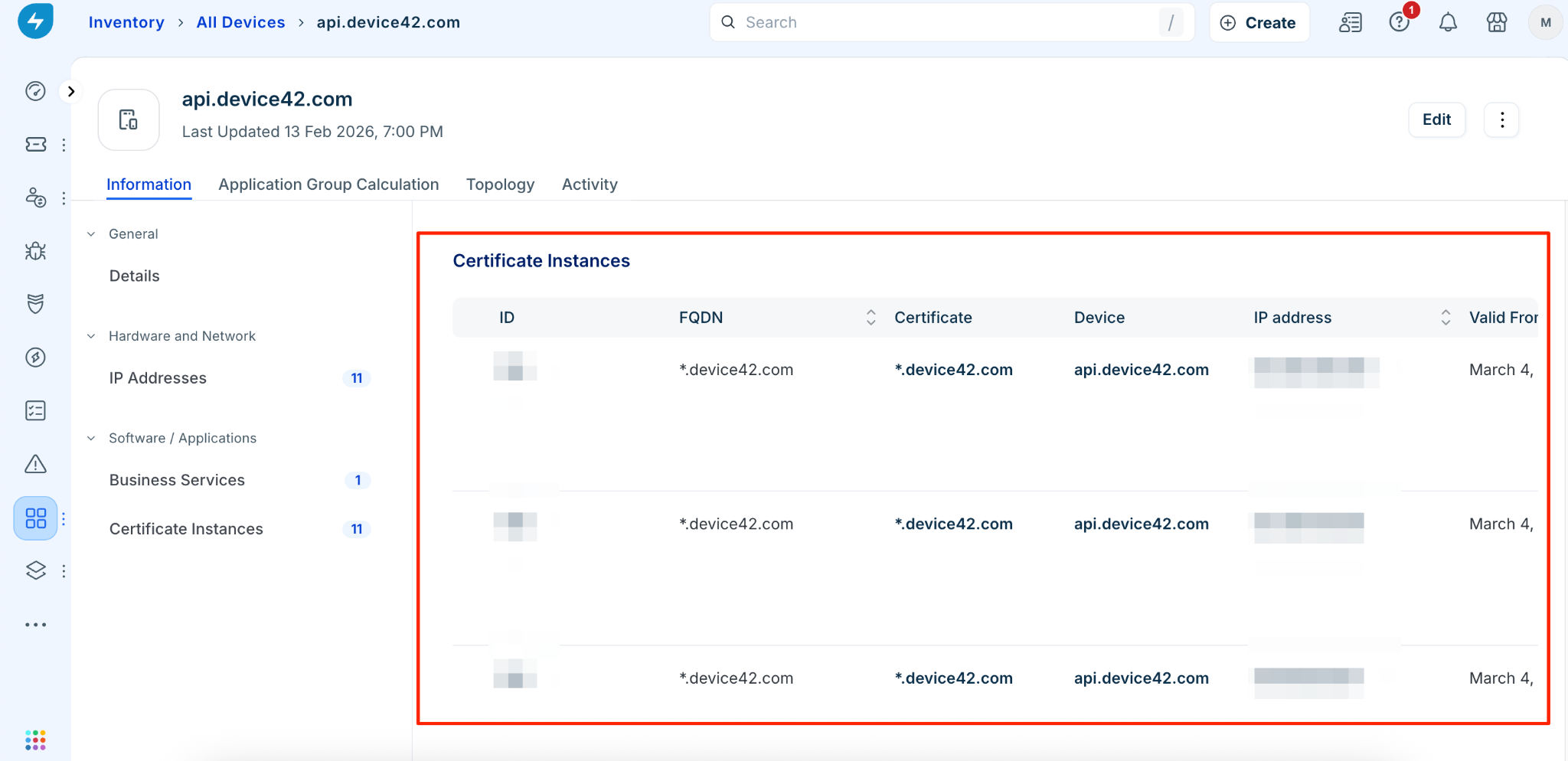
While the Certificates page shows the unique certificate records, the Certificate instances page shows where those certificates are actually deployed. To see where certificates are installed, go to IT asset management > Applications > Certificates > Certificate instances. This view maps the relationships between certificates and specific devices or IP addresses
From this page, you can filter results by building, service level, and customer.
Additionally, instance information is available directly in the detailed view for any device associated with a certificate.