
 Community
 Video Library
 Agent Training
 Freshservice
 Freshdesk
 Freshchat
 Freshcaller
 Freshsales
 Freshteam
 Freshworks Neo
 Freshsurvey
 Freshservice for MSP
 Application Components capture the high-level logical units that users generally recognize as applications. For example, an application could be a CEO Dashboard that represents an entire solution, an Application Component represents the specific parts that make it up, such as a web farm, an application server, or a database server. You can link a component to one or more discovered services, or define it as a standalone entity to track manual dependencies.
This article provides an overview of application components and instructions on how to define them using discovered services, convert client-only processes, and create manual dependencies.
Define application components based on services
You can link discovered service instances to an application component..
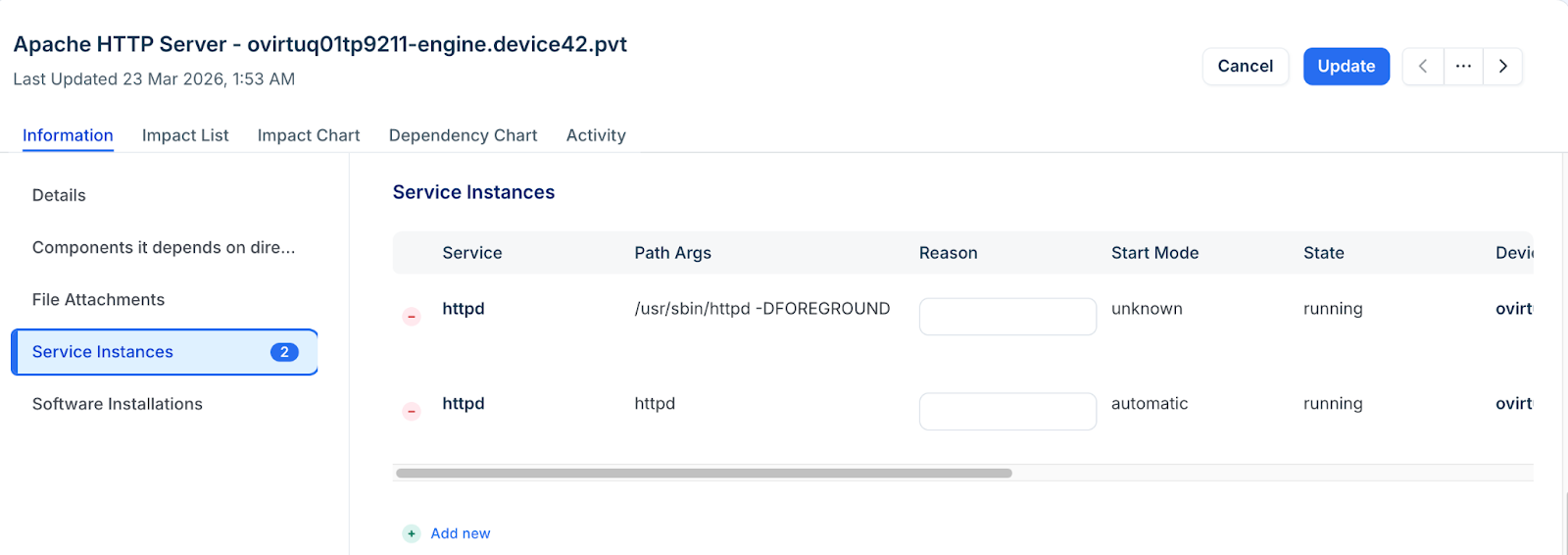
Go to the Service Instance edit form for a discovered process.
Locate the option for linking the service with an Application Component.
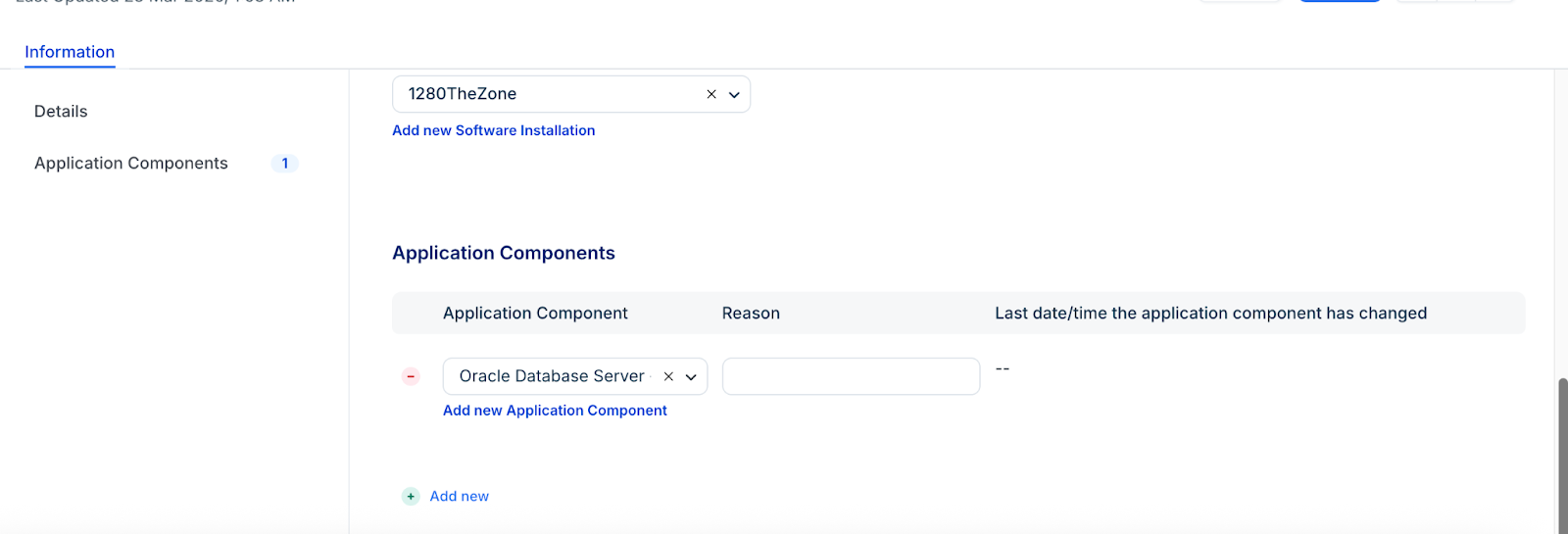
Select an existing component or create a new one. For example, linking an Oracle Recovery service to an Oracle Database Server component.
Alternatively, you can edit an Application Component and link multiple services as shown in the image below.
Convert client-only processes to services
Ensure that processes appearing only as clients are treated as full services for mapping purposes.
Open a Topology or Application Groups visualization page.
Hover over a client-only process to reveal the Convert to Service action.
Click the action to reload the page and finalize the conversion.
Once converted, the process is treated as a full service and can be used in AppFocus filters and component definitions.
Define application components without services
Create components for assets that do not have an underlying discovered service but remain critical to the application flow.
Navigate to Applications > Application Components and click Create.
Categorize the component (e.g., Database, Web Server, or a custom category) to allow for easier filtering.
Define dependencies to ensure they appear in impact charts and dependency graphs:
Example: Create a component named "Store" that depends on a specific device.
Example: Create a "Main Exchange Server" component and add the "Store" component as a dependency.
Identify the Responsible Customer or Department to track organizational impact.
Click Save to finalize the component.
Important considerations
Categorization: Use categories to quickly filter your component list and understand the distribution of your technology stack.
Impact Analysis: Every dependency defined within a component is automatically reflected in Impact Charts and Impact Lists, allowing you to see which business units are affected during an outage.
Application Groups: Once your components are defined, you can set up Application Groups by defining a starting point or accepting system suggestions based on calculation rules.