Community
 Video Library
 Agent Training
 Freshservice
 Freshdesk
 Freshchat
 Freshcaller
 Freshsales
 Freshteam
 Freshworks Neo
 Freshsurvey
 Freshservice for MSP
 Note: Available only for new signups after the 31 March, 2026 release. If you signed up earlier, refer to the existing ITAM documentation.Tracking the lifecycle of your software components is essential for maintaining a secure and compliant IT infrastructure. You can manage end-of-life (EOL) and end-of-service (EOS) information to proactively plan for upgrades and mitigate risks associated with unsupported software.
This article covers how to view, edit, and add software lifecycle dates, including the use of bulk actions and the creation of new EOL / EOS entries.
Add software lifecycle dates
Because lifecycle dates are not automatically discovered, you must define them manually for each component. To add a new entry, follow these steps:
Go to IT Asset Management > Software > Software Lifecycles.
Click Add new to create a new entry.
From the Software dropdown menu, select the software you wish to add.
Enter the specific version number for the software in the Version field.
Enter the End of Life Date, the End of Service Date, or both in the respective fields.
Click Save.
Note: EOL and EOS dates are often version-specific. Ensure you create separate entries for different major versions of the same software
View software lifecycles information
To view detailed lifecycle information about a particular software, go to IT Asset Management > Software > Software Lifecycles. The Software Lifecycles page opens where you can add, filter, or import devices.
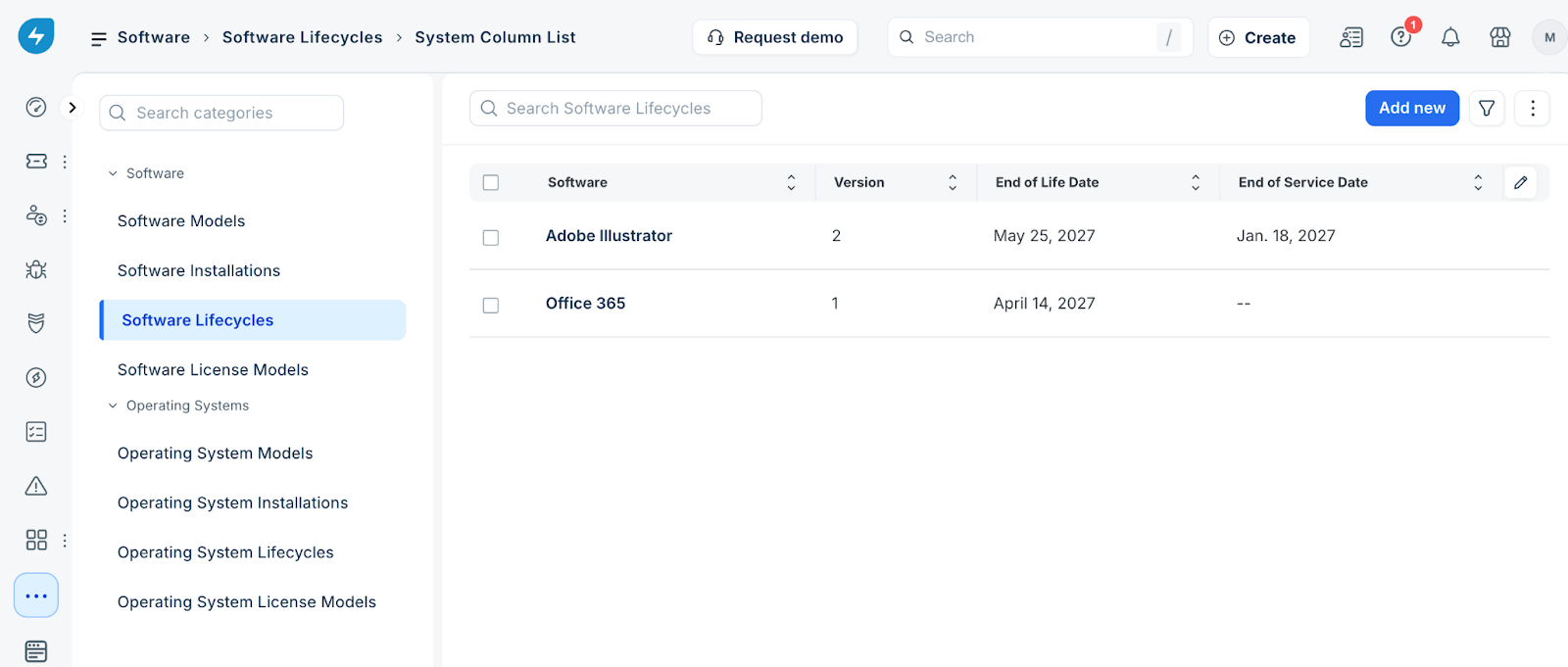
To review or update an entry, click the software name. You can then modify the following fields:
End of Life Date: The date the vendor stops active development and support for the software.
End of Service Date: The date the vendor stops providing technical assistance, even if the software continues to receive updates.
Perform bulk actions
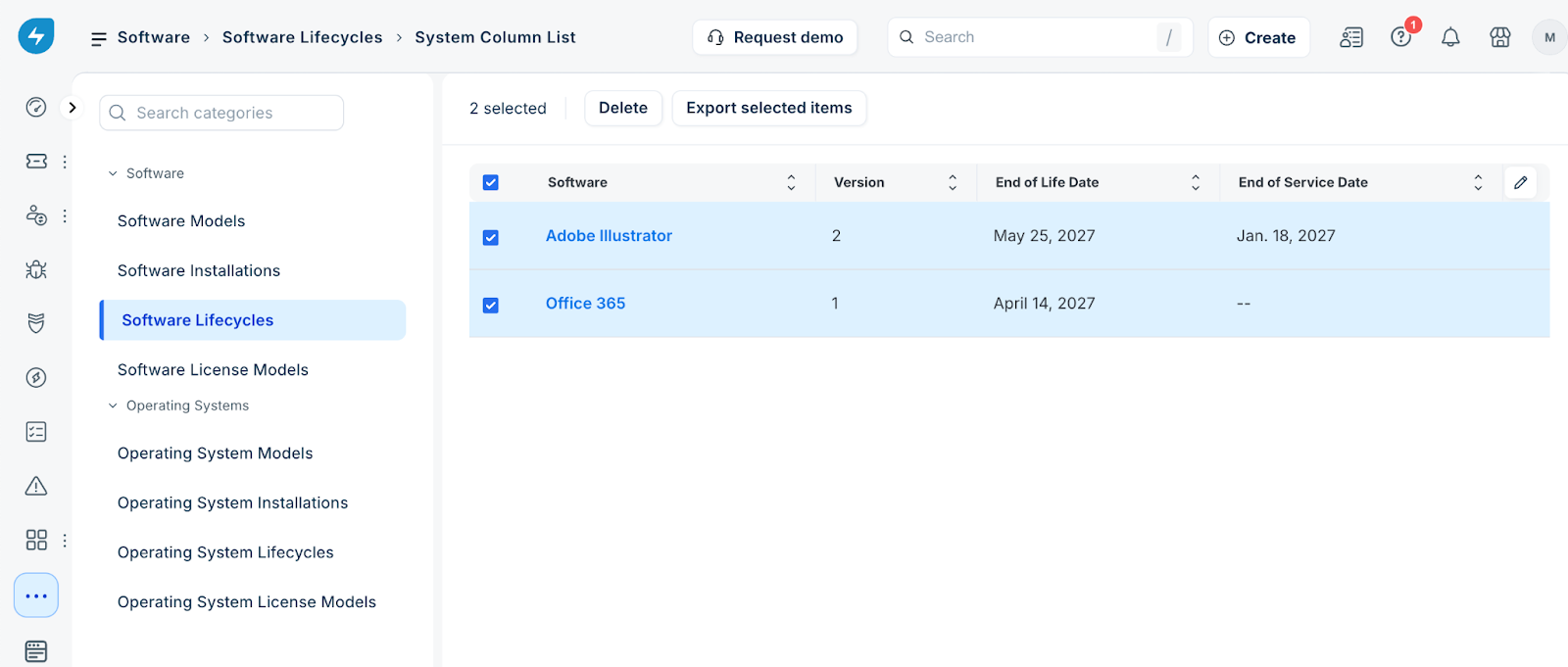
You can manage multiple entries simultaneously on the Software Lifecycles page. To perform a bulk action, follow these steps:
Go to the Software Lifecycles page and select the check box for one or more entries in the list.
Choose an action such as Delete or Export selected items.
Confirm the action in the dialog box to apply the changes to all selected entries.