
 Community
 Video Library
 Agent Training
 Freshservice
 Freshdesk
 Freshchat
 Freshcaller
 Freshsales
 Freshteam
 Freshworks Neo
 Freshsurvey
 Freshservice for MSP
 Note: Available only for new signups after the 31 March, 2026 release. If you signed up earlier, refer to the existing ITAM documentation.
SCCM discovery integrates with your existing Microsoft System Center Configuration Manager (SCCM) or Microsoft Endpoint Configuration Manager (MECM) to synchronize hardware and software inventory data. This integration allows you to automatically import device, operating system, CPU, memory, network, and software details directly into your asset inventory.
If you use SCCM to manage physical and virtual devices, this discovery job syncs Configuration Item (CI) data to maintain a centralized and unified inventory. The discovery can be performed using Windows Remote Management (WinRM), Windows Management Instrumentation (WMI), or through direct database discovery.
Prerequisites
You need the following before the installation:
The discovery target must be the SCCM database server, not other SCCM components.
For direct database discovery, the account requires read permissions for the following system views:
INFORMATION_SCHEMA.TABLES
v_GS_COMPUTER_SYSTEM, v_GS_X86_PC_MEMORY, v_GS_PROCESSOR
v_GS_Add_Remove_Programs, v_GS_Add_Remove_Programs_64v_R_System,
v_GS_PC_BIOS, v_GS_NETWORK_ADAPTER_CONFIGURATION
WMI discovery requires a Windows Discovery Service (WDS) and read-only access to the SMS namespace.
Create an SCCM discovery job
To configure the SCCM integration, follow these steps:
Note: The discovery user must belong to the administrator's user group to discover databases successfully.
Step 1: Add a new discovery job
Go to Admin > Asset Management > Scan and discover and click the Discovery Jobs tab.
Select Hypervisors / *nix / Windows from the list of discovery jobs and click Add new.
Enter a unique name for the job.
Select SCCM as the Platform.
Enter the FQDN or IP address of the SCCM database server in the Discovery Target(s) field.
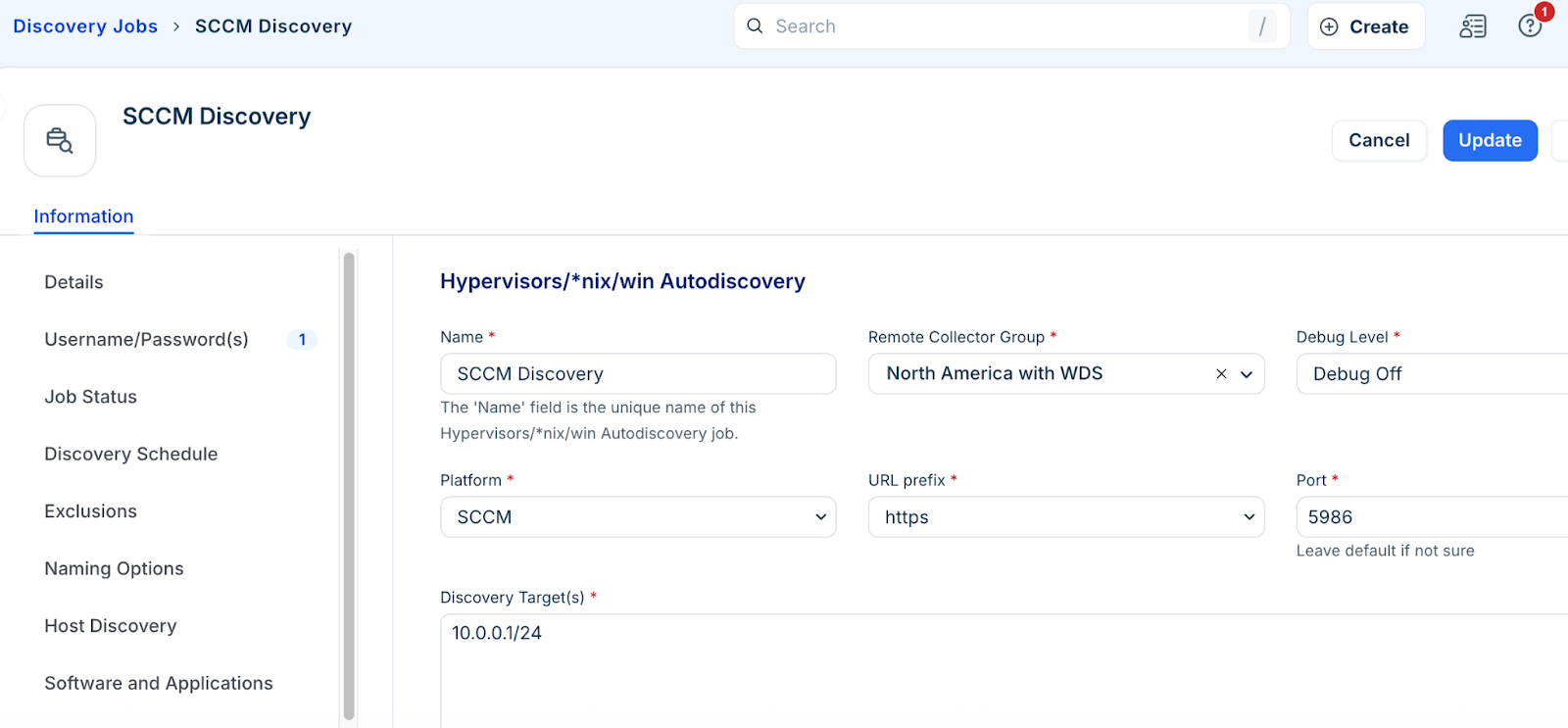
Step 2: Choose a connection method
Configure the connection based on your environment's requirements:
For Database Discovery: Enable the Collect with database server option.
Note: Leave the MSSQL SCCM Instance field blank unless your environment uses a non-standard instance name.
For WDS/WMI Discovery: Enable thenUse Service Account Credentials (only Applies to WDS) option if you are routing discovery through a service account.
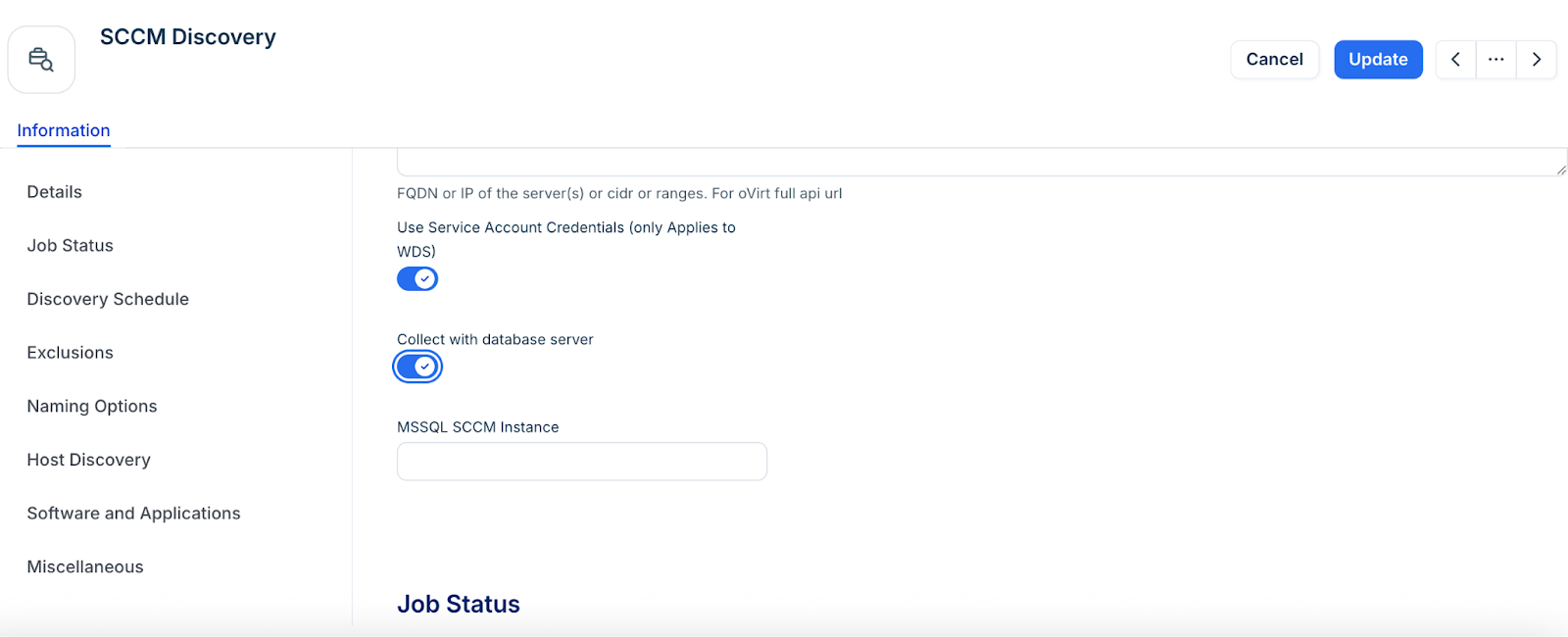
For WinRM Discovery: Enable Discover Using WinRM and specify the URL prefix and Port.
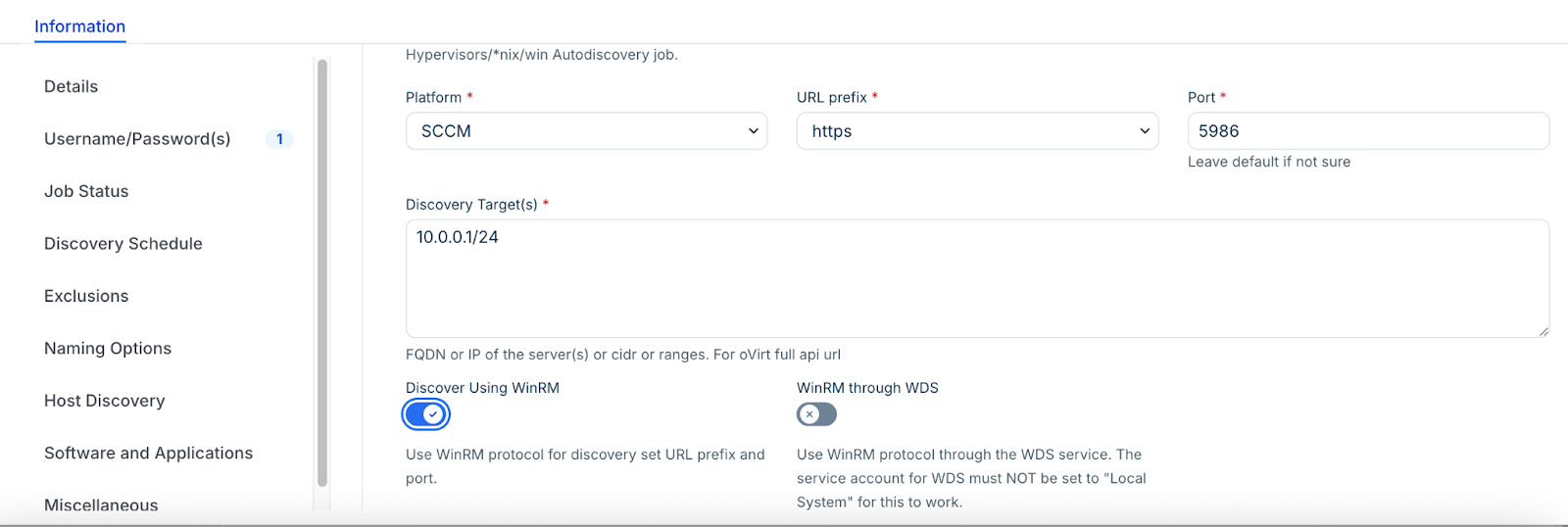
Step 3: Schedule and run the discovery job
In the Discovery Schedule section, click Add new to create a recurring schedule.
Click Save.
To start the synchronization immediately, click Run Now on the Discovery Jobs tab or within the job details page.