
 Community
 Video Library
 Agent Training
 Freshservice
 Freshdesk
 Freshchat
 Freshcaller
 Freshsales
 Freshteam
 Freshworks Neo
 Freshsurvey
 Freshservice for MSP
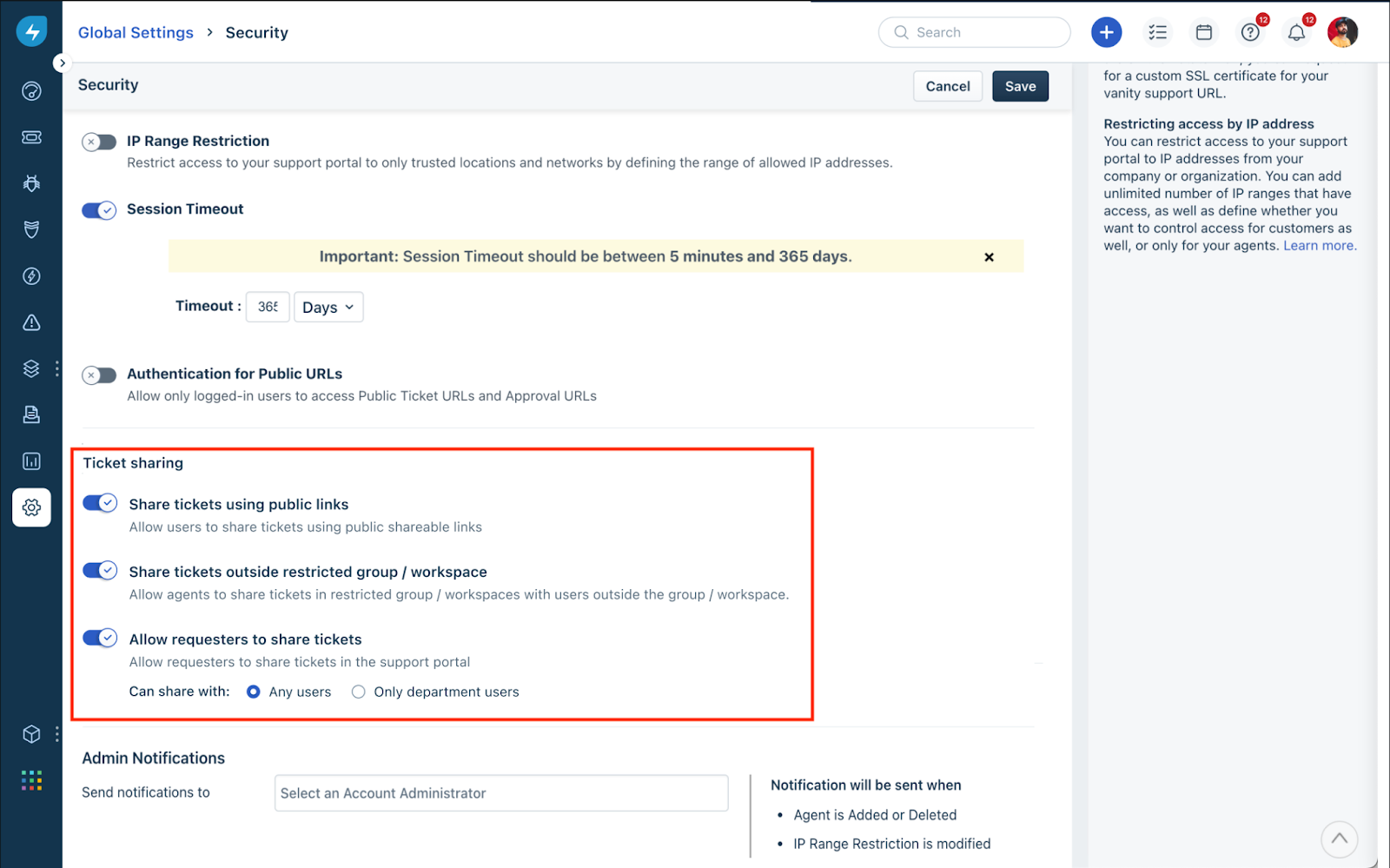
 Admins or users with necessary permissions can configure ticket sharing settings, which help agents and requesters share service requests and tickets within their team.
With this setting configured, requesters will also be able to view and update the details of a ticket. For example, employees can raise tickets to procure a few assets, and they can loop in managers to look at the ticket status.
To configure various ticket sharing settings:
Go to Admin > Global Settings > Account Settings > Service Desk Security.
Update the required ticket sharing settings, and click Save.
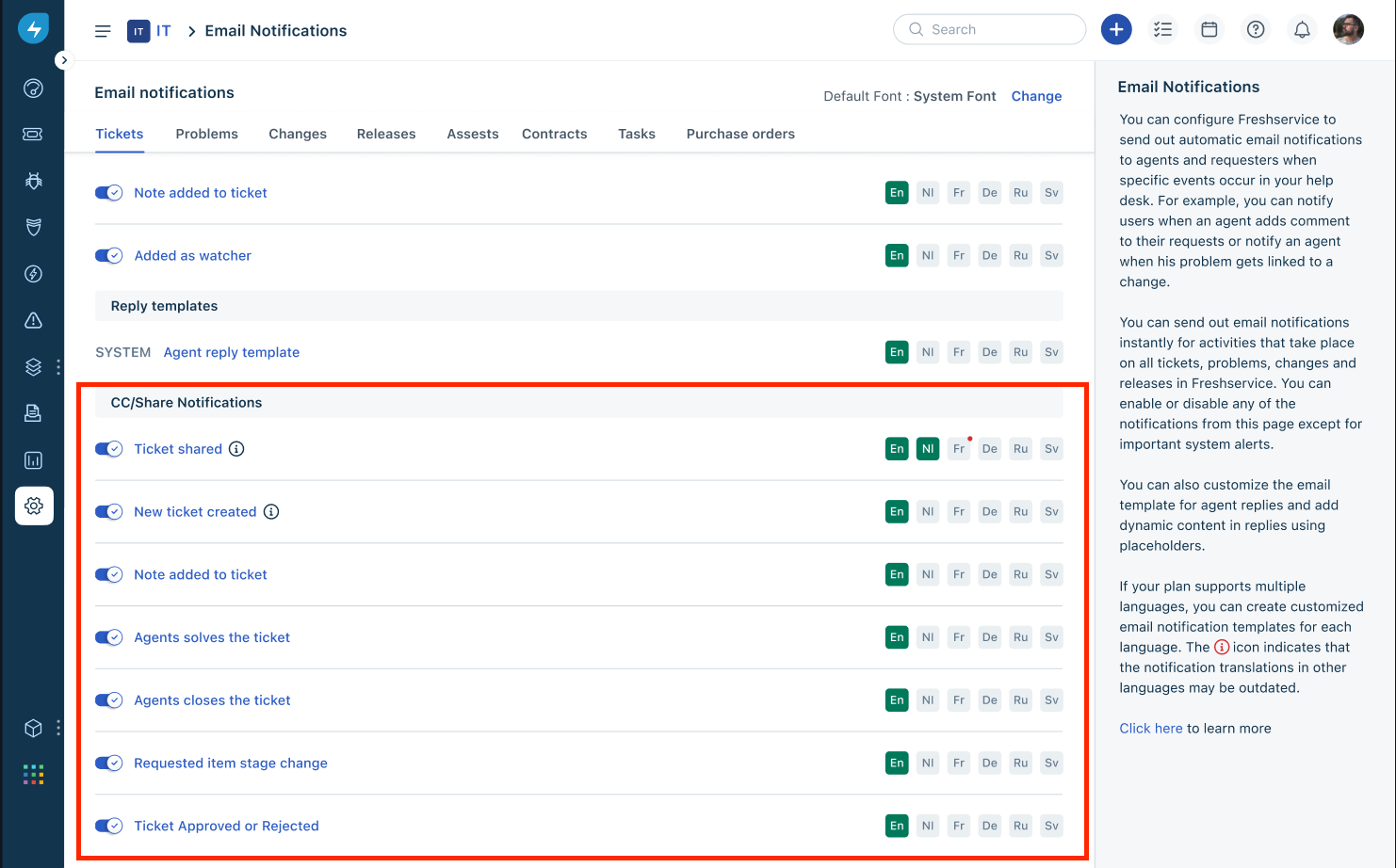
Additionally, go to Admin > {Workspace name} > Workspace Settings > Email Notifications.
Configure the email notification settings for ticket sharing under CC/Share Notifications.
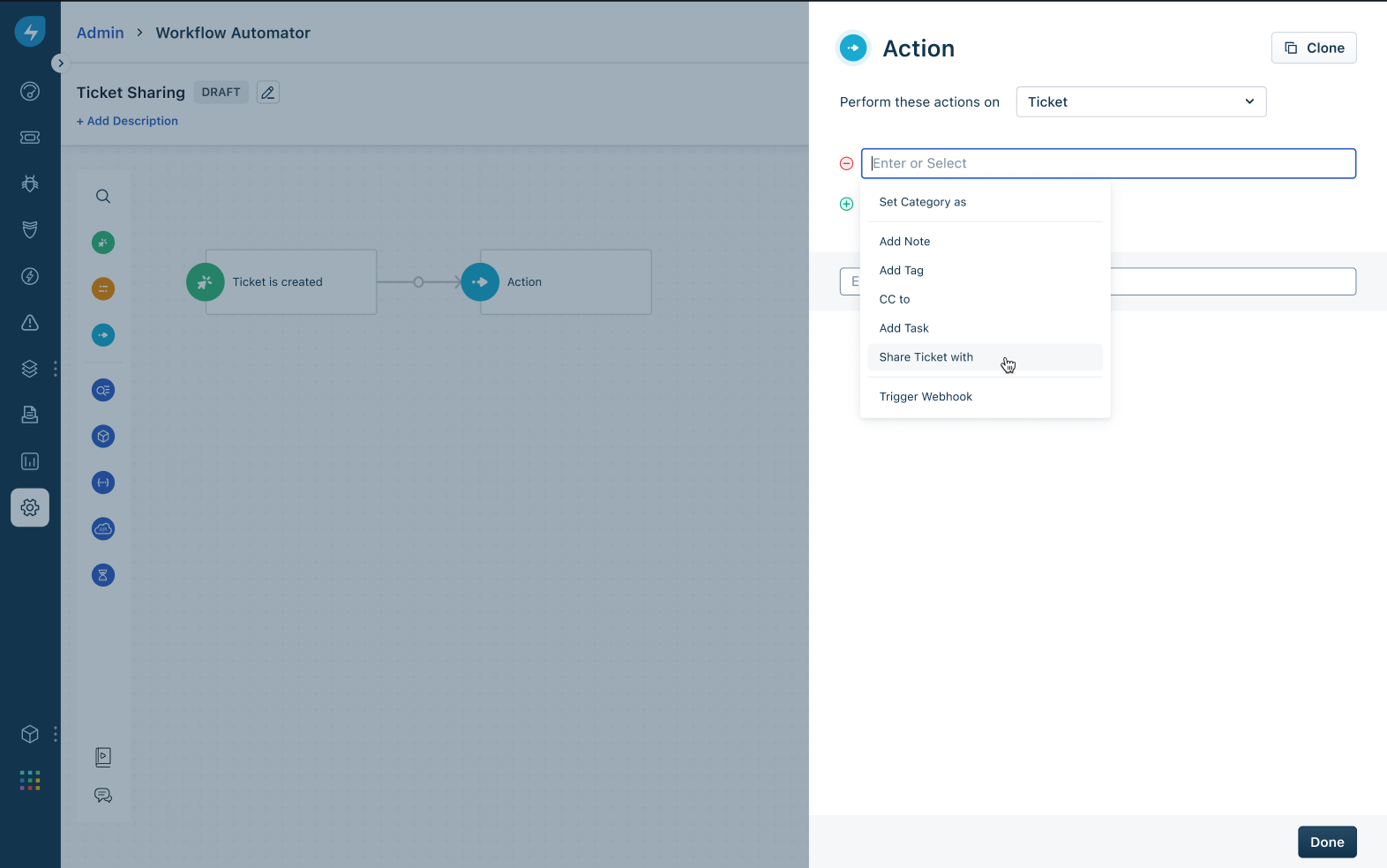
To automate ticket sharing through Workflow Automator, select Share ticket with as an action.
FAQs
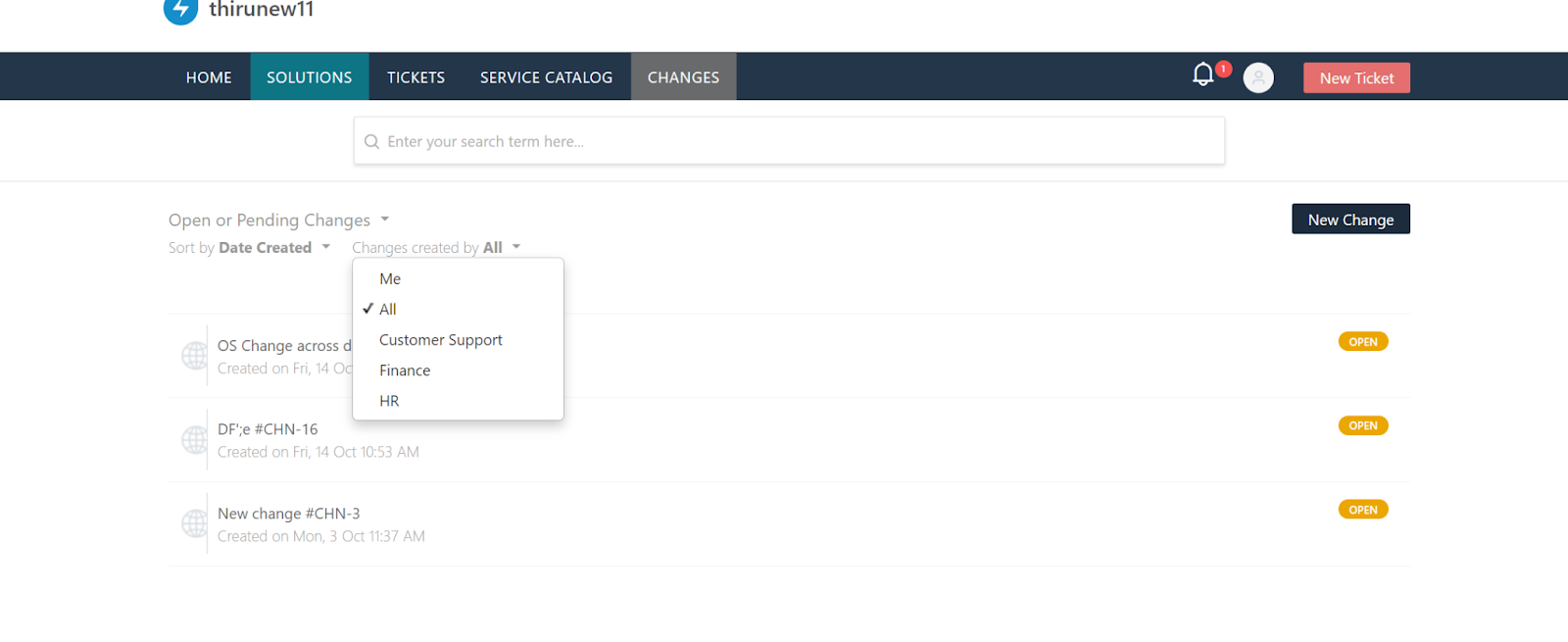
1. Can requesters view changes associated with their department?
Yes, admin has to additionally enable it on a user level.
Go to Admin > Global Settings > User Management > Requesters.
Click any Requester name > Edit > Department > Enable tickets and changes.
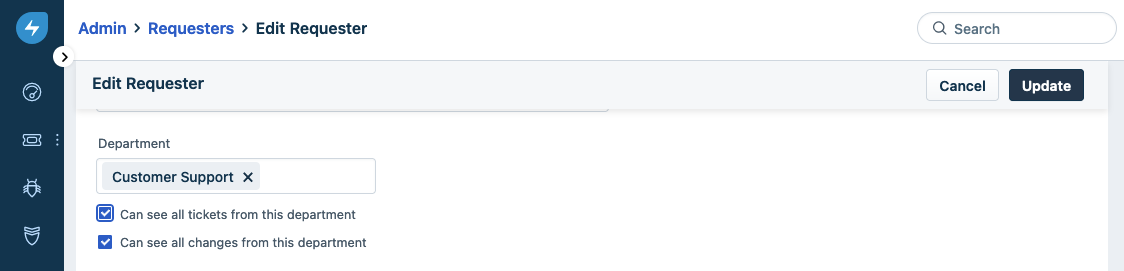
Once this option is enabled, the user can view the tickets associated with that specific department.
2. Can agents view all changes within their department?
No, only requesters can be enabled to view all the changes in the department.
3. What happens when admin disables ticket sharing in the account for requesters?
This will be reflected in all the subsequent actions, and the tickets that are shared will continue to be shared with the respective people.