Community
 Video Library
 Agent Training
 Freshservice
 Freshdesk
 Freshchat
 Freshcaller
 Freshsales
 Freshteam
 Freshworks Neo
 Freshsurvey
 Freshservice for MSP
 The Change Advisory Board (CAB) in Freshservice helps Change Managers gather expert input from senior team members before approving a change. CABs provide a simple way to collect feedback from multiple stakeholders and maintain a complete record of their discussions in the service desk.
When a change is submitted for approval, CAB members receive an email notification and can approve or reject the change. After the CAB members submit their responses, the Change Manager reviews the feedback and makes the final decision.
Freshservice does not auto-approve changes. You can create multiple CABs in Freshservice and assign different groups of agents to each board. You can also choose specific agents from a CAB. An agent can be part of multiple CABs and will receive a separate vote for each CAB.
Create a Change Advisory Board
Create a Change Advisory Board (CAB) to gather feedback from senior team members before approving a change.
Prerequisite
You must be an administrator with access to CAB settings.
A CAB allows Change Managers to collect expert advice and approval from designated stakeholders during the change process. After a CAB is created, your agent can search for it under Approvals > + Request for approval > + Add approvers > CAB section in any change form. Use this procedure to create a CAB in Freshservice. Follow these steps to create change advisory board.
Open your Freshservice account.
Go to Admin > User Management > CAB.
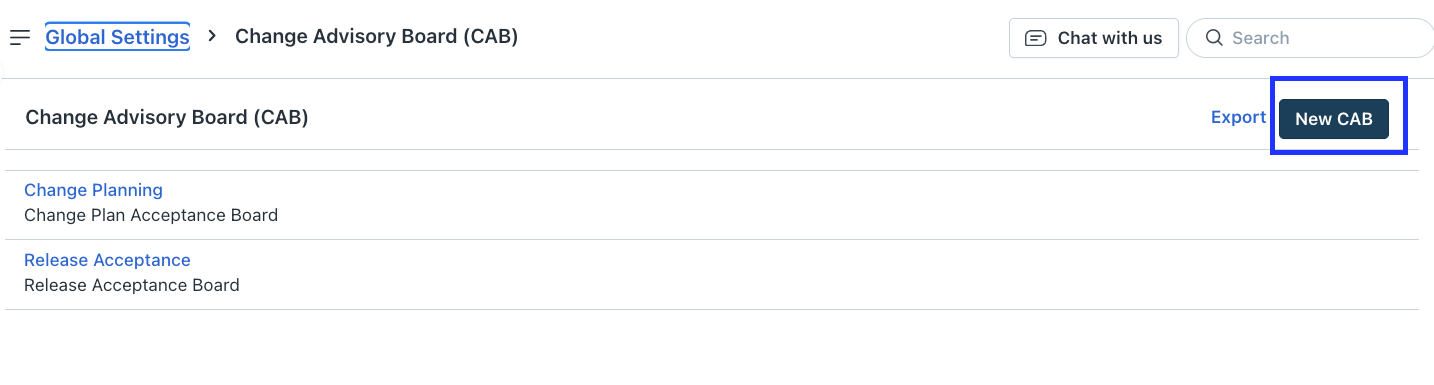
If your account has more than one workspace, go to Admin > Global Settings > User Management > CAB.Click New CAB.
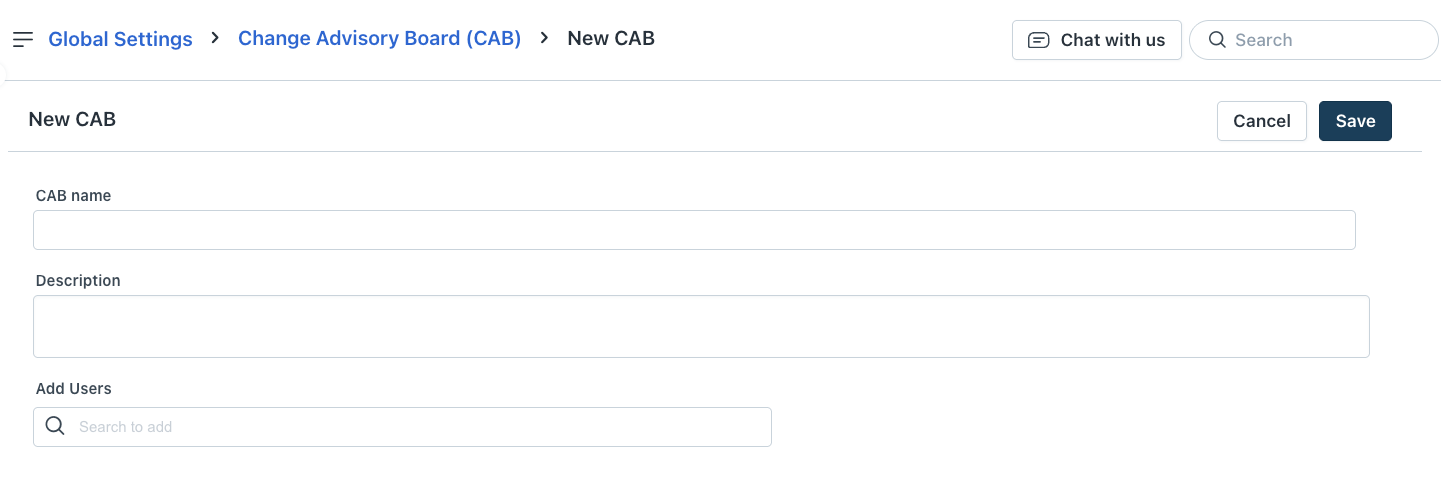
The New CAB form is displayed.Enter a name in CAB name field.
Enter a description of the CAB in Description field.
Search for the team members you want to add in the Add Users field and select them to add in the CAB.
Click Save.
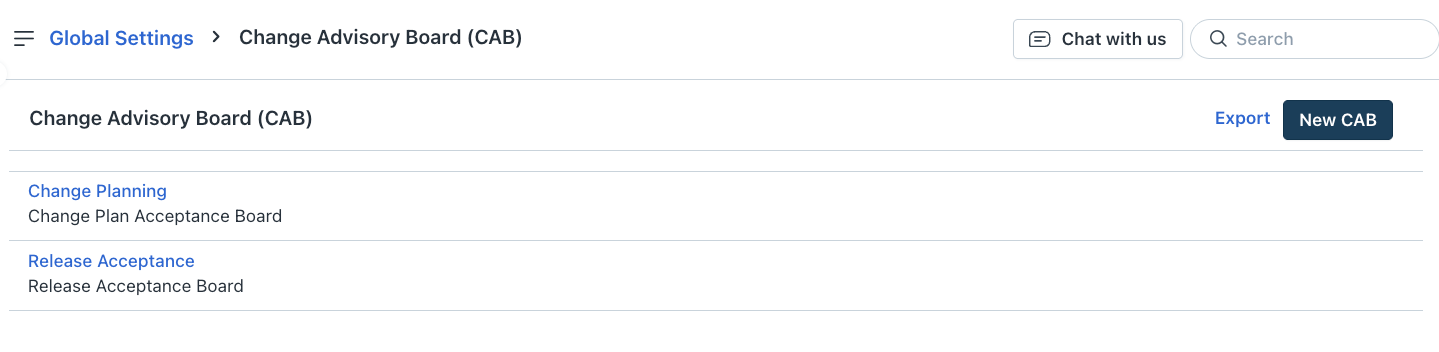
After you create a CAB, it appears on Admin > Global Settings > Change Advisory Board (CAB) page. You can open a CAB and make any modifications such as adding new team members or deleting an existing CAB member.