
 Community
 Video Library
 Agent Training
 Freshservice
 Freshdesk
 Freshchat
 Freshcaller
 Freshsales
 Freshteam
 Freshworks Neo
 Freshsurvey
 Freshservice for MSP
 The Confluence for Freshservice app enables IT teams and agents to fetch knowledge base resources directly from Confluence and use them in Freshservice ticket conversations for faster and more effective incident resolution.
With this integration, you can:
Enable agents to fetch knowledge base content and links from Confluence, and attach them as replies to requesters, which helps improve agent productivity.
Automatically view recommended Confluence articles based on the subject of Freshservice tickets.
TABLE OF CONTENTS
Prerequisites
Ensure you have the following, as part of the prerequisites for integration:
An active Confluence account.
Account administrator privileges within Freshservice to initiate the integration.
Install the app
To install the app, follow these steps:
Step 1: Start installation
Log in to your Freshservice account.
Go to Admin > Automation & Productivity > Extensibility > Apps.
Or, click the Marketplace Apps icon on the top-right corner, and select Marketplace Apps.
Search and select Confluenec app using the Search apps option.
Click Install on the installation page.
Step 2: Authorize Freshservice credentials
In the Settings tab, enter Freshservice Domain and Freshservice API Key.
Click Authorize.
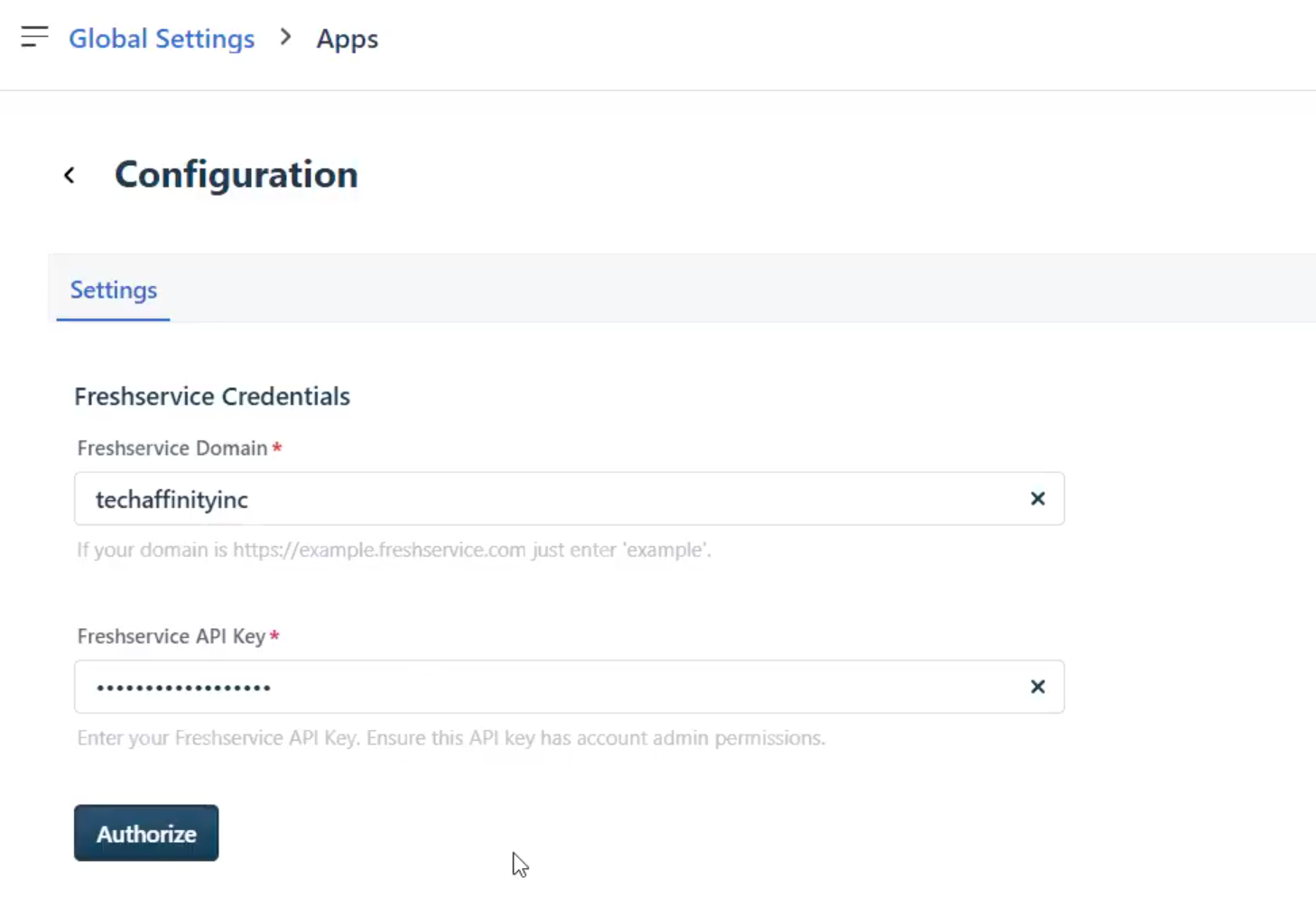
Step 3: Authorize Confluence credentials and install app
Enter value for the following fields:
Confluence Domain
Confluence Email
Confluence API Token
Click Authorize.
Click Save to install the app.

How does Confluence integration work?
You can search and add the relevant solution articles to ticket conversations.
Log in to your Freshservice account.
Go to Tickets > List.
Click any ticket Subject to open the ticket Details page.
Select the relevant conversation option (Reply, Forward, or Add note) under Conversations (for example, Add note).
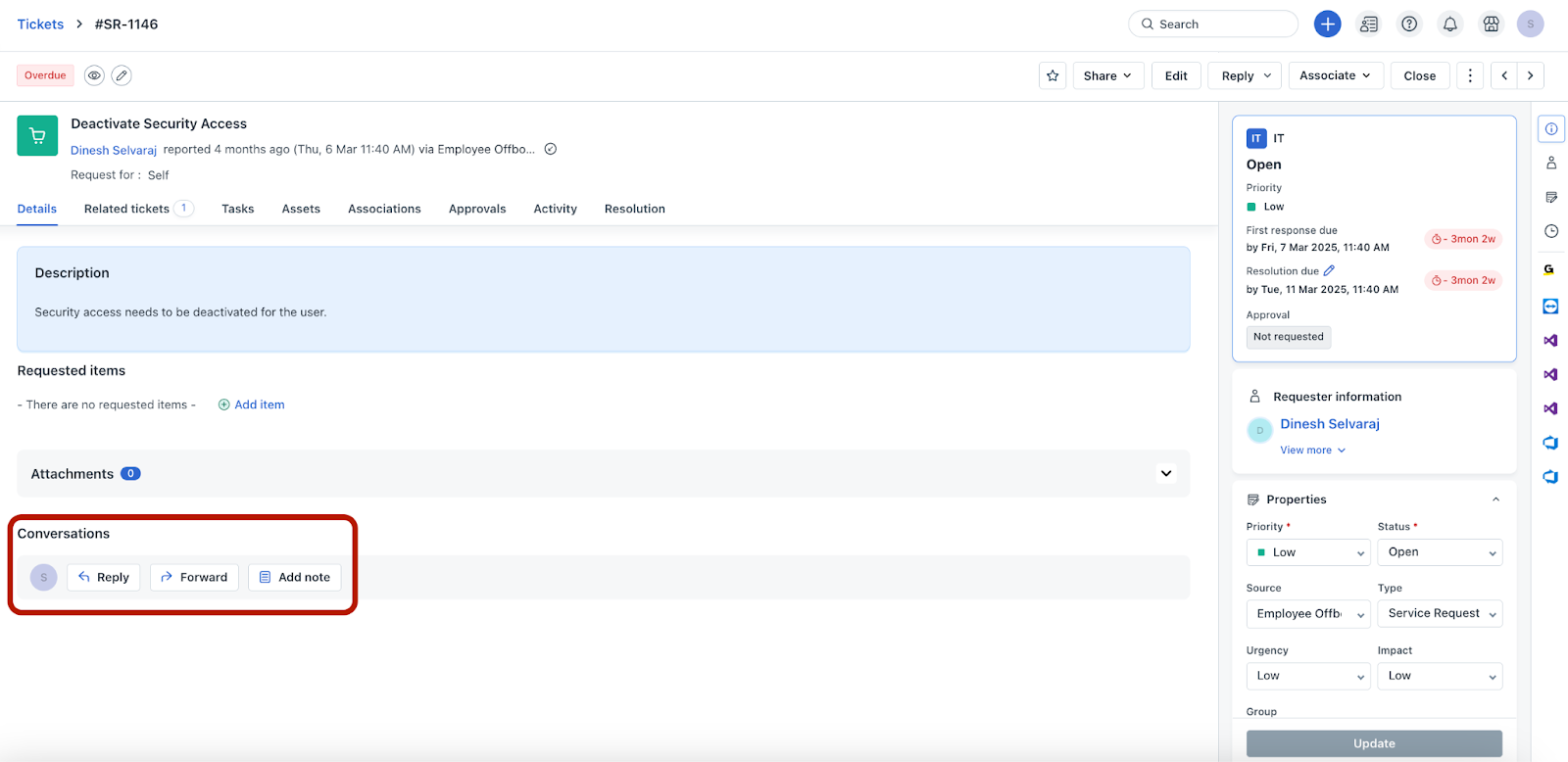
Click the Confluence icon at the bottom of the conversation note.

In the Solution Articles pane, Search for a relevant solution article from the Search articles box.
Or, hover over a relevant article under the Recommended section to view the available options (Preview article, Insert article link/URL icon, Insert content icon).
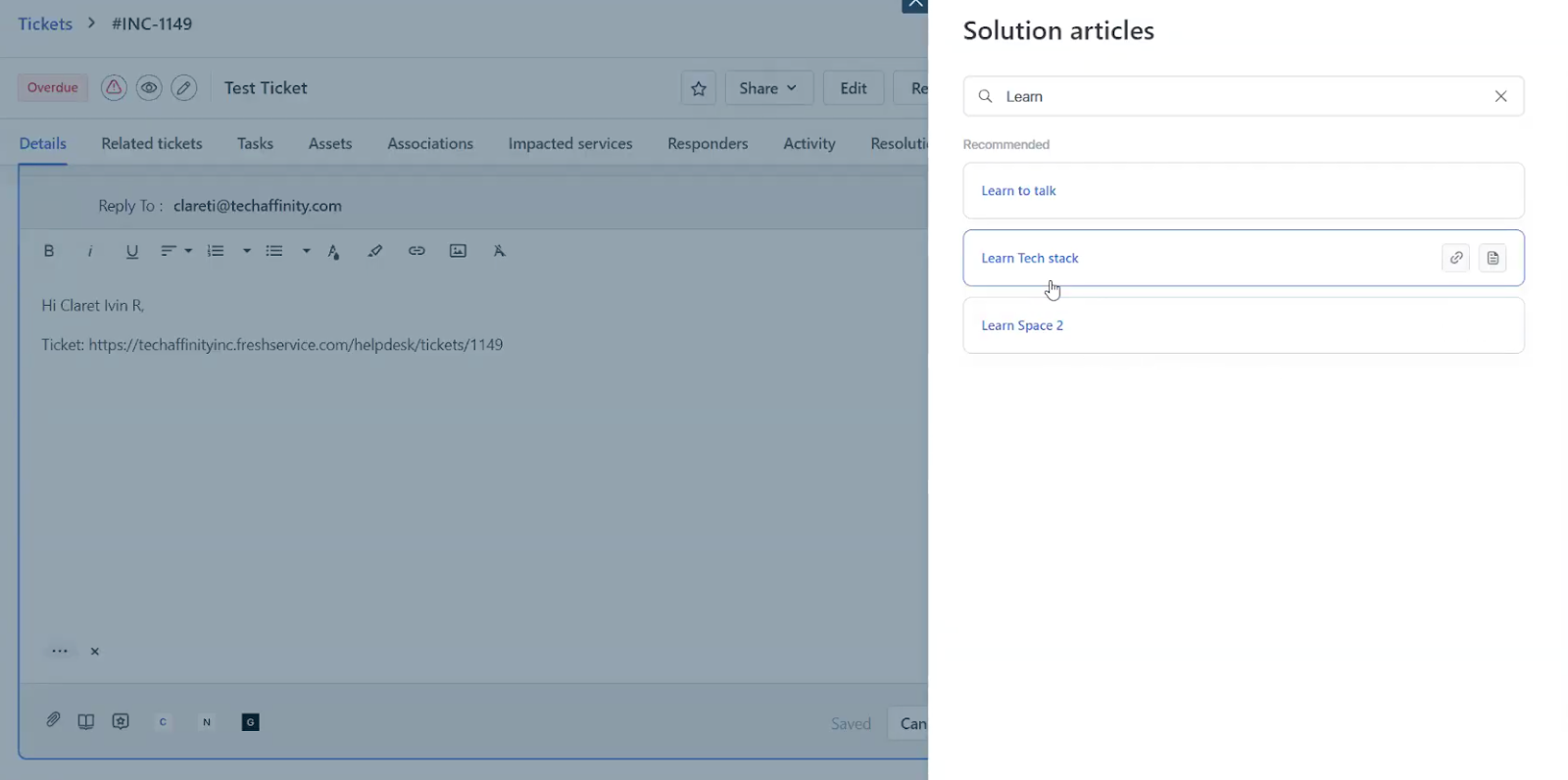
Click the article title to preview the article. A preview of the article will be shown.
Click Back to go back to the solution articles list.
Or, click Go To Confluence to go to the knowledge base site.
Or, select Insert article link/URL to insert only the article link to the conversation.
Or, select Insert content to insert the article content to the conversation.
Based on the option you select (Insert article link or Insert content), either a link or content gets added to the conversation.

Alternatively, you can insert an article link/URL or article content using the options that appear when you hover over an article in the solution articles list.