
 Community
 Video Library
 Agent Training
 Freshservice
 Freshdesk
 Freshchat
 Freshcaller
 Freshsales
 Freshteam
 Freshworks Neo
 Freshsurvey
 Freshservice for MSP
 Note: Freshworks supports the investigation of integration-related issues; however, issues originating from the third-party application are beyond Freshworks’ scope. We recommend reaching out to your account manager or the third-party provider’s support team.
The Zoho CRM Connector app for Freshservice enables you to automatically sync contacts from Zoho CRM and create requesters in Freshservice. By eliminating manual data entry, the integration helps maintain accurate records and ensures teams always have up-to-date requester details.
Supported plans
The Zoho CRM Connector app is available for customers with active subscriptions to the Pro and Enterprise plans.
Prerequisites for integration
Ensure you have the following, as part of the prerequisites for integration:
An active Zoho CRM account.
Account administrator privileges within Freshservice to initiate the integration.
Install the app
To install the app, follow these steps:
Go to Admin > Automation & Productivity > Extensibility > Connector Apps.
Select Zoho CRM Connector App from the Connector Apps list.
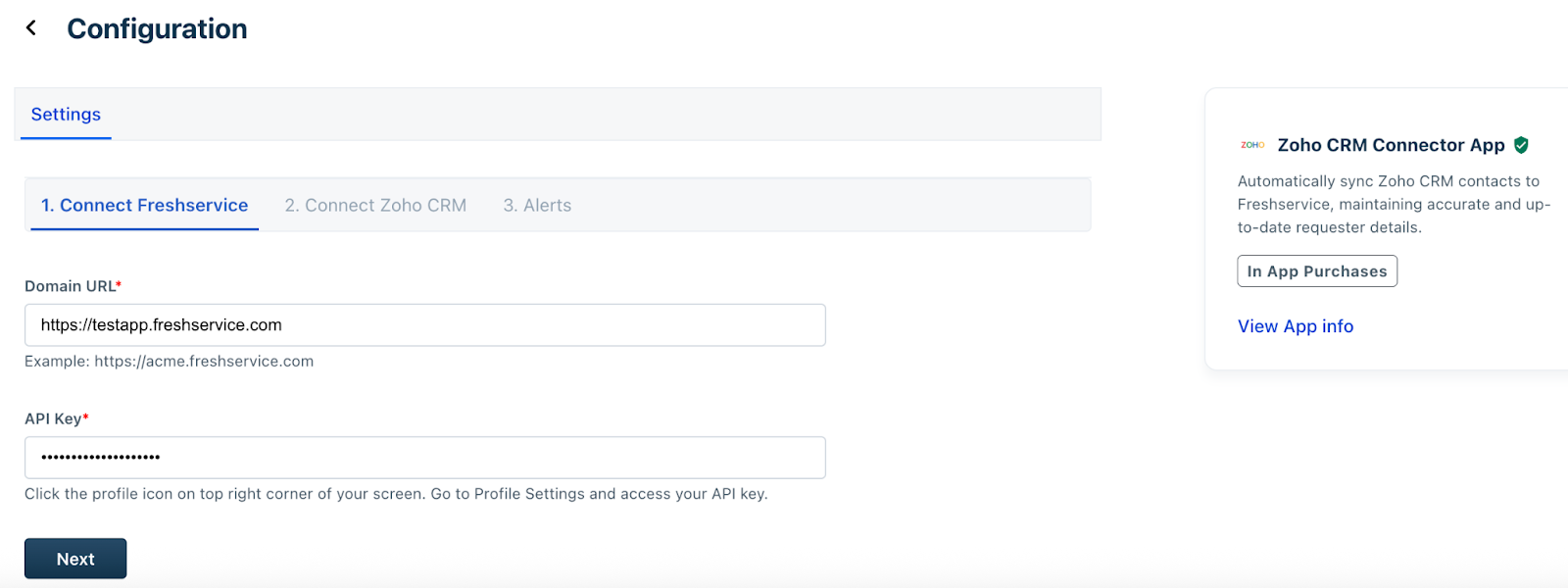
Click Install. The Configuration page appears.
Ensure that your Freshservice API Key is enabled before initiating the installation. Click Next.
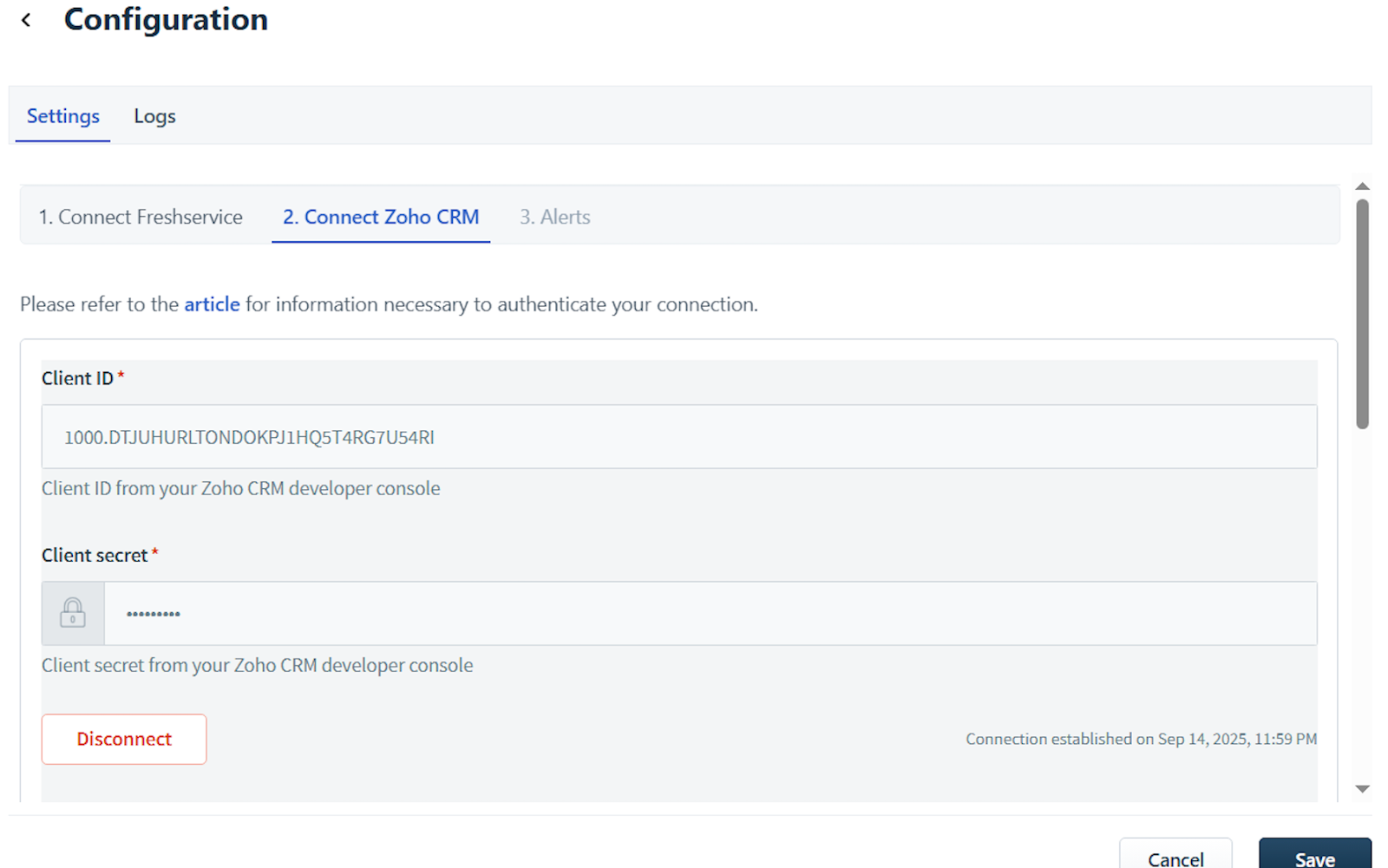
Note: The Domain URL and API Key fields are auto-populated.Enter the relevant Zoho CRM connection details in the Client ID and Client secret fields. Then, click Connect.
After the connection is established successfully, click Next.
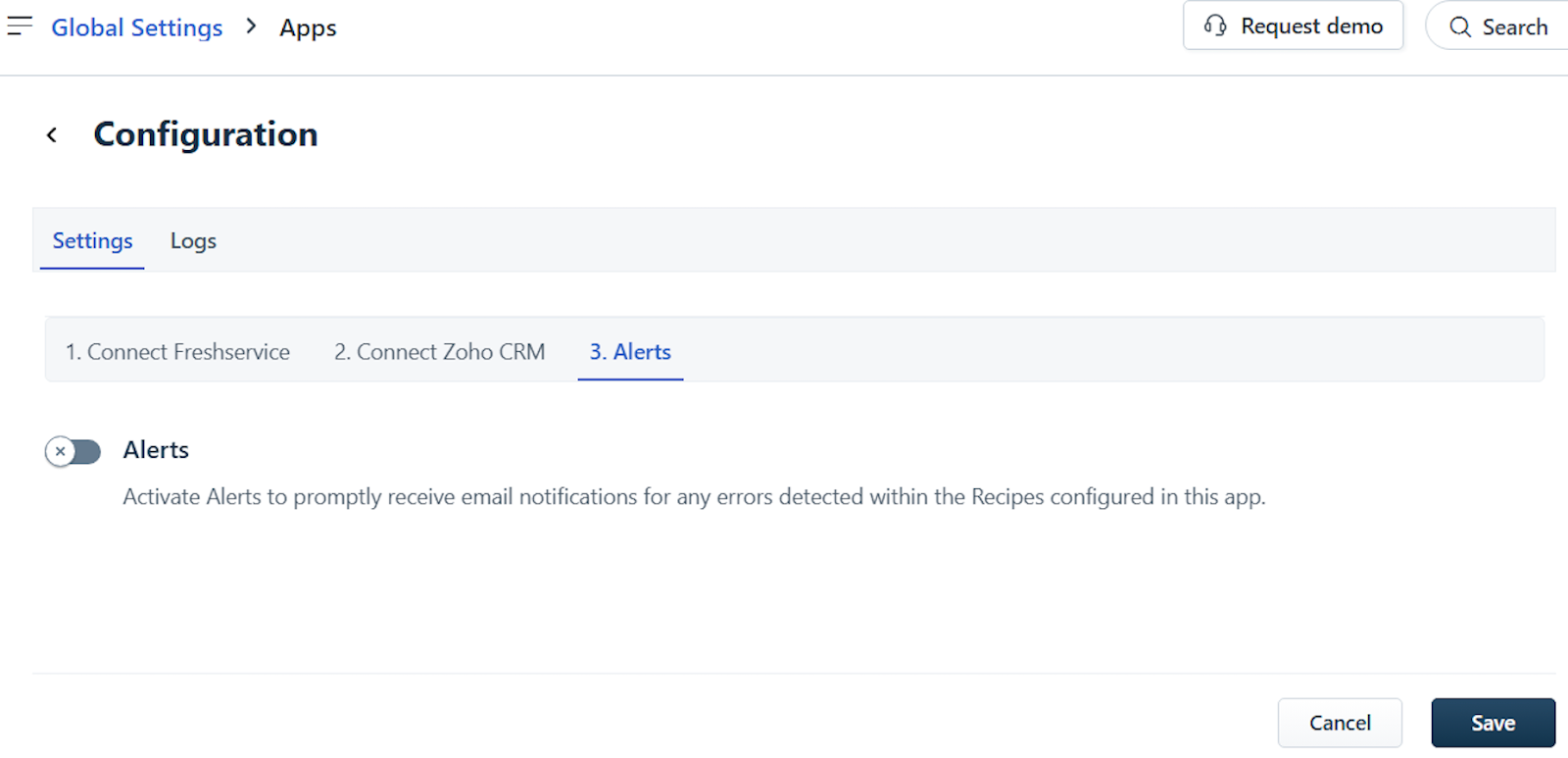
Enable the Alerts toggle, if you want to receive email notifications on any errors that are detected within the configured recipes.
Enter the recipient email id(s) in the Email ID field.
Then, click Install.
View dashboard
The Overview page of a connector app includes the Dashboard and Dependency graph tabs.
The Dashboard helps you understand the total number of tasks you have consumed (this is the basis for your app usage billing), and also provides a consolidated graph view of the number of recipes, successful jobs, and failed jobs for all recipes.
To view the dashboard and dependency graph:
Go to Admin > Automation & Productivity > Extensibility > Connector Apps.
Click Zoho CRM Connector App. The Configure Zoho CRM Connector dialog opens.
Click Got it. The Overview page opens.
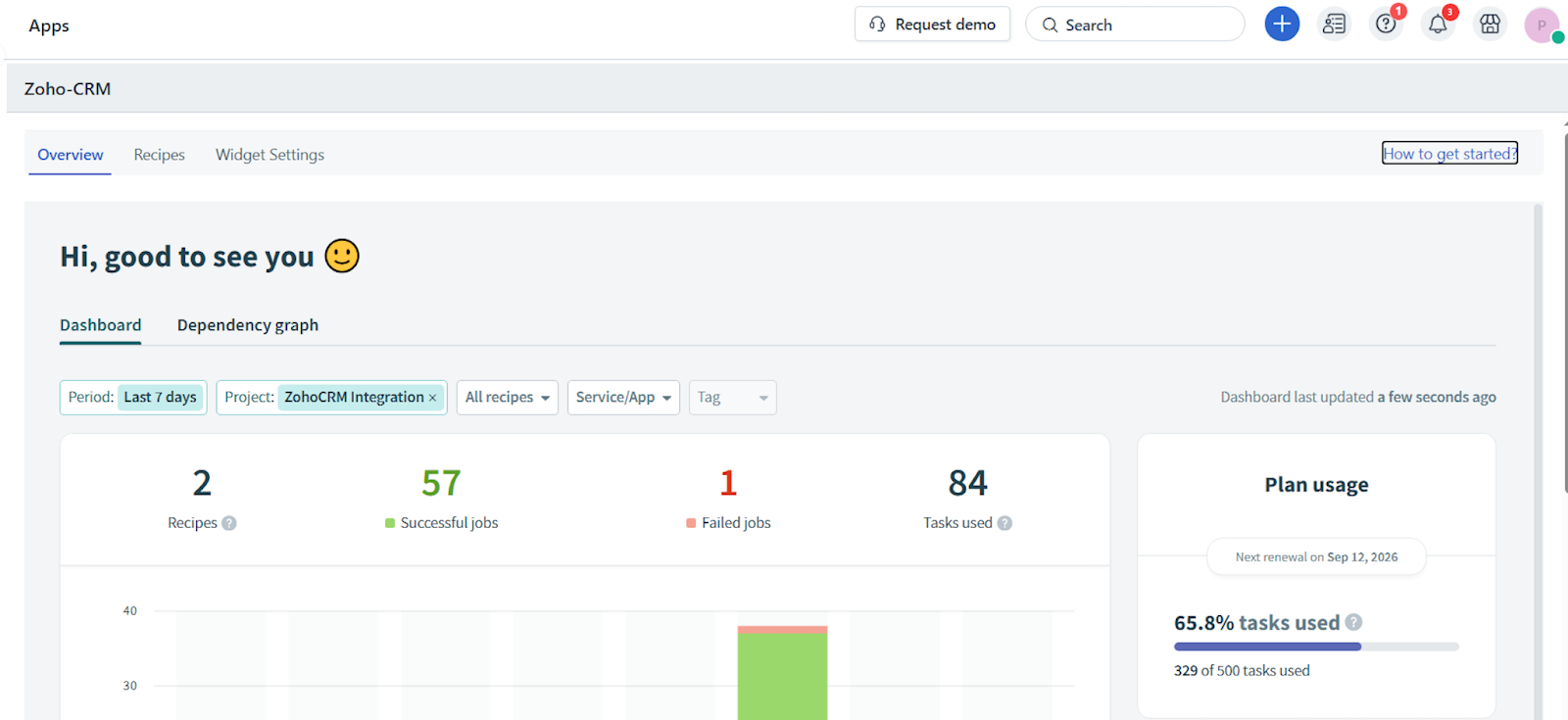
Note: Use the Period, Project, All recipes, Service/App, and Tag filters to modify the graph view. You can also sort and view the required data in a tabular format (below the graph), and view your plan usage and connection details on the Dashboard tab.
Go to the Dependency graph tab to view the dependencies in a grid layout. Click any icon in the grid to view all dependencies, such as Connection, Recipe, API Endpoint, and so on.
Note: Use the Asset, App, and Recipe status filters to modify the grid view.
Set up available recipes
To set up the available recipes:
Go to Admin > Automation & Productivity > Extensibility > Connector Apps.
Click Zoho CRM Connector App. The Overview page opens.
Click Recipes. The Recipes page shows you the list of available recipes for the Zoho CRM Connector App.
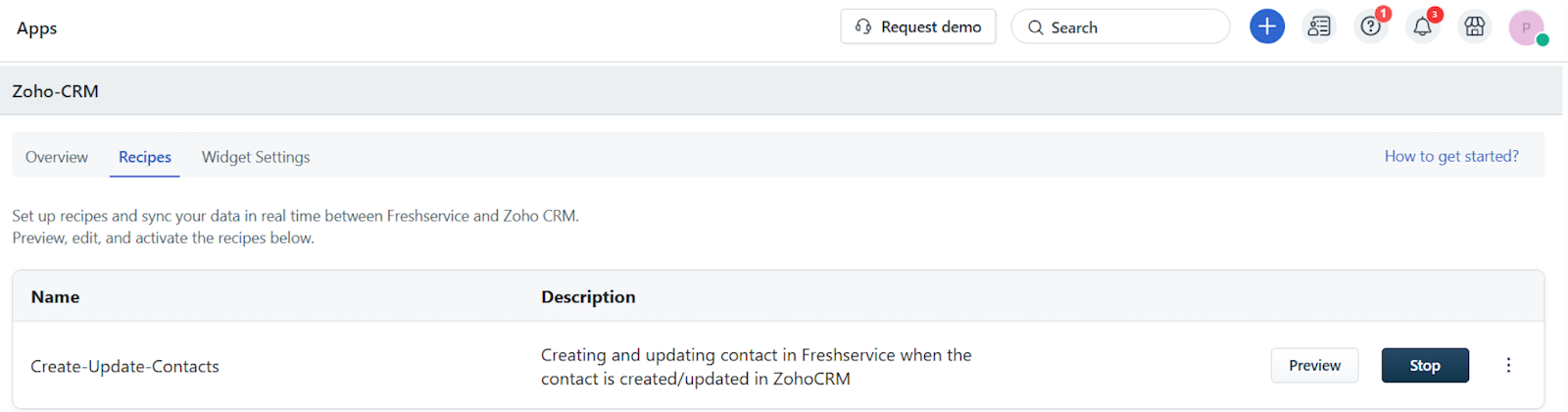
List of all the available default recipes
The following default recipes are available with the Freshservice and Zoho CRM Connector integration.
Manage available recipes
You can preview, edit, start, test, or stop the available recipes.
Preview recipe
On the Recipes page, click Preview next to the recipe you want to view. The selected recipe’s preview page opens.
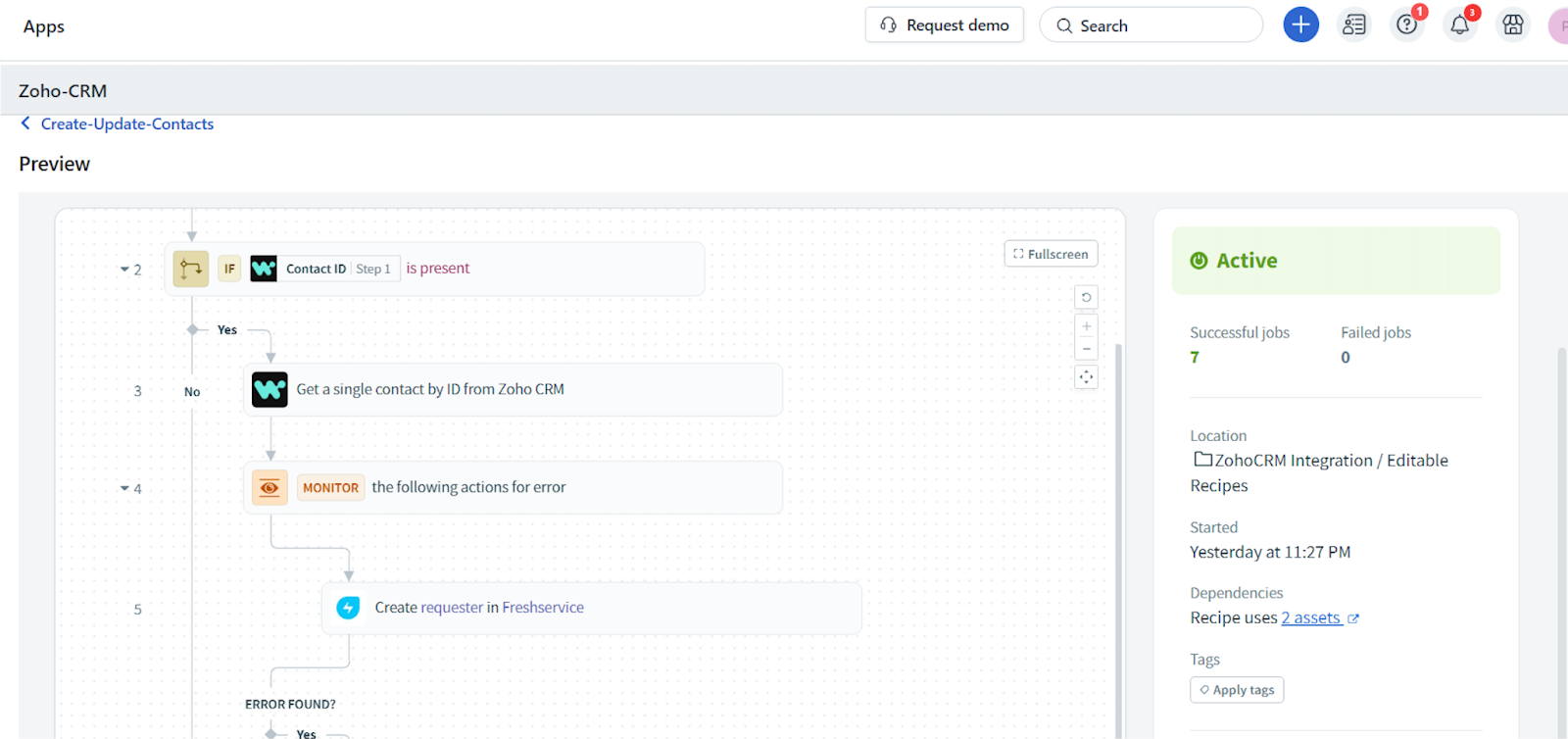
The Preview page includes the Recipe, Jobs, Connections, Versions, and Settings tabs.
On the Recipe tab, you can view various steps with pre-configured triggers, actions, and conditions.
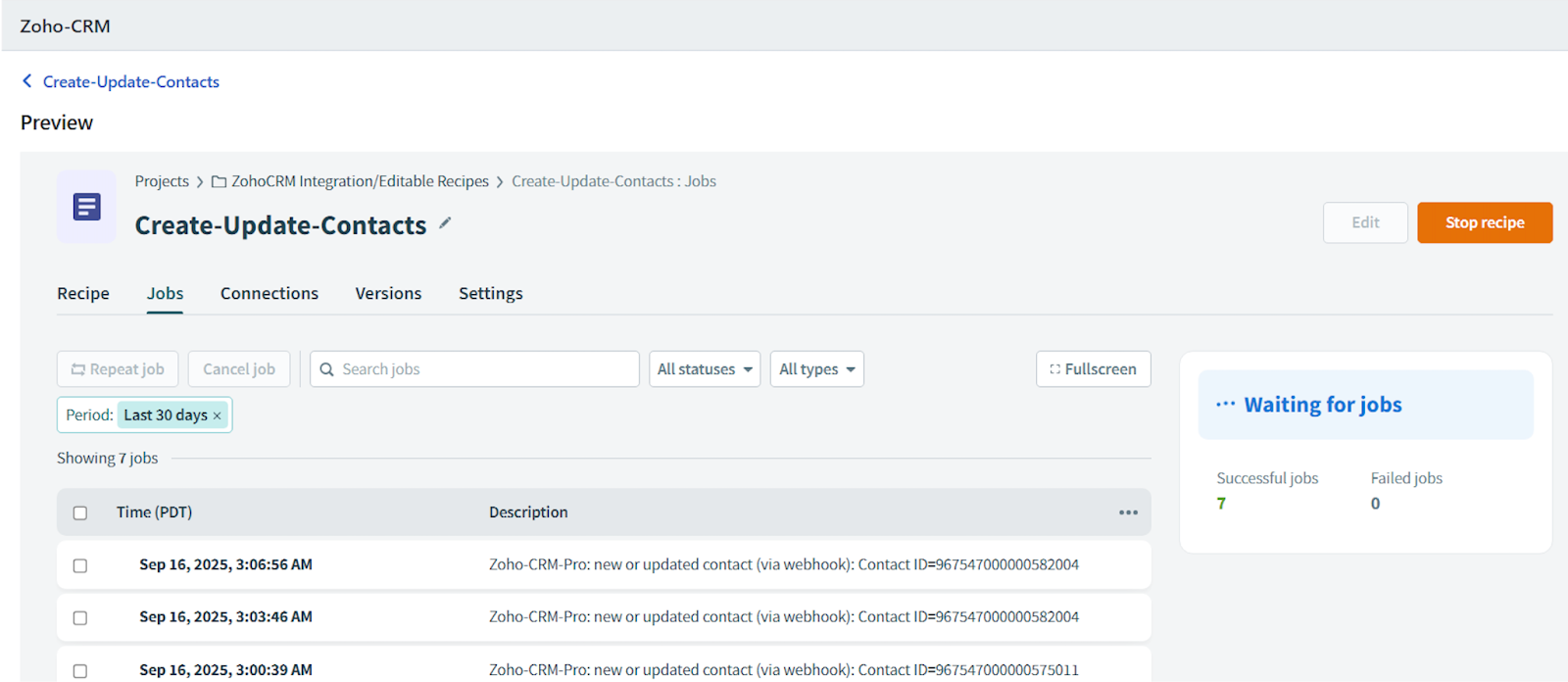
Go to the Jobs tab to view all the jobs associated with this recipe.
Note: Use the Repeat job, Cancel job, Search jobs, All statuses, All types, and Period filters to modify or update the Jobs list.
Go to the Connections tab to view all the associated connections.
Go to the Versions tab to view all the associated versions.
Note: Use the Compare versions, Search version comments, All periods, All change types, and All collaborators filters to modify or update the Versions list.
Go to the Settings tab to view the usage metrics, dependencies, and concurrency associated with this recipe.
Start recipe
To start any recipe:
On the Recipes page, click Start next to the recipe you want to start.
Or, click Preview next to the recipe you want to start. Within the recipe preview page, you will find an option to start the recipe.
Edit recipe
To edit any recipe:
Click Preview next to the recipe you want to edit. The selected recipe’s preview page opens. If the recipe is active, click Stop. Then, click Edit.
Or, click the ellipsis icon next to a recipe on the Recipes page. Then, click Edit.
Stop recipe
To stop any recipe:
On the Recipes page, click Stop next to the recipe you want to stop.
Or, click Preview next to the recipe you want to stop. Within the recipe preview page, you will find an option to stop the recipe.
Test recipe
To test any recipe:
On the Recipes page, click Preview next to the recipe you want to test. The selected recipe’s preview page opens. If the recipe is active, click Stop.
Select Test recipe from the Start recipe dropdown.
Or, click the ellipsis icon next to a recipe on the Recipes page, and click Edit. The selected recipe page opens.
Click Test recipe.
Customize recipe
Each recipe has the following components: Trigger, Actions, and Conditions. You can customize any recipe depending on your specific requirements.
Let’s take a default recipe as an example to customize it further.
Default recipe: Create-Update-Contacts
You can click any component, and use the Edit option associated with the component to customize. For example, the Trigger component.
Trigger
This recipe component acts as the starting point for any recipe. For this default recipe, the trigger is fetching an employee record from Zoho CRM and syncing it with Freshservice.
You can customize the trigger in the following ways:
View the list of optional fields available for a particular trigger.
Modify optional fields for existing triggers or add trigger conditions.
Add multiple trigger conditions using the ‘+’ option below the trigger conditions section. You can choose to set up AND or OR conditions.
Set the trigger data by choosing from a list of available attributes.
Condition
This component acts as a checkpoint within the recipe flow and executes a specific set of actions based on the matched condition.
Here, the recipe checks if an employee is onboarded in Zoho CRM. Accordingly, an employee record is updated in Freshservice.
You can check and edit the data fields and conditions.
Action
The recipe performs a specific set of actions based on the conditions met. For example, the recipe adds an employee record in Freshservice based on an employee onboarded in Zoho CRM.
You can customize the following parts of the action:
Perform any action from the existing set of available actions.
Map values to the corresponding fields in Freshservice.
Add more fields from the available set of optional fields.
After customizing a recipe, you can save or test it to ensure it's working correctly.
Check failed recipe or jobs
To view and troubleshoot failed jobs under a recipe, follow these steps:
Click Preview next to a specific recipe on the Recipes page.
Go to Jobs.
View a list of all the jobs executed under a particular recipe.
Filter the failed jobs using the All statuses filter.
Click a failed job to view the error details and identify the cause of failure.
Resubmit the job after your review to fix the issue.
Note: For information on frequently asked questions (FAQs) related to the Connector Apps in Freshservice, see Connector Apps: Frequently Asked Questions (FAQs).