Community
 Video Library
 Agent Training
 Freshservice
 Freshdesk
 Freshchat
 Freshcaller
 Freshsales
 Freshteam
 Freshworks Neo
 Freshsurvey
 Freshservice for MSP
 TABLE OF CONTENTS
Overview
Freshservice integration with ZohoBooks for Freshservice app enables your teams to track the time spent by agents for resolving each ticket and generate customer invoice based on the time spent.
With ZohoBooks for Freshservice integration:
Set the default invoice description with suggested or custom placeholders.
Add time entry for the time spent directly within Freshservice ticket.
Generate customer invoice based on the added time entry.
Prerequisites
Ensure you have the following, as part of the prerequisites for integration:
An active ZohoBooks account.
Account administrator privileges within Freshservice to initiate the integration.
Install the app
To install the app, follow these steps:
Log in to your Freshservice account.
Go to Admin > Global Settings > Automation & Productivity > Apps.
Or, click the Marketplace Apps icon on the top-right corner, and select Marketplace Apps.
Search and select the ZohoBooks for Freshservice app using the Search apps option.
Click Install on the installation page.
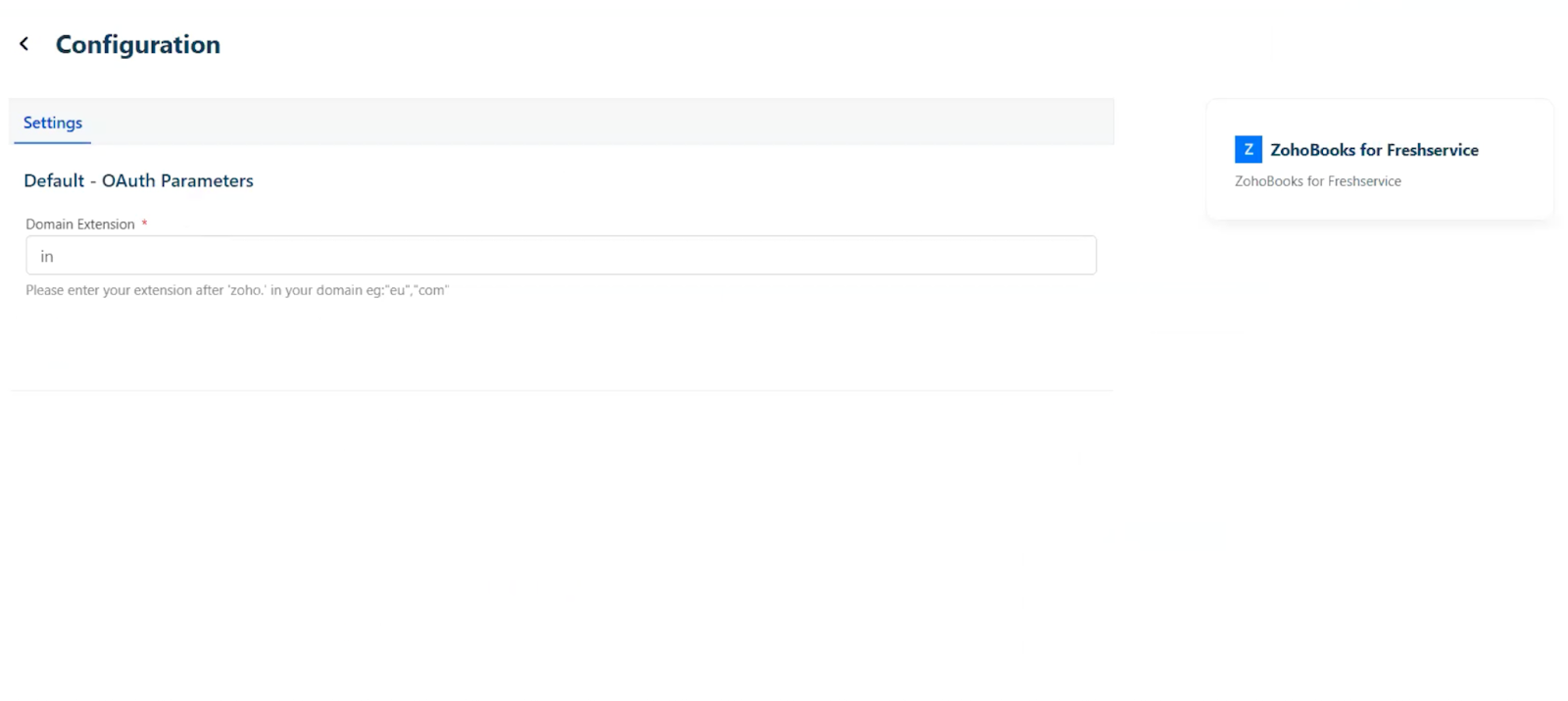
Enter the default OAuth Parameters (domain extension) to authorize the app.
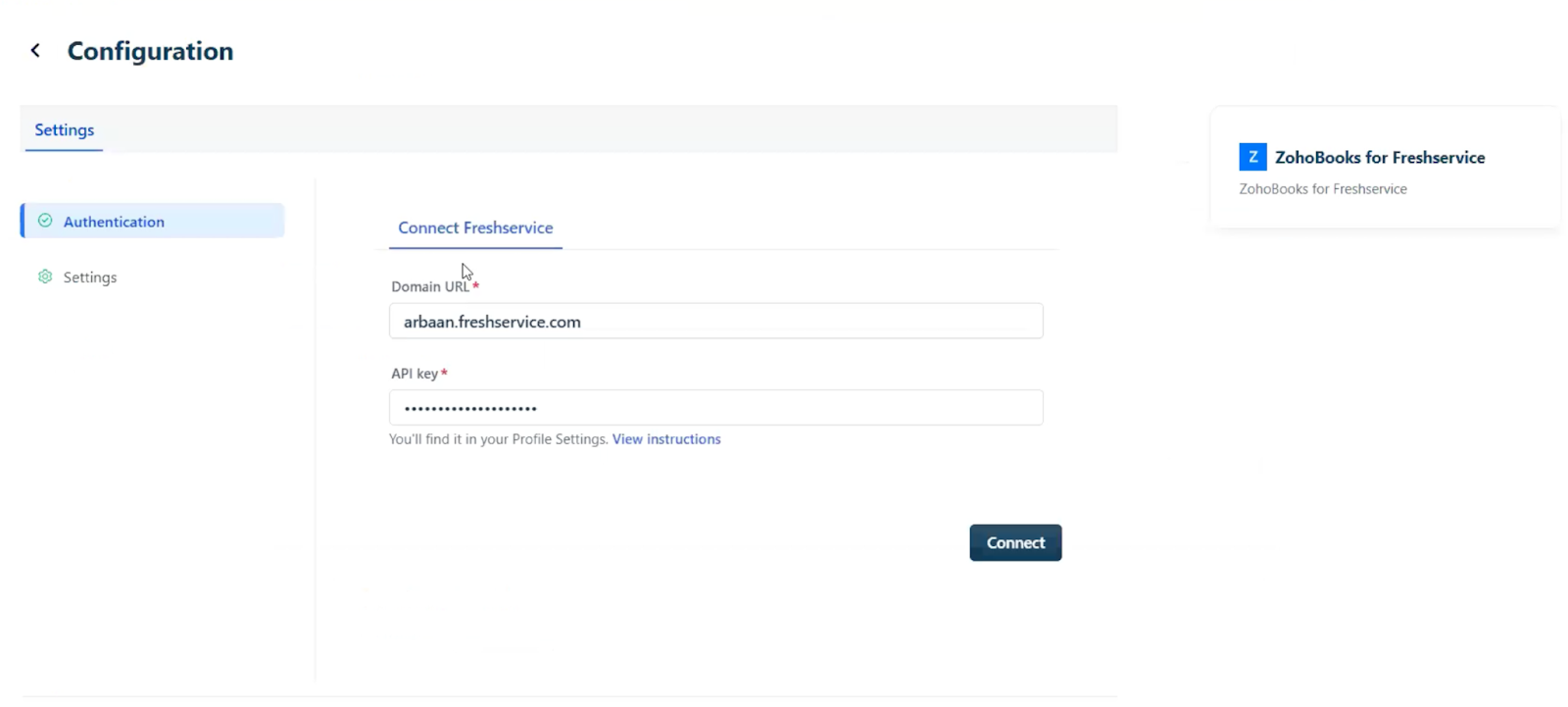
(After the app authorization is successful) On the Configuration page, click Connect to authenticate the Freshservice connection.
Note: The Domain URL and API key fields are auto-populated.
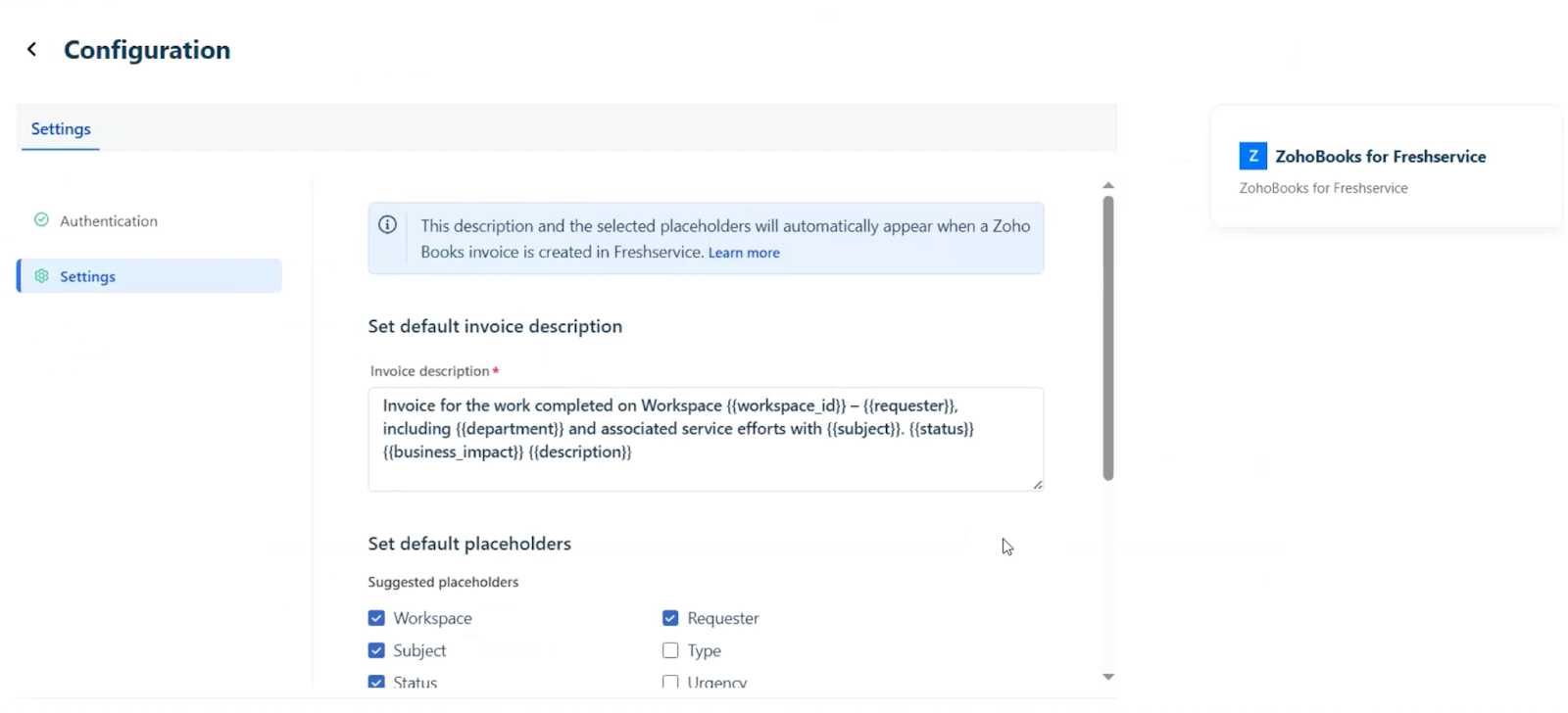
(After the Freshservice connection is successful) In the Settings section, set the default invoice description by selecting the required placeholders.
Note: You can select the required placeholders from Suggested placeholders (such as, Workspace, Status, Requester, and so on) or add custom placeholders using the Add placeholders option.
Click Install to install the app.
Add time entry and generate invoice for a ticket
To add the time entry and generate invoice, follow these steps:
Log in to your Freshservice account.
Go to Tickets > List.
Click any ticket Subject to open the ticket Details page.
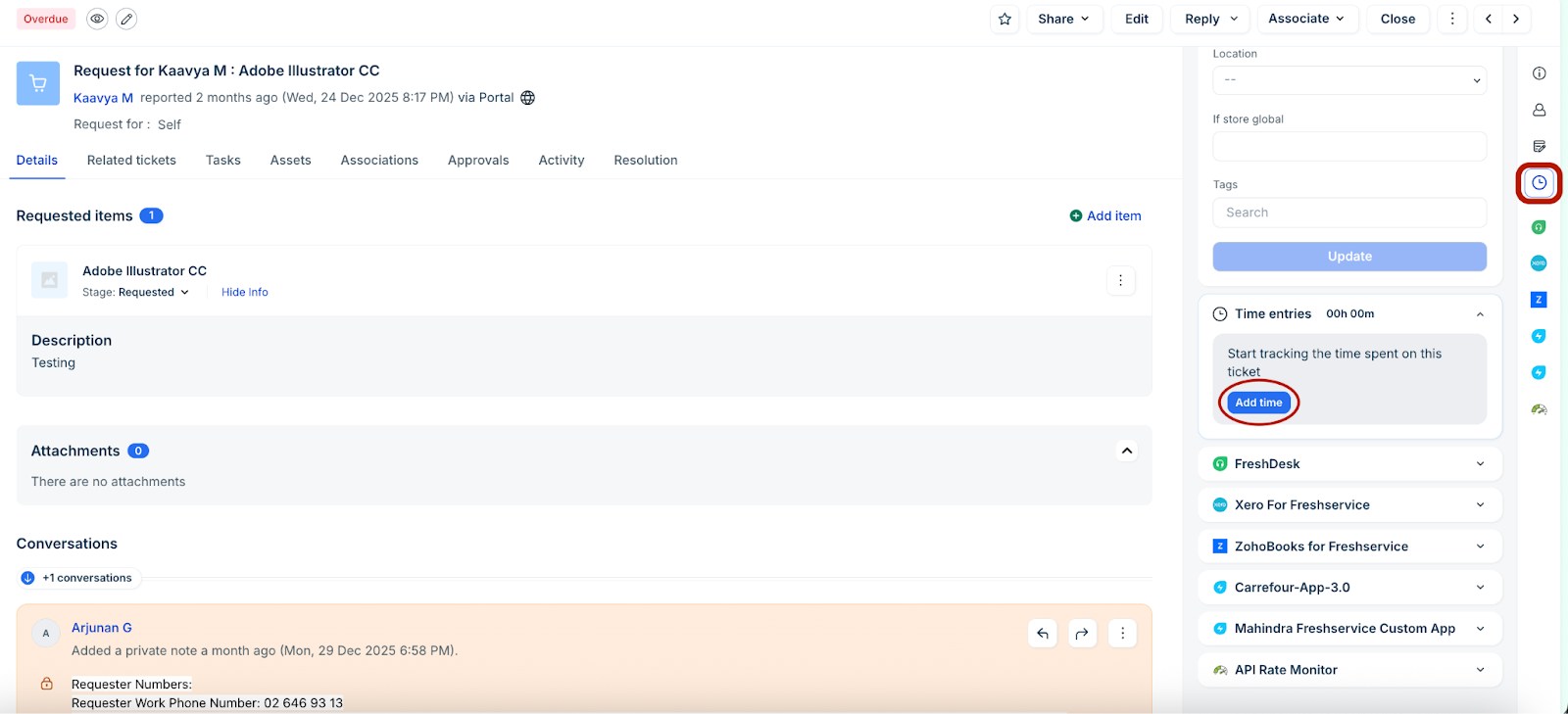
Click the Time entries icon on the right side of the page, and click Add time.
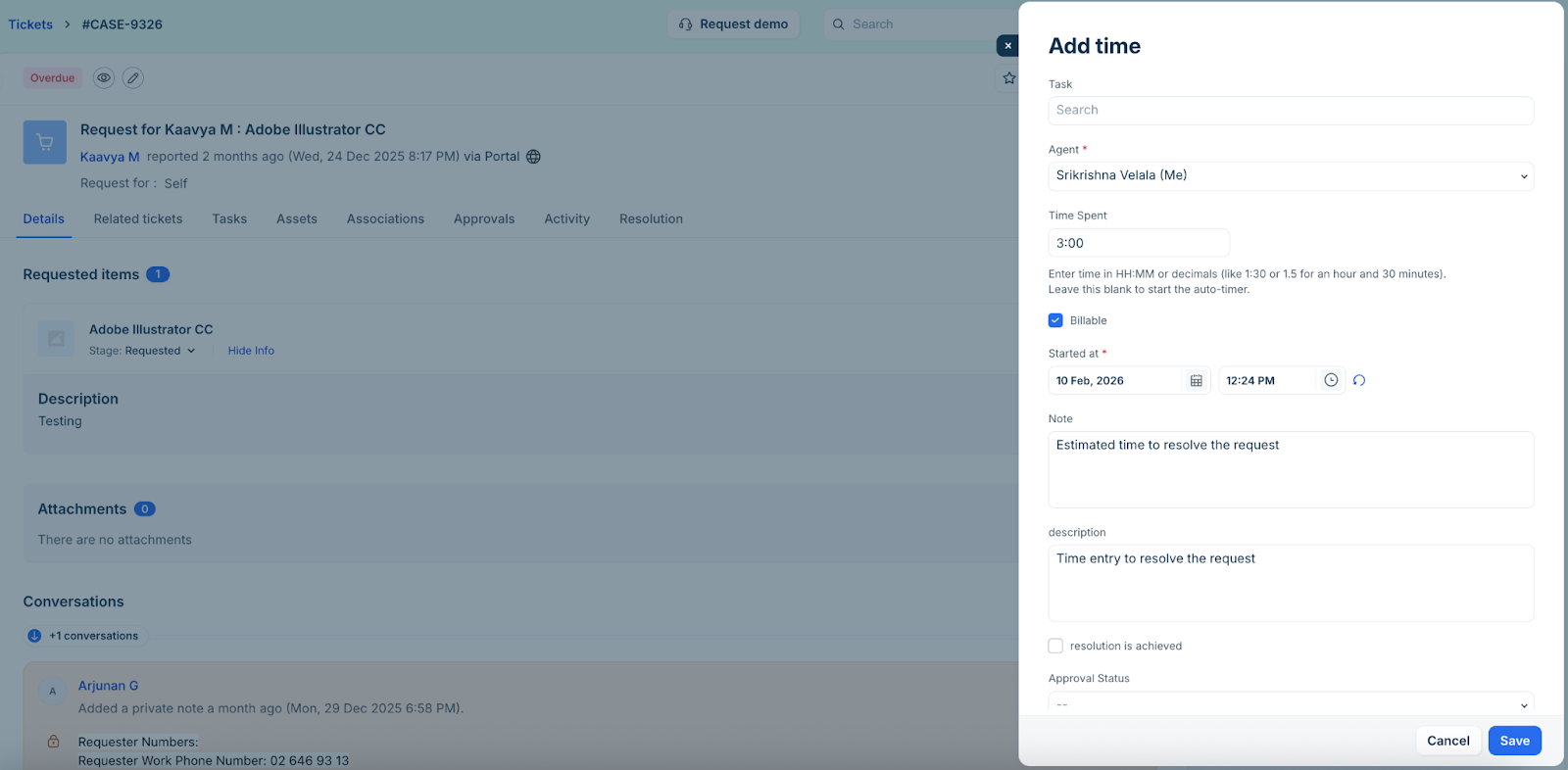
In the Add time slider, specify all the relevant time entry details, such as Time Spent, Started at, Agent, Description, and so on. Then, click Save.
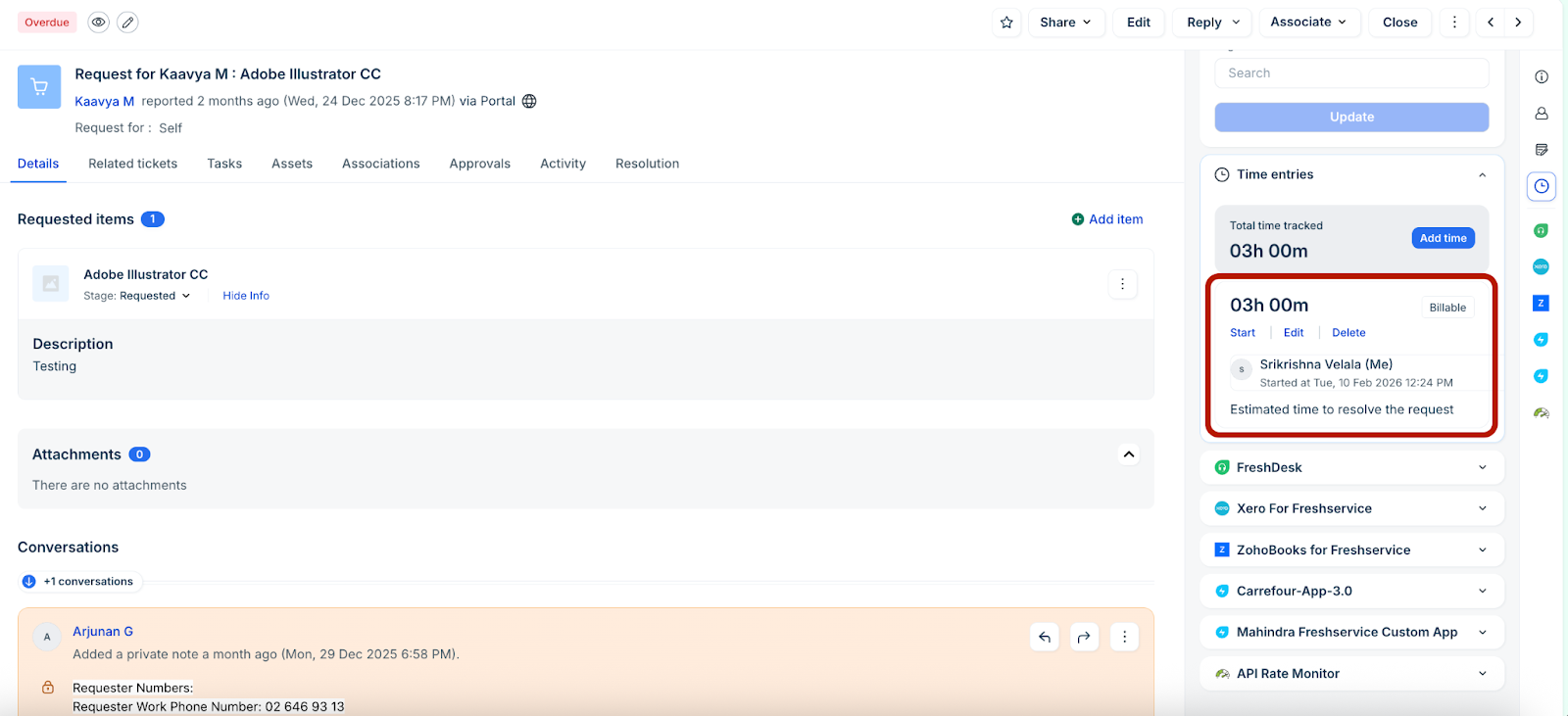
The time entry will be added under Time entries.
Note:
You can add only one time entry per ticket.
Use the Start, Edit, or Delete options to update the time entry.
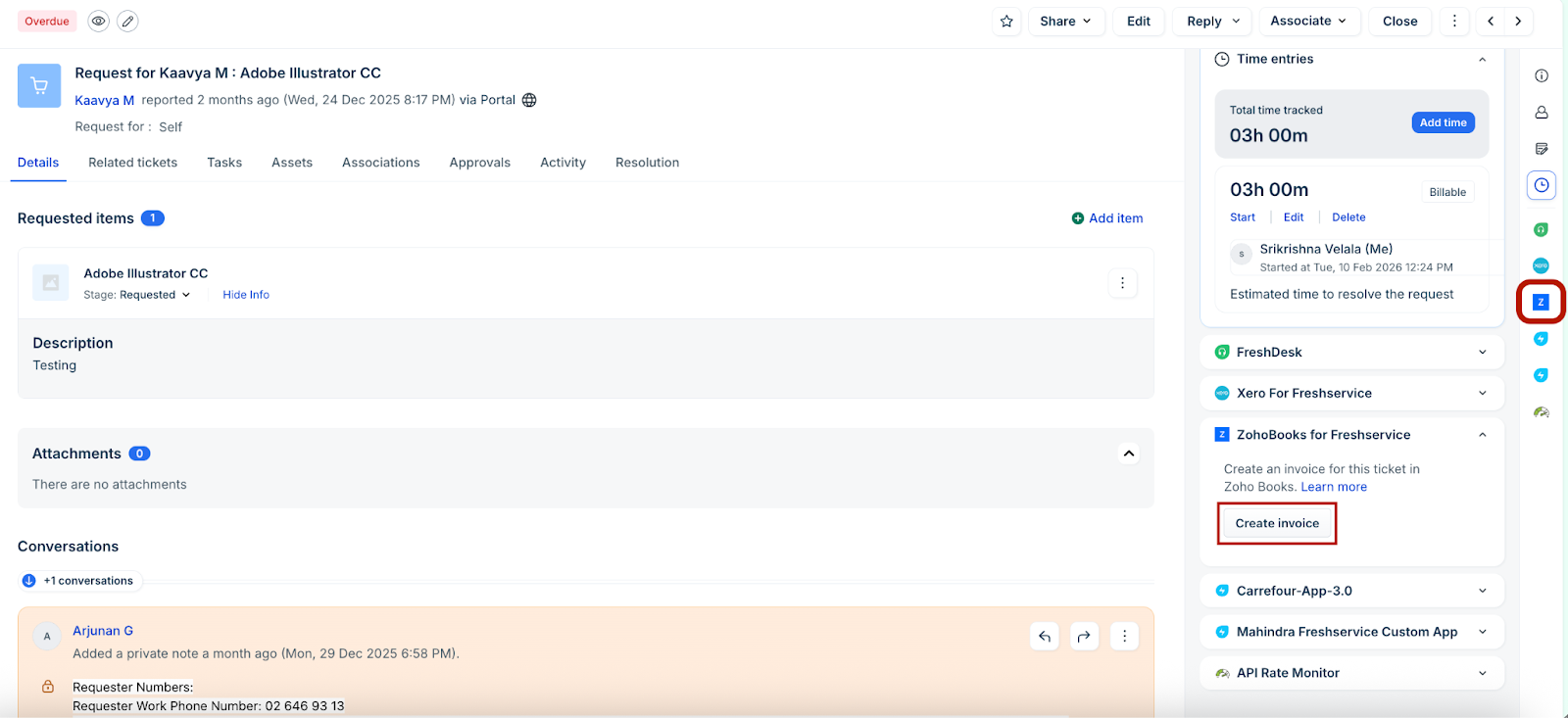
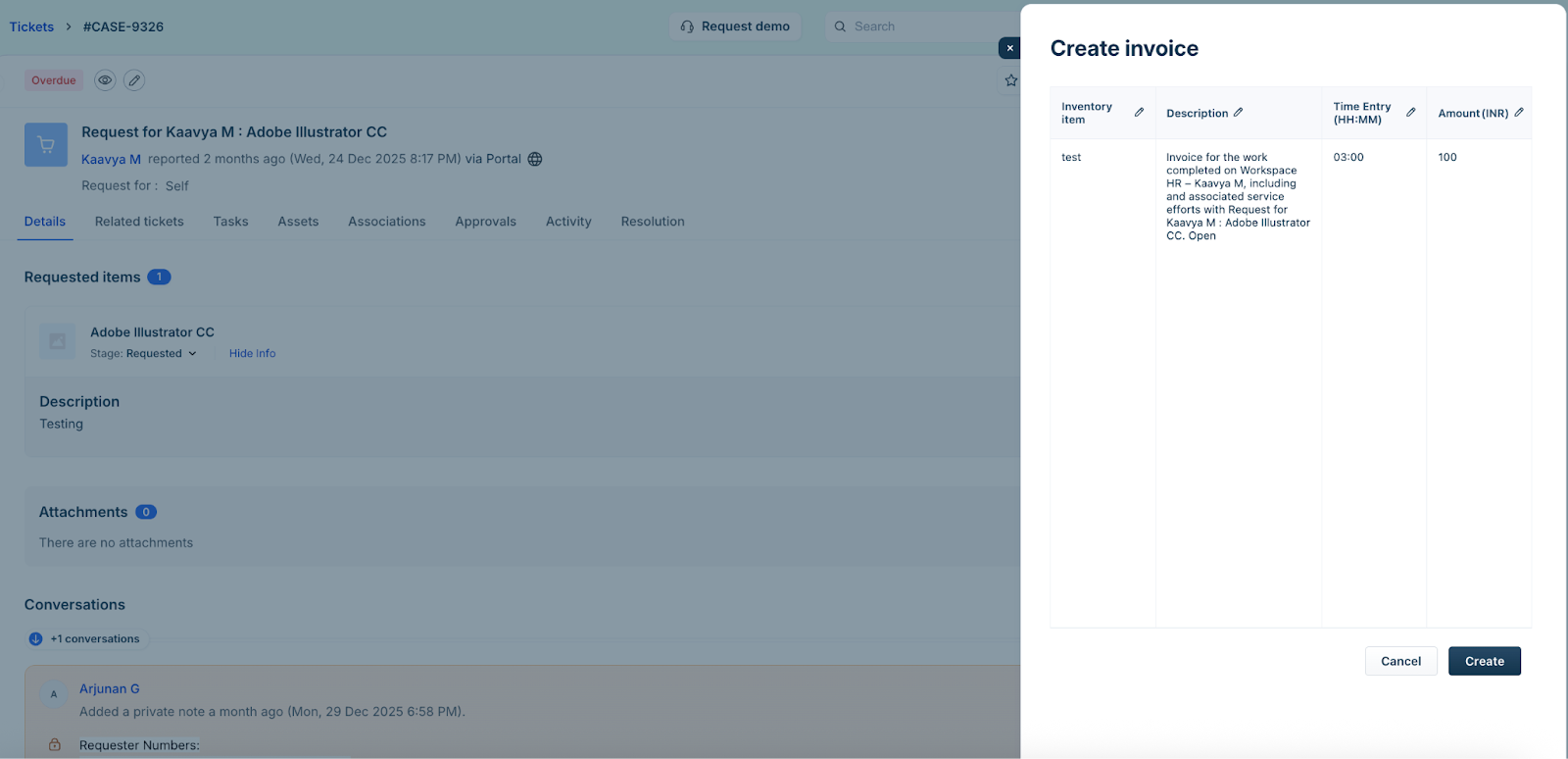
Now, click the ZohoBooks widget on the right side of the ticket details page, and click Create invoice.
In the Create invoice slider, review all the details, such as Inventory item, Description, Amount, and so on. Click Create.
Note: Use the pen icon under each column to modify any details.
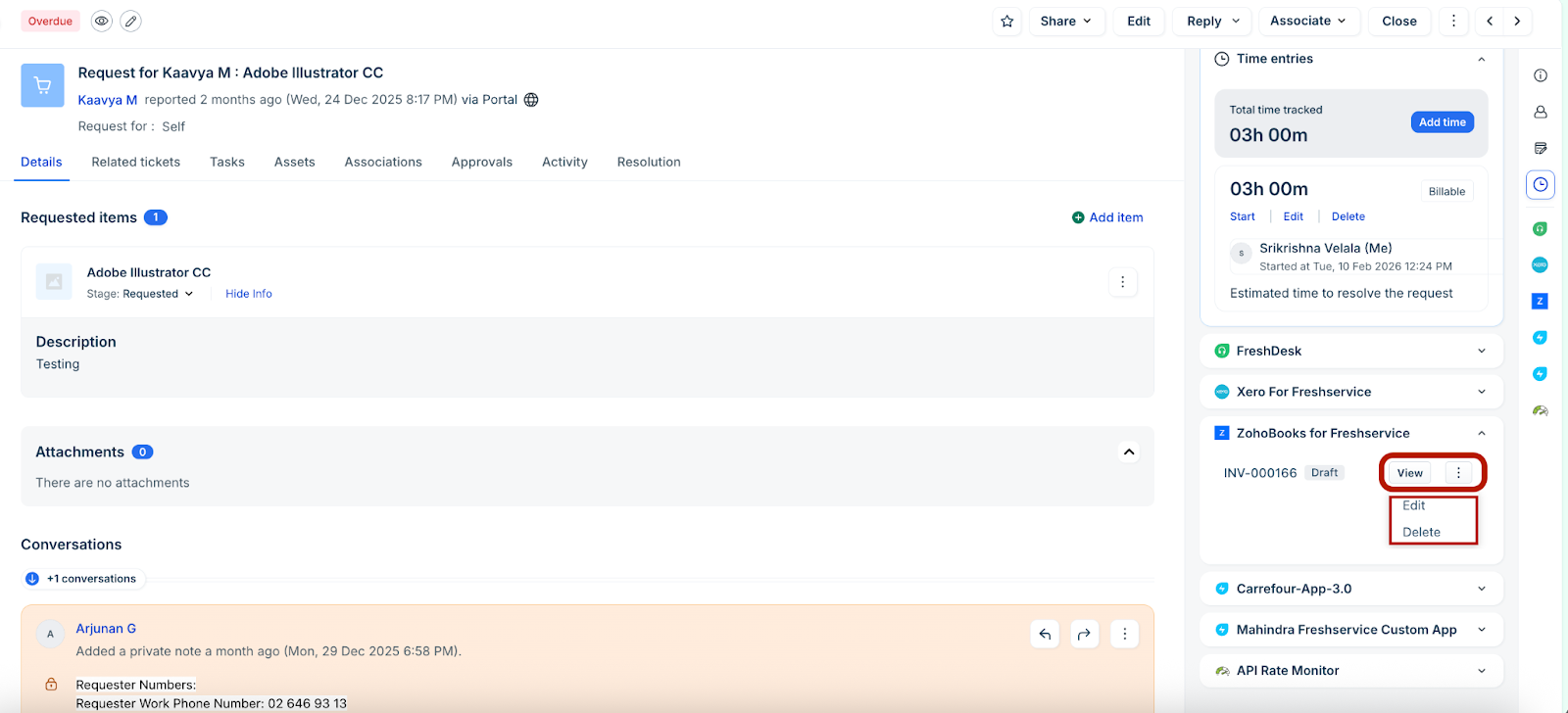
The invoice will be added under ZohoBooks widget within the Freshservice ticket.
Click View to view the invoice details. Or, use the Edit or Delete options from the ellipses to update the invoice.