Community
 Video Library
 Agent Training
 Freshservice
 Freshdesk
 Freshchat
 Freshcaller
 Freshsales
 Freshteam
 Freshworks Neo
 Freshsurvey
 Freshservice for MSP
 Freshservice’s integration with Hubstaff lets IT teams track and monitor the duration of time spent by agents while working on Freshservice tickets.
Overview
The integration syncs all ticket-related time-entry data from Freshservice to Hubstaff and provides a consolidated view of agent activity. Hubstaff records information such as the time an agent spends on a ticket, and supports the multiple time entries for work completed at different intervals regarding a ticket. It also records the time spent by different agents working on the same ticket as a single task in Hubstaff, improving visibility and accuracy in time tracking.
Install and set up Hubstaff
Install Hubstaff app in Freshservice to track and monitor time spent by agents on Freshservice tickets. After installing the Hubstaff app, every agent has to configure the app. Follow these steps to install and configure Hubstaff.
Log in to Freshservice as an administrator.
Go to Admin > Apps > Get More Apps.
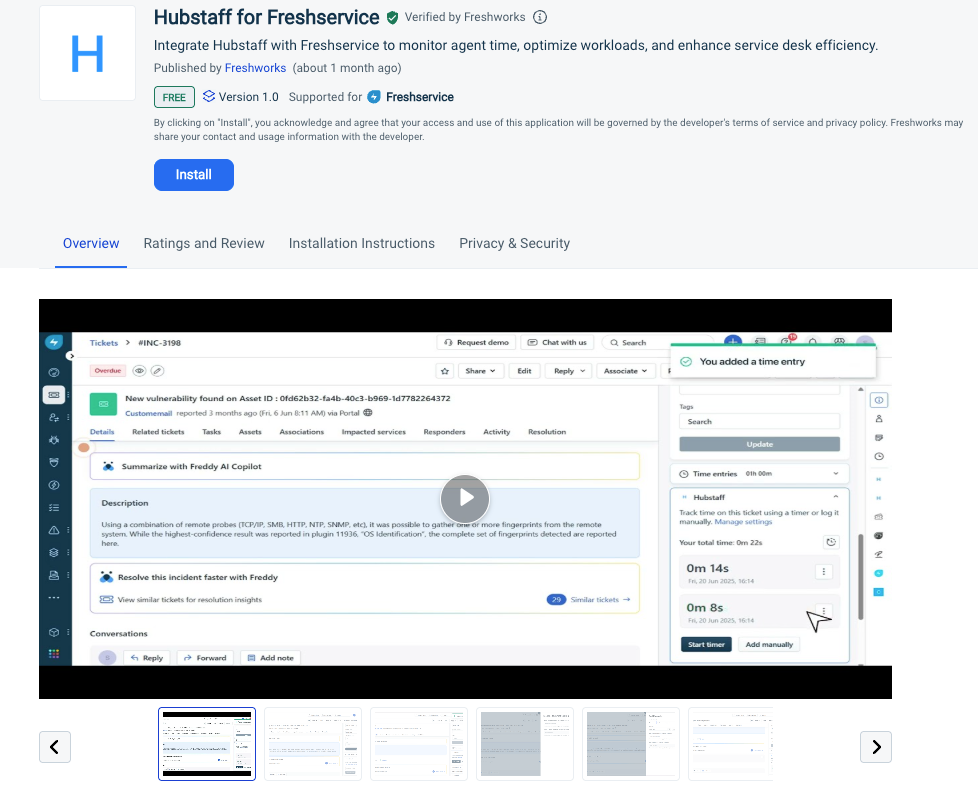
Search for the Hubstaff app and click Install.
Or, you can go to Freshworks Marketplace, search for the Hubstaff app, and install it.
The Hubstaff app is installed successfully in your Freshservice account.
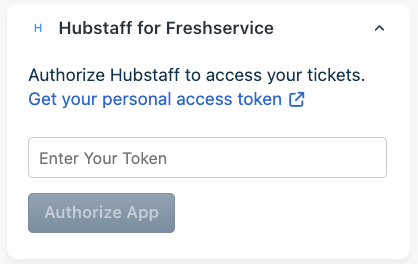
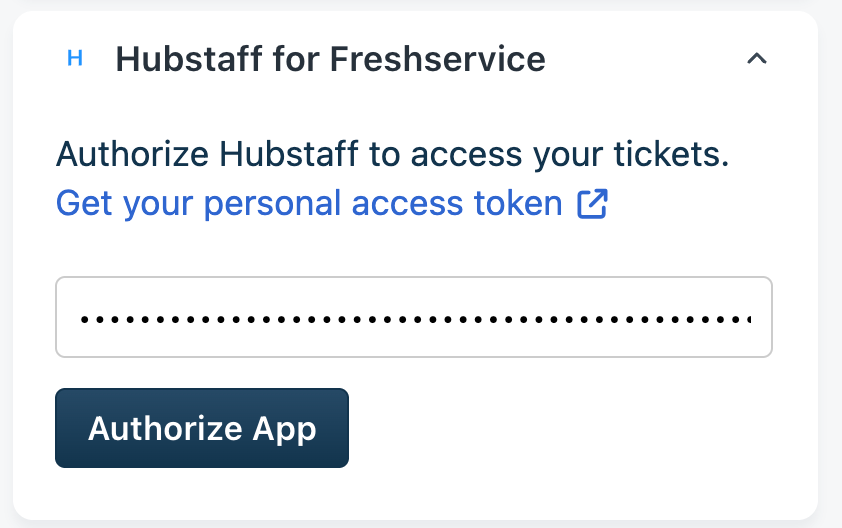
From the Hubstaff portal, click Get your personal access token link and create a personal token.
Go to any ticket and scroll down.
You can view the Hubstaff for Freshservice panel in the bottom-right corner.Enter the personal token in Enter your token field and click Authorize App.
You can click Get your personal access token link to get your personal token.
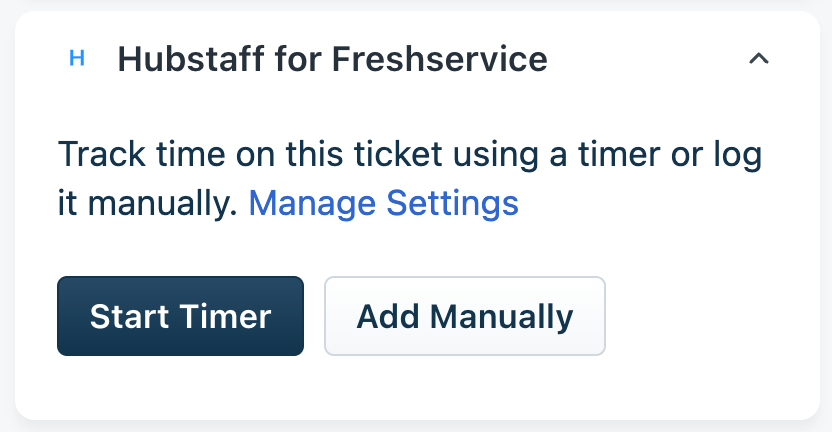
A success is displayed to confirm authorization of the Hubstaff app. You can view Manage Settings, Start Timer, and Add Manually options on the Hubstaff for Freshservice panel.
Record ticket time using Hubstaff for Freshservice
You can record time spent on a Freshservice ticket using the Hubstaff for Freshservice app. Hubstaff lets you start a live timer when you work on a ticket and also manually enter time logs.
Set up Hubstaff
To set up your organization and project in Hubstaff where you want to sync the time entries, follow these steps.
Go to your Freshservice ticket.
Scroll down to the bottom-right corner and search for Hubstaff for Freshservice panel.
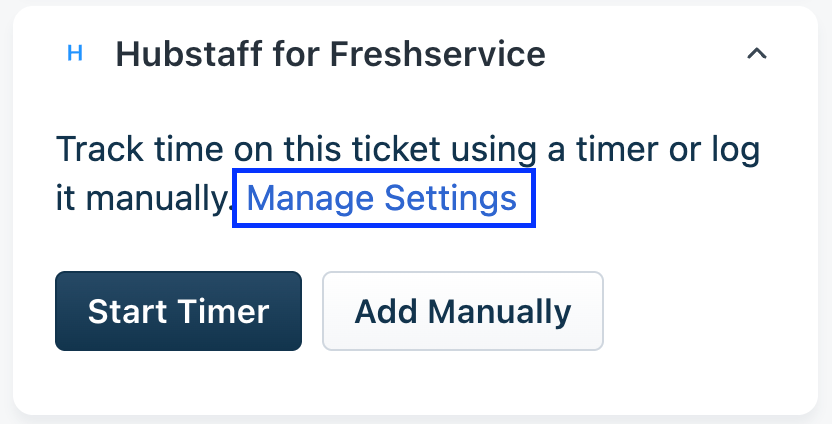
Click Manage Settings link.
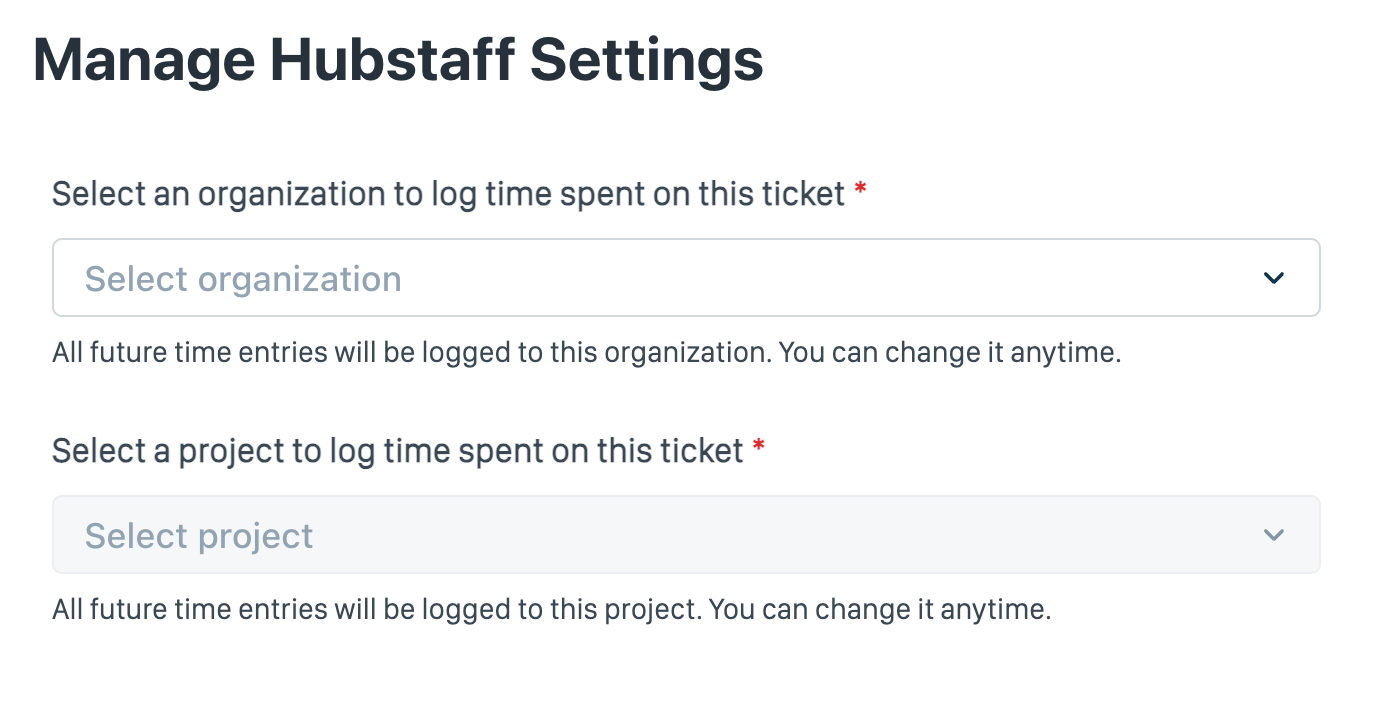
Under Manage Hubstaff Settings, select your Hubstaff organization and project.
Click Update.
Follow these steps to record time you spend on a ticket using Hubstaff.
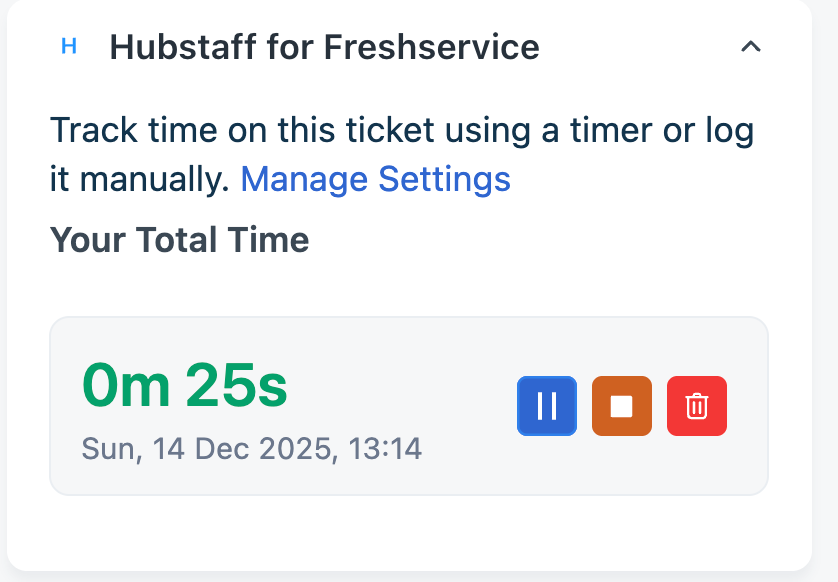
On the Hubstaff for Freshservice panel, click Start Timer to start the live timer.
The live timer starts as displayed in the following image.
You can pause, stop, or delete the live timer any time by clicking the respective icons on the timer.
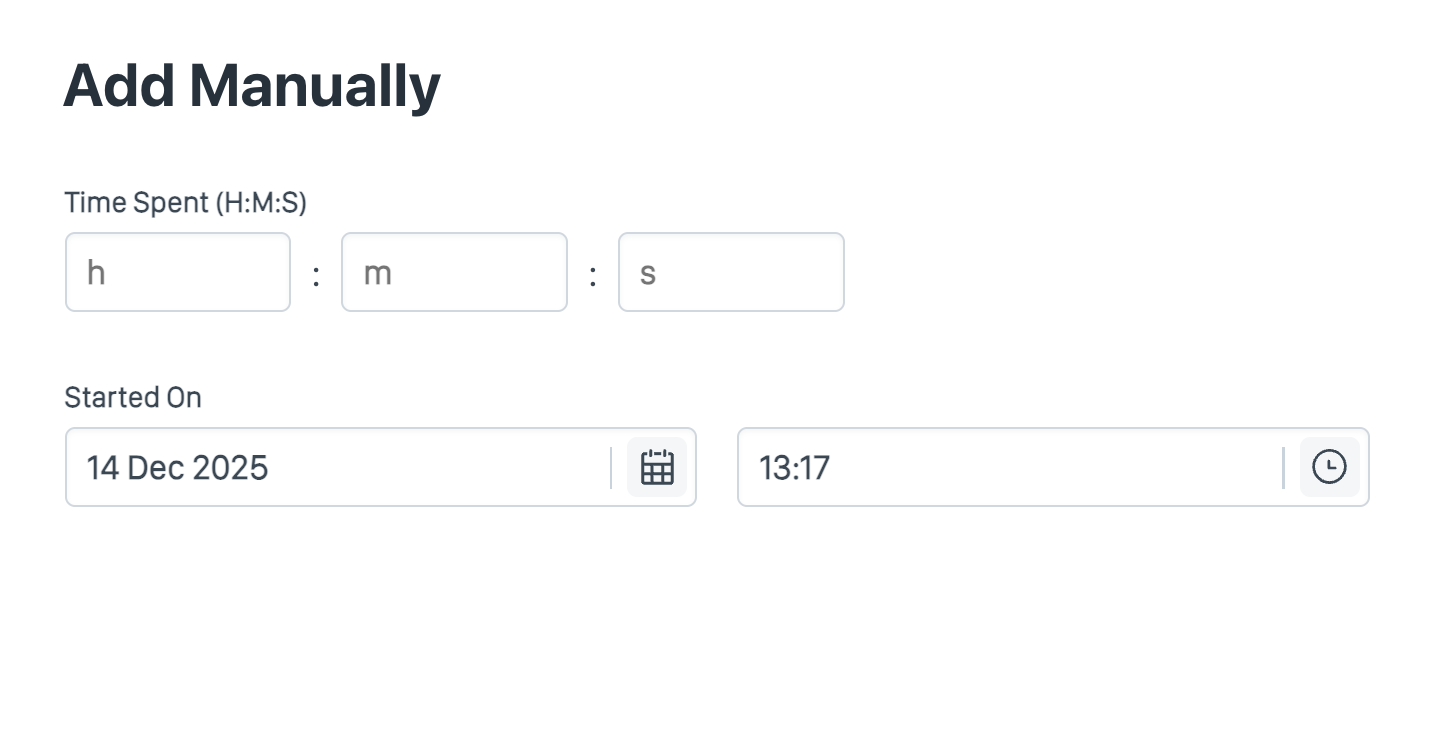
To add a manual timelog, click Add Manually.
Update the required fields and click Save.
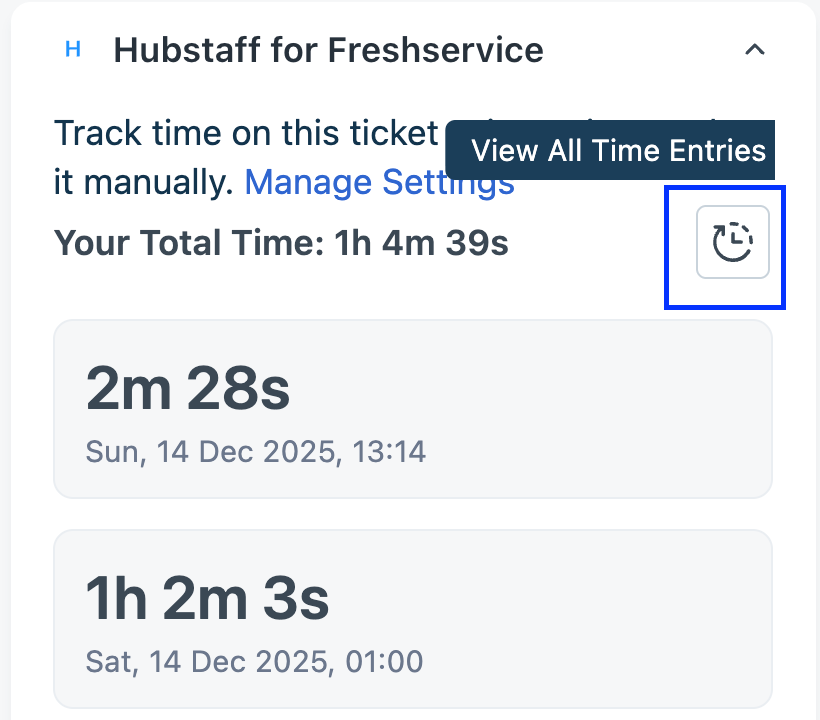
View all the time entries, added by live timer or manual entries, on the Hubstaff for Freshservice app panel.
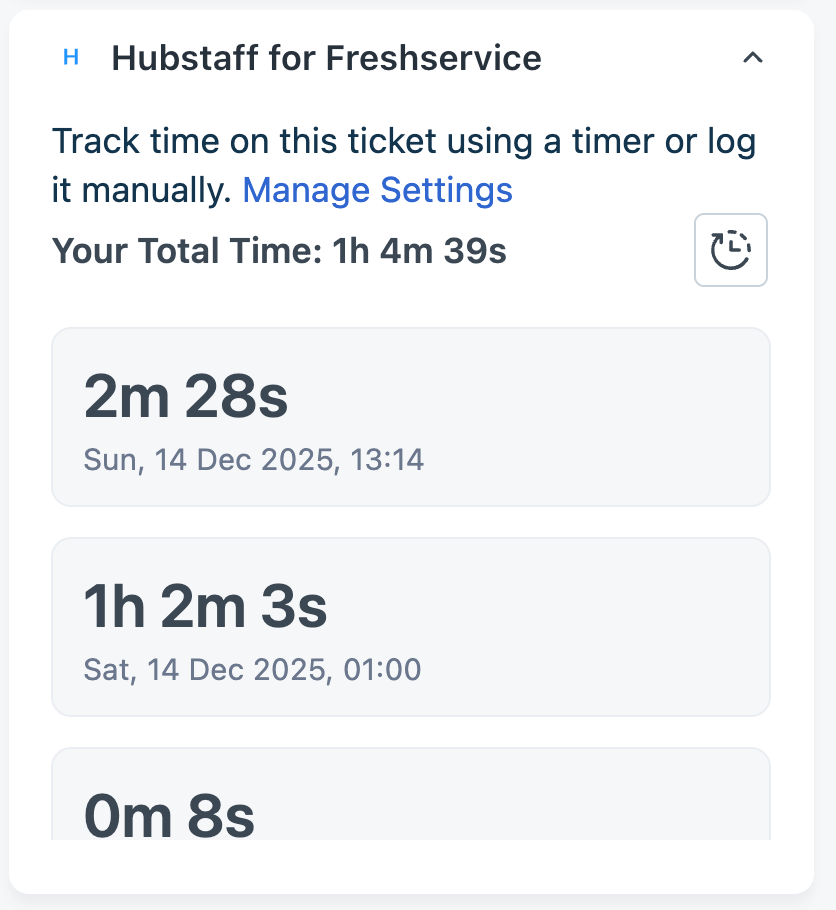
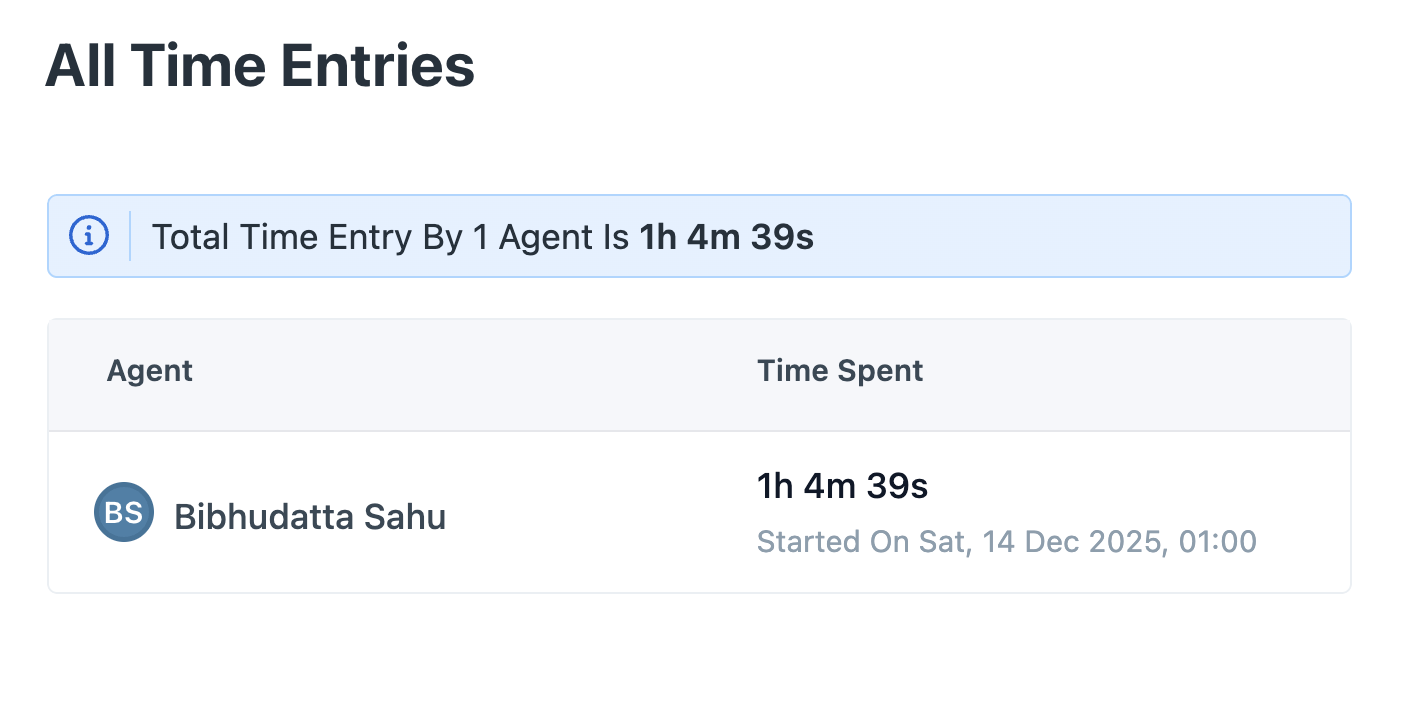
Click Timer icon to view the total time spent by all the agents.
Hubstaff shows the total duration of time spent by all the agents in a ticket as displayed in the following image: