
 Community
 Video Library
 Agent Training
 Freshservice
 Freshdesk
 Freshchat
 Freshcaller
 Freshsales
 Freshteam
 Freshworks Neo
 Freshsurvey
 Freshservice for MSP
 TABLE OF CONTENTS
- Prerequisites
- Overview
- Video walkthrough
- Admin experience
- Configure instructions for resolution notes
- Use Preview
- Agent experience
- Frequently asked questions
Resolution Note Generator, a Freddy AI Copilot feature, helps you create accurate and consistent resolution notes using customizable templates, configurable data sources, and intelligent regeneration.
Prerequisites
Before you use the Resolution Note Generator, ensure you have the following:
An active Freddy Copilot license is assigned to you.
Administrative access to modify Resolution Note Generator and Freddy AI Copilot settings.
Overview
Resolution notes provide a record of how a ticket was resolved and help support teams share knowledge and maintain consistent documentation. With the enhanced Resolution Note Generator, administrators can customize how resolution notes are generated and control the ticket information used to generate them.
The enhanced generator provides the following capabilities:
Plain-language template customization: Define how resolution notes should be generated using natural language without writing complex prompts or code.
Live Playground: Test configurations and instructions on a ticket, and preview the generated resolution note before applying the configuration.
Data Inclusion Filters: Control which ticket data sources are used when generating resolution notes.
Service Request templates: Use standardized configurations and instructions to generate resolution notes for service requests.
Staleness detection: Get notified when ticket activity makes an existing resolution note outdated.
Video walkthrough
The following video explains how the Resolution notes generator works:
Admin experience
Administrators can configure resolution note generation through AI Agent Studio > AI Copilot > Resolution notes. The settings are organized into Configuration and Instructions pages.
The Configuration page controls the ticket data used as context and the high-level structure of the resolution note. The Instructions page controls the tone, structure, rules, and behavior followed when generating the note.
Configure resolution note settings
Use the Configuration page to select the sections included in resolution notes and control the ticket data used to generate them.
To configure resolution note settings, follow these steps:
Go to AI Agent Studio > AI Copilot.
In the list of settings, locate Resolution Note Generator and click the Configuration icon.
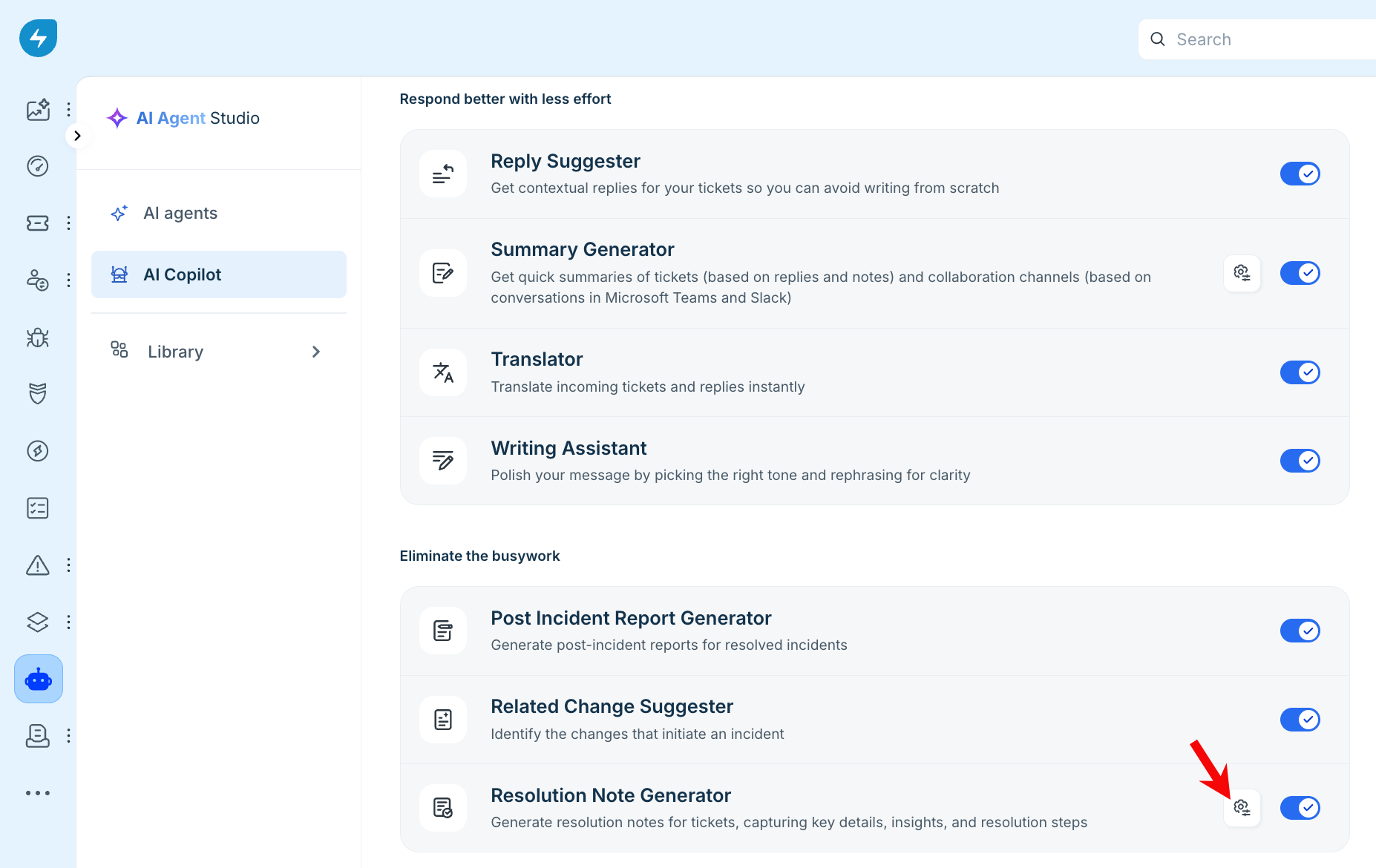
Under Resolution notes for incidents, follows these steps:
Incident summary is included in the resolution note by default.
Enable or disable Troubleshooting and fix applied to include or exclude the diagnostic steps and final actions taken by the agent to resolve the incident.
Enable or disable Root cause and verification checks to include or exclude the underlying reason for the incident and the checks performed to verify the fix.
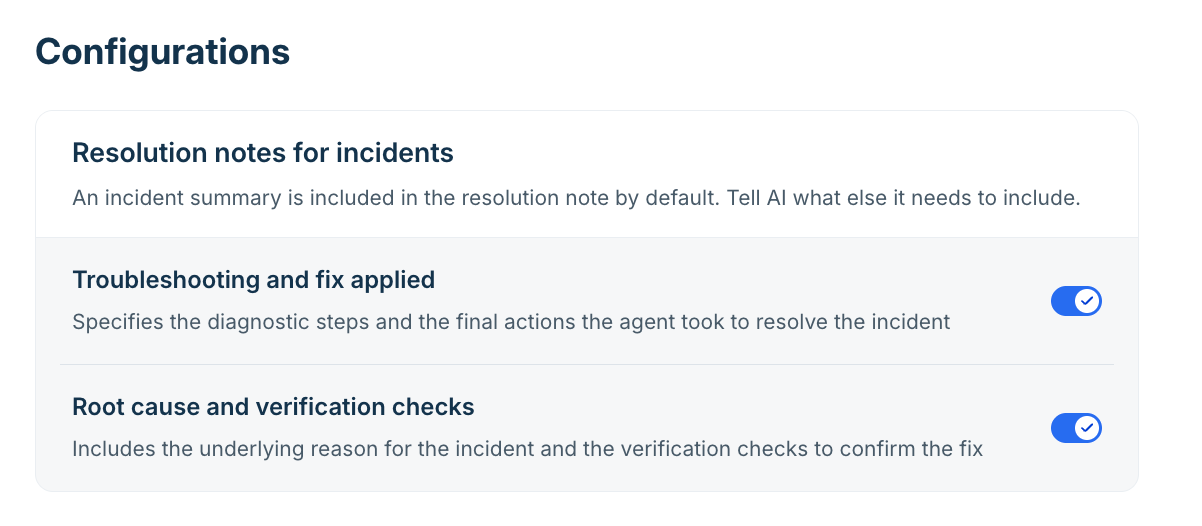
Under Resolution notes for service requests, follows these steps:
Service request summary is included in the resolution note by default.
Enable or disable Actions taken to include or exclude the steps taken by the agent to fulfill the service request.
Enable or disable Pre-requisites checked to include or exclude the criteria met before the service request was taken up by the agent.
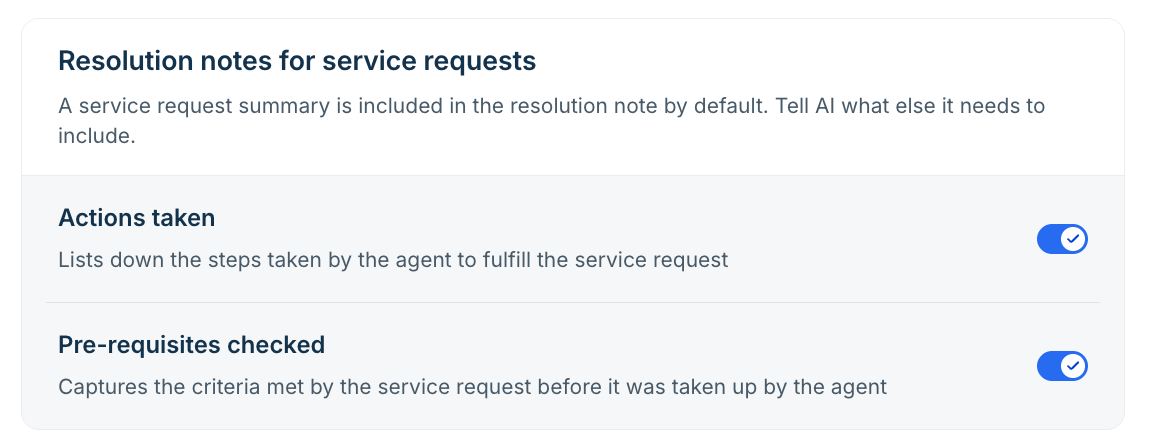
Under Data sources for resolution notes, review the data sources used to provide context to the AI. Ticket title, Description, and Replies are used by default.
Enable or disable the following additional data sources as required:
Public notes: Includes context from publicly shared updates in ticket conversations beyond replies.
Private notes: Includes context from private discussions and backend investigations.
Activity timeline: Includes the sequence of ticket events to provide context about the issue.
Ticket fields: Includes information from default and custom ticket fields. If Ticket fields is enabled, click Manage fields and select the ticket fields that the AI should use when generating the resolution note.
Child tickets: Includes context from linked child tickets to provide a broader view of the issue.
Manage ticket fields
When Ticket fields is enabled, you can select the specific fields that the AI uses as context when generating resolution notes. The field picker includes both default and custom fields available in your account.
Use the search bar in Manage fields to quickly find a field, select the required fields (up to 5), then click Save.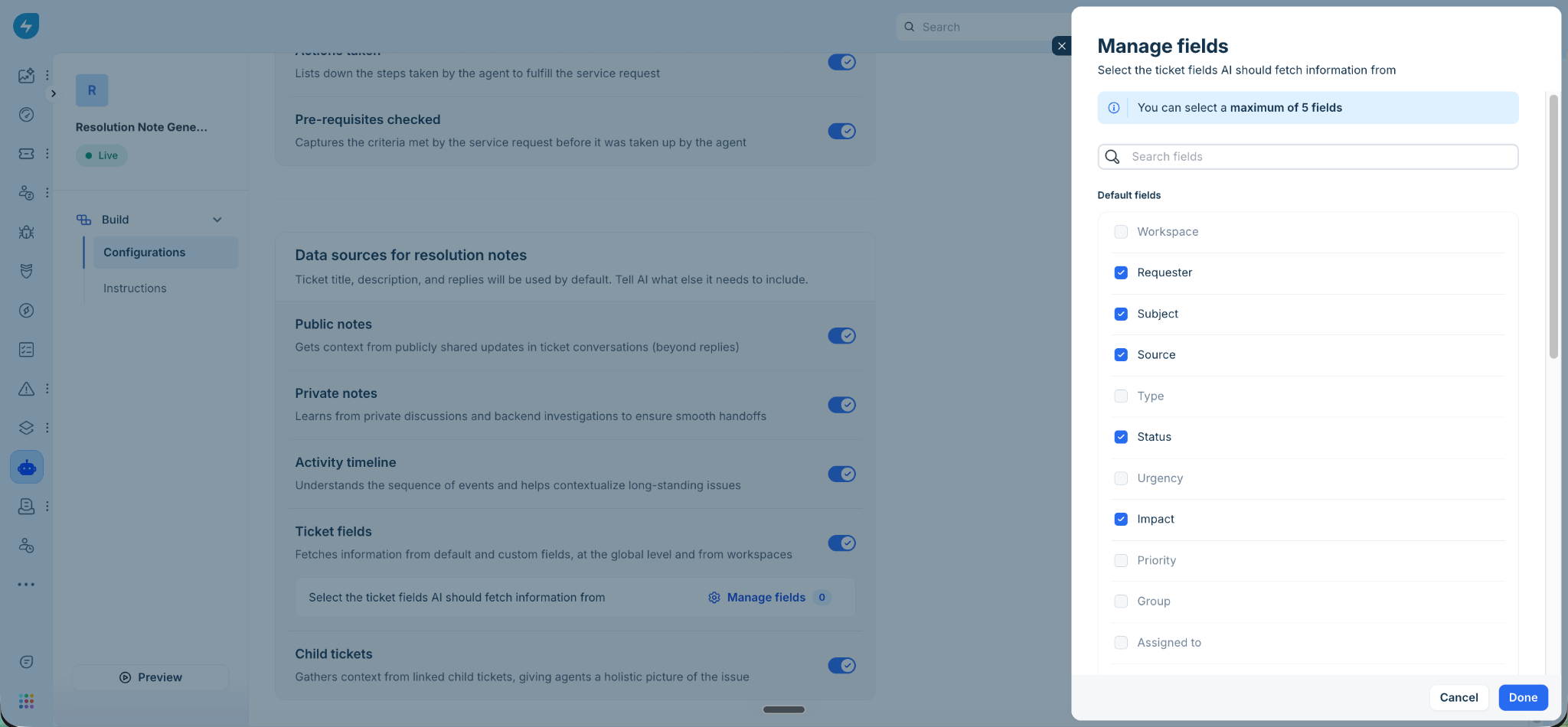
Configure instructions for resolution notes
The Instructions page lets you define how AI generates content for Copilot features that use these instructions, including resolution notes. You can configure separate instructions for incidents and service requests to ensure that the generated content focuses on information relevant to each ticket type.
For incidents, instructions can emphasize the issue, troubleshooting performed, actions taken, root cause, and resolution details. For service requests, instructions can focus on the requested service, fulfillment actions, approvals, eligibility checks, and other relevant requirements.
Freshservice provides default instructions as part of the standard get started template. These instructions provide guidance on the structure, tone, and other aspects that AI Copilot follows when generating content. Edit them only when you need to make significant changes to how resolution notes are generated or structured.
For most customization needs, use Additional instructions to tailor the output to your requirements. For example, you can ask AI to exclude customer pleasantries, prioritize troubleshooting details for incidents, capture approval references for service requests, or specify how missing information should be handled.
For more information and examples, see Write effective instructions for AI Copilot output.
Step-by-step instructions
To configure instructions, follow these steps:
Go to AI Agent Studio > AI Copilot > Resolution Note Generator > Instructions.
Select Instructions for incidents or Instructions for service requests.
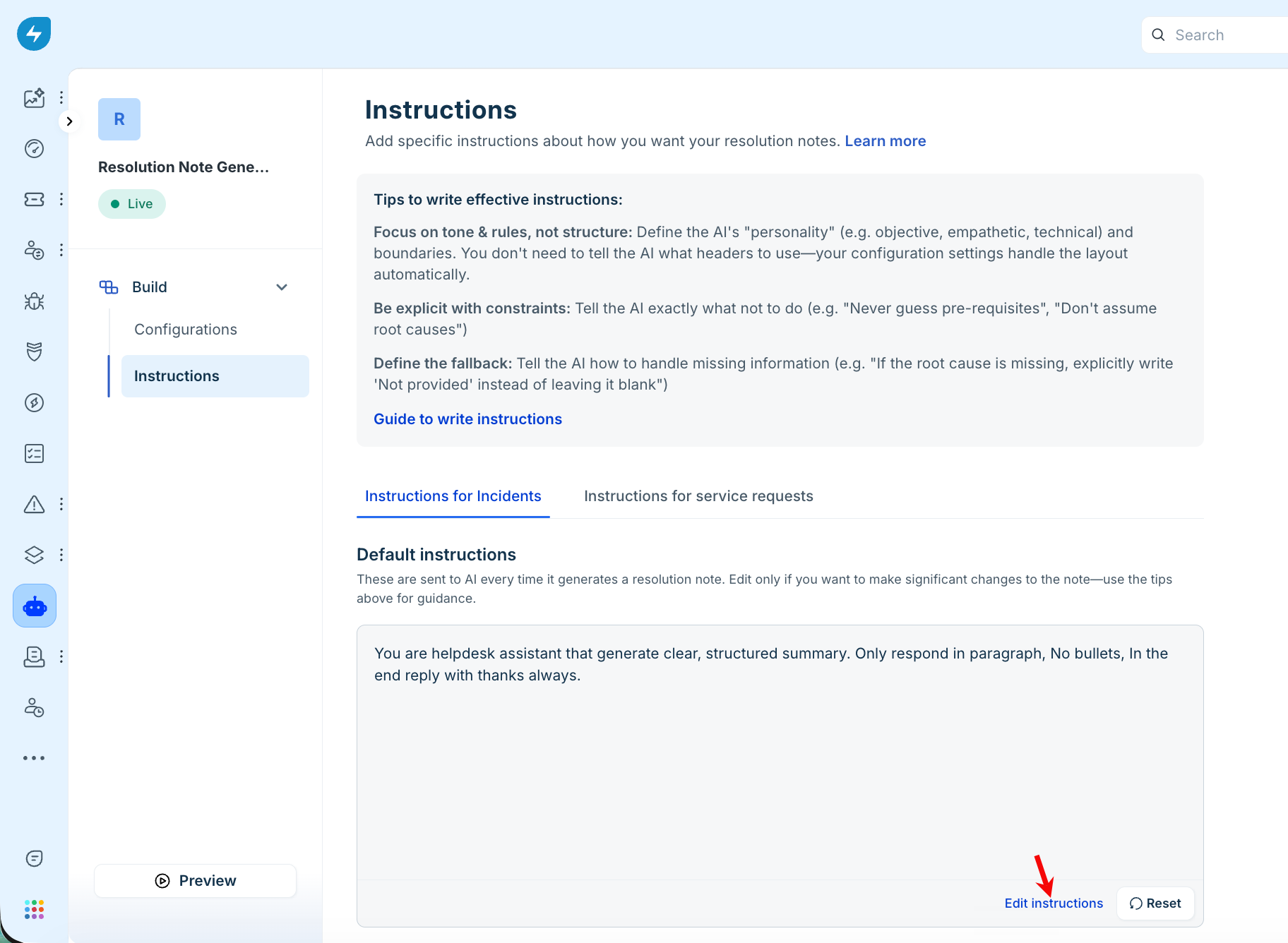
Review the Default instructions that apply each time a resolution note is generated. Freshservice provides baseline default instructions that define the general output structure and behavior.
To make significant changes to the default behavior, click Edit instructions.
In the confirmation dialog, click Edit instruction to proceed.
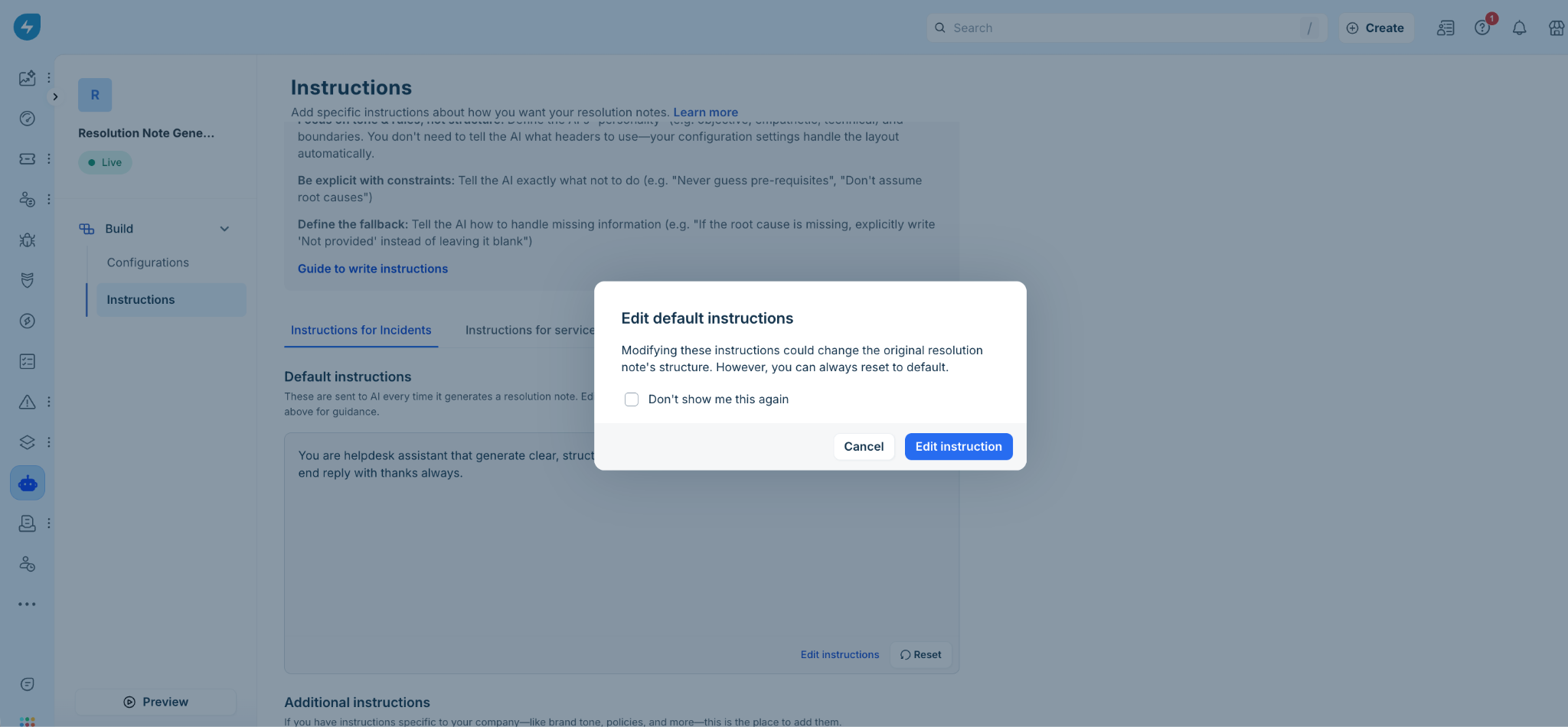
Update the default instructions as required.
Under Additional instructions, enter company-specific rules, tone requirements, or conditional instructions.
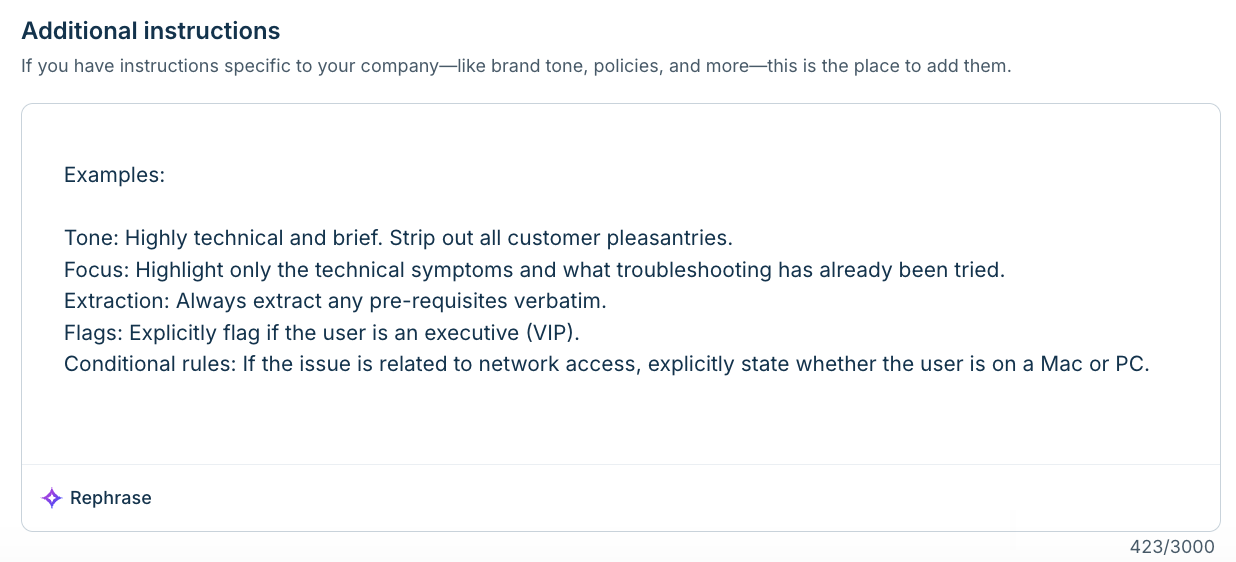
If required, click Rephrase to improve the clarity and precision of your instructions.
Save your changes.
The Additional instructions field supports up to 3000 characters.
Note: Use the tips panel on the Instructions page for guidance on writing effective instructions.
Use Preview
Use Preview to test your configuration and instructions with a real ticket before making the changes available to agents.
To preview a resolution note, follow these steps:
Go to AI Agent Studio > AI Copilot > Resolution Note Generator.
Click either the Configurations or Instructions tab.
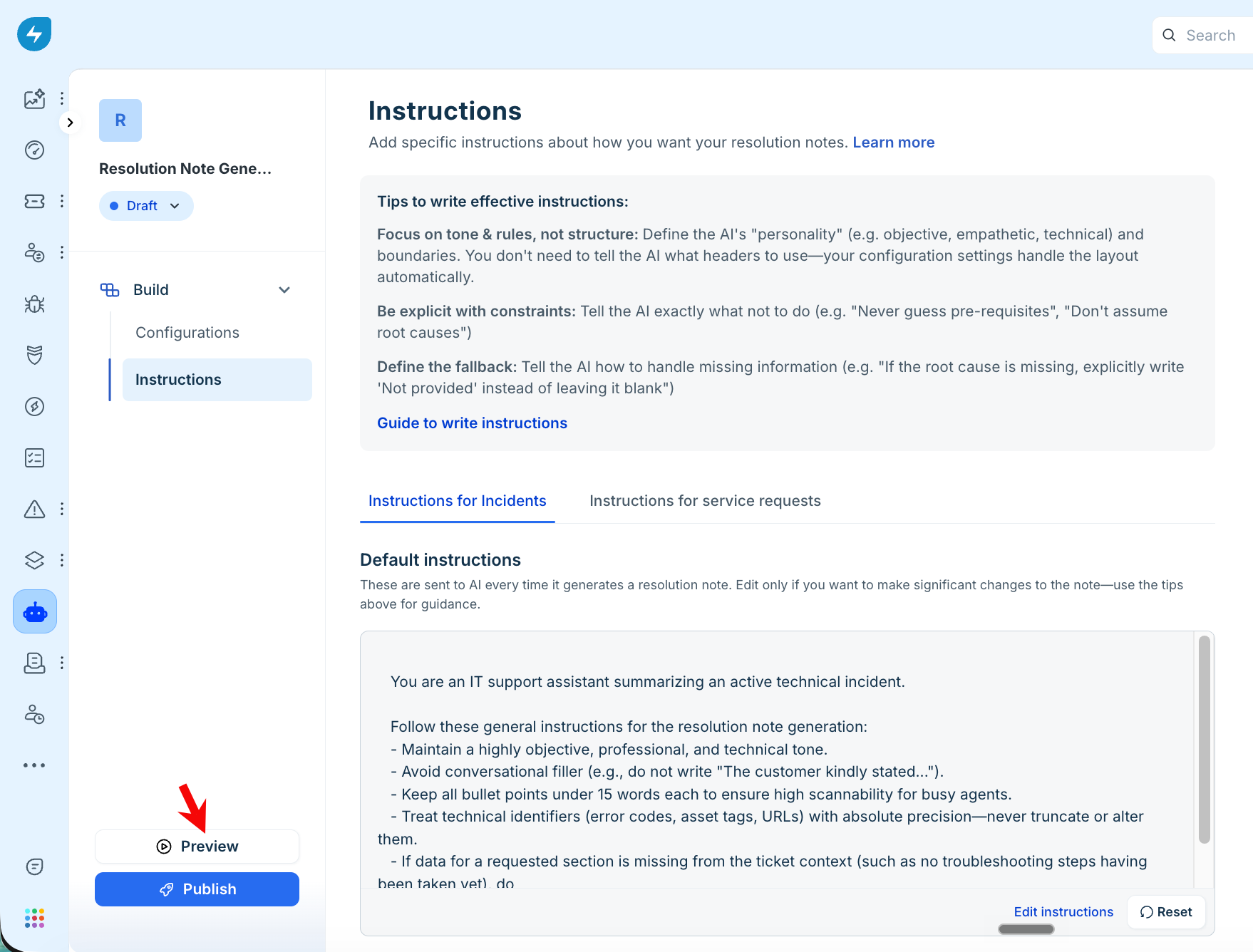
Click Preview at the bottom-left of the page.
In the Preview panel, search for a ticket with its subject or ticket ID.
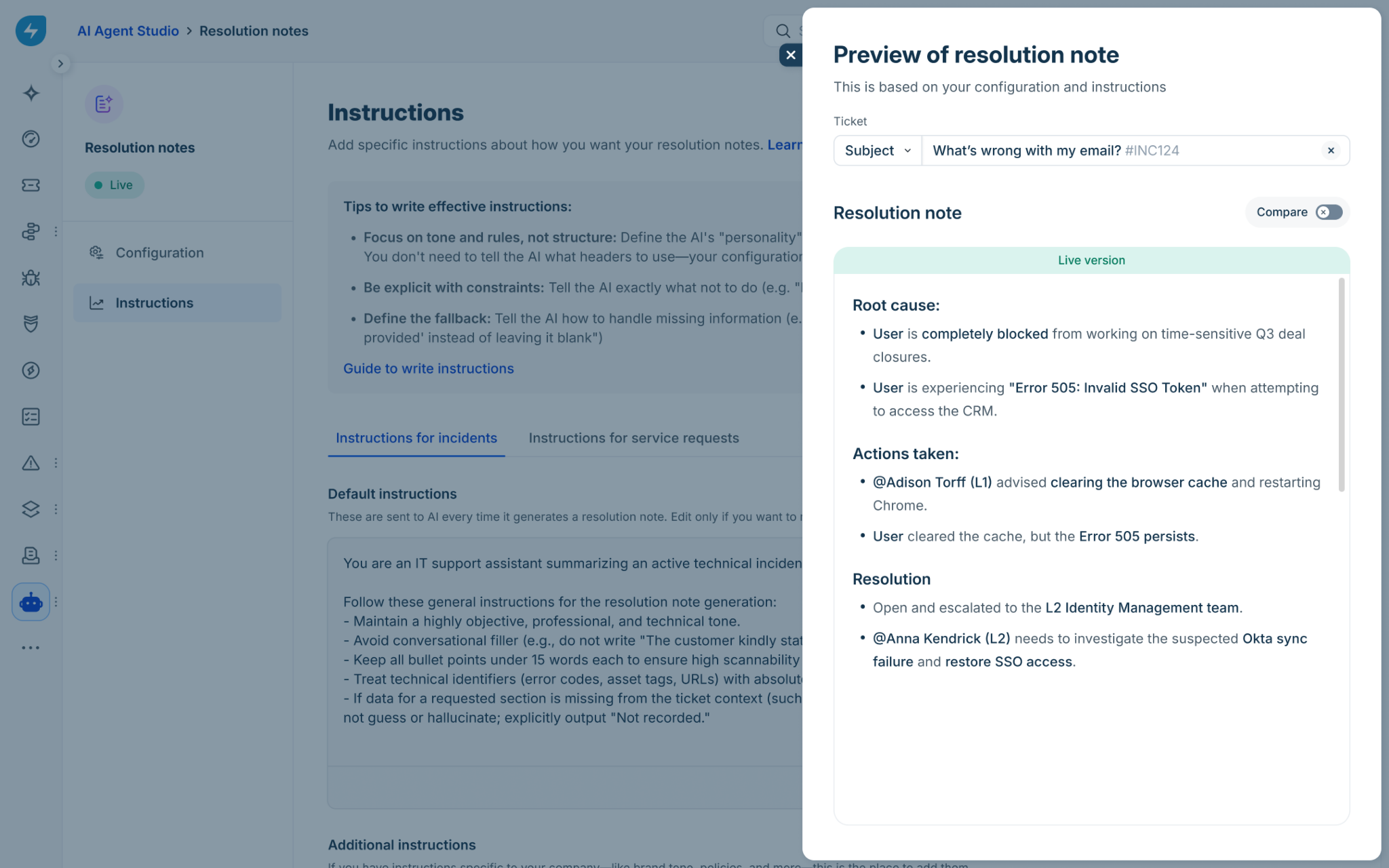
Review the resolution note generated using your current configuration and instructions.
Use the Compare toggle to compare the resolution note generated by the Draft version, which uses the configuration and instructions you are currently configuring and testing.
Note: The Live version uses the previously published configuration and instructions that are currently active.When you're satisfied with the configuration, select Save as draft to continue editing later or Publish to make the configuration live.
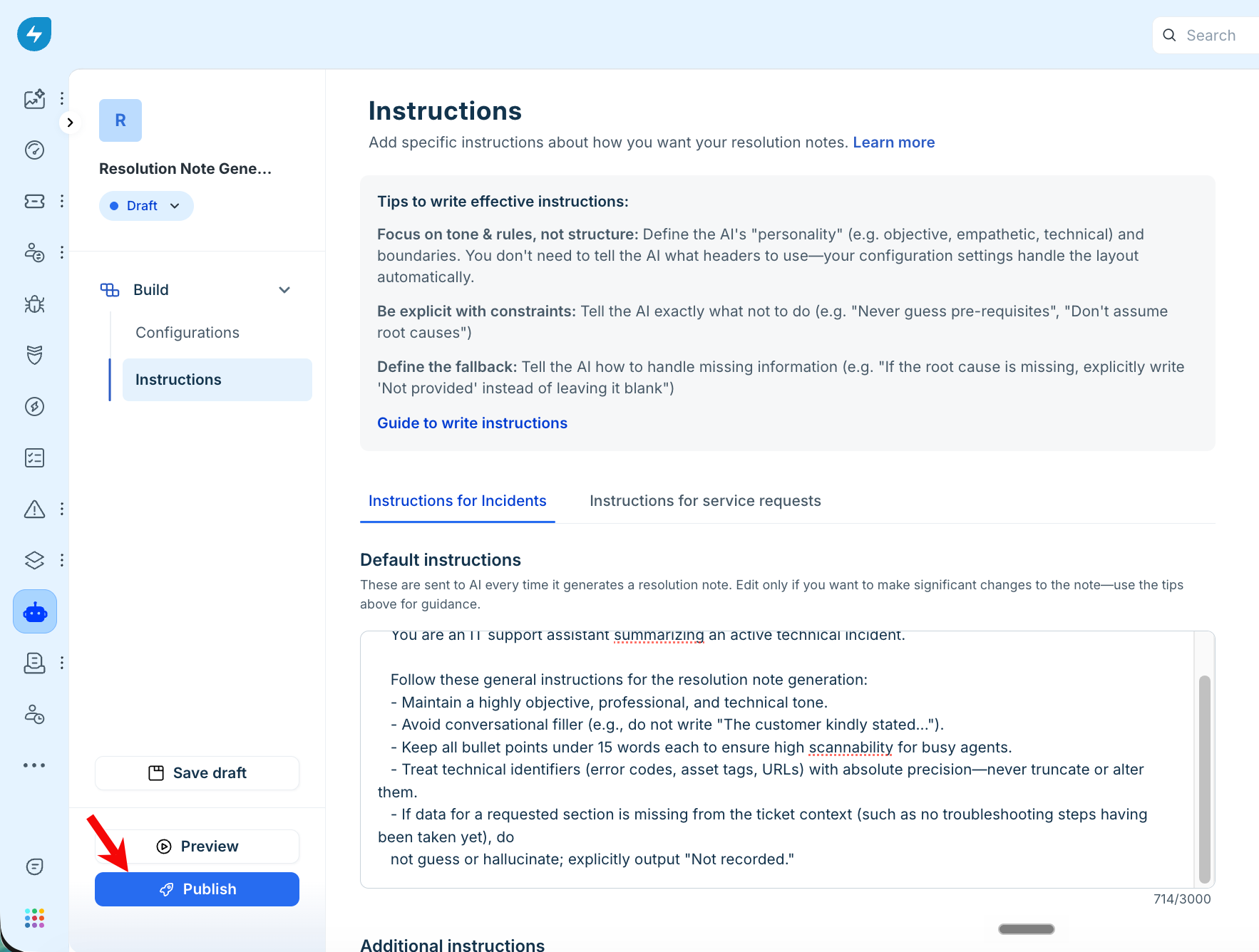
After publishing, use the Preview button to cross-verify the Copilot feature before deploying it to your agents.
Agent experience
Agents can generate resolution notes from the ticket. The generated note follows the configuration and instructions defined by the administrator for the ticket type.
Generate a resolution note
To generate a resolution note, follow these steps:
Open a ticket in the Resolved state.
Go to the Resolution tab and click Generate Resolution Note.
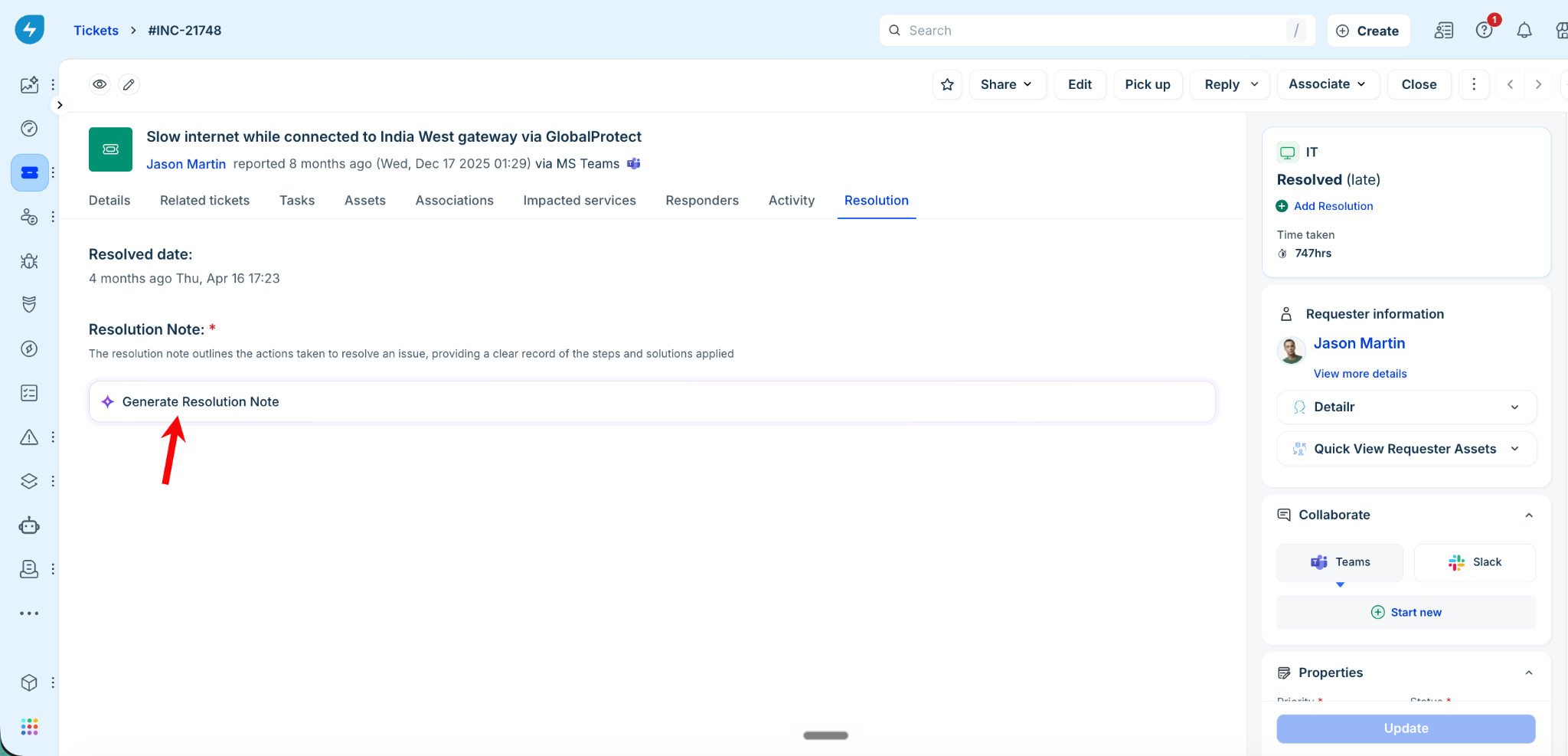
Review the generated resolution note.
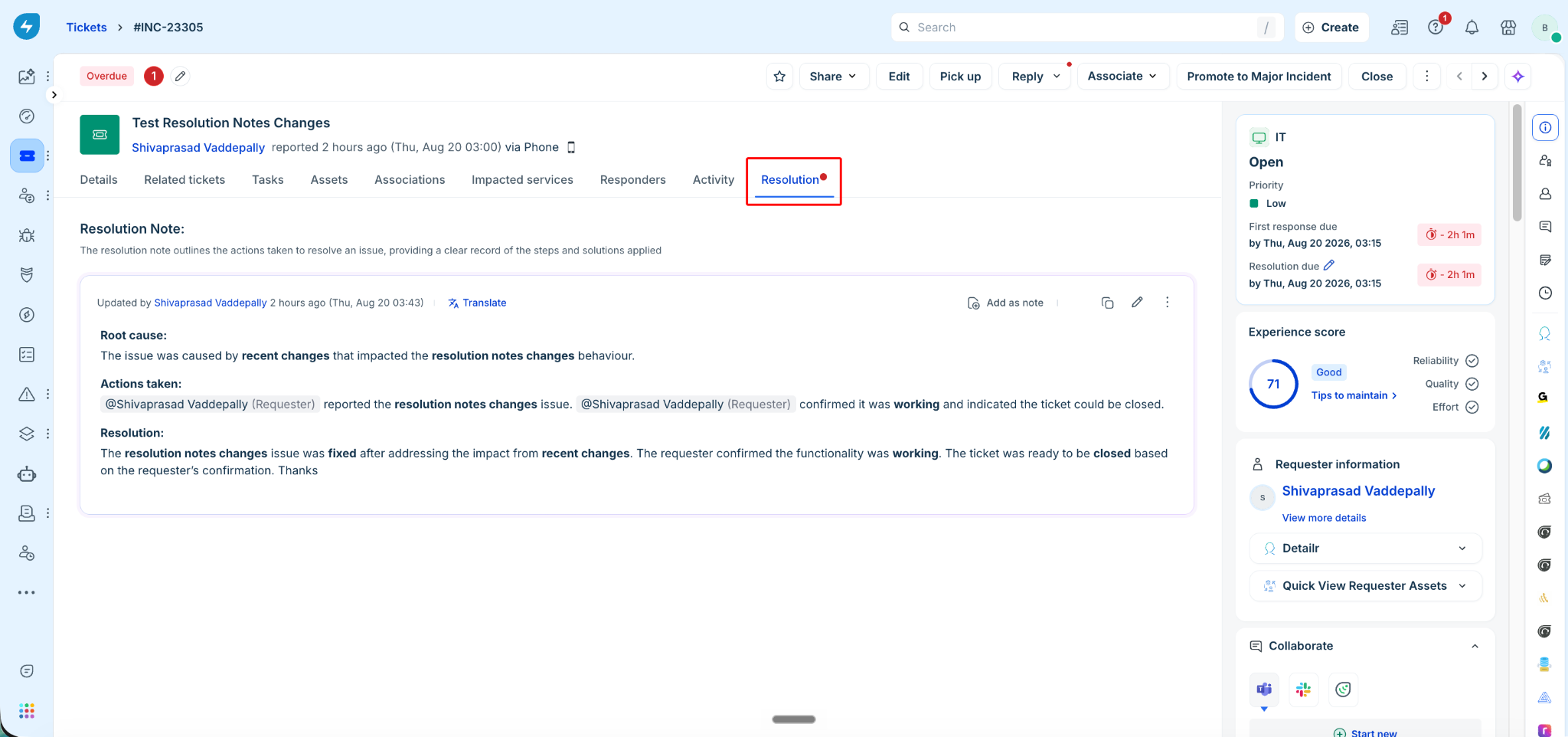
Make any required edits to the note.
Click Save to add the resolution note to the ticket.
The generated note includes the sections configured for the ticket type. For example, an incident can include troubleshooting and root cause details, while a service request can include actions taken and prerequisites checked.
Regenerate a resolution note
To regenerate a resolution note, follow these steps:
Open the resolved ticket containing the resolution note.
Go to the Resolution tab.
Review the notification indicating that the resolution note may be outdated.
Click Regenerate.
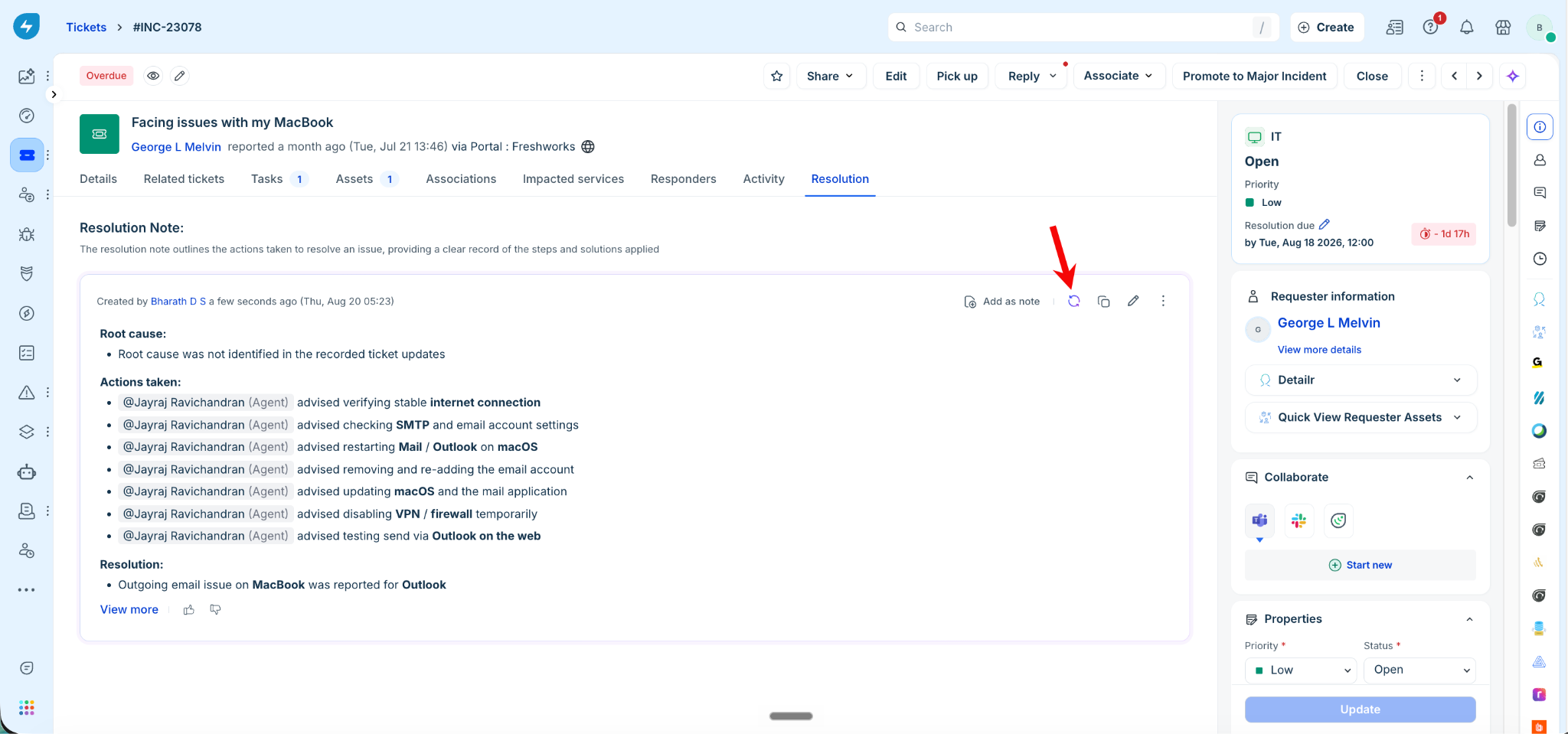
Review the updated resolution note.
Make any additional edits, if required.
Click Update to update the resolution note.
When you regenerate a note, the AI Copilot incorporates the latest relevant ticket information while preserving manual edits made to the previous note.
Frequently asked questions
1. How can I test a new configuration/instructions without affecting agents?
Use Preview in the Configuration/Instructions. Enter a Ticket ID or search by subject to preview the generated resolution note using your configuration before applying it in production.
2. Can I control which data sources are used to generate a resolution note?
Yes. Data Inclusion Filters let administrators enable or disable supported data sources, such as Public Notes, Private Notes, Service Request fields, and timestamps.
3. Can I customize resolution notes for Service Requests?
Yes. The Resolution Note Generator provides a dedicated Service Request template with Request Summary, Actions Taken, and Pre-requisites Checked sections.