
 Community
 Video Library
 Agent Training
 Freshservice
 Freshdesk
 Freshchat
 Freshcaller
 Freshsales
 Freshteam
 Freshworks Neo
 Freshsurvey
 Freshservice for MSP
 TABLE OF CONTENTS
- Prerequisites
- Overview
- Video walkthrough
- Admin experience
- Configure instructions for summaries
- Use Preview
- Agent experience
- Frequently asked questions
Summary Generator, a Freddy AI Copilot feature, helps agents quickly understand tickets by generating concise summaries from relevant ticket information and conversations. Administrators can configure the information included in summaries, select the data sources used to generate them, and control when summaries are automatically generated.
Prerequisites
Before you use the Summary Generator, ensure you have the following:
An active Freddy Copilot license is assigned to you.
Administrative access to modify Summary Generator and Freddy AI Copilot settings.
A ticket with sufficient information to generate a summary.
Overview
When working on tickets, agents often need to review the subject, description, and long conversation threads to understand the issue before taking action. Reviewing this information manually can take time and make it harder to focus on higher-priority tasks.
Summary Generator uses Freddy AI Copilot to analyze relevant ticket information and generate a concise summary that helps agents quickly understand the ticket and take action. Administrators can configure the information included in the summary and the data sources used to provide context.
The Summary Generator provides the following capabilities:
Configurable summary content: Define the information included in summaries for incidents and service requests.
Configurable data sources: Select the ticket information that AI Copilot uses when generating summaries.
Automatic summary generation: Generate summaries automatically after a configured number of new messages are added to a ticket.
Closed-ticket summaries: Automatically generate a summary when a ticket is marked as Closed.
Ticket field selection: Select the default and custom ticket fields that AI Copilot should use when generating summaries.
Child ticket context: Include information from linked child tickets to provide a broader view of the issue.
Configurable instructions: Define additional rules and requirements for how summaries should be generated.
Video walkthrough
The following video explains how Ticket Summarizer works:
Admin experience
Administrators can configure summary generation through AI Agent Studio > AI Copilot > Summary Generator. The settings are organized into Configuration and Instructions pages.
The Configuration page controls the ticket data used as context and the high-level structure of the ticket summary generated. The Instructions page controls the tone, structure, rules, and behavior followed when generating summaries.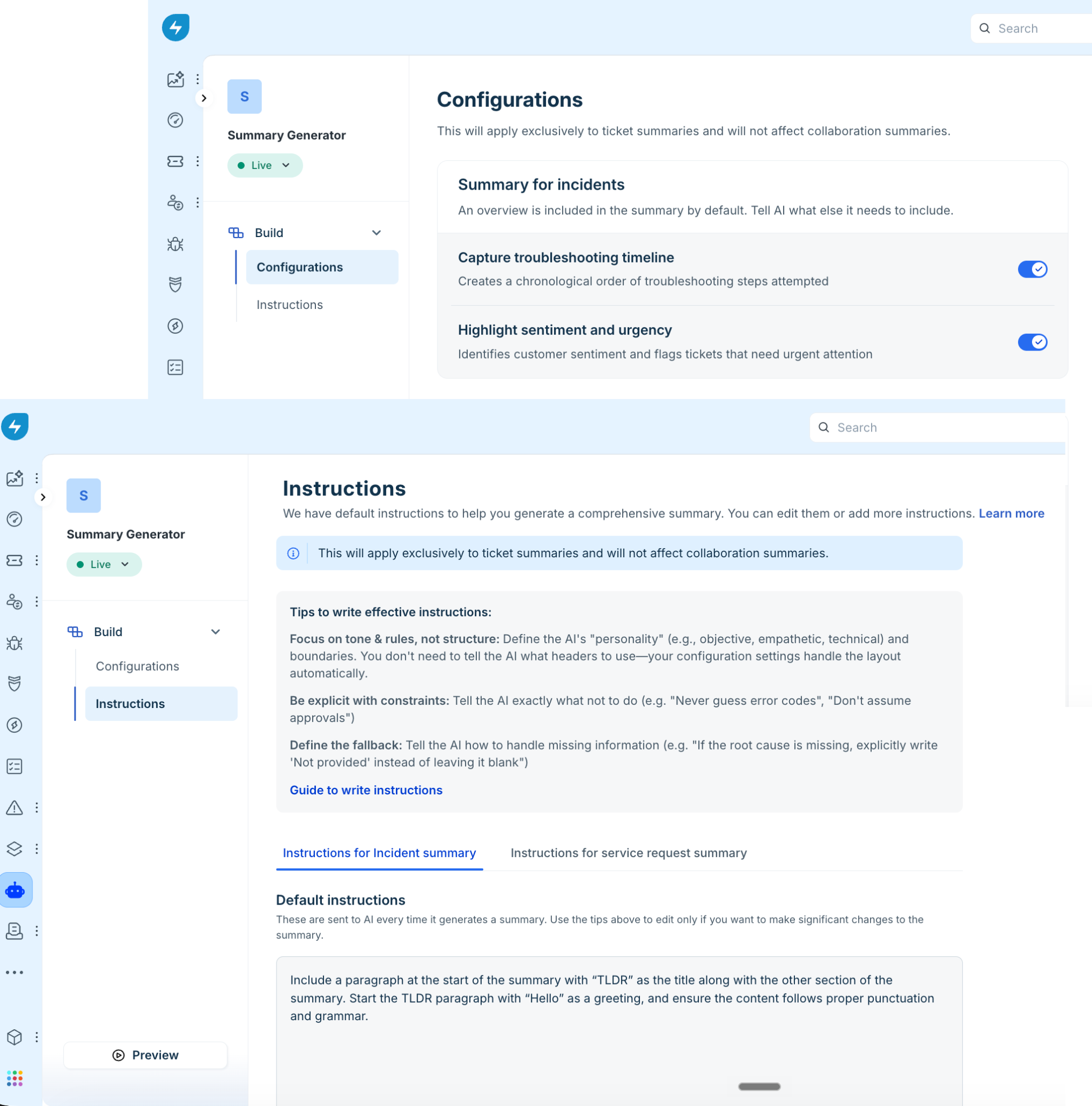
Configure summary settings
Use the Configuration page to select the information included in summaries and control the ticket data used to generate them.
These settings apply only to ticket summaries and do not affect collaboration summaries.
To configure summary settings, follow these steps:
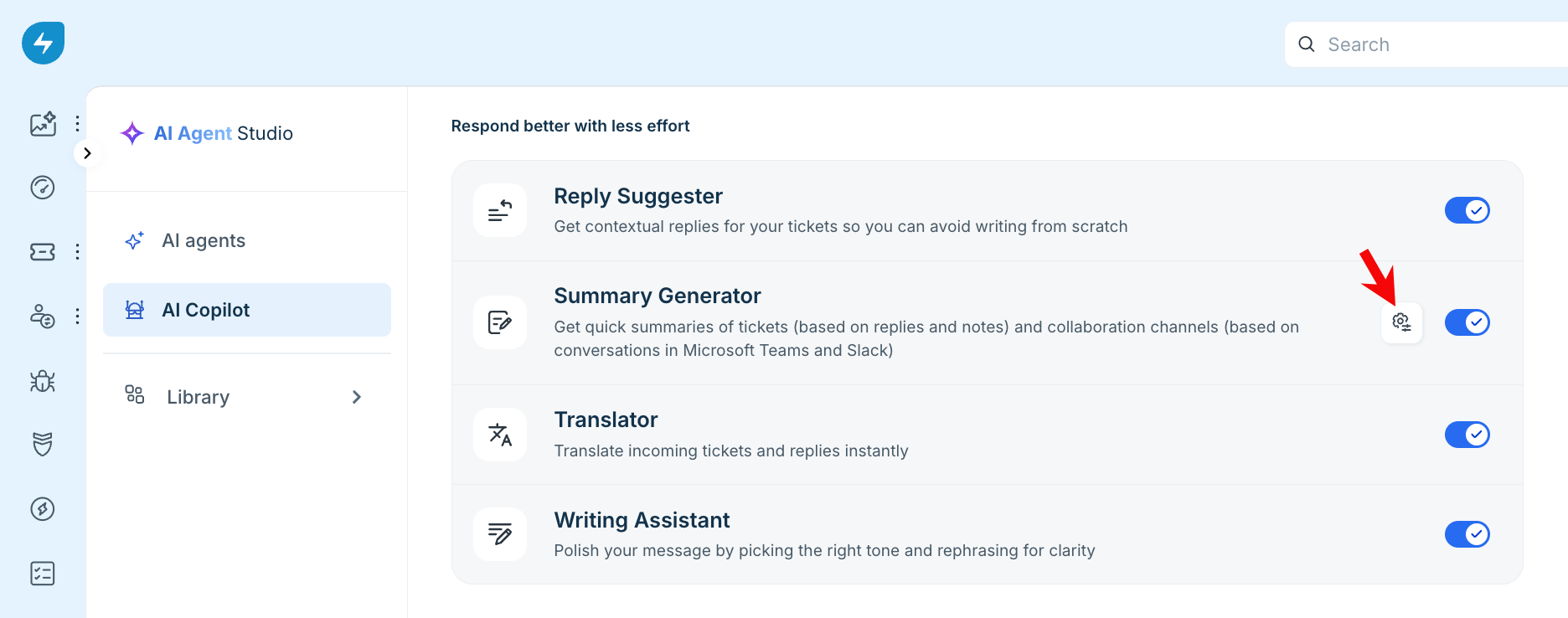
Go to AI Agent Studio > AI Copilot.
In the list of settings, locate Summary Generator and click the Configuration icon.
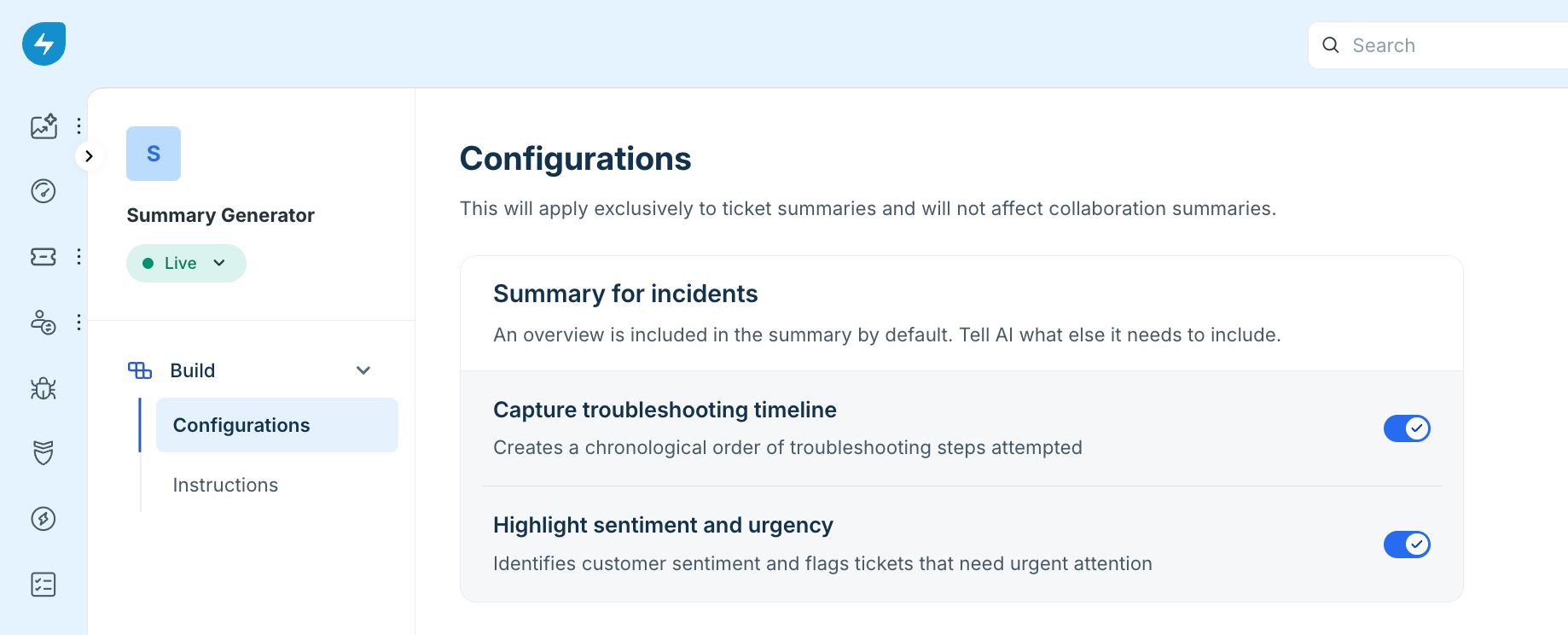
Under Summary for incidents, follow these steps:
Overview is included in the summary by default.
Enable or disable Capture troubleshooting timeline to include or exclude the chronological order of troubleshooting steps attempted.
Enable or disable Highlight sentiment and urgency to include or exclude customer sentiment and information about tickets that need urgent attention.
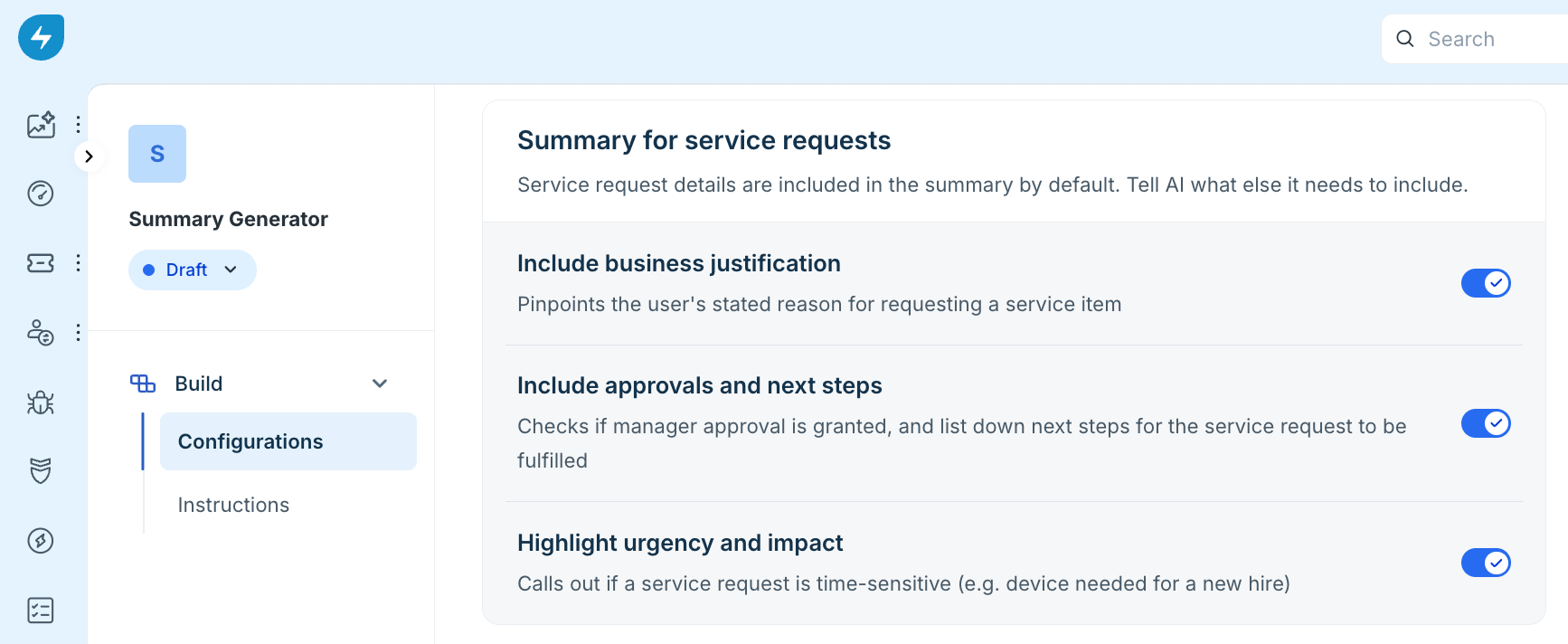
Under Summary for service requests, follow these steps:
Service request details are included in the summary by default.
Enable or disable Include business justification to include or exclude the user's stated reason for requesting a service item.
Enable or disable Include approvals and next steps to include or exclude approval status and the next steps required to fulfill the service request.
Enable or disable Highlight urgency and impact to include or exclude information about time-sensitive service requests and their impact.
Under Data sources for summaries, review the data sources used to provide context to AI Copilot. Ticket title, Description, and Replies are used by default.
Enable or disable the following additional data sources as required:
Public notes: Includes context from publicly shared updates in ticket conversations beyond replies.
Resolution notes: Identifies the root cause and troubleshooting steps to make the summary more complete.
Private notes: Includes context from private discussions and backend investigations.
Activity timeline: Includes the sequence of ticket events to provide context about the issue.
Ticket fields: Includes information from default and custom ticket fields. If Ticket fields is enabled, click Manage fields and select the ticket fields that AI Copilot should use when generating the summary.
Child tickets: Includes context from linked child tickets to provide a broader view of the issue.
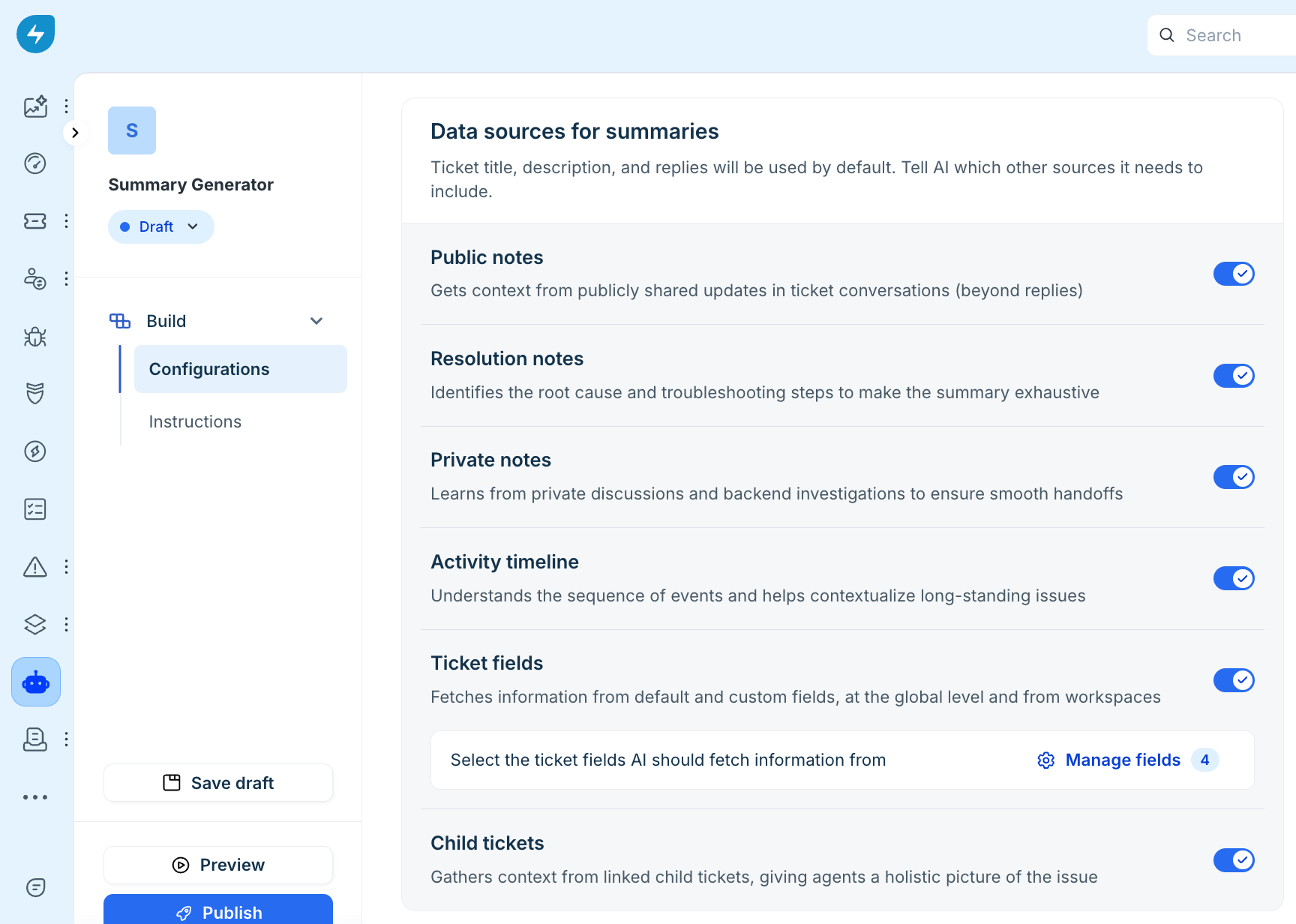
Manage ticket fields
When Ticket fields is enabled, you can select the specific fields that AI Copilot use as context when generating summaries. The field picker includes default and custom ticket fields available in your account.
Use the search bar in Manage fields to quickly find a field, select the required fields (up to 5), then click Save.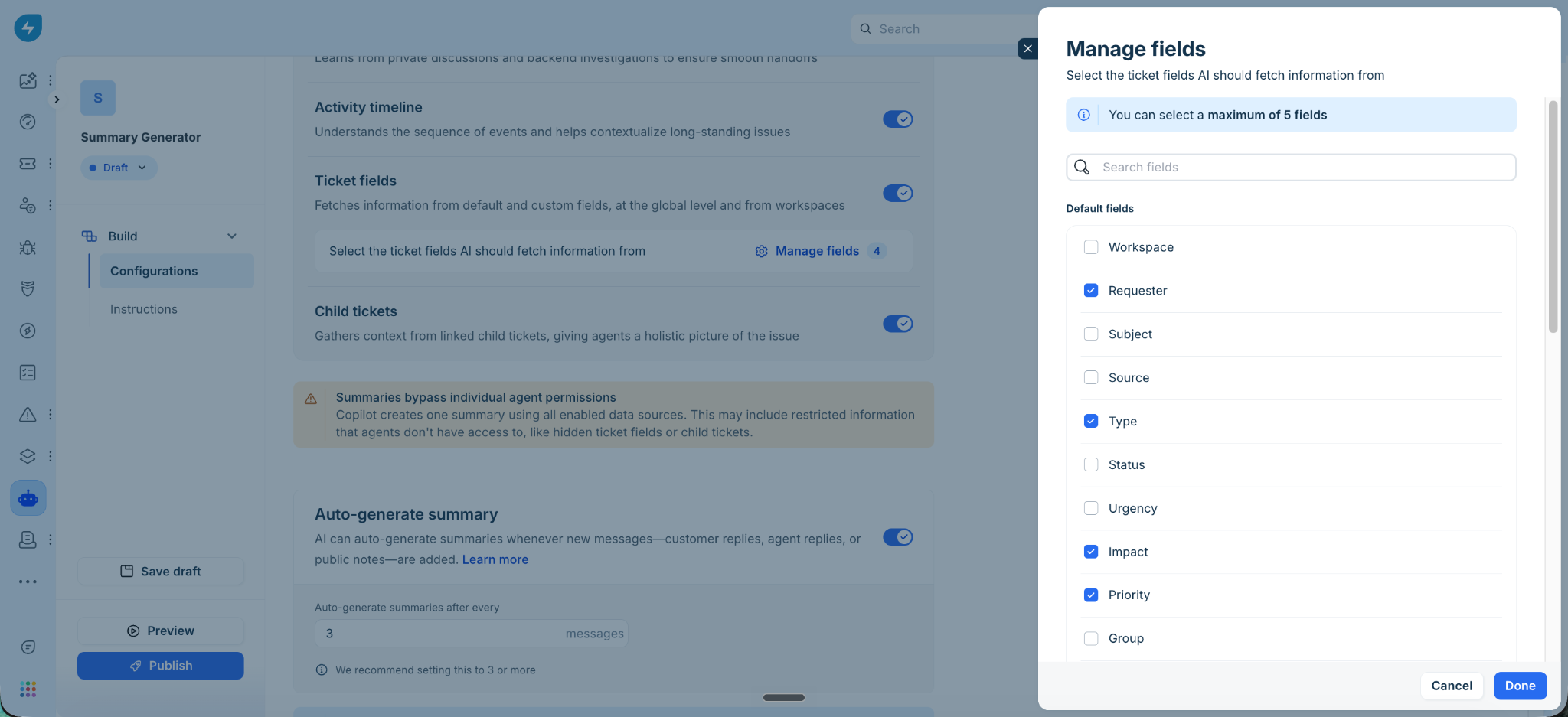
Configure automatic summary generation
You can configure AI Copilot to automatically generate summaries when new messages are added or when a ticket is marked as Closed.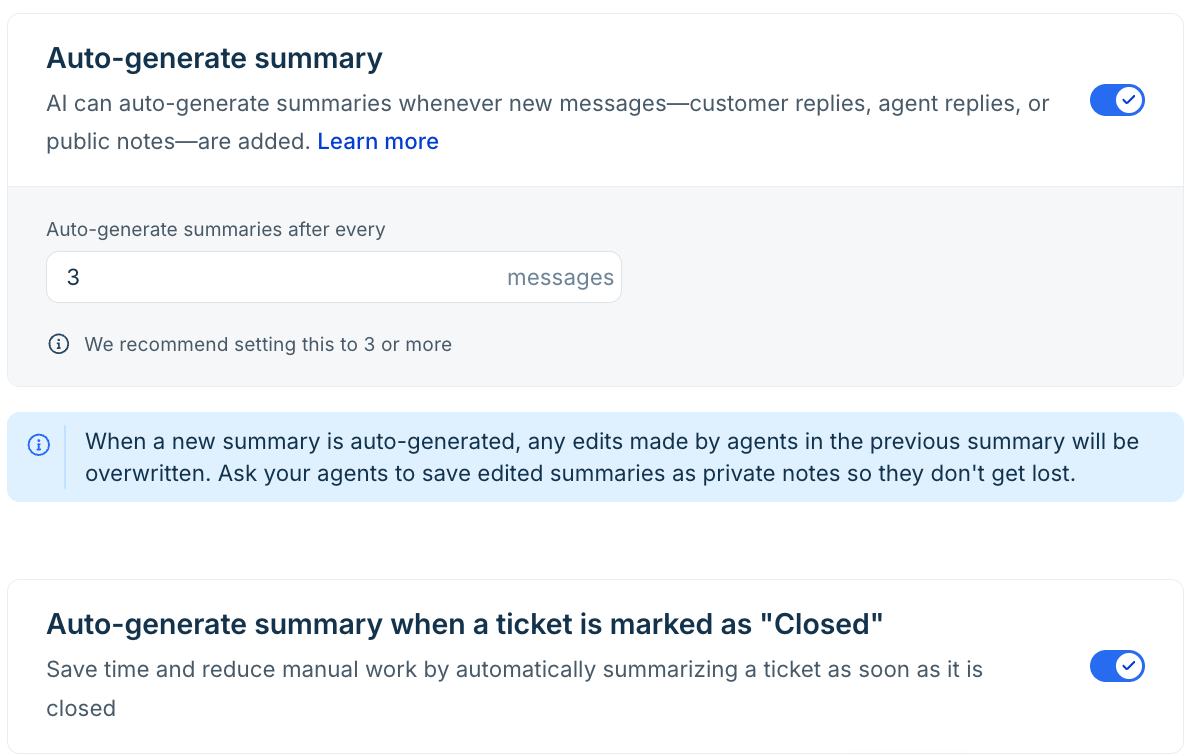
To configure automatic summary generation, follow these steps:
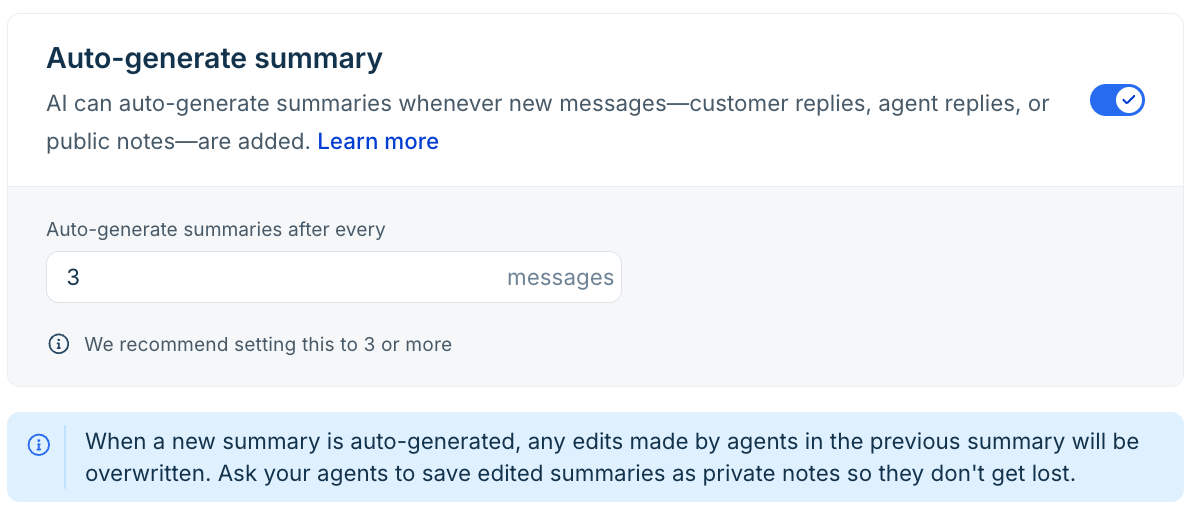
Under Auto-generate summary, enable or disable automatic summary generation.
If enabled, enter the number of new messages after which the summary should be automatically generated.
We recommend setting this value to 3 or more messages.
Under Auto-generate summary when a ticket is marked as "Closed", enable or disable automatic summary generation when a ticket is closed.

When a new summary is automatically generated, any edits made by agents to the previous summary are overwritten. Ask agents to save important edits as private notes if they need to retain them.
Note: Summaries bypass individual agent permissions. AI Copilot creates one summary using all enabled data sources. This may include restricted information that agents do not have access to, such as hidden ticket fields or child tickets.
Configure instructions for summaries
The Instructions page lets you define how AI Copilot generates summaries. You can configure separate instructions for incidents and service requests so that the generated summary focuses on information relevant to each ticket type.
For incidents, instructions can emphasize troubleshooting activity, customer sentiment, urgency, and other relevant ticket information. For service requests, instructions can focus on the requested service, business justification, approvals, next steps, urgency, impact, and other relevant requirements.
Freshservice provides default instructions as part of the standard Get started template. These instructions provide guidance on the structure, tone, and other aspects that AI Copilot follows when generating content. Edit them only when you need to make significant changes to how the summary is generated or structured.
Use Additional instructions to add organization-specific requirements. For example, you can ask AI to prioritize troubleshooting information for incidents, capture approval references for service requests, or specify how missing information should be handled.
For more information and examples, see Write effective instructions for AI Copilot output.
Step-by-step instructions
To configure instructions, follow these steps:
Go to AI Agent Studio > AI Copilot > Summary Generator > Instructions.
Select Instructions for incident summary or Instructions for service request summary.
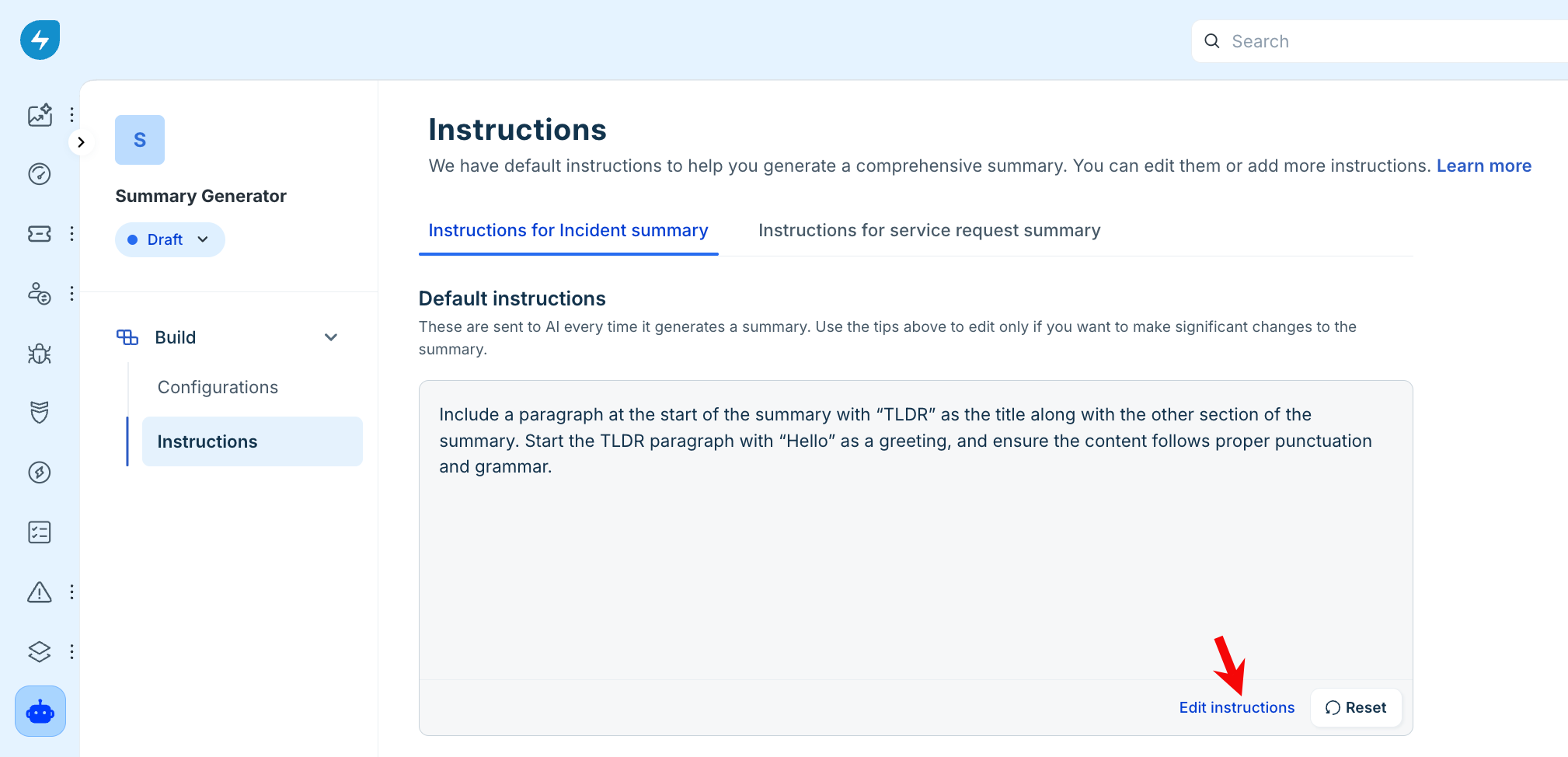
Review the Default instructions that apply each time a ticket summary is generated. Freshservice provides baseline default instructions that define the general output structure and behavior.
To make significant changes to the default behavior, click Edit instructions.
In the confirmation dialog, click Edit instruction to proceed.
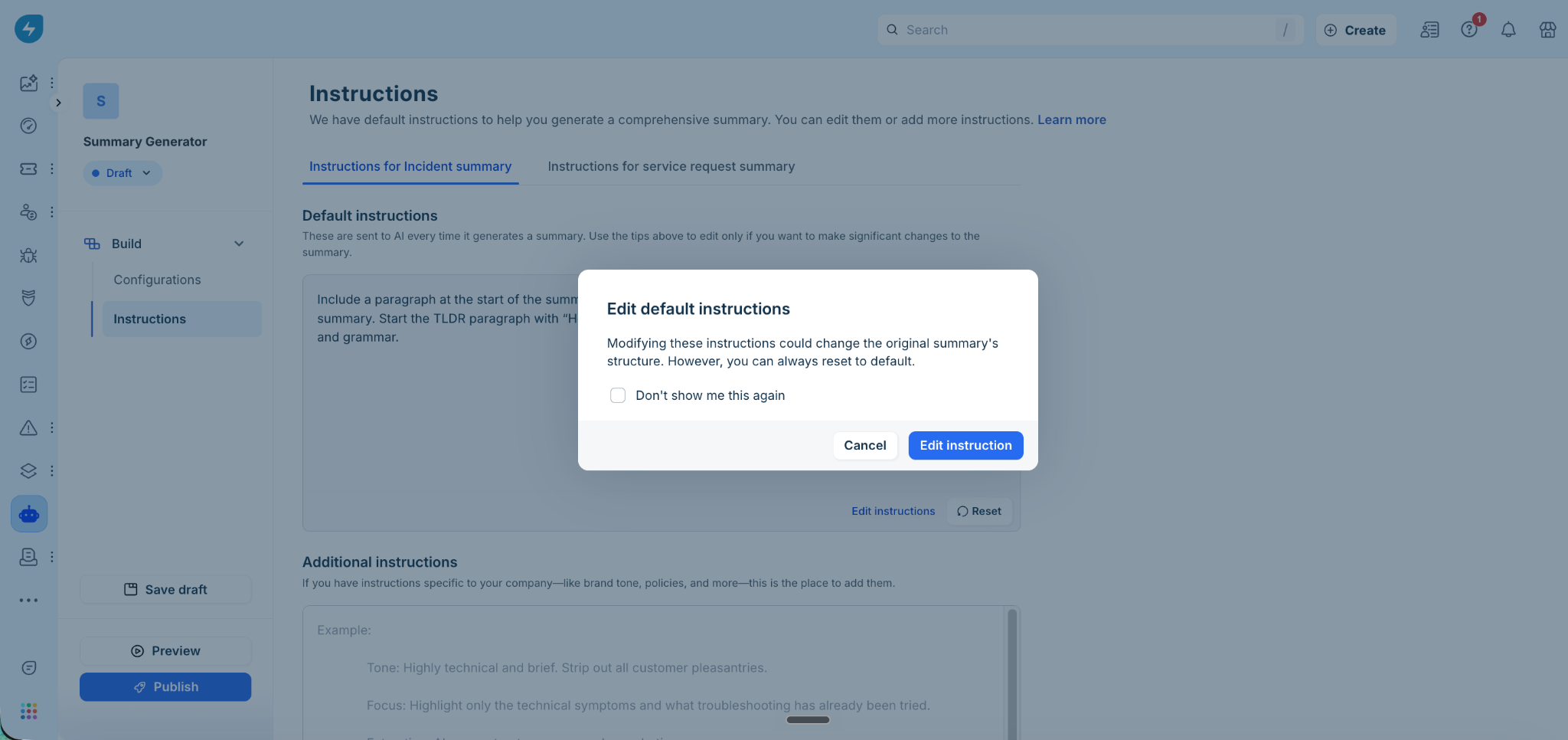
Update the default Instructions as required.
Under Additional instructions, enter company-specific rules, tone requirements, or conditional instructions.
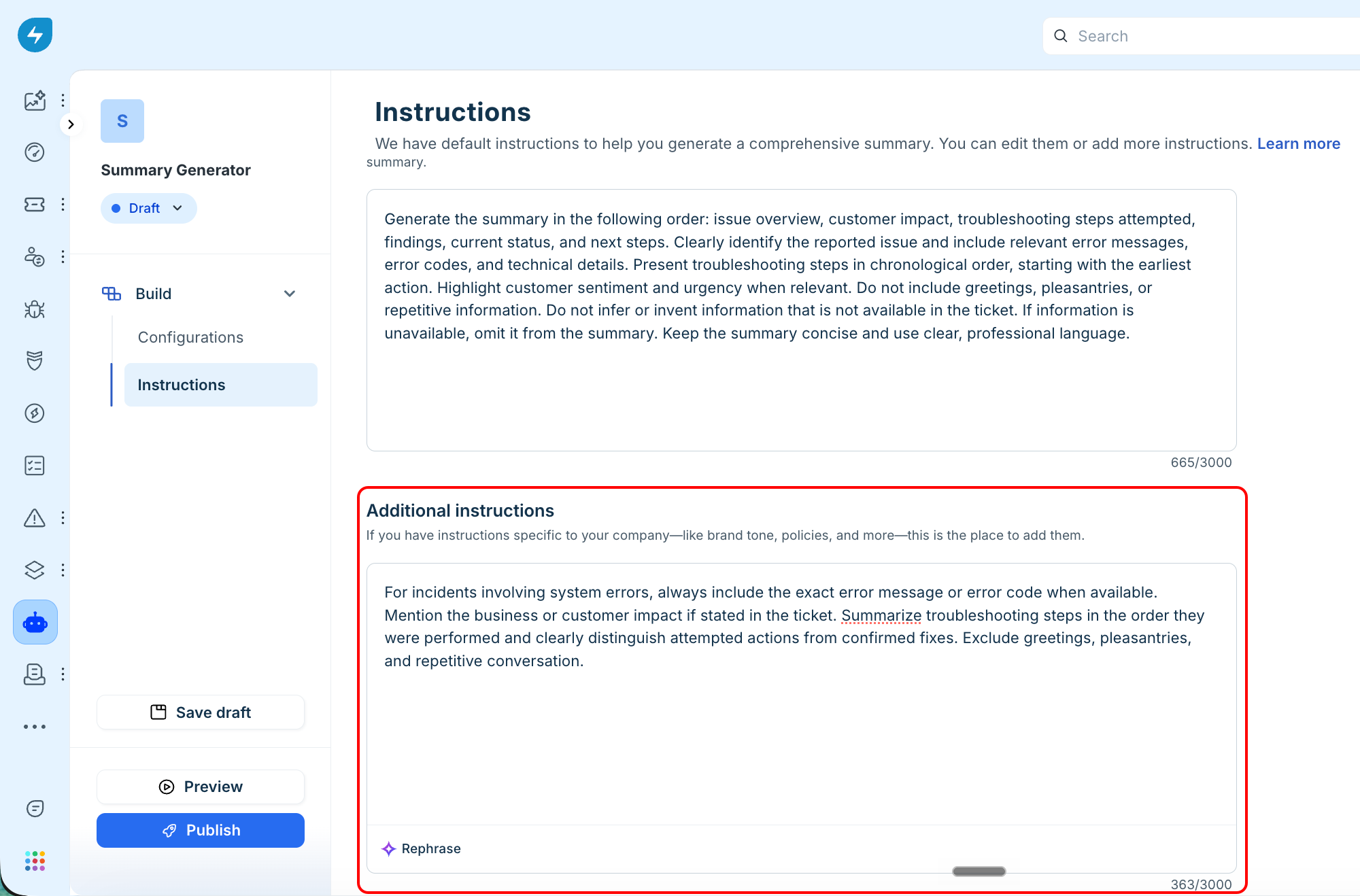
If required, click Rephrase to improve the clarity and precision of your instructions.
Save your changes.
The Additional instructions field supports up to 3000 characters.
Note: Use the tips panel on the Instructions page for guidance on writing effective instructions.
Use Preview
Use Preview to test your configuration and instructions with a real ticket before making the changes available to agents.
To preview a summary, follow these steps:
Go to AI Agent Studio > AI Copilot > Summary Generator.
Click either the Configurations or Instructions tab.
Click Preview at the bottom-left of the page.
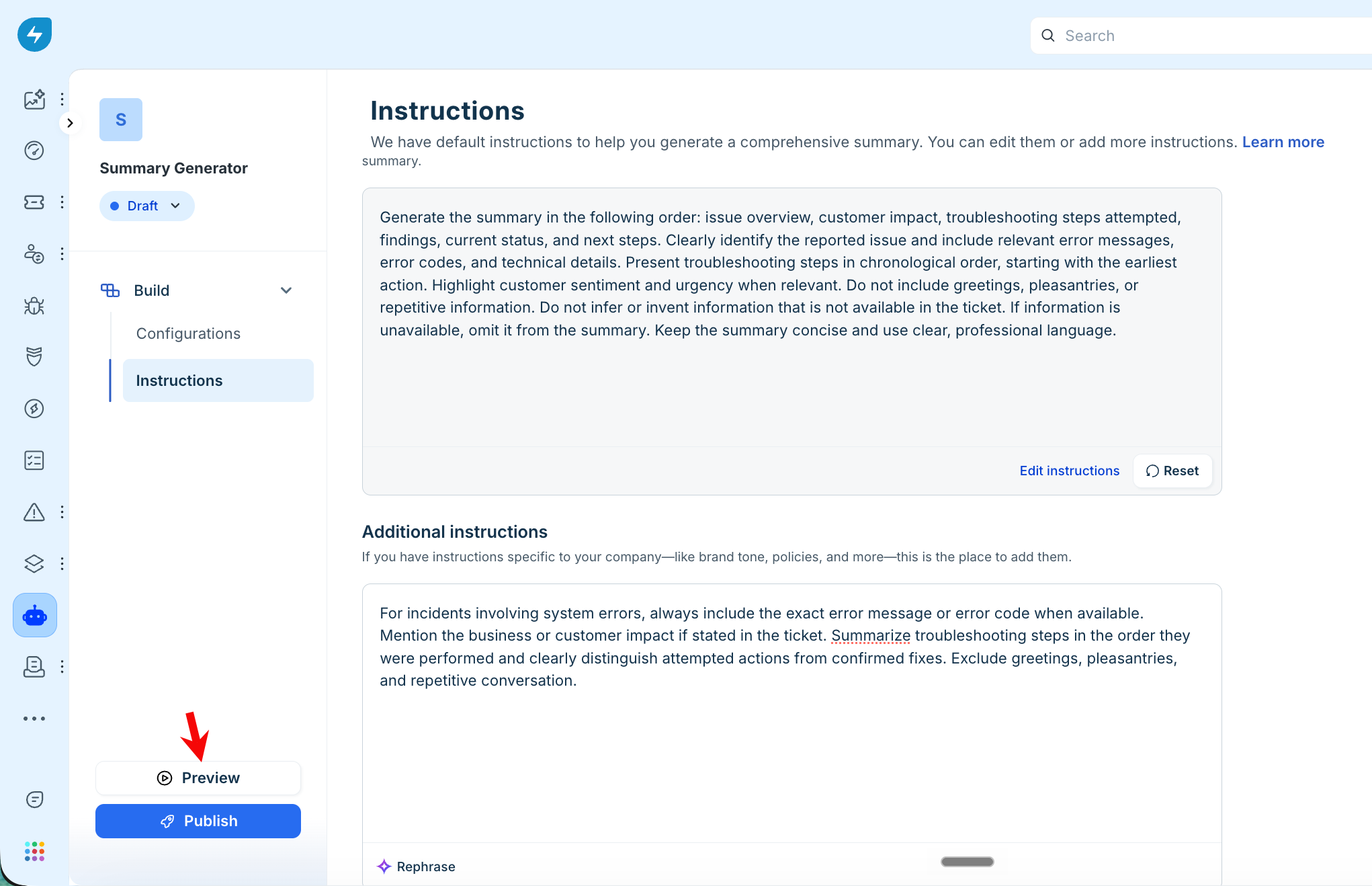
In the Preview panel, search for a ticket with its subject or ticket ID.
Review the summary generated using your current configuration and instructions.
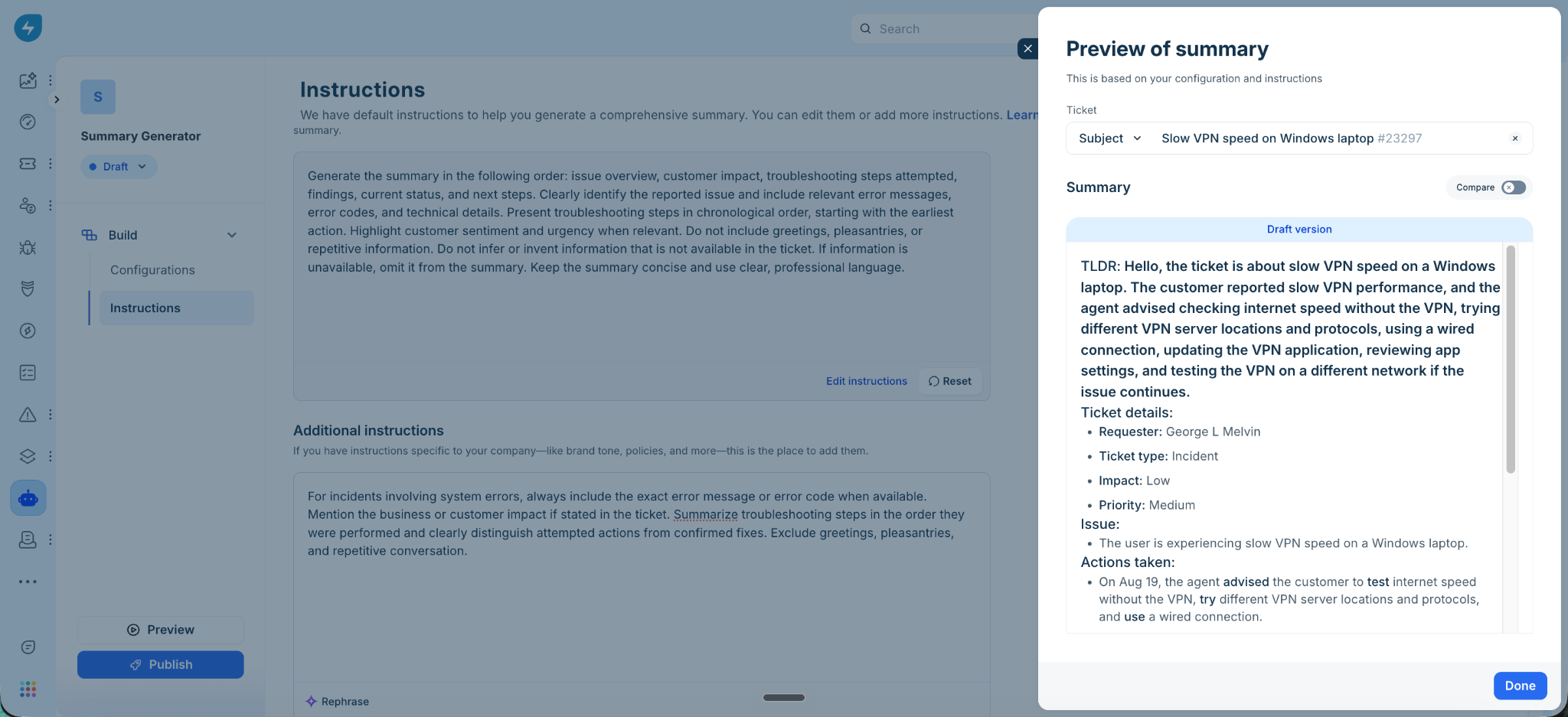
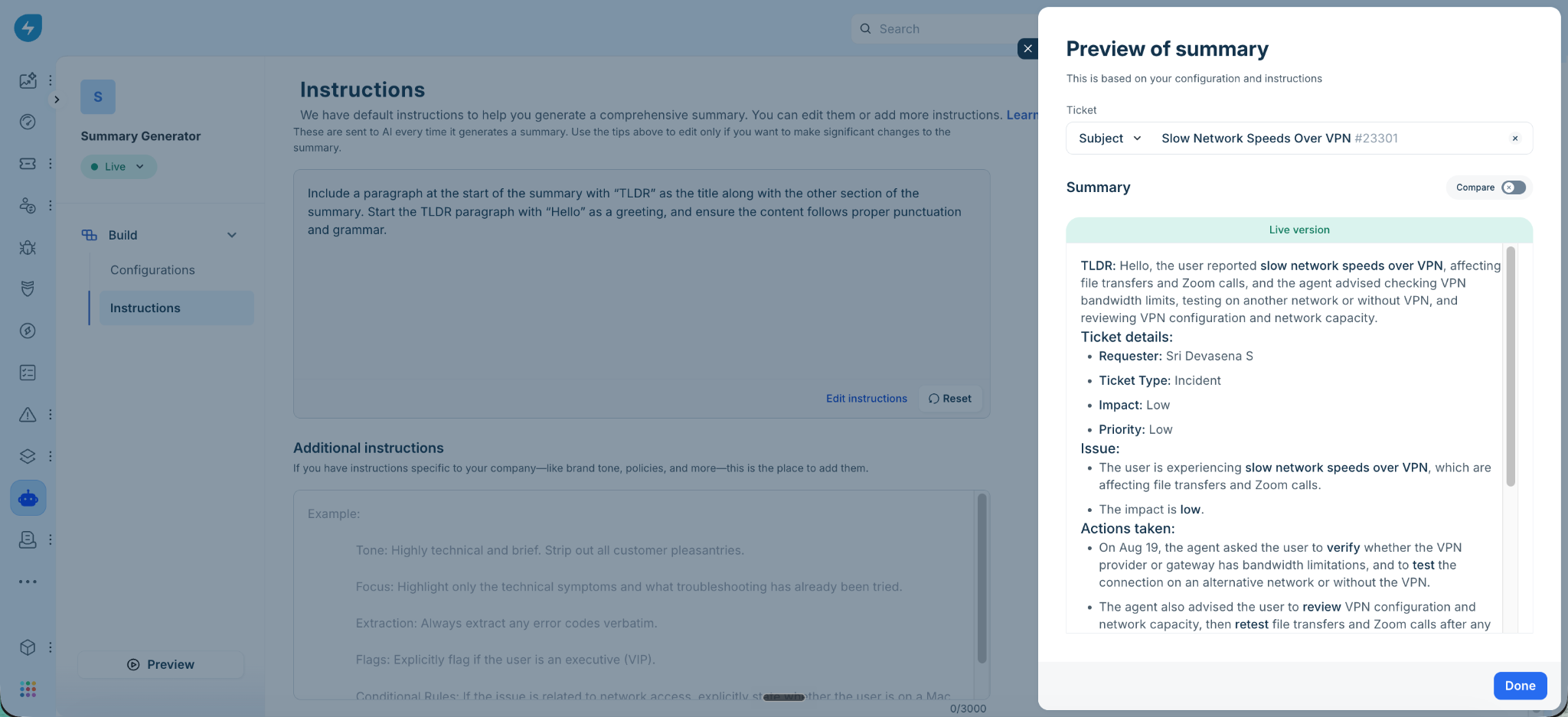
Use the Compare toggle to compare the summary generated by the Draft version, which uses the configuration and instructions you are currently configuring and testing.
Note: The Live version uses the previously published configuration and instructions that are currently active.When you're satisfied with the configuration, select Save as draft to continue editing later or Publish to make the configuration live.
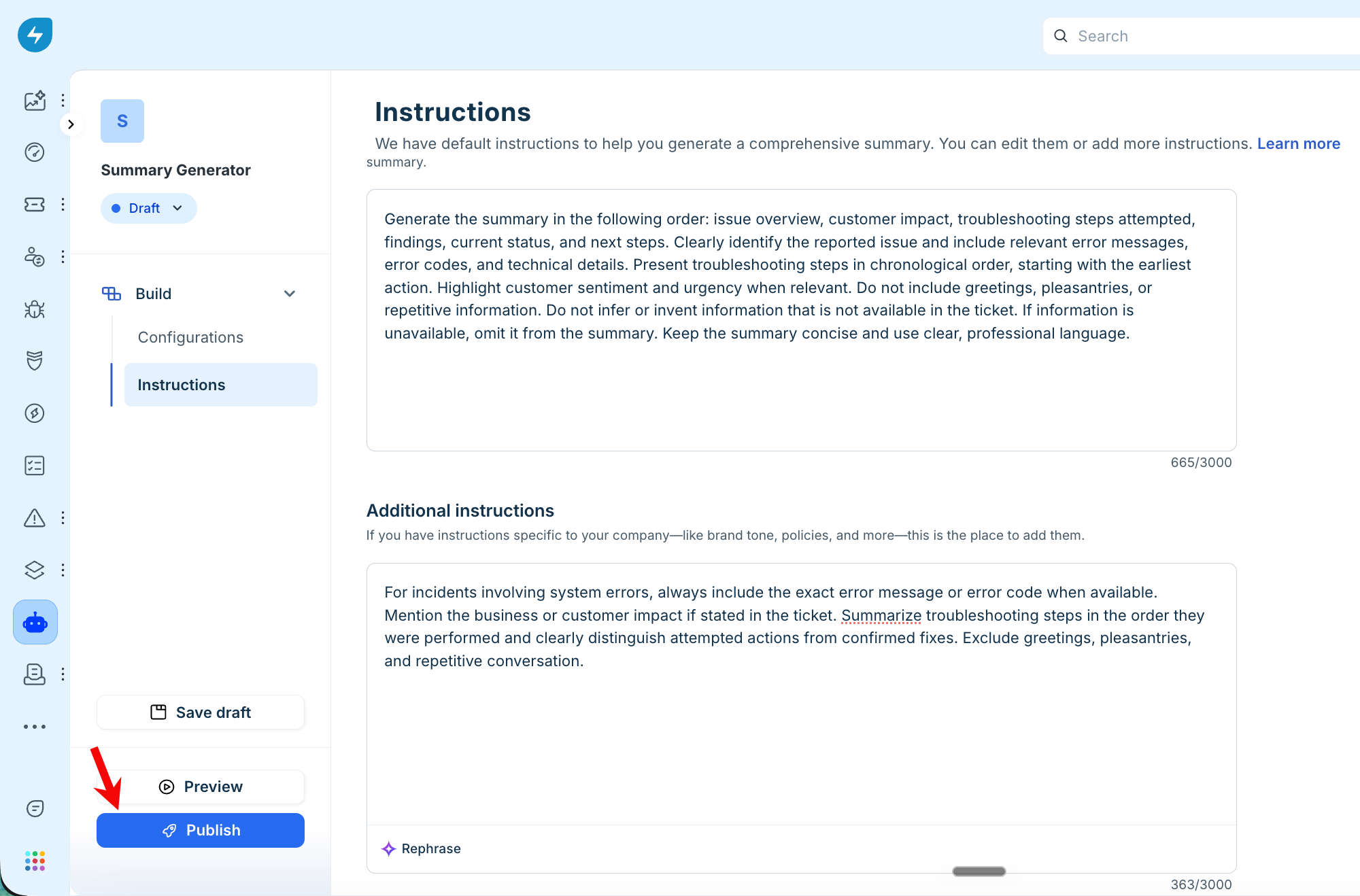
After publishing, use the Preview button to cross-verify the Copilot feature before deploying it to your agents.
Agent experience
Agents can generate and manage ticket summaries from the ticket details page. The generated summary follows the configuration and instructions defined by the administrator.
Generate a ticket summary
You can generate a summary manually when you need a quick overview of a ticket.
To generate a summary, follow these steps:
Go to the Ticket Details page.
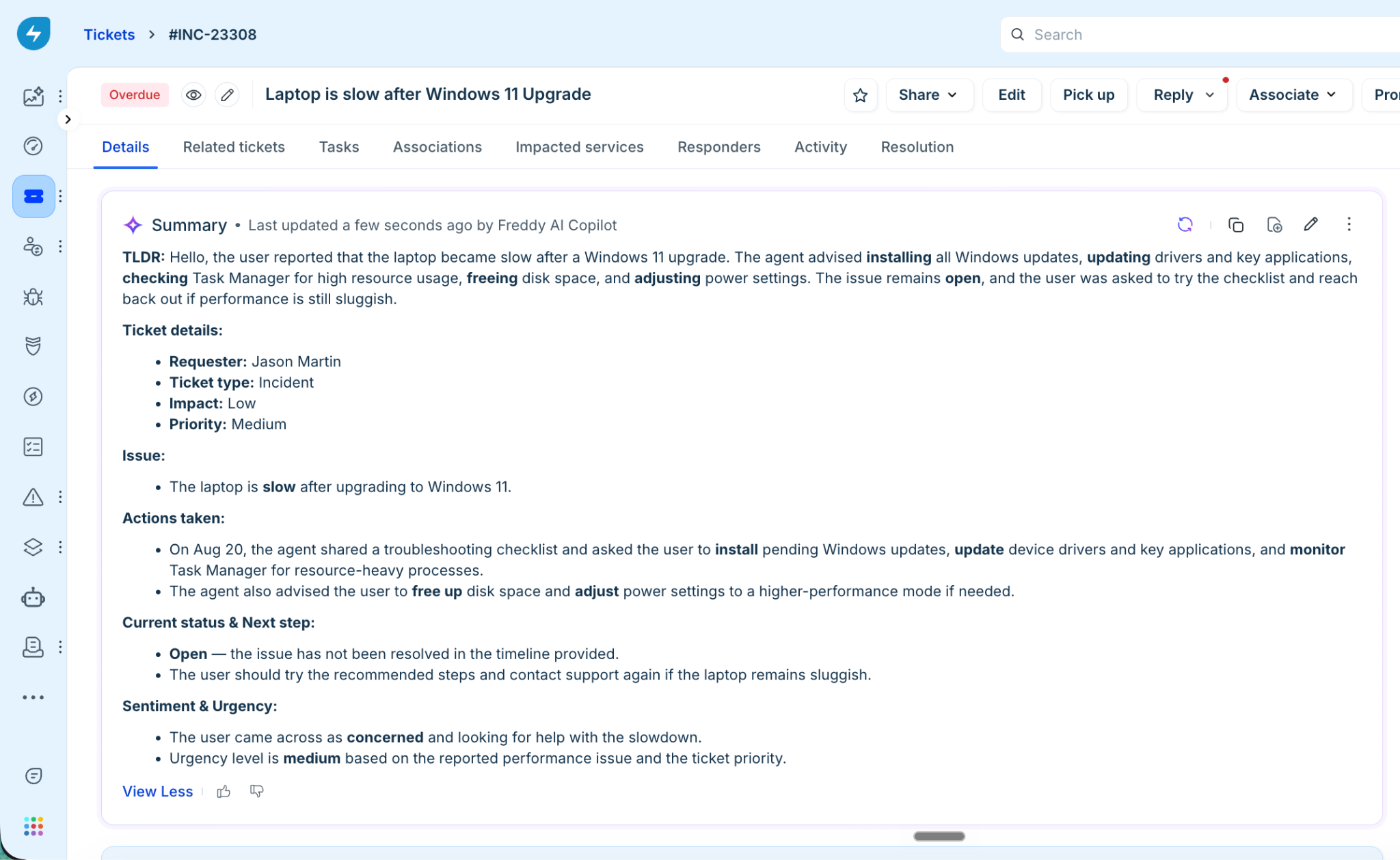
Click Summarize ticket. AI Copilot analyzes the ticket information enabled by the administrator and generates a summary.
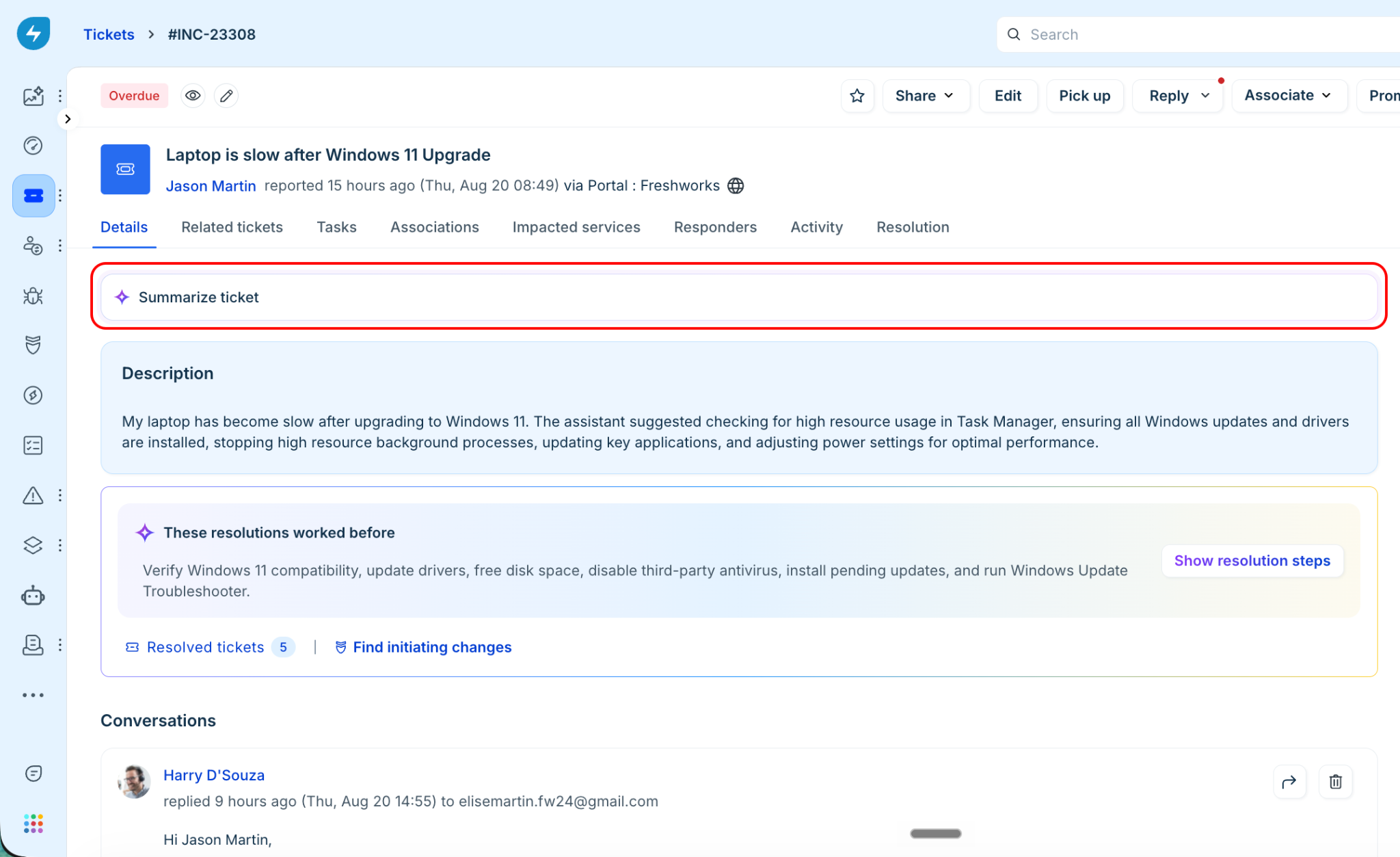
Review the generated summary. The summary can include different information for incidents and service requests based on the administrator's configuration.
Manage a ticket summary
After generating a summary, you can manage it using the available options: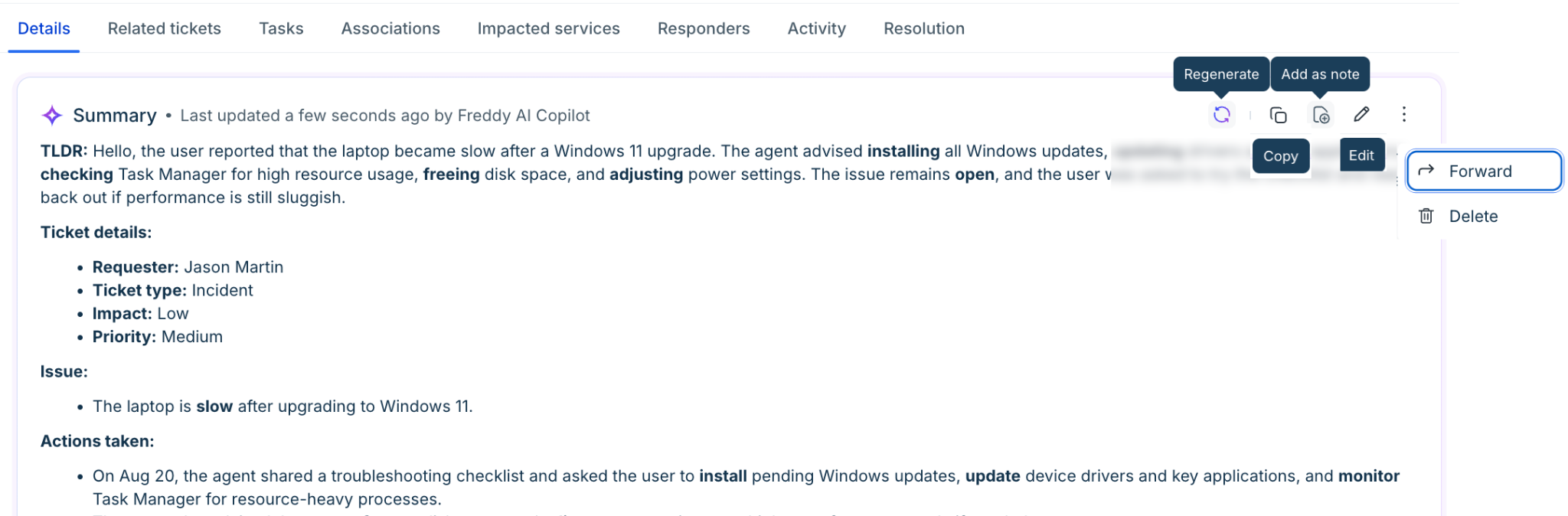
Regenerate: Generate an updated summary using the latest available ticket information. The new summary replaces the existing summary.
Copy: Copy the summary to the clipboard so you can use it elsewhere.
Add as note: Add the summary to the ticket's conversation history.
Edit: Update the summary when you need to correct details, fix formatting, or add context.
Click Edit from the options.
Update the summary.
Click Update to save your changes.
Forward: Share the summary with team members or stakeholders without requiring them to review the full ticket.
Delete: Remove the summary when it is no longer accurate or relevant.
Click Delete from the summary menu.
Confirm the deletion.
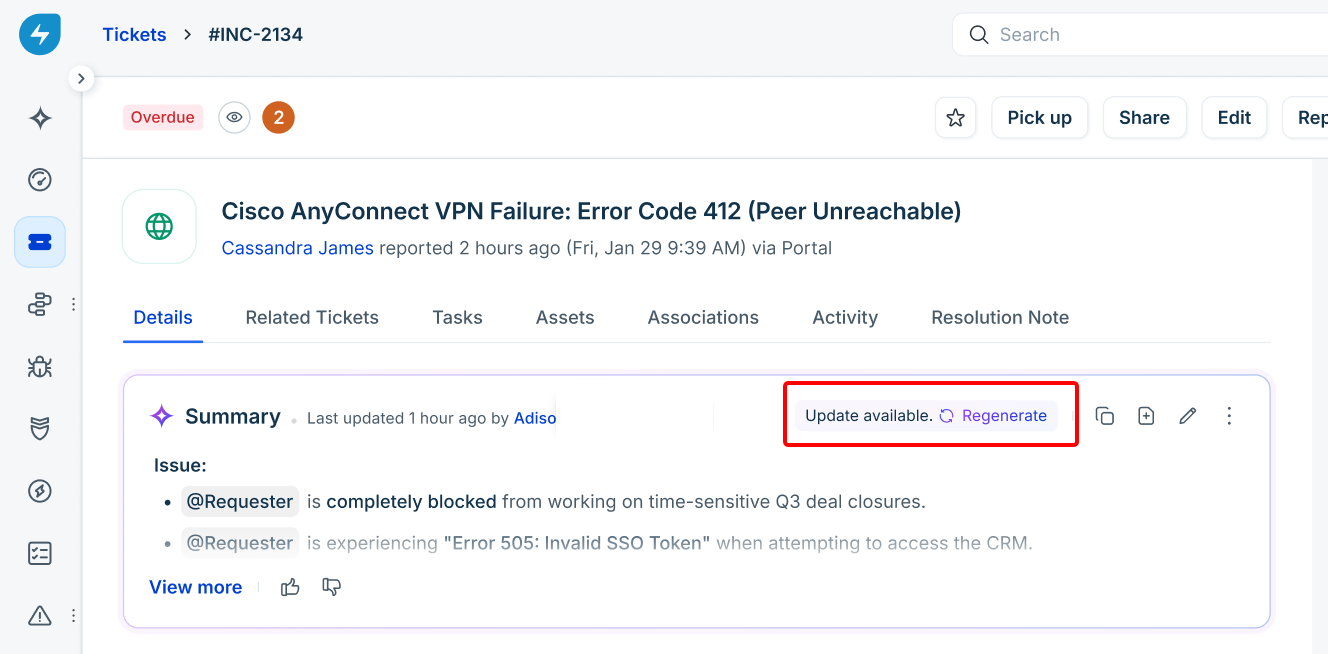
Update available: When new activity is added to a ticket after the summary was last generated, an Update available nudge along with a Regenerate button appears. Click it to generate an updated summary that reflects the latest ticket updates, replacing the existing summary.
Automatically generated summaries
If the administrator enables Auto-generate summary, AI Copilot automatically generates a summary after the configured number of new messages are added to the ticket.
If Auto-generate summary when a ticket is marked as "Closed" is enabled, AI Copilot generates a summary when the ticket is closed.
When an automatic summary is generated, it replaces the previous summary. Any edits made directly to the previous summary are overwritten. Save important edits as private notes if you need to retain them.
Frequently asked questions
1. What information does AI Copilot use to generate a summary?
AI Copilot uses the data sources enabled by the administrator. Ticket title, Description, and Replies are used by default. Administrators can also enable public notes, resolution notes, private notes, activity timeline, ticket fields, and child tickets.
2. Can I control which ticket fields are included in a summary?
Yes. When Ticket fields is enabled, administrators can use Manage fields to select the default and custom ticket fields that AI Copilot should use when generating summaries.
3. Can I customize summaries for incidents and service requests?
Yes. Administrators can configure different summary content and instructions for incidents and service requests.
4. Can summaries be generated automatically?
Yes. Administrators can enable automatic summary generation after a configured number of new messages. They can also enable automatic generation when a ticket is marked as Closed.
5. Will my edits be retained when a new summary is generated automatically?
No. When a new summary is automatically generated, it overwrites edits made to the previous summary. Save important edits as private notes if they need to be retained.
6. Can summaries include information that an agent cannot access?
Yes. Summaries use all data sources enabled by the administrator and bypass individual agent permissions. This means a summary may include restricted information, such as hidden ticket fields or child tickets.