
 Community
 Video Library
 Agent Training
 Freshservice
 Freshdesk
 Freshchat
 Freshcaller
 Freshsales
 Freshteam
 Freshworks Neo
 Freshsurvey
 Freshservice for MSP
 TABLE OF CONTENTS
- Overview
- Video walkthrough
- Prerequisites
- View resolution insights on a ticket
- Understand the resolution insights panel
- Rate the quality of an AI summary
- Review citations and source tickets
- Frequently asked questions
- Known limitations
Overview
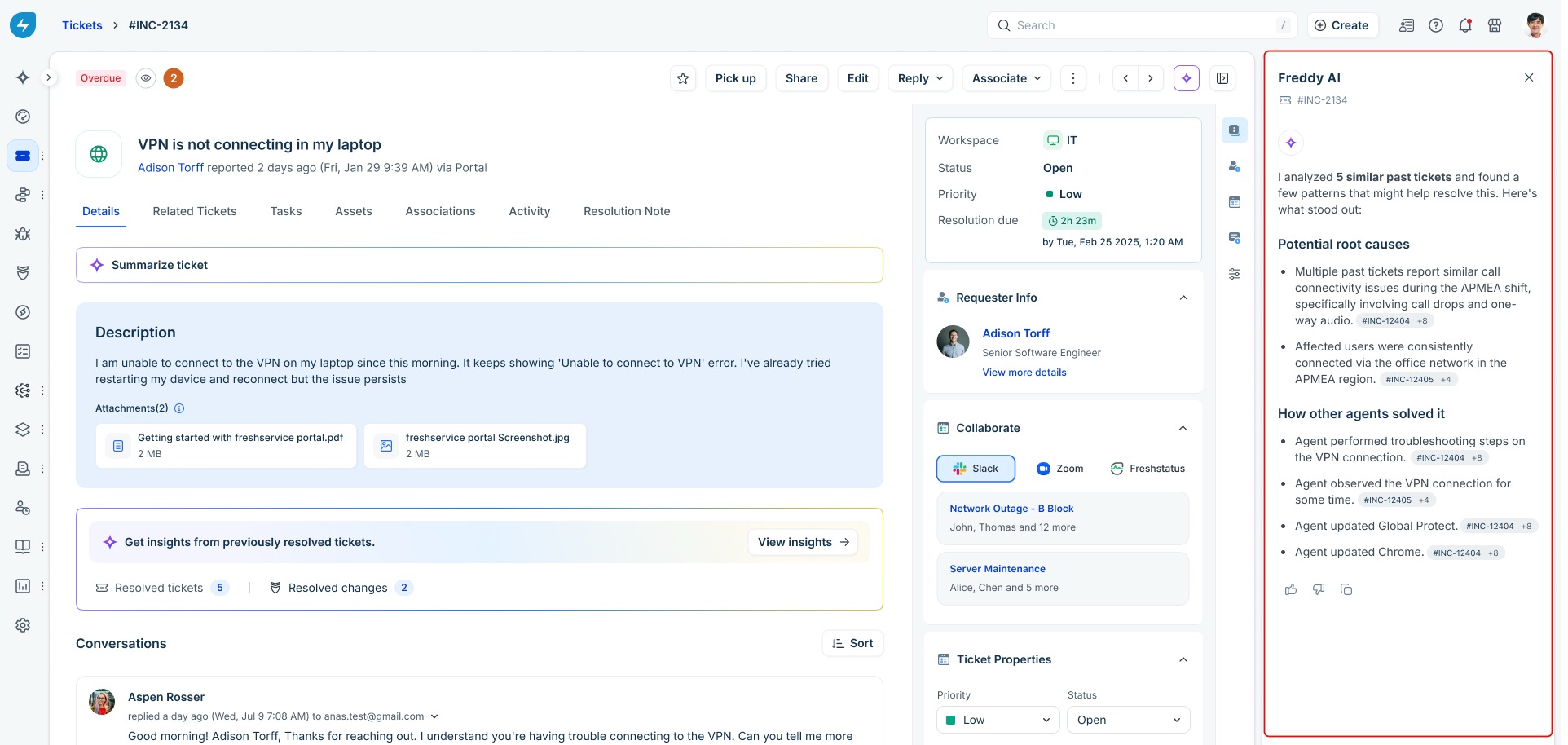
When a ticket lands in your queue, the real work is not logging or routing — it is finding the root cause and resolution steps. Resolution insights, a capability in Freddy AI Copilot, helps you do exactly that. Instead of pointing you to a list of past tickets, Freddy AI reads through similar resolved tickets, identifies the likely root cause, and outlines the steps other agents used to fix the issue.
Freddy AI uses the subject and description of the current ticket to find similar resolved tickets from your account. It then reads the subject, description, conversations, and resolution notes of those tickets, and summarizes the findings in the Freddy AI panel on the right side of the ticket. The summary is organized into two sections:
Potential root causes — the recurring reasons that caused similar tickets, with citations to the source tickets.
Recommended actions — the troubleshooting and remediation steps that other agents took to resolve those tickets, again with citations.
Every insight is tagged to the ticket it came from, so you can open the source ticket at any time to verify the context. This gives you full transparency and removes the guesswork from triage, without taking you away from the ticket you are working on.
Video walkthrough
Watch the video to see how Resolution Insights identifies root causes and recommends resolution steps.
Prerequisites
Before you can view resolution insights on a ticket, make sure that the following conditions are met:
Freddy AI Copilot and Similar Ticket Suggester must be enabled.
You have access to the ticket and to the similar resolved tickets that Freddy AI uses for the summary. Freddy AI applies your access permissions, so it only reads tickets that you are allowed to see.
Your account has at least a few resolved tickets in the same workspace. Freddy AI needs enough resolved history to generate a meaningful summary.
Note: If your account is in a region with data residency restrictions, an admin may need to turn on resolution insights and provide consent before the feature becomes available. For more information, contact your Freshservice admin.
View resolution insights on a ticket
You can view resolution insights from any ticket in your queue without leaving the ticket page.
To view resolution insights
To view resolution insights for a ticket, follow these steps:
Open the ticket you want to work on. For example, VPN is not connecting in my laptop.
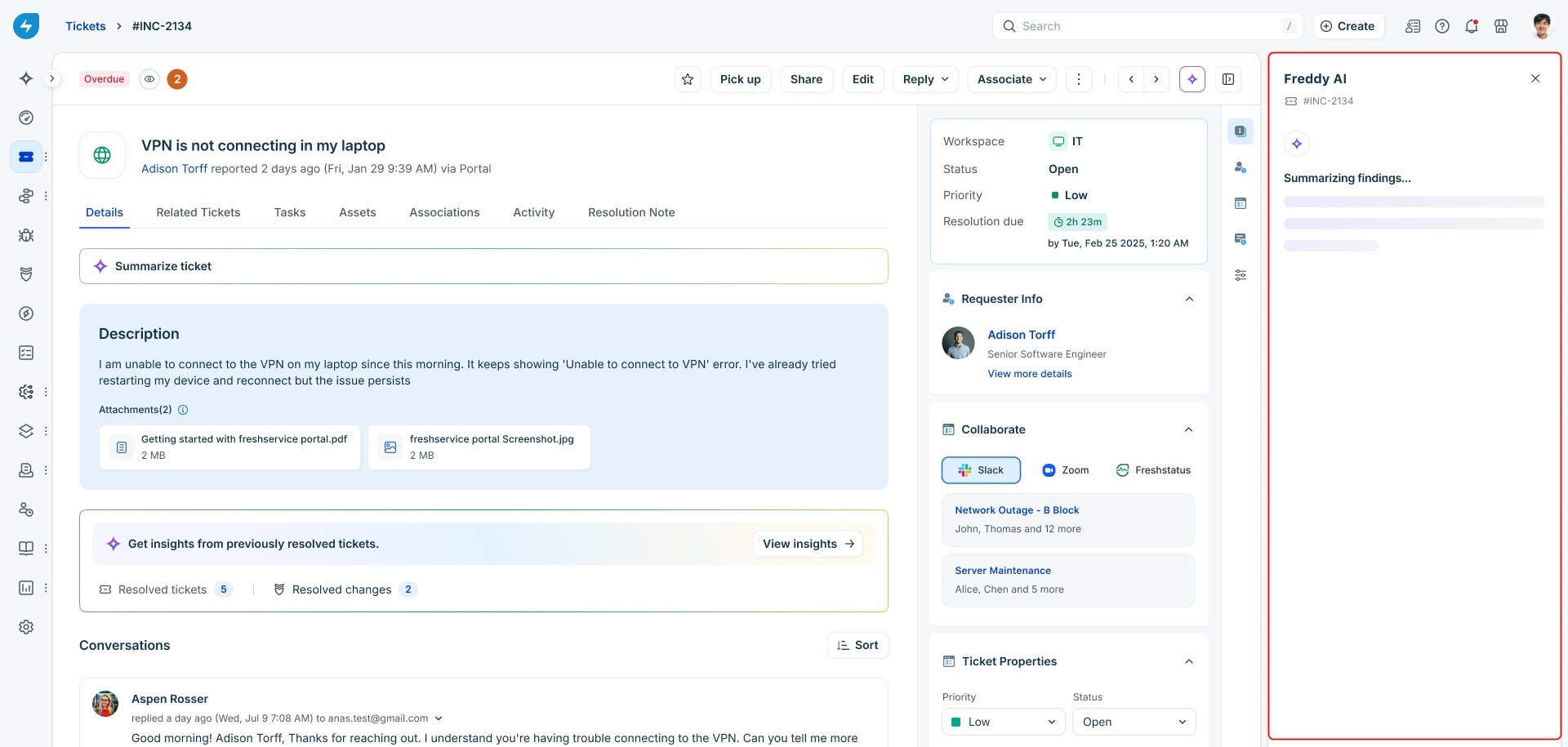
On the ticket page, locate the Freddy AI panel on the right side. If the panel is closed, click View Insights in the ‘Get insights from previously resolved tickets’ section.
Wait while Freddy AI analyzes similar resolved tickets. The panel shows a Summarizing findings status while the analysis is in progress.
Review the generated summary. The panel displays the number of past tickets analyzed at the top, followed by the Potential root causes and Recommended actions sections.
To open a source ticket, select the ticket ID next to any insight. For example, #INC-12404.
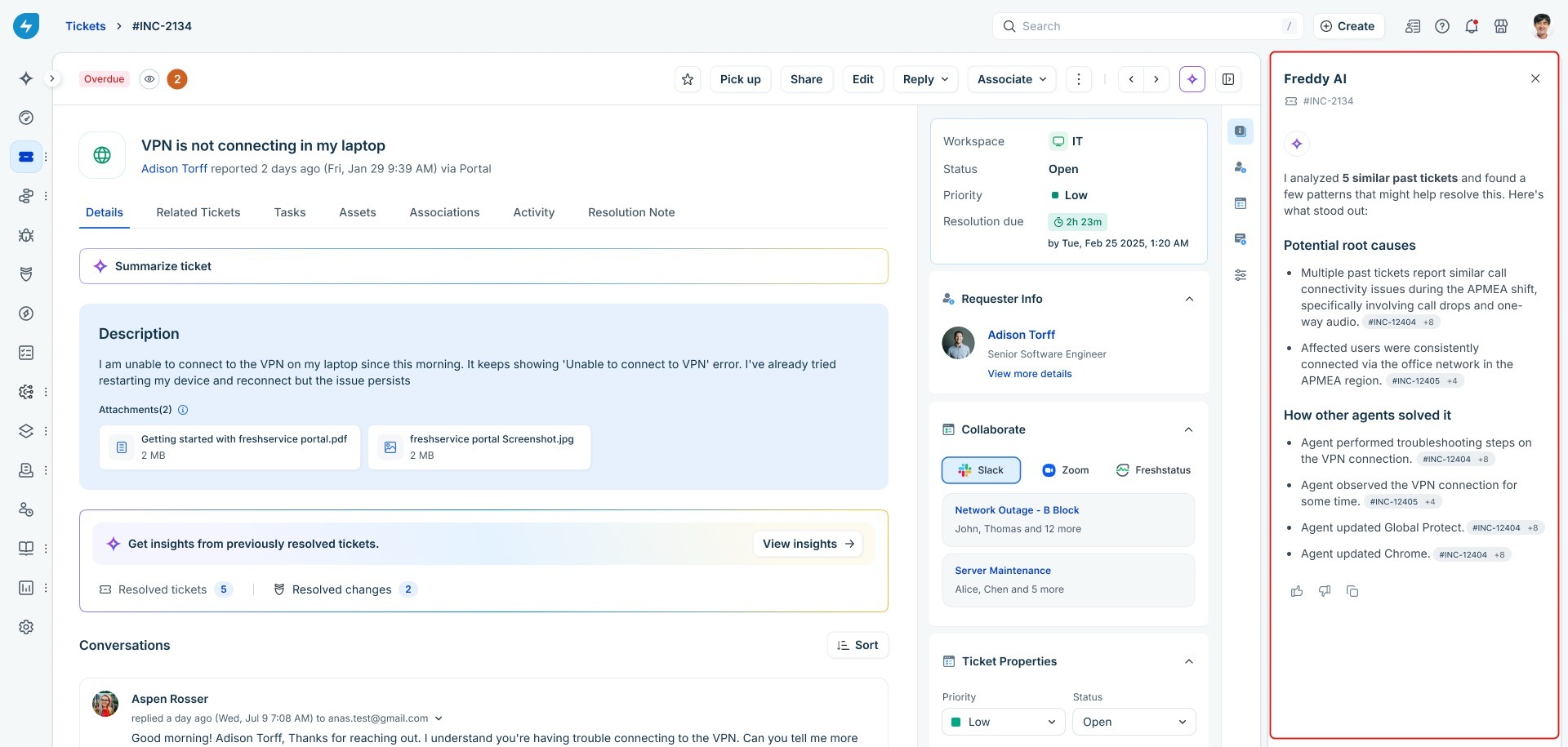
Note: Resolution insights are generated from resolved tickets only. Unresolved similar tickets are not included in the summary, but you can still access them from the Related Tickets tab on the ticket.
Understand the resolution insights panel
The Freddy AI panel shows a structured summary of what Freddy AI found in similar resolved tickets. The following table explains each part of the panel.
Rate the quality of an AI summary
Your feedback helps Freshservice measure how useful resolution insights are and improve the experience over time. Feedback is logged for analysis and is not used to retrain the AI model automatically.
To rate a summary
To rate a resolution insights summary, follow these steps:
In the Freddy AI panel, scroll to the bottom of the summary.
Select ? if the summary was helpful, or ? if it was not.
If you select ?, add a short reason in the dialog box that appears, and then submit your feedback.
Review citations and source tickets
Every insight in the summary is tagged with the ticket it came from. This helps you verify the source before you act on a suggestion.
To review a citation, follow these steps:
In the Freddy AI panel, locate the insight you want to verify.
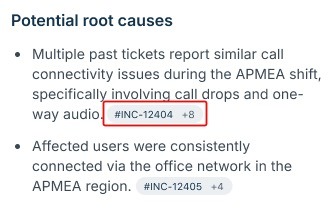
Select the ticket ID next to the insight. For example, #INC-12405. If more than one ticket supports the insight, you also see a +N indicator that shows the number of additional sources.
Select the +N indicator to view the full list of source tickets that contributed to the insight.
Select any ticket in the list to open it and review the original conversation and resolution notes.
Frequently asked questions
1. Are unresolved similar tickets included in the summary?
No. Resolution insights are generated only from resolved tickets, because they are the ones most likely to contain a verified root cause and remediation. You can still view unresolved similar tickets from the Related Tickets tab.
2. Can I see the original tickets that Freddy AI used?
Yes. Every insight is tagged with one or more ticket IDs. Select a ticket ID to open the source ticket in a new view and review the full context.
3. Does Freddy AI respect ticket-level access permissions?
Yes. Freddy AI applies your existing access permissions before it reads any ticket. The summary is generated only from tickets that you are allowed to see, so the insights you receive match the access level of your role.
4. Does my feedback retrain the AI model?
No. Your thumbs up or thumbs down feedback is logged for analytics and quality reviews, but it is not used to retrain the AI model automatically.
5. Why do I sometimes see fewer insights than expected?
Freddy AI generates insights only when it finds enough similar resolved tickets and identifies clear, recurring patterns. If your account has very few resolved tickets that match the current ticket, the summary may be shorter or may not appear.
6. Is my ticket data processed within my data residency region?
For accounts in the US and EU, ticket data is processed within the supported regions. For accounts in other regions, AI-based summarization may require cross-region processing. In such cases, an admin must explicitly turn on the feature and provide consent before resolution insights are generated for your account.
Known limitations
The current version of Resolution Insights has the following limitations:
Freddy AI generates summaries from resolved tickets only. Unresolved tickets, knowledge base articles, asset data, and change records are not included as sources in this release.
If your account has very few resolved tickets that match the current ticket, the summary may not appear or may be limited in detail.
AI-generated summaries are suggestions that you should always verify against the source tickets before you act on them.
In regions with data residency restrictions, an admin must explicitly turn on the feature and complete a short activation period before resolution insights are available on tickets.