Community
 Video Library
 Agent Training
 Freshservice
 Freshdesk
 Freshchat
 Freshcaller
 Freshsales
 Freshteam
 Freshworks Neo
 Freshsurvey
 Freshservice for MSP
 TABLE OF CONTENTS
Overview
The Freshservice Tickets module centralizes essential information related to service desk tickets within your organization. It provides a comprehensive overview, consolidating all the necessary details required for efficient ticket resolution.
The Tickets module allows agents to create new tickets, resolve tickets, and summarize resolutions.
Prerequisites
Ensure you have administrator or agent privileges to manage tickets.
Note: For information on configuring the default and custom fields for your service desk ticket forms and ticket tasks, see Manage Ticket Fields with Field Manager.
Create tickets
Follow these steps to create tickets:
Log in to your Freshservice account.
Go to Tickets > List.
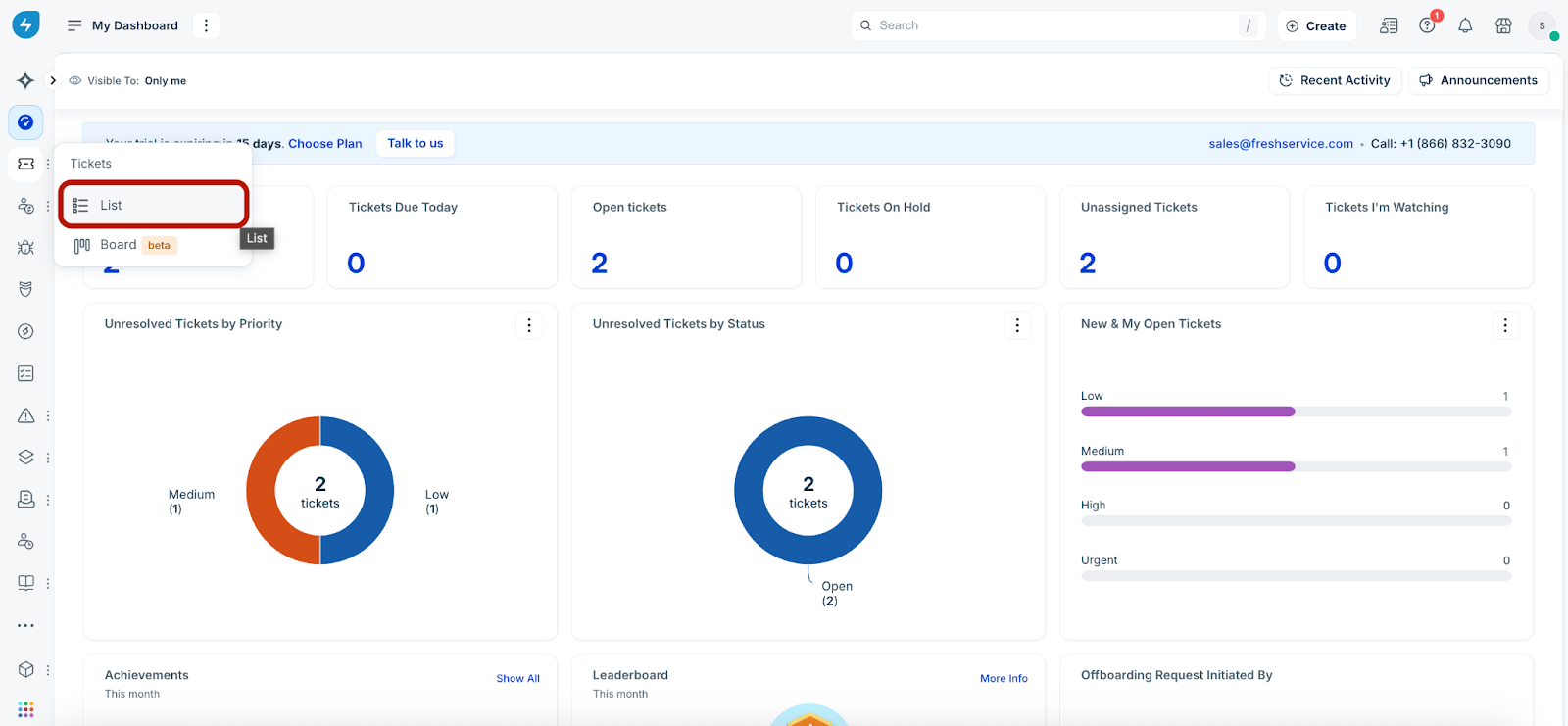
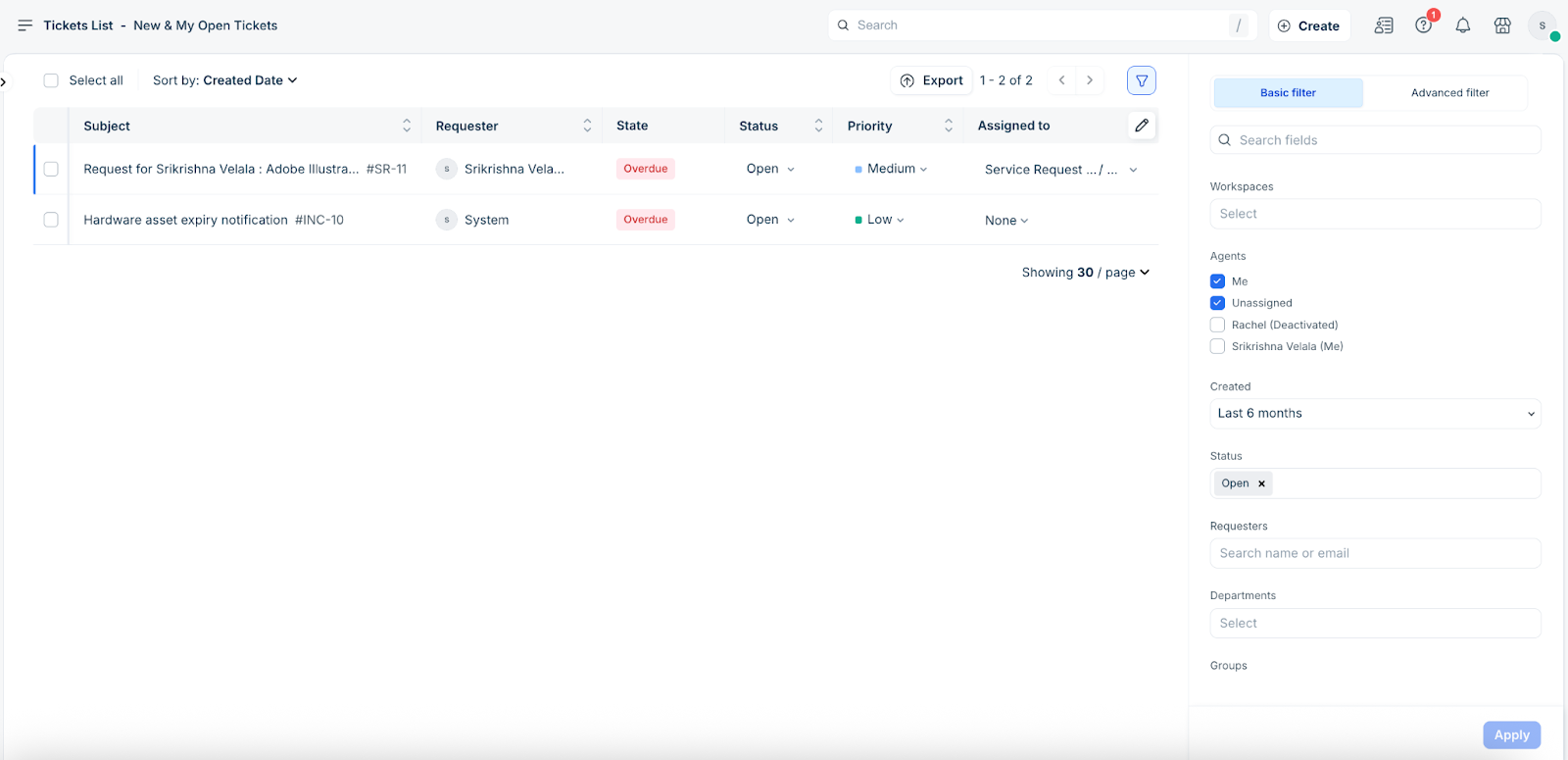
The Tickets List - New & My Open Tickets page is displayed.
Note:
New accounts may have the option to create sample data. If sample data or real-time tickets are not yet added, the Tickets page will appear empty.
To create new tickets, you may use the Connect your support email, Create tickets manually, or Get started with sample data options (if available).
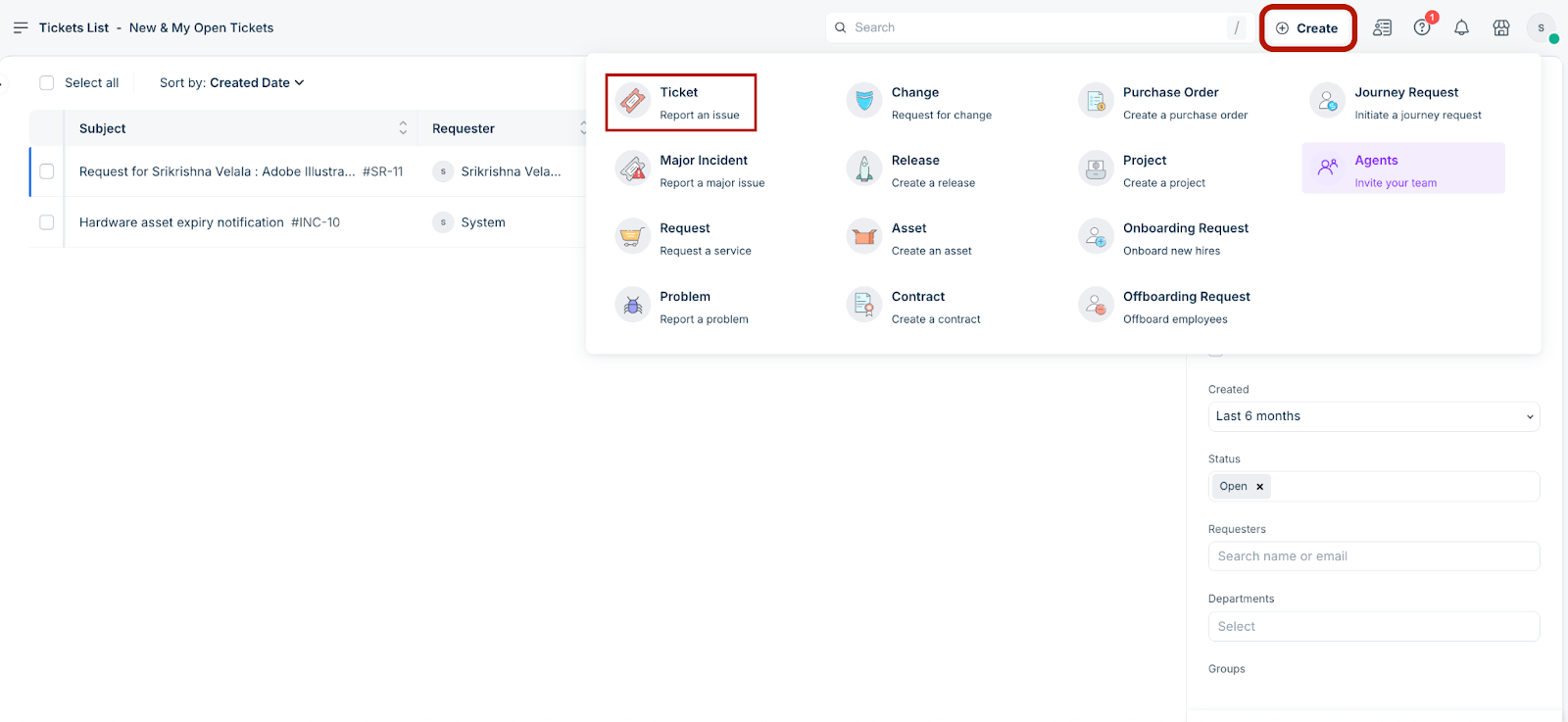
Click + Create, and select Ticket.
The Create incident page is displayed.
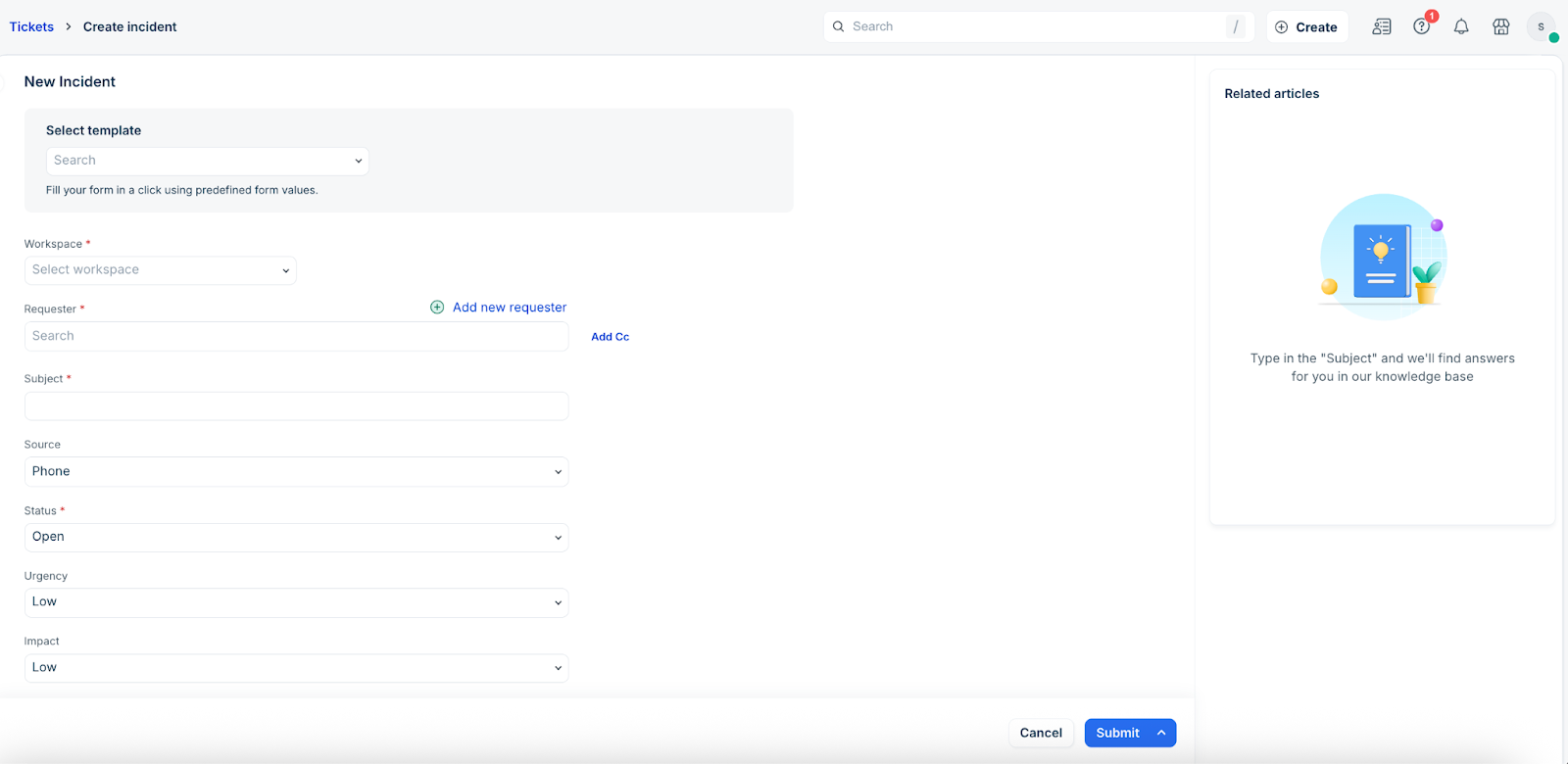
Select any existing ticket form template from Select template dropdown (if applicable).
Note: Form templates help you fill ticket forms quickly using predefined values. See Creating Ticket and Change Template for more information.
Enter relevant details in all the required fields.
To add a new requester, use the Add new requester option.
To associate any assets to the ticket, use the Associate assets option.
Attach relevant files to the ticket (if required).
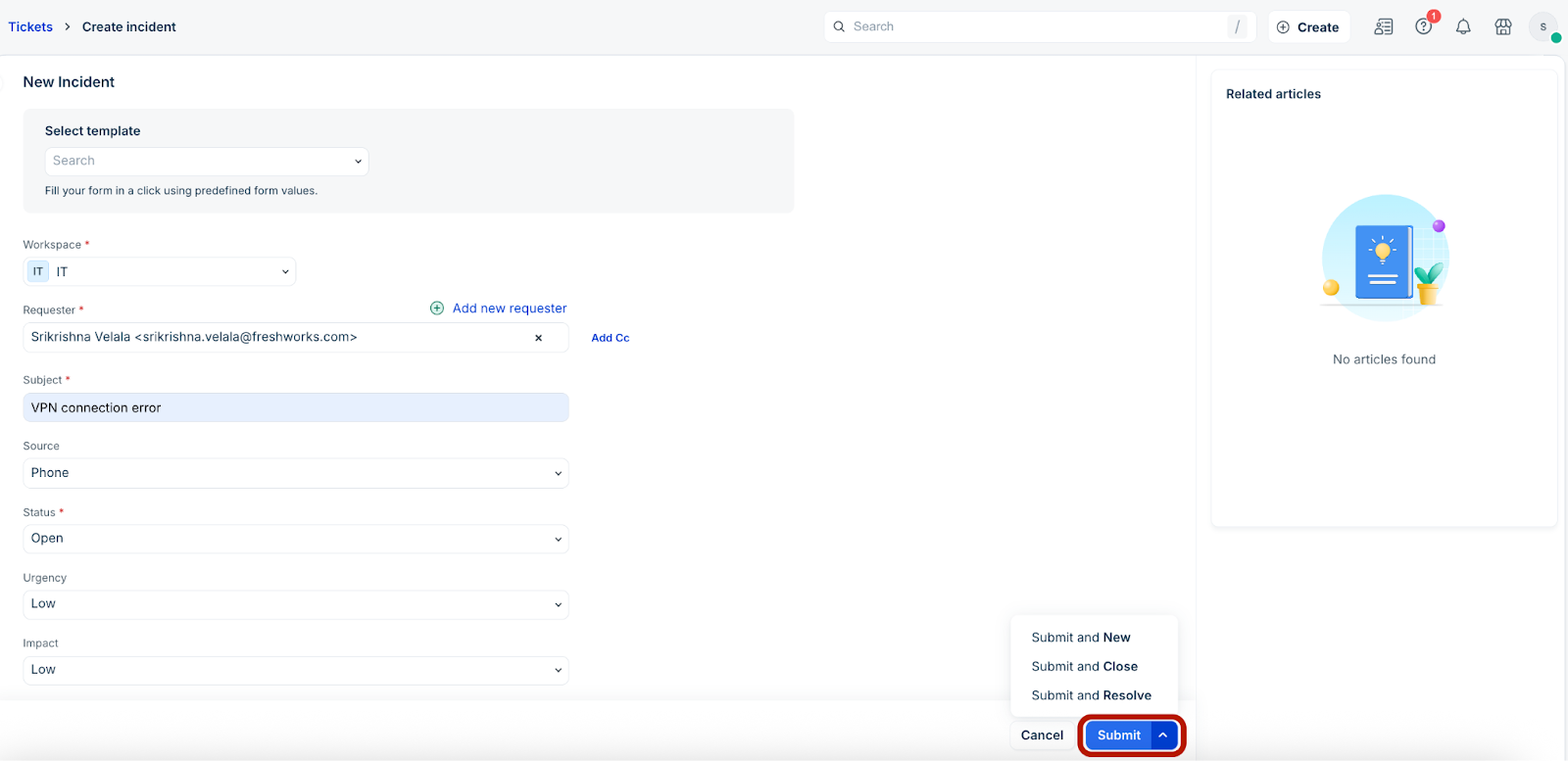
Click Submit. Or, select the relevant submission option.
Summarise tickets with Freddy AI
While working on tickets, agents often need to review the incident context before taking an appropriate action. You can use the summarise option to generate a clear and concise summary about a ticket based on its subject, description, and conversations.
Follow these steps to summarise tickets with Freddy AI Copilot:
Log in to your Freshservice account.
Go to Tickets > List.
Click any ticket Subject to open the ticket details page.
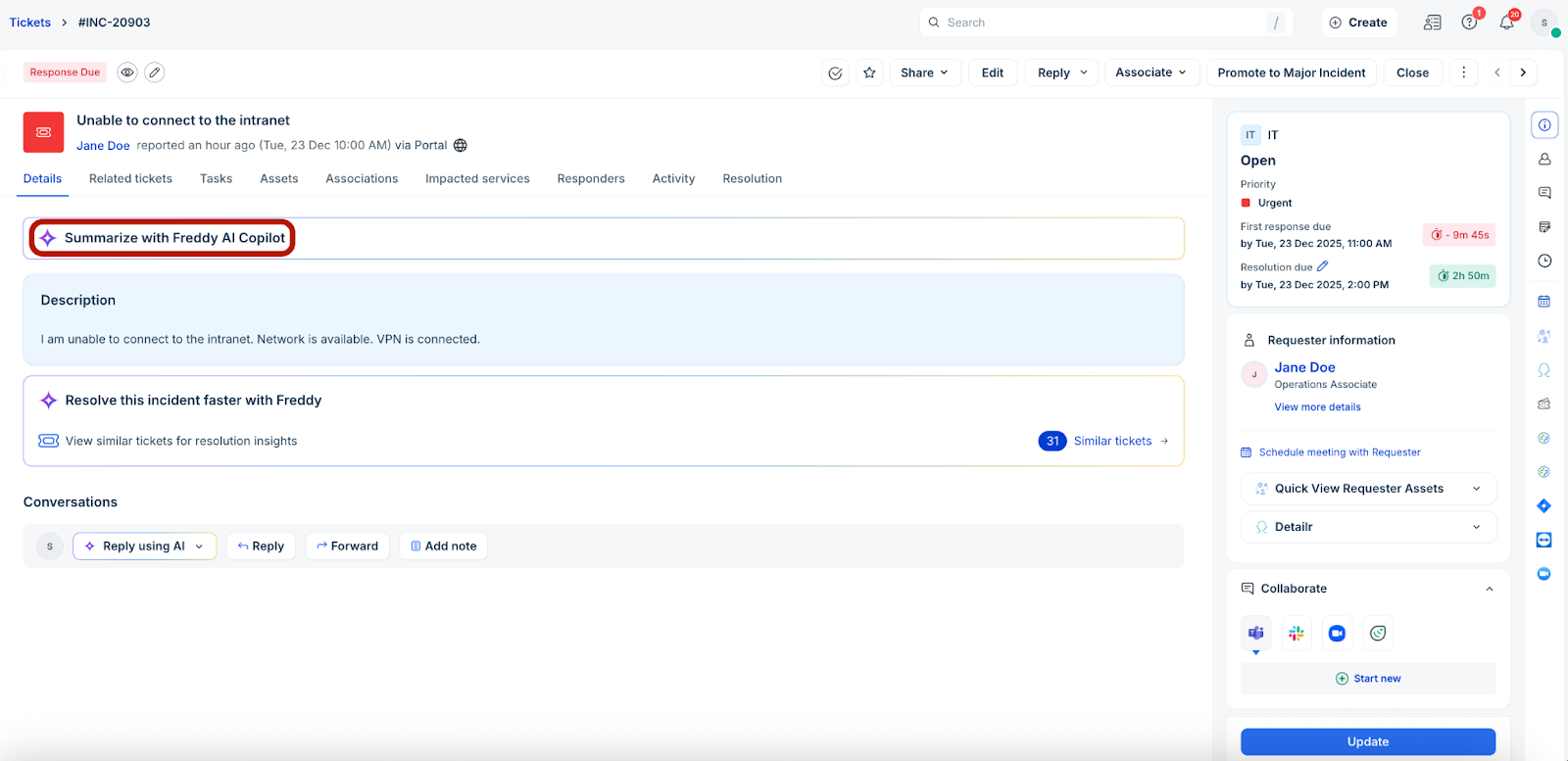
Click Summarize with Freddy AI Copilot.
A summary about the ticket is generated.
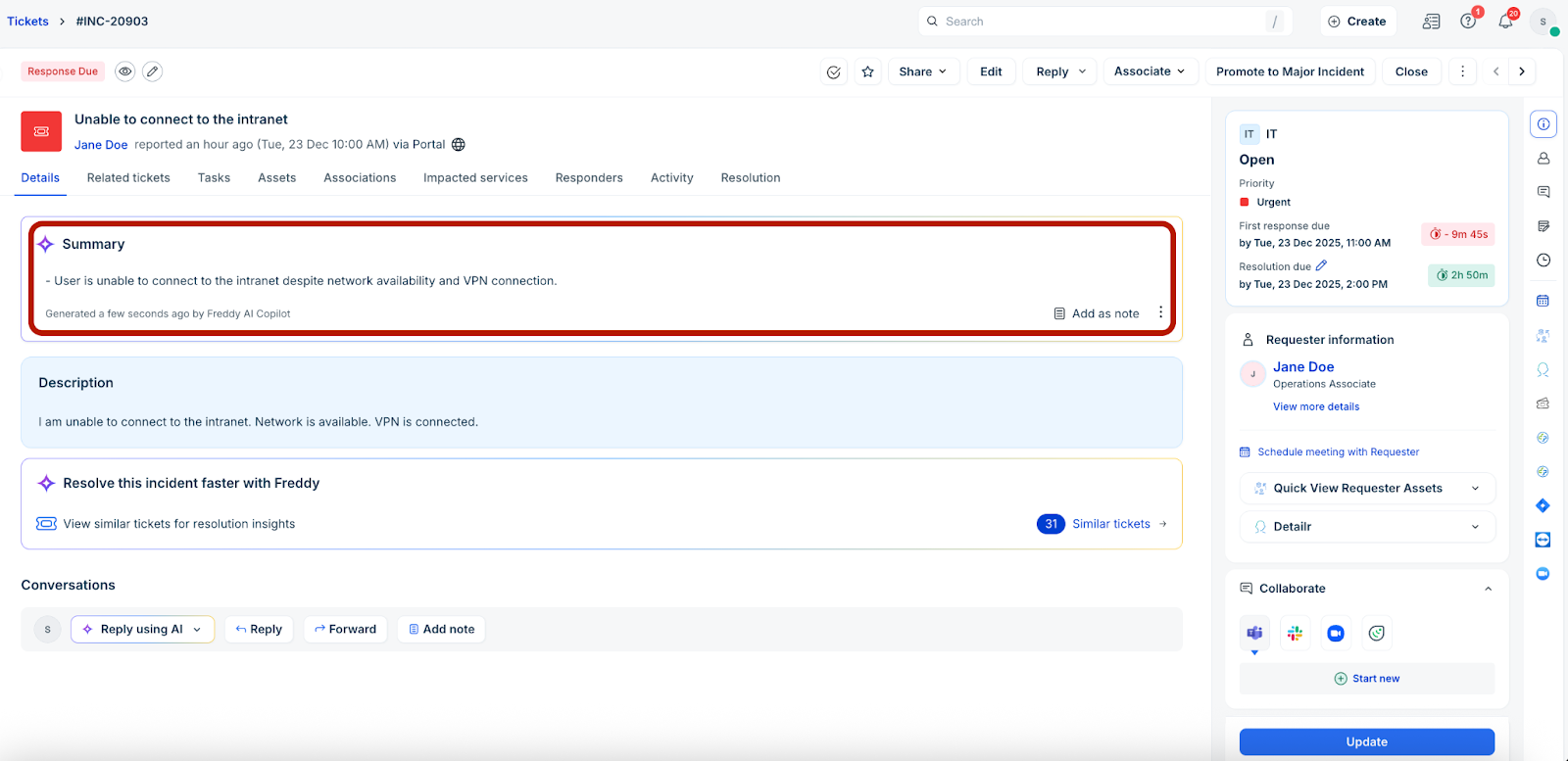
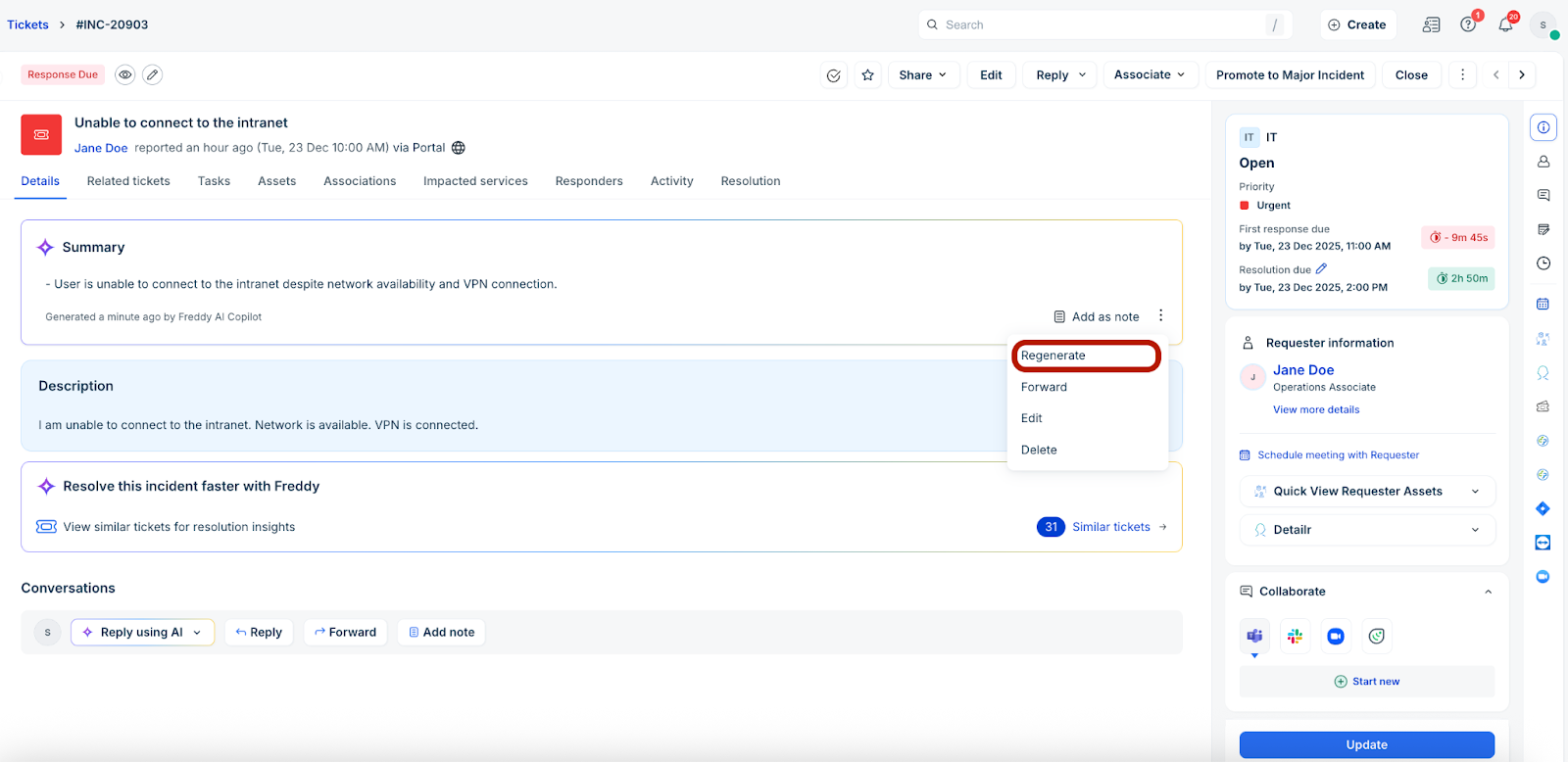
Note: To regenerate the Freddy AI summary anytime, click the ellipses icon in the Summary section, and click Regenerate. For more information on Freddy AI generated ticket summaries, see Automatic generation of ticket summary.
Resolve tickets
When a ticket is created by either a requester or an agent, it is automatically assigned the Open status. Throughout its lifecycle, a ticket can cycle through several statuses, including In Progress, Pending, Resolved, or Closed, before reaching resolution.
Once a ticket is marked as Resolved, the system automatically moves it to Closed status after a predetermined period configured by the administrator.
Follow these steps to resolve tickets:
Go to Tickets > List.
Click any ticket Subject to open the ticket details page.
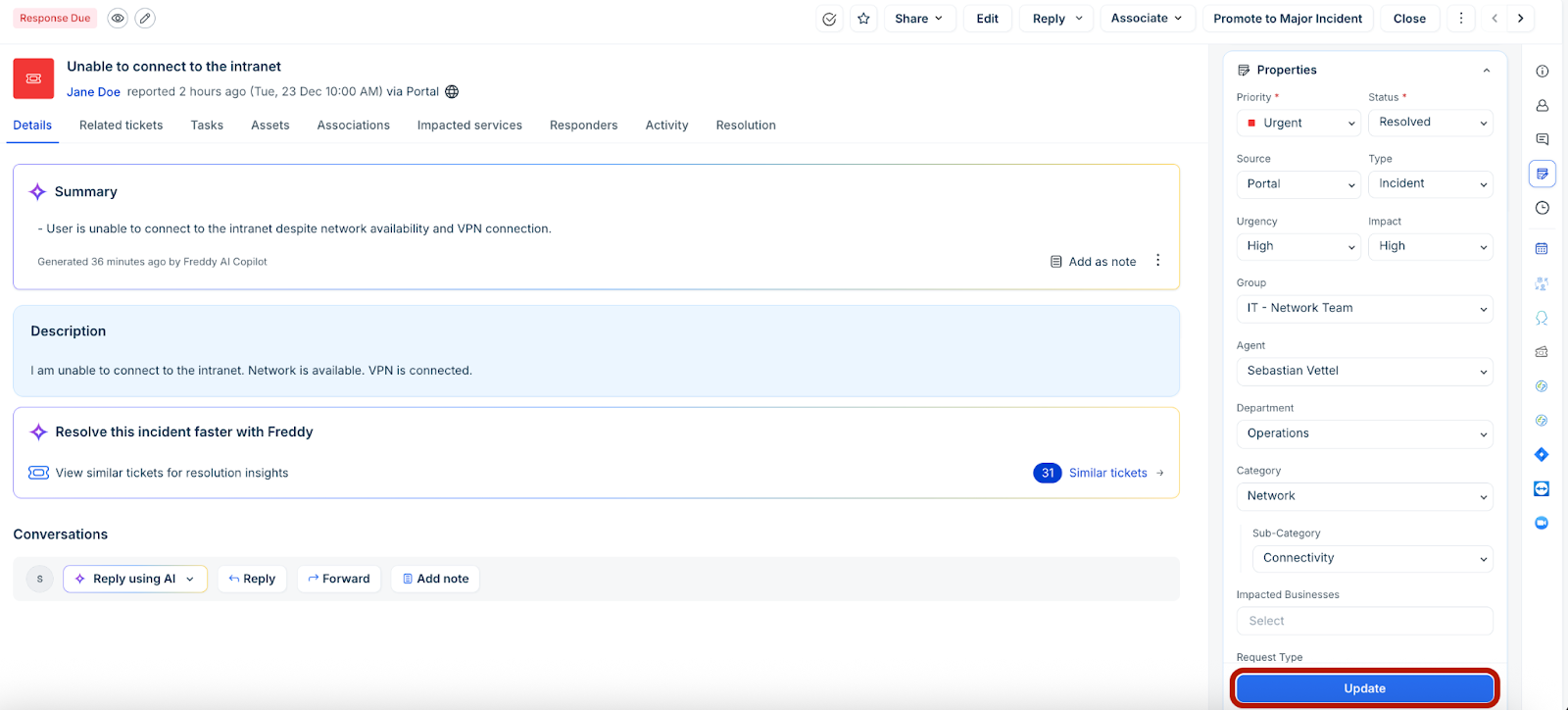
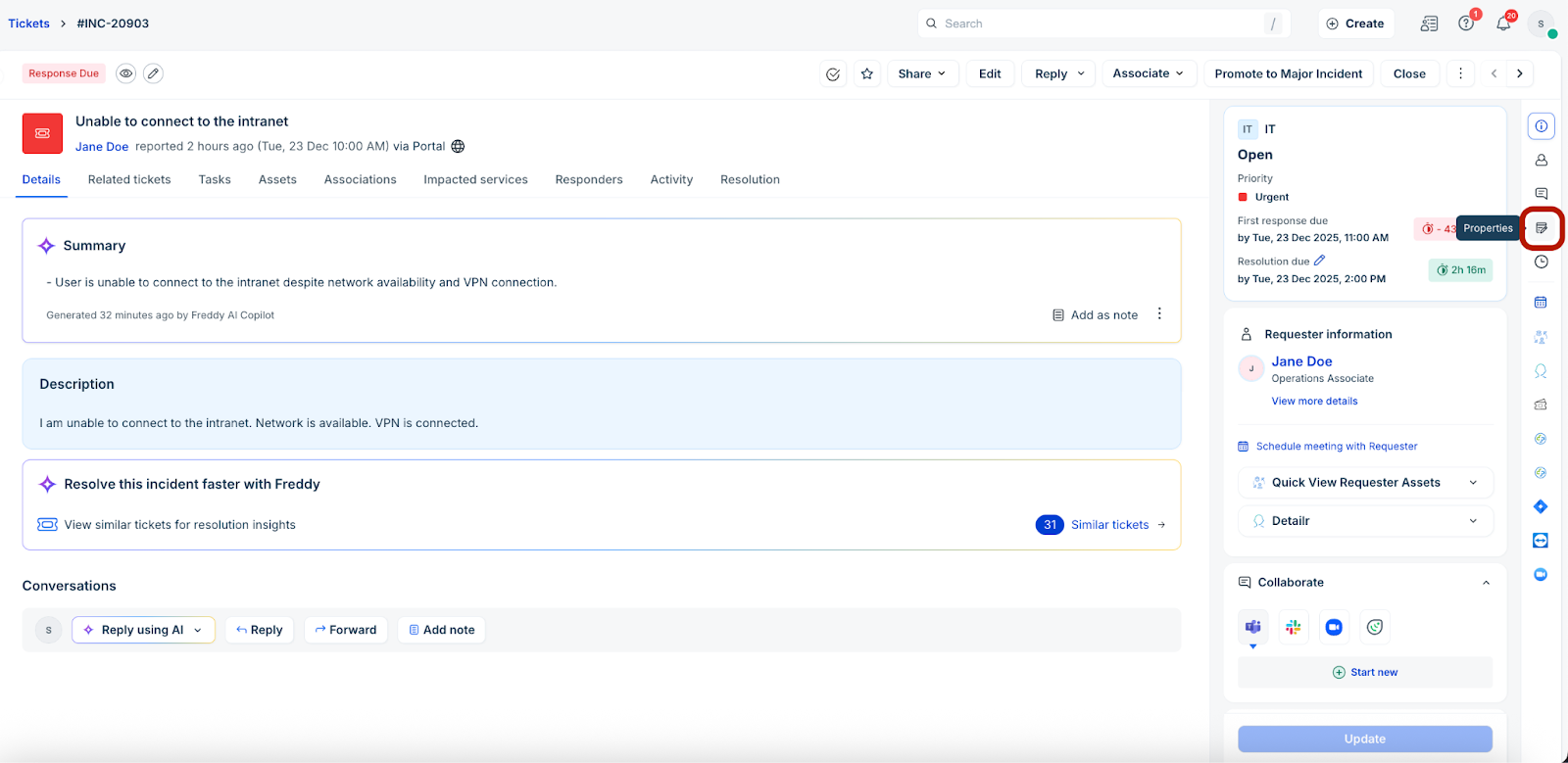
Click the Properties icon on the right panel.
In the Properties section, click the Status dropdown and select Resolved.
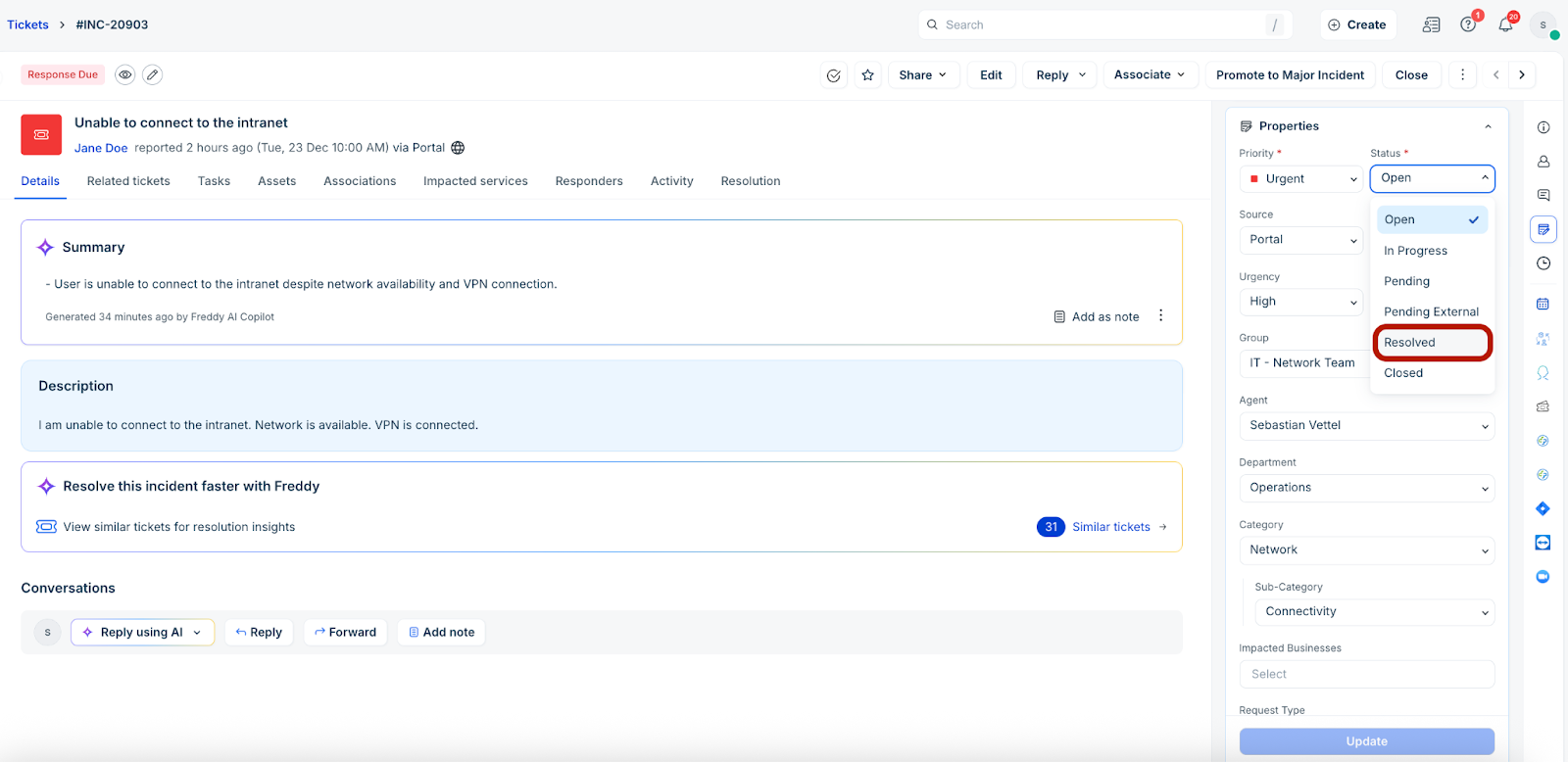
Then, click Update.