
 Community
 Video Library
 Agent Training
 Freshservice
 Freshdesk
 Freshchat
 Freshcaller
 Freshsales
 Freshteam
 Freshworks Neo
 Freshsurvey
 Freshservice for MSP
 Business Rules allow you to apply conditional logic to forms. You can use these rules to build dynamic forms, manage ticket lifecycle stages, and enforce field-level access control to ensure that only authorized users can modify specific fields.
You can create business rules for tickets, tasks, changes, problems, and service items. This article will focus on creating business rules for tickets and service items. To configure these rules, you can use any default or custom fields available on forms to define the execution conditions.
TABLE OF CONTENTS
- Prerequisites
- How business rules work across workspaces
- Create a business rule for tickets
- Create business rules for service items
- System execution order
- Scope applicability matrix
- Use cases for business rules
Prerequisites
Ensure you meet the following requirements before configuring business rules.
Ensure you have Account administrator or workspace administrator privileges to configure business rules.
Ensure you are operating within a sandbox account if you plan to test complex logic before deployment.
How business rules work across workspaces
Business rules can be created at both the global level and within individual workspaces to control form behavior hierarchically.
Workspace administrators can view the list of global and local workflows applicable to their workspace. The global Business Rule executes first, followed by the workspace-level rules. This execution order allows workspace-level rules to override changes made by global rules.
For example, a global rule can be configured to route tickets to the right workspace based on the subject or description, while local rules manage form fields within that workspace.
Note: Global business rules are only viewable for workspace admins. Workspace admins can create business rules at a workspace level.
Execution criteria and conditions
You can configure business rules using a combination of the following fields to evaluate data dynamically:
Form fields: Dynamic values on the form that trigger rules instantly as the user fills out the form.
Logged in User: Attributes of the user submitting the form, such as department, location, role, or group.
Current Record: Static values of the underlying saved record that are valid only when a user is editing the record. The current record condition is applicable only on Edit form. When applied to tickets, this condition allows you to create business rules based on Ticket Type and the requested items of the underlying ticket.
Move ticket (form): Available when moving tickets across workspaces. Use this condition to validate business rules during the ticket move operation.
Create a business rule for tickets
Follow these steps to configure a business rule to automate form behaviors, such as mandating a resolution note when an agent resolves a ticket.
If your account has more than one workspace, go to:
For Global settings: Admin > Service Management > Service Desk Settings > Business Rules for Forms > Create New Rule.
For Workspace level: Admin > Workspace Settings > {Workspace Name} > Service Management > Service Desk Settings > Business Rules for Forms > Create New Rule.
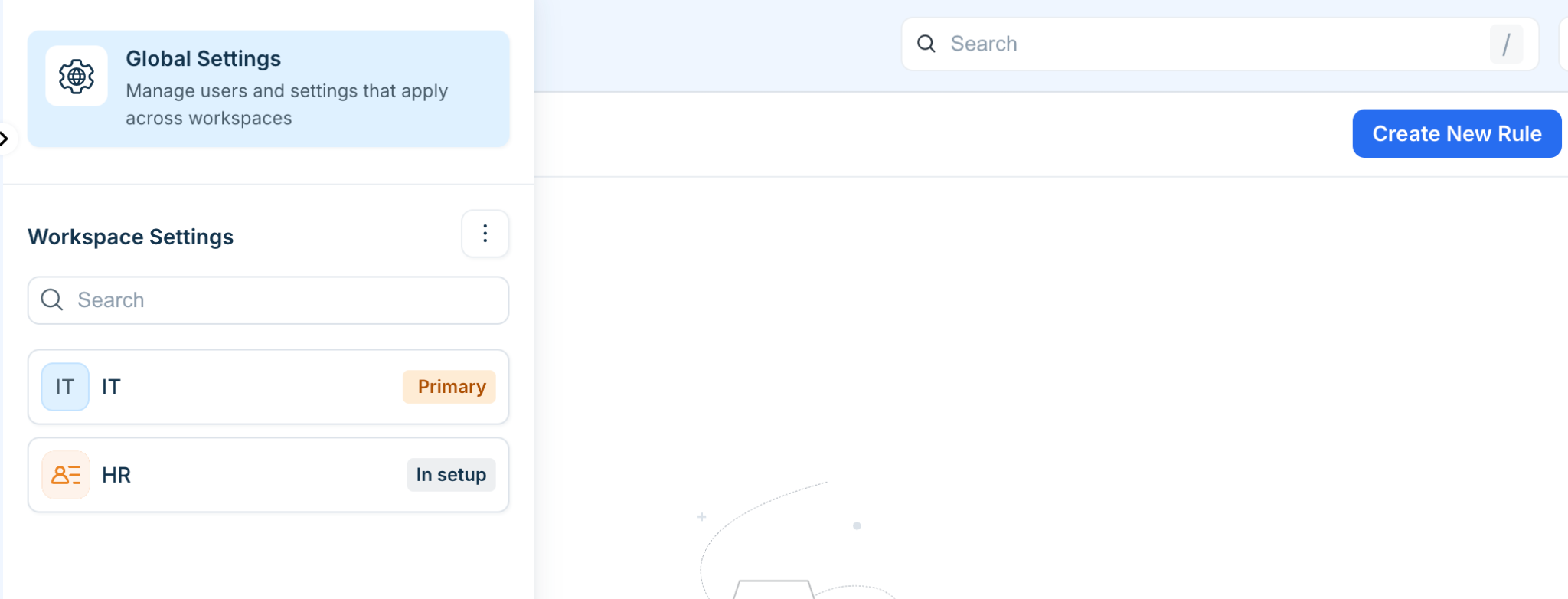
Select Ticket as the form type.
Enter a title in the Rule Name field. For example, Mandate resolution notes on resolving tickets. If required, click Add Description to provide context.
Click the Applies to dropdown and select whether the rule applies to Agents, Requesters, or Agents and Requesters.
Click the Execute On dropdown and specify if the rule needs to execute on a New Form, Edit Form, or both.
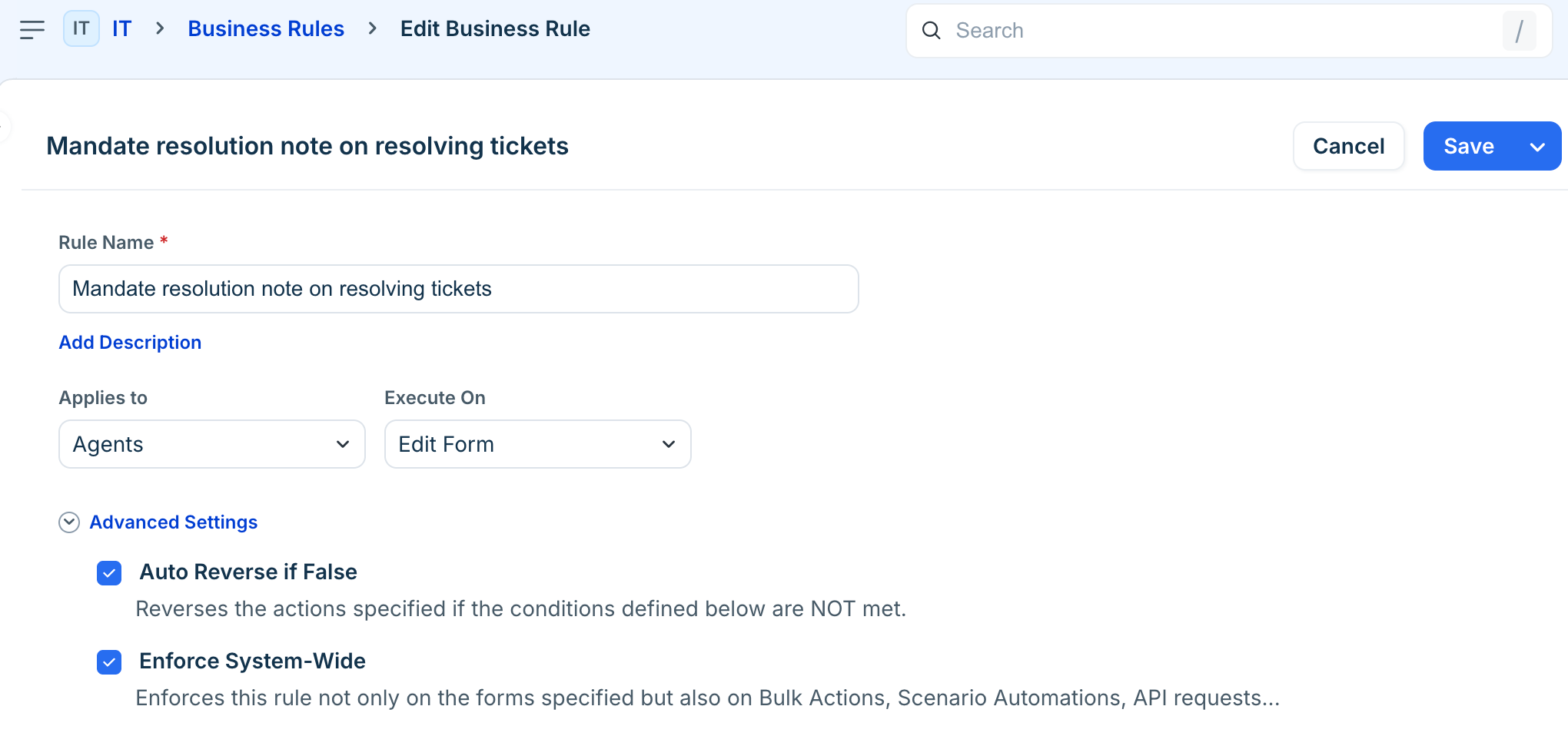
Under Advanced Settings, configure the following options based on your requirements:
Select Auto Reverse if False to reverse the actions specified if the conditions defined are not met.
Select Enforce System-Wide to enforce this rule on Bulk Actions, Scenario Automations, and API requests in addition to the specified forms.
For more details, refer to the Advanced settings and capabilities section.
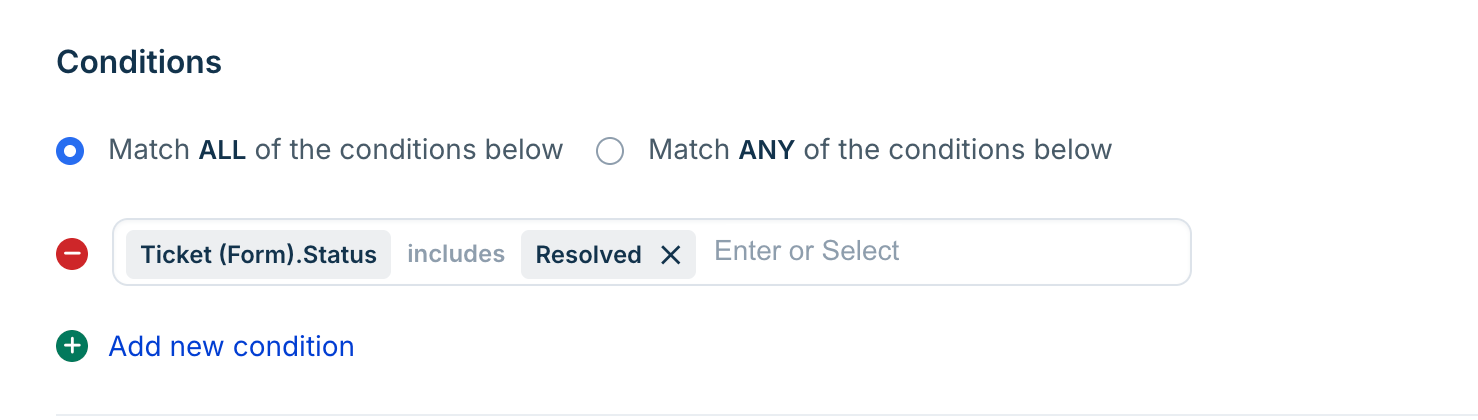
Under Conditions, select either Match ALL of the conditions below or Match ANY of the conditions below.
Click Add new condition and define your criteria using form fields, logged-in user attributes, or current ticket fields. For example, set Ticket (Form).Status to include Resolved.
Under Actions, select one of the following logic types:
Select Perform an Action and click Add new action to apply modifications such as Show and Hide fields, Mandate or Non-mandate fields (for example, Mandate Resolution Note), Enable and Disable fields, or Set and Remove options.
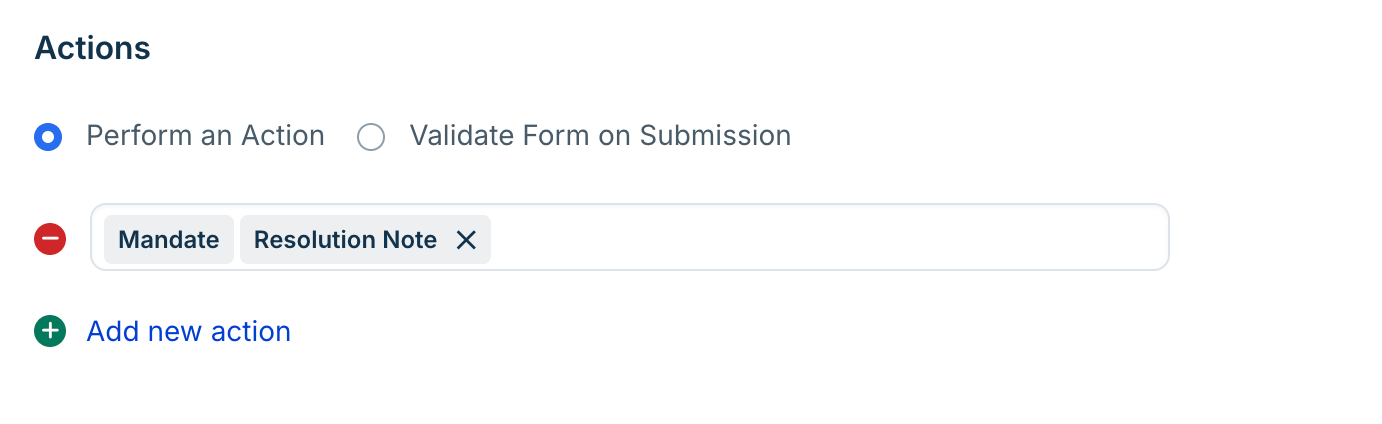
Select Validate Form on Submission to prevent form submission and display a custom error message if the conditions are met.
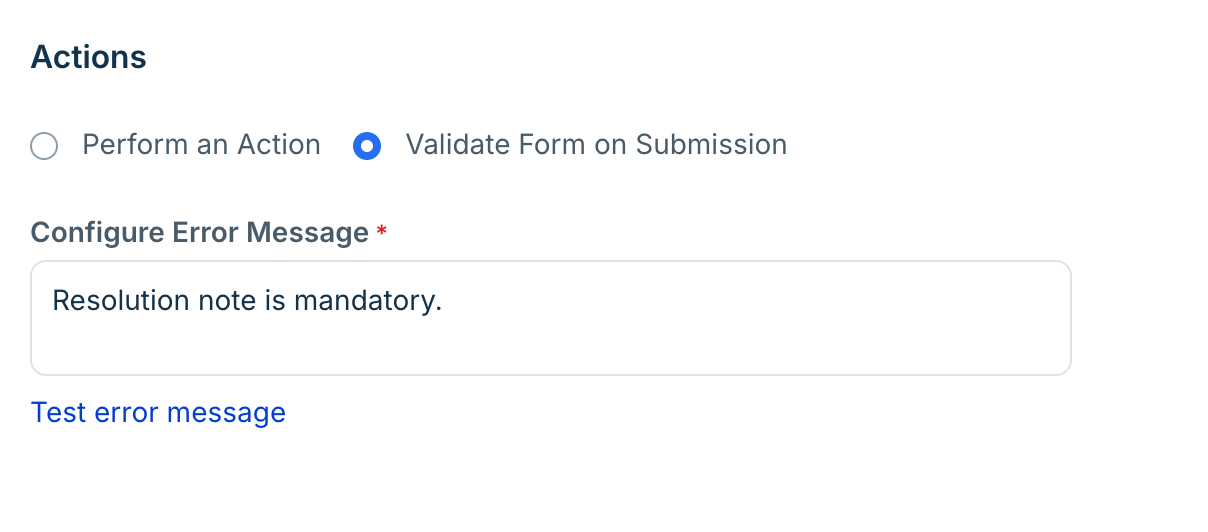
Click Save or Save and Activate to apply the business rule to your forms.
Manage Advanced settings
Advanced configurations allow you to dictate how rules behave when conditions fail or when actions occur outside standard form views.
Auto Reverse if False
This option reverses the specified actions if the conditions defined in a business rule are not met. For example, if you mandate a specific field in ticket forms when the status is set to Resolved, enabling this option ensures that the exact same field is not mandated when the ticket status is changed to other states like Open or In Progress.
Note: It is recommended to keep the Auto Reverse if False checkbox enabled by default for all business rules.
Use case: Mandate a specific field in ticket forms with specific status
If you mandate a specific field in ticket forms with ‘Resolved’ status, the Auto Reverse if False option will not mandate the same field in ticket forms with other statuses.
Select Agents and Requesters from the Applies to dropdown.
Select New Form and Edit Form from the Execute On dropdown.
In the Conditions section, select a relevant option (Match All or Match Any). Then, add a condition to set the ticket forms Status as Resolved.
In the Actions section, select Perform an Action. Then, add an action to mandate Group (in Ticket form only).
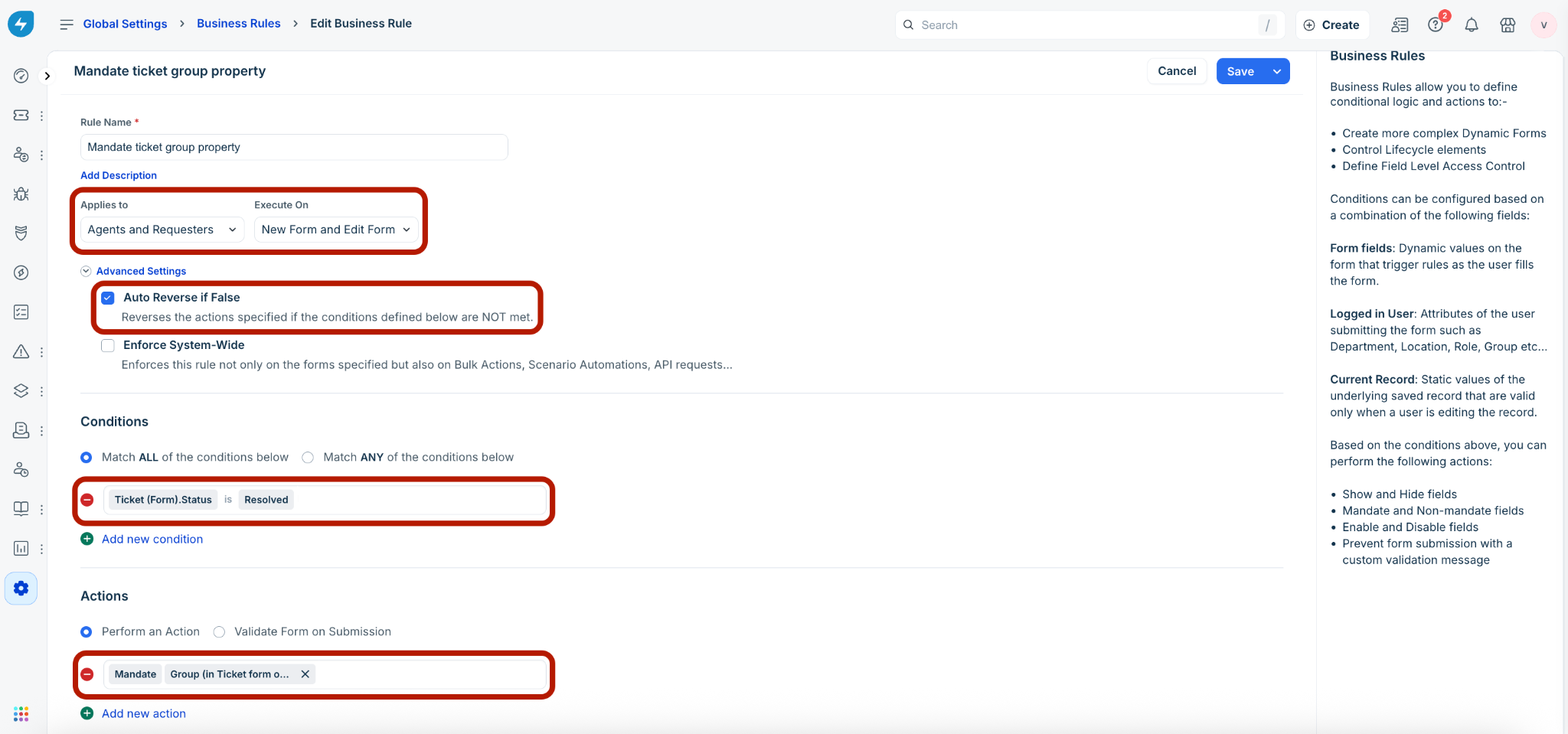
Click Save and Activate. The new business rule for tickets is created and activated.
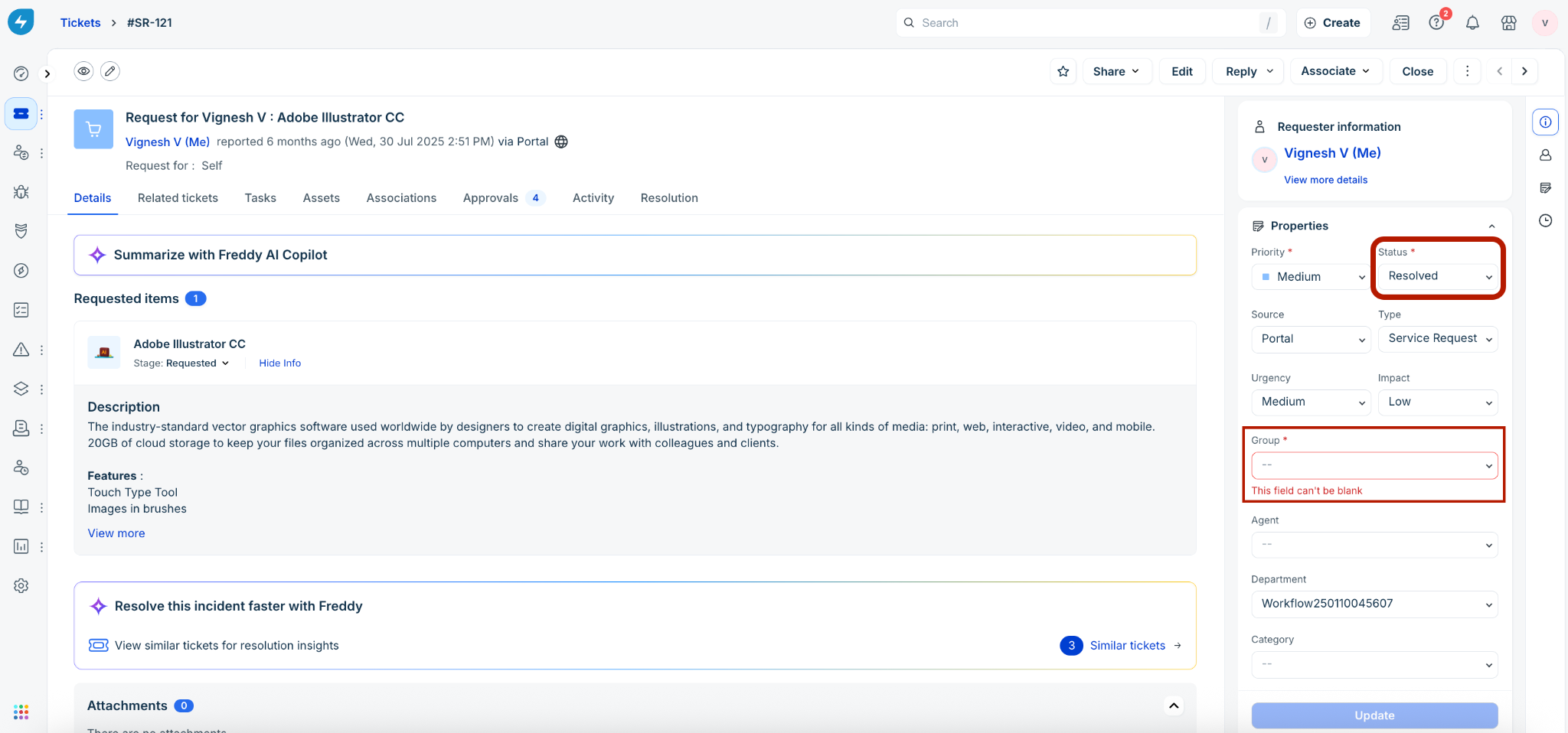
Go to Tickets > List. Click any ticket with Resolved status to view the ticket details page. The Group field will be mandated based on the set business rule.
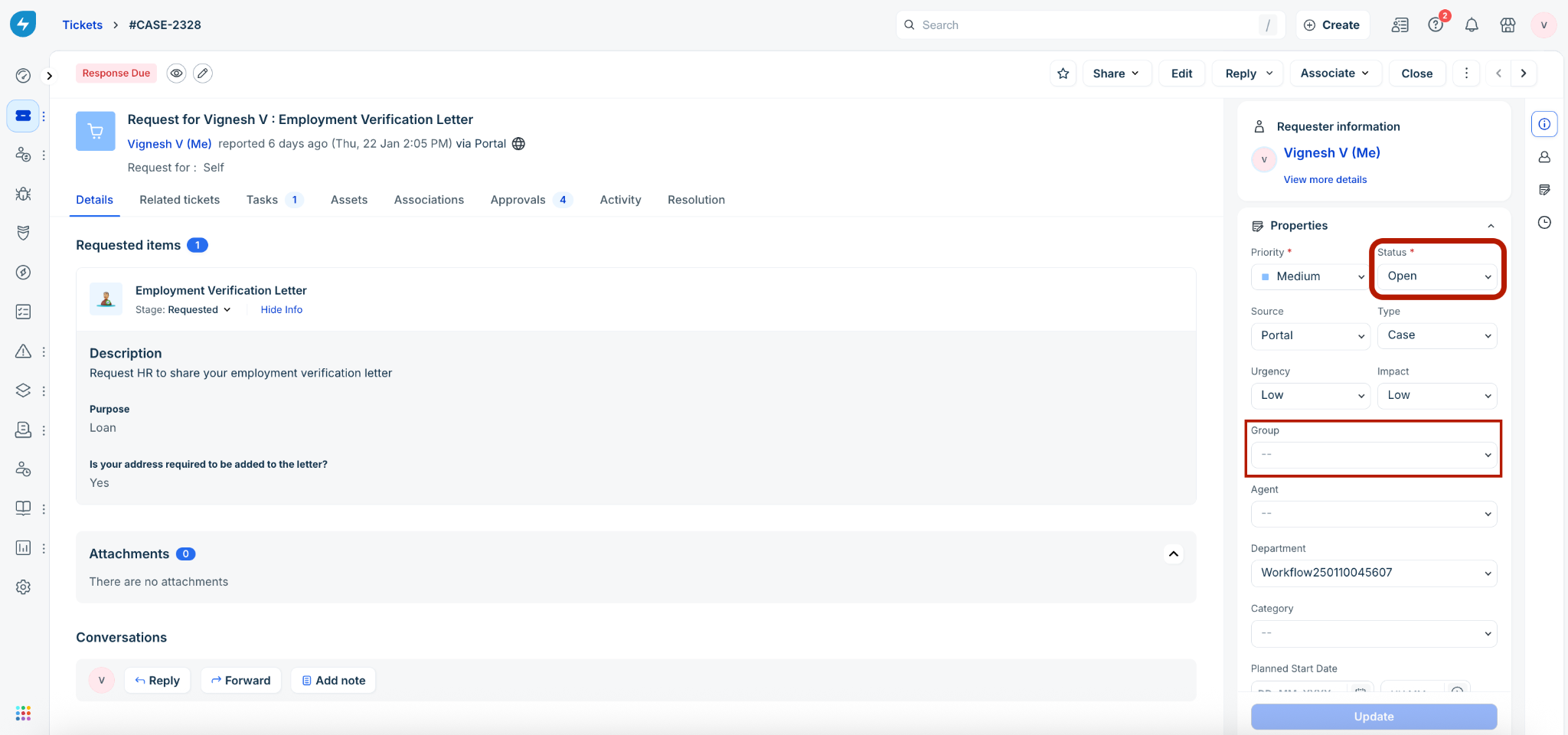
Go to Tickets > List. Click any ticket with Open status to view the ticket details page. The Group field will not be mandated based on the set business rule.
Enforce System-Wide
This option enforces a business rule for tickets, changes, problems, or tasks across all areas of the product rather than just standard forms.
When enabled, the logic applies to bulk actions, list view edits, table view edits, scenario automations, and API V1 and V2 requests. For example, if a rule removes the choice Low from the Urgency field when Impact is set to High, any bulk update attempt that violates this condition will fail.
Note: Ensure that the Enforce System-Wide option is enabled only after a proper evaluation of your business requirements. This option is not applicable to show or hide actions.
Use case: Set action and conditions for bulk ticket update
If you try to bulk update tickets with Impact set to High and Urgency set to Low, the Enforce System-Wide option will not update the ‘Urgency’ field for tickets based on the set business rule.
Select Agents and Requesters from the Applies to dropdown.
Select New Form and Edit Form from the Execute On dropdown.
Enable the Enforce System-Wide option.
In the Conditions section, select a relevant option (Match All or Match Any). Then, add a condition to set the ticket form Impact as High.
In the Actions section, select Perform an Action. Then, add the action Remove options from Urgency action, and select Low.
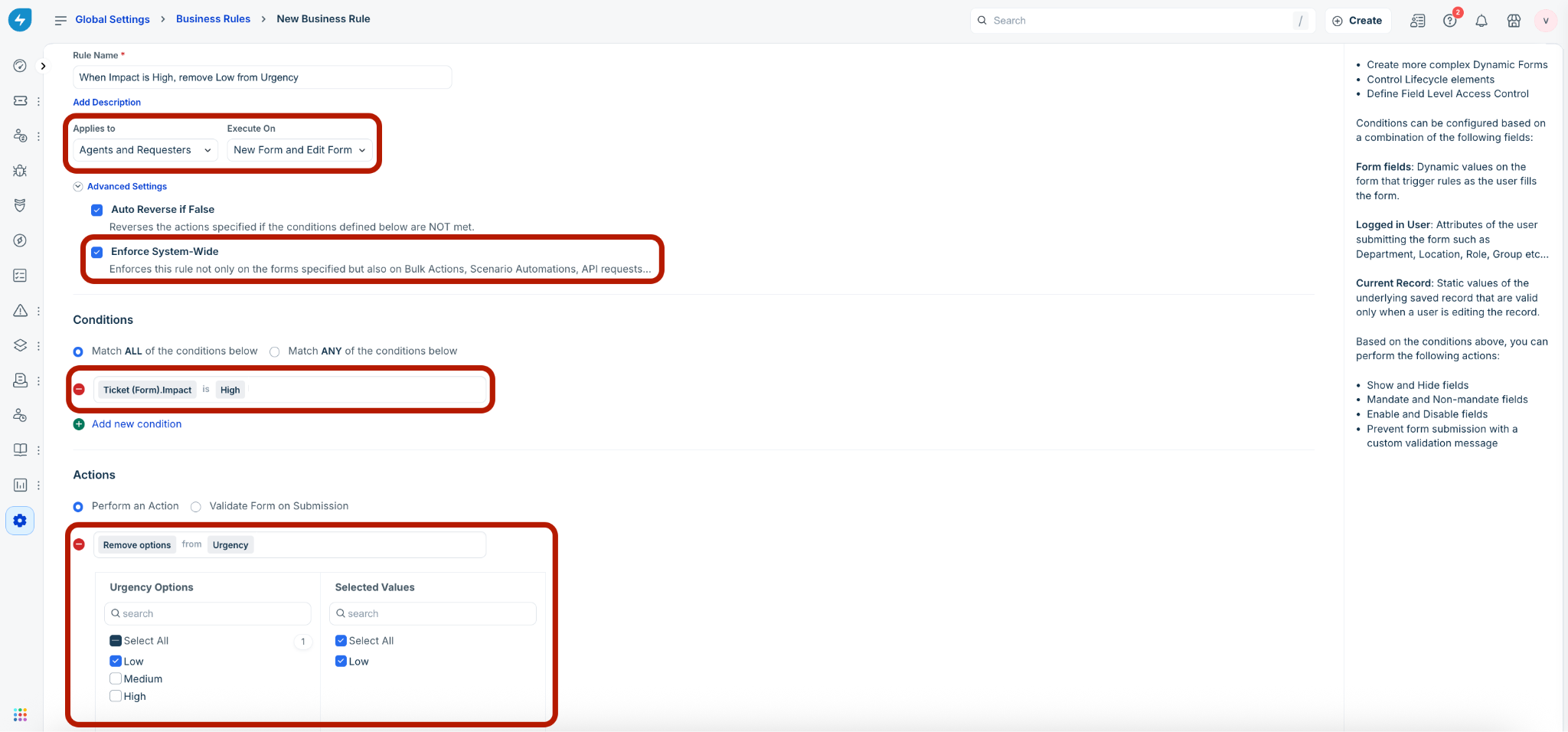
Click Save and Activate. The new business rule for tickets is created and activated.
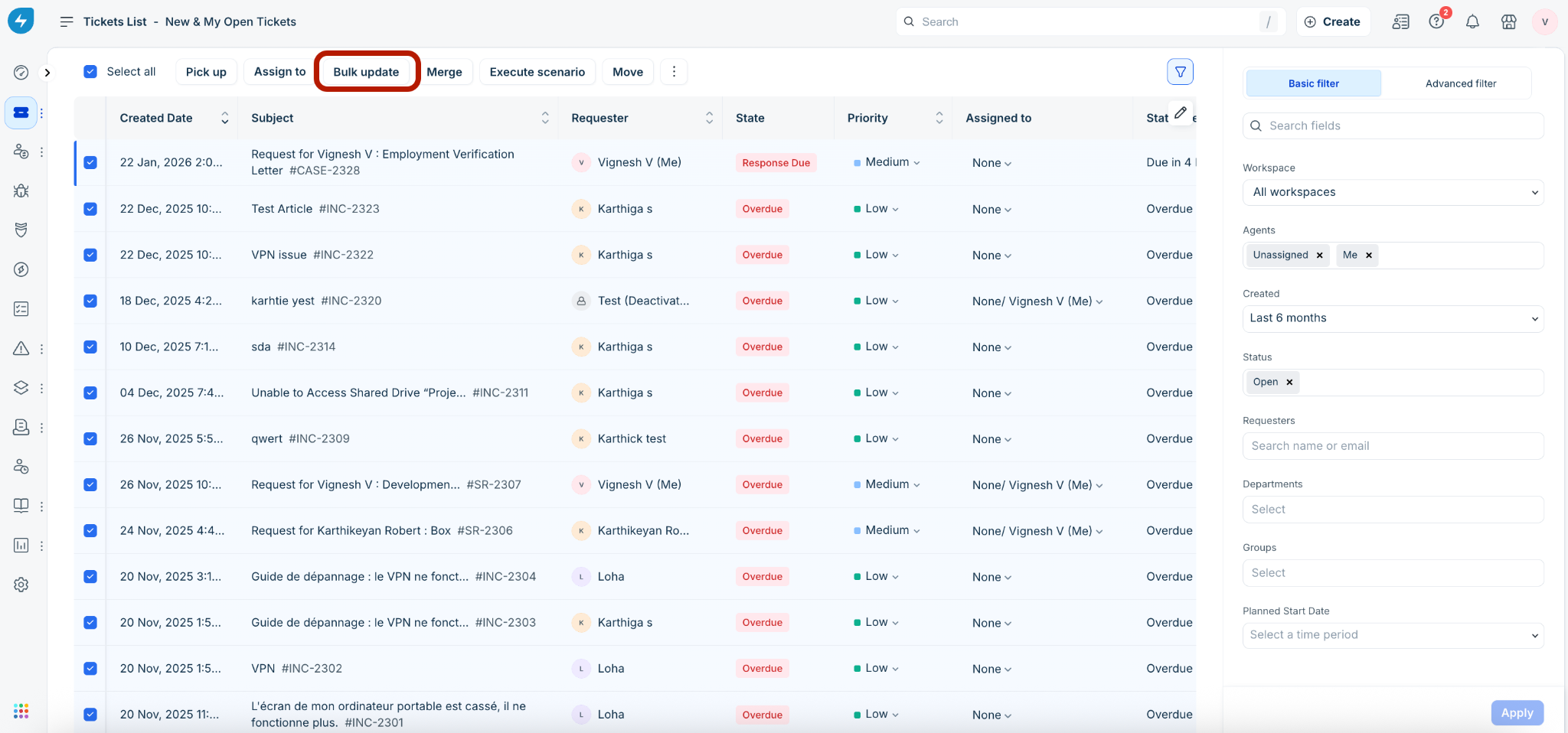
Go to Tickets > List. Click the Select all checkbox to select all tickets, then click Bulk update. The Bulk update slider is displayed on the right.
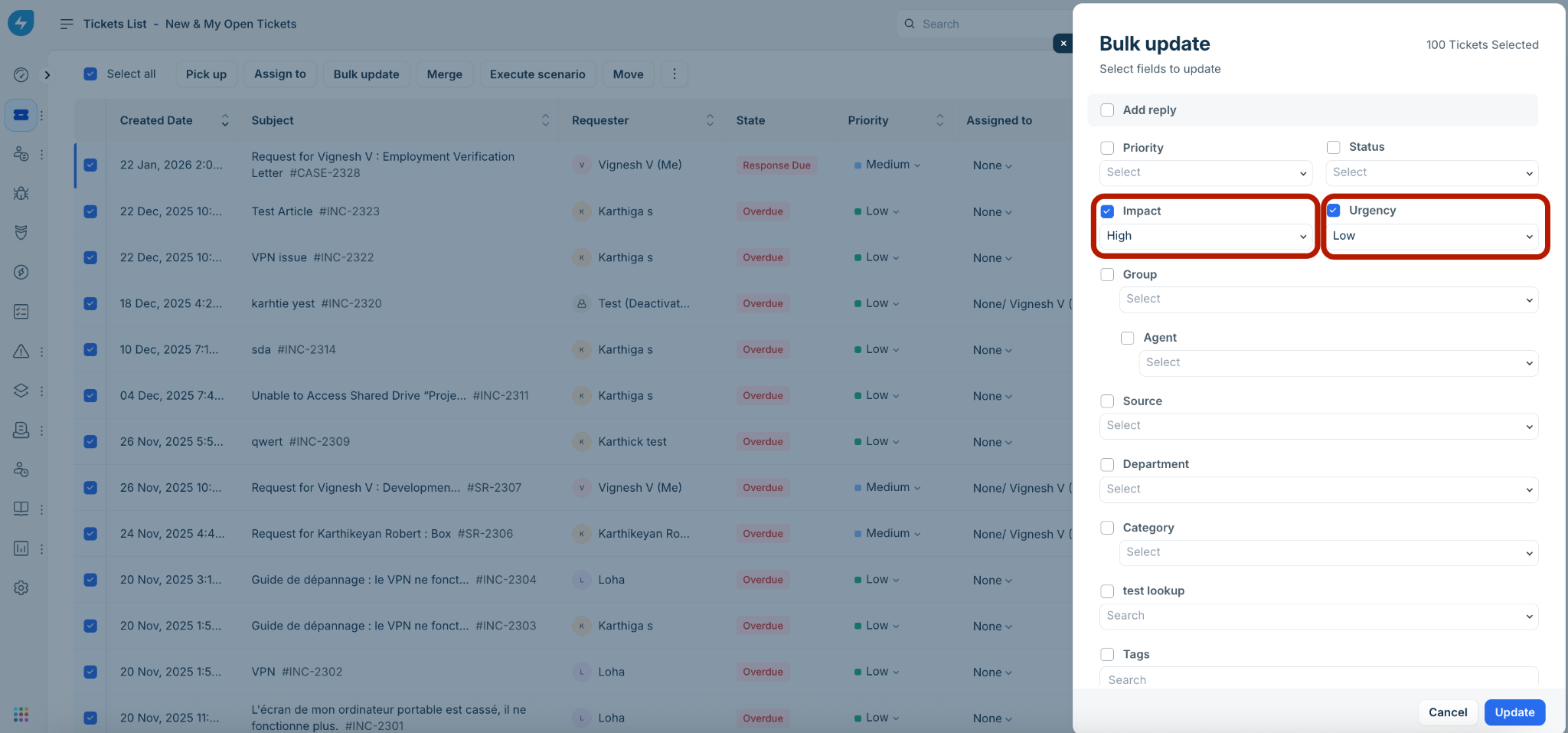
Select High from Impact dropdown and Low from Urgency dropdown.
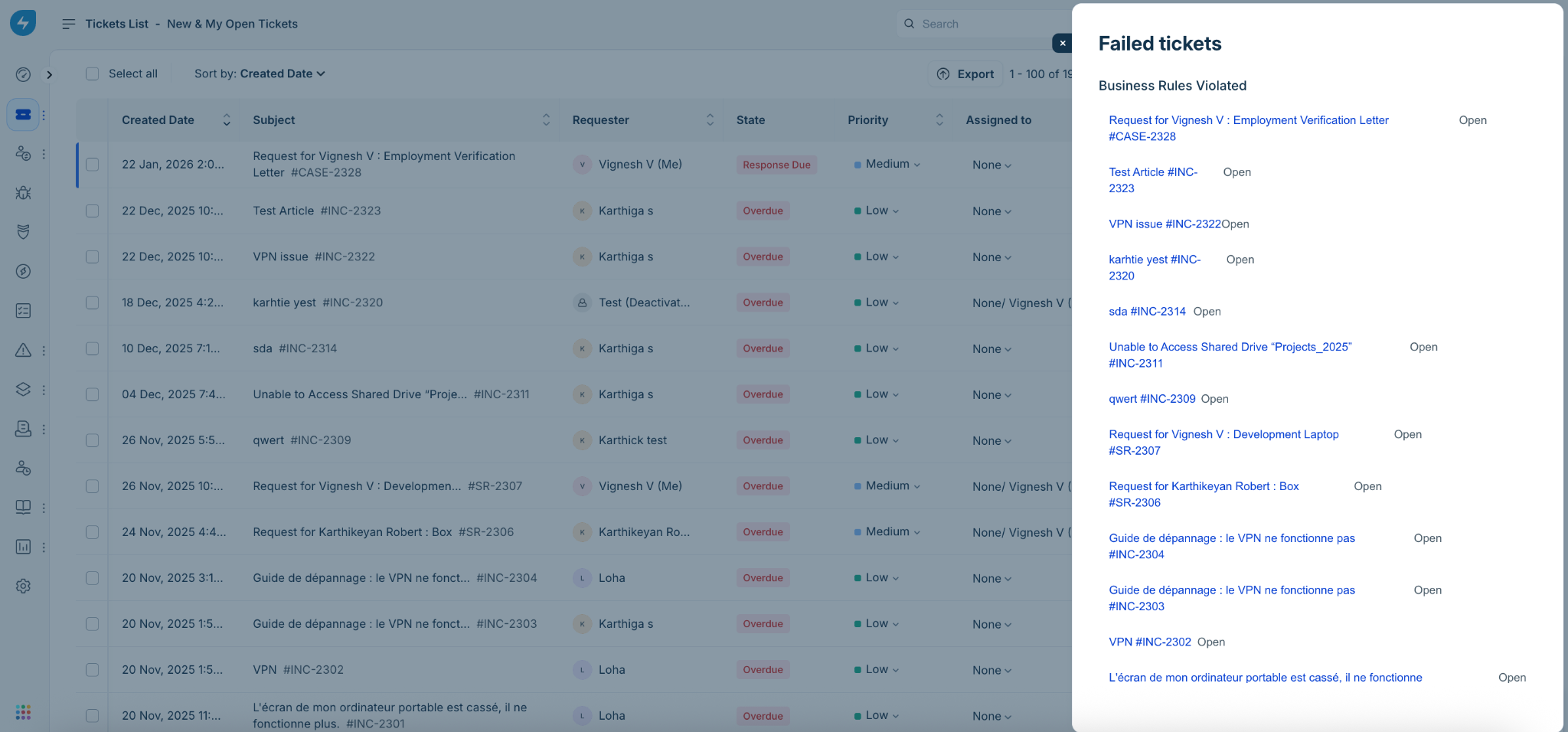
Click Update. The Bulk actions could not be performed on <count of tickets> message is displayed based on the set business rule.
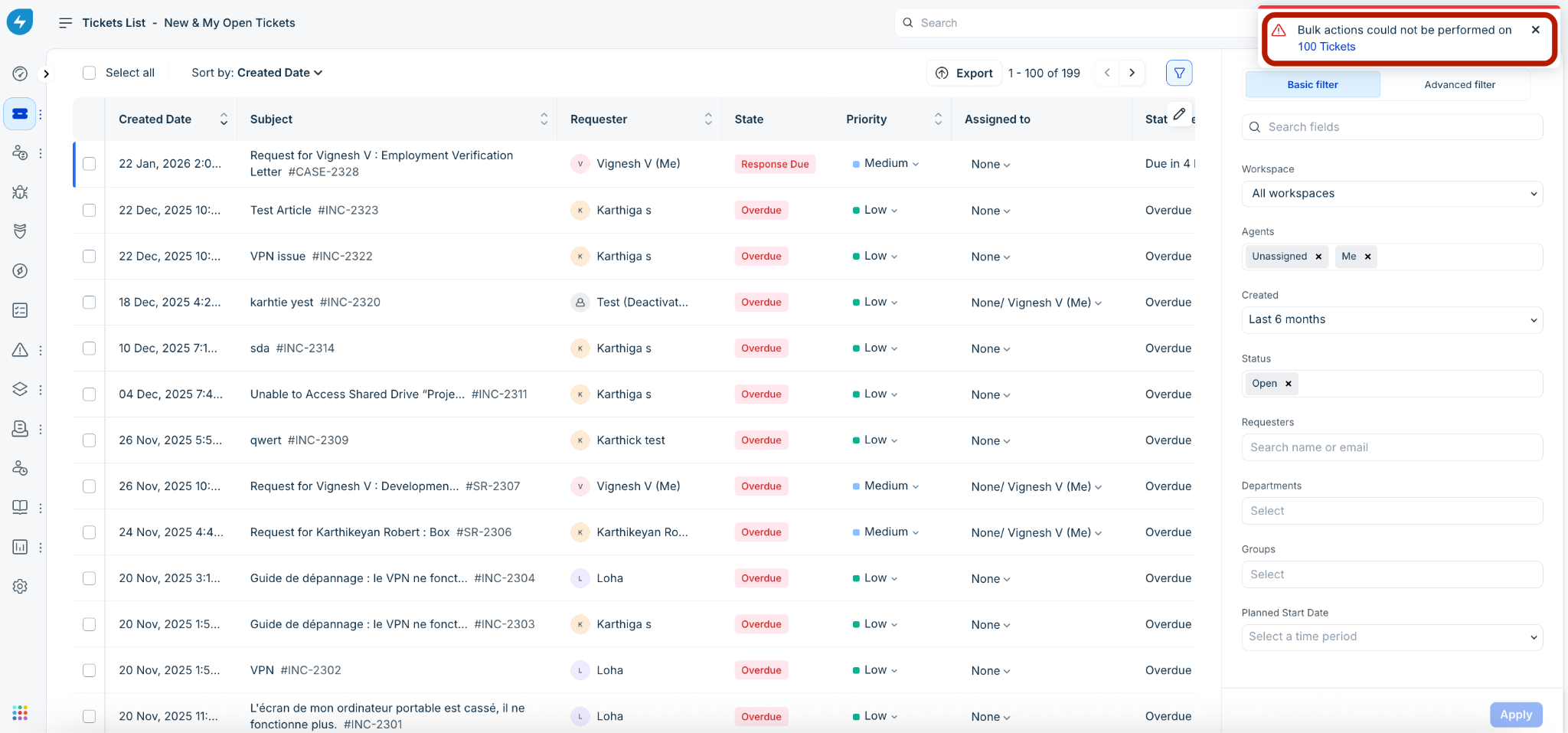
Click the <count of tickets> link to view the list of failed tickets. The Failed tickets slider is displayed on the right.
Create business rules for service items
Business rules for Service Items are configured at the workspace level and are not available at the global level. Follow these steps to create rules that dynamically control the behavior of fields in service request forms based on specified conditions:
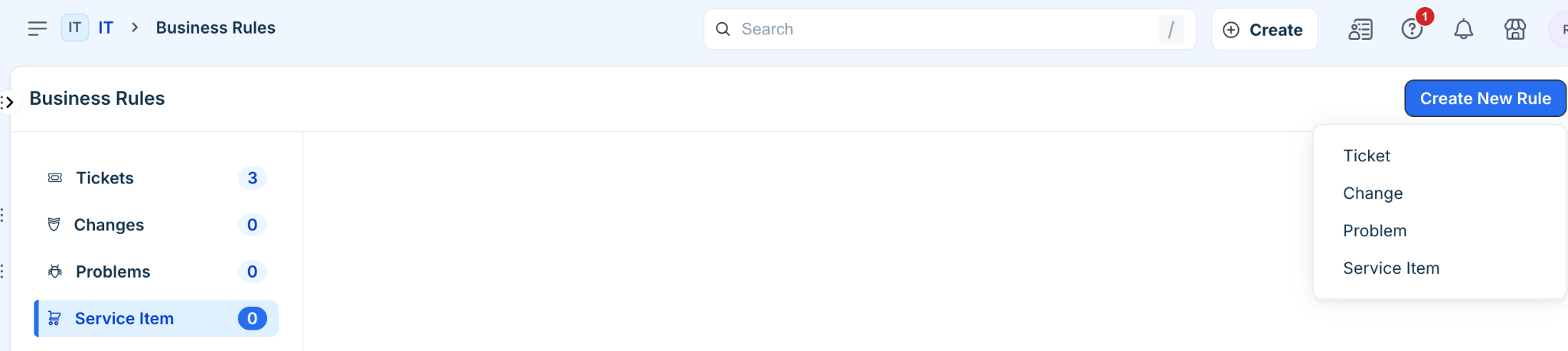
Go to Admin > Service Management > Service Desk Settings > Business Rules for Forms > click Create New Rule.
Select Service Item as the form type.
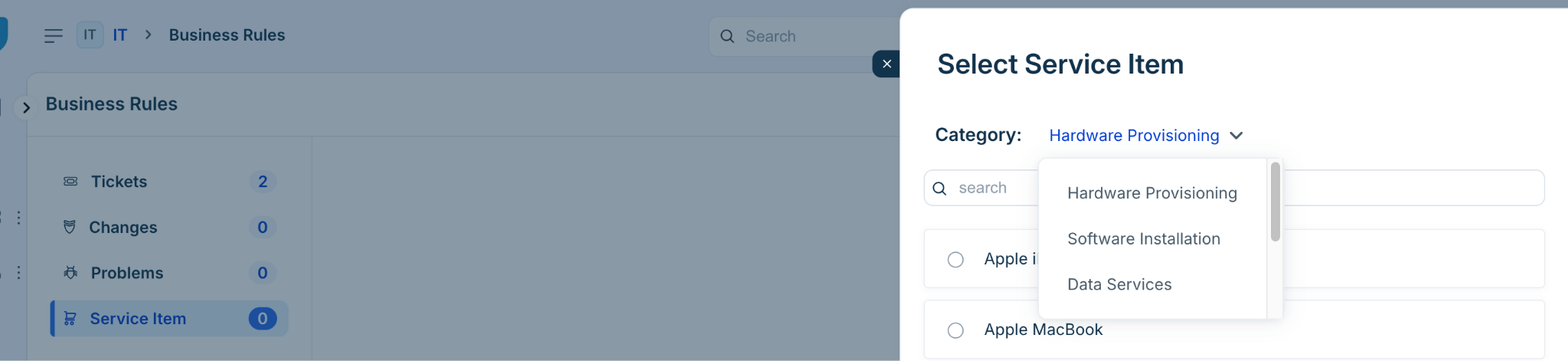
Select a category for the Service item form.
Enter a name in the Rule Name field.
Click the Applies to dropdown and select whether the rule applies to Agents, Requesters, or Agents and Requesters.
Click the Execute On dropdown and specify if the rule needs to execute on a New Form, Edit Form, or both.
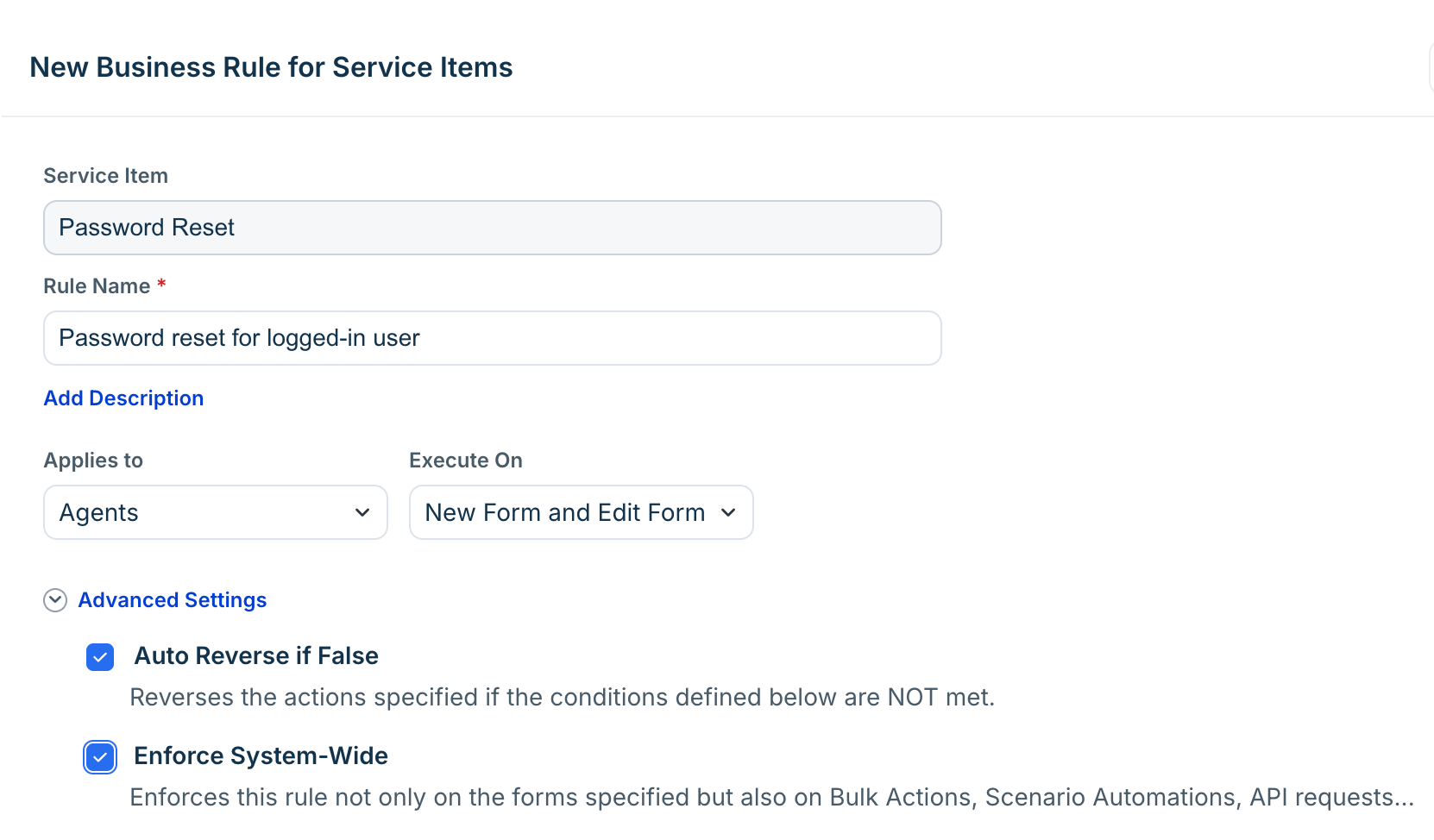
Under Advanced Settings, configure the following options based on your requirements:
Select Auto Reverse if False to reverse the actions specified if the conditions defined are not met.
Select Enforce System-Wide to enforce this rule on Bulk Actions, Scenario Automations, and API requests in addition to the specified forms.
For more details, refer to the Manage Advanced setting section.
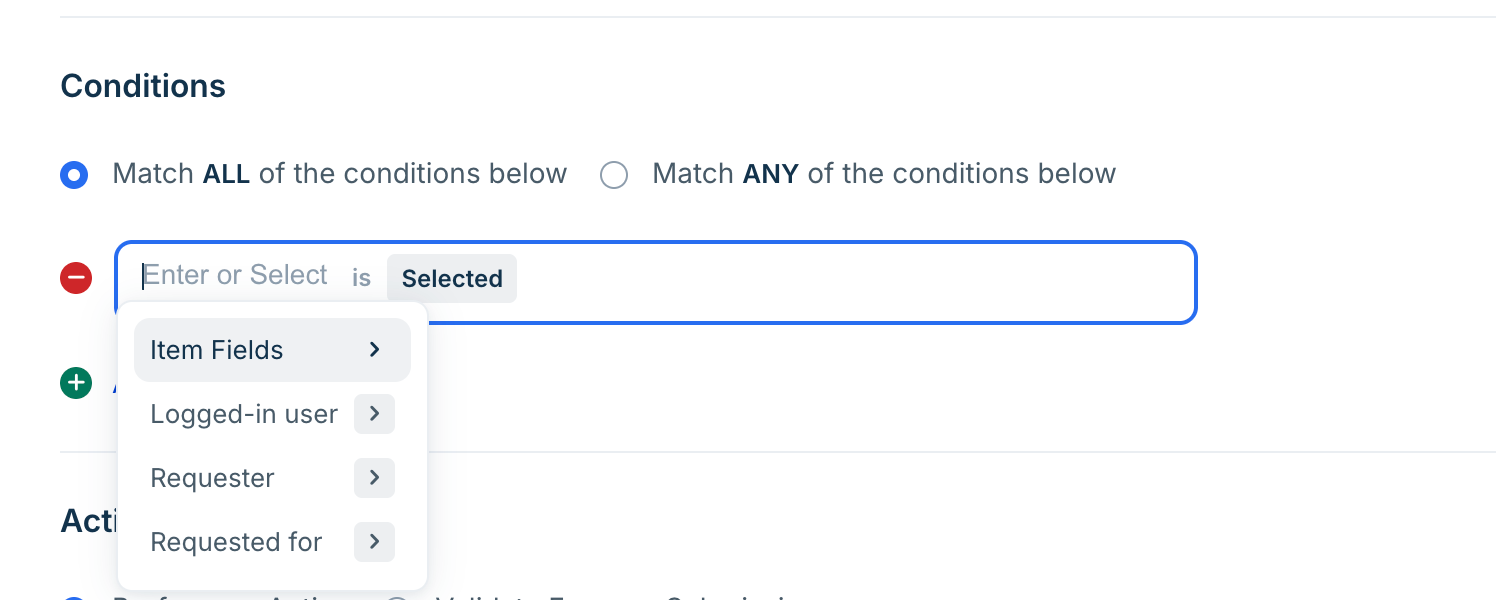
Configure the conditions for the rule. You can use any of the fields as shown in the image below.
You can also use Condition to configure relative and dynamic date-based conditions for service requests.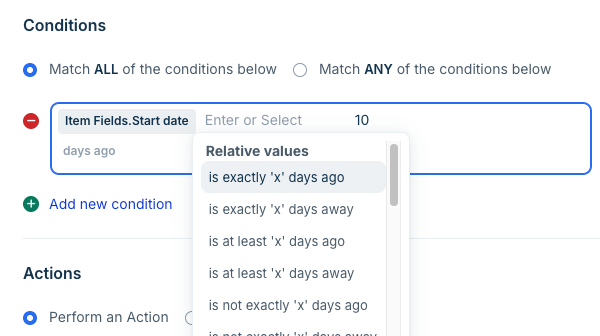
Configure one or more of the following actions that should be performed when the specified conditions are met.
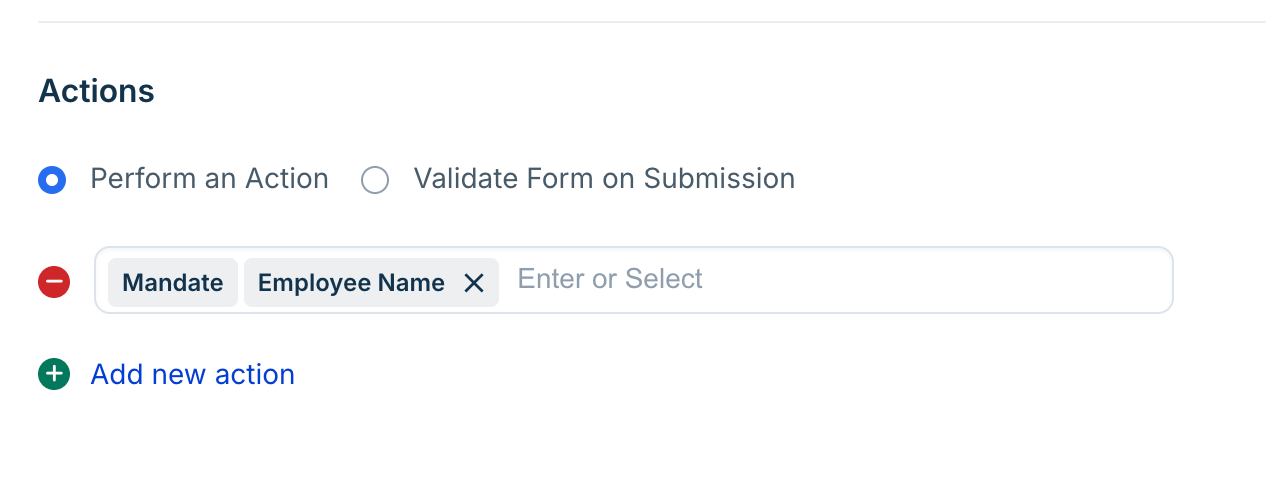
Click Save and Activate to enable the rule.
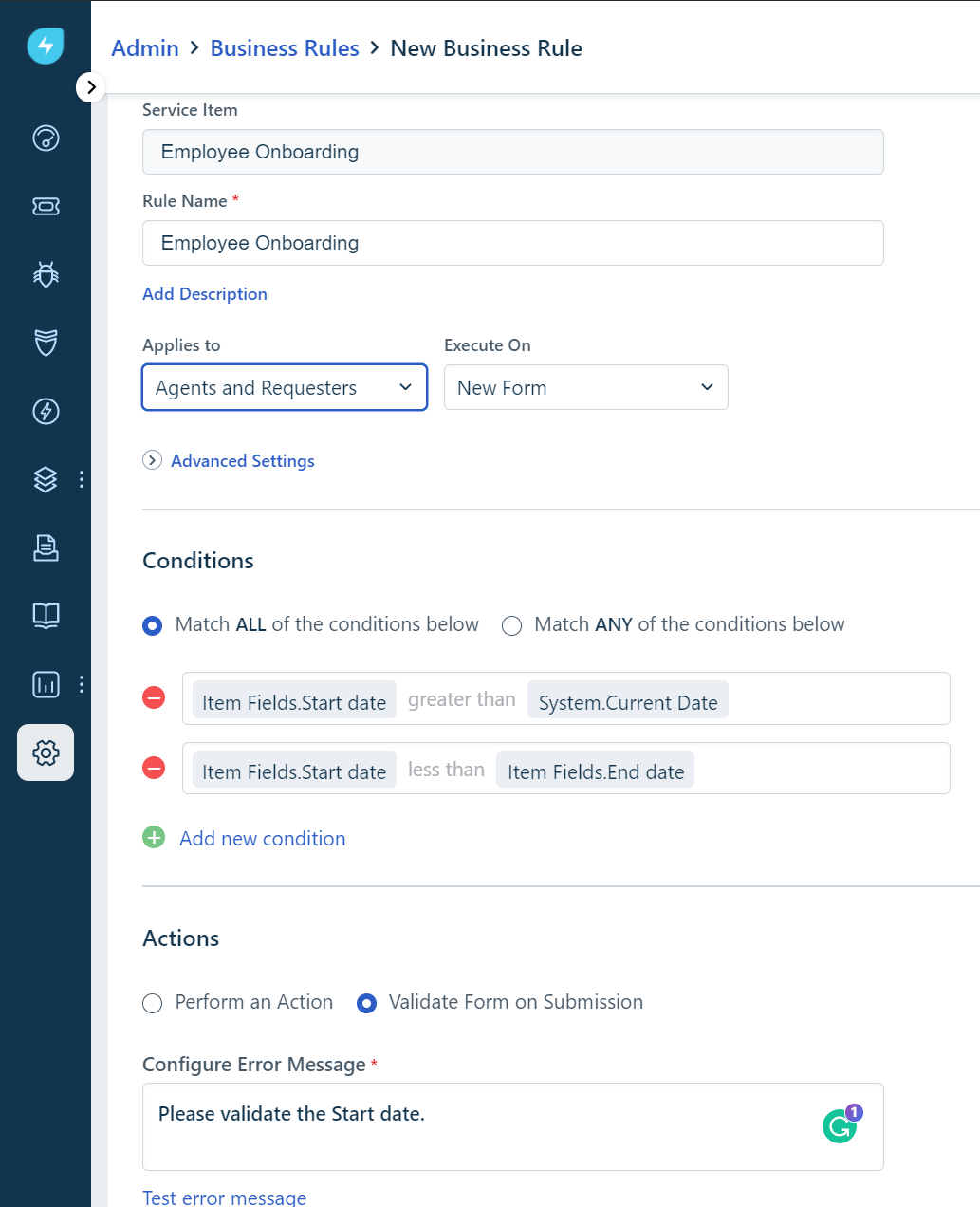
Use case: Configure date validation for a travel request
To prevent users from submitting retrospective travel requests, configure the following conditions for the Travel Desk service item:
Start Date is greater than the Current Date.
Start Date is earlier than the End Date.
If either condition is not met, prevent form submission and display a custom validation message informing the user to enter valid travel dates.
Business rule to disable the 'Request for someone else' option
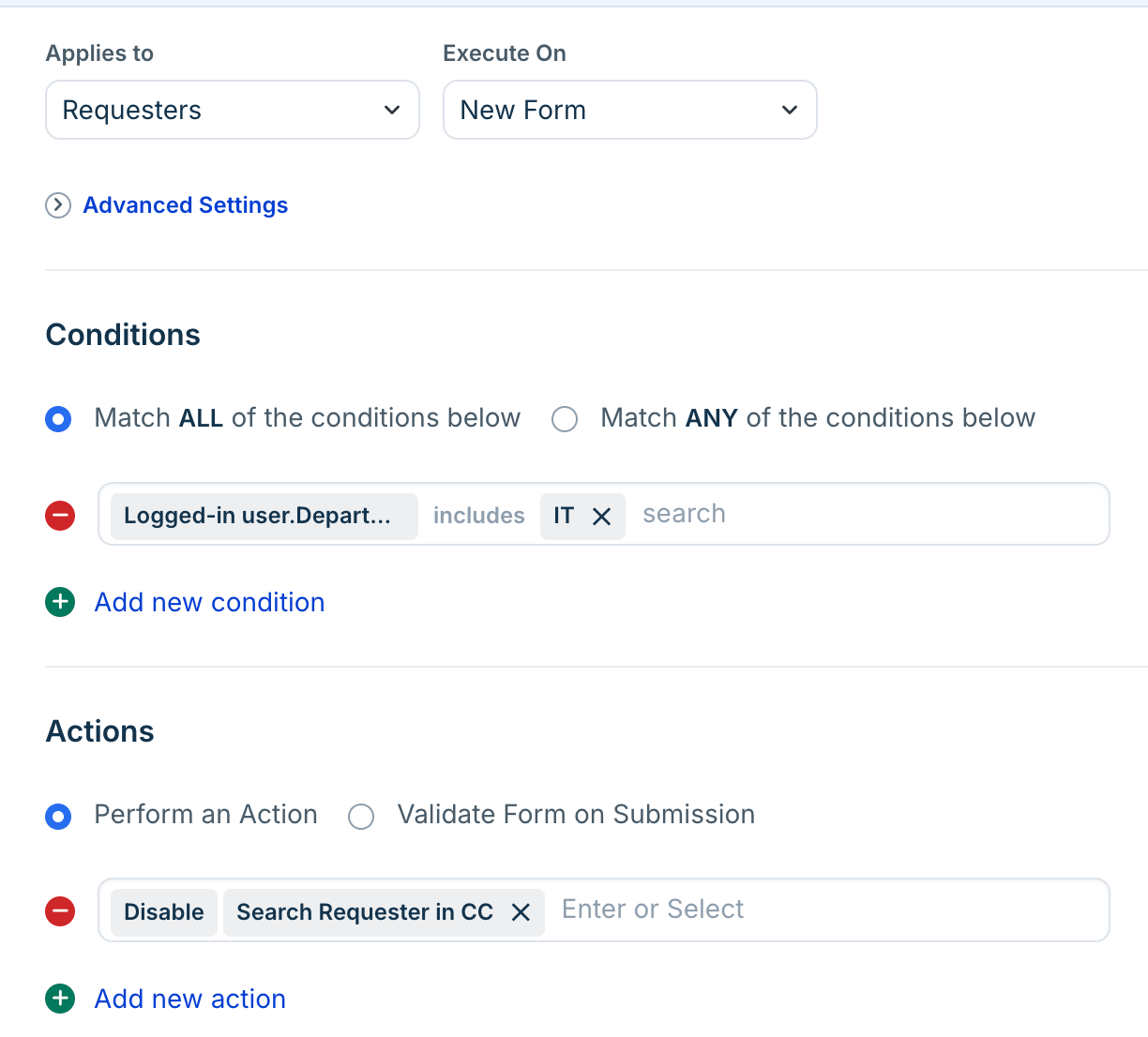
To disable a field on the form when a requester views it, ensure the Applies to dropdown is set to Requesters, and then configure the following action:
Go to Actions > select Disable > choose the specific field (such as Requested for) for that service item.
Rule behavior: Here’s how the rule works:
For service items: Users cannot request a service item for another user.
For Tickets and service items: The logged in user's email will be fetched to evaluate the rule condition.
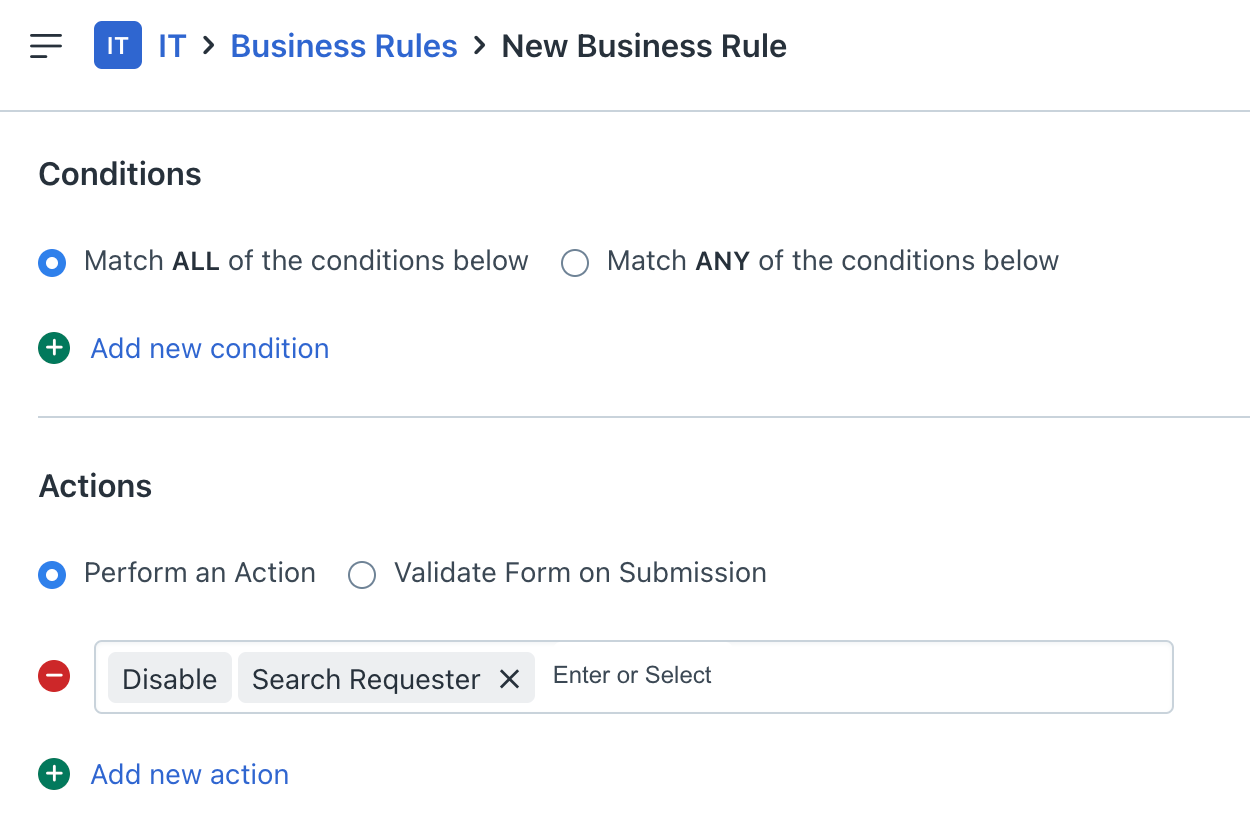
Block users from the CC field
You can configure business rules to prevent users from being added to the CC field during ticket creation or service item submissions.
The availability of this restriction depends on the form type:
Tickets: The Add CC field can be restricted during both ticket creation (New Form) and ticket modification (Edit Form).
Service Items: The Add CC field can only be restricted during the initial submission (New Form) of a service request.
System execution order
When multiple business rules act on a single field, the rule that executes last takes precedence. You can click on Reorder within the business rules list view to adjust the execution sequence.
Note: For requester-based business rules to work, the target fields must be visible and editable in the form configuration.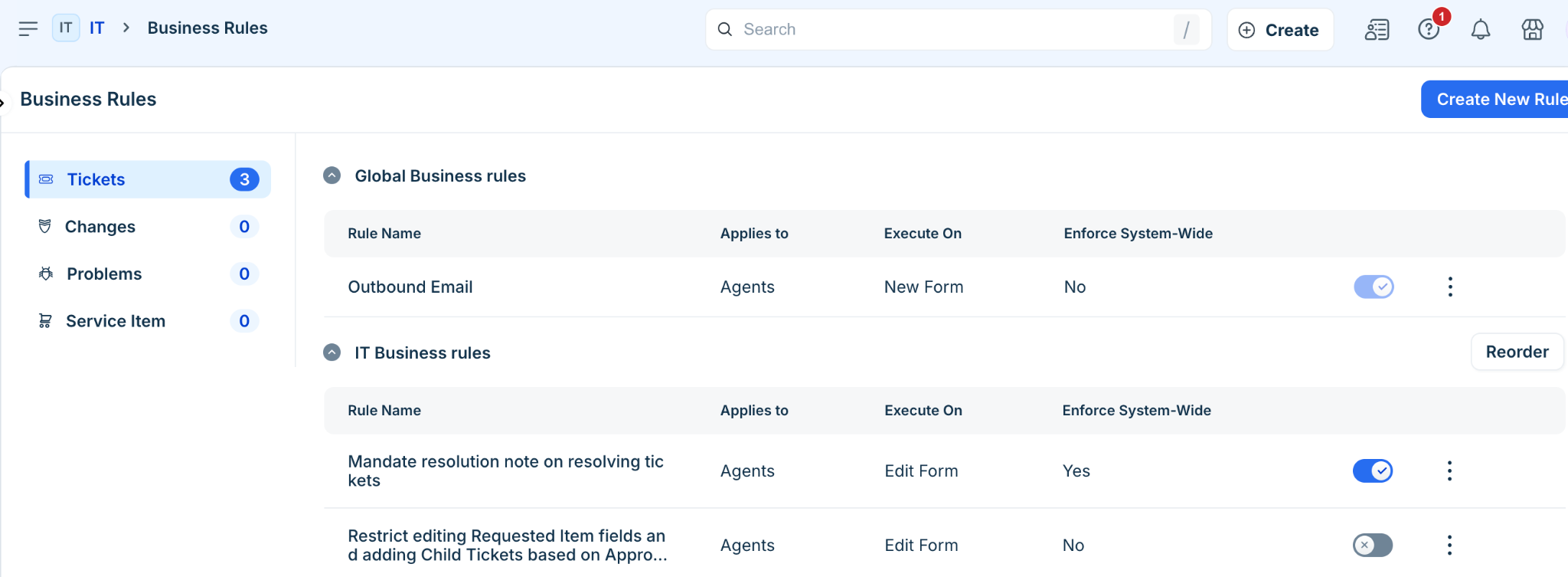
Scope applicability matrix
The following table details where business rules are actively applied and where they are bypassed by the system.
Limitations
Freshservice enforces operational limits regarding the total number of business rules allowed.
The limit of 250 business rules per account includes rules at the global level plus each individual workspace's level. For example, if the global level has zero rules, then an account can have 250 rules for each individual workspace; such as 250 for IT, 250 for HR, and 250 for Facilities. However, if the global level contains 100 rules, all other workspaces in the account are restricted to a maximum of 150 rules.
For Service items, the limit is 25 rules per item.
Use cases for business rules
Explore these scenarios to understand how business rules can be applied to handle different requirements.
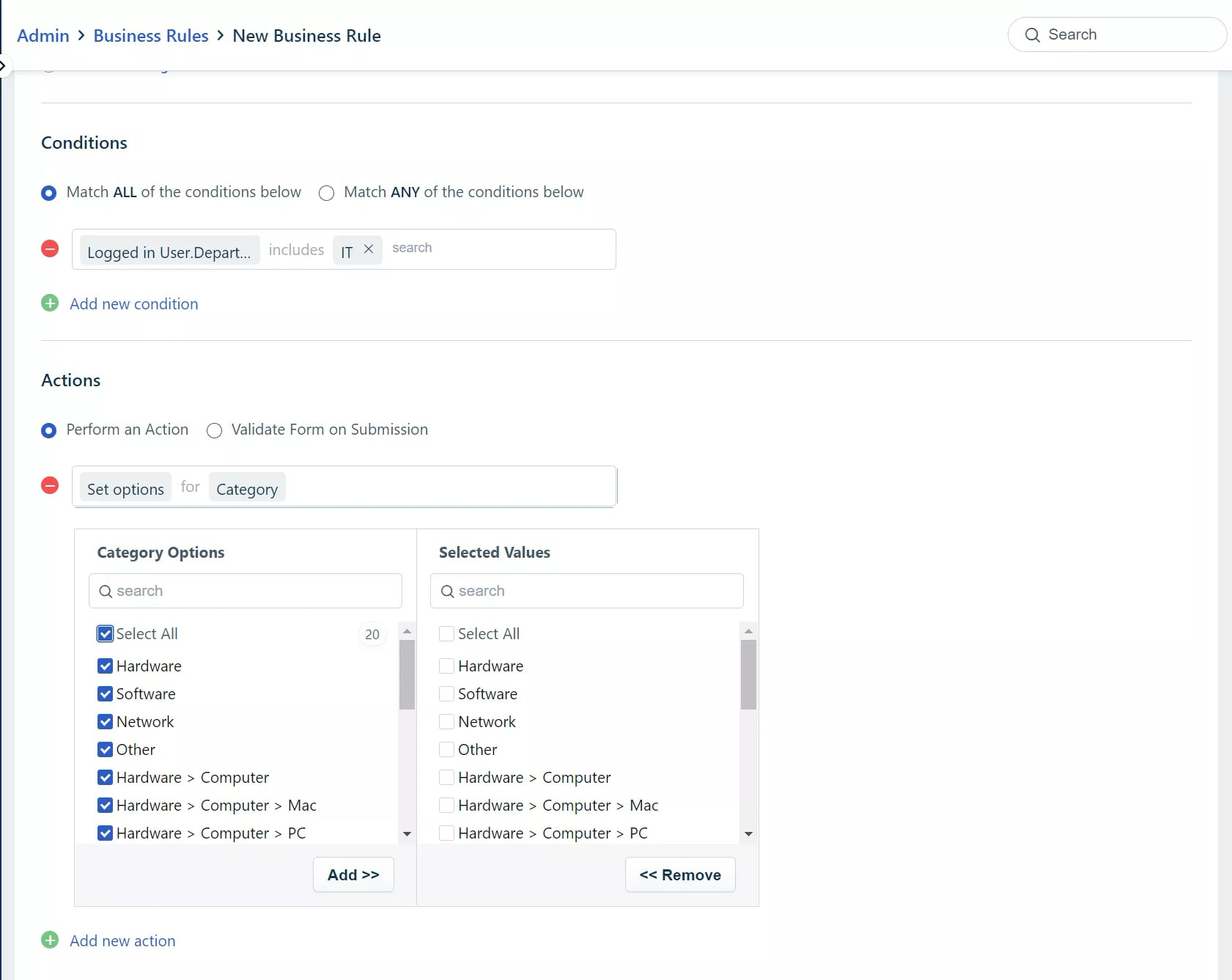
Scenario 1: Display relevant categories based on user attributes
You can customize form fields to present only options relevant to the specific person submitting the ticket.
Condition: Select the logged-in user's Location, Department, or Group.
Action: Select Set options and then Category. Based on the options you select in the subsequent menu, requesters can only pick from these choices.
Scenario 2: Restrict lifecycle transitions during active approvals
Protect your operational workflows by limiting status updates while an item undergoes a formal review process.
Condition: The current ticket record field is set to Awaiting Approval.
Action: Select Remove options on the Status dropdown field to block agents from manually advancing a ticket to final lifecycle states like Resolved or Closed prematurely.
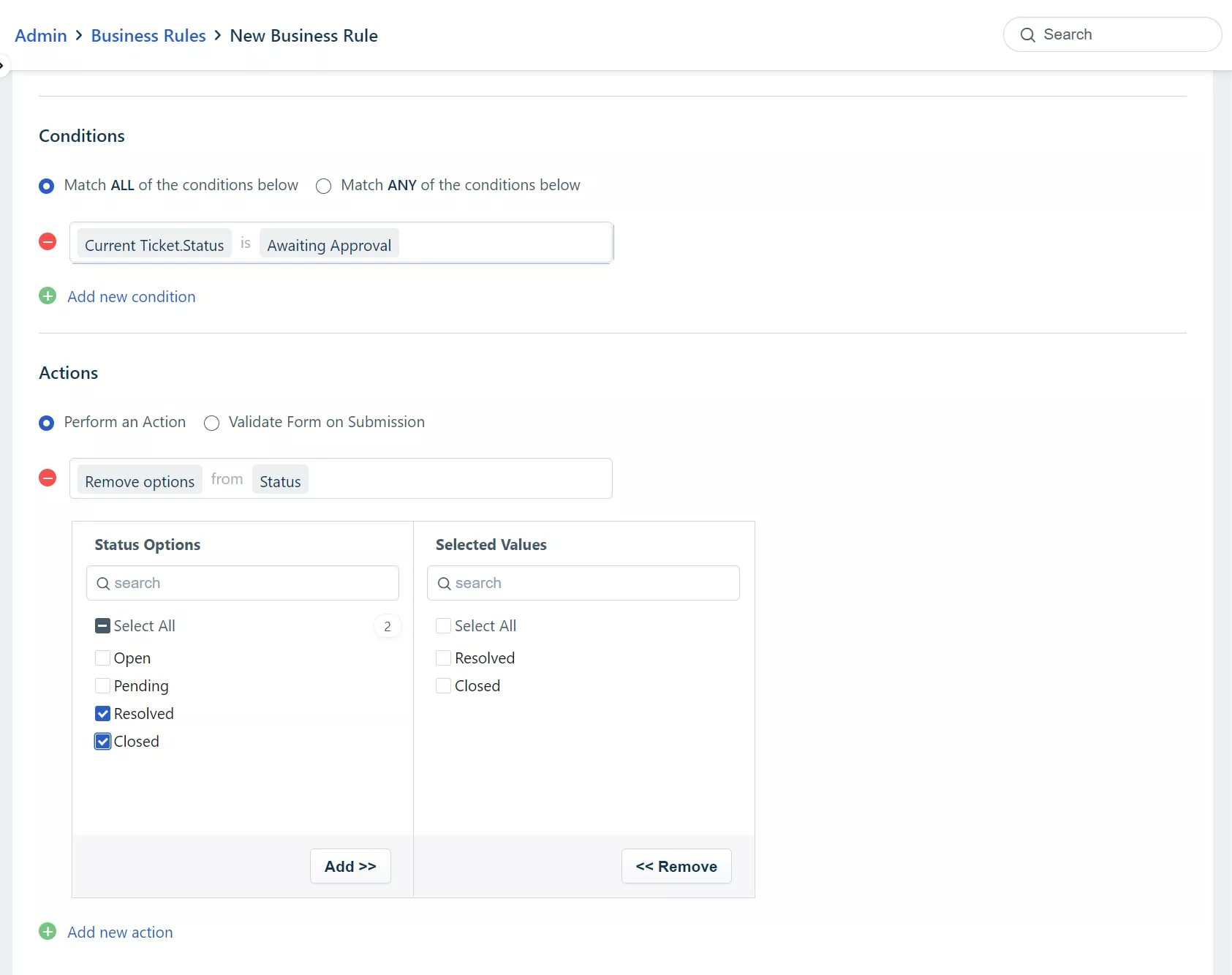
Scenario 3: Enforce field requirements on specific status updates
Ensure comprehensive data collection by making contextual tracking fields mandatory when particular status updates occur.
Condition: An agent changes the ticket Status field to Pending.
Action: Select Mandate for an additional field, such as Pending Reason, to prevent the agent from saving the form without entering the required details.
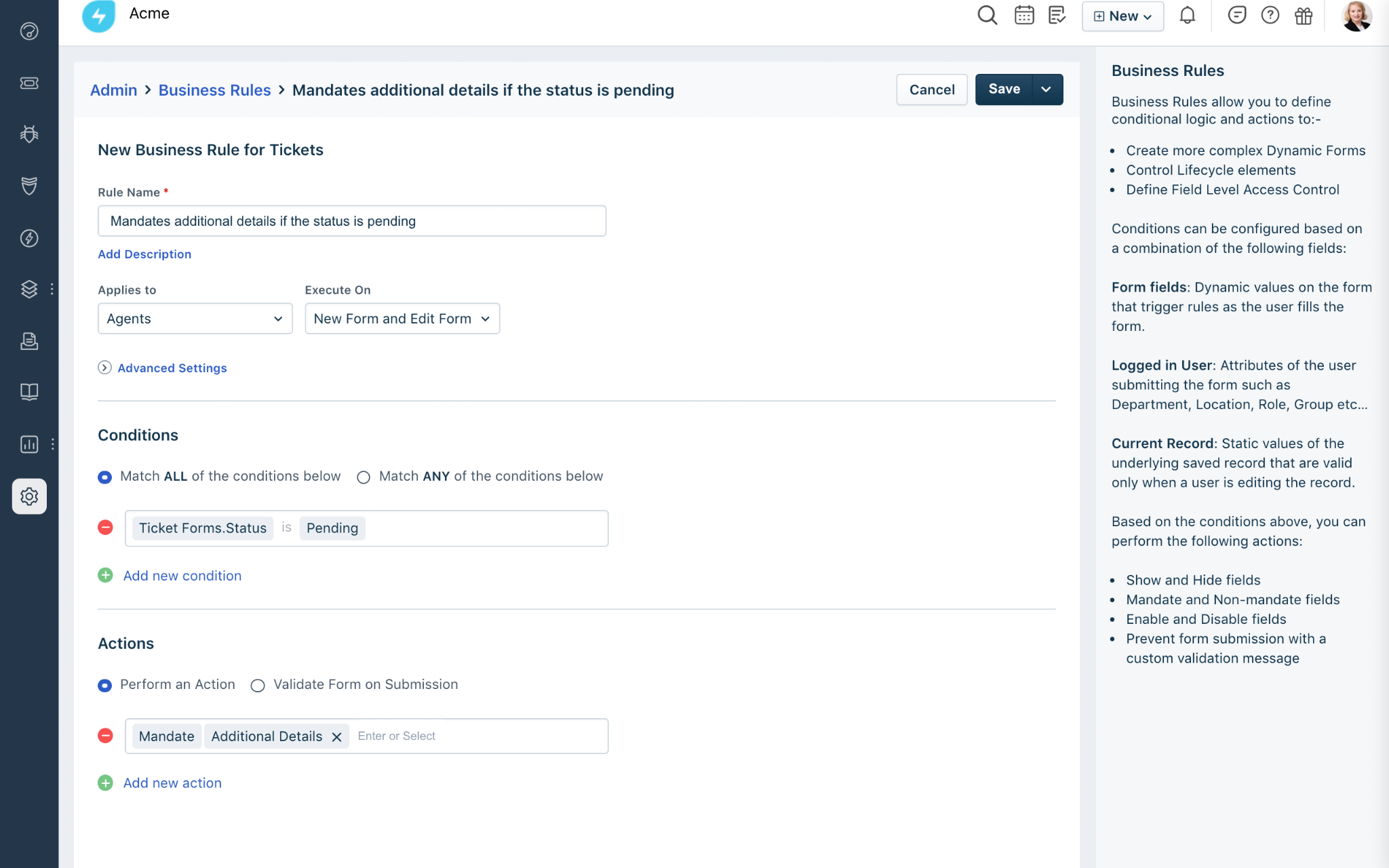
The agent cannot save the form without entering the required details.

Scenario 4: Prevent agents from closing tickets before they are approved
Stop agents from closing or resolving a ticket if it still needs approval.
Condition: An agent tries to change the ticket status to Resolved or Closed while the current status is Awaiting Approval.
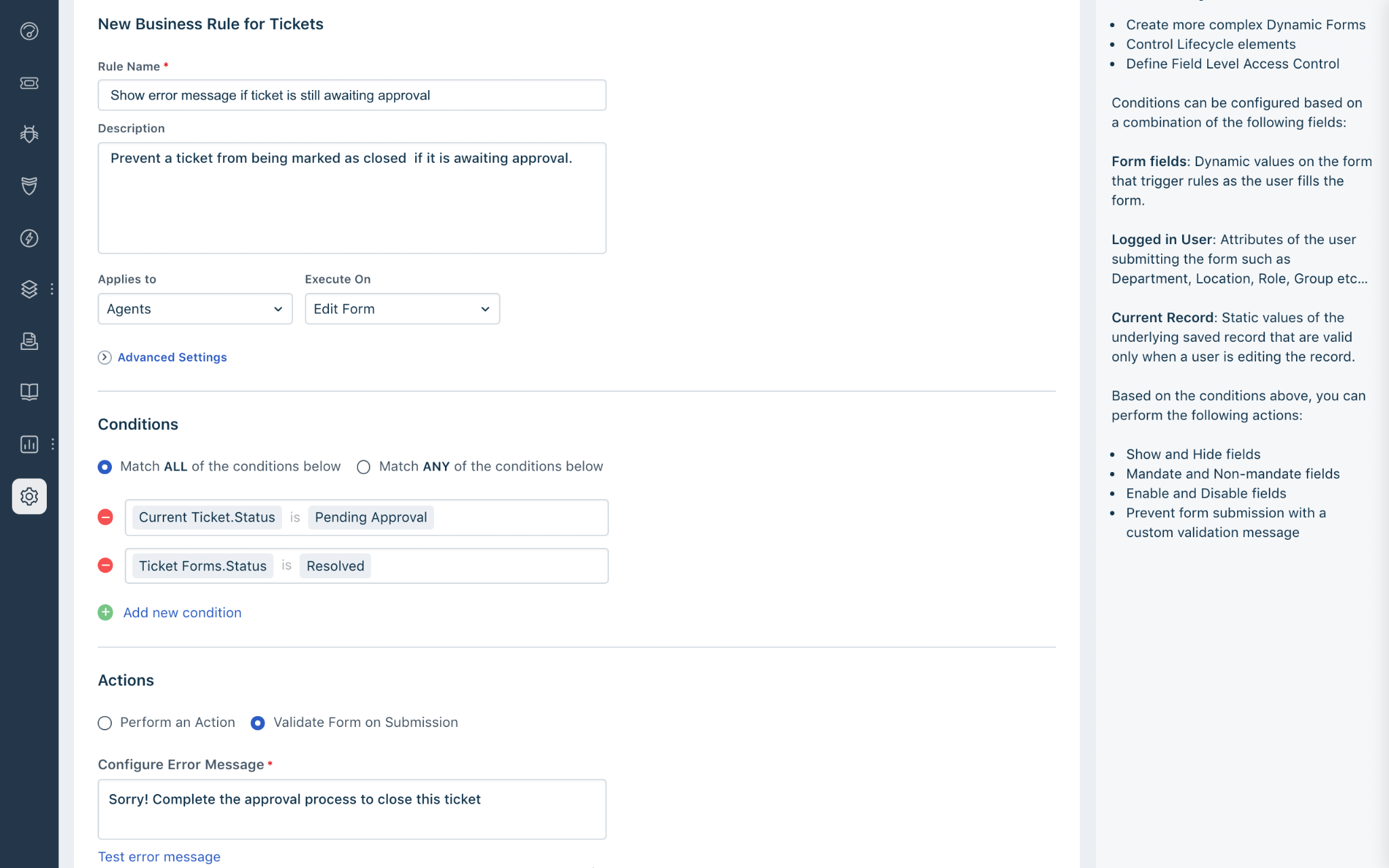
Action: Select Validate Form on Submission to block the form from saving and display a custom error message instructing the agent to wait for proper authorization.
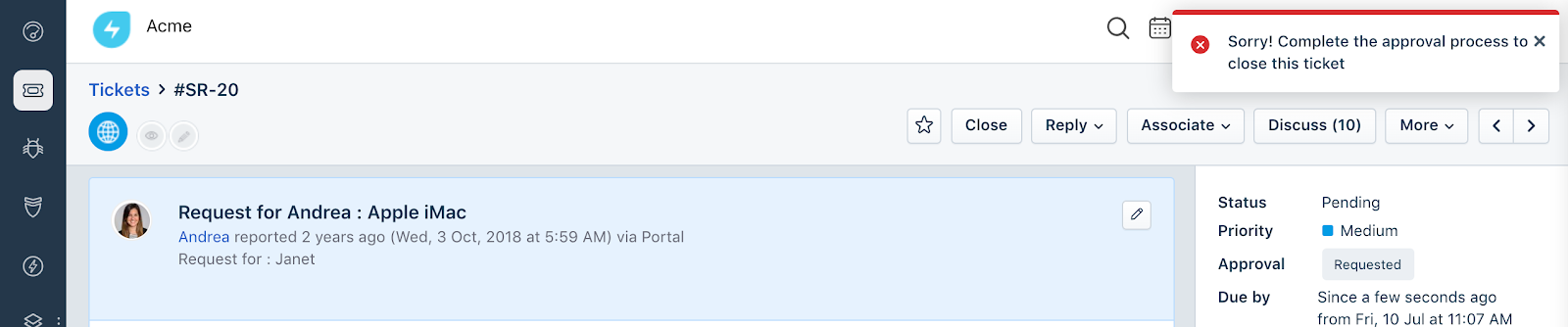
Scenario 5: Automatically manage mandatory fields based on ticket status
Ensure fields are only required when specific conditions are met, and automatically make them optional if those conditions change.
Condition: An agent sets the ticket Status field to Resolved.
Action: Select Mandate for the Resolution Summary field and enable the Auto Reverse if False setting. The field becomes mandatory when the ticket is resolved, but if the status is changed back to In Progress, the system automatically makes the field optional again.