Community
 Video Library
 Agent Training
 Freshservice
 Freshdesk
 Freshchat
 Freshcaller
 Freshsales
 Freshteam
 Freshworks Neo
 Freshsurvey
 Freshservice for MSP
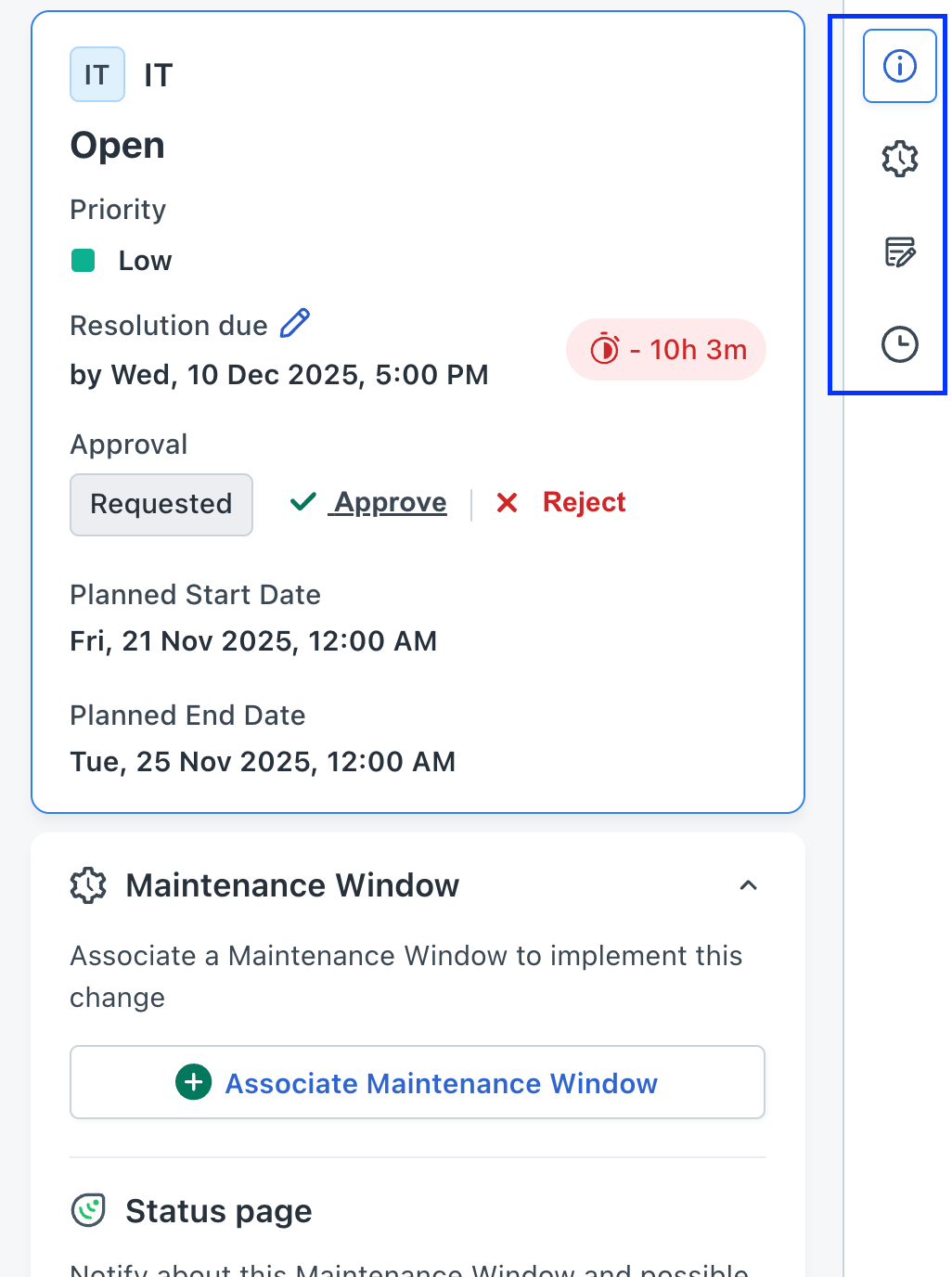
 Change Management in Freshservice provides a structured process to plan, assess, approve, implement, and review changes in your IT environment. It helps your organization introduce updates such as application releases, configuration modifications, infrastructure upgrades, emergency fixes while minimizing service disruption, and operational risk. The following image shows the change form in Freshservice.
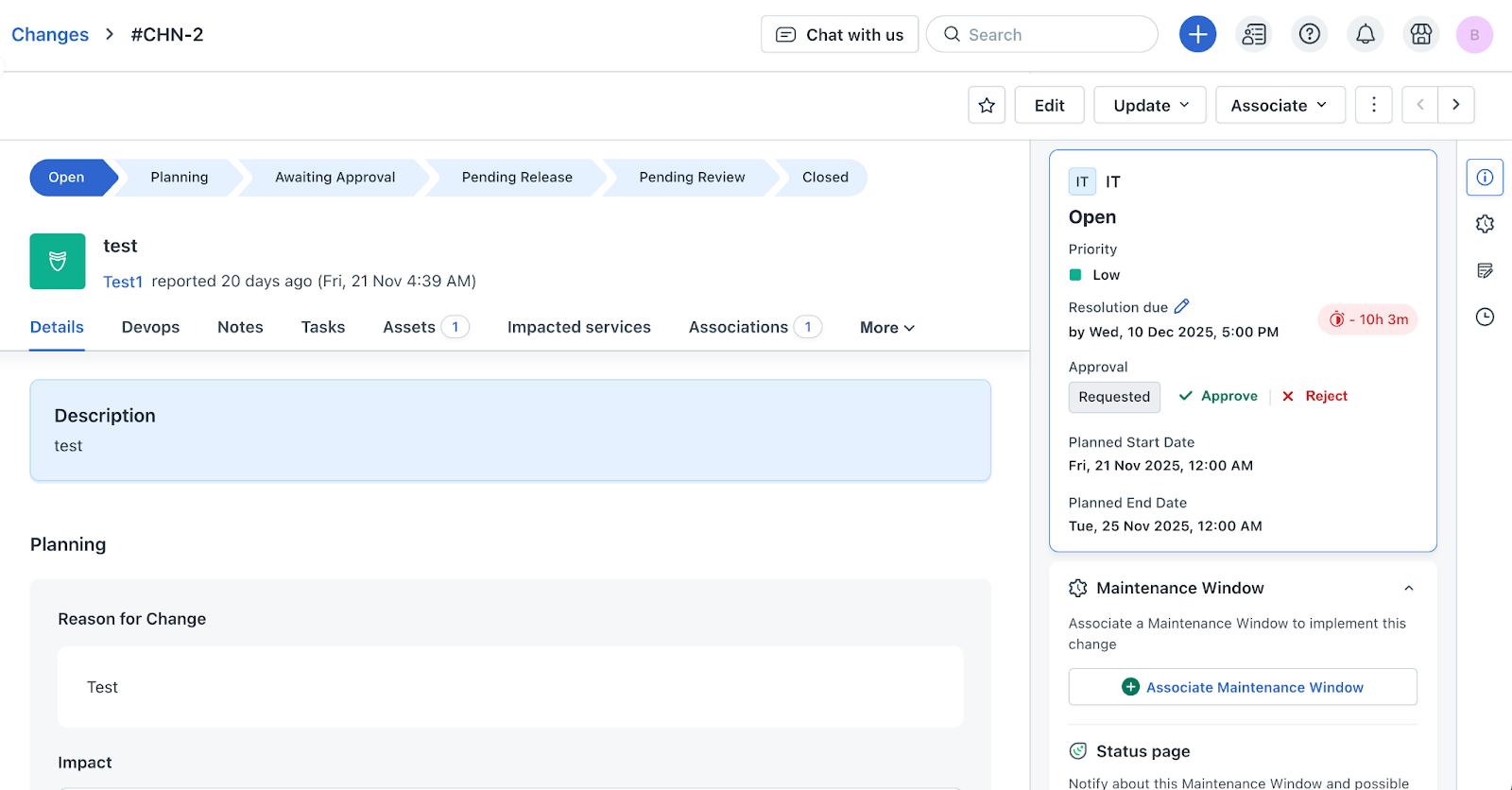
A change form in Freshservice includes the following sections that help teams capture complete context and coordinate implementation activities throughout the change lifecycle:
There are four key tools in the change form to help you manage and monitor the change more efficiently by showing important actions and insights in one place.
Create a change request in Freshservice
Create a new change request in Freshservice to plan, track, and manage modifications to your IT environment.
Prerequisites
You must have agent permissions to create a change requests.
You can create a change and then associate a ticket to it or create a change from a ticket that is initiating this change.
Follow these steps to create a Change in Freshservice. You can add planning details, associate DevOps items, link assets, and specify impacted services after creating the Change record.
Procedure
Log in to your Freshservice account.
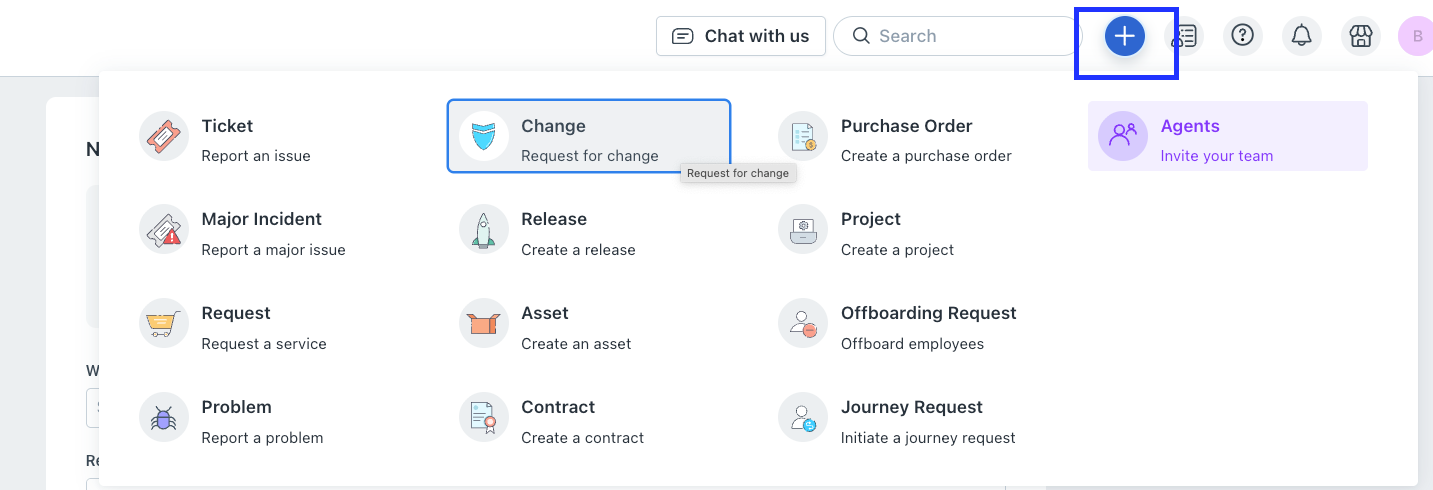
On the top navigation bar, select Create icon, and then select Change.
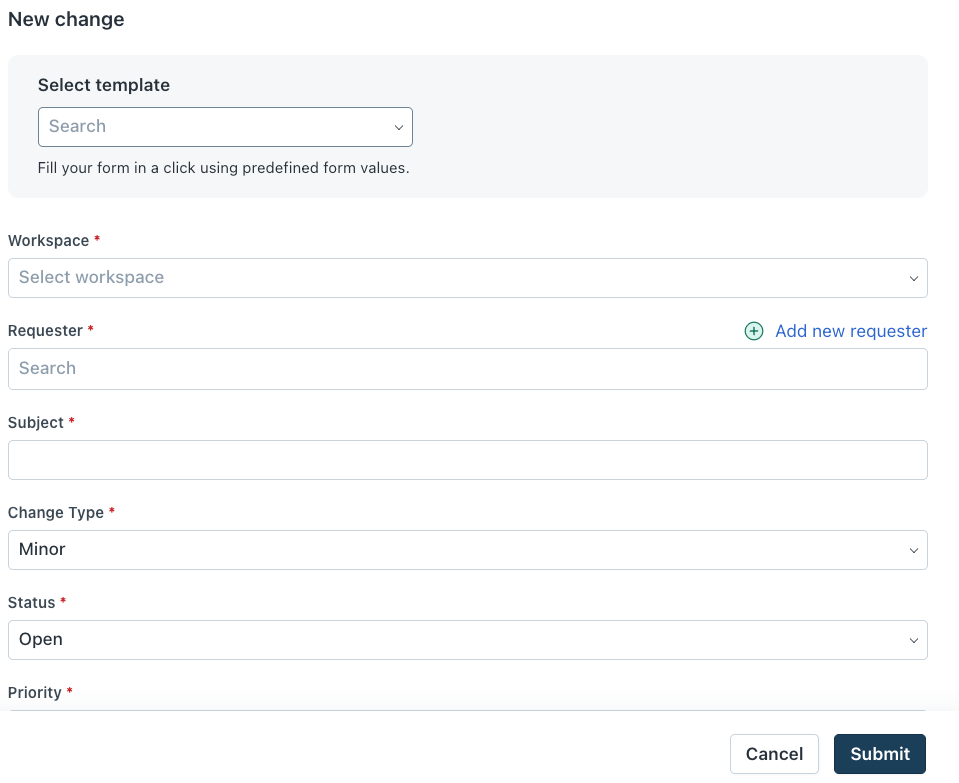
The New change form is displayed.From the Select Template list, select an existing template.
If you don’t have a template, you can create a new template by clicking Create new template. To know details about template, see Creating Ticket and Change TemplateFill all the required fields such as Workspace, Requester, Subject, Change Type, Status, Priority, Impact, Risk, Group, Agent, Description, Planned Start Date, Planned End Date, Department, Category, Planned Effort, and Maintenance Window.
Click + Associate assets and select the assets that will be part of this change.
Click Attach files to upload any related documents under 40 MB.
Under Planning, update the required fields such as Reason for Change, Impact, Rollout Plan, and Backout Plan
Click Submit.
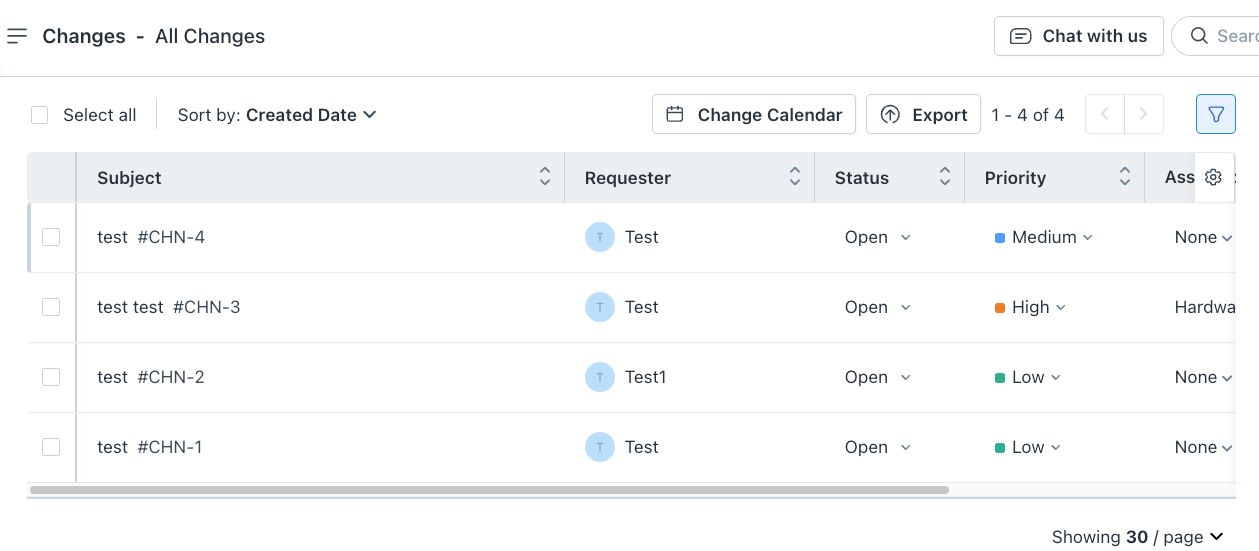
Your change ticket is created. You can see the ticket on the Changes page. You can also apply various basic and advanced filters to find a change ticket.