
 Community
 Video Library
 Agent Training
 Freshservice
 Freshdesk
 Freshchat
 Freshcaller
 Freshsales
 Freshteam
 Freshworks Neo
 Freshsurvey
 Freshservice for MSP
 TABLE OF CONTENTS
- Prerequisites
- Overview
- Add URLs and files
- Connect Apps
- Best practices for managing Copilot knowledge sources
This article explains the available knowledge sources for the Copilot Agent and describes how to connect them to the Agent.
Prerequisites
Before connecting knowledge sources to your Copilot Agent, ensure that you meet the following prerequisites:
You have administrator privileges to access Freddy AI Agent Studio.
You have a Copilot Agent set up in AI Agent Studio.
You have the knowledge sources such as URLs, files, or connectors (such as SharePoint, Google Drive, or Confluence) that you want the Copilot Agent to use.
Overview
The Copilot Agent uses knowledge sources to retrieve the information required to generate responses for human agents. By default, it uses your existing knowledge base articles in Freshservice.
You can expand the Copilot Agent's knowledge by adding knowledge sources, such as URLs, files, and connectors, such as Google Drive, SharePoint, and Confluence. This allows the Copilot Agent to access information stored outside Freshservice, such as standard operating procedures (SOPs), policies, and other reference documents.
When human agents interact with the Copilot features on a ticket such as reply suggestions, it searches across all connected knowledge sources and uses the retrieved information to generate accurate, relevant responses.
Add URLs and files
The process for adding URLs and files to a Copilot Agent is the same as for any AI agent created in AI Agent Studio.
To add a URL or file as a knowledge source:
Go to AI Agent Studio.
In the left navigation pane, select Copilot agent. The Freddy AI Copilot page opens.
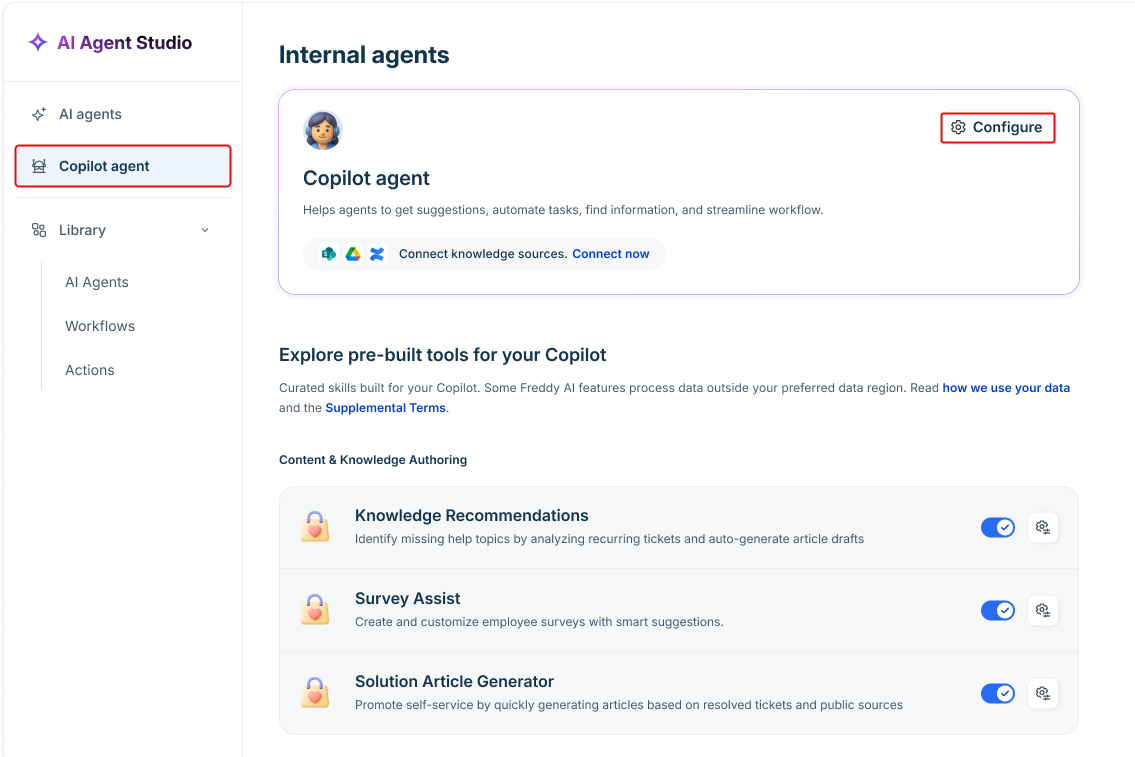
Under Internal agents, on the Copilot agent card, select Configure.
In the left navigation pane, click Build, and then select Knowledge sources.
To add web pages, select the URLs tab, and then select Add URL.
To upload documents, select the Files tab, and then select Add files.
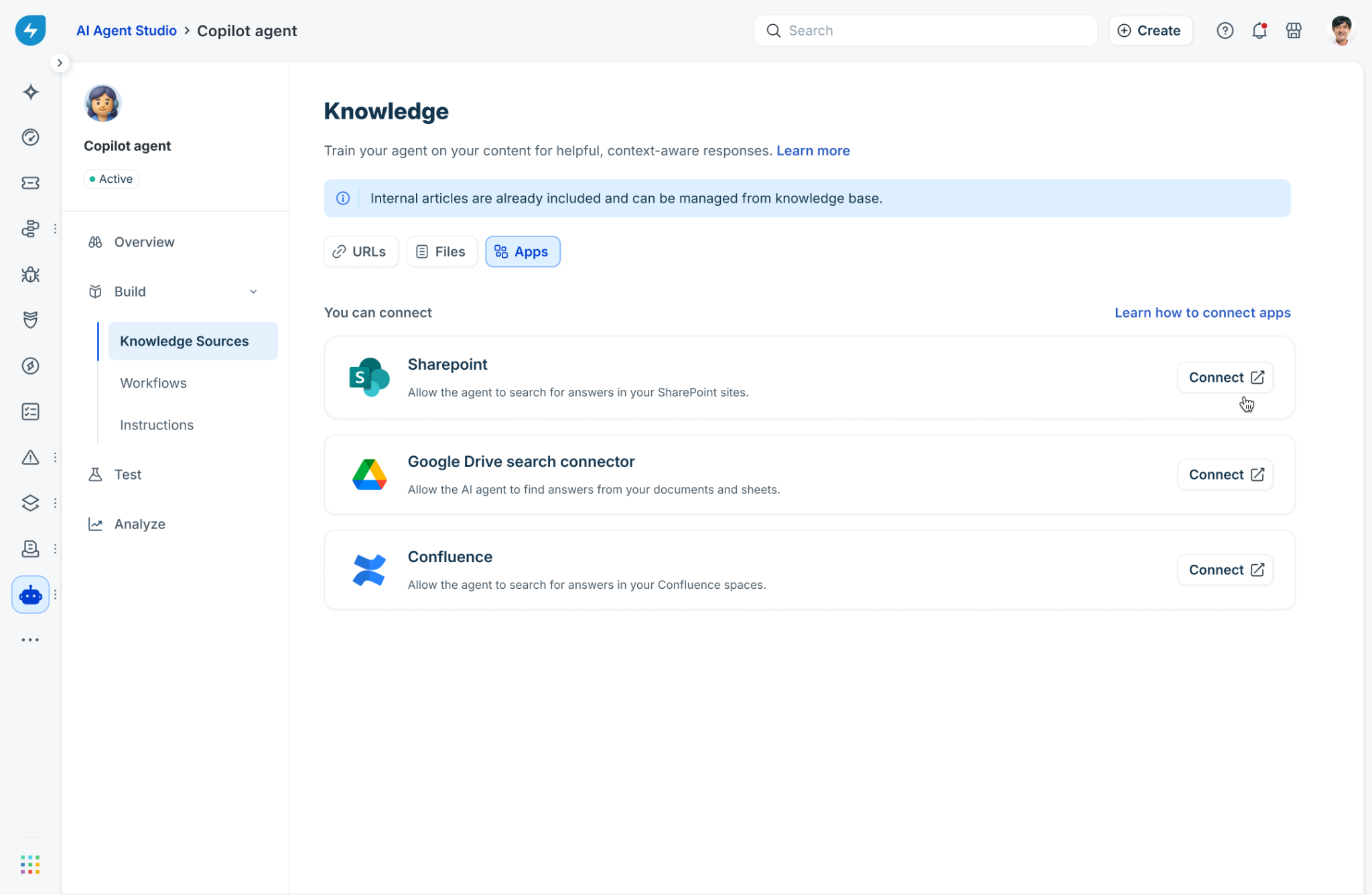
For detailed instructions on connecting URLs and files, and for information about supported file formats, file size and count limits, word count limits, and URL crawling, see Connect your knowledge sources to the AI Agent.
You can also extend the Copilot Agent's knowledge by connecting other knowledge sources such as Google Drive, SharePoint, and Confluence.
Connect Apps
In addition to URLs and files, you can connect knowledge sources such as Google Drive, SharePoint, and Confluence. This enables the Copilot Agent to search content stored in these systems when generating suggestions for agents.
The following procedure uses SharePoint as an example. The steps for Google Drive and Confluence are similar.
Connect SharePoint
Ensure that you have administrator privileges for the SharePoint account to authorize the connection and grant the required permissions.
To connect SharePoint to your Copilot Agent, follow these steps:
Open the Knowledge sources page by using one of the following methods:
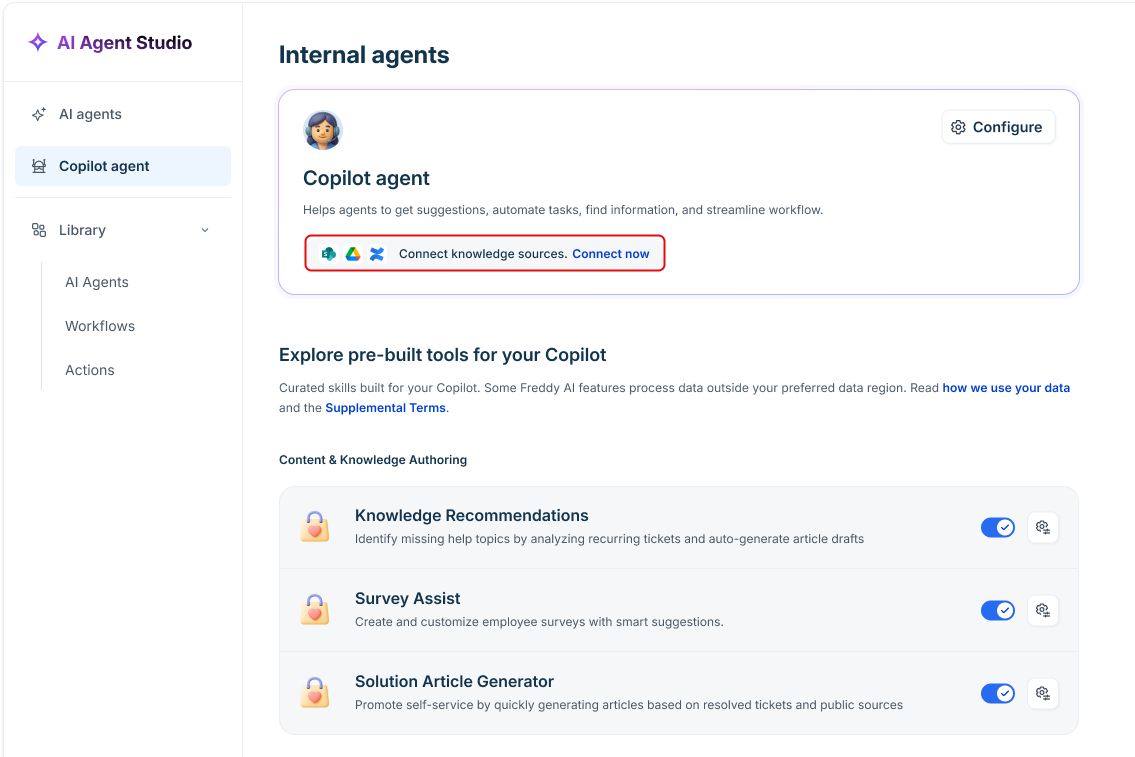
Go to AI Agent Studio > Copilot agent, and then on the Copilot agent card, select Connect now.
Go to AI Agent Studio > Copilot agent. Under Internal agents, on the Copilot agent card, select Configure. Then, in the left navigation pane, select Build > Knowledge sources.
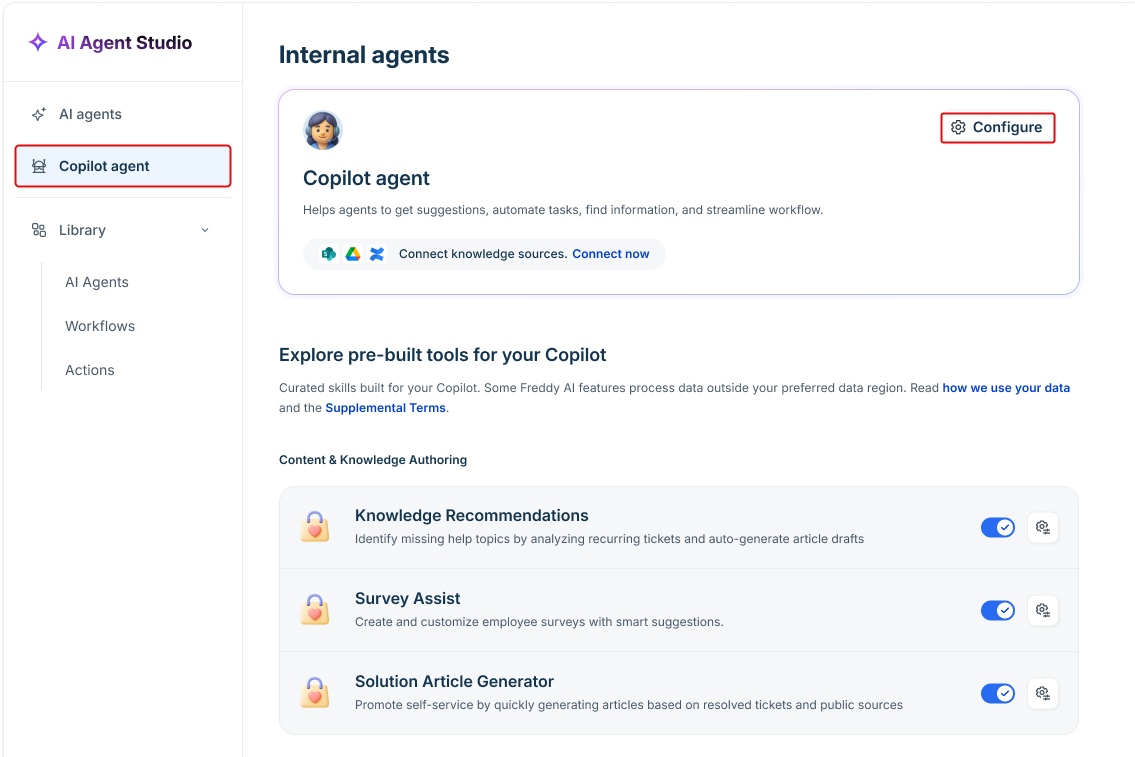
Select the Apps tab.
Under Available apps, locate SharePoint, and then select Connect.
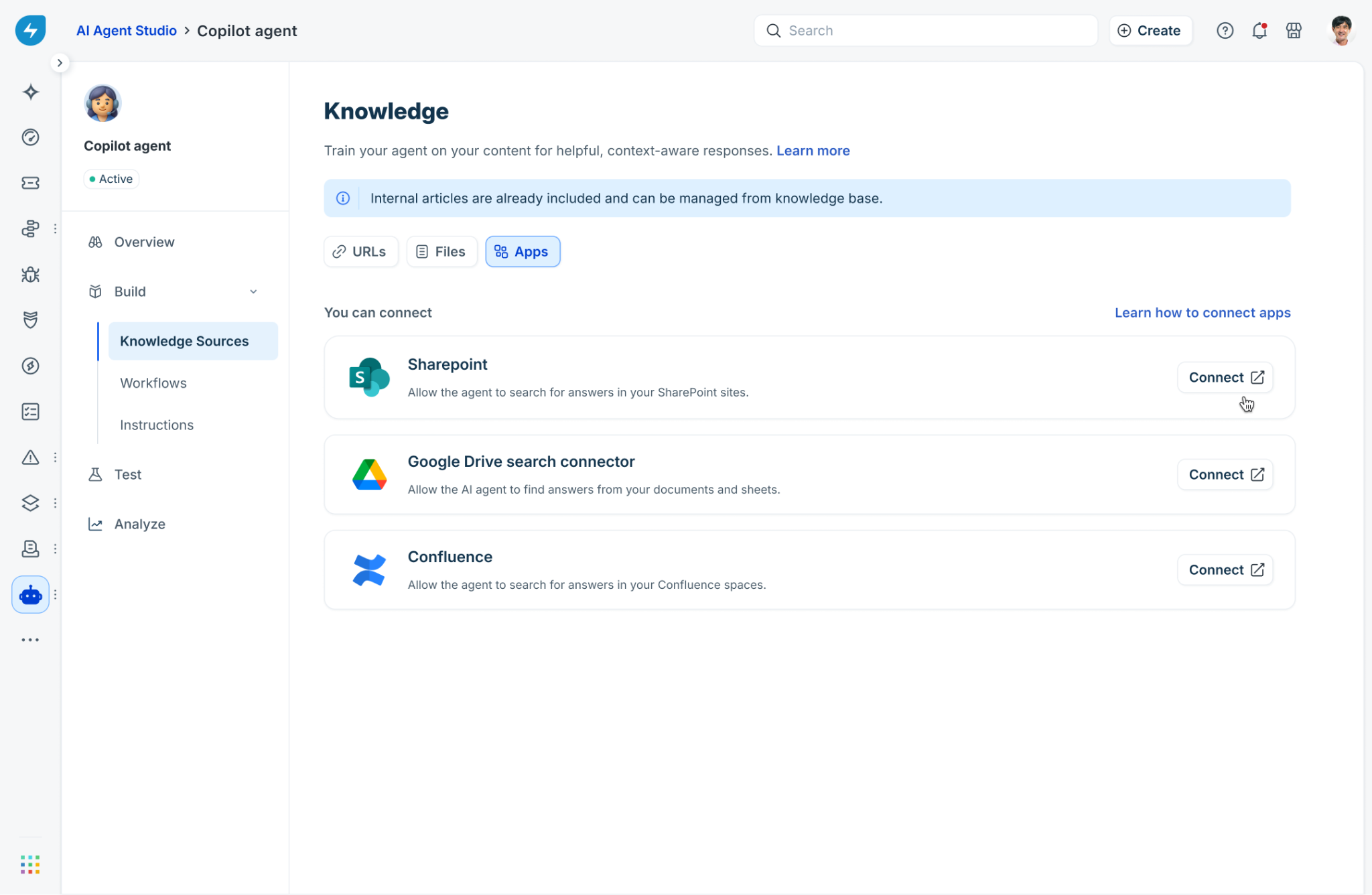
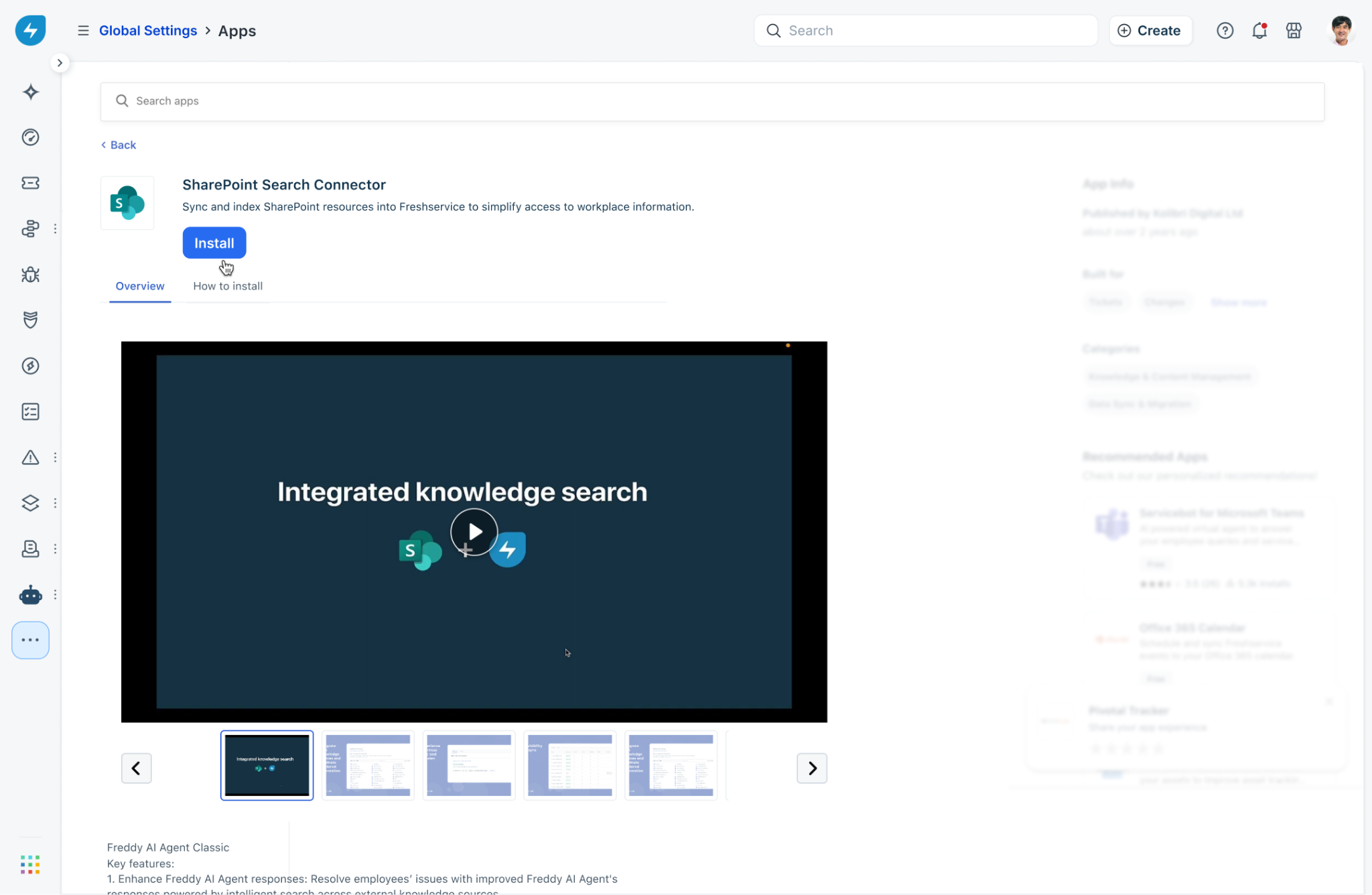
If the SharePoint connector is not already installed, Freshservice redirects you to the SharePoint Search Connector page in Global Settings. To install the connector:
Select Install.
Sign in with your Microsoft account when prompted.
Review the requested permissions, and then select Accept.
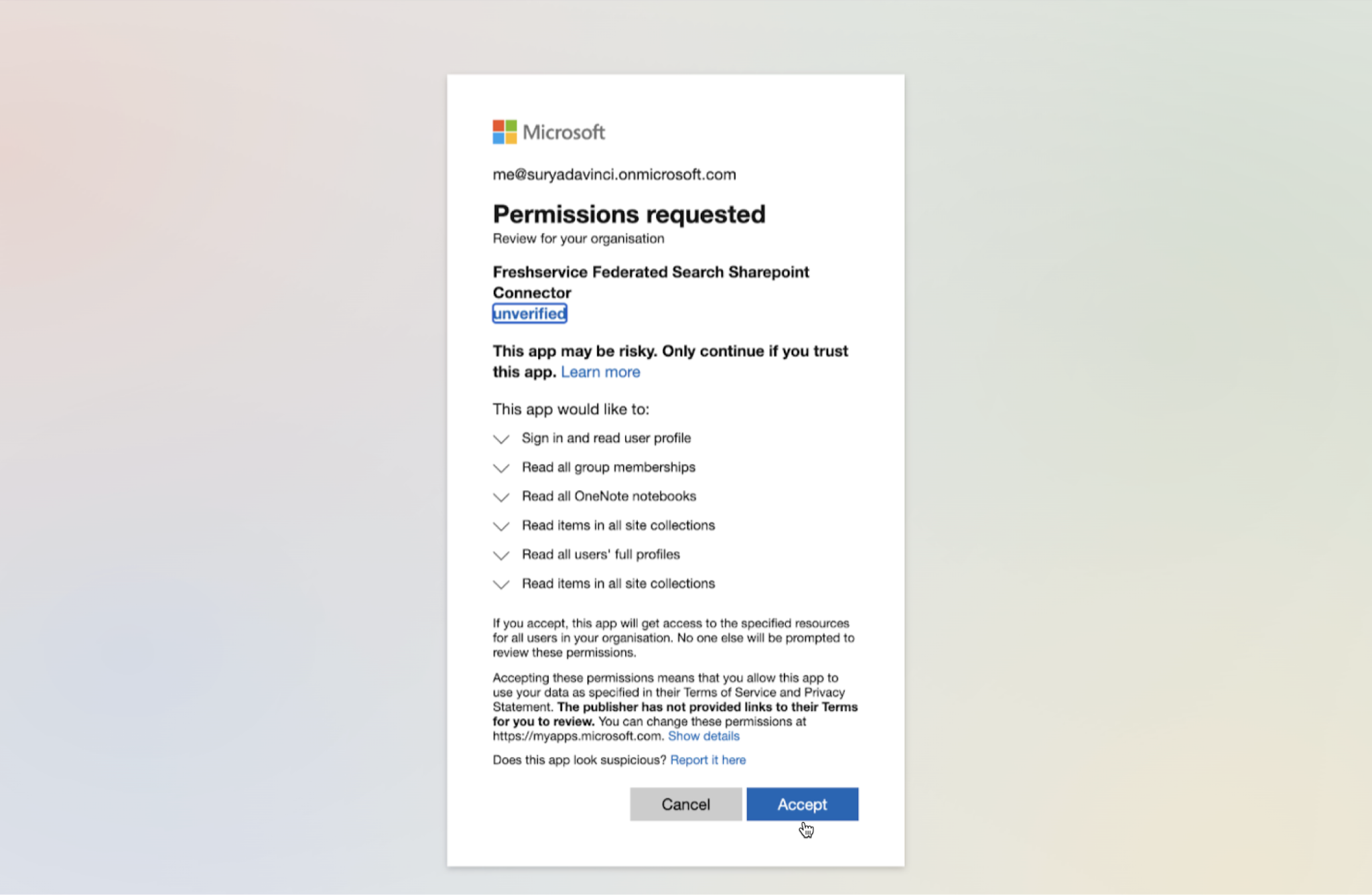
Note: This grants the Freshservice SharePoint connector read access to your organization's SharePoint sites and related resources.
On the Configuration page, under Select and sync SharePoint sites, select up to 100 sites that contain the content you want the Copilot Agent to use, and then select Save and sync.
Tip: Select only the sites that contain content relevant to your agents. Limiting synchronization to relevant sites improves the quality of the Copilot Agent's responses.Wait for the synchronization to complete.
Return to the Apps tab on the Knowledge sources page and verify the synchronization status:
If the status is Sync successful, SharePoint appears under Connected apps together with the number of synchronized sites and the time of the last synchronization. Select Manage to update the synchronized sites, or use the toggle to enable or disable the connector for the Copilot Agent.
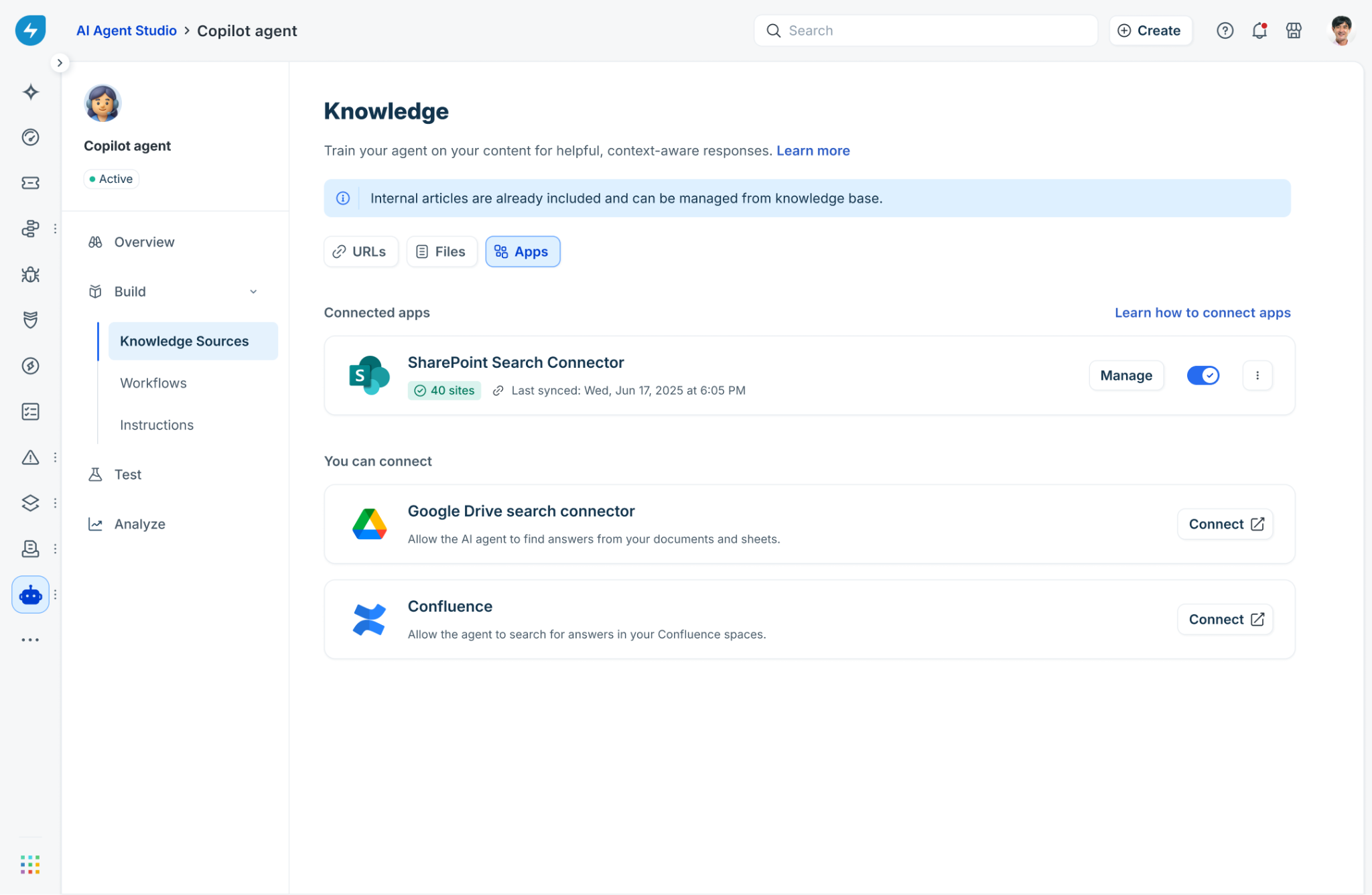
If the status is Sync pending, select App Settings to review the configuration, update the selected SharePoint sites if required, and then select Save and sync to retry the synchronization.
After the synchronization is successful, the Copilot Agent can use content from the synchronized SharePoint sites when generating responses.
The procedure to connect Google Drive and Confluence is similar. The Google Drive Search Connector lets the Copilot Agent search your Google Drive files and folders, and the Confluence Search Connector lets the Copilot Agent search your Confluence spaces. Configure the appropriate connector and select the content that you want the Copilot Agent to use.
Best practices for managing Copilot knowledge sources
Follow these best practices to improve the quality and accuracy of the Copilot Agent's suggestions:
Avoid duplicating the same content across multiple knowledge sources: Maintain a single source of truth for each piece of content. For example, if the same information exists in both the internal knowledge base and an uploaded file, the Copilot Agent might retrieve outdated or inconsistent information if the content is not kept in sync.
Prefer automatically synchronized knowledge sources: Use the internal knowledge base articles, URLs, and connected knowledge sources that synchronize automatically, rather than manually uploaded files, whenever possible. Keeping content up to date helps the Copilot Agent generate accurate and relevant suggestions.
Validate the Copilot Agent after updating knowledge sources: Test it with representative support scenarios to verify that it retrieves the expected information as you make the updated knowledge available to your agents.