
 Community
 Video Library
 Agent Training
 Freshservice
 Freshdesk
 Freshchat
 Freshcaller
 Freshsales
 Freshteam
 Freshworks Neo
 Freshsurvey
 Freshservice for MSP
 TABLE OF CONTENTS
- Overview
- Understand the two account modes
- Choose the right account mode
- Switch from ESM mode to MSP mode
- Switch from MSP mode to ESM mode
- Steps to switch to ESM mode
- What changes after switching to ESM mode
- General changes
- Portal mapping and access behavior
- Freddy AI Agent availability
- Knowledge base experience
- Email announcement experience
- Discontinuation of company-based associations
- User search behavior
- Ticket canned response experience
- Analytics experience
- Freshchat experience
- Placeholder resolution logic in email notifications
- Module-specific multi-portal awareness
- Neo Admin Center experience
Overview
Freshservice runs in one of two account modes, and the mode you choose shapes how your service desk is organized. Employee Support (ESM) mode is built for organizations supporting their own internal teams. Managed Services (MSP) mode is built for service providers who manage IT for multiple external client companies.
You can switch between account modes at any time. However, each switch introduces certain behavioral changes, particularly in how multiple portals function. Understanding these impacts beforehand can help you plan and execute the transition smoothly.
Note: On Pro and Enterprise plans, your portals are preserved (with limitations) when you switch between account modes. On Starter and Growth plans, secondary portals are permanently deleted when you switch from MSP mode to Employee Support mode as the latter doesn’t support multi-portal functionality on base plans.
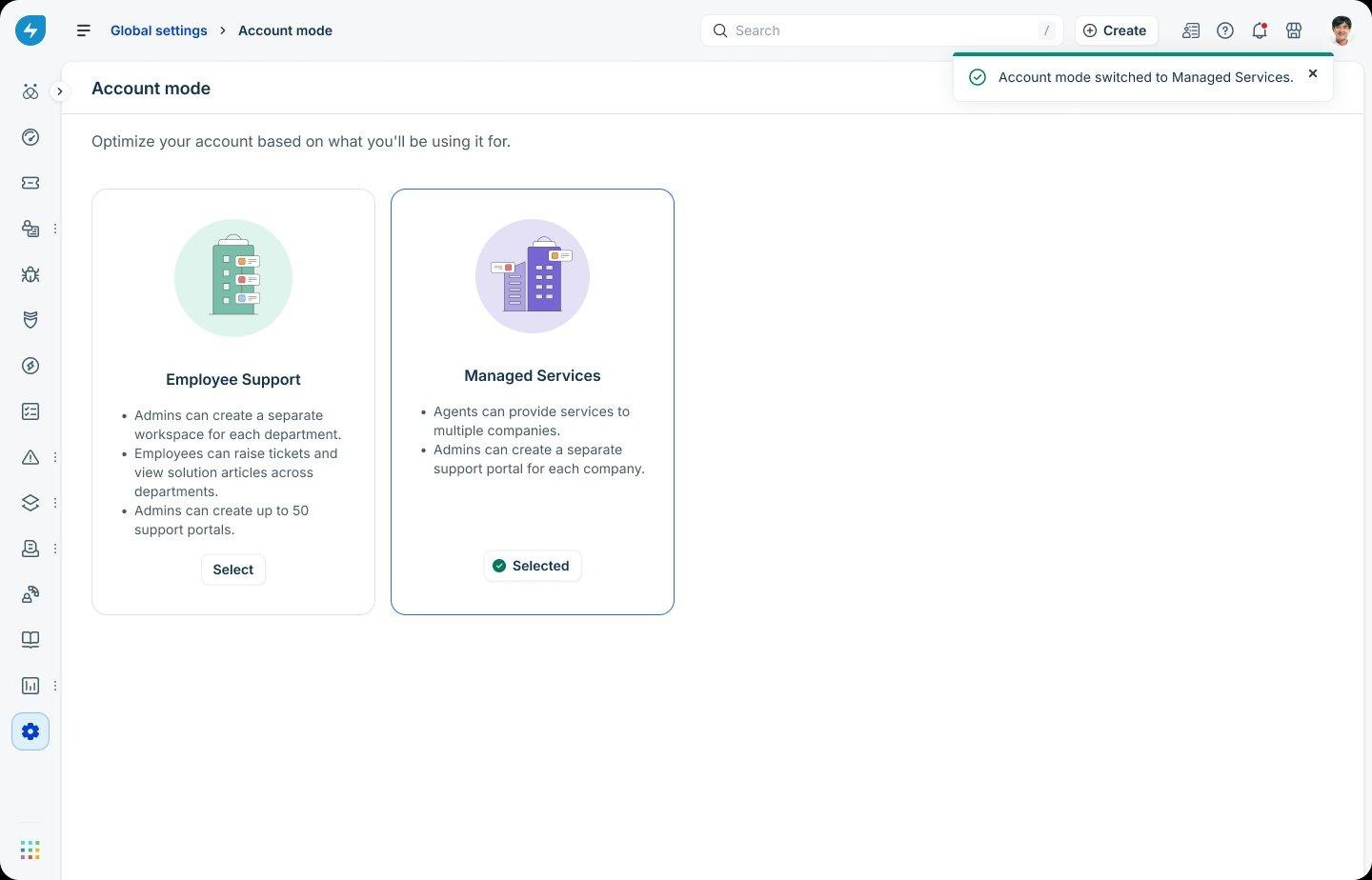
Understand the two account modes
Employee Support (ESM) mode
ESM mode is primarily designed for organizations supporting their own employees. In this mode, Freshservice:
Organizes teams using the workspaces module. Each workspace can house internal teams such as IT, HR, Facilities, and Finance, with its own data, settings, and processes.
Supports up to 50 support portals, each of which can be used to deliver services to different audience groups. Multiple support portals also enable the delivery of services to external users.
Applies IP range restrictions at the portal level.
Manages end users using the Requesters module
Managed Services (MSP) mode
MSP is designed for service providers who deliver IT services to multiple external companies. In this mode, Freshservice:
Organizes content by company, using the Companies module to represent each client you serve.
Gives each company its own branded support portal. MSP mode supports up to 500 portals by default.
Enables support emails to be linked to companies.
Doesn’t support workspaces.
Applies IP range restrictions at the account level.
Manages end users in the Contacts module, allowing them to be associated with one or more companies
Choose the right account mode
Use this quick comparison to decide which mode fits:
Switch from ESM mode to MSP mode
Prerequisites
When you switch from ESM to MSP mode, Freshservice validates two conditions before allowing the switch. Resolve both before you start, or the switch will be blocked and Freshservice will list what needs attention.
Validation 1: Verify secondary portal user-mapping conditions.
Each secondary portal must have exactly one user-mapping condition, in addition to the default agent-related condition. The required condition is:
Match All: User.Department includes [department_name]
This is the only supported user-mapping condition. If a secondary portal contains any additional conditions or uses a different condition, switching account modes will be blocked.
Why this validation is required
In ESM mode, portal access can be configured using multiple user-based conditions. In MSP mode, however, portal identification is based solely on the company associated with the portal, and each portal can be mapped to only one company.
In MSP mode, the Department module is renamed to Company, and portals are designed to represent companies. As a result:
Every secondary portal in MSP mode must be mapped to at least one company.
It is assumed that organizations switching from ESM mode to MSP mode intend to associate each portal with a specific company.
To support this transition from ESM to MSP, each secondary portal must first be mapped to a department in ESM mode. Ensure that each secondary portal must be mapped to a unique department.
During the account mode switch, these portal-to-department mappings are automatically converted into portal-to-company mappings.
Therefore, if you have secondary portals, you must map each one to a department before switching to MSP mode. This ensures that the corresponding company mappings can be created automatically during the transition.
To fix the secondary portals:
Open portal settings and go to Access and Permissions.
Reduce the portal to exactly one condition: User.Department includes [department_name].
Save and return to Account mode.
The above limitations also apply to the default portal. However, in MSP mode, the default portal is not required to be mapped to a company. Therefore, if the default portal in ESM mode is configured to be accessible to all users, the account mode switch will still be allowed. In such cases, the default portal will remain unmapped to any company after the transition to MSP mode.
Validation 2: Verify solution folder visibility settings
In MSP mode, solution categories are linked directly to portals from the portal settings page, and a category is either visible or hidden on a portal as a whole.
ESM mode provides greater flexibility, allowing portal visibility to be configured at the root folder level (one level under solution categories) from the solution folder setup page. As a result, different folders within the same category can be visible on different portals.
To successfully switch from ESM mode to MSP mode, all folders within a solution category must be assigned to the same set of portals. This allows the existing folder-level portal visibility to be converted into category-level portal visibility during the transition.
If a solution category contains folders with different portal assignments, the account mode switch will be blocked because the portal visibility cannot be accurately represented at the category level in MSP mode.
If a category is flagged during the account mode switch, update the portal visibility of its folders so that all folders within the category are visible on the same set of portals.
Steps to switch to MSP mode
Once the prerequisites are met, follow these steps to switch your account to MSP mode:
Go to Global Settings > Account mode.
Select the Managed Services tile.
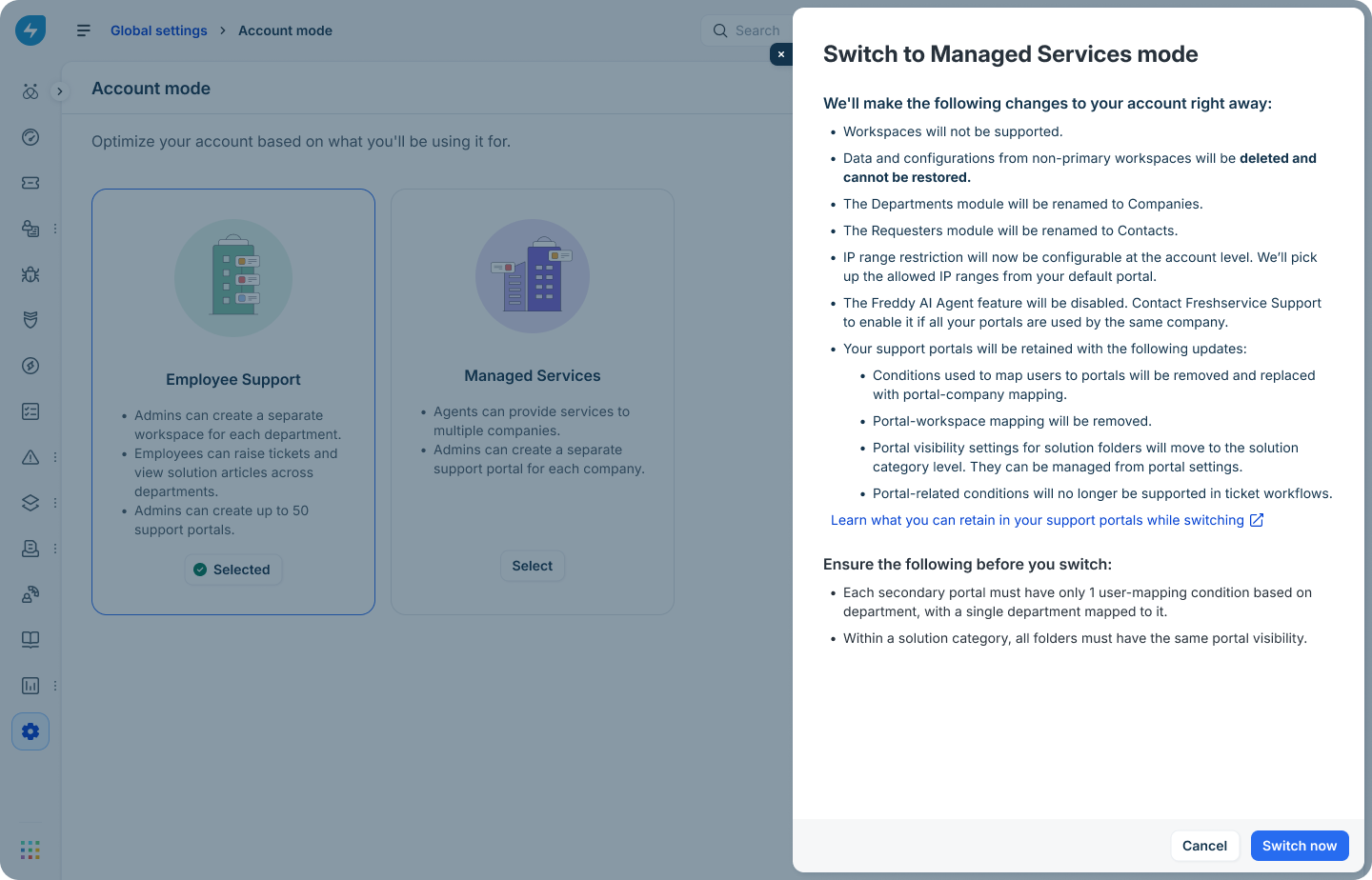
Review the impacts on the confirmation panel.
Click Switch now. Freshservice runs a validation process before proceeding. Depending on the number of portals and folders in your account, this process can take up to 2–3 minutes.
If validation errors appear, fix each item as described under Resolve validation errors before switching to MSP, then retry.
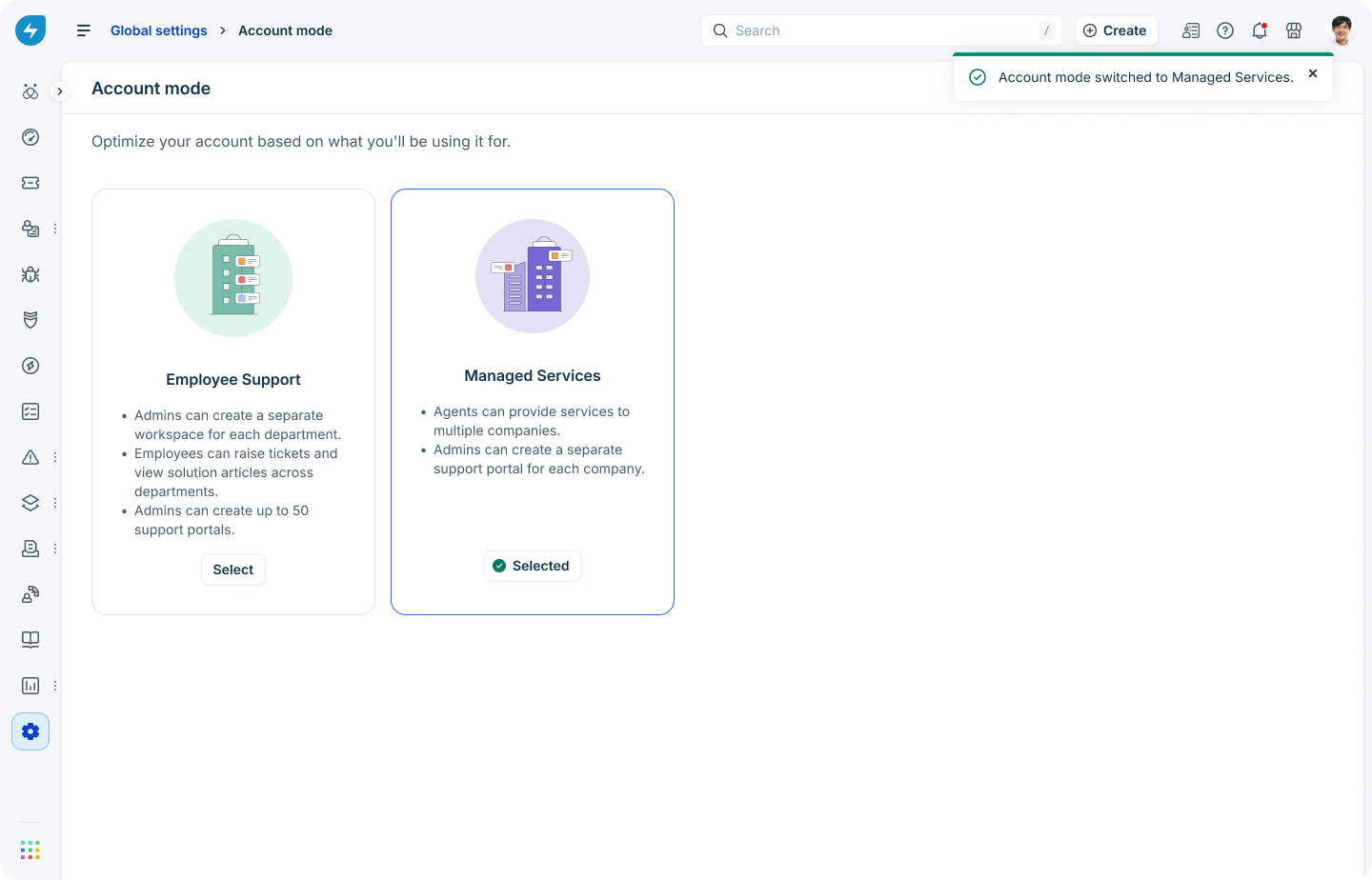
Once validation passes, the success message appears as shown in the image below.
What changes after switching to MSP mode
Once the account mode switch is complete, note the following changes:
General changes
All secondary workspaces and their data will be permanently deleted.
The Department module will be renamed to Company.
The Requesters module will be renamed to Contacts.
Portal mapping and access behavior
All existing support portals will be preserved. Portal branding, access permissions, and login security settings will remain unchanged. However, the following changes will apply:
Portal-to-workspace mappings will be removed. All portals will be associated with the primary workspace/account. As a result, the content displayed on the portals may change, since data and settings from secondary workspaces will be removed entirely.
Portal user-mapping rules will be simplified.
Any complex portal-user mapping conditions will be replaced with a simple 1 to 1 company to portal mapping.
If the default portal is mapped to all users, it will remain unmapped to any company
IP range restrictions on the default portal will be moved to the account level, since portal-level IP restrictions are not supported in MSP mode.
Portal access will become less restrictive: In MSP mode, portal-to-company mapping does not control or restrict user sign-ins. In contrast, ESM mode uses user-to-portal mapping to determine which users can access a portal.
Using portals in workflows
Existing workflows that reference the ‘Portal’ field will continue to function for tickets created before the switch. For new tickets, portal-based conditions will no longer be supported.
You will not be able to add new portal-based conditions to workflows after switching to MSP mode.
Freddy AI Agent availability
The Freddy AI Agent feature will be disabled.
Knowledge base experience
Folder Visibility Updates
As part of the migration, solution category-to-portal mappings are automatically created based on the existing visibility settings of solution folders.
If all folders within a category are visible on the same set of portals, the category is mapped to those portals. Folder visibility remains unchanged after the migration.
New Agent Experience
In ESM mode, agents and administrators can access articles across all portals, provided they have permission to view them.
After switching to MSP mode, agents can view only the articles from categories that are published on the portal they are currently logged in to. As a result, agents and administrators may see fewer knowledge base categories, folders, and articles depending on the portal they access.
To view content from another portal, agents must switch to that portal.
Category and Folder Reordering
In ESM mode, category ordering is centralized and shared across all portals.
After switching to MSP mode, category ordering becomes portal-specific. Each portal can maintain its own category order, allowing administrators to customize the knowledge base experience independently for each portal (by logging in to each one).
User search behavior
Users can be granted permission to search for and discover other users within the same company on a portal.
Association of records with companies
After switching to MSP mode, the following company-based capabilities become available:
Support email addresses can be linked to specific companies.
Users who sign up through a portal are automatically associated with the company mapped to that portal.
Tickets and changes created through a portal, as well as tickets received through a company-linked support email address, are automatically associated with the corresponding company.
These company associations are then used to:
Determine the company-specific portal URL included in email notifications.
Select the company-specific support email address from which notifications are sent.
Placeholder resolution logic in email notifications
The portal URL inserted into user notifications through placeholders may differ after switching to MSP mode.
In ESM mode, portal URL resolution follows the logic described in Email notifications in multiple requester portals. In MSP mode, Freshservice attempts to use the portal associated with the relevant company whenever possible.
Depending on the scenario, the portal is determined using:
The company associated with the ticket (for example, when the ticket is submitted through a support email address linked to a company or through a company-specific portal), or
If no company is associated with the ticket, the portal is mapped to the company to which the user belongs.
If the company does not have an associated portal, or if the user belongs to multiple companies, Freshservice may fall back to the account's default portal.
Similarly, the {{servicedesk name}} placeholder behaves differently across modes. In MSP mode, it resolves to the name of the portal associated with the portal URL included in the notification. In ESM mode, it currently resolves to the name of the account's default portal.
Switch from MSP mode to ESM mode
Note (Starter and Growth plans): Secondary portals are permanently deleted when switching from MSP mode to ESM mode, as multiple portals are not supported in ESM base plans. This action is irreversible and the deleted portals cannot be restored after the switch.
On Pro and Enterprise plans, Freshservice validates your portal count before switching:
More than 50 portals: the switch is blocked. Delete the excess portals first, then retry.
More than 25 and up to 50 portals: the switch proceeds, and Freshservice automatically extends the workspace limit to 50.
Steps to switch to ESM mode
To switch your account to ESM mode, follow these steps:
Go to Global Settings > Account mode.
Select the Employee Support tile.
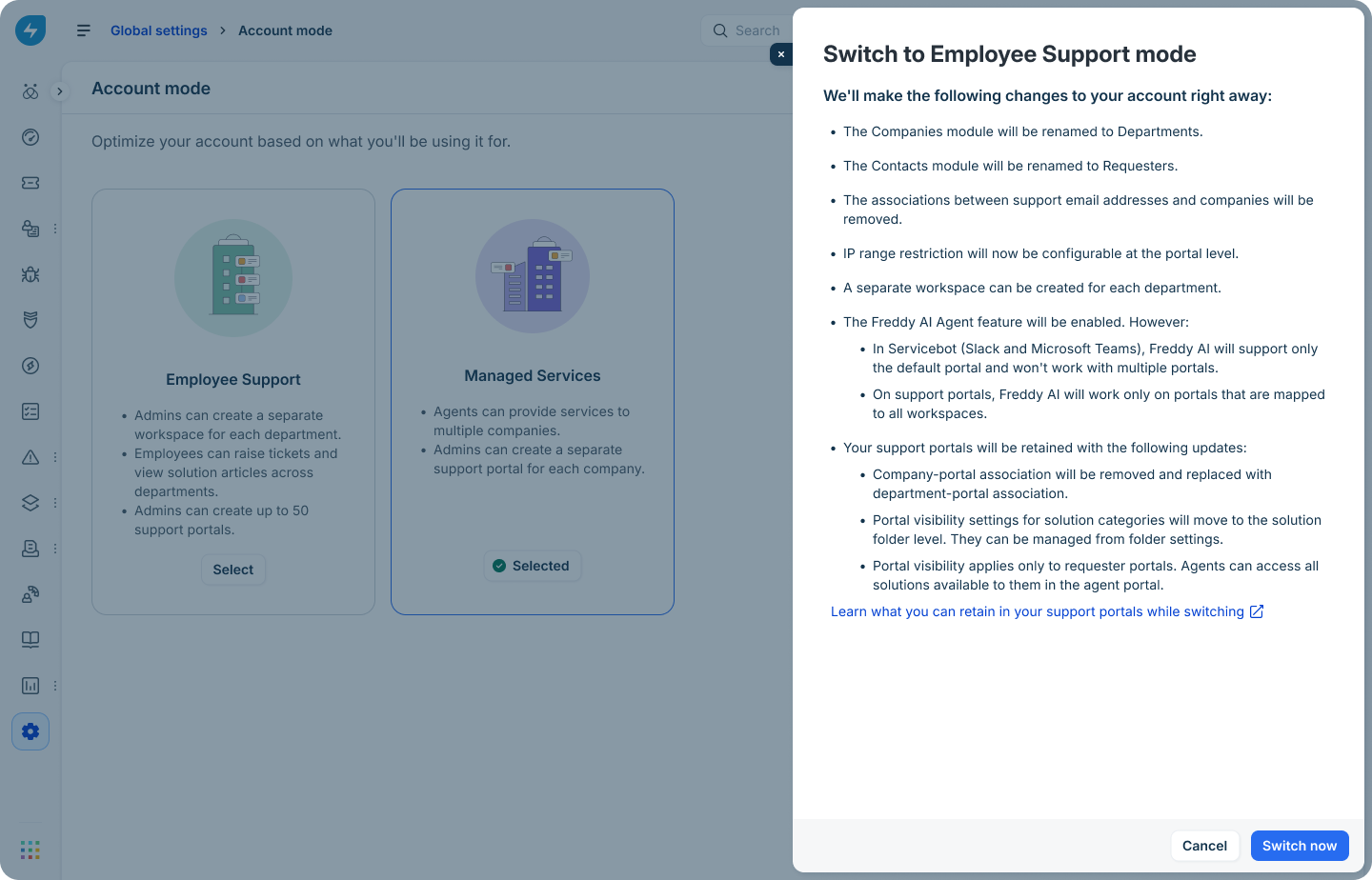
Review the impacts on the confirmation panel.
Click Switch to Employee Support Mode. Do not navigate away until the success message appears.
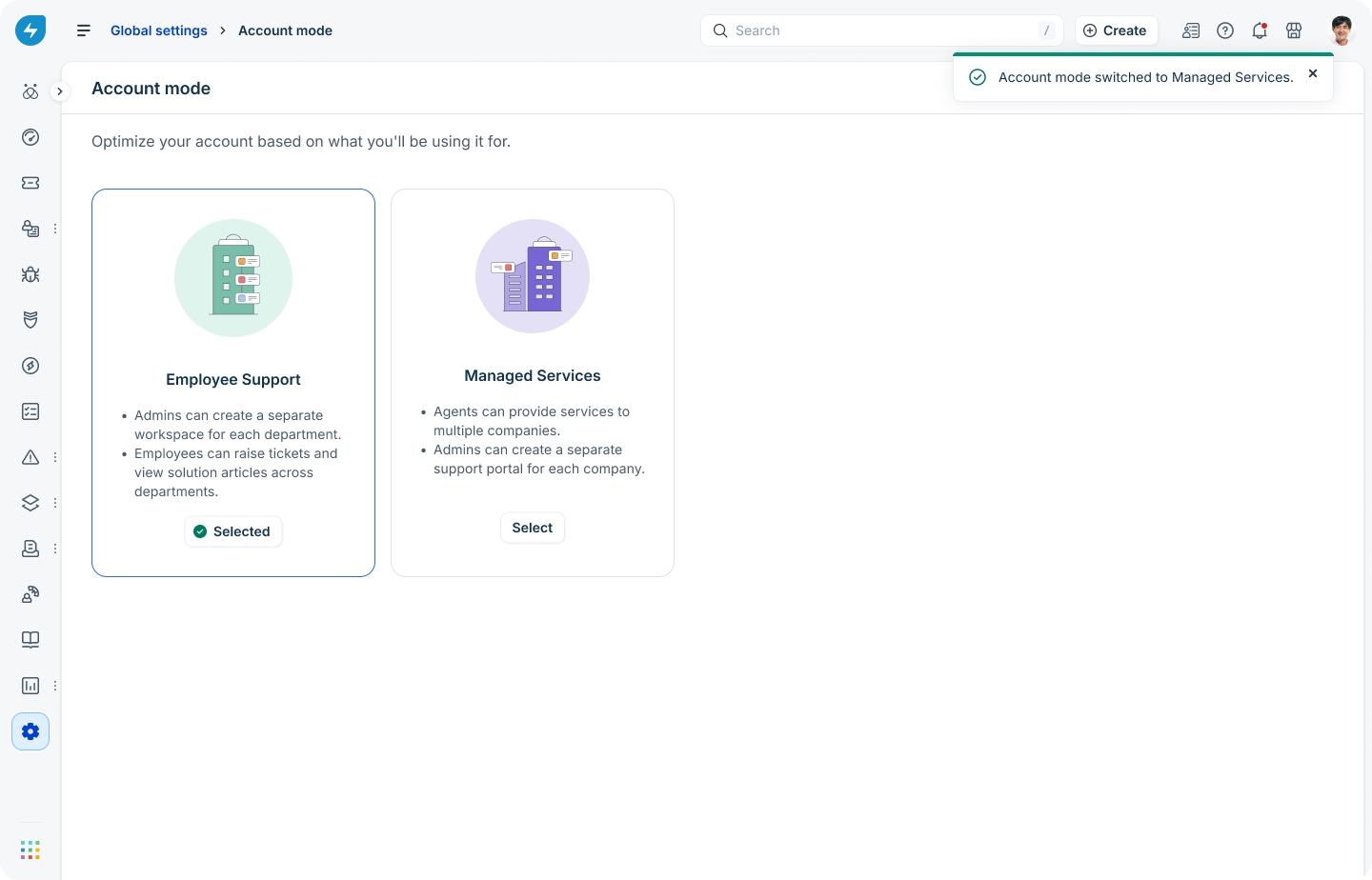
What changes after switching to ESM mode
Once the account mode switch is complete, all existing portals are preserved, provided the account has no more than 50 portals (supported on Pro and Enterprise plans only). Portal branding, design, access permissions, and login security settings remain unchanged. However, note the following changes that will take effect after the switch.
General changes
Creating additional workspaces and purchasing business agents becomes available.
The Company module is renamed to Department.
The Contacts module is renamed to Requesters.
Portal mapping and access behavior
All portals are mapped to all workspaces by default. Since only one published workspace exists immediately after the switch, all portals will effectively point to that workspace.
Portal-to-company mappings are converted into department-based user access conditions. The mappings are preserved using the company name as the department value.
The portal access conditions are converted as follows:Default Portal: Mapped to 'All Users' if the portal was not mapped to any company in MSP mode. Otherwise, it’s set to 'User.Type is Agent' OR 'User.Department includes [Company Name]'.
Each Secondary Portal: It’s set to 'User.Type is Agent' OR 'User.Department includes [Company Name]'.
Going forward, generally, only users mapped to a portal will be able to sign in to it. In MSP mode, portal-to-company mapping was used only for portal identification while sending notifications and did not restrict user access or sign-ins.
A quick note on its impact on existing users in your account:
- If an existing user is already logged in to a portal they are not mapped to, their session will remain active even after the switch. For example, if a Company A user logged into a Company B portal, they will continue to stay logged in even though they are no longer mapped to that portal.
- Their access will be blocked when their session ends.This can happen when the session expires based on the 'Force session timeout settings' in Service Desk Settings, or when the user logs out of any portal in the account. Today, logging out of one portal logs the user out of all portals in the account today. Note that updating the session timeout counter will apply only to future sessions and will not affect any existing active sessions.
After the switch, you can further customize these conditions and add additional rules. Users can also be granted access to multiple portals if required.
Any account-level IP range restriction configured in MSP mode is applied to all portals. After the switch, IP restrictions can be managed independently at the portal level.
Freddy AI Agent availability
The Freddy AI Agent feature will be enabled. However, in accounts with multiple portals, it operates with certain limitations. Learn more
Knowledge base experience
Folder visibility updates
As part of the migration, solution folder visibility settings are updated based on the solution category-to-portal mappings configured in MSP mode. This update does not change the actual visibility of articles.
If a solution category is mapped to one or more portals, all folders within that category inherit the same portal visibility settings.
If a solution category is not mapped to any portal, the visibility of its folders is set to Specific Portals with no portals selected. In this case, administrators will see a validation error when opening the folder settings and must manually select the appropriate portals before making any changes.
New agent experience
In MSP mode, agents can view only the articles from categories that are published on the portal they are currently logged into.
In ESM mode, agents can access articles across all portals, provided they have permission to view them. This is because agents may work on tickets originating from multiple portals. The new portal experience is designed to allow them to sign in to a single portal and access all the data, settings, and tools they need to perform their work from one place.
As a result, agents and administrators may see significantly more knowledge base folders after switching to ESM mode.
Folder and category ordering changes
In MSP mode, when categories/folders are reordered while logged in to a portal, the changes affect only that portal, allowing each portal to maintain its own category order.
In ESM mode, category ordering is centralized because agents and administrators can view all accessible categories regardless of the portal they use to log in. All portals inherit this centralized category order.
For example, assume the solution category order is:
C3
C2
C1
If a portal named P1 has folders only from categories C1 and C3 visible on it, users on P1 will see the categories displayed in the following order:
C3
C1
Please review the category ordering once the switch has been completed.
Email announcement experience
In MSP mode, announcement emails sent to users across multiple companies were automatically grouped by company. Each group received a separate email containing a link to the portal associated with their company.
This behavior does not apply in ESM mode. In ESM mode, if the announcement's workspace is mapped to multiple portals, any announcement sent via email will include a link to the oldest created portal mapped to that workspace.
As of today, this portal-selection logic is fixed and cannot be customized. A future enhancement will allow administrators to choose which portal link is included in announcement emails.
Discontinuation of company-based associations
In MSP mode, the association of users and records with companies plays a central role in determining email notification behavior.
Users who sign up through a portal are automatically associated with the company mapped to that portal.
Tickets and changes created through a portal, as well as tickets received through a company-linked support email address, are automatically associated with the corresponding company.
These ticket-to-company associations are used to:
Determine the company-specific portal URL to include in email notifications.
Select the company-specific support email address from which notifications are sent.
This model changes in ESM mode, where portals are no longer directly tied to companies or departments.
How does it work in ESM mode?
Users are no longer automatically associated with a company when they sign up through a portal. Instead, Freshservice evaluates the user's profile information against the portal's access conditions. Users who satisfy those conditions are granted access to the portal and can view its content based on the configured permissions.
This means the required user information is expected to be available on the user profile at the time of sign-up. Admins can expose additional fields on the sign-up form to collect this information if needed. At present, workflows cannot be used to dynamically populate user profile fields during sign-up. For example, it is not possible via workflow automation to:
Automatically assign a user to a company because they signed up through a specific portal.
Set a company value based on the user's email domain.
Support email addresses can no longer be linked to companies or departments, which means tickets and changes are no longer automatically associated with a company. Existing company associations on historical records are preserved, but they are no longer used for portal URL resolution or determining the notification’s sender address.
How are notifications handled?
For tickets created through email, update notifications are typically sent from the same support email address that received the original request.
For tickets created through a portal, requester-facing notifications are sent from the primary support email address configured for the associated workspace.
The mechanisms used to determine portal URLs are described in this section below.
Note: If you rely on company-related information for reporting or analytics, you can use workflows to populate a custom field based on the portal through which a ticket is created. For example, you can add a Portal condition to a ticket workflow and automatically set the value of the Department field or another custom field to an identifier such as a company name. The Portal condition evaluates whether a ticket was created through a specific portal.

As of today, portal-based workflow conditions are supported only for incident tickets. Support for service requests is planned for a future release.
User search behavior
In single-account MSP mode, requester-facing user searches are restricted to agents and contacts belonging to the same company, or in some cases, no users are returned. For example, when a requester creates a change request from the requester portal and uses the Add People field to specify additional users who should receive change notifications, no user suggestions are displayed.
After switching to ESM mode, user search behavior changes. In the Requester field, users can search for users who have access to the same portal. Immediately after the switch, this typically means users can search only for members of the same company (now represented as a department), because the initial portal access conditions are derived from the company-to-portal mappings that existed in MSP mode. If you later modify the portal access conditions and grant access to a broader set of users, those users will also become searchable.
Note: The user search restriction currently applies only to the Requester field. It does not apply to CC fields, delegation settings, the Add People field in change request forms, the Requested For field in service item forms, or user object–based custom fields. In these fields, all account users remain searchable and selectable.
Analytics experience
When agents access records from reports (for example, by clicking a ticket link in the raw data of a report or through report emails), they are currently redirected to the default portal, even if they are logged into a secondary portal.
Freshchat experience
If Freshchat is enabled, it will remain enabled on the same portals where it was enabled in MSP mode. User sessions are currently maintained at the account level, so when the same user accesses Freshchat from different portals, they will continue to see conversations and chat history from the other portals they have used within the account.
Ticket canned response experience
In MSP mode, portal URL placeholders in canned responses can be resolved based on the company associated with the ticket.
In ESM mode, this behavior changes. If a canned response contains portal URL placeholders, they resolve based on the workspace associated with the record. If the workspace is mapped to a single portal, the URL resolves to that portal. If the workspace is mapped to multiple portals, the URL resolves to the oldest portal mapped to the workspace.
Support for using requester context to dynamically resolve the most appropriate portal URL will be added in a future release.
Placeholder resolution logic in email notifications
Resolving URLs in notifications (inserted via placeholders) behaves differently in ESM mode.
For complete details, see Email notifications in multiple requester portals. The key changes are summarized below.
Requester notifications: All portals are mapped to the primary workspace after the switch.
If a ticket is submitted through a portal, notification emails continue to include that portal's URL.
If a ticket is submitted through another channel (such as email), the system:
Identifies all portals mapped to the workspace.
Filters the list to portals the requester can access.
Selects the oldest accessible portal and includes its URL in the notification.
If your default portal was not mapped to a company in MSP mode, it will be converted into a portal accessible to all users after the switch. Because it is the oldest portal in the account, most requester notifications may begin directing users to this portal.
If this is not the desired behavior, ensure that the default portal is mapped to the appropriate company before switching to ESM mode.
Why notification routing works this way
Unlike MSP mode, ESM mode does not prioritize department-specific portals (earlier company-specific in MSP mode) when selecting notification links. This is because users can intentionally be granted access to multiple portals that are mapped to the same workspace. If multiple portals are mapped to the same workspace, users can access the same ticket through any of those portals, so the system uses the oldest accessible portal by default.
The portal used for ticket submission is only prioritized when the ticket is submitted directly through that portal. Currently, this behavior applies to tickets only and does not apply to changes or journeys submitted through the support portal.
Agent notifications: Agents are assumed to have access to all portals. As a result, agent notifications will contain links to the default portal immediately after the switch.
Module-specific multi-portal awareness
Multi-portal awareness for the following areas is not currently supported and will be introduced in a future release. Until then, these modules will always use the account's default portal URL:
Canned responses
Project notifications
On-Call and Status Page email notifications
Device42 (D42) related notifications
Freddy solution suggestions and Email Bot
Scenario Automations that use the Send Email action
Workflow emails, including:
Approval emails
Document generation emails
Generic emails sent to agents, requesters, or users that contain portal URL placeholders
Recommendation: If you need a workflow powered email to direct users to a secondary portal, we recommend hardcoding the appropriate portal URL using available placeholders until multi-portal support becomes available for these email types.
'Service Desk name' placeholder resolution
The {{servicedesk name}} placeholder currently resolves to the name of the account's default portal, which is treated as the service desk name.
If you need to display a specific portal name in an email notification, we recommend hardcoding it for now. In a future release, this placeholder will be enhanced to resolve dynamically based on the portal URL included in the notification.
Neo Admin Center experience
In single-account (SA) and multi-account (MA) MSP environments, requesters are created as restricted requesters. Restricted requesters cannot use the Omni Bar to switch between accounts within the same organization.
While this capability will not be available at launch, a future release will allow users in ESM mode to use the Omni Bar to switch between the different portals they have access to.
As a result, it is important to ensure that portal access conditions are configured correctly and that users are mapped only to the portals they are intended to access.