
 Community
 Video Library
 Agent Training
 Freshservice
 Freshdesk
 Freshchat
 Freshcaller
 Freshsales
 Freshteam
 Freshworks Neo
 Freshsurvey
 Freshservice for MSP
 TABLE OF CONTENTS
- Supported plans and account modes
- Overview
- Prerequisites
- Requester portal experience
- Agent experience
- Understanding agent-to-portal mapping
- Appendix
Supported plans and account modes
Plans
Freshservice Pro and Enterprise
Freshservice for Business Teams Pro
Note: If you downgrade to a plan that does not support multiple portals, all secondary portals are deleted, leaving only the default portal. Review your portal setup before you change plans.
Account modes
The details regarding multiple requester portals in this article apply exclusively to accounts in 'Employee Support (ESM)' mode (that is, accounts with workspaces enabled). While accounts in 'Managed Services (MSP)' mode also have access to multiple portals, their rules and behavior may differ, and users must switch their account mode to Employee Support to utilize the specific capabilities described here.
Overview
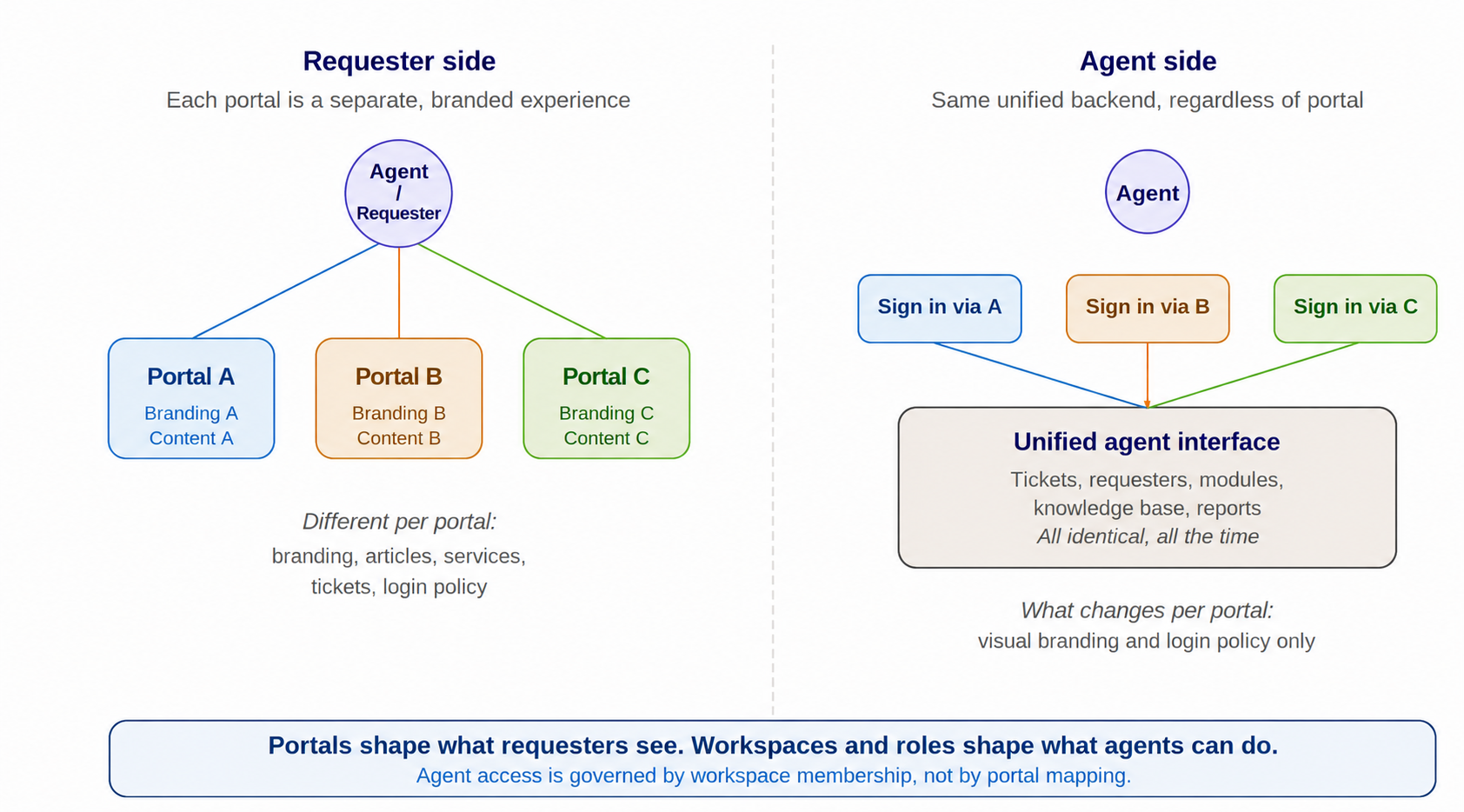
When you set up multiple requester portals, requesters and agents experience them very differently. Requesters see a portal-specific, branded view shaped by the portal they sign in to. Agents work in a unified backend that's the same across all portals. Once you understand why these two experiences differ, configuring access, permissions, and branding becomes much more straightforward.
Each portal has two distinct sides:
Requester side: The customer-facing side of the portal, typically accessed by requesters to raise and track requests. Agents can also access this side, and the experience is generally the same for both requesters and agents regarding what data is exposed.
A user moving between the requester side of two portals can see completely different content.
Agent side: The area where agents manage and work on tickets is accessible only to agents. While the URL and branding may vary depending on the portal an agent signs in through, the underlying agent experience remains the same across all portals. What agents can view and access is determined entirely by their roles, permissions, and workspace assignments, and does not change from one portal to another.
As a result, agents may be able to view and access data from workspaces that are not mapped to the portal through which they signed in. This behavior is referred to as the unified agent interface. An agent moving between two agent portals will see the same tickets, service items, solutions, and anything else they have access to.
Note: The unified agent interface applies only to the agent portal. When the same agent switches to the requester view of the portal by clicking their Profile Icon > View Support Portal, they will have an experience similar to that of requesters and can view only data from the workspaces mapped to that portal.
Prerequisites
To follow the examples and procedures in this article, your account should ideally have:
Multiple support portals set up: At least two portals in your Freshservice account.
Workspaces mapped to portals: Each portal mapped to one or more workspaces.
Users mapped to portals and workspaces: Requesters scoped to the portals they need, and agents added to the workspaces they support.
Administrator access: You must be signed in as a Play-God admin to change workspace membership and portal settings.
Requester portal experience
Each portal is a self-contained experience for the user. Branding, content, and authentication can all be different from one portal to the next.
Ticket and change forms
The workspace field on the ticket/change forms lets requesters choose the team to which they want to submit the ticket or change request. Its visibility setting directly affects how tickets/changes are routed in a multiple-requester portal account.
When the workspace field is displayed to requester
Requesters see a dropdown listing the workspaces mapped to the portal they are signed into. The ordering of workspace options follows the account-level order set in Global Settings > Ticket Field Manager > Displayed to requester field, filtered to show only the workspaces mapped to that specific portal.
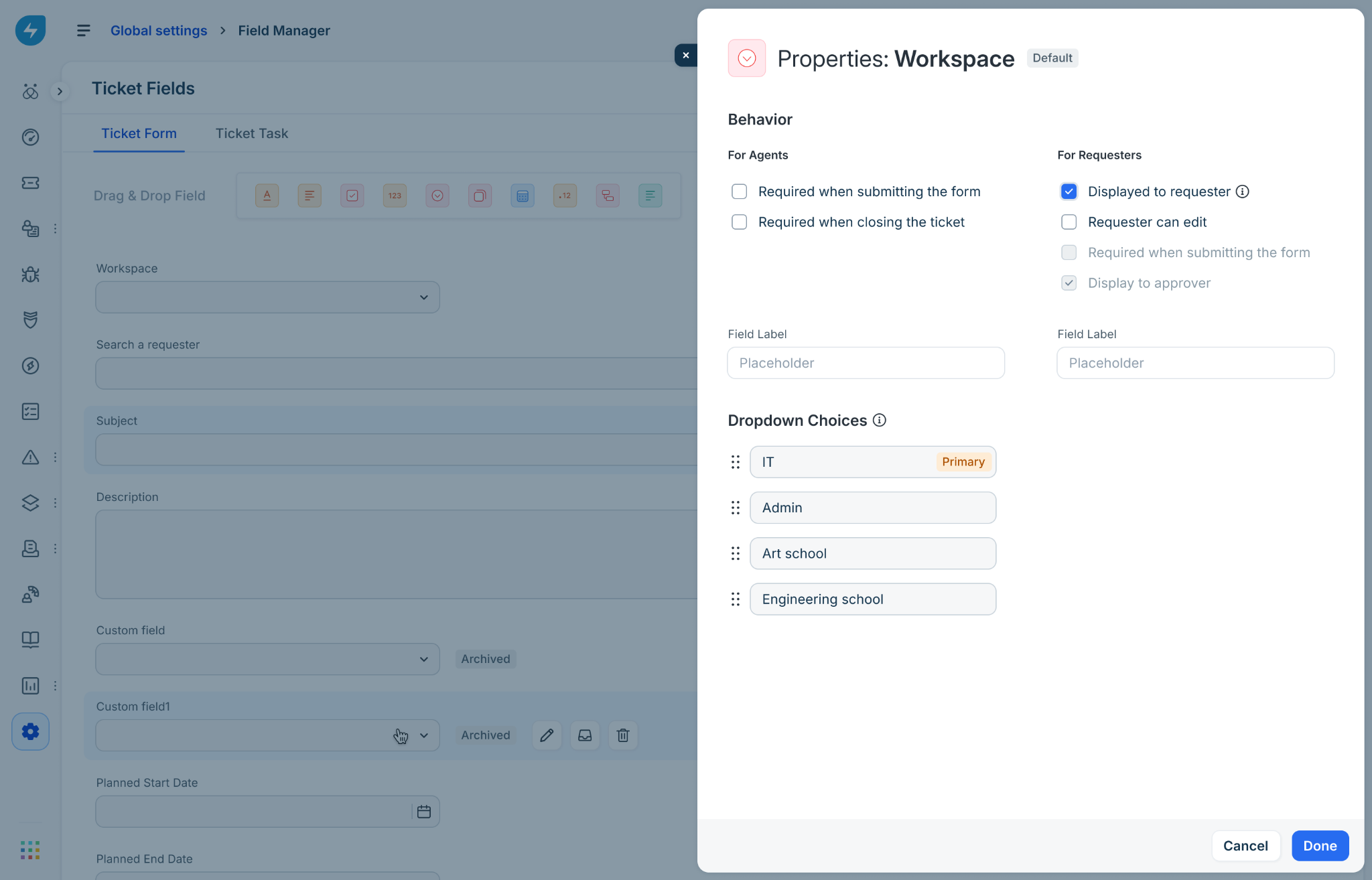
For change requests, the dropdown shows only the workspaces of type ‘IT’ mapped to the portal. Requesters select the relevant team before submitting, giving them direct control over where the request lands.
When the workspace field is not displayed to requesters
When the Displayed to requester checkbox is unselected, Freshservice automatically routes the ticket/change request to a workspace on the requester’s behalf. The selection logic works as follows:
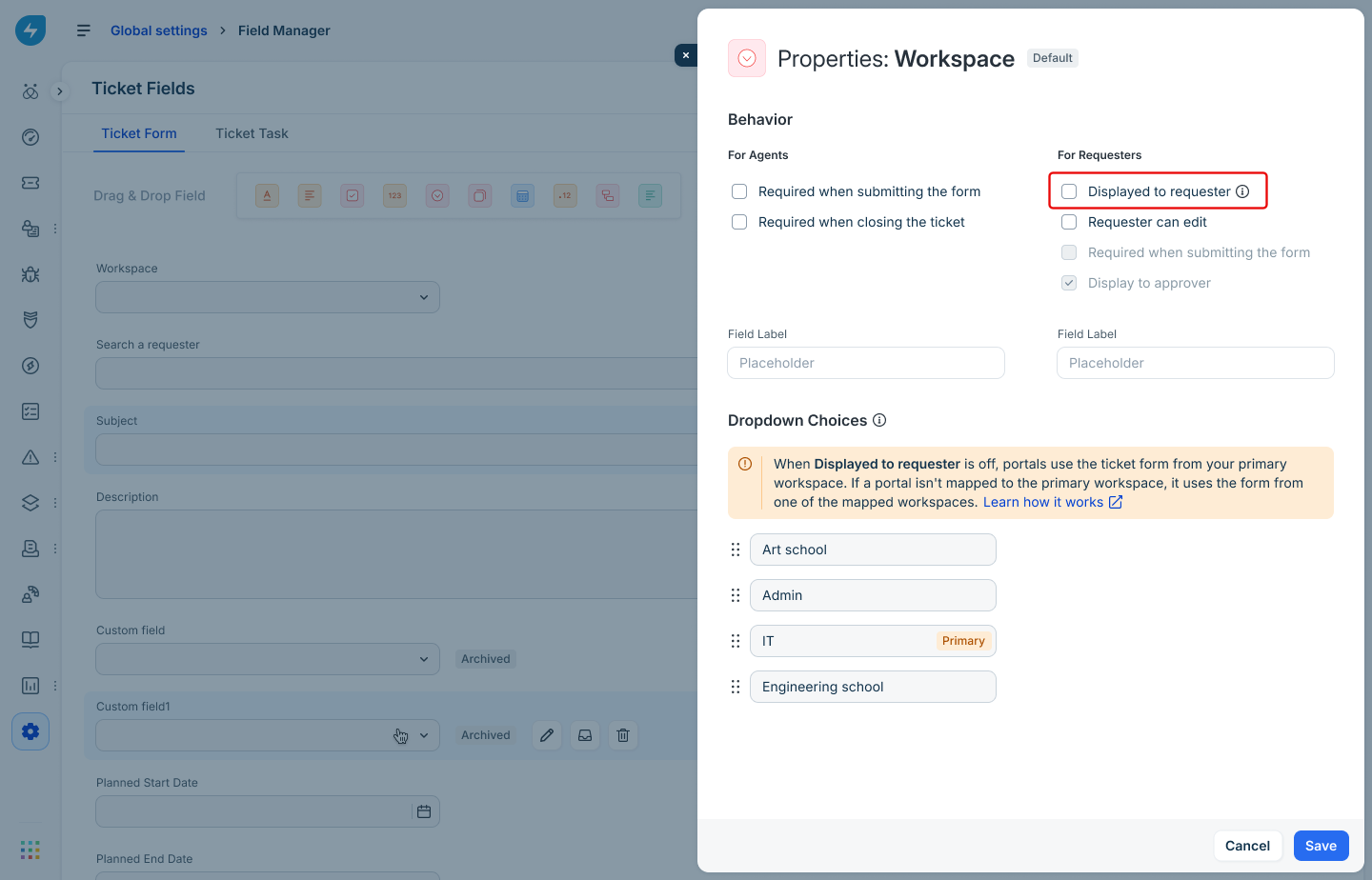
If the primary workspace is mapped to the portal, the form from that workspace is loaded.
If the primary workspace is not mapped to the portal, Freshservice loads the form of the first published workspace in the workspace options order that is also mapped to the portal. For more information about how forms are resolved with examples, see Understand form behavior when 'Displayed to requester' is off.
The portal settings page shows which workspace form will be loaded by default (shown under ‘Map workspaces’), so admins always know the current routing behavior without guessing.
Note: Changing the workspace ordering in Global Settings affects which form loads by default. Similarly, if the leading workspace in the order is deleted or unmapped from a portal, the next eligible workspace automatically takes over.
Ticket business rules and workflows: Admins can use Portal as a condition in ticket business rules to tailor forms for different portals. For example, an IT workspace mapped to multiple portals can use business rules to display or hide specific fields on different portals. Business rules apply to both the agent and requester portal forms.
Similarly, in ticket workflow automations, the Portal field is available in the Conditions node, enabling workflows to set ticket properties, such as department assignments or custom field values, based on the ticket's submission portal (not the portal through which they are currently being accessed)
Service items
Users see only service items from the workspaces mapped to their portal. Their visibility can be further controlled using agent/requester visibility rules.
Service categories can be ordered via Global settings > Service Catalog. As of today, categories cannot be reordered directly at a portal level. The ordering is picked directly from the order in the global settings.
Knowledge base content
The articles and folders visible to a requester are determined by the visibility settings that admins configure on each solution folder. You can choose to display entirely different sets of articles to the same requester across different portals, even when the articles belong to the same category.
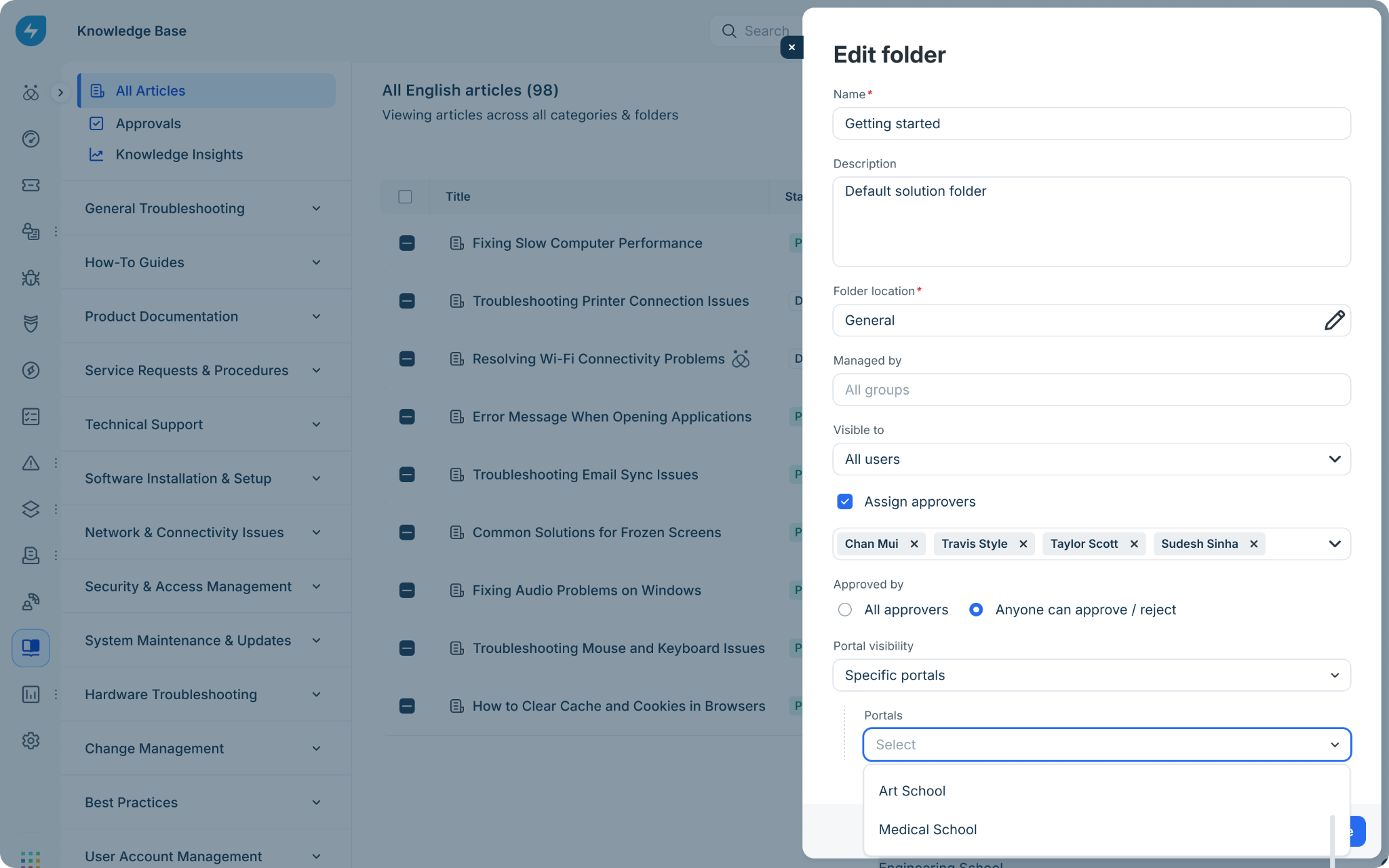
Solution folders: Folder visibility is set per portal. Admins control this through the Portal visibility setting in the Edit folder panel. This setting determines which portals display the folder’s articles to requesters. Two options are available:
All mapped portals: When this option is selected, the folder’s articles are visible on every portal that the folder’s workspace is mapped to. This is the default setting and is suitable when the same content should be available across all mapped portals. Agents can expand the ‘View portals’ link to see which portals the folder is visible on.
Specific portals: When this option is selected, a ‘Portals’ dropdown appears below it. Admins can then select one or more portals from the list. Only users who access the knowledge base through one of the selected portals can view the folder’s articles. This is useful when certain content is relevant only to a specific portal. For example, you might publish customer discount guides only to the portal your go-to-market teams use to submit your company’s product-related requests, while keeping the same content hidden from those users when they access your general employee portal.
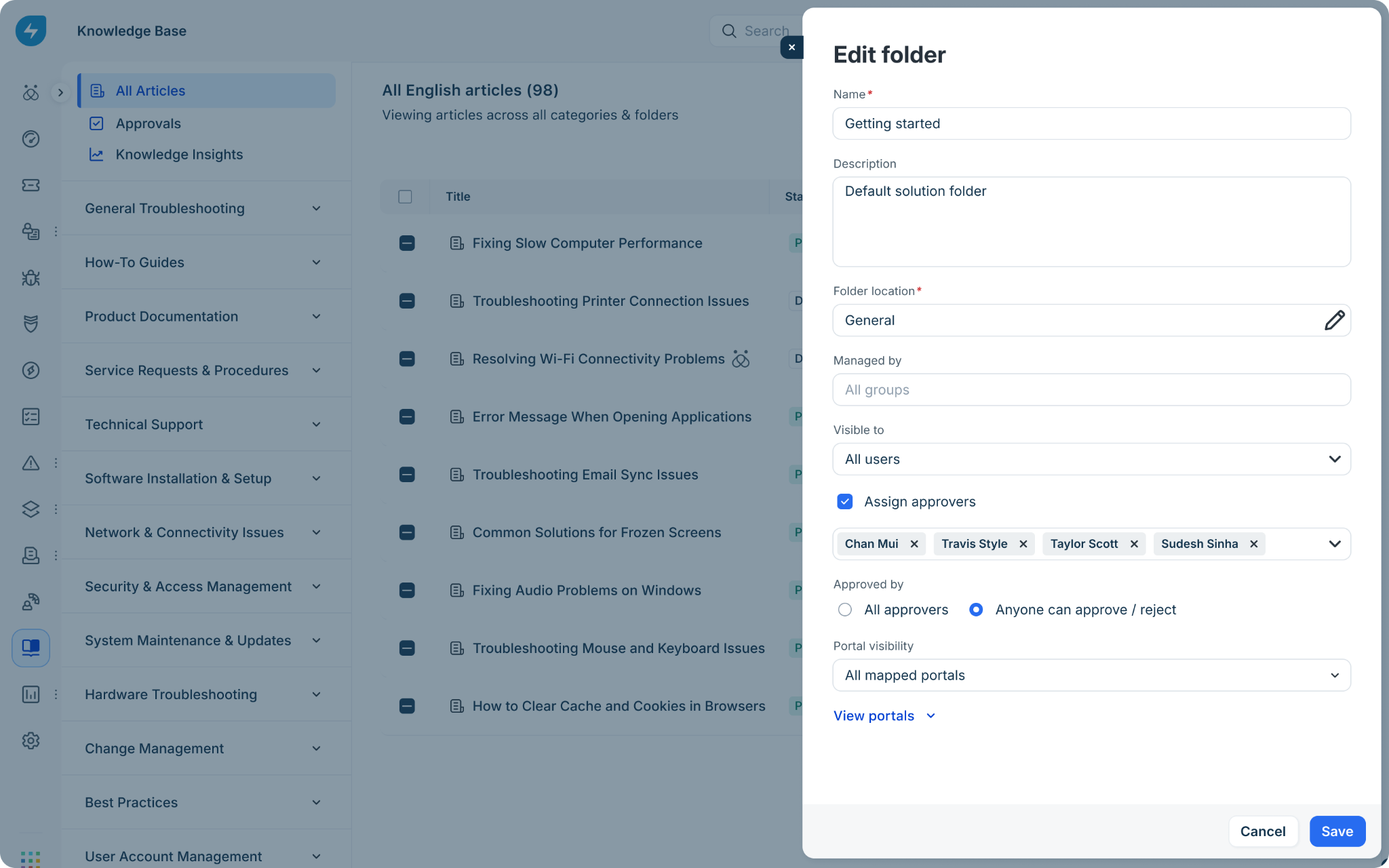
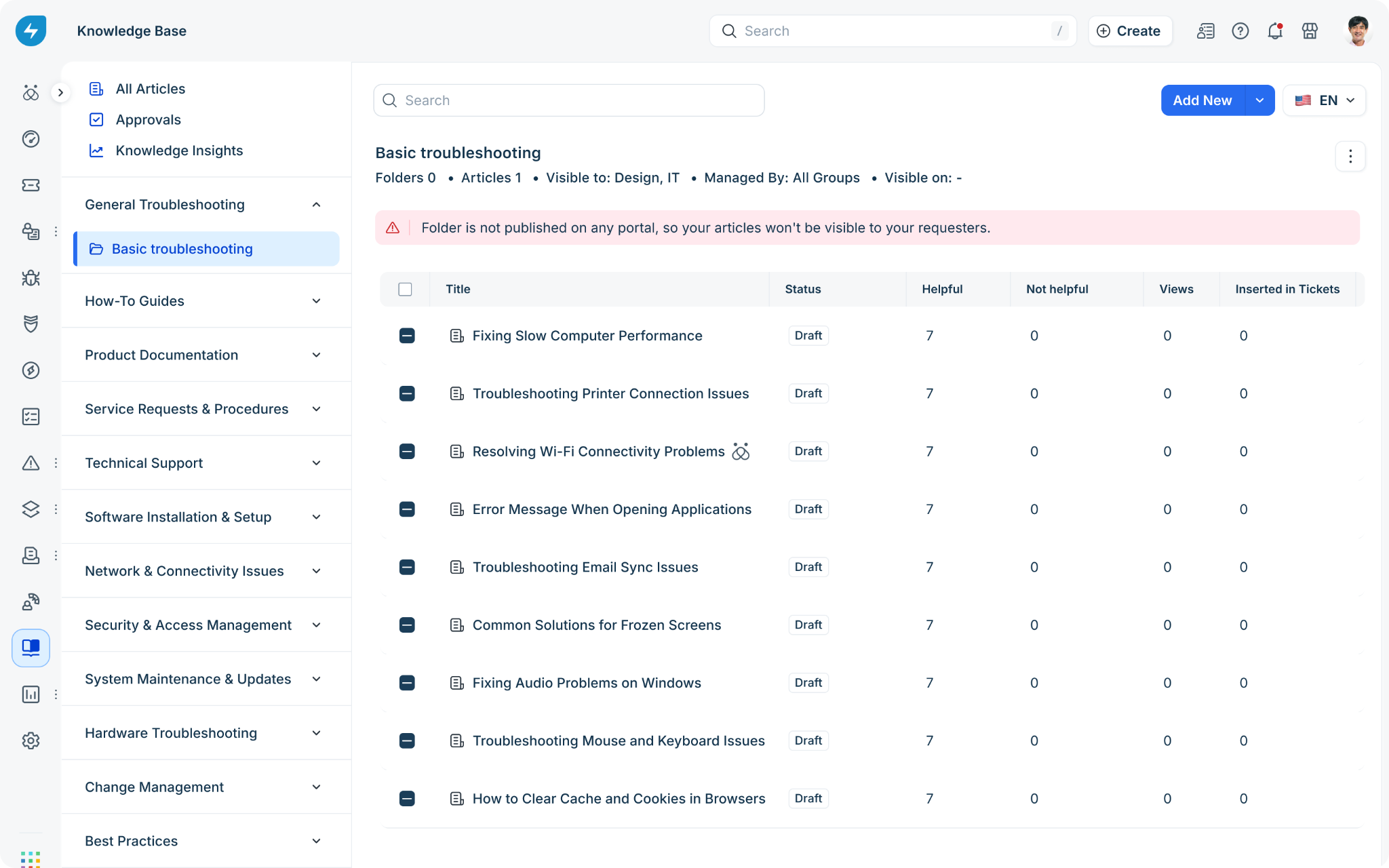
If Specific Portals is selected and the chosen portal is later deleted, the folder remains in a published state but is no longer visible on any portal. As a result, neither the folder nor any of its articles are accessible to requesters. When this happens, a warning banner appears at the top of the folder view: “Folder is not published on any portal, so your articles won’t be visible to your requesters.”
Category ordering: Categories are listed in the left navigation panel under Solutions. The display order that admins set here is automatically reflected across all portals—each portal inherits the same category sequence. As of today, categories cannot be reordered at a portal level.
Journey Forms
Although Journeys is configured globally, the visibility of a journey form depends on the workspace in which the journey request is configured to be created. Only journey forms that create requests in workspaces mapped to the portal will be visible on that portal, and only to the users specified in the journey's visibility settings.
Ensure that these users are also granted access to the relevant portals; otherwise, they will not be able to access the journey forms.
Announcements
Announcements are always created within a workspace.
When Portal is selected as a delivery channel, the announcement is published to all portals mapped to that workspace and made visible to the selected audience when they log in.
When Email is selected, Freshservice always includes a portal link in the email, allowing users to return and view the announcement later. If the announcement’s workspace is mapped to multiple portals, admins can choose which portal URL should be inserted. Please make sure the intended audience has access to the selected portal.
Tickets, changes, journey requests, journey tasks, and approval requests
What will users see: Users can view only the items currently present in workspaces mapped to their portal. If an item was created through a specific portal but later moved by an agent to a workspace that is not mapped to that portal, the item will no longer be visible there.
Note on Approvals and Journey Tasks: Approvals and Journey Tasks assigned to users do not have a workspace directly associated with them. Instead, their visibility is determined by the workspace of the related entity — the associated journey request in the case of Journey Tasks, and the associated ticket, change, or journey request in the case of approvals.
For example, consider a journey request (#123) that belongs to Workspace A. If Workspace A is mapped only to Portal A, the corresponding Journey Task will also be accessible only through Portal A. If the journey request is later moved to Workspace B, which is mapped to Portal B, the Journey Task will subsequently become accessible through Portal B.
Onboarding and Offboarding requests
All onboarding and offboarding requests will be visible regardless of mapped workspaces and are not optimally designed for multiple requester portal setups.
Since Onboarding and Offboarding are legacy employee journey modules, admins are encouraged to migrate to Journeys for a more optimal experience.
Search behaviour
Global Search Bar - Search results are limited to content, forms, and other items displayed on the portal.
User Search: The 'Requester' field in tickets and service requests, the 'Request For' field in service items and journey forms, user object–based custom fields in forms, CC fields, delegation settings, and the 'Add People' field in change request forms display only mapped users. However, if an unmapped user is manually entered in the CC or Add People fields, the user can still be added successfully. This restriction applies only to the Portals channel and does not extend to APIs or Servicebot.
User Profile: All generated documents and assigned assets present in the mapped workspaces will be visible.
Associate Assets in ticket forms: Assets present in the mapped workspaces will be available for selection.
Authentication and security
Login methods: Each portal can enforce its own authentication methods (Freshworks login, passwordless, Google SSO, enterprise SSO).
IP restrictions: Each portal can be limited to specific IP ranges.
Example
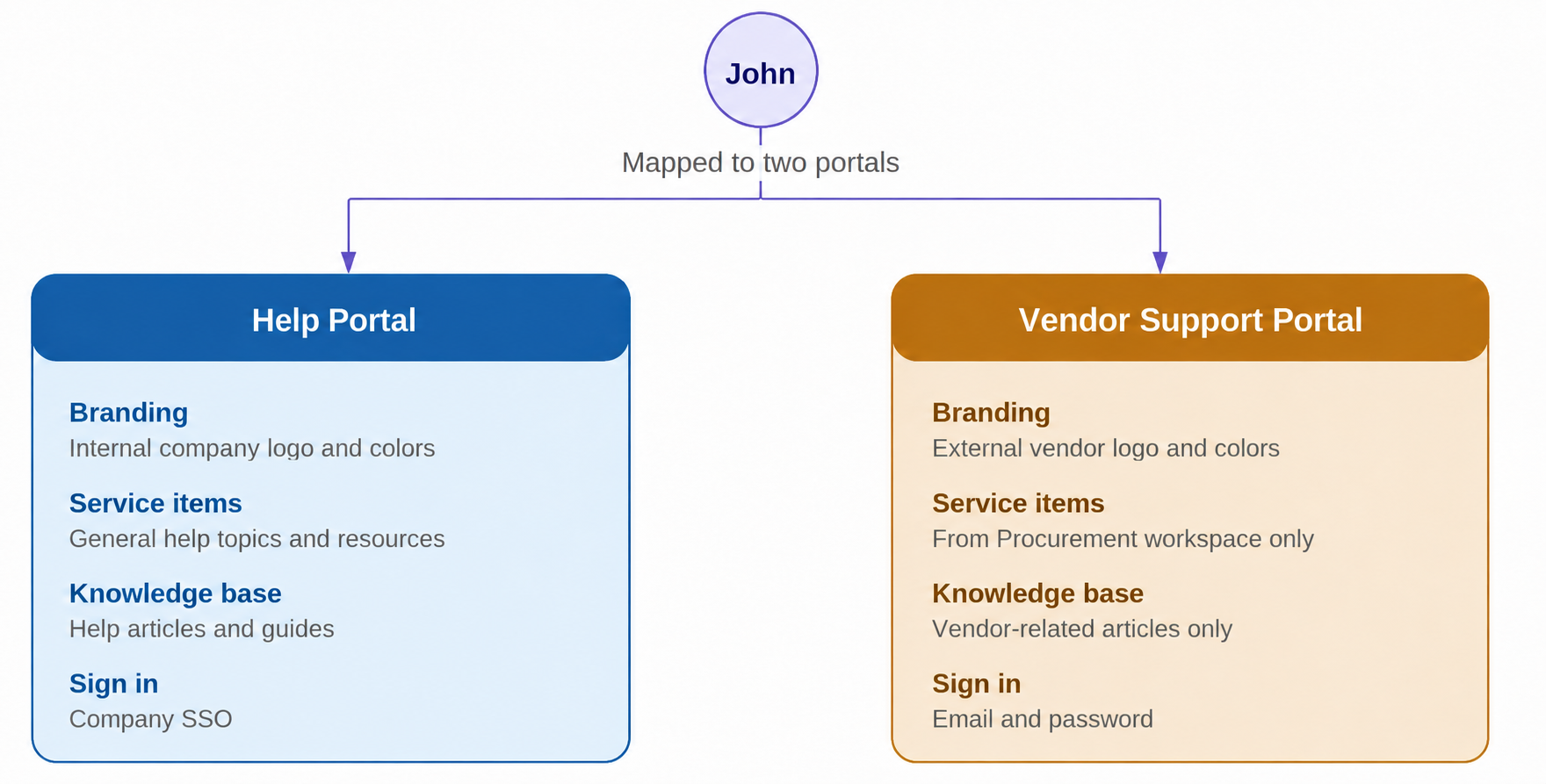
Imagine a single user, John, who is mapped to two portals at Acme Inc.
John signs in to Acme Employee (https://help.acme.com)
Sees the Acme branding with the internal logo.
Has access to service items from the IT, HR, and Facilities workspaces.
Can browse all internal knowledge base articles.
Authenticates using the company SSO.
Sees every ticket he submitted to these workspaces.
John signs in to Acme Vendor Support (https://vendor.acme.com)
Sees the external vendor branding.
Has access only to vendor-specific service items in the Procurement workspace.
Sees a smaller knowledge base focused on vendor topics.
Authenticates using email and password (no SSO).
Sees only the tickets he submitted related to vendor management
Agent experience
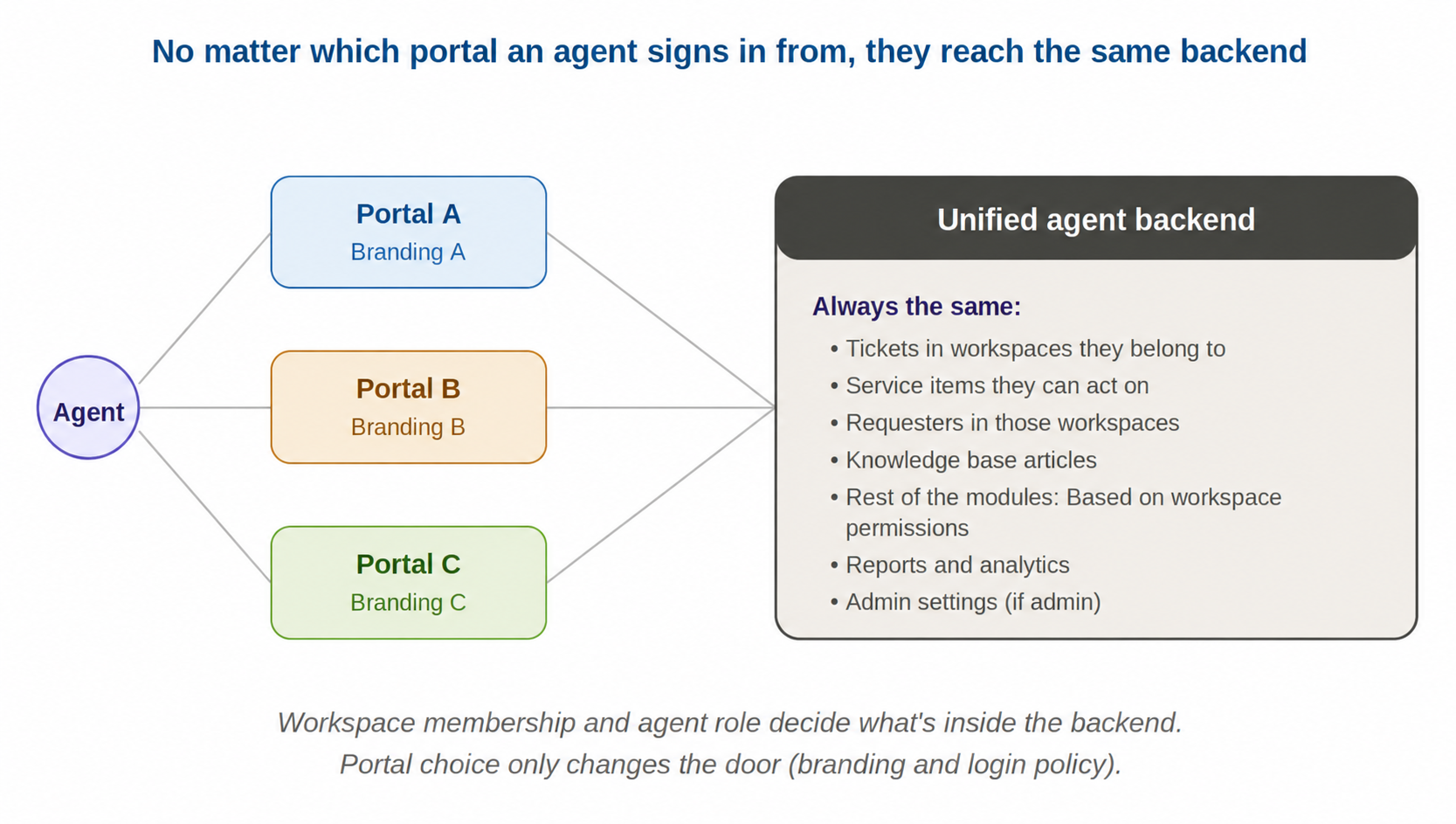
Agents work from a single, unified agent interface. Their access is governed by workspace membership and agent role, not by the portal they sign in from.
What stays the same across agent portals
These elements are identical regardless of which portal an agent uses to sign in:
Tickets visible to the agent: All tickets in workspaces that the agent has permission to access.
Service items the agent can see: All service items across workspaces, subject to their visibility rules.
Modules the agent can use: Access is governed by workspace permissions.
Knowledge base: Agents can view solution articles across workspaces, even if the articles are not published to the portal they signed in through, subject to the applicable user visibility rules.
Reports and analytics: Same data, same visibility, regardless of login portal.
Admin settings: Admins see the same settings across all portals.
Note: On requester portals, the Requester field displays only users who are scoped to that portal. However, in the agent portal, the Requester field displays all users in the account and are not dynamically filtered based on the portals mapped to the workspace.
What varies between portals
Two things can change for an agent depending on which portal they sign in from:
Login policy: If different portals use different authentication methods or have IP restrictions, the agent must comply with the portal's rules when signing in.
Visual branding: The agent interface picks up the portal's logo, colors, and name from the portal they signed in to. This is purely visual.
Note: When the same agent switches to the requester view of the portal by clicking Profile Icon > View Support Portal, they will only see content from the workspaces mapped to that portal on the requester-facing side. The requester portal experience is consistent across all user types.
Knowledge base experience
Solution folders can be published to specific portals within the account. However, this visibility restriction applies only to requester portals. If an article is visible to an agent, it remains accessible from the agent portal regardless of the portal it is published to.
Previewing or copying an article link
When you select Preview or Copy URL for a solution article:
If the article is available on your current portal, Freshservice uses that portal directly
If the article is not available on your current portal, you can choose from the other portals where the article’s folder is available
If the article’s folder is not available on any portal, Preview and Copy URL remain unavailable.
For articles in the default Drafts folder, you can preview the article using the portal you are currently logged in to. Draft articles must be moved to a custom solution folder before they can be published.
Inserting an article link in a ticket reply
When you insert a solution article into a reply, Freshservice helps you choose a portal link that the recipient can access. The insert option is only available for the articles that are visible to the ticket’s requester.
Replies to a single user
When you click on the insert icon, you will see the portal list that includes only portals where:
the article is published, and
the recipient has access to both the portal and the article.
If more than one portal is available, they are listed alphabetically. Your own access to those portals does not affect which links are shown.
If you’re replying to someone other than the ticket requester, Freshservice shows only the portals that the recipient can access. If the recipient is not a user in your Freshservice account, Freshservice shows all portals where the article is available. Recipients in CC or BCC are not considered when determining the portal link.
Replies to multiple recipients
If the To field contains multiple recipients, Freshservice shows all portals where the article is available.
Forwarding a ticket
No recipient selected: Freshservice shows all applicable portal links.
Recipient selected: Freshservice uses the same access-based logic as a normal reply.
When no suitable link is available
Freshservice will let you know when:
the recipient does not have access to the article on any portal, or
the article has not been published on any portal.
Analytics experience
When agents access records from reports (for example, by clicking a ticket link in the raw data of a report or through report emails), they are currently redirected to the default portal, even if they are logged into a secondary portal.
In-product notifications
When an agent is logged in to the agent portal, Freshservice displays all notifications, regardless of whether they are associated with workspaces mapped to the current portal.
However, when the same user accesses the requester side of a portal, they will see only notifications related to workspaces mapped to that portal. This aligns with maintaining a consistent experience for users on the requester portal.
Understanding agent-to-portal mapping
Review the following examples to understand how the model works:
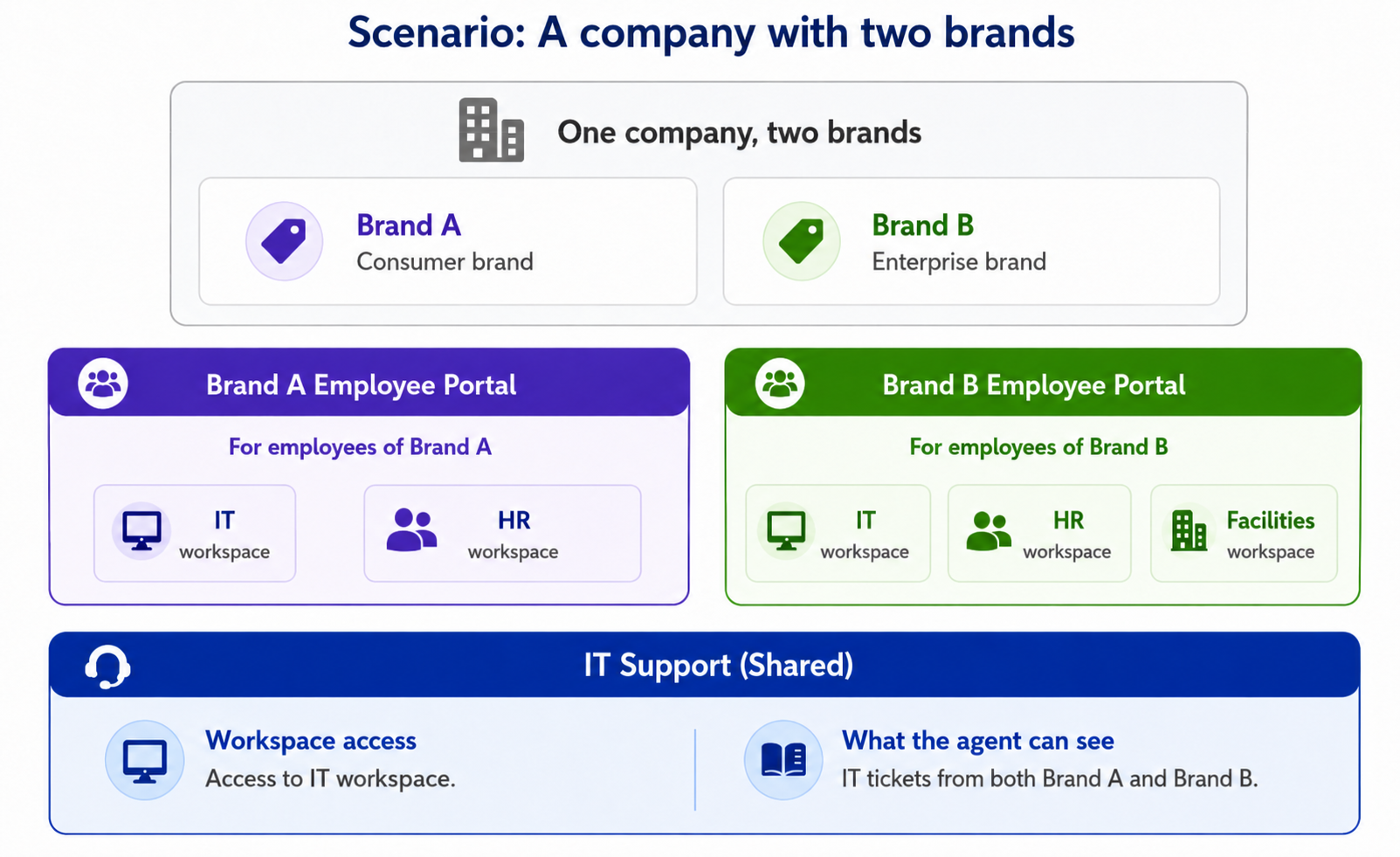
Scenario 1: A multi-division enterprise
Agent portal experience
A Shared IT Support agent can work on tickets from both Brand A and Brand B.
Regardless of which brand portal employees use to submit requests, the agent can manage tickets from both brands through a single agent portal.
The agent's access is determined by workspace permissions, not by the portal through which the request was submitted.
Requester portal experience
A Brand A employee signs in to the Brand A Employee Portal and sees service items, knowledge articles, and resources relevant to Brand A.
A Brand B employee signs in to the Brand B Employee Portal and sees service items, knowledge articles, and resources relevant to Brand B.
Employees can access only the content and services associated with their brand's portal.
Key takeaway
The company operates multiple branded employee portals to provide tailored experiences for different business units or brands, while support teams can work across brands through shared workspace access. This allows each brand to maintain its own identity and employee experience without requiring separate service management instances.
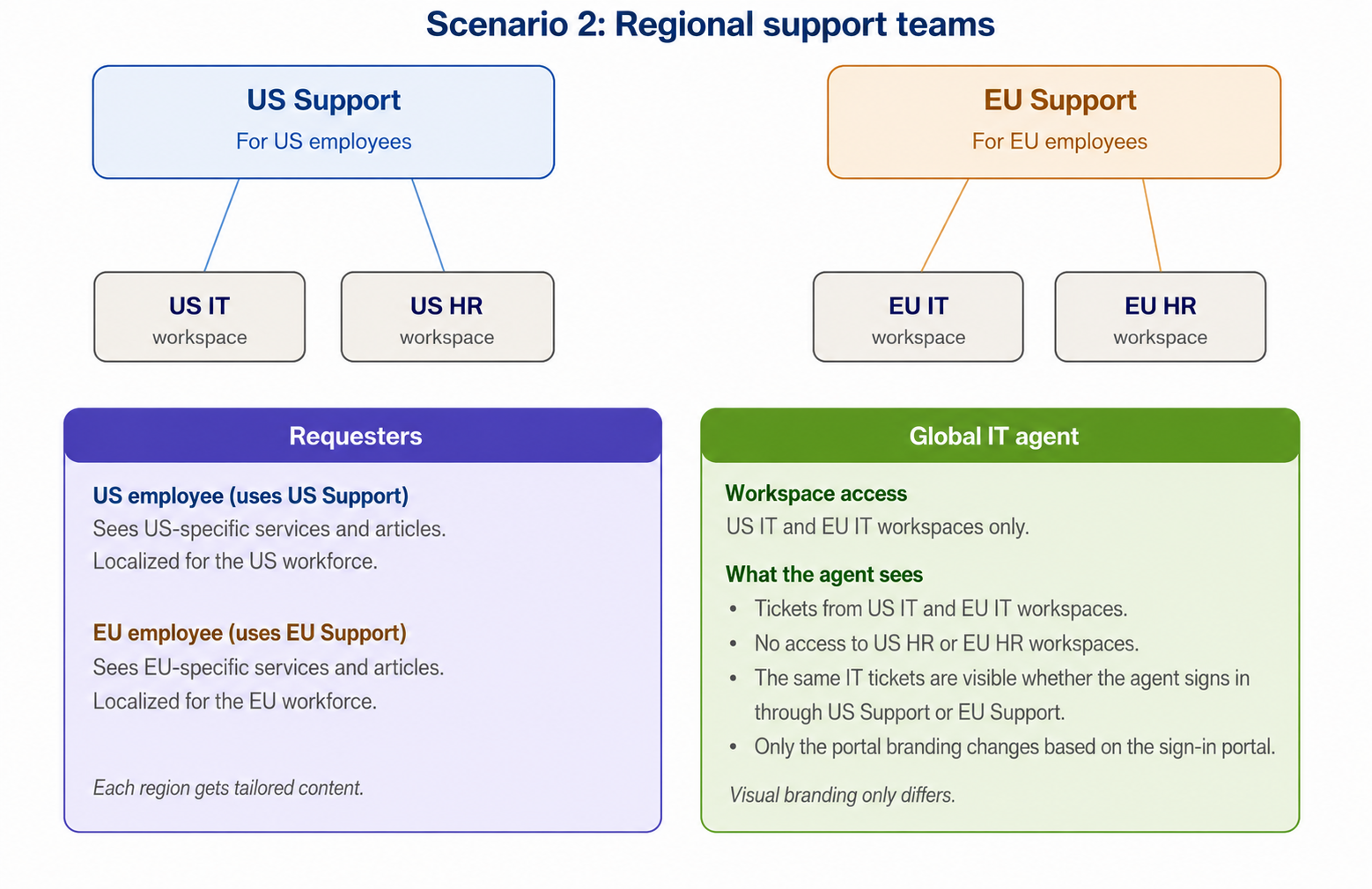
Scenario 2: Regional support teams
Requester experience
US employees
Access the US Support portal.
View services, knowledge articles, and resources tailored to the US workforce.
Submit requests to the US IT and US HR teams through the same portal.
EU employees
Access the EU Support portal.
View services, knowledge articles, and resources tailored to the EU workforce.
Submit requests to the EU IT and EU HR teams through the same portal.
Each region receives a localized support experience that is relevant to its employees.
Agent experience
Global IT agents
Have access only to the US IT and EU IT workspaces.
Can view and manage tickets from both IT workspaces.
Do not have access to the US HR or EU HR workspaces.
See the same set of IT tickets regardless of whether they sign in through the US Support portal or the EU Support portal.
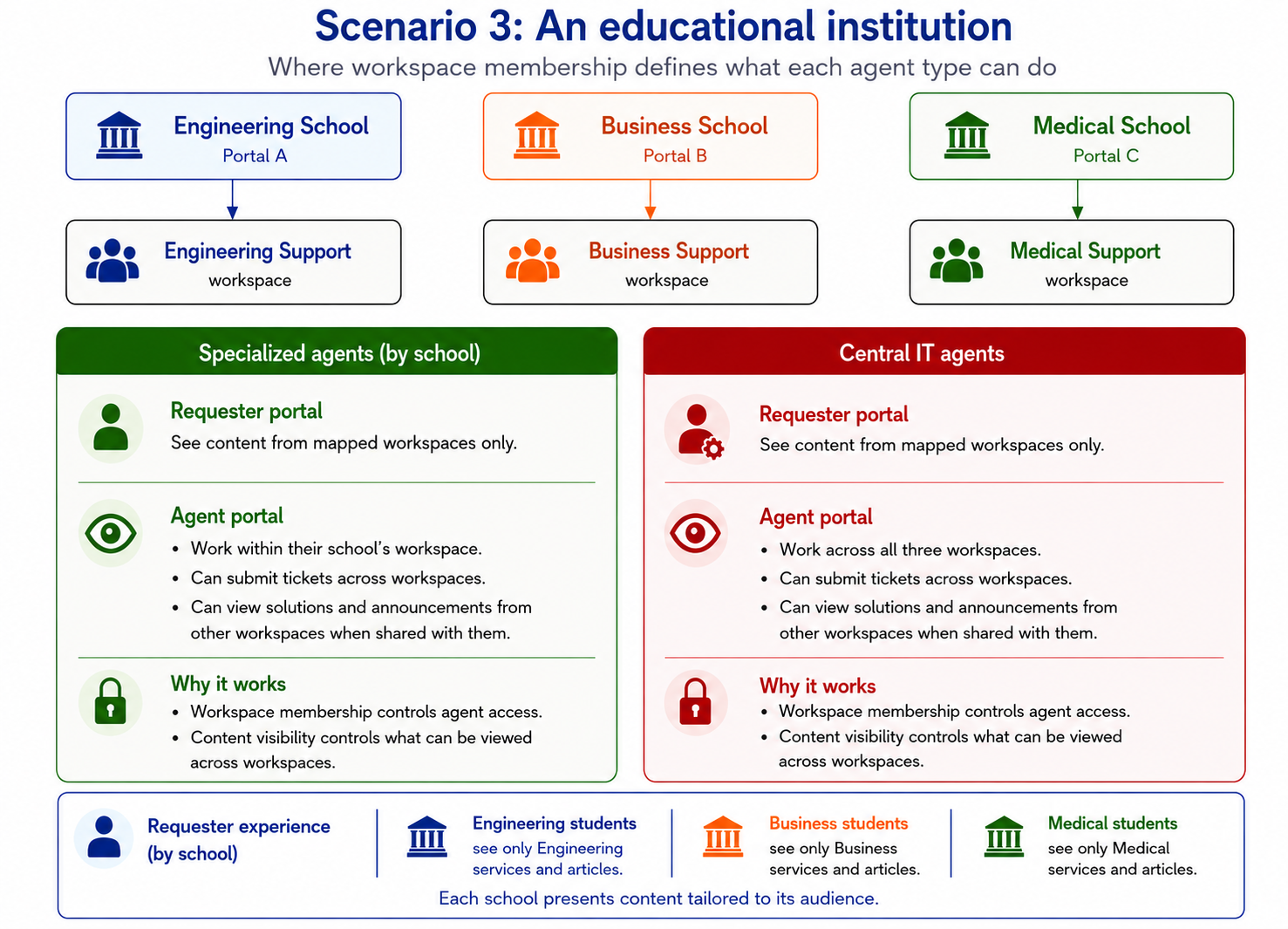
Scenario 3: An educational institution
Agent experience
Workspace membership determines what agents can access and manage.
Specialized agents, such as Engineering Support, Business Support, and Medical Support agents, are members of only their respective school workspace. For example, an Engineering Support agent has access only to the Engineering Support workspace and can view and manage only Engineering tickets and requesters. They can also submit tickets to other workspaces and view solution articles or announcements from other workspaces when those items have been made visible to them.
Central IT agents are members of all three workspaces. They can view tickets across all schools in the agent portal and create or manage tickets in any workspace, regardless of which portal they use to sign in.
Requester experience
Portal mappings determine what requesters can see.
An Engineering student who signs in to the Engineering portal sees only Engineering services, articles, and other requester-facing content. Similarly, Business students see only Business content, and Medical students see only Medical content.
Each portal presents services and knowledge content tailored to its audience, ensuring that requesters see information relevant to their school.
Appendix
How Freshservice determines which form to display
When Displayed to requester is turned off, Freshservice determines which form to display based on the workspaces mapped to the portal.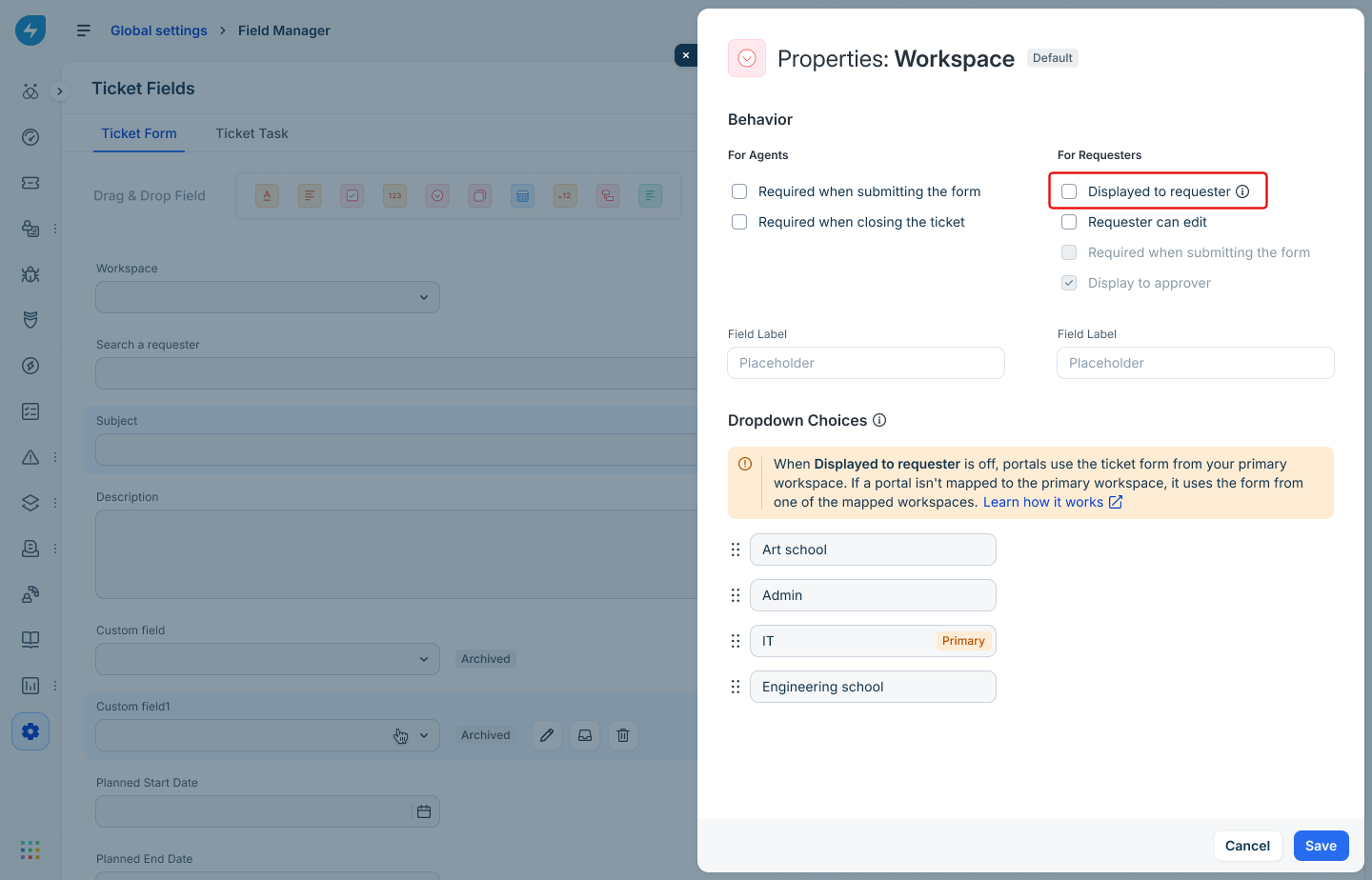
Form selection logic
Tickets
Freshservice uses the following logic to determine the form:
If the primary workspace is mapped to the portal, the portal displays the primary workspace's ticket form.
If the primary workspace is not mapped to the portal, Freshservice displays the ticket form from the first published workspace that is mapped to the portal, based on the workspace order configured in Workspace options.
The Map workspaces section on the portal settings page shows the form that will be displayed to requesters.
Changes
The only difference for Changes is that only workspaces of type IT are considered; the underlying selection logic remains the same as for tickets.
Example workspace order
Assume the following workspace order is configured in Workspace options:
Art school
Admin
IT (primary workspace)
Engineering school
Example 1: Primary workspace is mapped
A portal is mapped to the following workspaces:
IT
Admin
Engineering school
Because the primary workspace (IT) is mapped to the portal, Freshservice displays the IT ticket form.
Example 2: Primary workspace is not mapped
A portal is mapped to the following workspaces:
Admin
Engineering school
Because the primary workspace (IT) is not mapped to the portal, Freshservice checks the workspace order and selects the first published workspace that is mapped to the portal:
In this example, Freshservice displays the Admin ticket form.
Why workspace order matters
Freshservice evaluates workspaces based on their position in Workspace options, not the order in which they were mapped to the portal.
For example, if Engineering school is moved above Admin in the workspace order, Freshservice displays the Engineering school ticket form instead of the Admin ticket form, provided both workspaces are published and mapped to the portal.
Communicating impacts to admins
When Displayed to requester is turned off, any of the following actions can change which ticket or change form is displayed on a portal:
Changing the workspace options order in Global Settings > Ticket Field Manager > Workspace
Admins will be informed if reordering workspace options causes a portal to display the ticket or change form from a different workspace.
The impacted portal and the new workspace whose form will be displayed will be called out.
Admins are expected to review this before saving, since requester tickets created through that portal will subsequently be created in the newly selected workspace.
Mapping or unmapping workspaces
This can impact the displayed form in the following scenarios:
The workspace whose form is currently displayed on the portal is unmapped.
A new workspace is mapped to the portal and appears above the workspace whose form is currently displayed in the portal (we’re referring to the workspace’s position in Global Settings > Ticket Field Manager > Workspace field). This scenario applies only when the Primary Workspace is not mapped to the portal. If the Primary Workspace is mapped, its form is always displayed.
Before publishing the changes, admins will be notified in the Impacts slider if the ticket or change form displayed on any portal will change.
Deleting a workspace
If the workspace being deleted currently determines the form shown on one or more portals, the confirmation pop-up will list the impacted portals.
Admins should review the workspaces mapped to those portals and make sure the workspace whose form they want displayed is highest in the workspace options order under Global Settings > Ticket Field Manager>Workspace before proceeding.