
 Community
 Video Library
 Agent Training
 Freshservice
 Freshdesk
 Freshchat
 Freshcaller
 Freshsales
 Freshteam
 Freshworks Neo
 Freshsurvey
 Freshservice for MSP
Deploy the macOS ITAM Discovery Agent to automatically audit hardware, system settings, and software on Apple devices.
TABLE OF CONTENTS
- Prerequisites
- Overview and architecture
- Download the Installer package
- Install using the setup wizard
- Install using command line
- Manage the agent and services on macOS
- Supported agent arguments and discovery flags
Prerequisites
Review the following system requirements and configurations before beginning installation:
Operating System: macOS 12 (Monterey), macOS 13 (Ventura), macOS 14 (Sonoma), macOS 15 (Sequoia), or later. Hardware- Intel and silicon.
Administrator credentials are required for graphical installation, or root / sudo access for command-line deployment.
Remove any previously installed standalone agent or custom service wrapper before proceeding to prevent duplicate asset records and system resource conflicts.
If running the package directly from ~/Downloads, macOS may prompt for access to the folder. This prompt is cosmetic and does not affect installation. To prevent it, run the installer from a non-protected directory (such as /tmp), deploy via Terminal/MDM, or pre-approve access using an MDM Privacy Preferences Policy Control (PPPC) profile.
Make sure that organization-wide policies, such as endpoint security, device management, or application control rules, don’t block the installer or the agent binaries. If they do, the installation or the agent can fail.
Overview and architecture
The agent for macOS is distributed as a signed, Apple-notarized .pkg package. Once installed, it configures local system daemons to automatically run discovery scans and auto-updates:
Install location: /opt/freshworks/freshservice-itam-agent (Fixed system path).
Background daemon (launchd): /Library/LaunchDaemons/com.fsitam.agent.plist runs the discovery scheduler.
Auto-updater: Automatically checks for and applies new package updates daily and upon system startup.
Download the Installer package
To download the appropriate agent package for your Mac architecture, follow these steps:
Go to Admin > Asset Management > Discovery > Agent-based scans.
In the Platforms dropdown, select one of the following:
Mac - Intel Installer (for Intel-based Macs)
Mac - ARM Installer (for Apple Silicon M-series Macs)
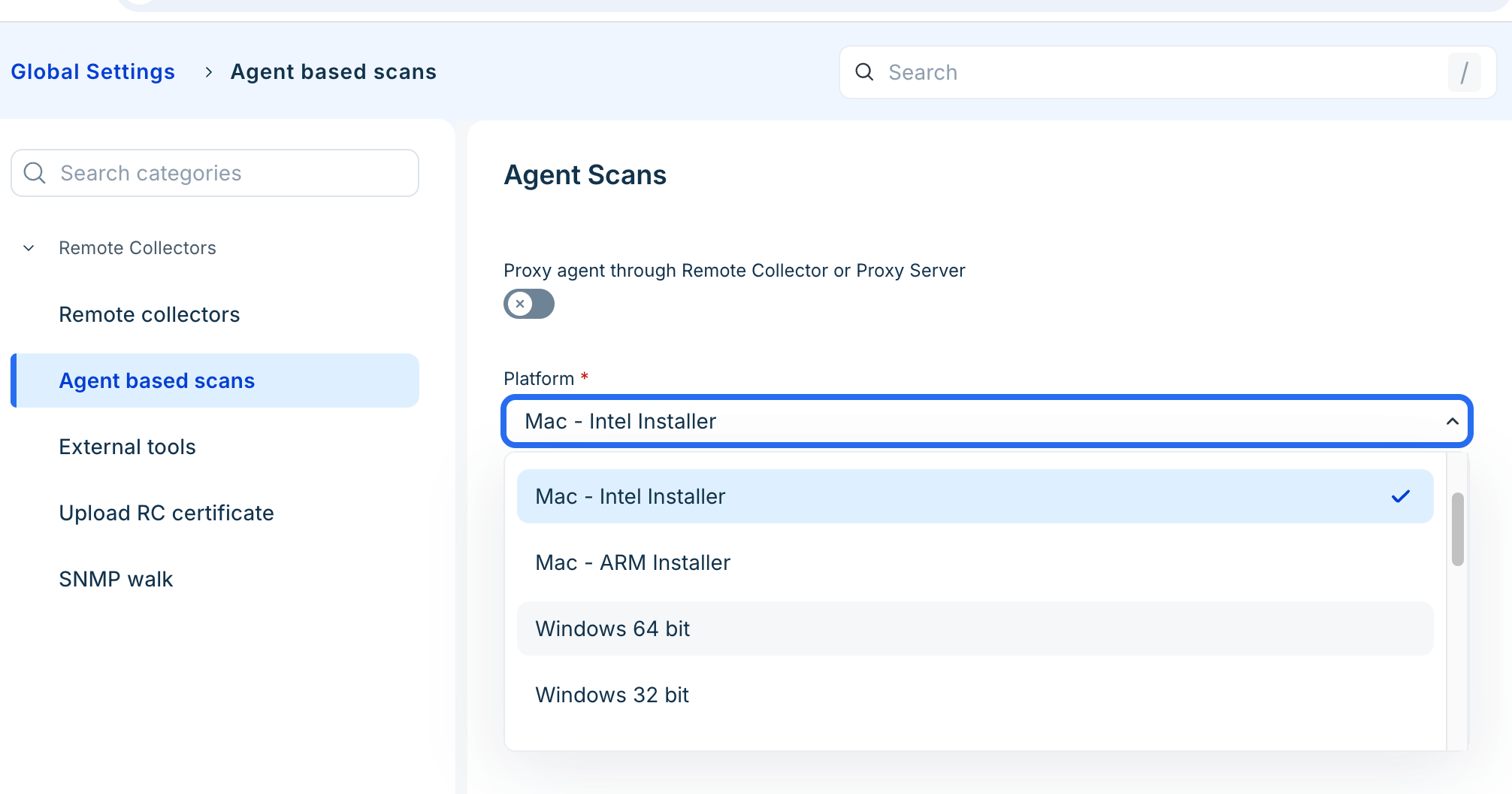
Click Download Agent.
Extract the downloaded ZIP archive to view:
Freshservice-ITAM-Agent-<arch>.pkg
fs_itam_agent_config.enc (Encrypted tenant configuration sidecar)
Install using the setup wizard
Double-click the extracted .pkg file.
On the Introduction screen, click Continue.
Review the Software License Agreement and click Continue, then click Agree.
Click Install. The destination is automatically set to the startup drive under /opt/freshworks/freshservice-itam-agent.
Enter your Administrator username and password (or use Touch ID) to authorize the installation, when prompted by macOS.
click OK or Allow, If macOS prompts for permission to access required system folders (such as Downloads during staging).
Once finished, click Close.
Install using command line
To deploy, run the macOS installer binary with root privileges:
Important: The fs_itam_agent_config.enc file must be located in the same directory as the .pkg during command execution, or staged in the default application directory.
Run the following command to install the agent and accept the EULA:
/Library/Preferences/com.fsitam.agent.install AcceptEula '1'
Note: Accepting EULA is mandatory.
Manage the agent and services on macOS
You can verify the status of the agent, manage automatic updates, and uninstall the agent using command-line.
Verify service status
To confirm that the agent daemon is loaded and running, follow this step:
Run the following command in the terminal:
sudo launchctl list | grep -i "fsitam"
The output lists the agent (com.fsitam.agent.daemon) and the auto-updater (com.fsitam.agent.updater).
Disable and enable automatic updates
By default, the agent checks for updates once a day. To stop the agent from updating itself automatically, disable the auto-updater. The setting persists across reboots.
To disable automatic updates, run the following command:
sudo launchctl disable system/com.fsitam.agent.updater
To enable automatic updates again, run the following command:
sudo launchctl enable system/com.fsitam.agent.updater
Note: Disabling the auto-updater does not stop the agent. The agent keeps discovering the device on its schedule. Do not stop or unload the agent daemon, because the device will no longer be discovered.
Uninstall using commend line
To remove the ITAM agent from macOS, follow this step:
Run the following command in the terminal:
sudo "/opt/freshworks/freshservice-itam-agent/bin/fs_itam_uninstall.sh"
Supported agent arguments and discovery flags
These flags can be specified in the wizard or passed using EXTRA_ARGS / CLI configuration on macOS to customize scan behavior.
The following table provides the different agent arguments and discovery flags available.