
 Community
 Video Library
 Agent Training
 Freshservice
 Freshdesk
 Freshchat
 Freshcaller
 Freshsales
 Freshteam
 Freshworks Neo
 Freshsurvey
 Freshservice for MSP
 Deploy multiple AI agents within a single Slack workspace or Microsoft Teams tenant to support dedicated department-level bots.
AI Agent Studio allows organizations to run multiple purpose-built AI agents side-by-side within the same Slack workspace or Microsoft Teams tenant. This article explains how channel mapping and Direct Message (DM) assignments work and provides the steps to deploy and manage your agents.
TABLE OF CONTENTS
- Prerequisites
- Overview of multi-agent deployment
- Channel mapping and occupancy rules
- Direct message and chat scope rules
- How to deploy and manage AI agents in Microsoft Teams
- How to deploy and manage AI agents in Slack
Prerequisites
Before deploying multiple AI agents, ensure the following:
You must have administrator privileges in AI Agent Studio.
You must have an active connection to your organization's Slack workspace or Microsoft Teams tenant.
Each target channel or team channel must be dedicated to a single AI agent.
Overview of multi-agent deployment
AI Agent Studio enables organizations to deploy multiple purpose-built AI agents across a single Slack workspace or Microsoft Teams tenant.
This deployment model allows separate teams such as IT, HR, and Facilities to maintain dedicated agents in their respective channels. For example, an IT bot in #liveit and an HR bot in #askhr without cross-agent interference.
Channel mapping and occupancy rules
Channel mapping ensures each communication channel connects to a single agent per workspace or tenant.
Review the following rules for channel assignments:
One Agent per Channel: Each channel connects to only one agent at a time.
Occupied Channels: Channels assigned to active production agents or agents in testing are displayed as already in use.
Conflict Prevention: Channels assigned to active production agents or agents in testing are displayed as Already in use.
Protected Assignments: Existing channel mappings are safe—creating new agents will never automatically remove or change your current setups.
Multiple Workspaces: The same AI agent can be deployed to multiple workspaces. Channel mappings can be configured independently for each workspace.
Unarchived Agents: When an AI agent is unarchived, its previously assigned channels remain reserved and continue to appear as Already in use in the channel selector.
Direct message and chat scope rules
Direct Message (DM) access in Slack and 1:1 Chat access in Microsoft Teams can only be assigned to a single agent per workspace or tenant.
Single-agent access: Only one AI agent can handle DM or 1:1 Chat scope per workspace or tenant at any time.
Reassigning access: To give DM or 1:1 Chat access to a new agent, you must first disable or remove the permission from the agent currently using it. If you try to enable DM access while another agent is using it, an inline warning will show you the name of the current holder.
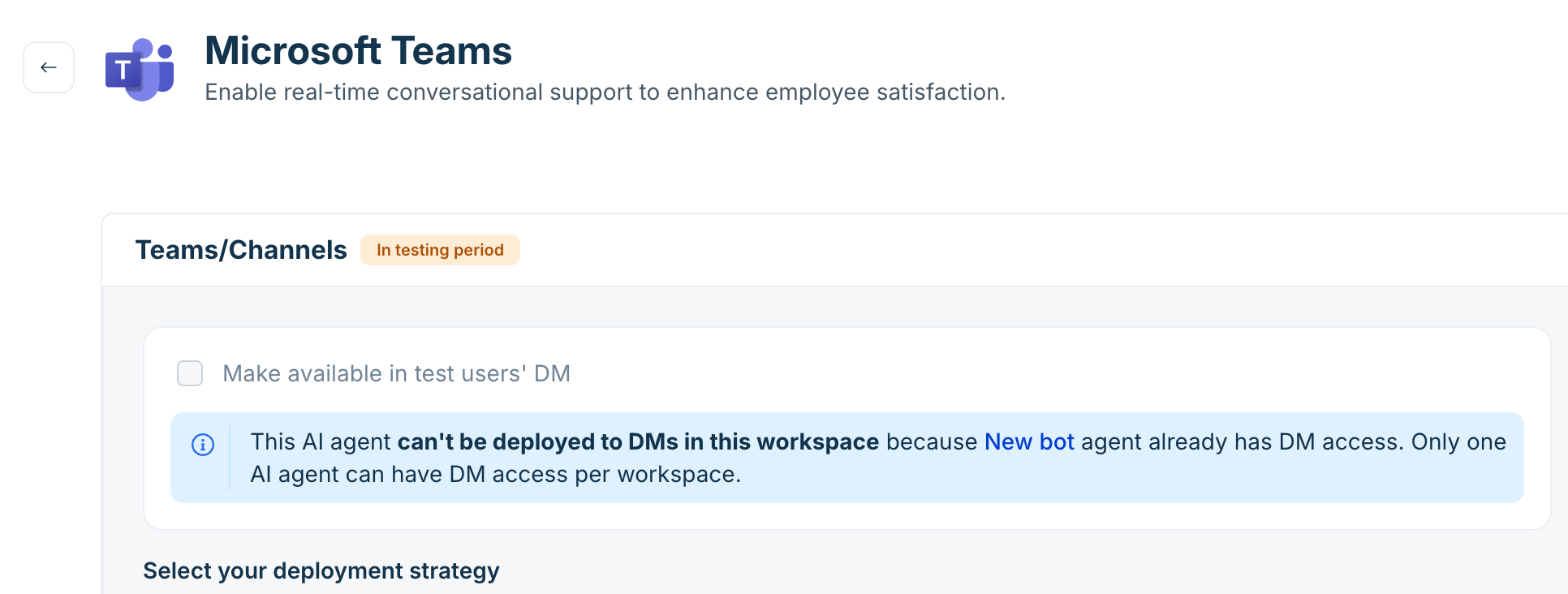
How to deploy and manage AI agents in Microsoft Teams
Follow these steps to map agents to specific channels or manage DM and Chat scope access:
Go to AI Agent Studio > Deploy.
Select Microsoft Teams from the available channels list.
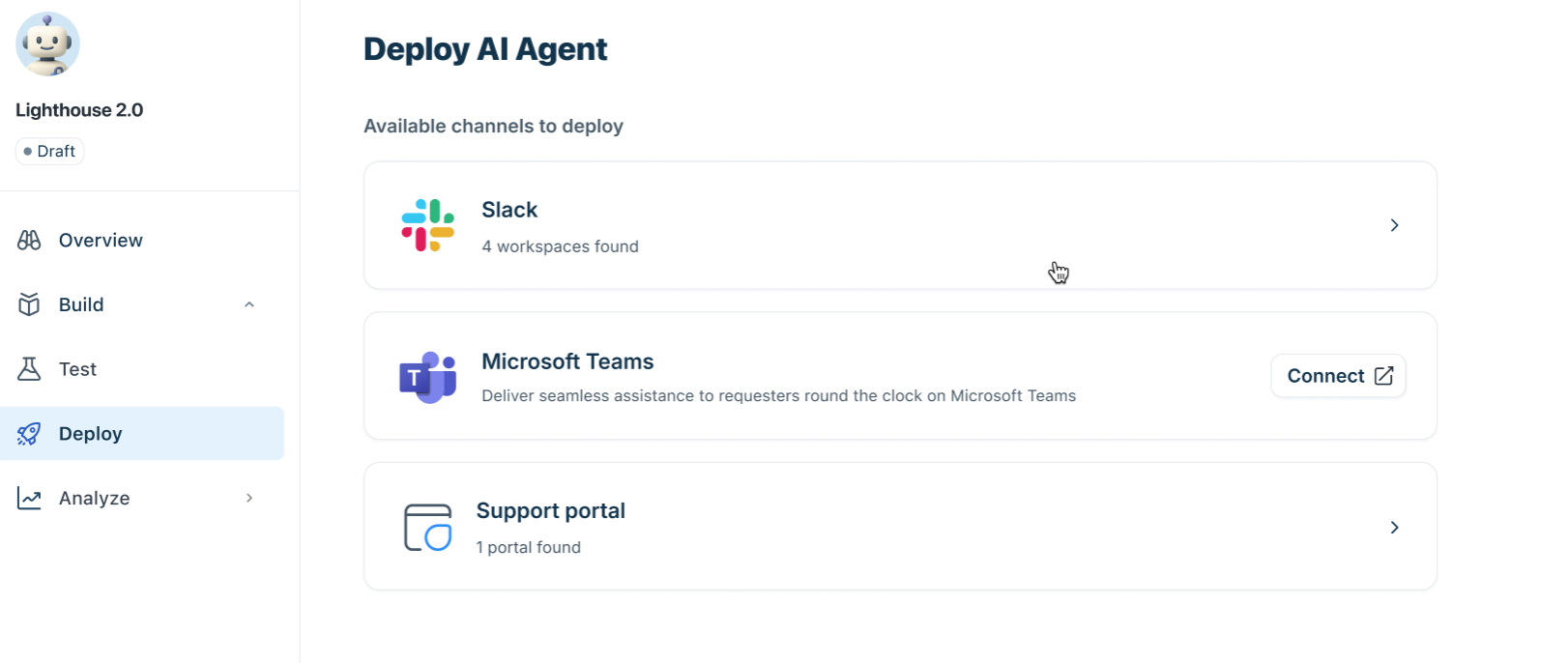
Select your target workspace.
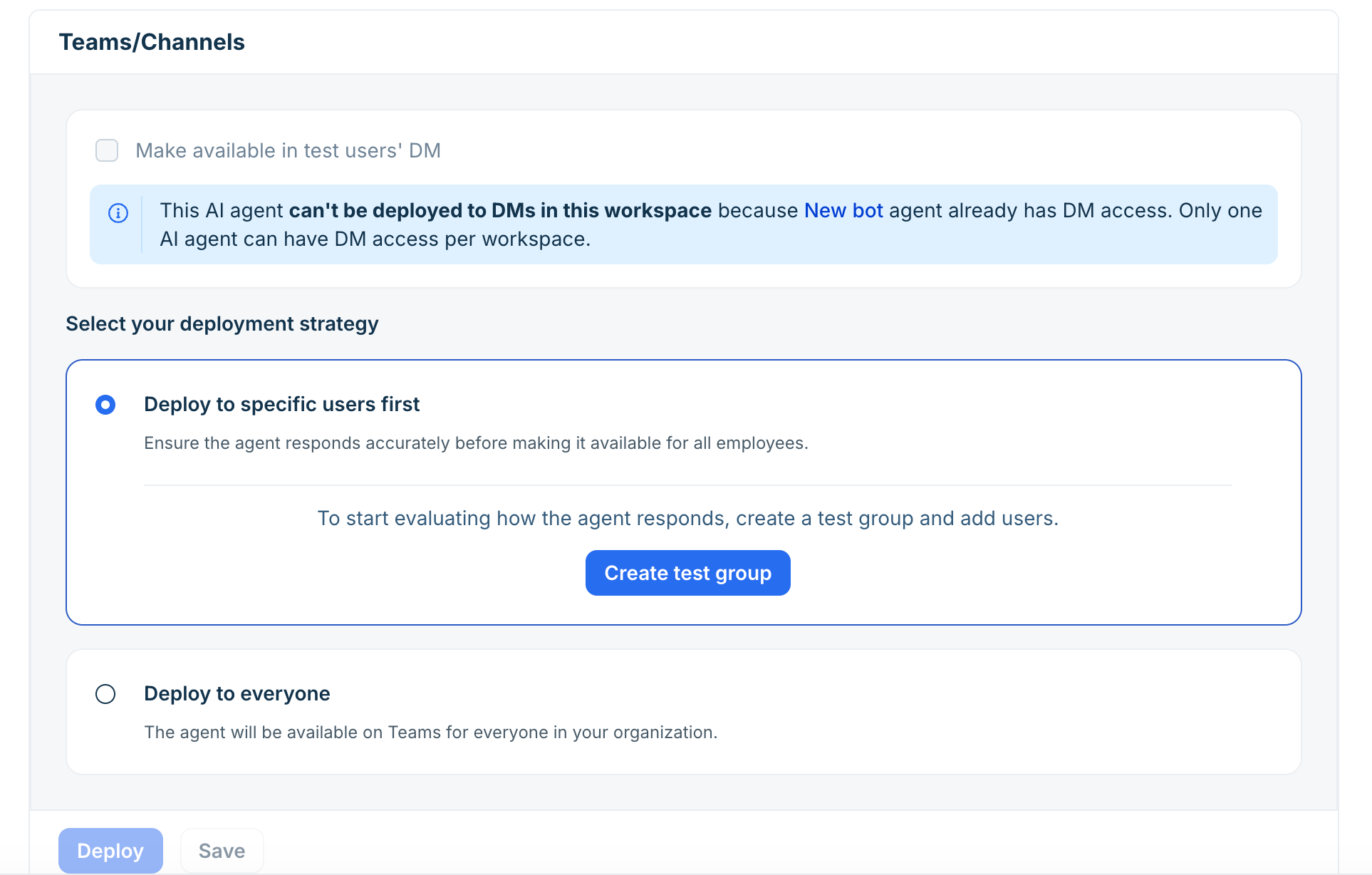
Select the Make available in everyone's DM checkbox based on your requirements.
Under Select your deployment strategy, choose one of the following options:
Deploy to specific users first: Select this option to test the agent with a limited group before rolling it out to everyone. Click Create test group, enter the testing channel name and select test users, then click Done.
Deploy to everyone: Select this option to make the agent available across the workspace for all users.
Click Manage in the channels section to select public or private channels.
Note: All public channels are visible in the dropdown list regardless of whether you are currently a member. For private channels, only the private channels that you are currently a member of will be visible in the dropdown.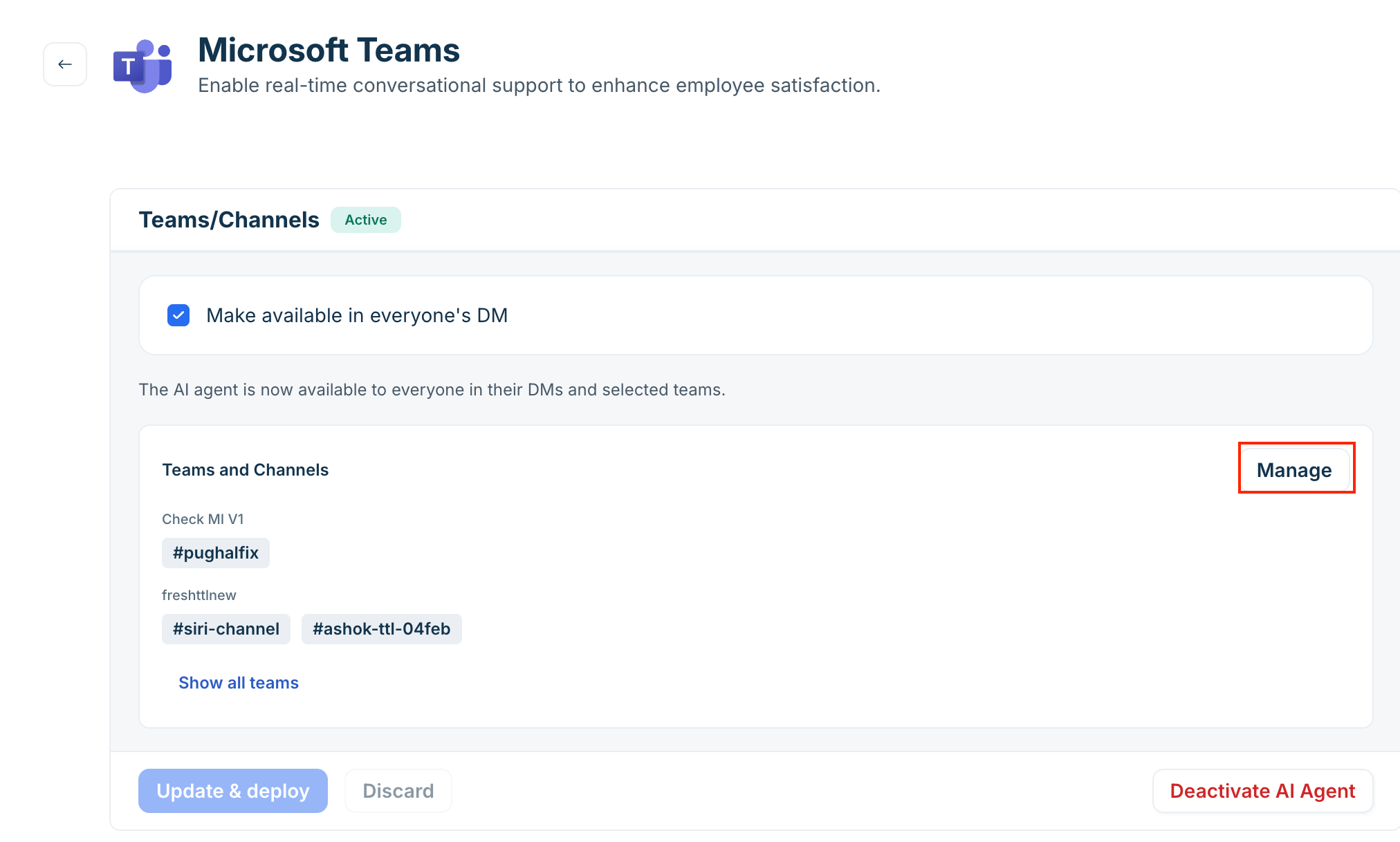
Select your designated open channels from the list and click Done.
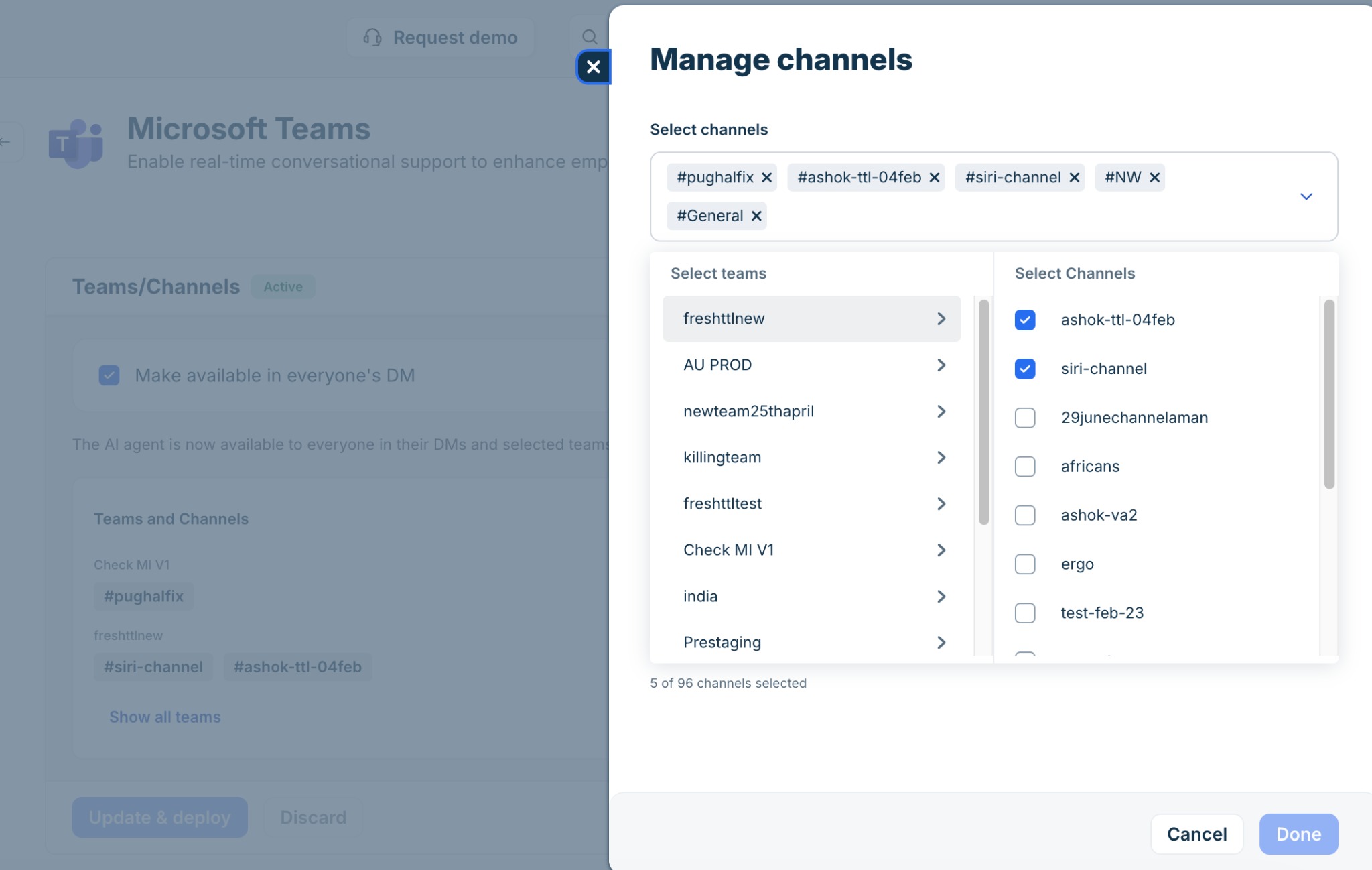
Click Update & Deploy.
How to deploy and manage AI agents in Slack
Follow these steps to map agents to specific channels or manage DM and Chat scope access:
Go to AI Agent Studio > Deploy.
Select Slack from the available channels list.
Select your target workspace.
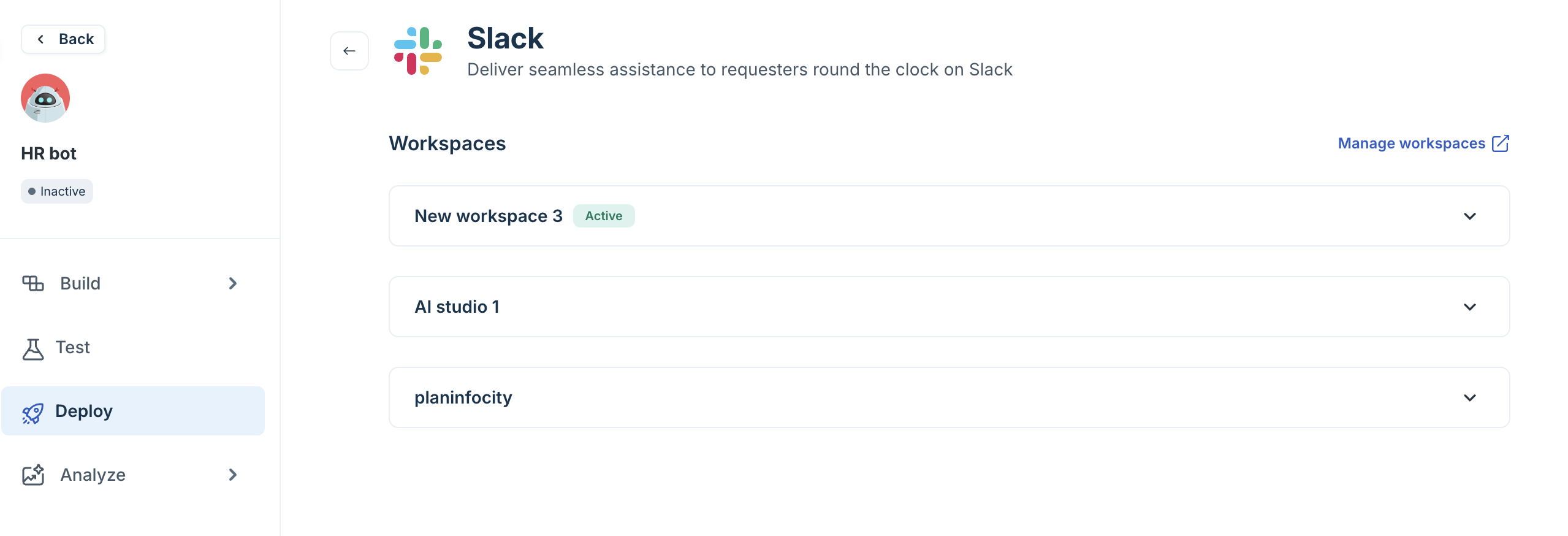
Select the Make available in everyone's DM checkbox based on your requirements.
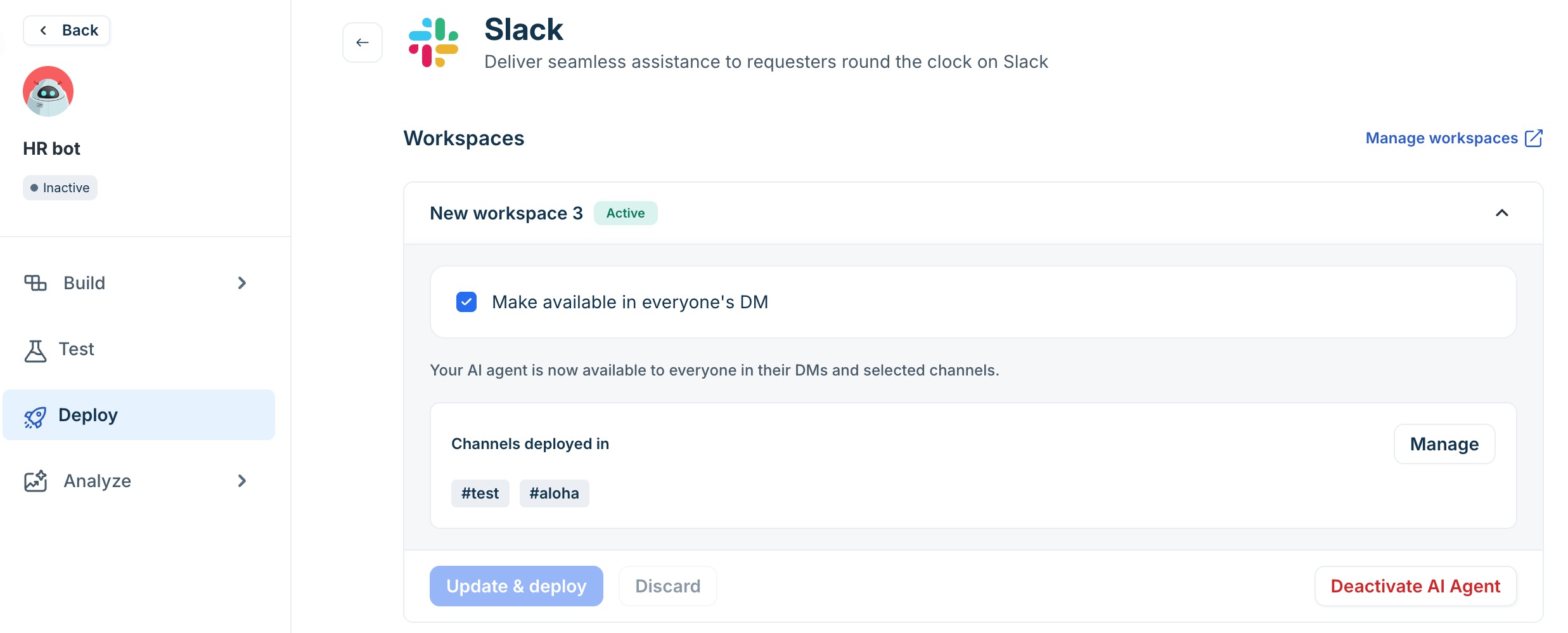
Under Select your deployment strategy, choose one of the following options:
Deploy to specific users first: Select this option to test the agent with a limited group before rolling it out to everyone. Click Create test group, enter the testing channel name and select test users, then click Done.
Deploy to everyone: Select this option to make the agent available across the workspace for all users.
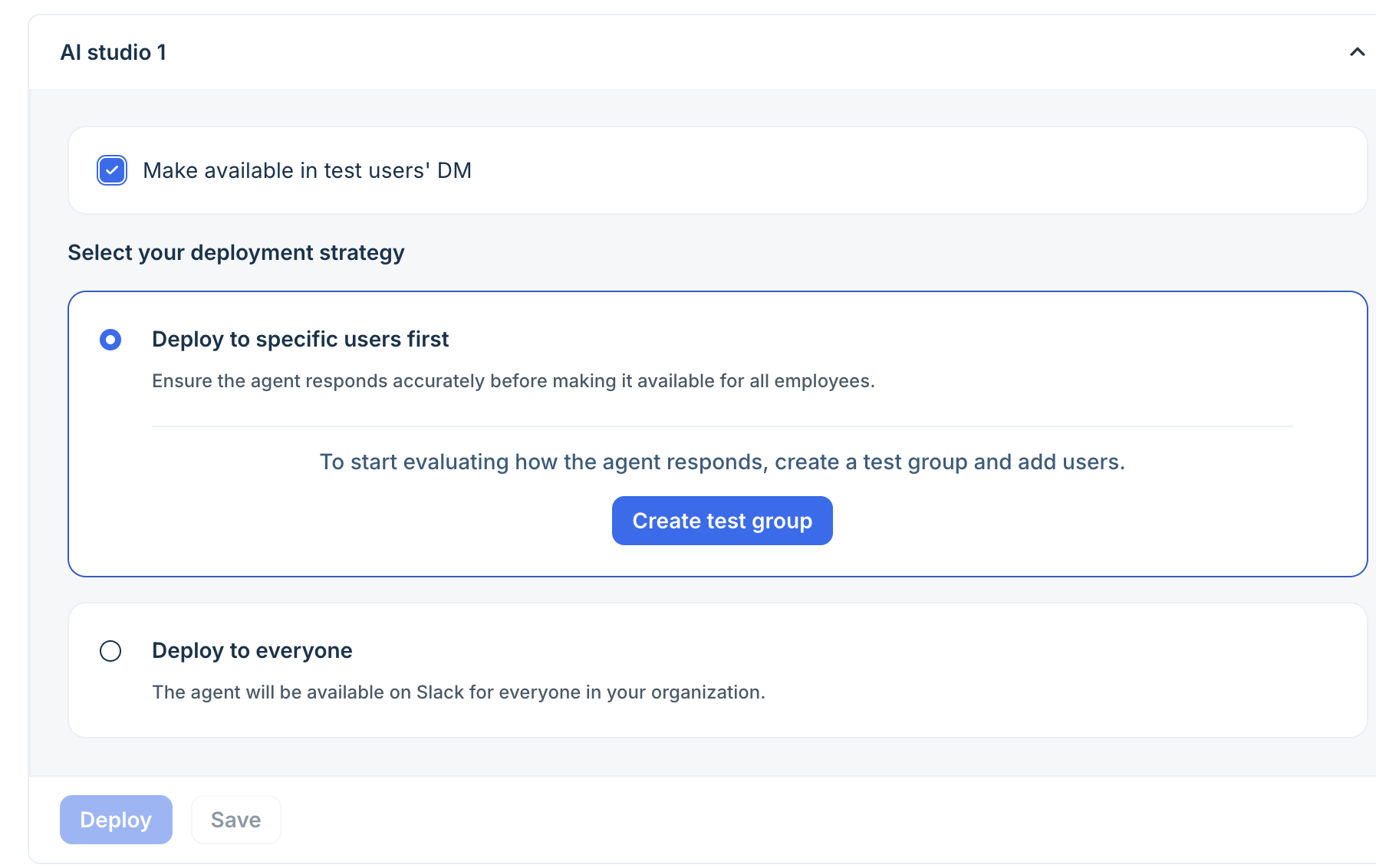
Click Manage in the channels section to select public or private channels.
Note: All public channels are visible in the dropdown list regardless of whether you are currently a member. For private channels, only the private channels that you are currently a member of will be visible in the dropdown.Select your designated open channels from the list and click Done.
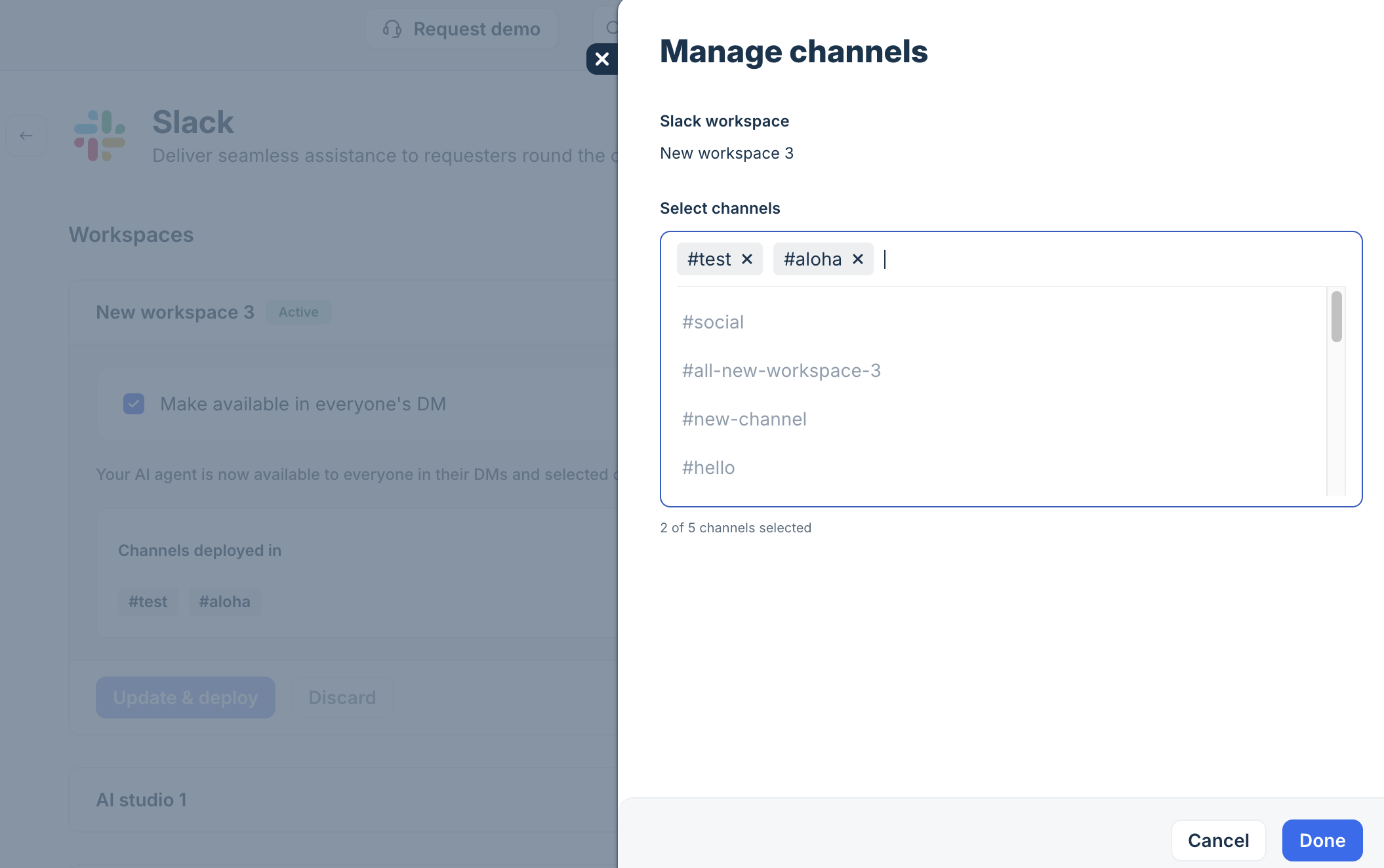
Click Update & Deploy.
Reassign DM or Chat scope to another agent
To transfer DM or 1:1 Chat scope from one AI agent to another, follow these steps:
Go to AI Agent Studio > Deploy.
Select Slack or Microsoft Teams.
Locate the workspace where you want to adjust DM access.
Review the notification identifying which agent currently holds DM scope.
Click the Manage link within the notification to navigate directly to the current scope holder's deployment page.
Clear the Make available in everyone's DM checkbox.
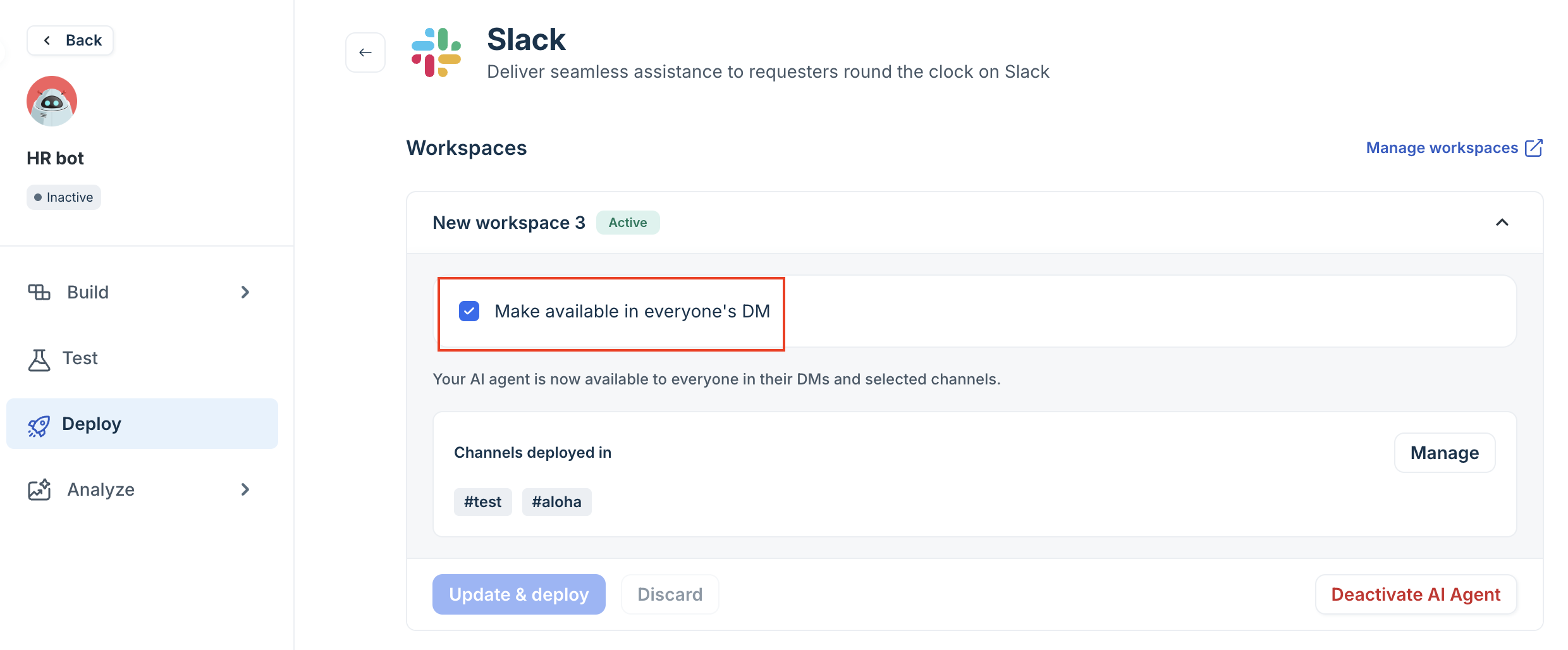
Click Update & Deploy to remove DM scope from the agent.
Go back to AI Agent Studio > Deploy and open your new target agent.
Select the Make available in everyone's DM checkbox and click Update & Deploy.