
 Community
 Video Library
 Agent Training
 Freshservice
 Freshdesk
 Freshchat
 Freshcaller
 Freshsales
 Freshteam
 Freshworks Neo
 Freshsurvey
 Freshservice for MSP
 TABLE OF CONTENTS
- Overview
- Prerequisites
- Create an article template
- Manage existing article templates
- Create a knowledge base article using a template
Overview
Article templates in the Knowledge Base module allow team members to create standardized articles efficiently. By providing pre-formatted structures and reusable content outlines, templates ensure consistency across support documentation, reduce drafting time, and maintain quality standards across departments.
Prerequisites
Before creating or managing article templates, ensure you have:
Access to the Solutions (Knowledge Base) module in Freshservice.
Necessary admin and agent permissions to view, create, edit, clone, or delete Knowledge Base articles and templates.
Create an article template
To build a reusable structure for future knowledge base articles:
Log in to your Freshservice account.
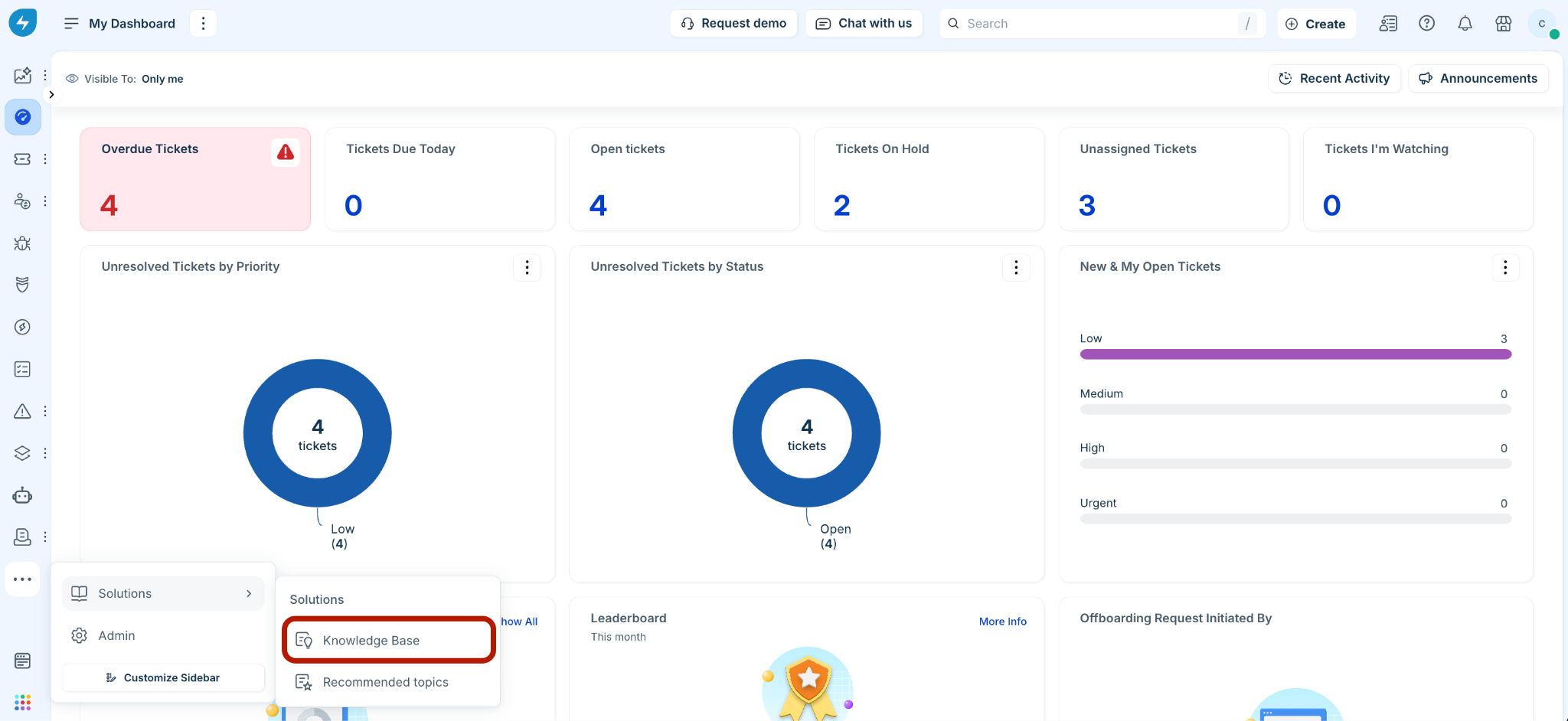
Go to Solutions > Knowledge Base.
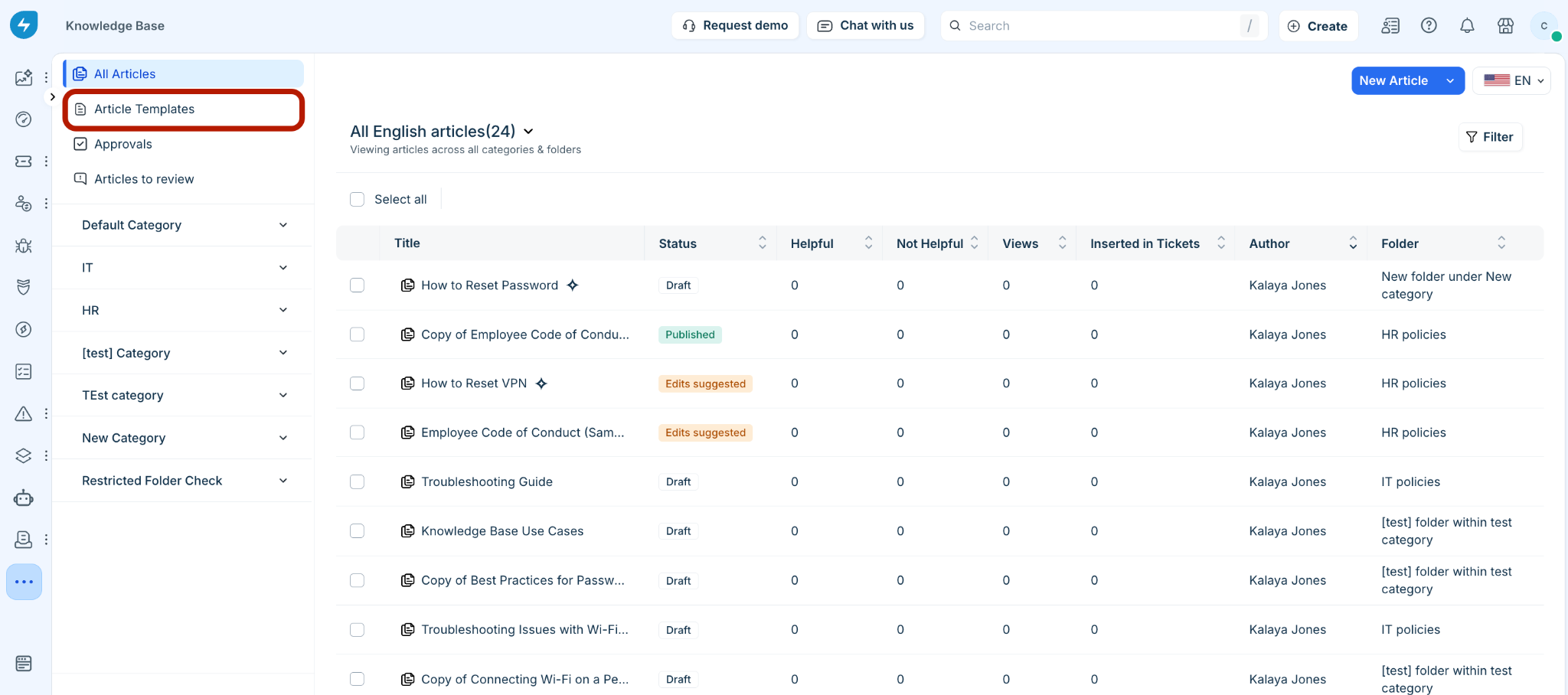
On the left menu, select Article Templates.
Click Create Template (or click the Create Template button in the empty state view).
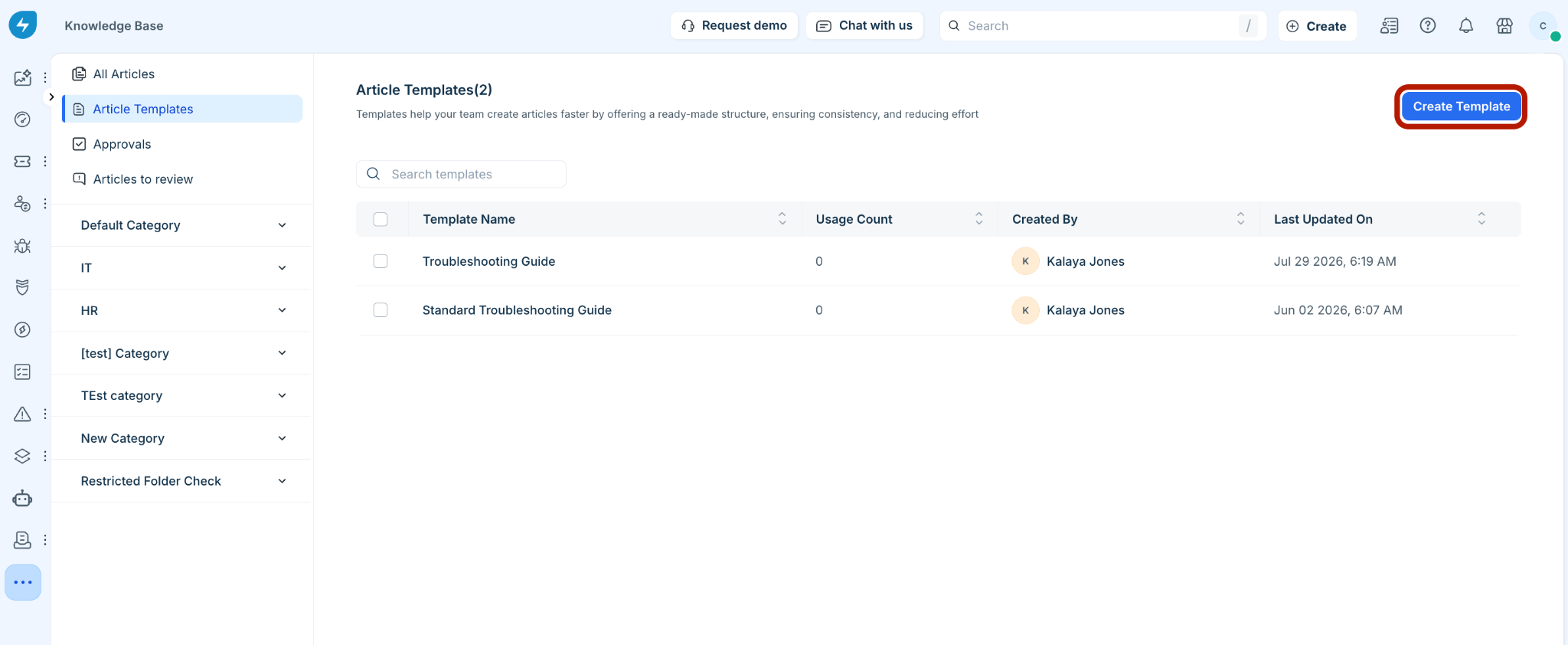
On the Create template page, enter the following details:
Template Name: Enter a clear, descriptive title for the template (for example, Template for VPN Issues).
Template Description: Enter a short summary explaining when and why to use this template.
Content: Use the rich text editor to build the layout, add standard headings, bullet points, table structures, formatting, or placeholders.
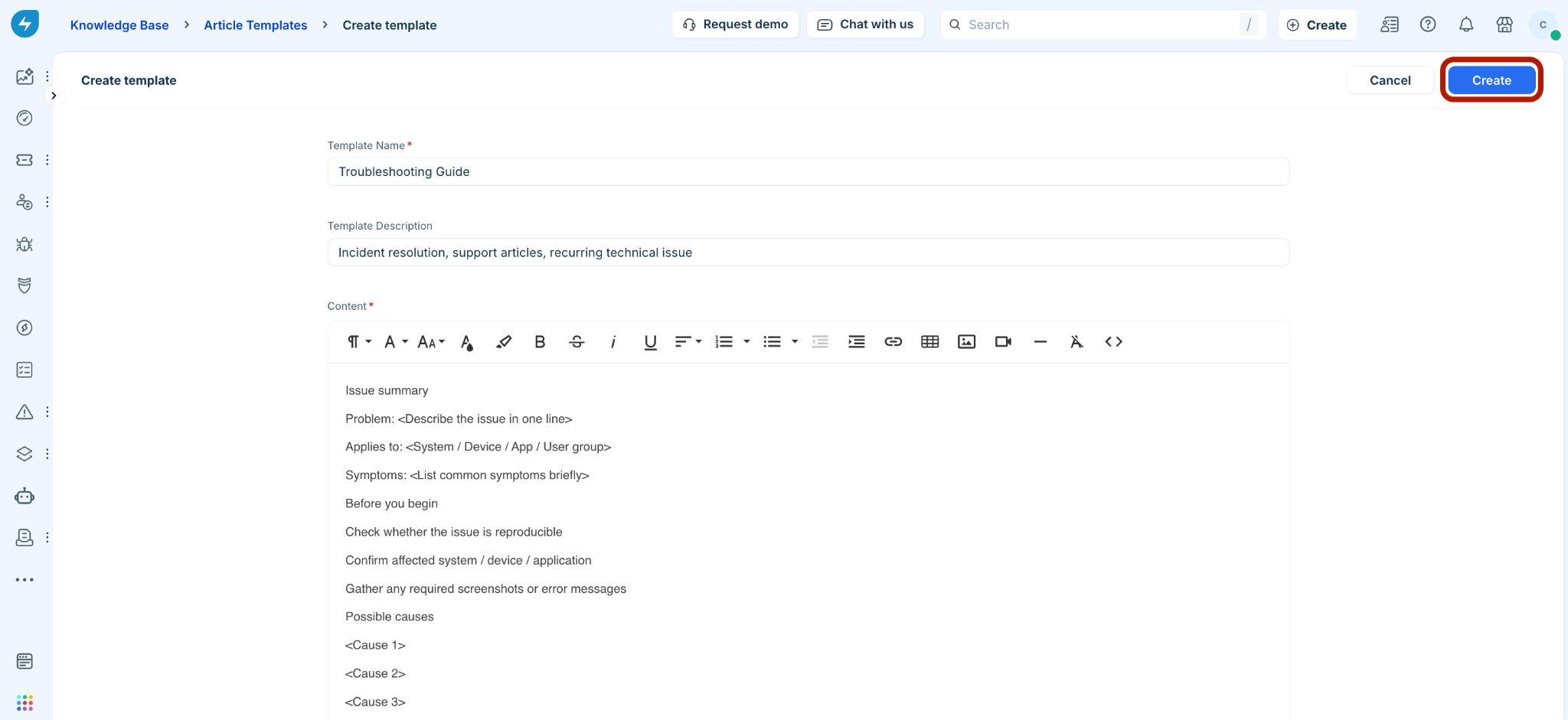
Click Create at the top right to save the template.
Manage existing article templates
View, edit, or clone a template
Go to Solutions > Knowledge Base > Article Templates.
Select the name of the template you want to view or manage.
Perform any of the following actions:
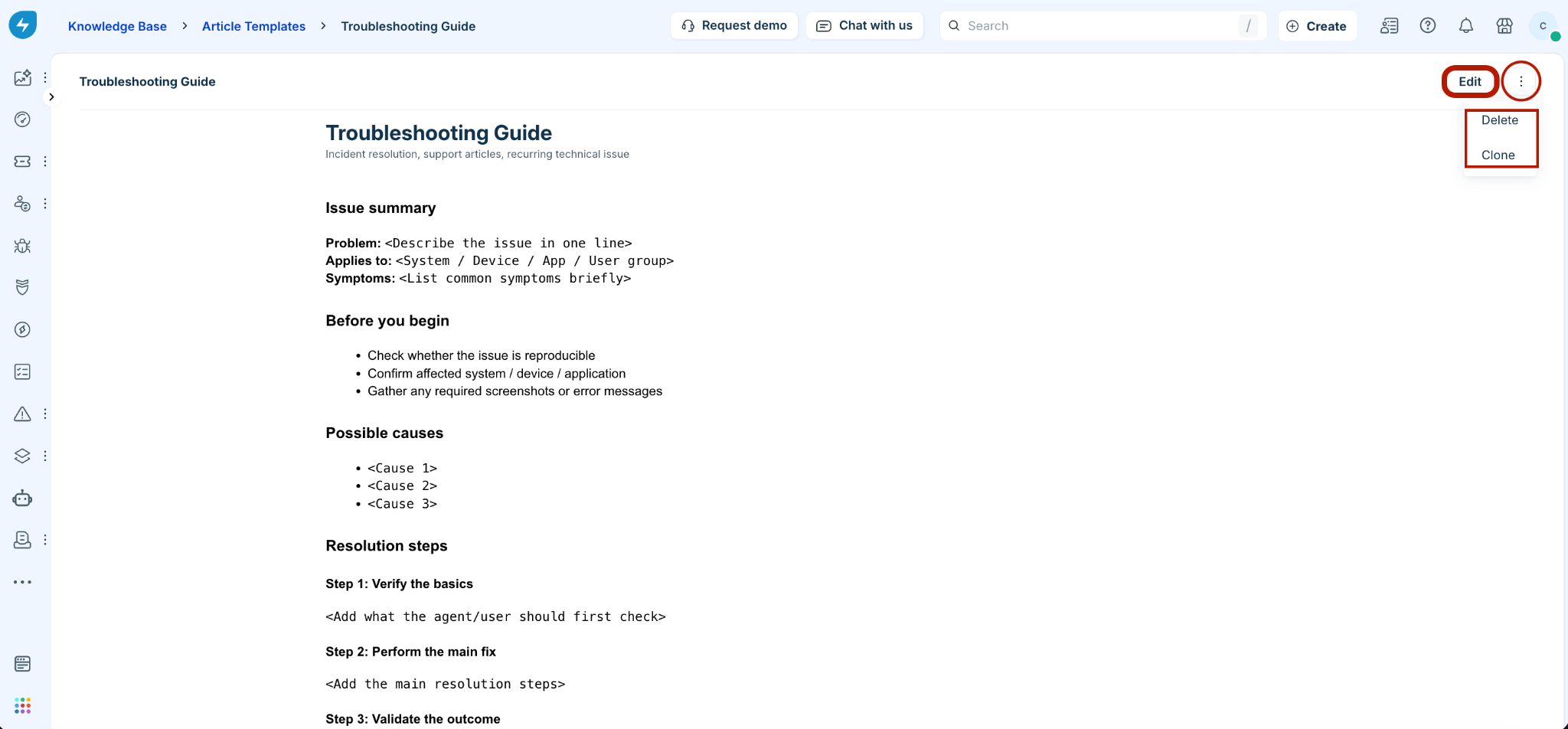
Edit a template: Click Edit at the top right, modify the template details or content, and save your changes.
Clone a template: Click the More options menu next to the Edit button and select Clone to create a copy of the template as a starting point for a new template.
Delete an article template
You can delete templates from either the template detail view or the template list view.
From the template detail view:
Open the template details page.
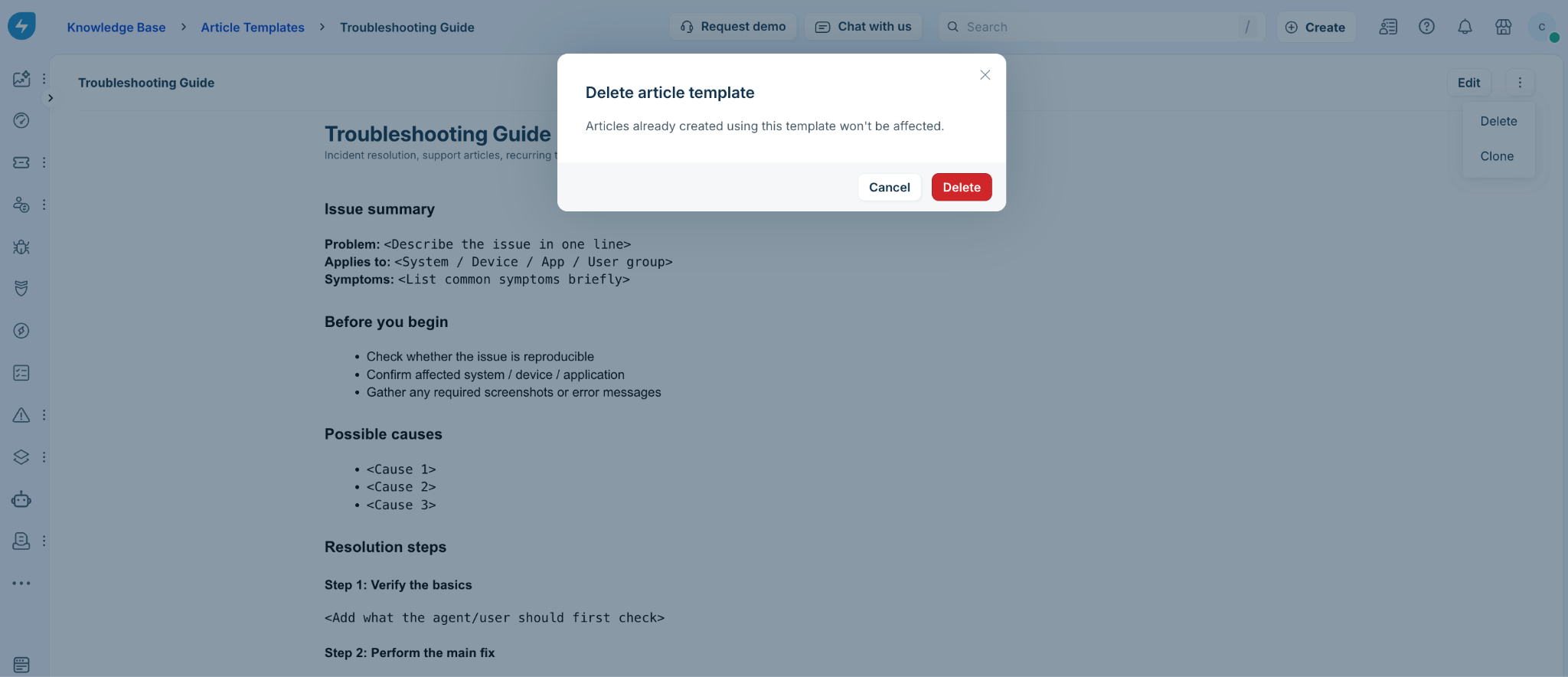
Click the More options menu at the top right and select Delete.
In the confirmation dialog, click Delete.
From the templates list view:
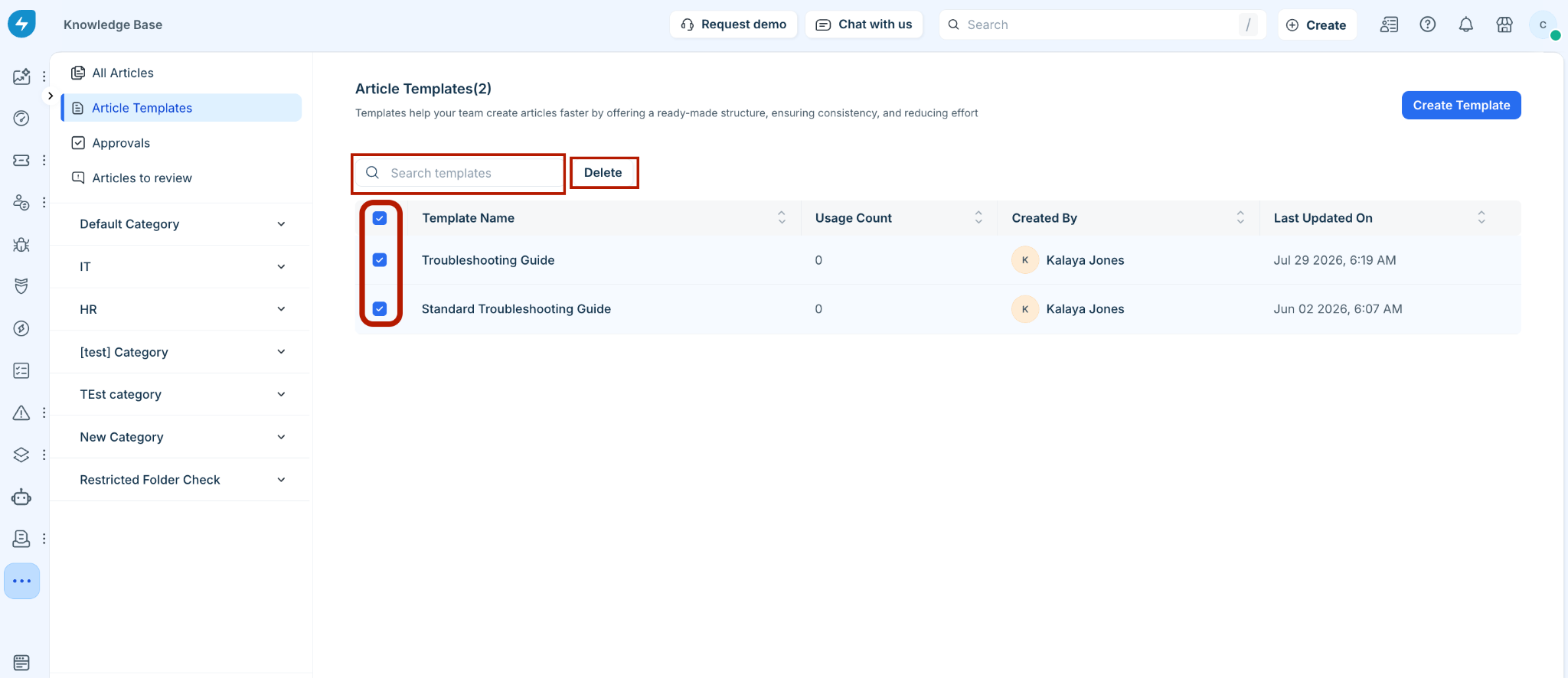
Go to Solutions > Knowledge Base > Article Templates.
Select the checkboxes next to the templates you want to delete.
Click Delete above the table list.
Note:
Deleting an article template does not affect existing articles previously created using that template.
You can also use the Search templates option to search for specific templates.
Create a knowledge base article using a template
In the left menu of the Knowledge Base, select All Articles.
Click New Article at the top right.
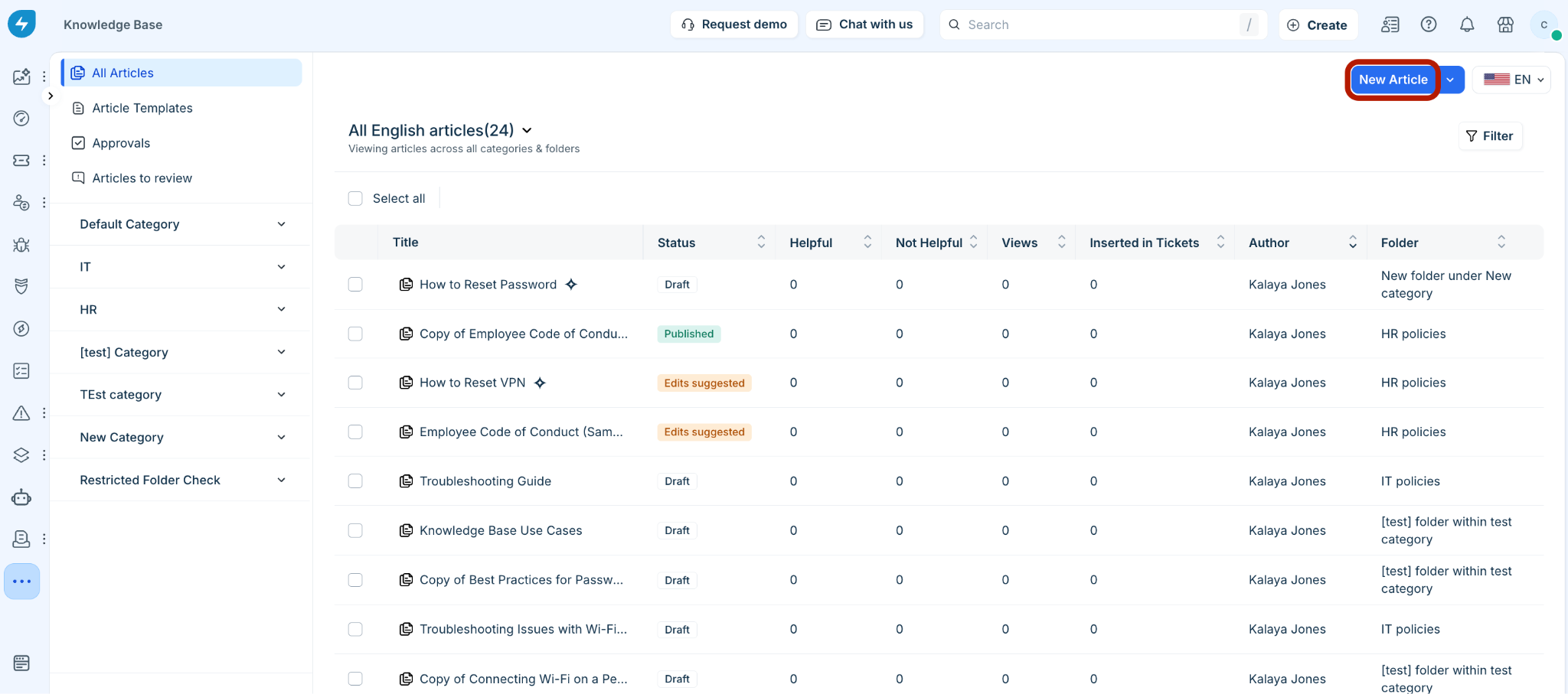
In the New article slider, you can enter keywords in the Search templates box to search for specific templates.
Click the preview icon next to a template.
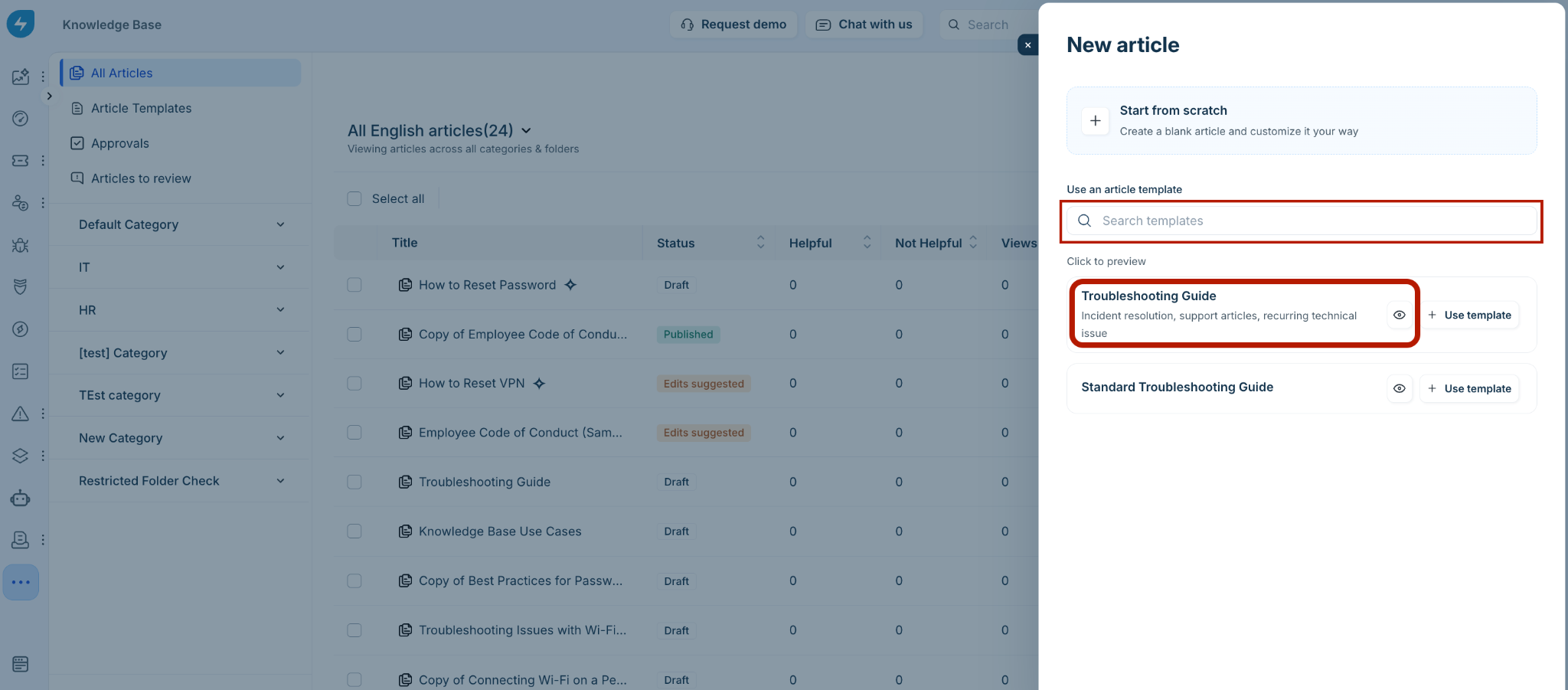
Then, click Use template.
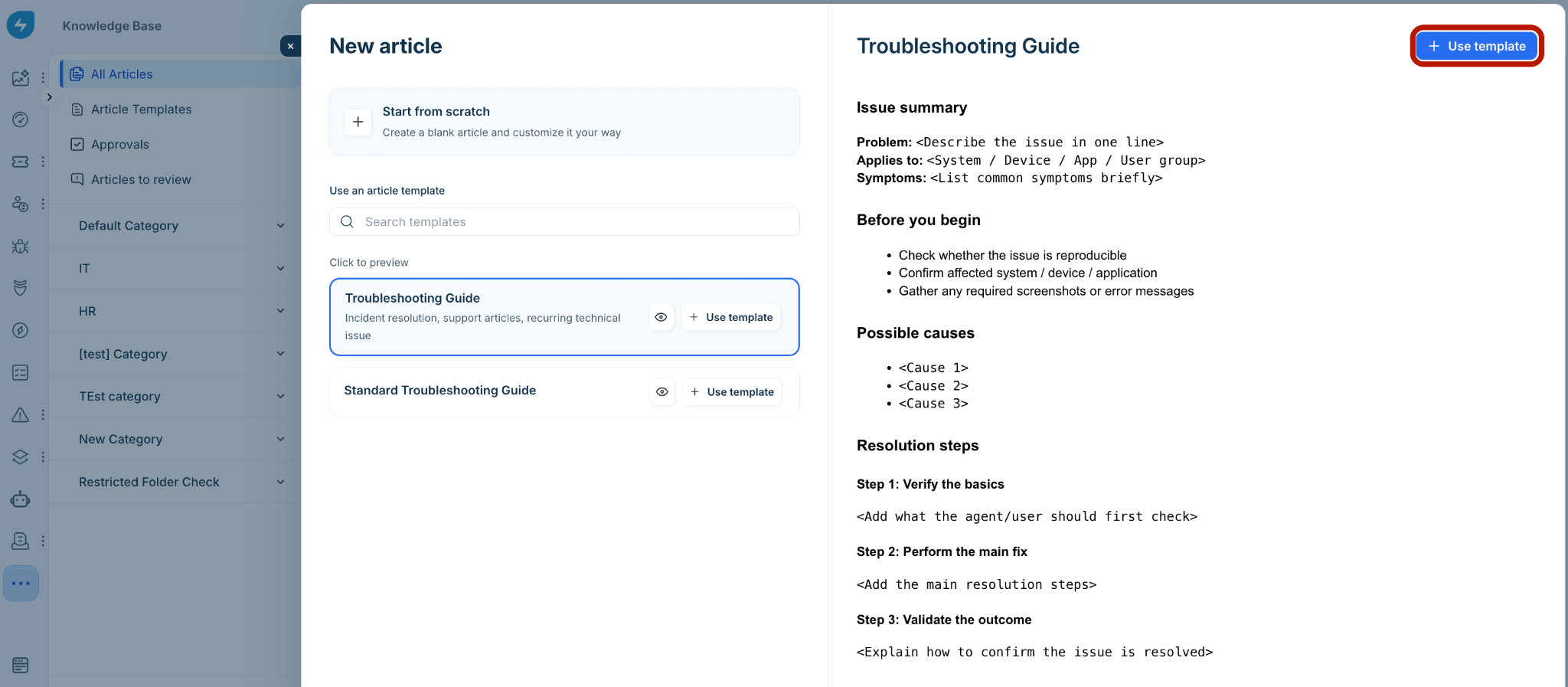
Modify the pre-populated title and article body content in the editor to fit your specific article details.
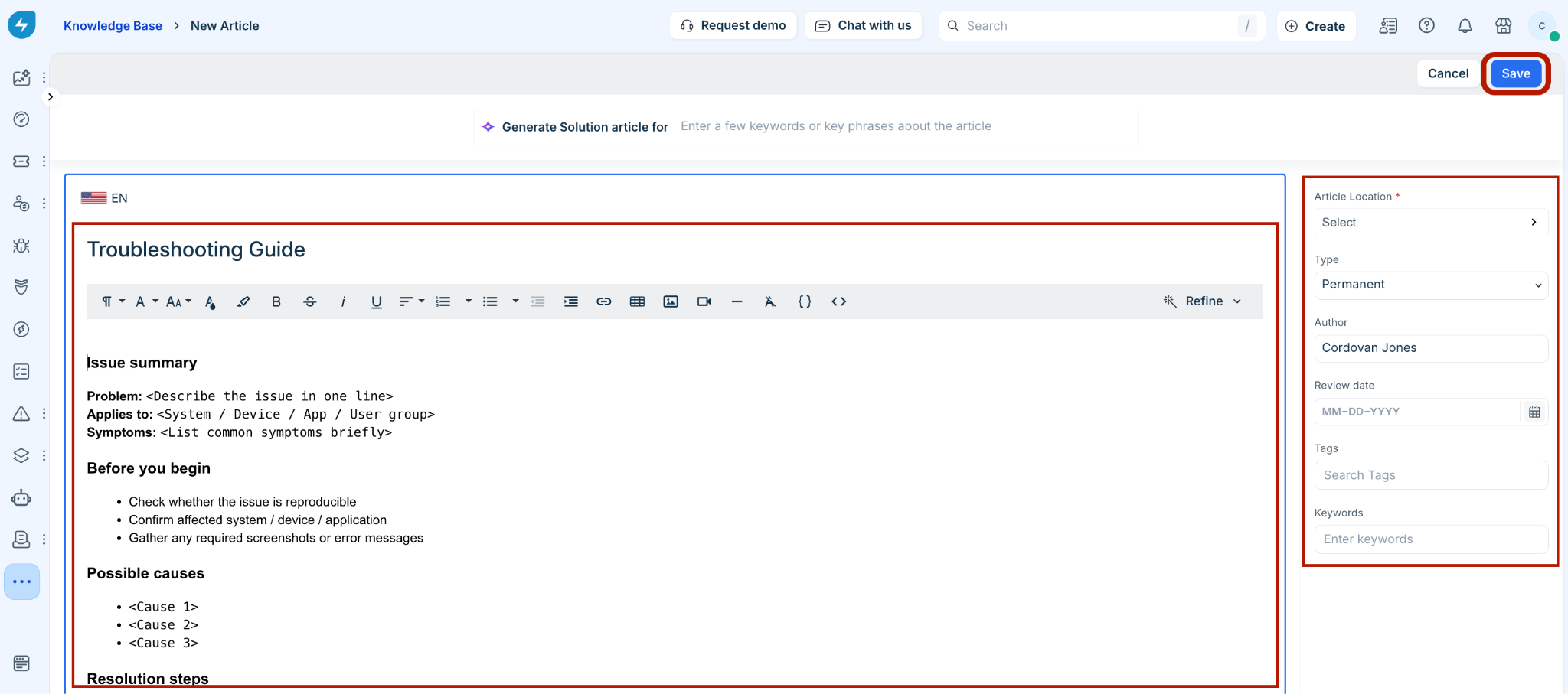
In the right panel, configure the required metadata:
Article Location: Select the appropriate category and folder.
Configure additional properties such as Type, Author, Review date, Tags, and Keywords.
Click Save to create the article draft or publish it according to your workflow.