
 Community
 Video Library
 Agent Training
 Freshservice
 Freshdesk
 Freshchat
 Freshcaller
 Freshsales
 Freshteam
 Freshworks Neo
 Freshsurvey
 Freshservice for MSP
 Service Health Monitor is available for Freshservice IT Asset Management Pro and Enterprise plan users who signed up after the March 31, 2026 release.TABLE OF CONTENTS
Service Health Monitor helps you track and manage the health of business services by automatically updating their health status based on defined conditions.
Each service has a health status that can be updated manually or automatically. Administrators can define rules to update the health status when specific conditions are met. Freshservice provides the following service health statuses:
Administrators can configure rules to automatically set the corresponding health statuses, except for the Operational status. The Operational status is the default status for a service. When you create a new service, it is assigned the Operational status by default. A service is also set to Operational when it does not meet the conditions defined for any other health statuses.
Health status evaluation rules
The Health status of a service is evaluated based on the descending order of severity: Maintenance > Major Outage > Partial Outage > Degraded > At Risk > Operational (default state).
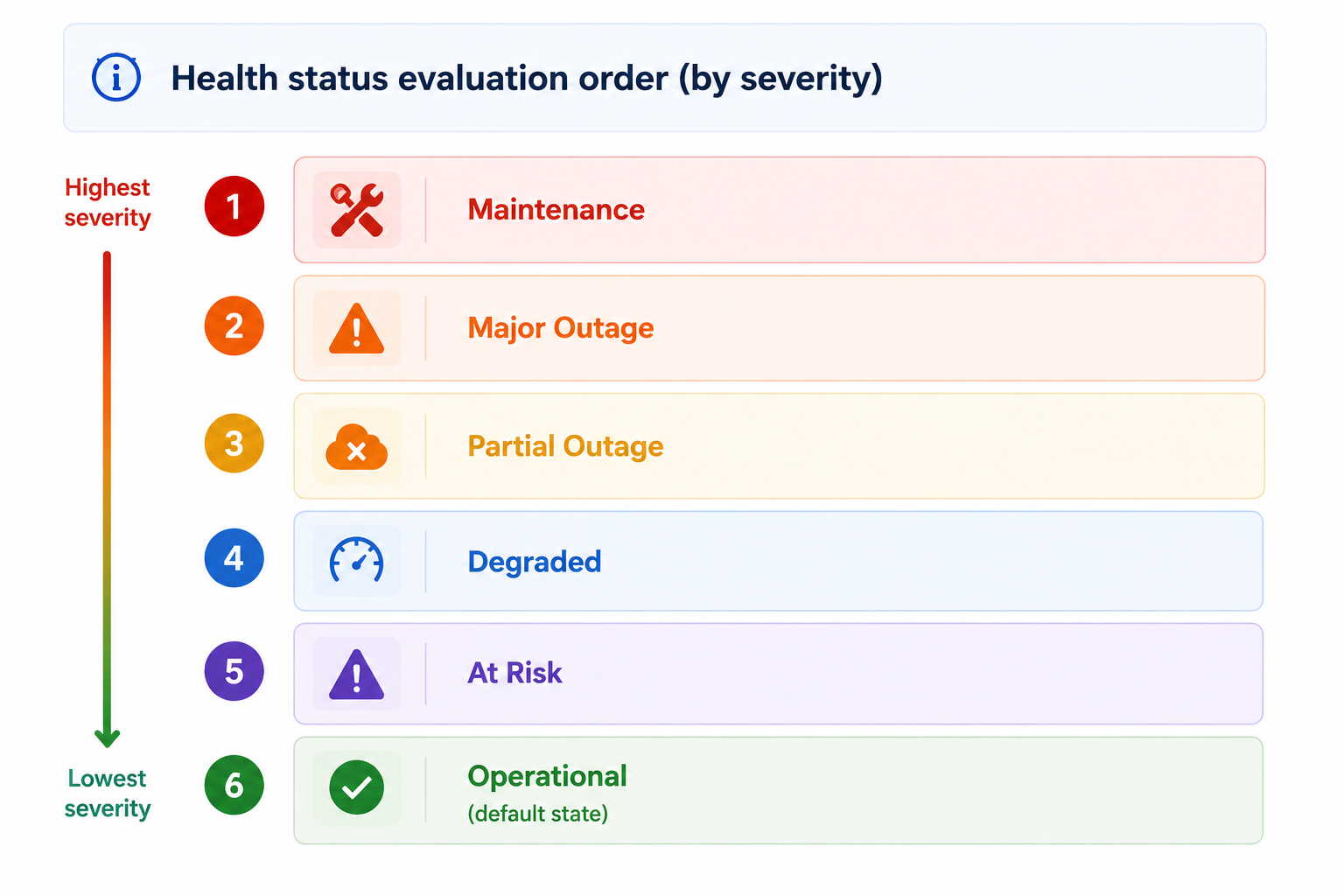
The system evaluates health status conditions in sequence and stops when a matching condition is found. The corresponding health status is then applied, and the remaining conditions are not evaluated. The status changes only if the service remains in that state for more than three minutes.
Important
You can configure At risk, Degraded, Partial outage, and Major outage statuses based on alerts, incidents, and major incidents.
You can configure the Maintenance status based on alerts, incidents, major incidents, and changes.
Define conditions for health service status
Administrators can define conditions for each service health status (except Operational) based on their requirements. Follow these steps to define conditions for a service status:
Log in to Freshservice as an administrator.
Go to Admin > IT Operations Management.
Select Service Health Monitoring.
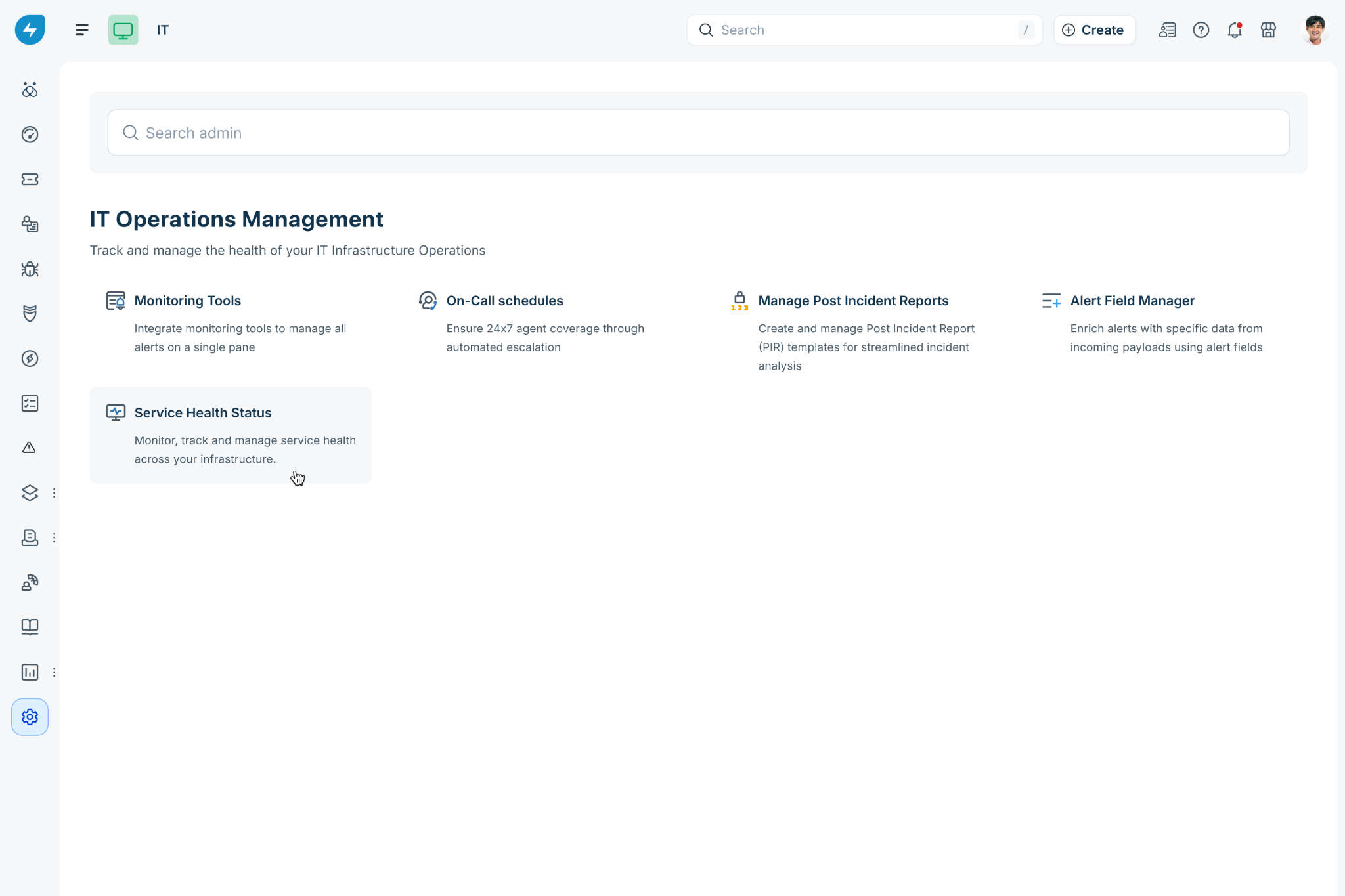
The Service Health Status page is displayed, showing all the available service health statuses.
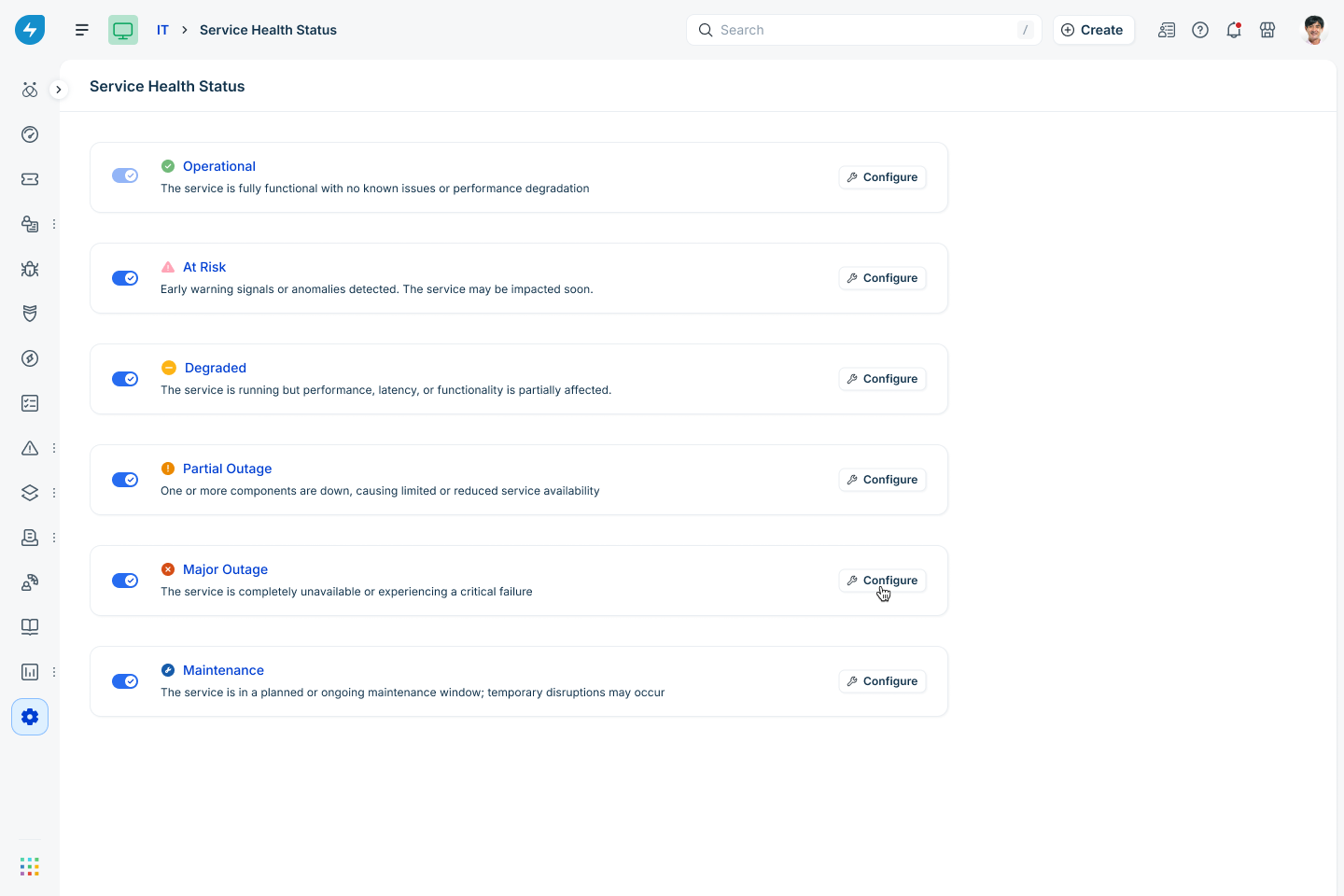
Click Configure next to the status for which you want to define rules.
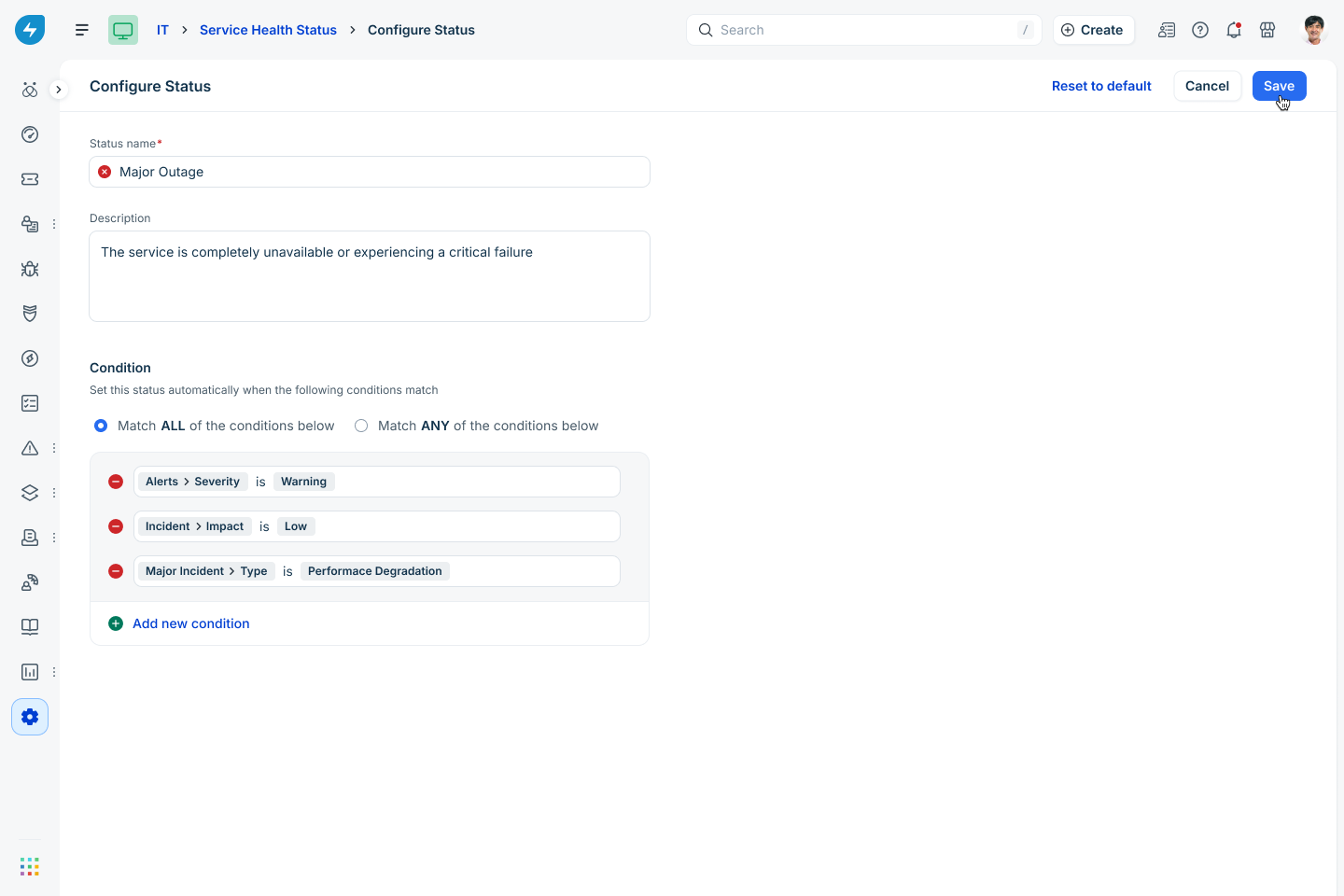
Edit the status description if needed.
Under Condition, follow these steps:
Click Add new condition to define criteria.
For example:
Add Alerts and specify their severity.
Add Incidents and specify their impact.Choose how conditions are evaluated:
All conditions - The status is applied only if all conditions are met.
Any condition – The status is applied if any condition is met.
Click Save.
Note: The Maintenance status is applied only when the Service is in a maintenance window.