
 Community
 Video Library
 Agent Training
 Freshservice
 Freshdesk
 Freshchat
 Freshcaller
 Freshsales
 Freshteam
 Freshworks Neo
 Freshsurvey
 Freshservice for MSP
 TABLE OF CONTENTS
- Overview
- Access sidebar customization
- Show or hide modules
- Reorder the sidebar modules
- Reset to default view
Overview
To help you manage your workspace efficiently, you can now use the new Customize Sidebar/main menu. You can personalize your left navigation panel by reordering modules or hiding the ones you rarely use.
Note: Any changes you make to the sidebar configuration affect only your view and do not alter the layout for other agents or users in your organization.
Access sidebar customization
Log in to your Freshservice account.
Click the Customize Sidebar icon on the left panel.
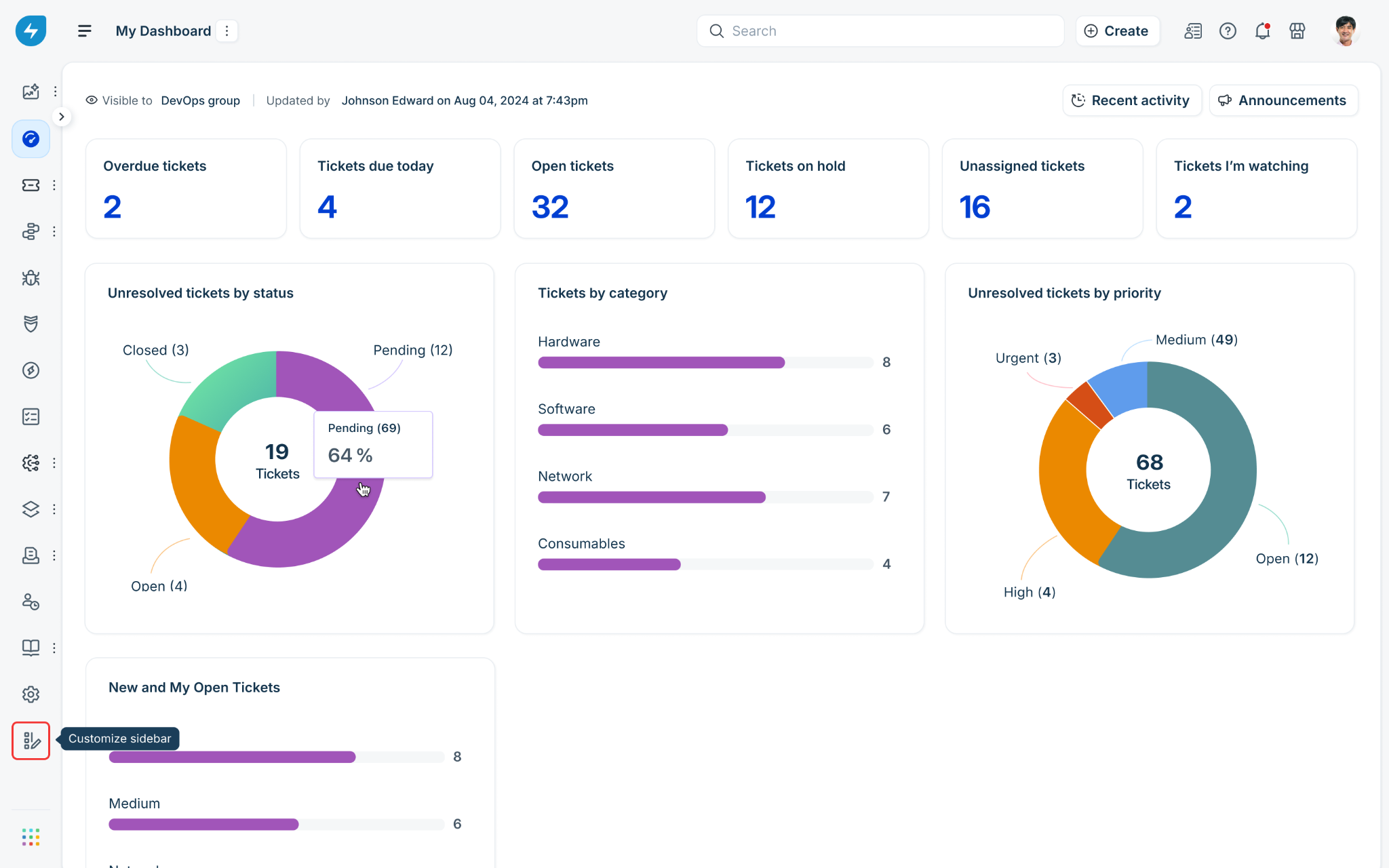
The Customize your sidebar slider is displayed on the left side of the screen.
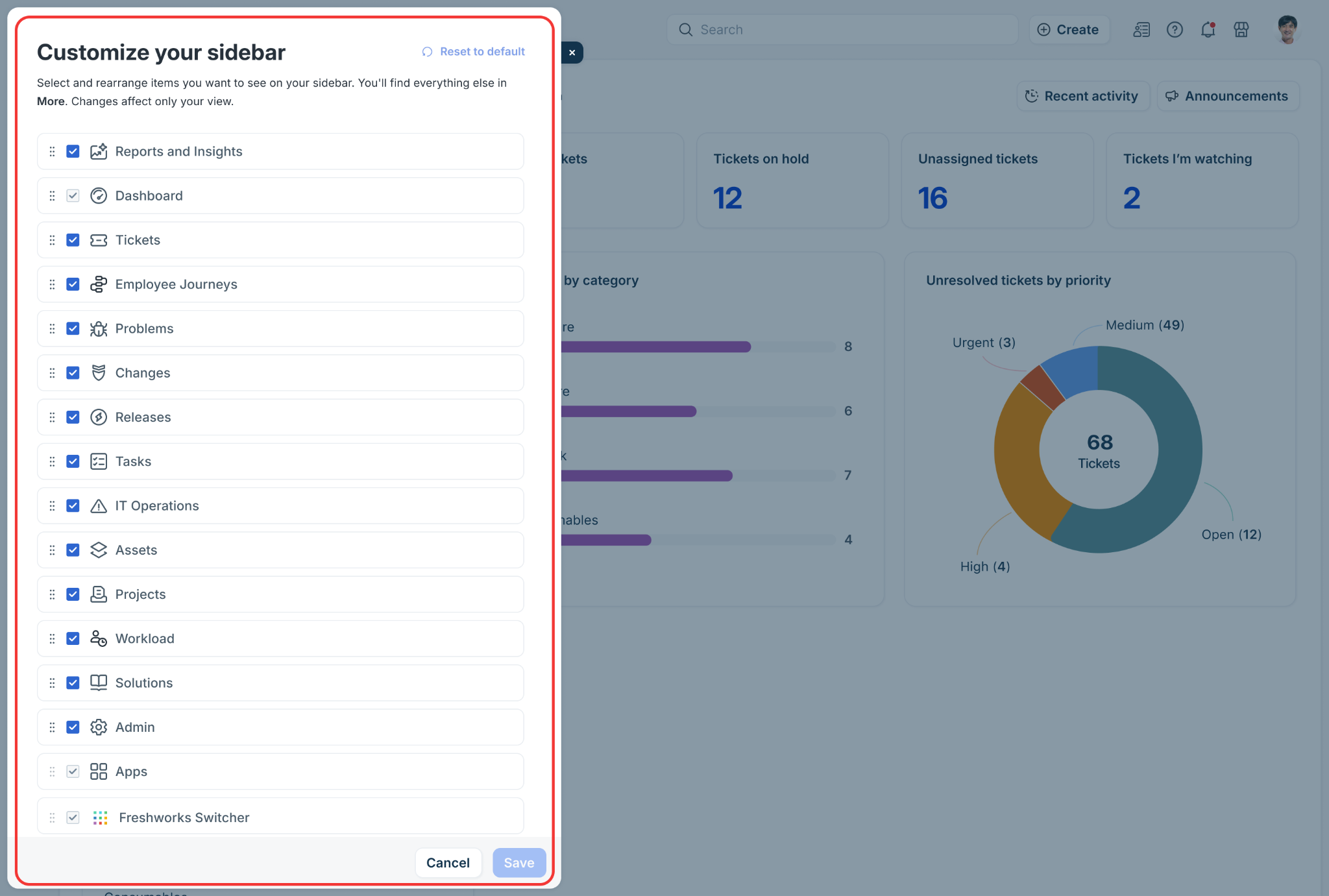
Show or hide modules
In the customization panel:
Select the checkboxes next to the module names you want to be displayed.
Or, clear the checkboxes next to the module names you want to be hidden.
Note: Checkboxes for all the modules are selected, by default.
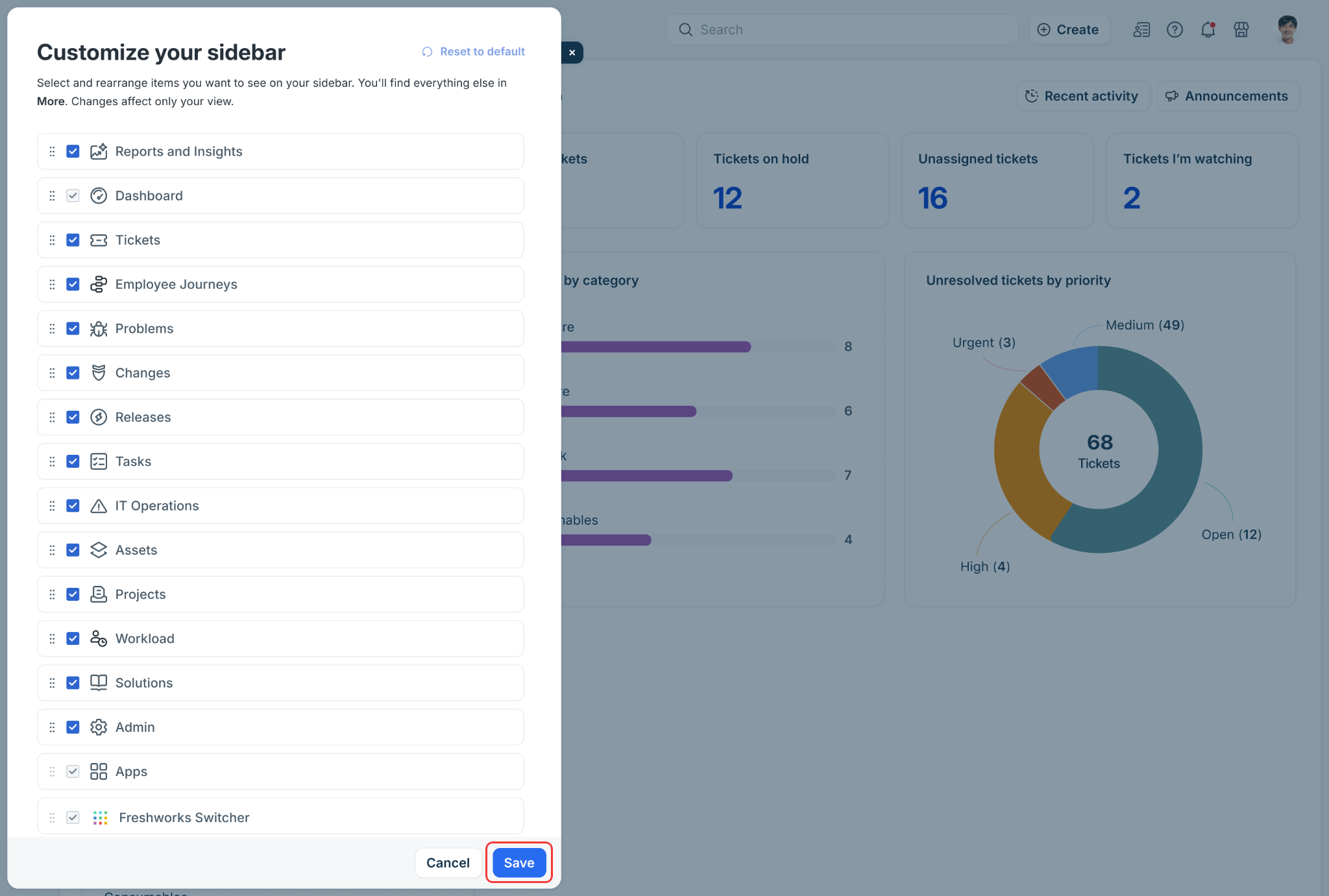
Click Save.
Note: Modules that are unselected are moved into a collapsed menu. Click the three-dot (More) icon at the bottom left of the main sidebar to view the hidden modules.
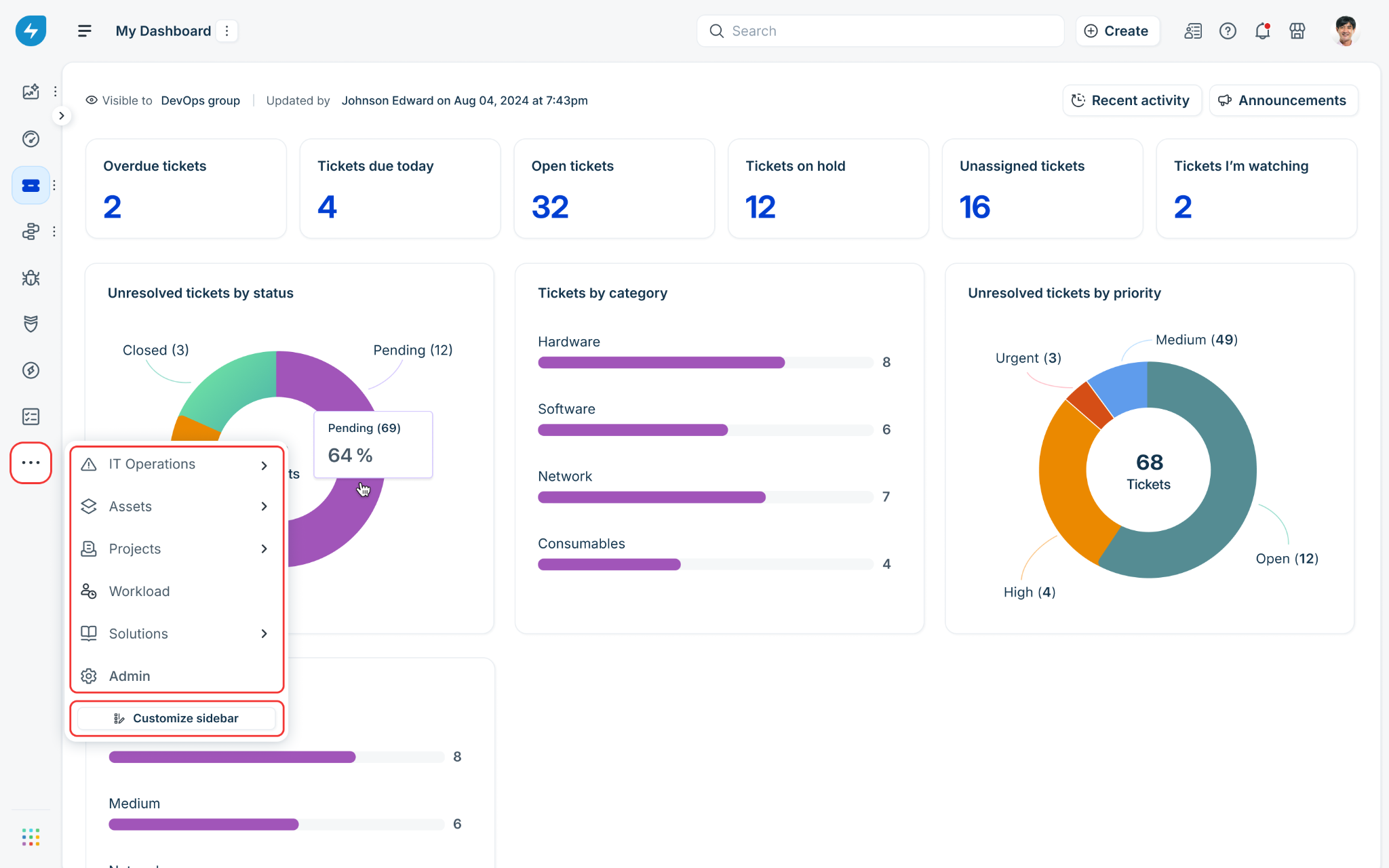
You can also re-open the customization panel (Customize Sidebar) from this menu.
Reorder the sidebar modules
There are two methods available for organizing your sidebar items, allowing you to prioritize the modules you use most frequently.
Option A: Drag and drop
Click and hold the reorder icon next to a module.
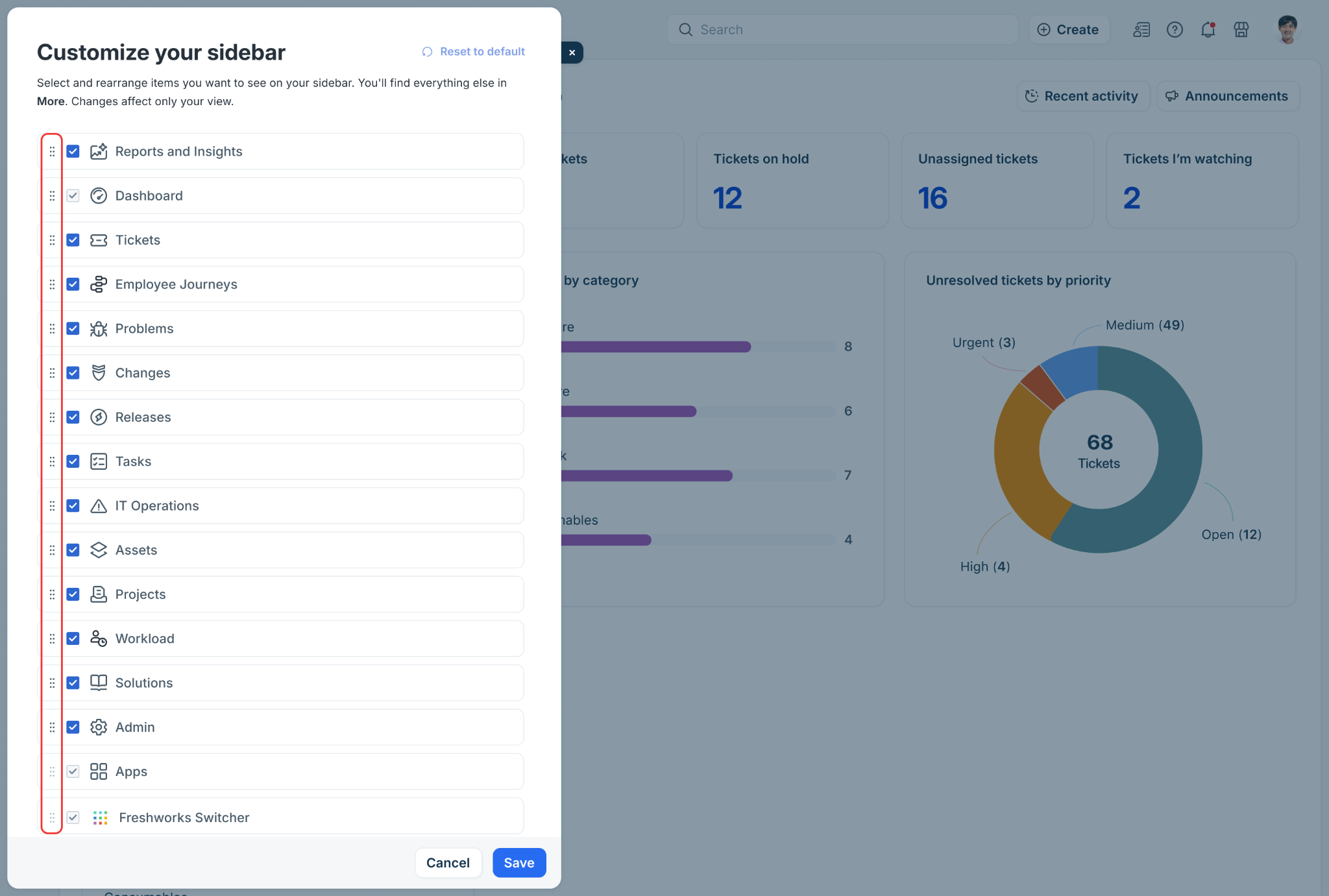
Then, drag the item to the desired position.
Option B: Use the Move menu
Hover over a module you want to move and click the double-arrow reorder icon.
Select one of the following options: Move to top, Move up, Move down, or Move to bottom.
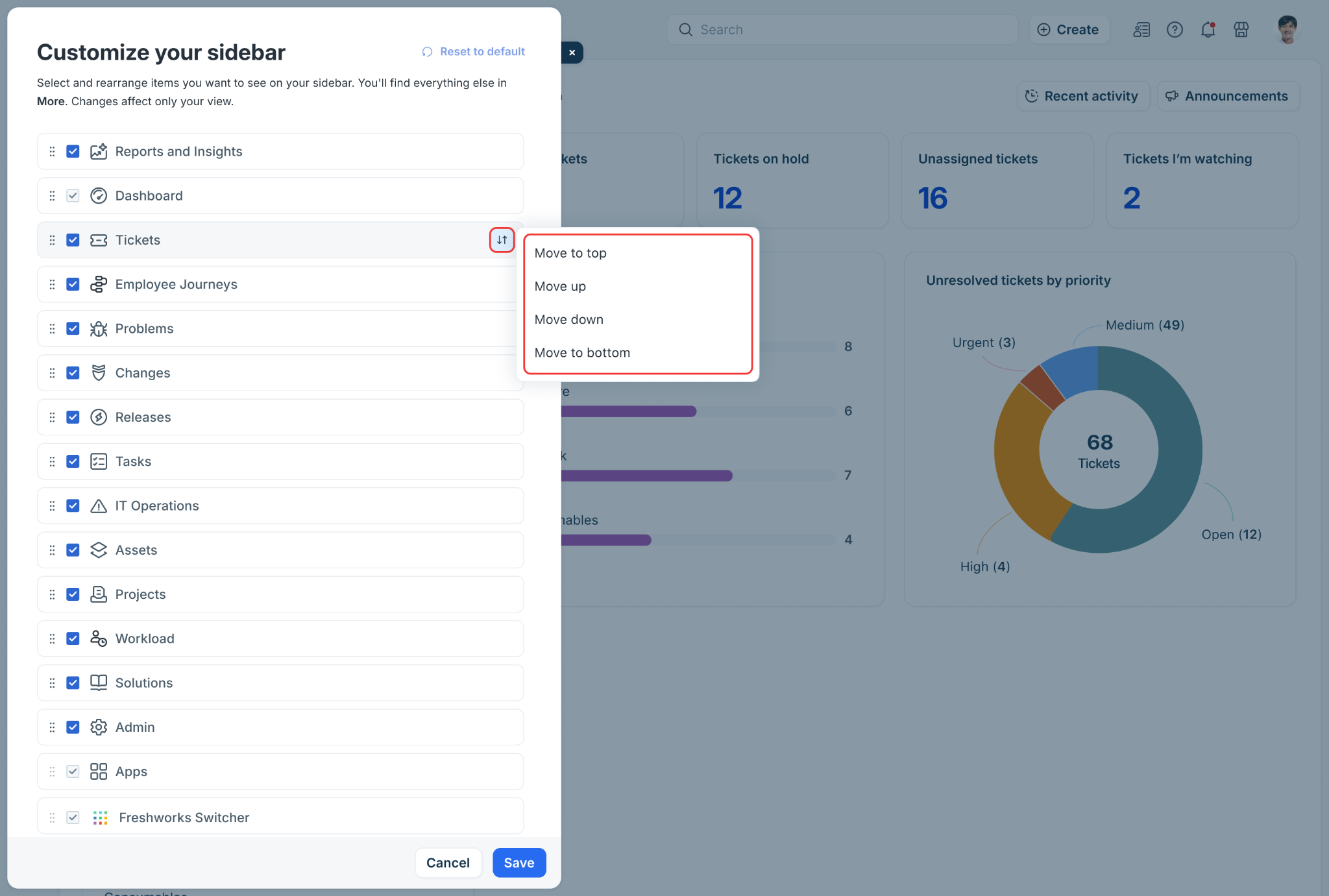
Click Save to apply your new layout configuration.
Option B: Use the Move menu (keyboard accessible)
If you prefer an alternative to drag-and-drop interactions, you can use your keyboard or assistive tools to reorder modules.
Press Tab to select the module you want to reposition.
Note: You may need to press Tab multiple times to select the required module.
Press Enter or Spacebar on the double-arrow Reorder icon to open the movement menu.
Use Arrow Keys to navigate through the placement choices.
Press Enter on your choice: Move to Top, Move Up, Move Down, or Move to Bottom.
Press Tab to select the Save button, then press Enter to apply your new layout.
Reset to default view
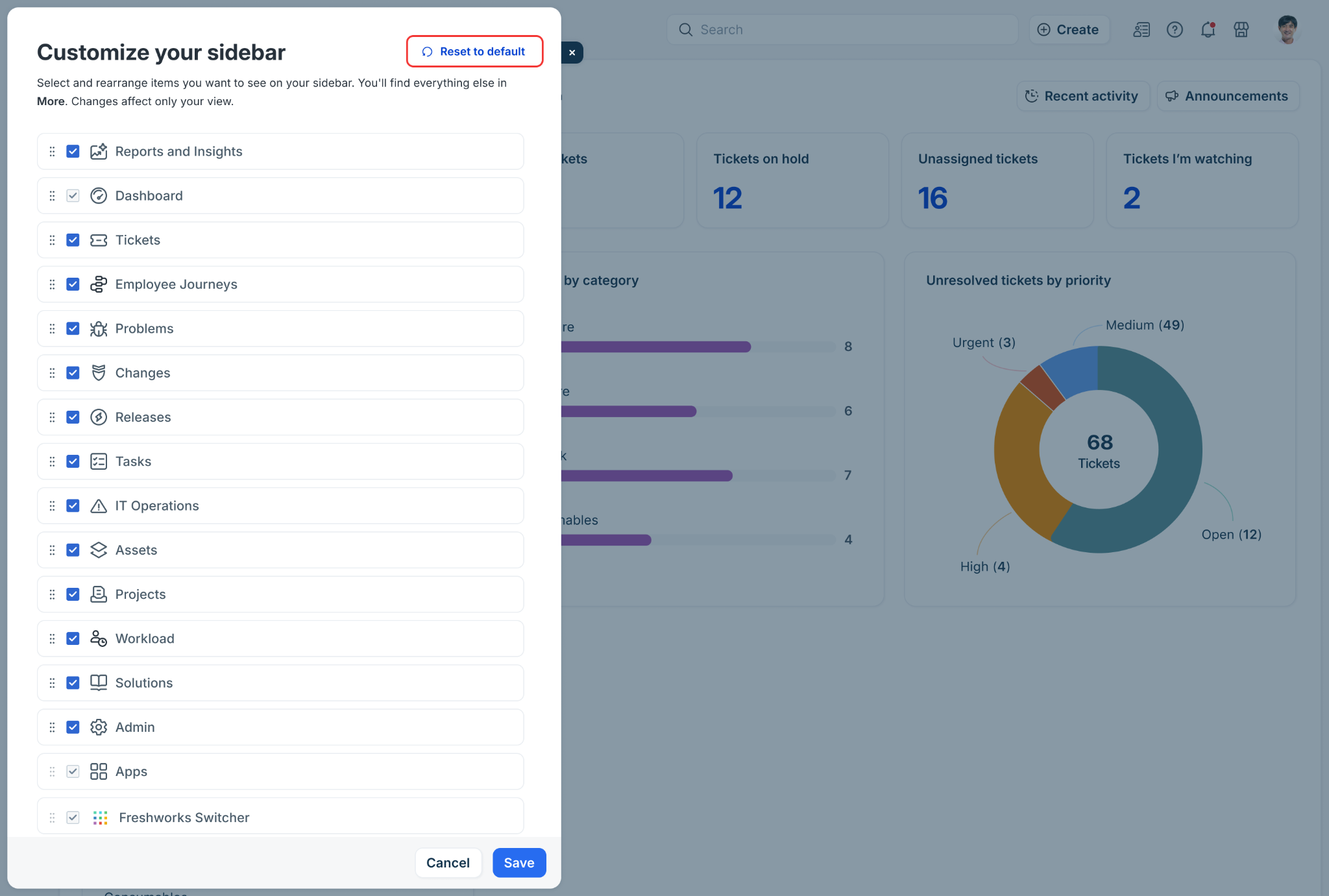
If you want to reset the custom layout to the application's standard/default sidebar navigation setup:
Open the Customize your sidebar panel.
Click Reset to default.
A confirmation dialog is displayed.
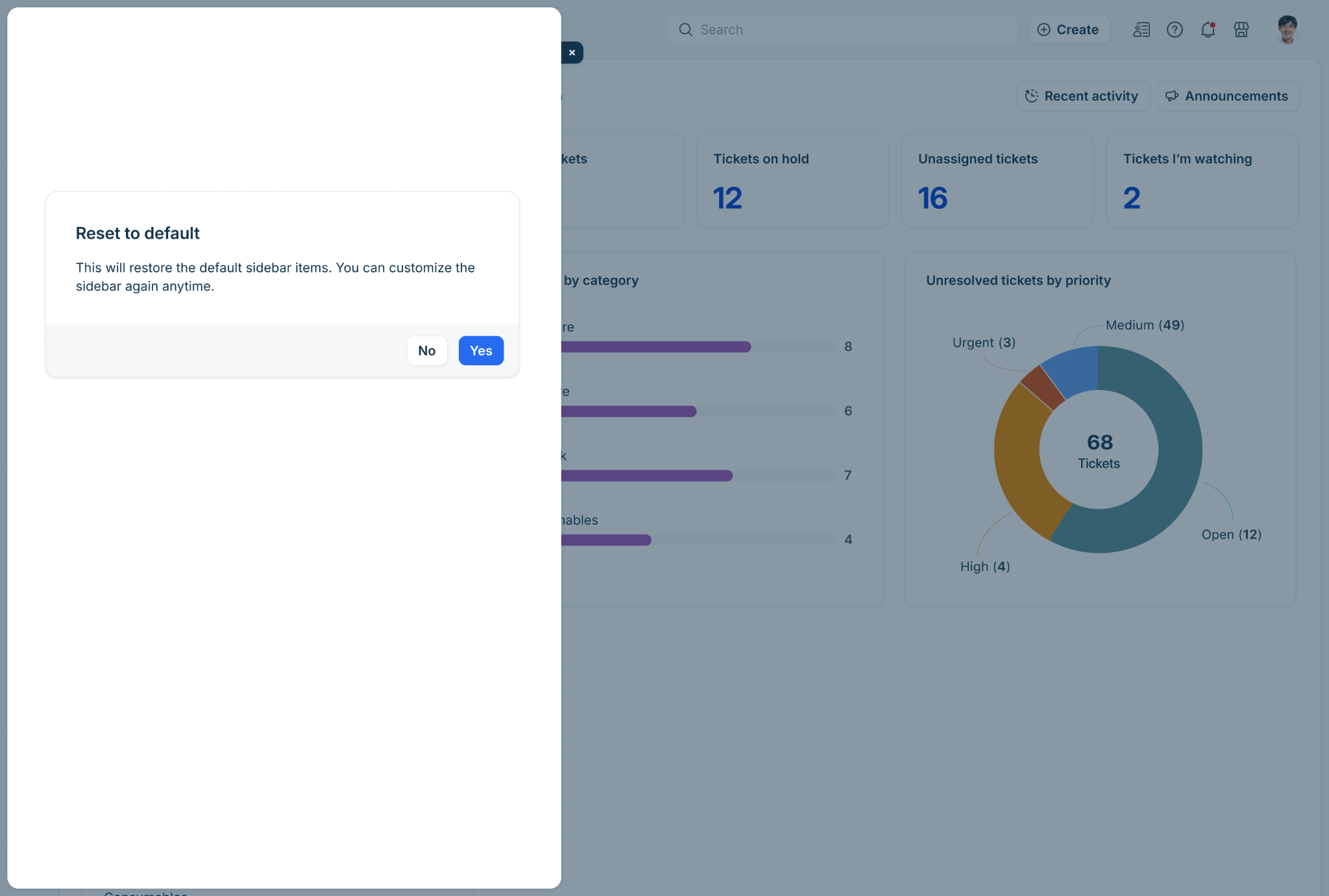
Click Yes to confirm and restore the original layout.