Community
 Video Library
 Agent Training
 Freshservice
 Freshdesk
 Freshchat
 Freshcaller
 Freshsales
 Freshteam
 Freshworks Neo
 Freshsurvey
 Freshservice for MSP
 TABLE OF CONTENTS
- View change risk assessments and signals
- Complete qualitative risk surveys (fill survey)
- Manage survey edit settings
- Delegate surveys to experts (ask an expert)
- Cancel pending survey requests
- Re-trigger completed surveys
- View past surveys (audit trail)
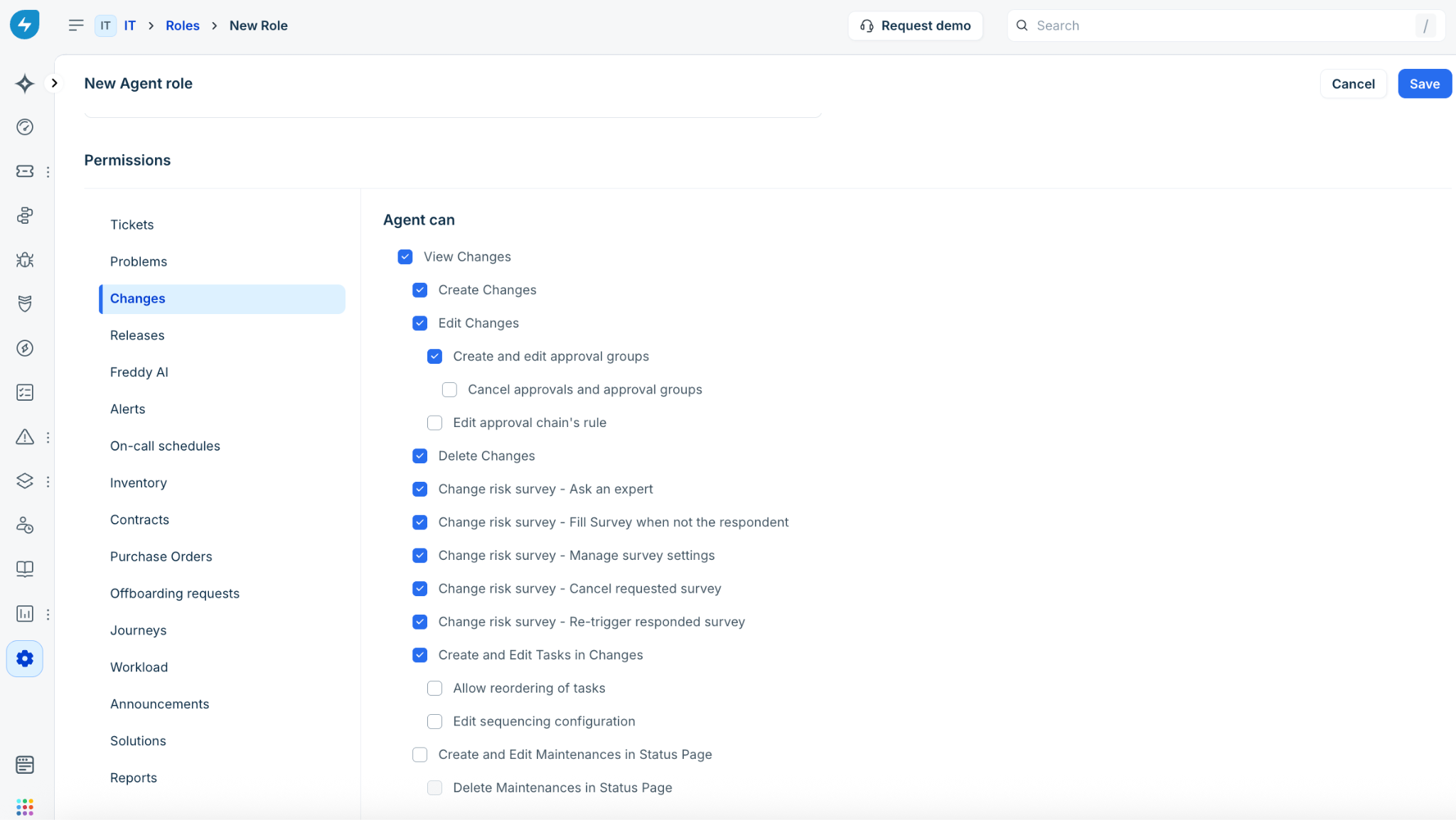
- Role-based access control (RBAC) privileges
Freshservice automatically evaluates submitted change requests against configured risk policies and allows agents to capture qualitative risk inputs through customizable risk surveys.
View change risk assessments and signals
Upon submission, Freshservice evaluates the change request against active risk policies. If a newly calculated policy risk level differs from the existing value, the policy risk level overrides the default Risk field. For information on the configuration of risk policies, see Manage change risk policies in Freshservice.
Create a change request
Log in to your Freshservice account
Click + Create at the top-right corner and select Change.
Complete the required fields, such as Workspace, Requester, Subject, Change type, Priority, or Impact.
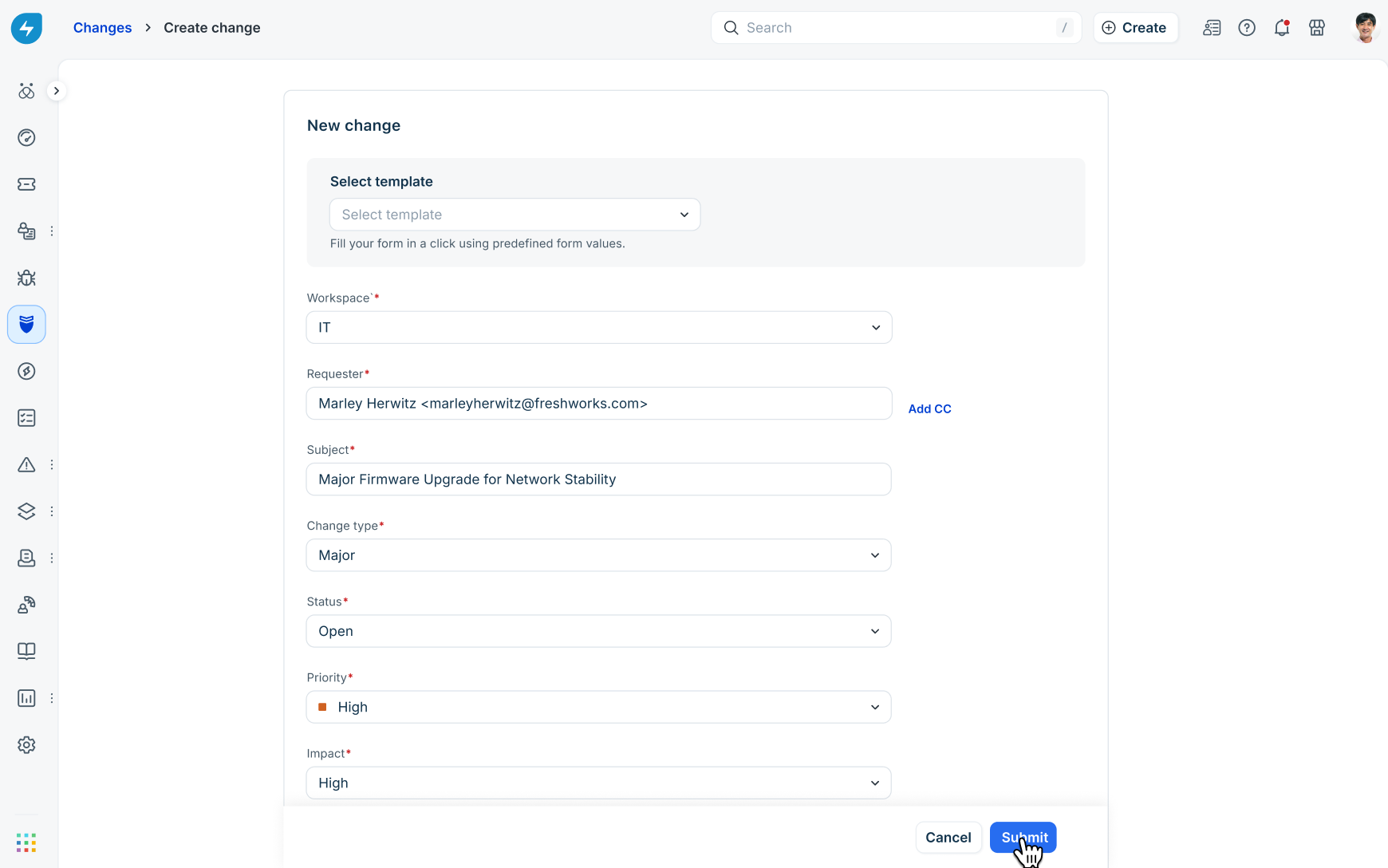
Click Submit.
Review basic signals and policy factors
On the Details tab of the change record, review the Change risk assessment summary widget in the right sidebar.
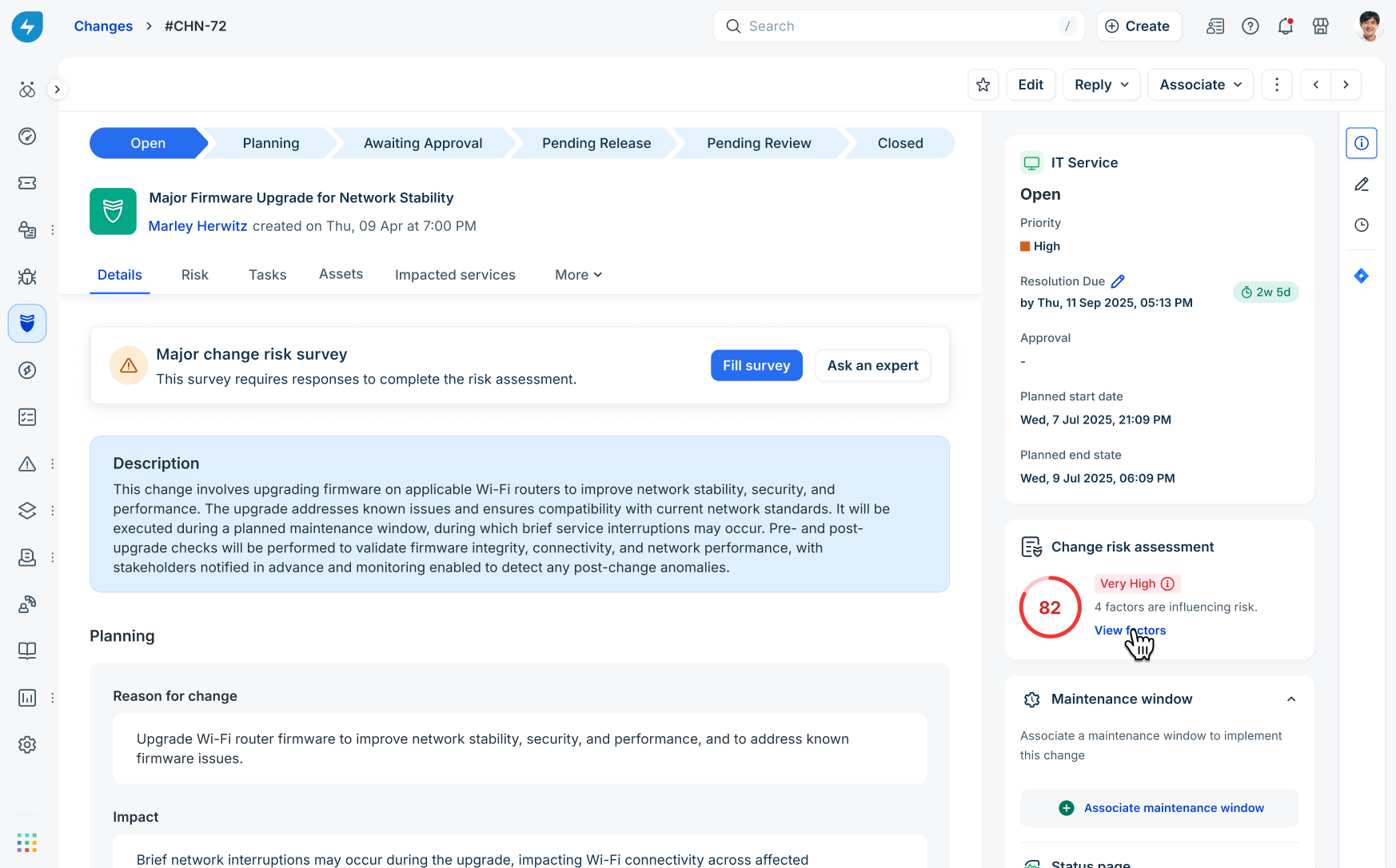
Click View factors in the sidebar widget to inspect active risk drivers.
Click the Risk tab to view the complete assessment breakdown.
Complete qualitative risk surveys (fill survey)
Agents can complete required risk surveys directly within the change request record.
Step 1: Open the survey modal
On either the Details or Risk tab, locate the Risk Survey section.
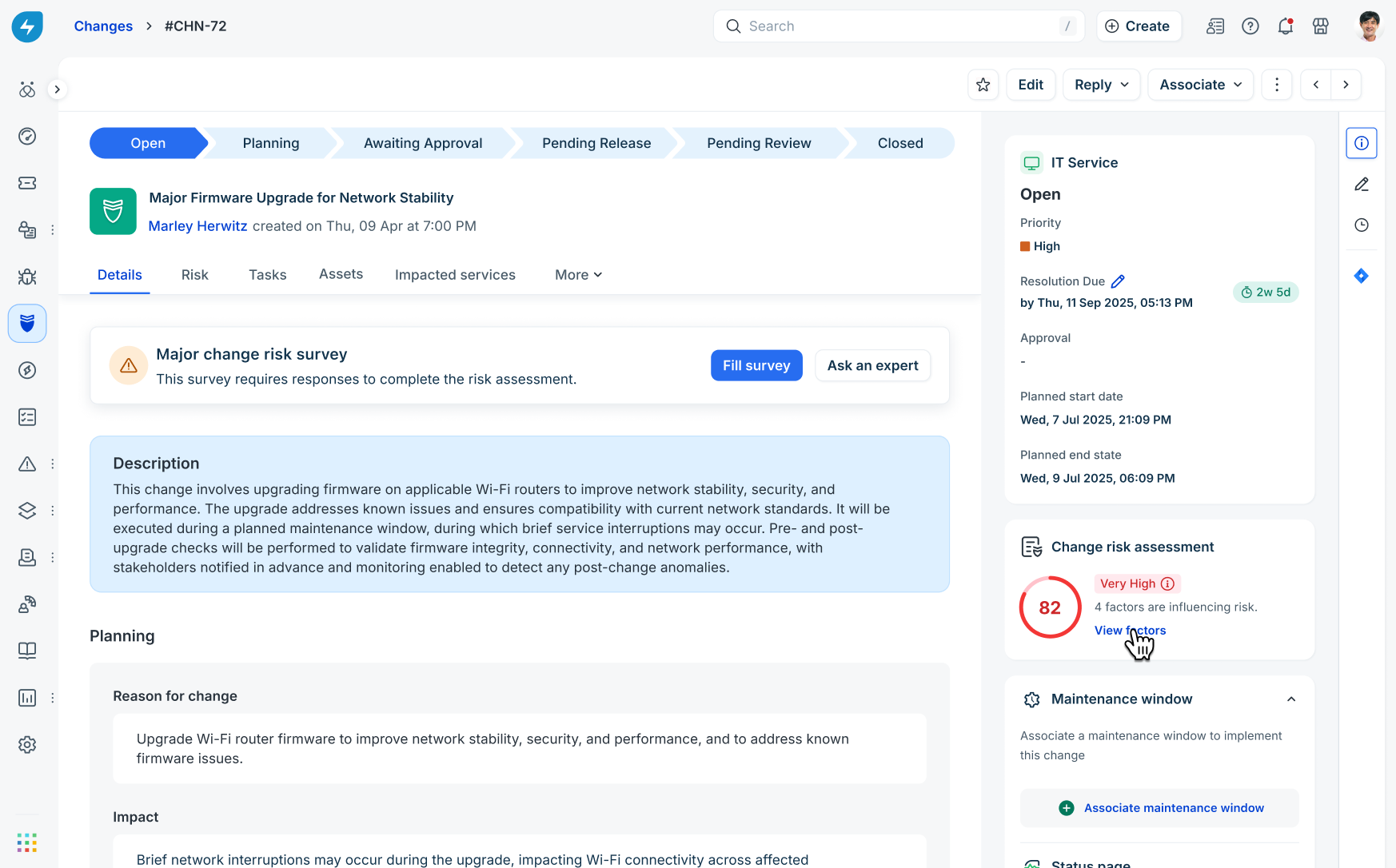
Click Fill survey.
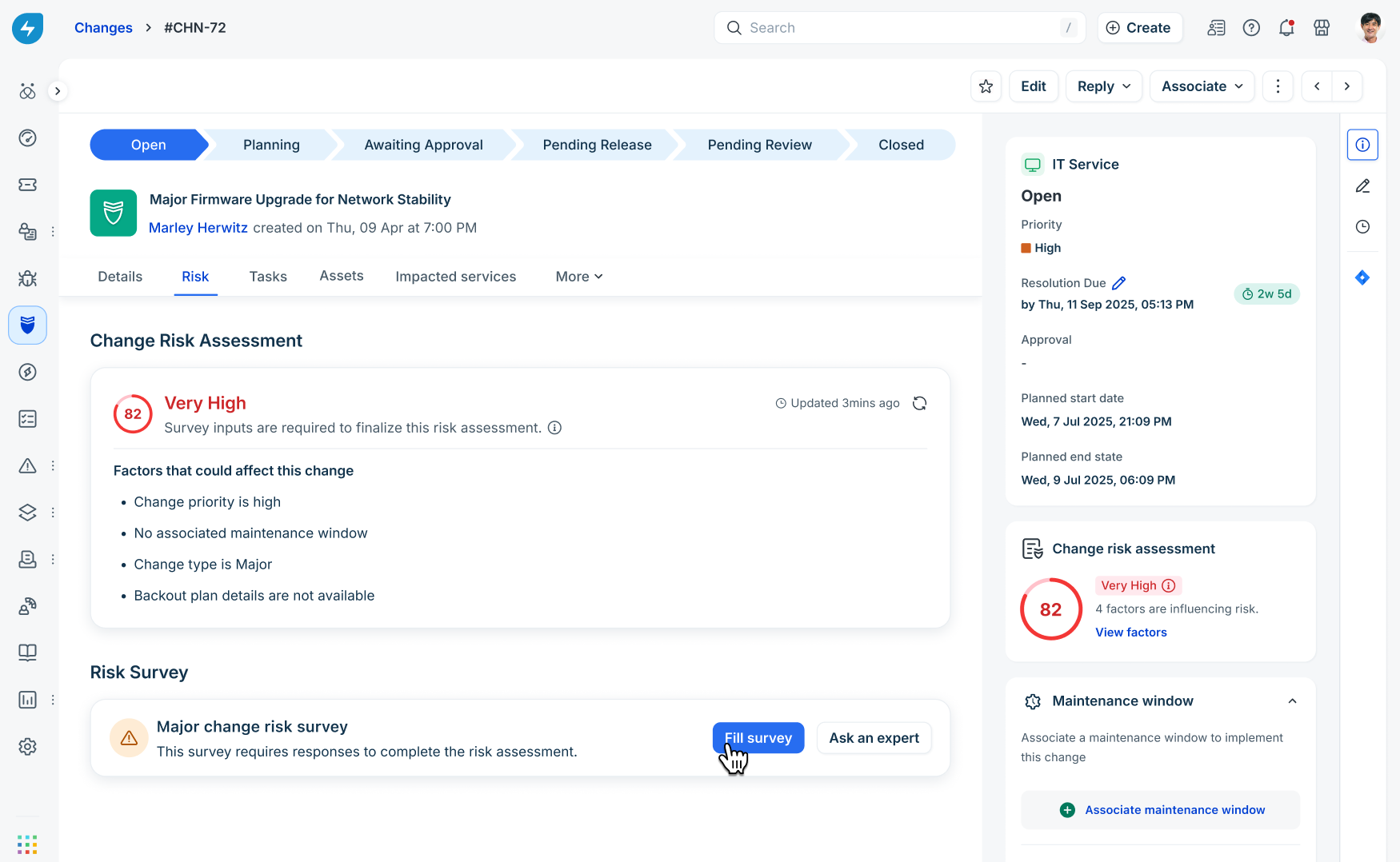
Step 2: Answer questions and submit
Provide complete responses for all qualitative questions (for example, text explanations, Yes/No selections, or numeric ratings).
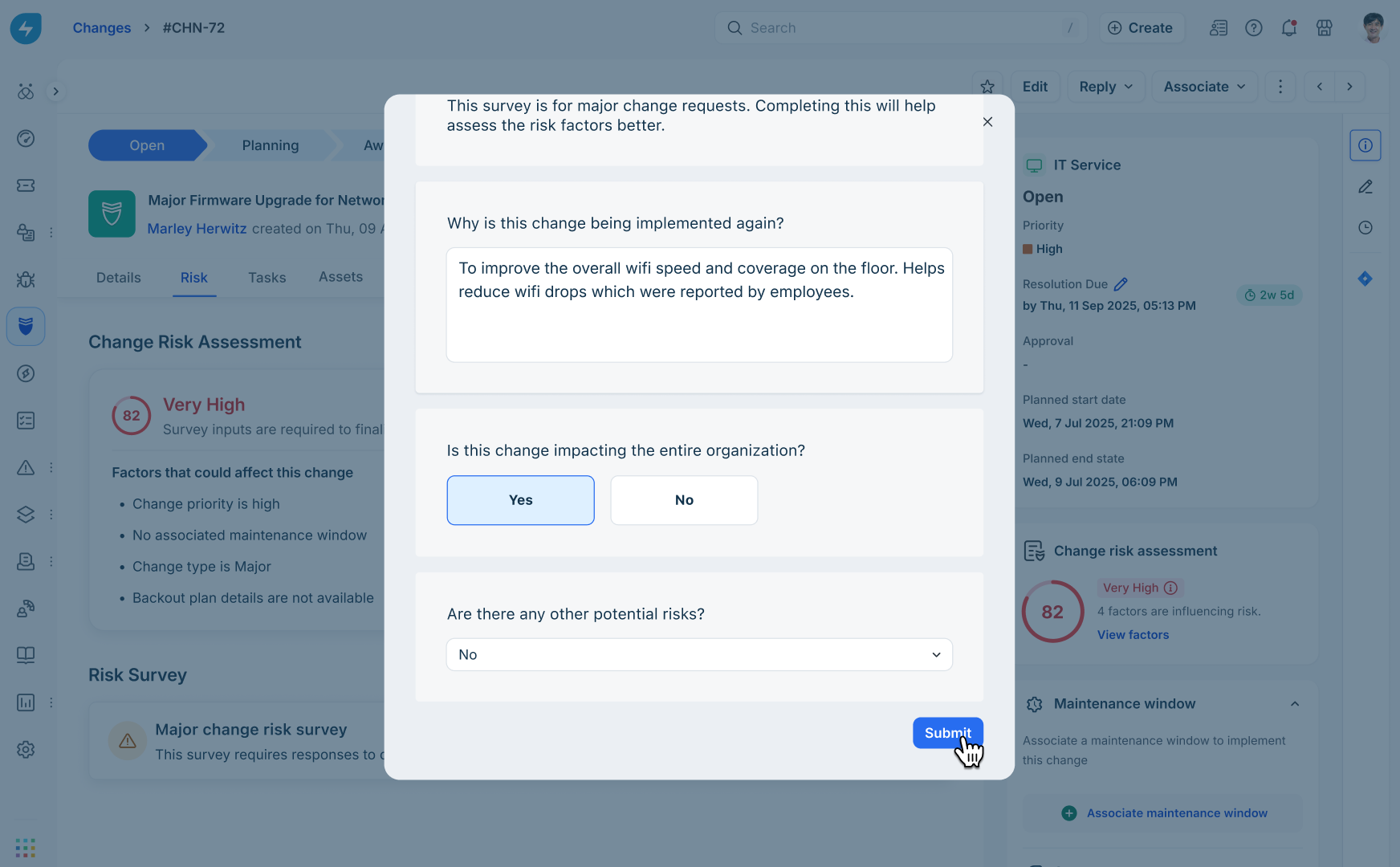
Click Submit.
Step 3: Verify recalculated risk score
After submission:
The survey status updates to Completed.
The overall risk score automatically recalculates based on the highest severity between automated policy factors and qualitative survey scores. Alternatively, the overall risk score can also be calculated based on a weighted average method using both policy and survey score. This is based on how the risk policy has been configured.
Hovering over the sidebar score badge displays the breakdown of the Automatic score and Survey score.
Visit the survey card on the Risk tab to view submitted responses.
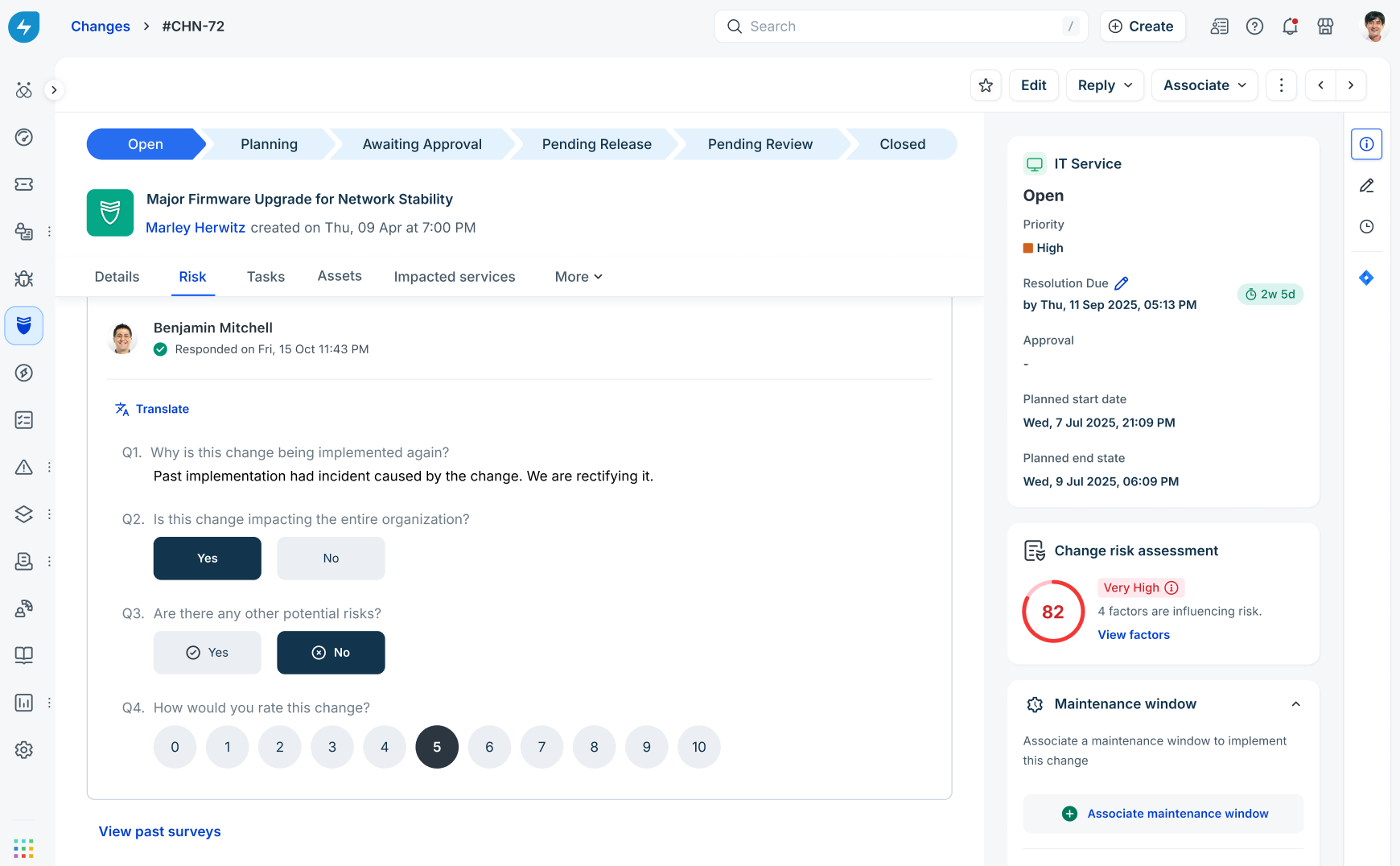
Manage survey edit settings
Survey submissions are locked by default after submission (Don't allow edits). Authorized agents can modify this setting if response updates are required.
Step 1: Access survey settings
On the Risk tab, locate the Risk Survey section.
Click the Survey settings gear icon.
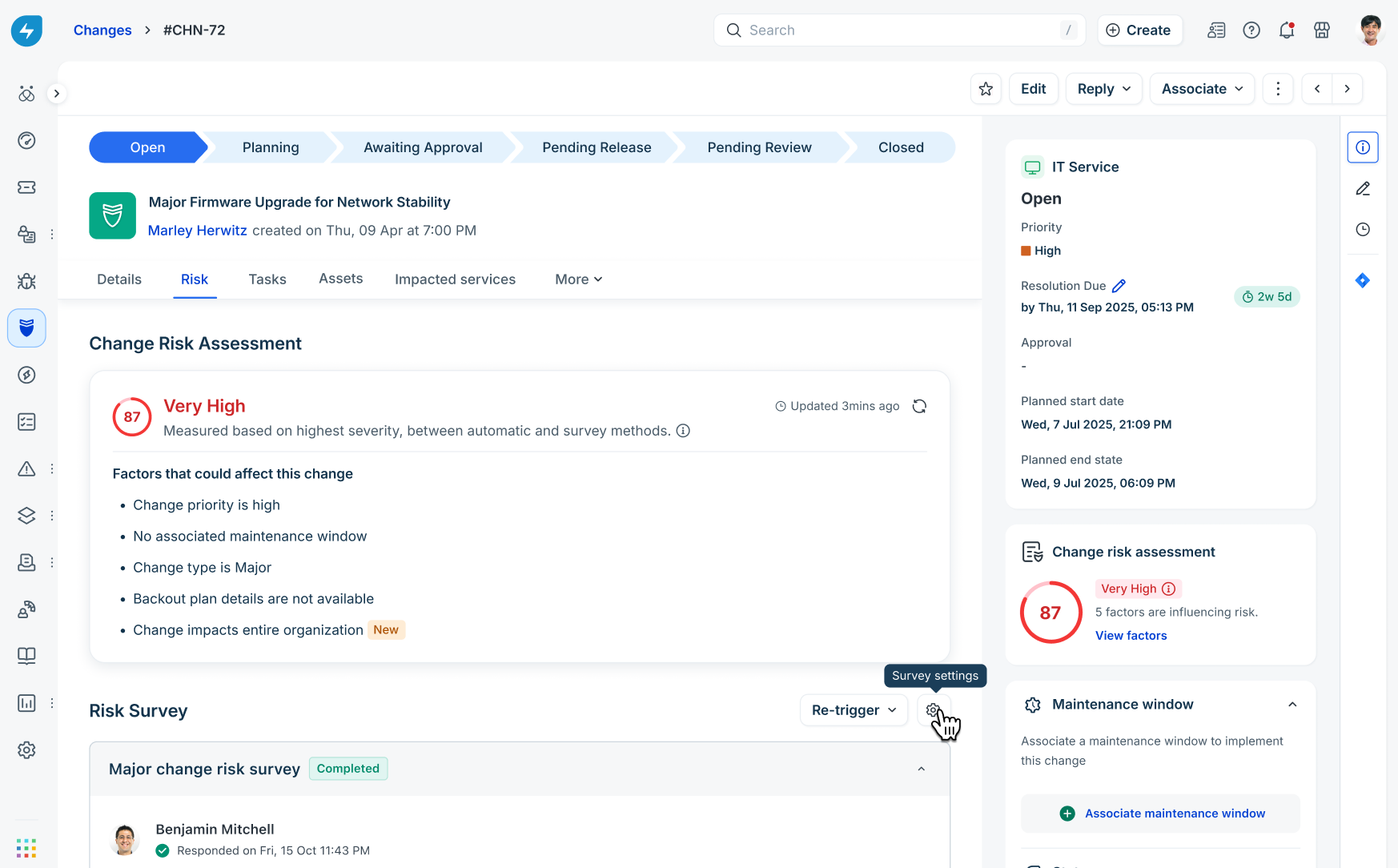
Step 2: Configure edit permissions
In the Survey settings dialog, select one of the following:
Allow edits: Allows the respondent to edit their survey response after submission.
Don’t allow edits: Prevents respondents from editing survey responses after submission.
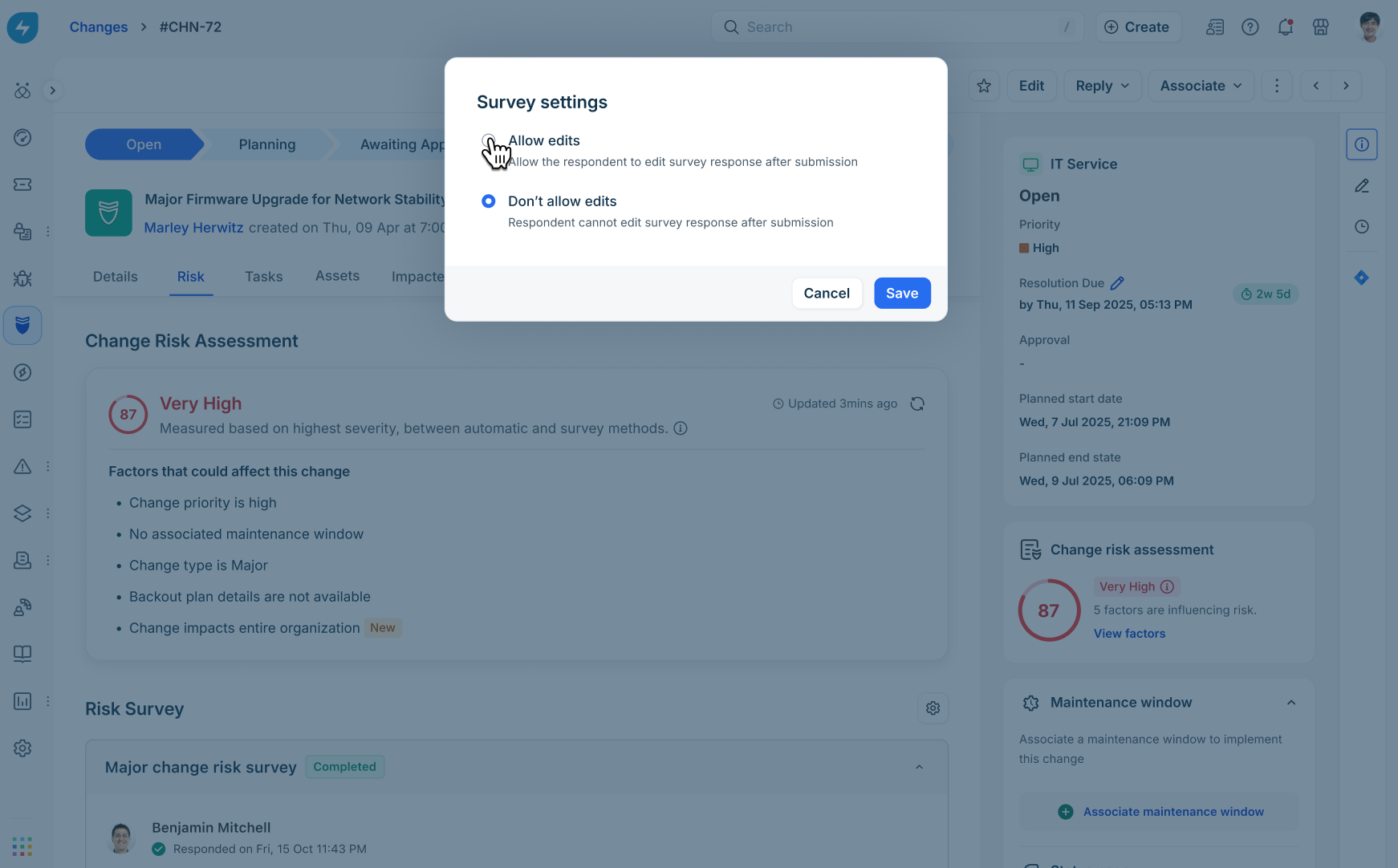
Click Save.
Note: Only the original respondent can Edit response to modify submitted answers when edits are allowed. Other agents or managers cannot edit someone else's submission.
Delegate surveys to experts (ask an expert)
When input is required from specific teams or subject matter experts before finalizing a risk assessment, agents can delegate the risk survey.
Step 1: Initiate delegation
On the Details or Risk tab banner, click Ask an expert.
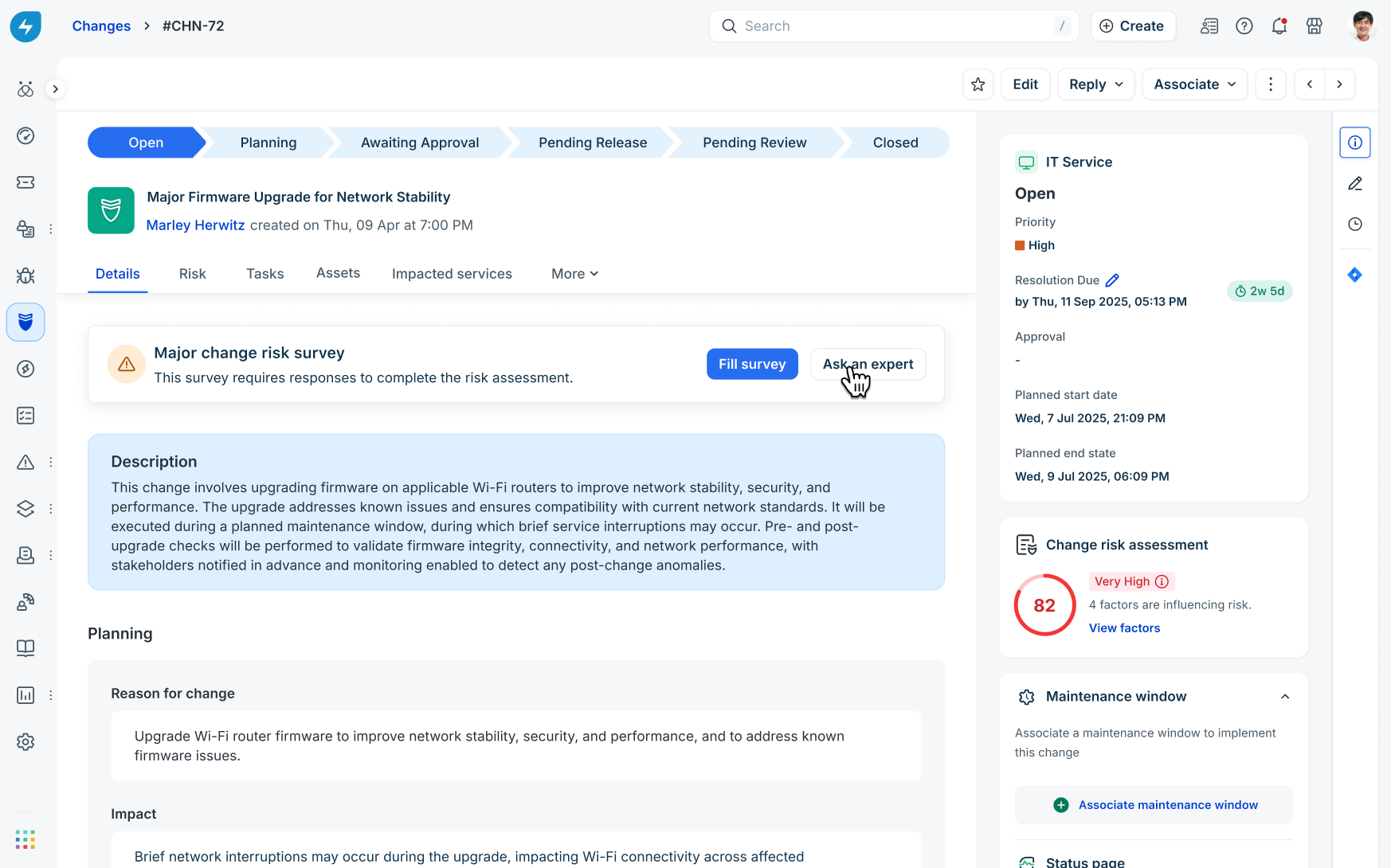
Step 2: Select respondents and groups
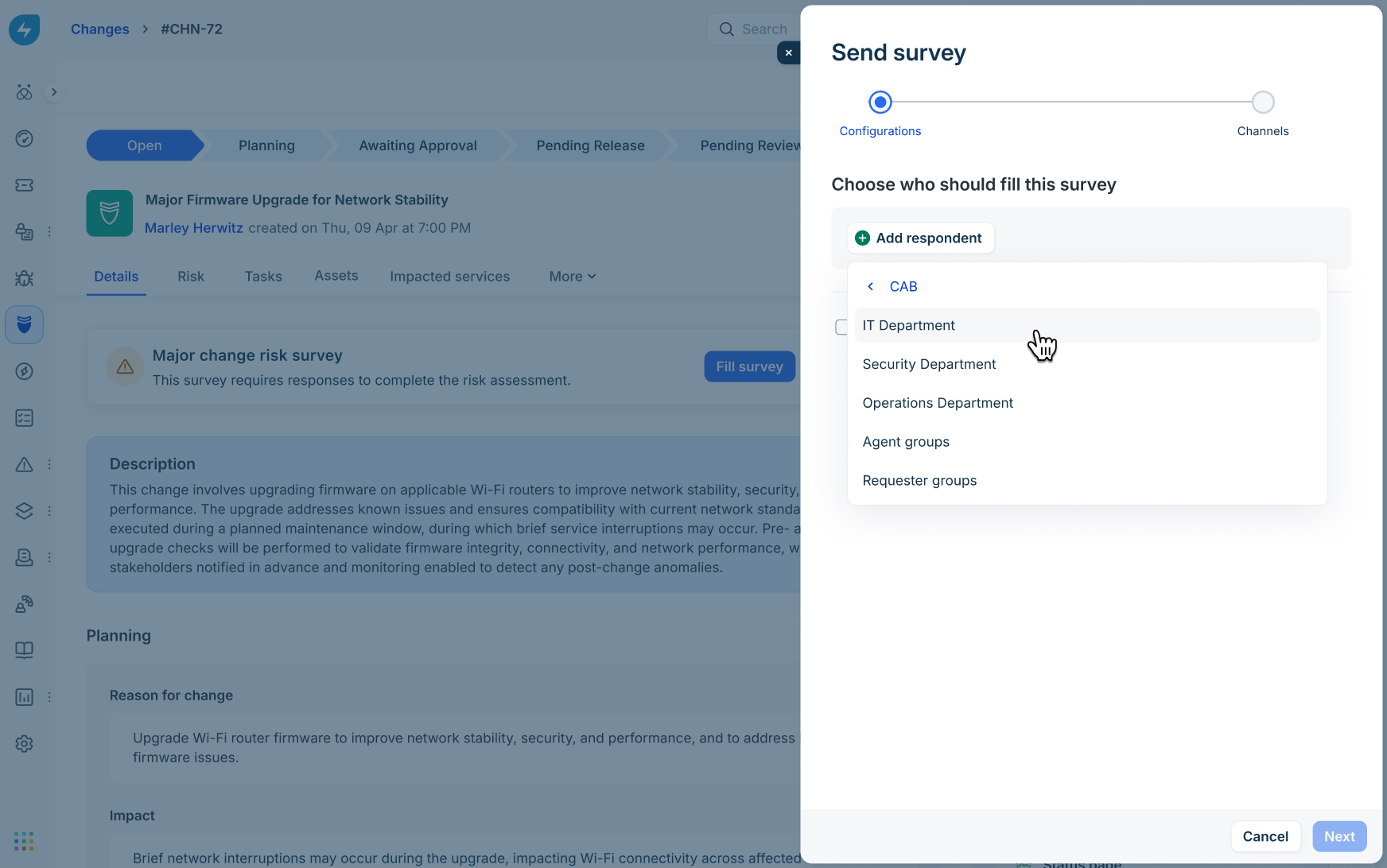
In the Send survey slider under Configurations, click + Add respondent.
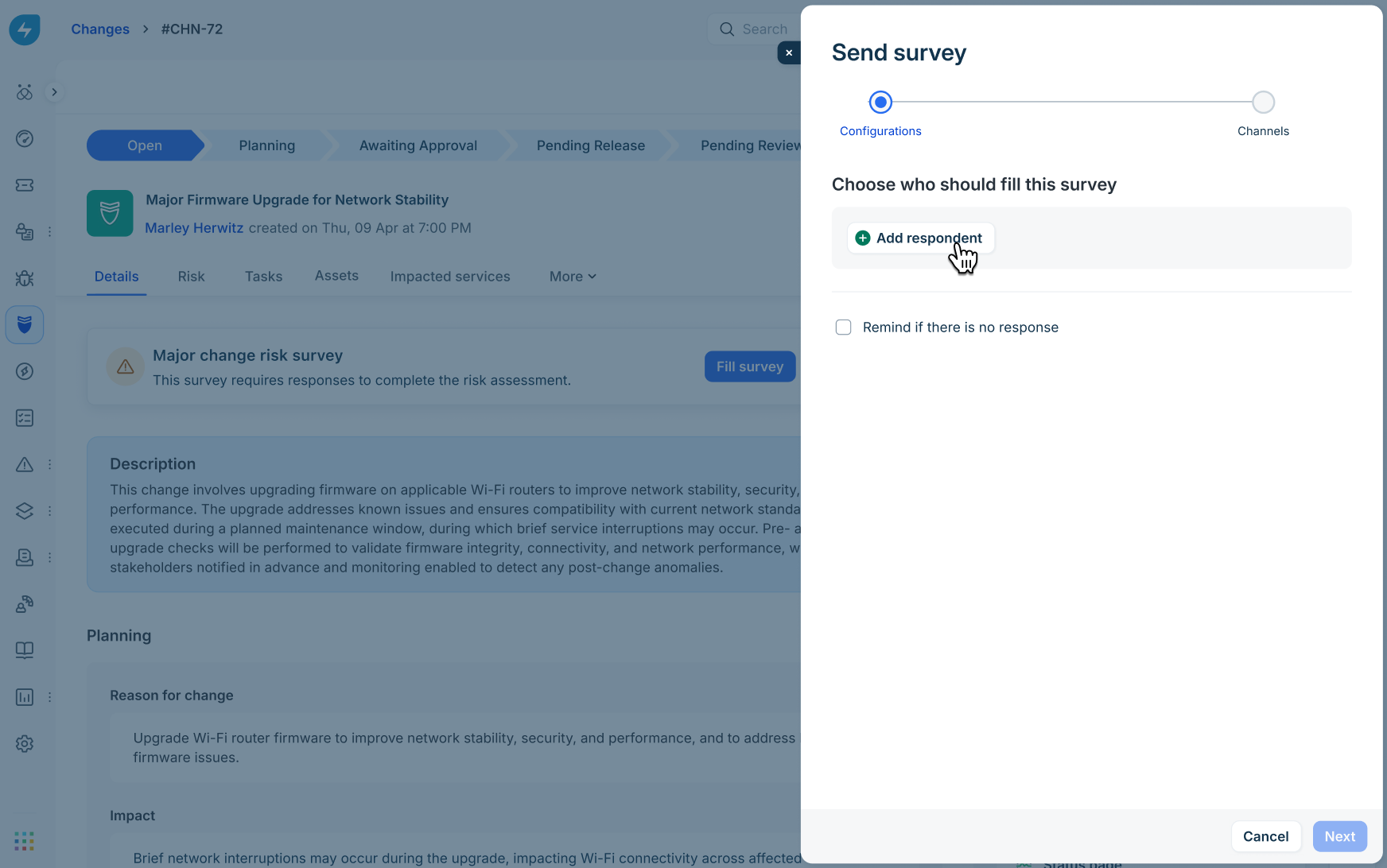
Choose a category from the dropdown menu, such as CAB, Users, Agent groups, or Requester groups.
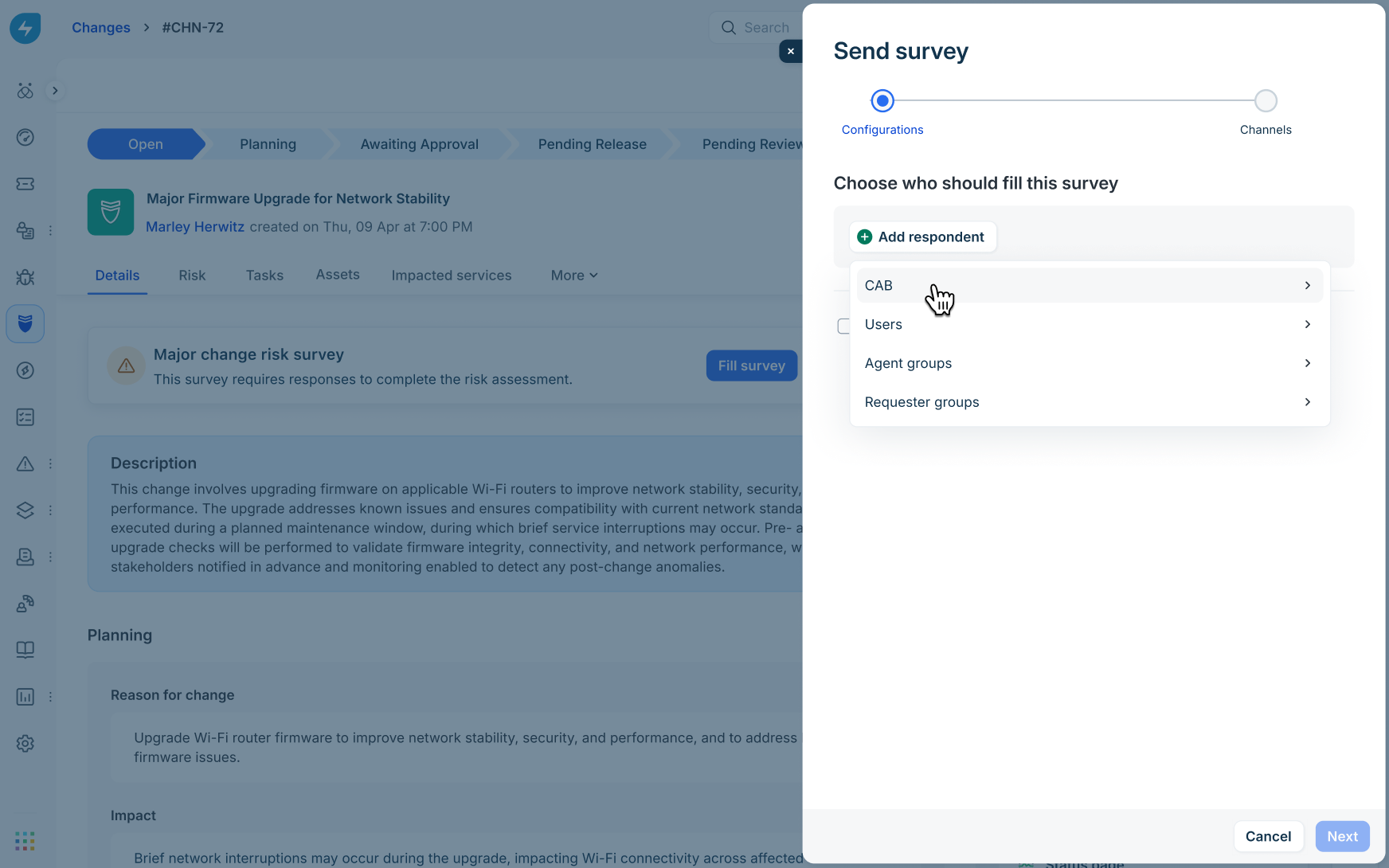
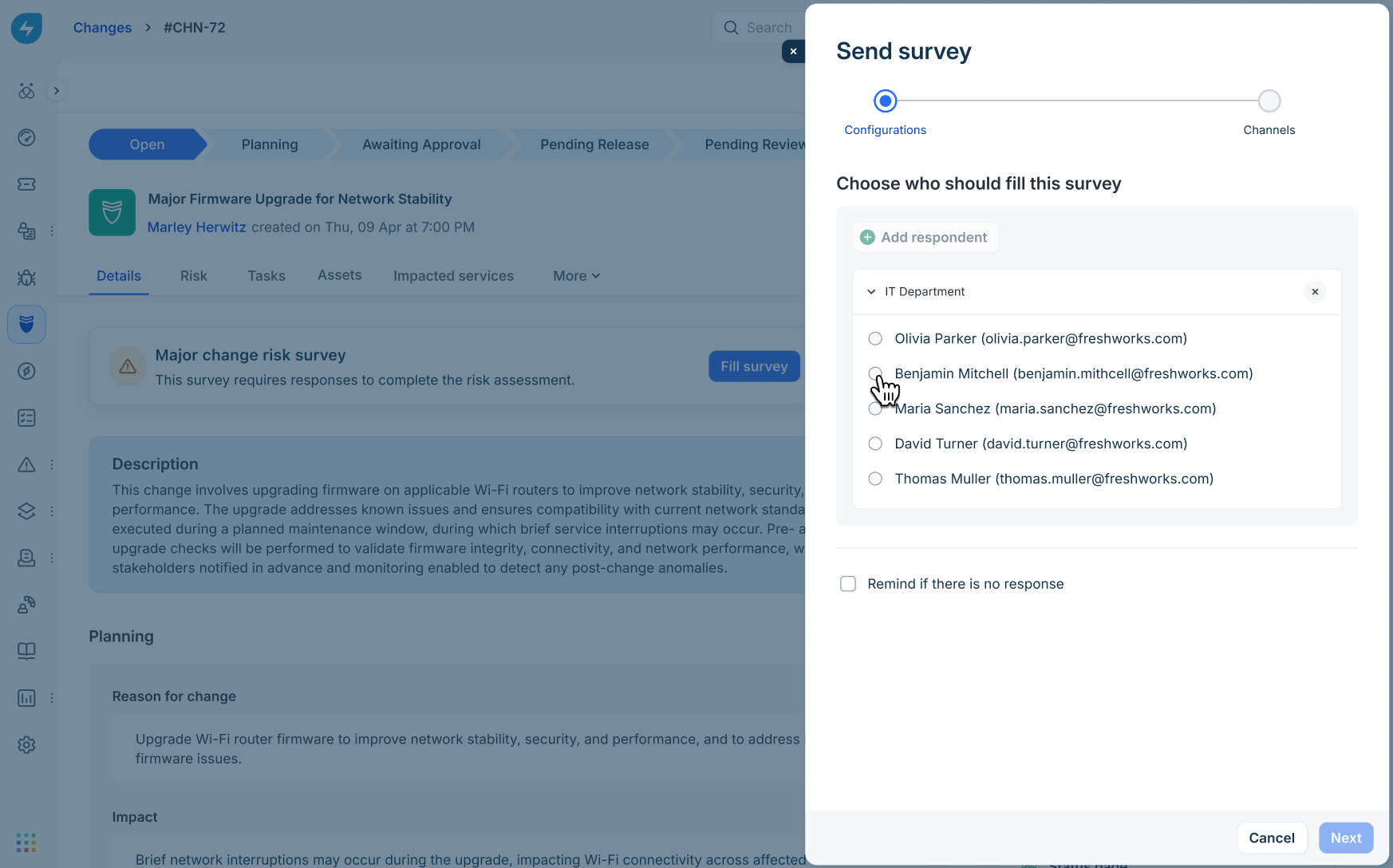
Drill down into specific departments or sub-groups (for example, CAB > IT Department).
Select the radio button next to the target user or group member.
Step 3: Configure reminders
Select Remind if there is no response to enable automated follow-up notifications.
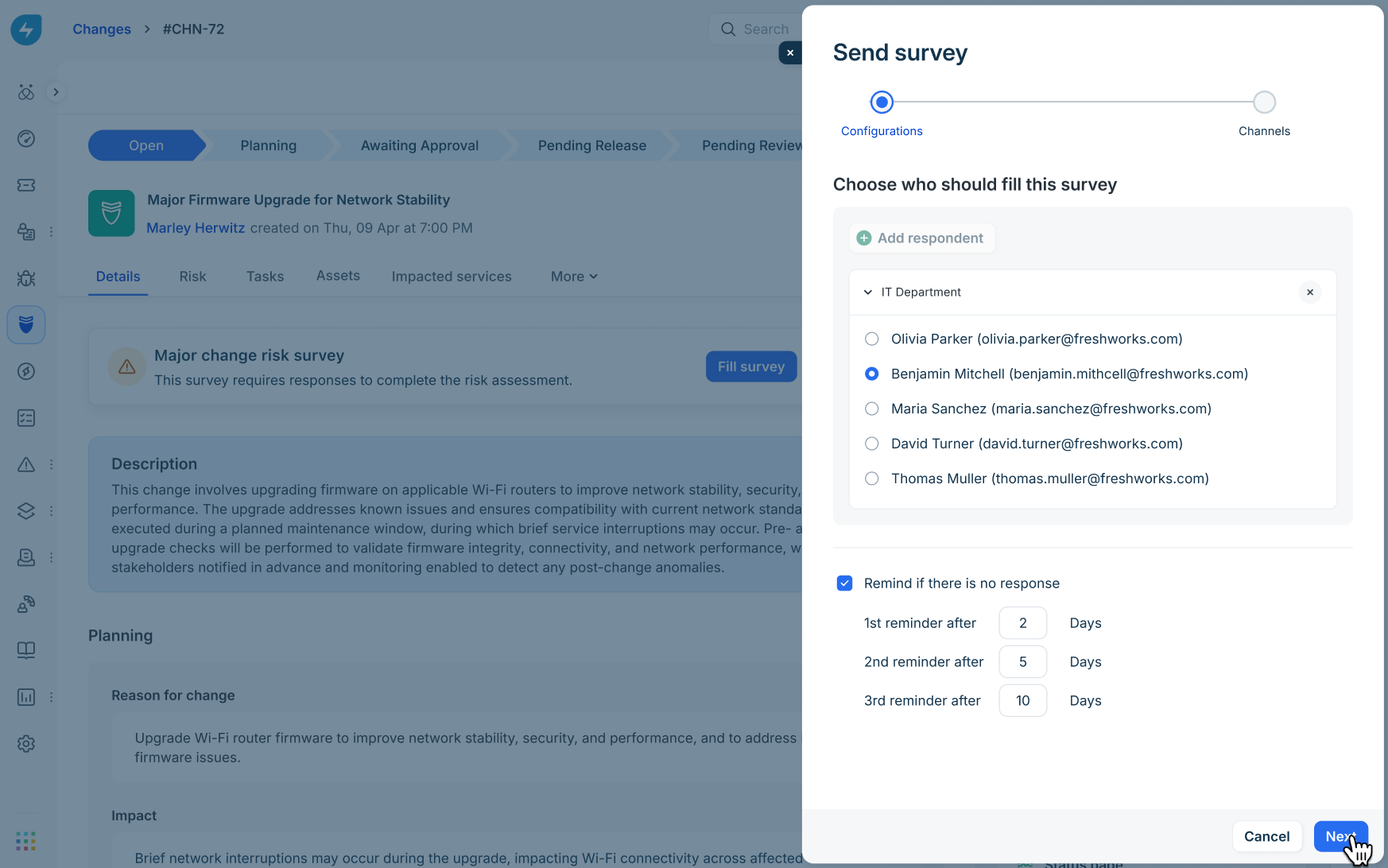
Define reminder intervals (for example, 1st reminder after: 2 Days; 2nd reminder after: 5 Days; 3rd reminder after: 10 Days).
Click Next.
Step 4: Configure delivery channels and send
Under Channels, choose the delivery channels for the alert: Email, Teams, or Slack.
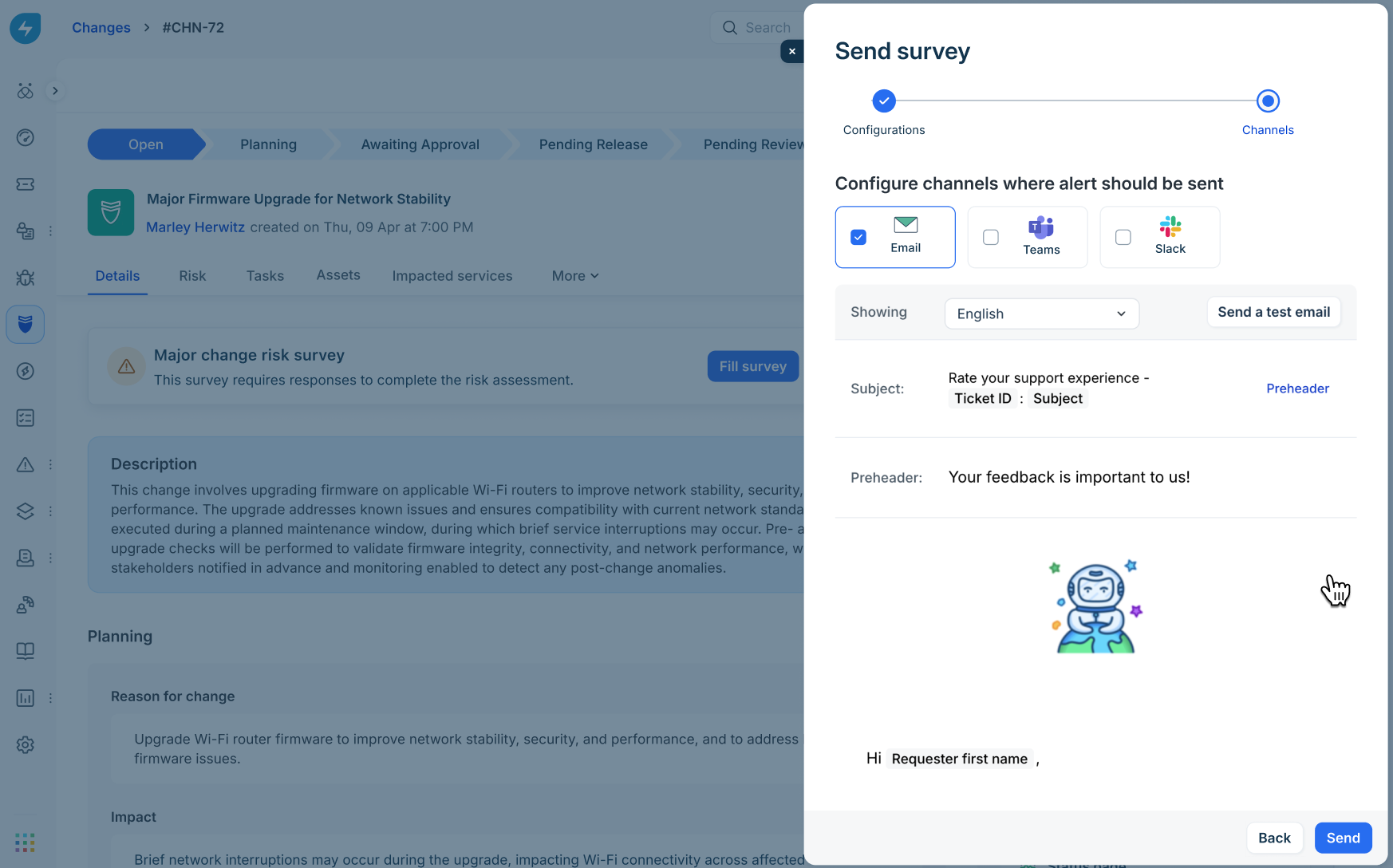
Select the template language, review the message preview, and click Send.
Step 5: Verify delegation state
After sending:
A confirmation message "Survey request sent." is shown.
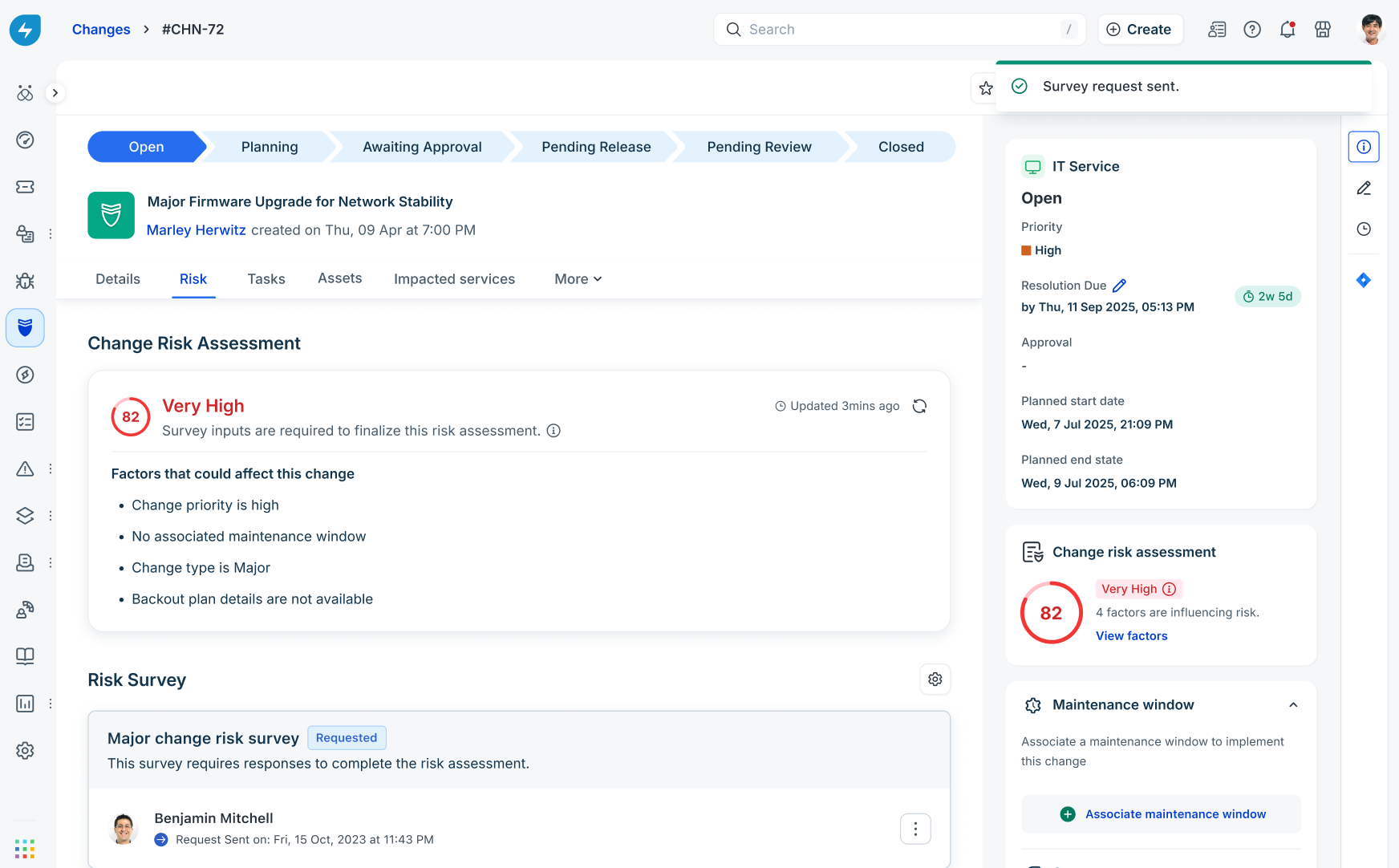
The survey status badge updates to Requested, and the main Fill survey banner hides from the change view.
Assigned agents can complete the survey directly on the change record or via the channel link; requesters without agent permissions complete it exclusively via the channel link.
Cancel pending survey requests
Agents can revoke pending survey requests before a response is submitted.
On a survey card in Requested status, select the three-dot menu next to the recipient.
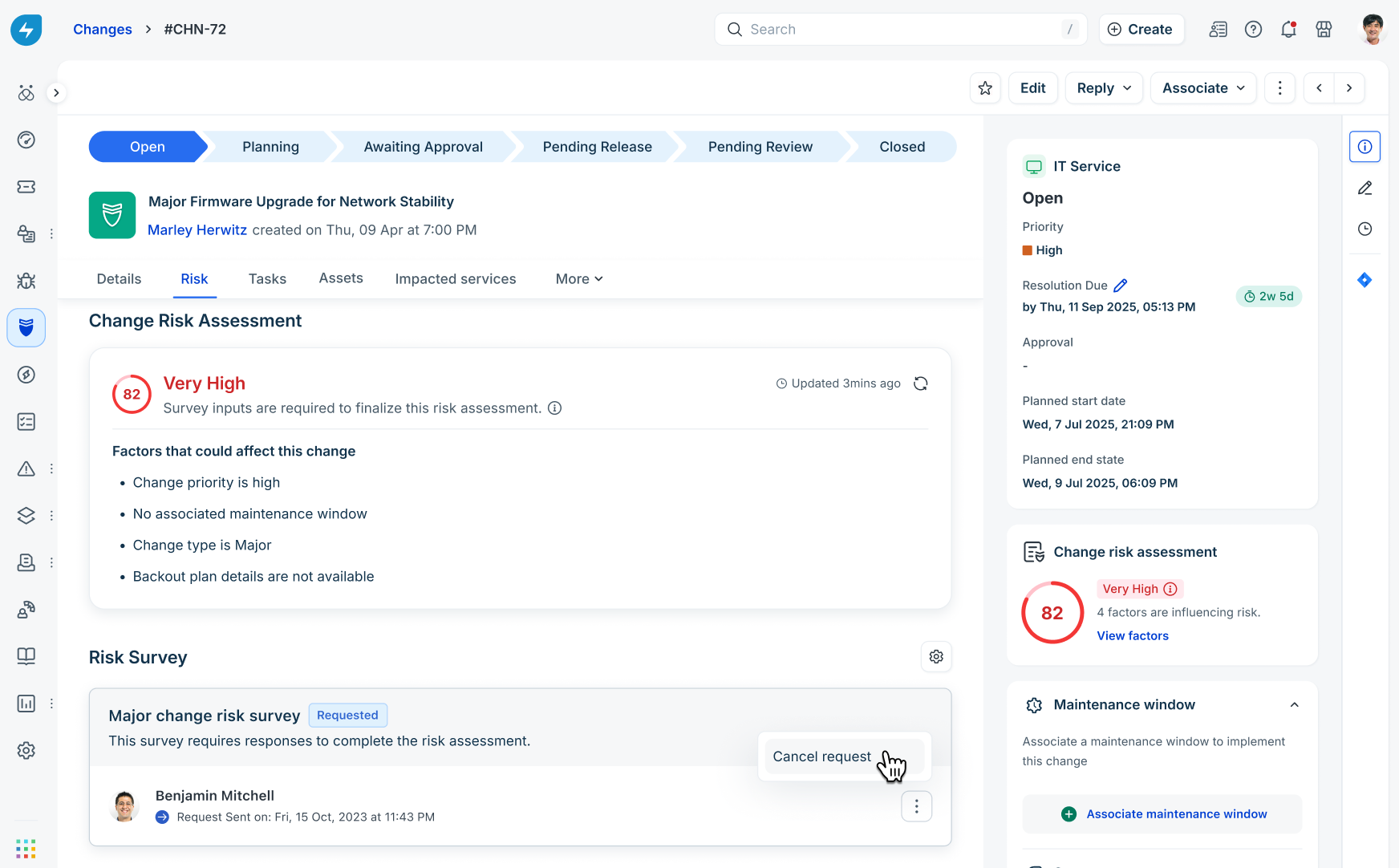
Click Cancel request.
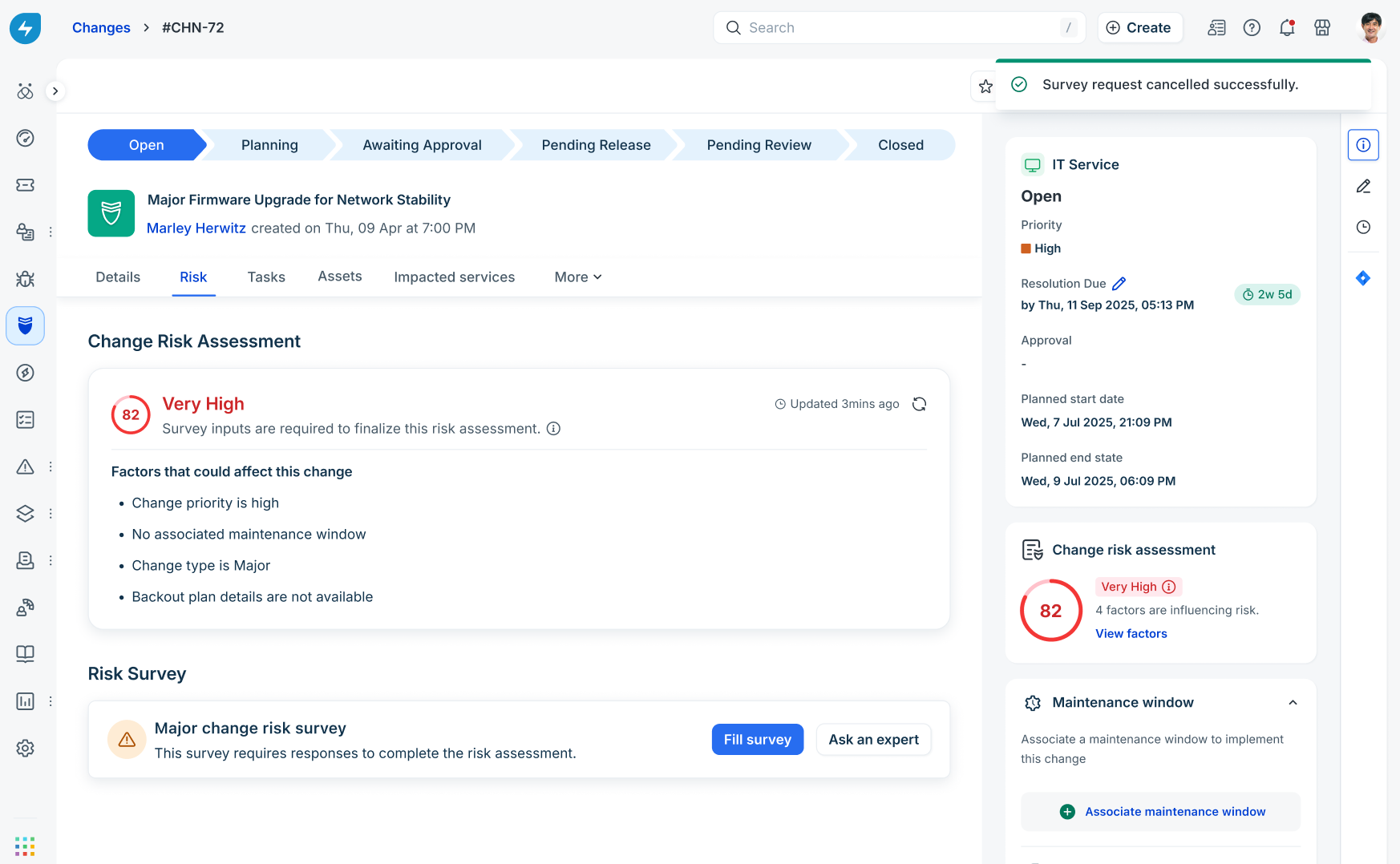
A confirmation banner "Survey request cancelled successfully." is shown, resetting the survey card to display Fill survey and Ask an expert buttons.
Re-trigger completed surveys
When change details shift or an updated evaluation is required, agents can re-trigger a completed survey.
Step 1: Open the re-trigger menu
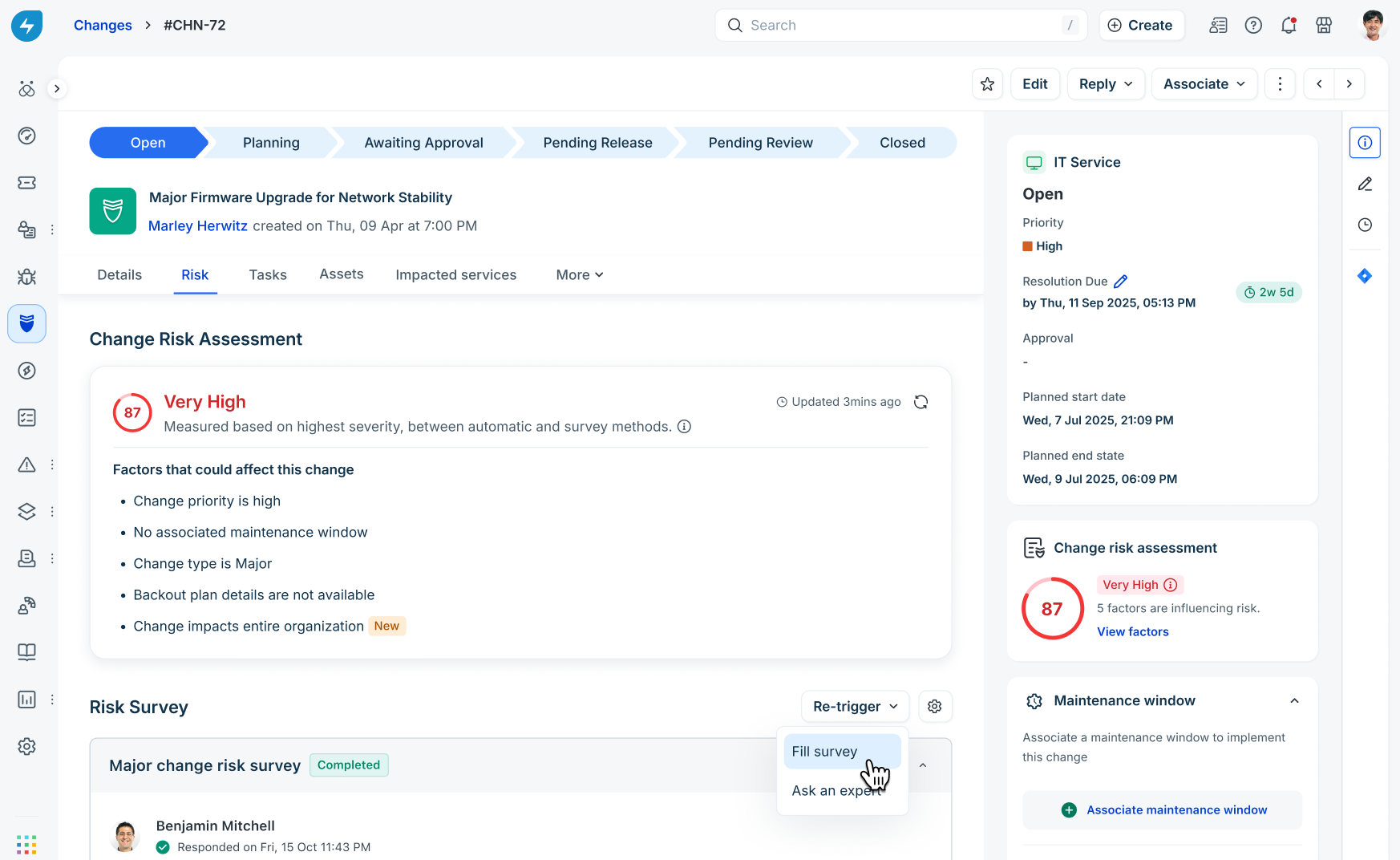
On a Completed survey card, click the Re-trigger dropdown.
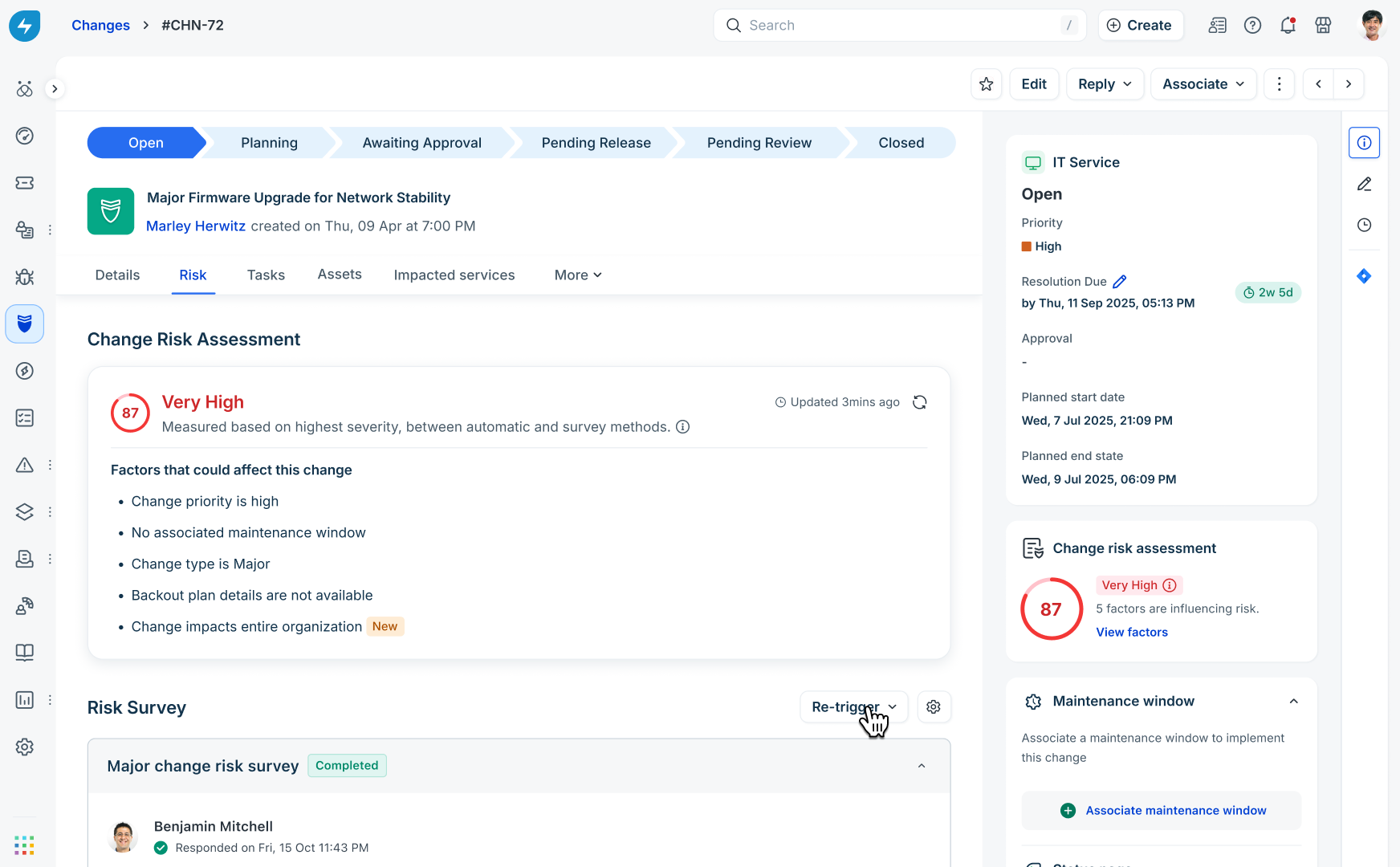
Choose either Fill survey or Ask an expert from the dropdown menu.
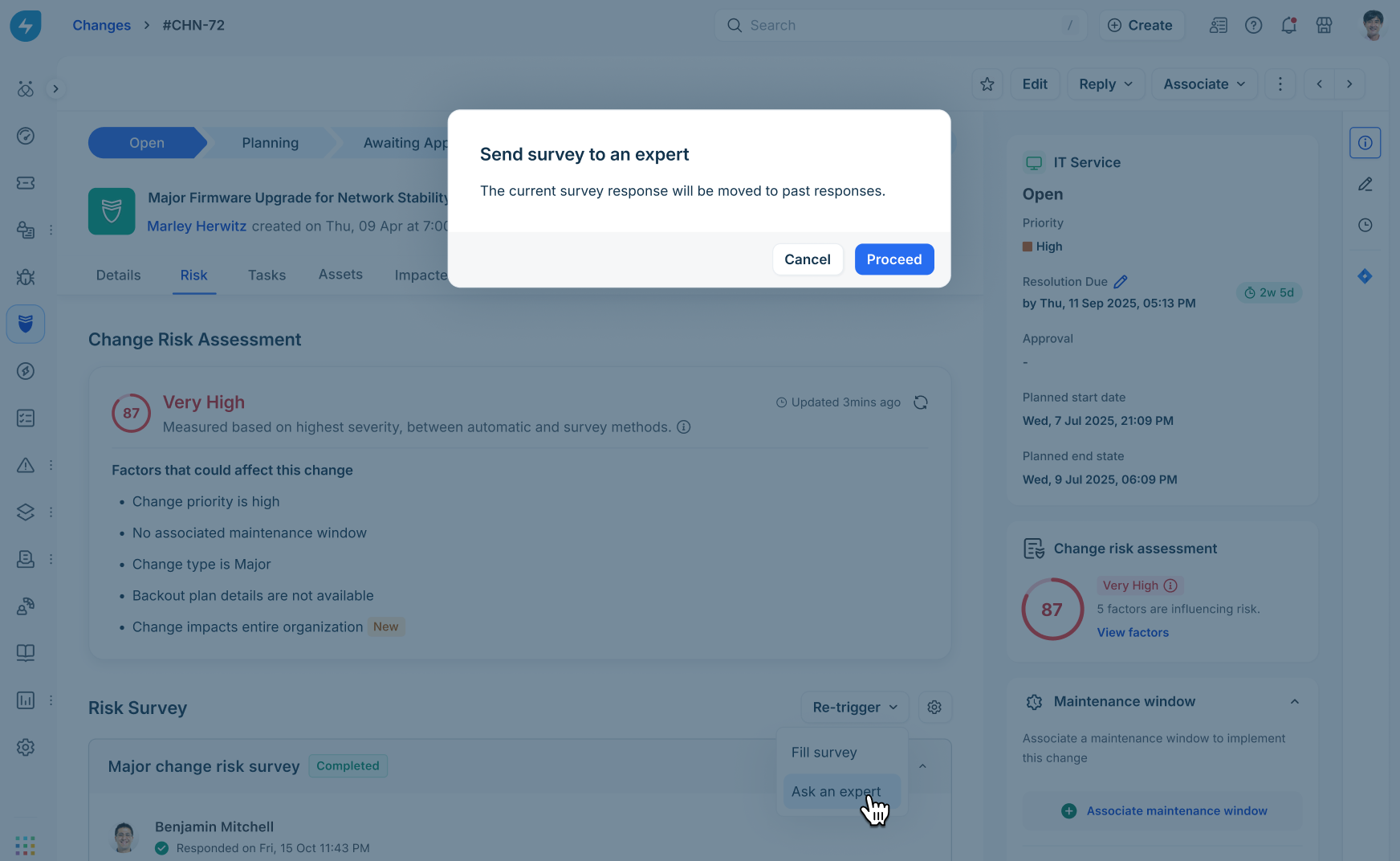
Step 2: Confirm archive and re-initiate
In the confirmation dialog ("Send survey to an expert"), click Proceed. This moves current survey responses to historical archives.
Complete the setup wizard to assign the new survey evaluation cycle.
View past surveys (audit trail)
Freshservice maintains a complete audit trail of all survey iterations for compliance and historical tracking.
Step 1: Open past surveys
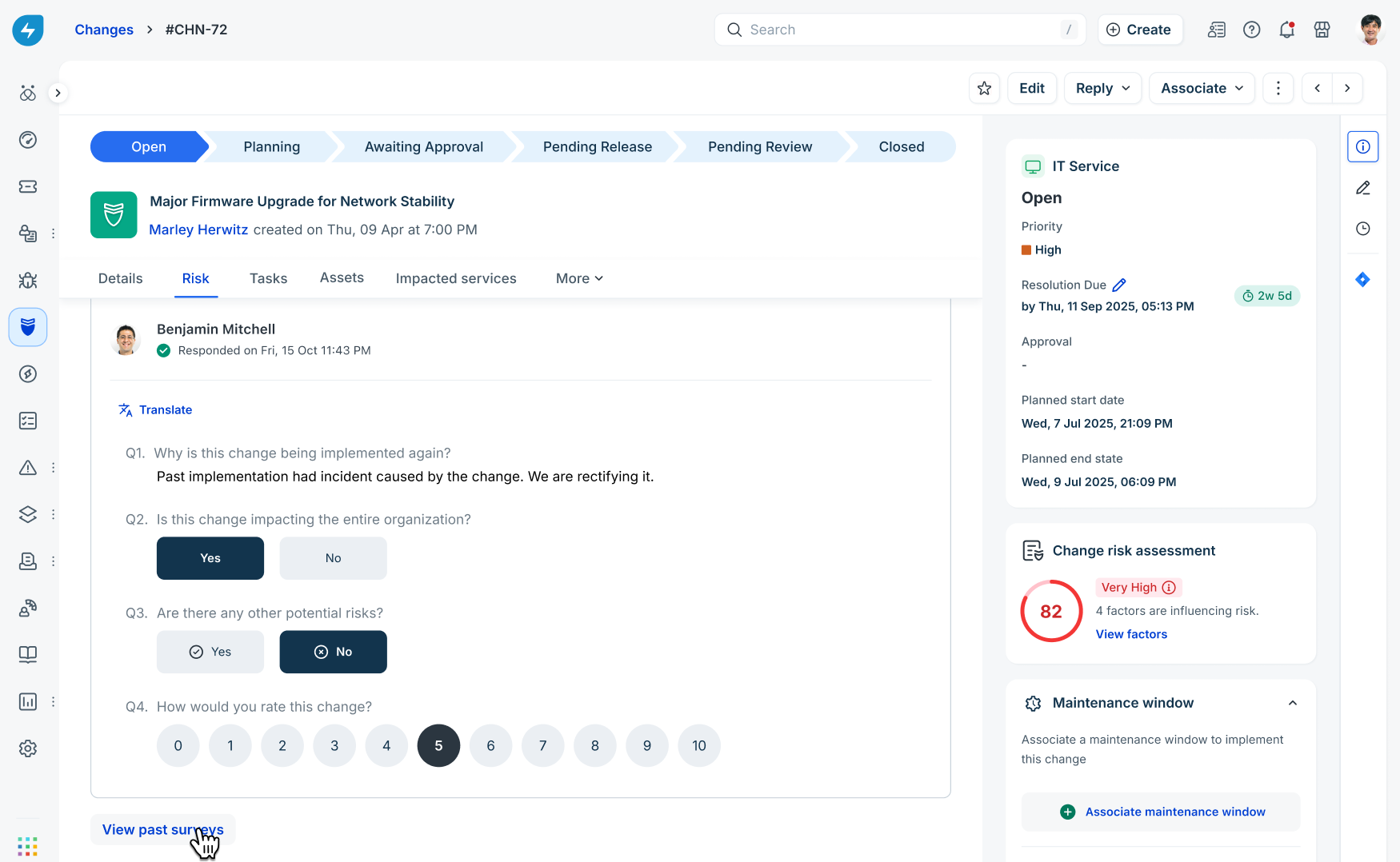
On the Risk tab, click View past surveys at the bottom of the survey section.
Note: View past surveys is shown when a new risk policy replaces an existing policy on the change request which already had the survey responses or when a completed survey has been re-triggered by an agent.
Step 2: Review archived submissions
In the Past surveys side pane, view all historical survey submissions listed by completion timestamp and respondent.
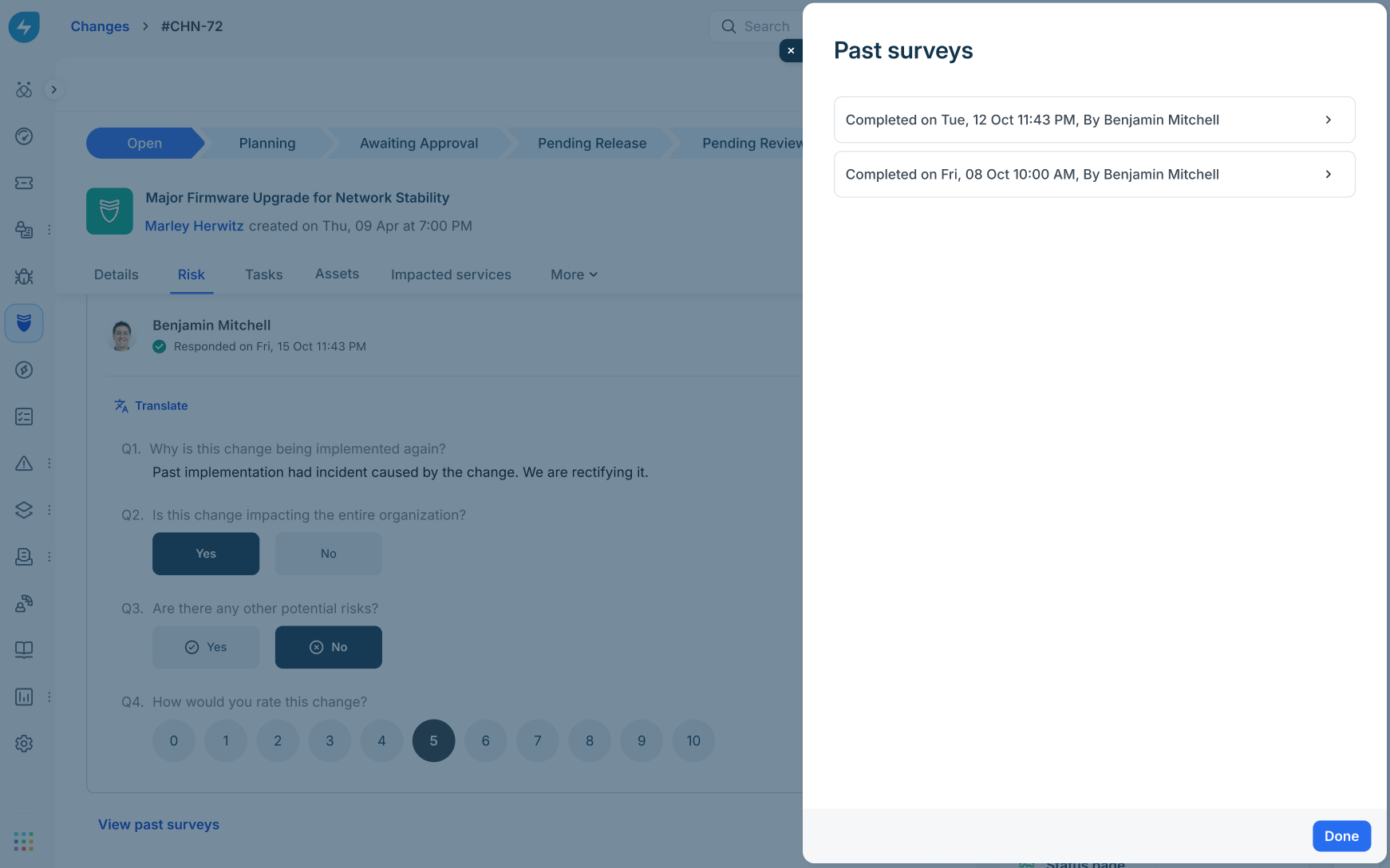
Select a submission entry to open and review the exact answers submitted during that evaluation cycle.
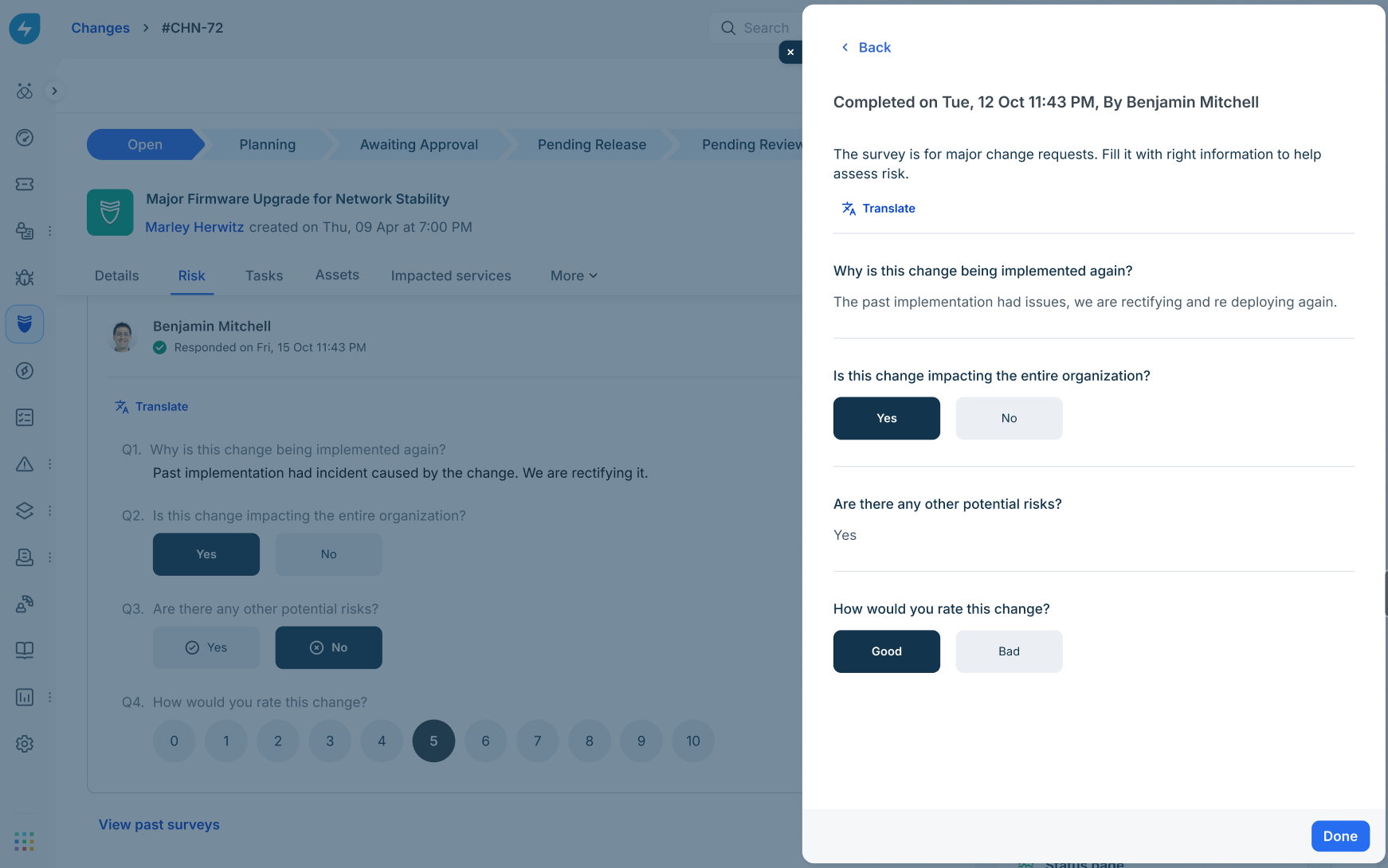
Click Done when finished.
Role-based access control (RBAC) privileges
To perform change risk survey operations, your user role must have the corresponding privileges enabled under Admin > User Management > Roles: