
 Community
 Video Library
 Agent Training
 Freshservice
 Freshdesk
 Freshchat
 Freshcaller
 Freshsales
 Freshteam
 Freshworks Neo
 Freshsurvey
 Freshservice for MSP
 TABLE OF CONTENTS
- Overview
- Prerequisites
- Configure risk policies
- Define global risk levels
- How the risk score is calculated
- How risk policies are attached and evaluated in change requests
- Create a new risk profile
- Create a new risk survey
- Business rules for change risk
- Impact on change requests
- Sandbox support
Overview
The Change Risk Policy feature in Freshservice enables organizations towards data-driven change risk assessment through automated, policy-based scoring, which ensures that every change request is evaluated consistently against predefined parameters/risk profiles and manual surveys.
By combining automated insights (Risk Profiles), stakeholder feedback (Risk Surveys), you can ensure that every change is evaluated consistently to drive informed change advisory board (CAB) decisions. A risk policy also acts as the primary engine that decides which assessment method to apply when a Change is created based on the Risk Profile and Risk Survey templates configured in the Risk Policy.
Note: Risk policies will override the default "Risk" field in change requests during later evaluations if the newly calculated risk level differs from the existing value.Prerequisites
Ensure your Freshservice account is on the ‘Pro’ or ‘Enterprise’ plan to avail this feature.
Ensure you have administrator privileges to set up change risk policies on the account/global level or workspace level. Note that, by default, Account admin and Workspace admin roles will have access to this feature.
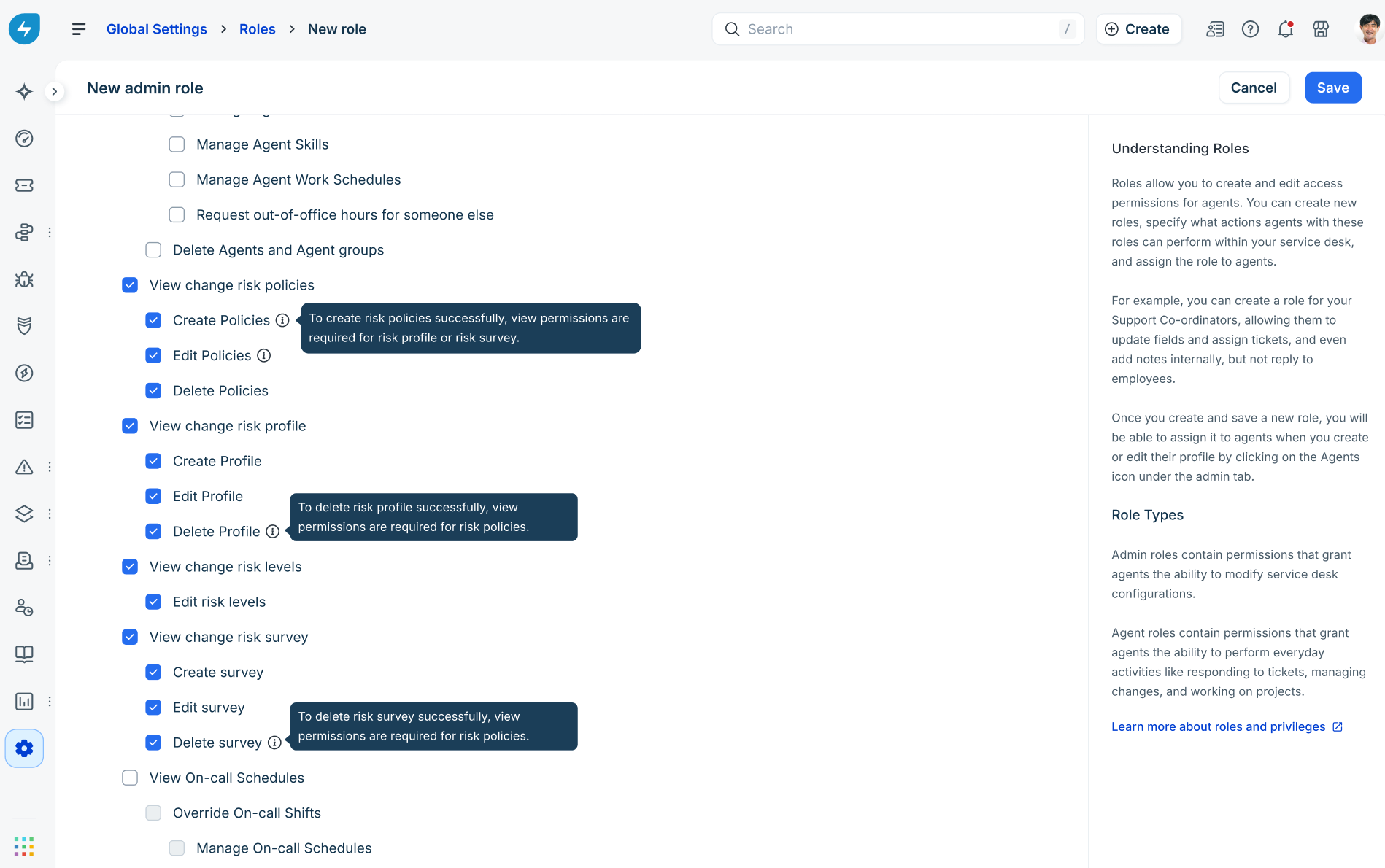
Ensure you have Create, Edit, and Delete permissions enabled for change risk policies, profiles, and risk levels.
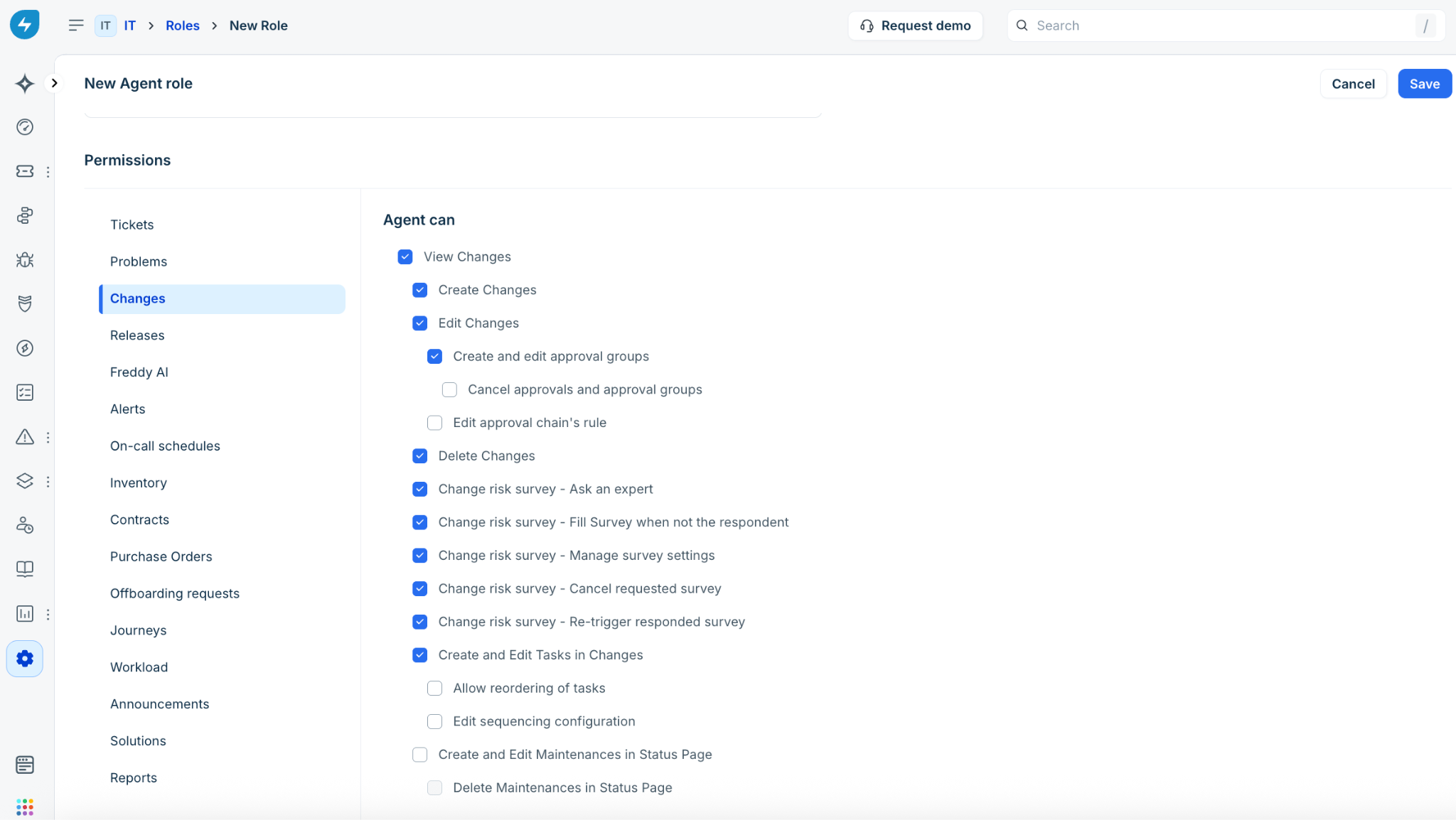
Ensure you have the necessary permissions related to changes configured for agent roles.
The following screens illustrate the relevant Admin and Agent role permissions related to change management and change risk assessment.
Admin role
Agent role
Note: The Risk Surveys (qualitative assessments) capability is planned for a future release in Q3 2026 (actual release timelines will be communicated through the monthly release notes). Therefore, the associated permissions will be applicable after the risk surveys release.
Configure risk policies
A change risk policy defines the specific assessment method required for a change request.
Admins: Admins can create multiple policies triggered by conditions like Change Type or Priority (for example, "Server Maintenance" vs. "Software Update").
End users: The system automatically applies the relevant policy during change creation to display the necessary assessment steps.
To configure a change risk policy, follow these steps:
Log in to your Freshservice account.
Go to Admin > Service Management > Change Management, and select Change Risk Policy.
Note: You can set up change risk policy both at the Global Settings level or at a specific Workspace settings level (for example, IT).
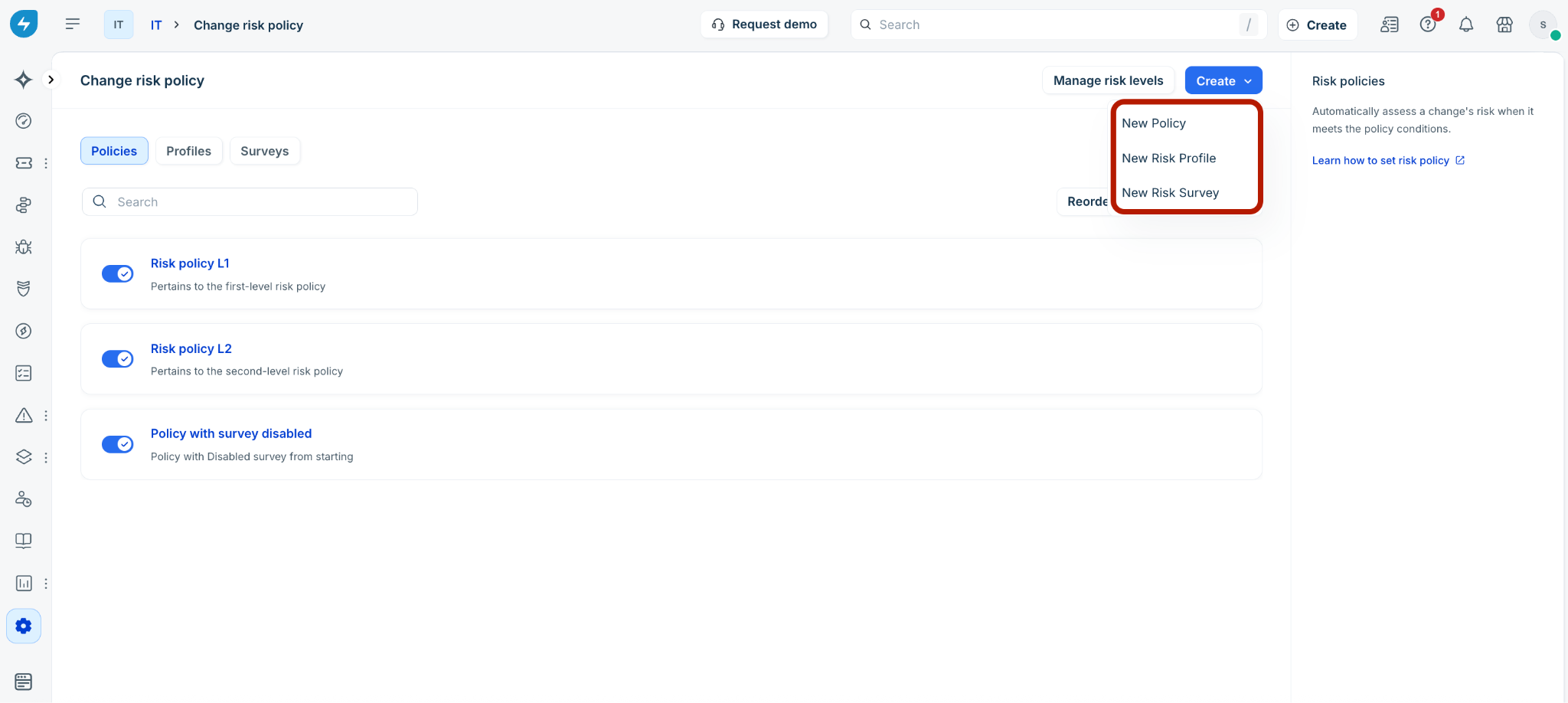
On the Change risk policy page, select Create and choose New Policy from the dropdown menu.
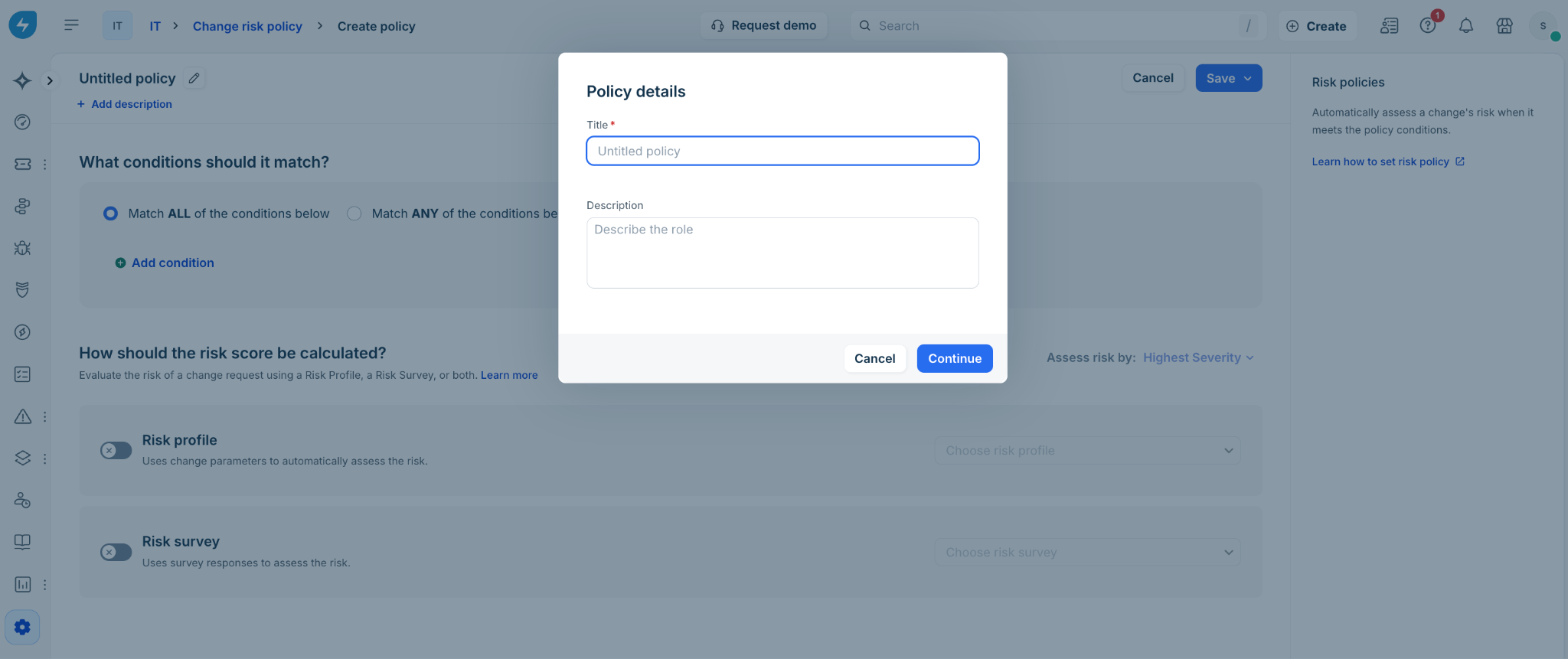
Select the Edit icon (pen icon) next to Untitled policy. In the Policy details dialog, enter a Title and a Description. Then, select Continue.
Under the What conditions should it match? section, define when this policy should trigger.
Select Match ALL or Match ANY.
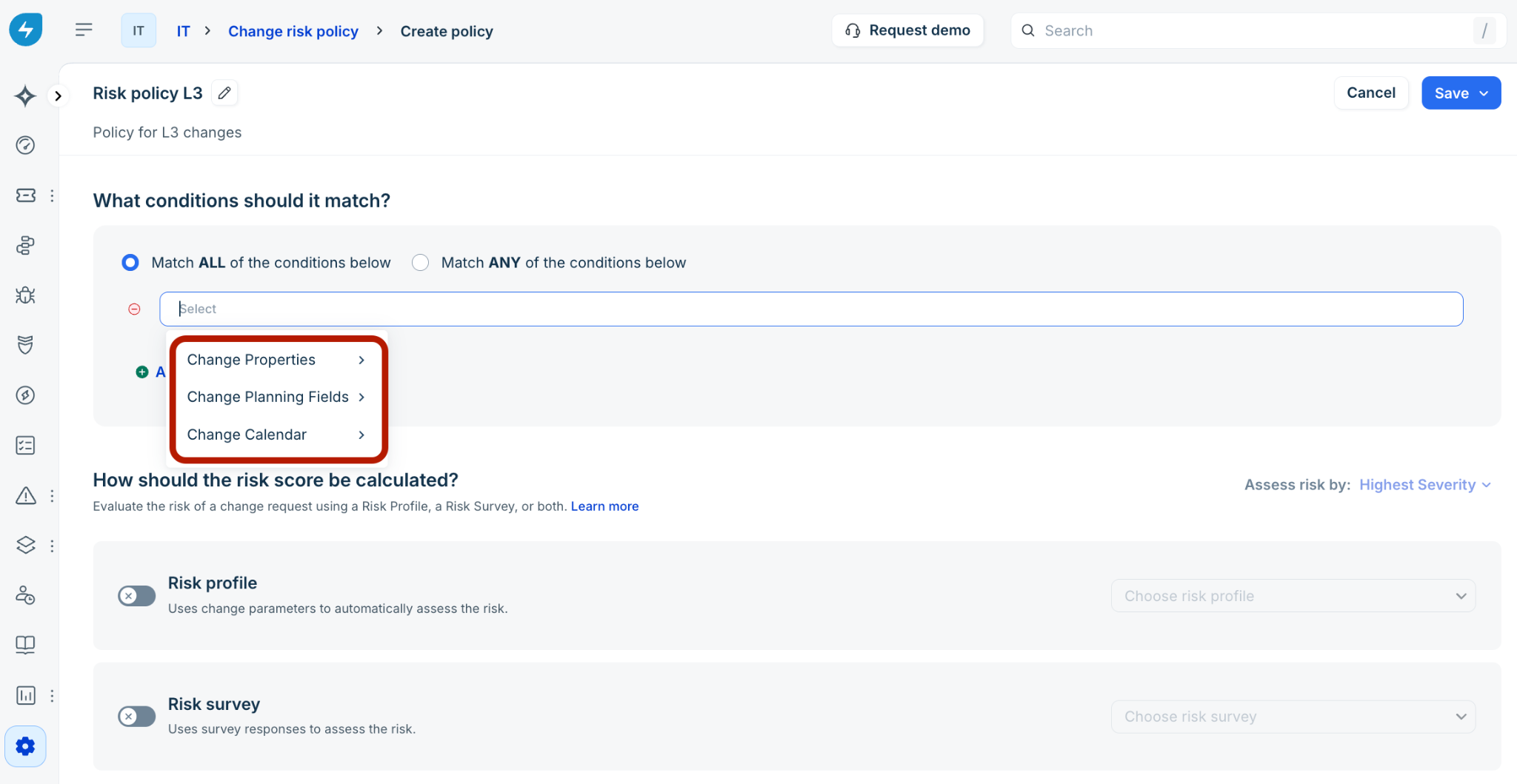
Select Add condition to choose from Change Properties, Change Planning Fields, or Change Calendar data. Note that you can add multiple conditions.
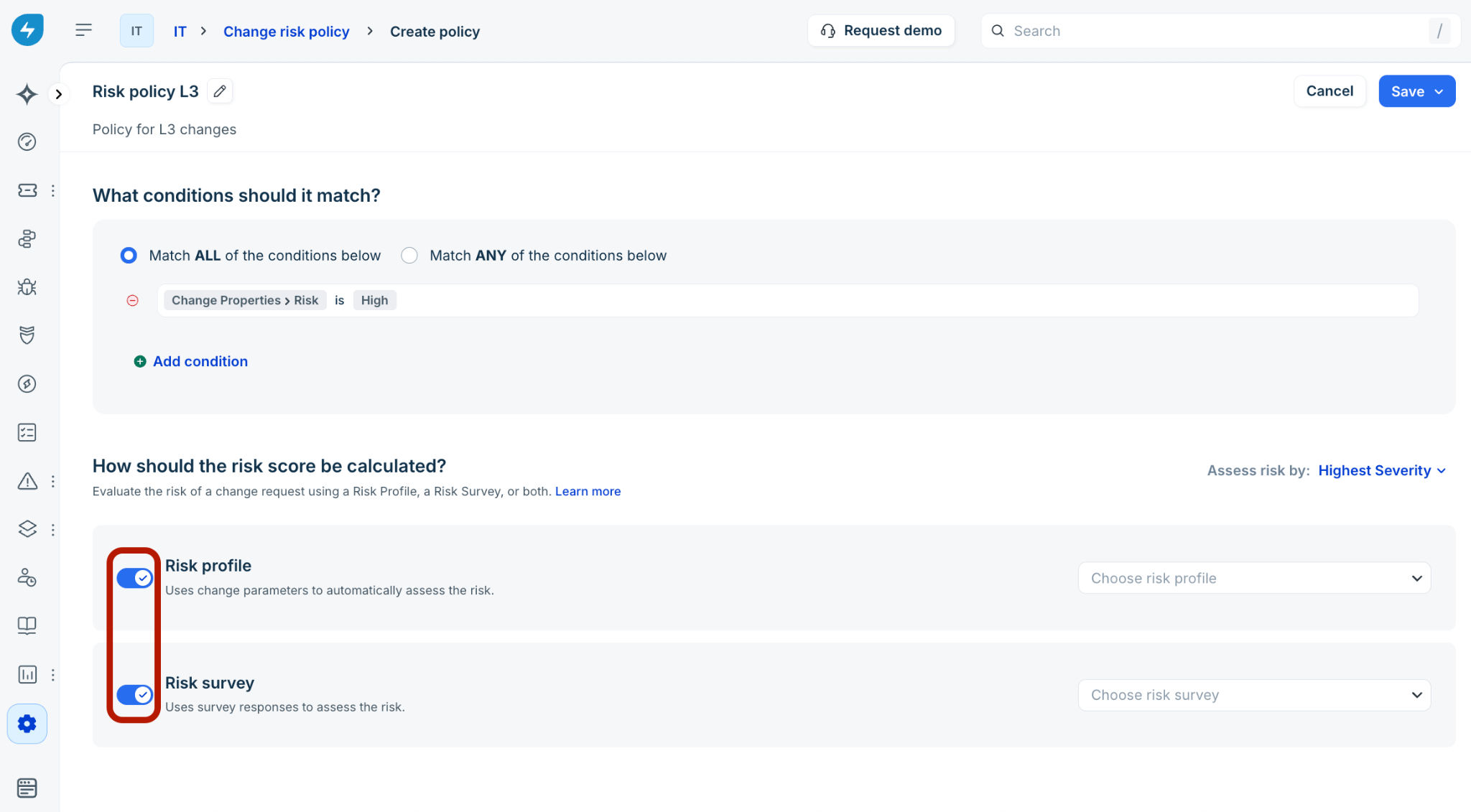
Toggle the Risk profile and/or Risk survey options to enable them for this policy.
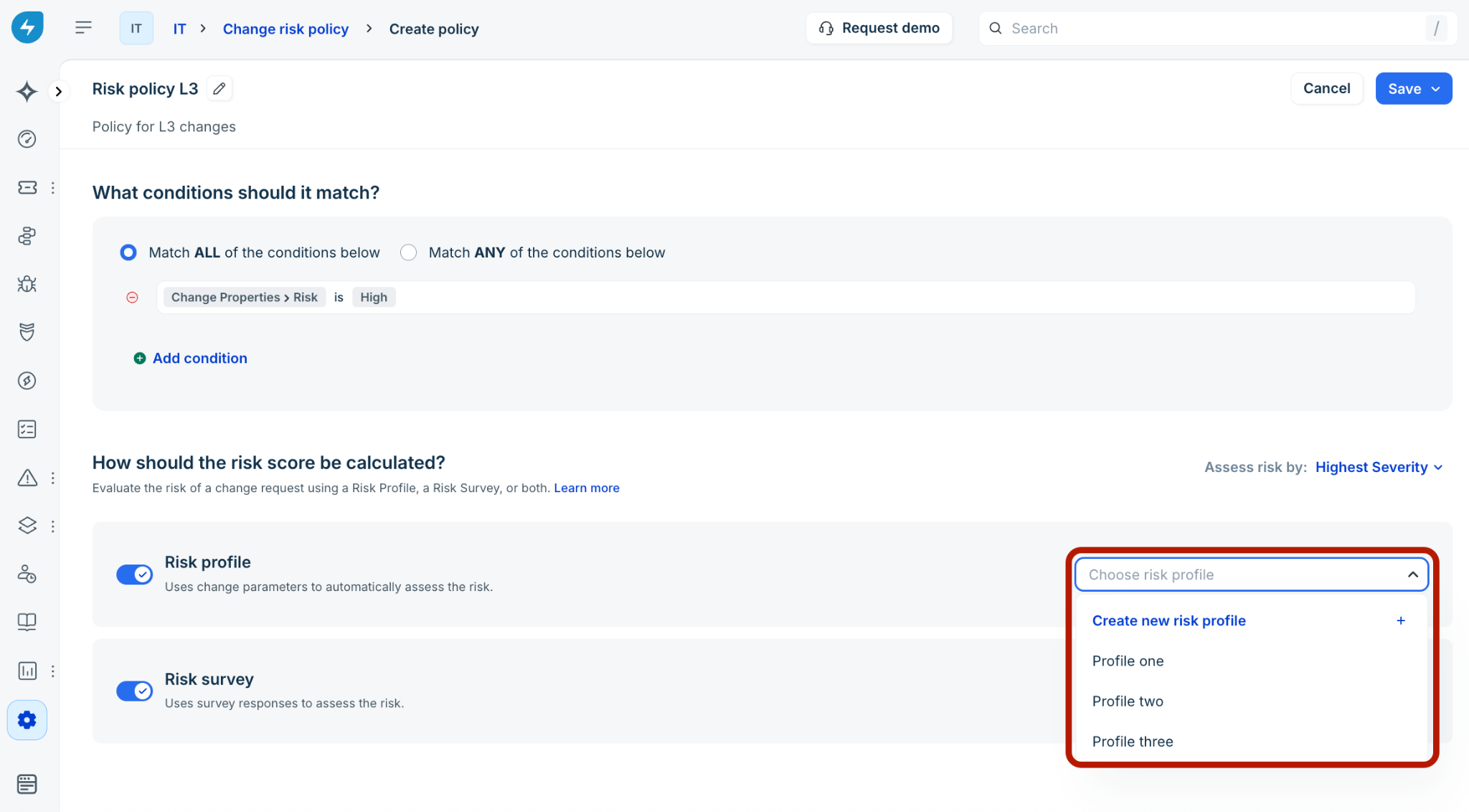
(For risk profile) Select an existing profile from the dropdown or select Create new risk profile. Use the View profile link for an existing profile to review details in a new tab. Learn more about configuring risk profiles in the "Create a new risk profile" section.
(For risk survey) Select an existing survey from the dropdown or select Create new risk survey to design a new questionnaire for stakeholders. Use the View survey link for an existing survey to review details in a new tab. Learn more about configuring risk surveys in the "Create a new risk survey" section.
Note: The Risk Surveys (qualitative assessments) capability is planned for a future release in Q3 2026 (actual release timelines will be communicated through the monthly release notes).
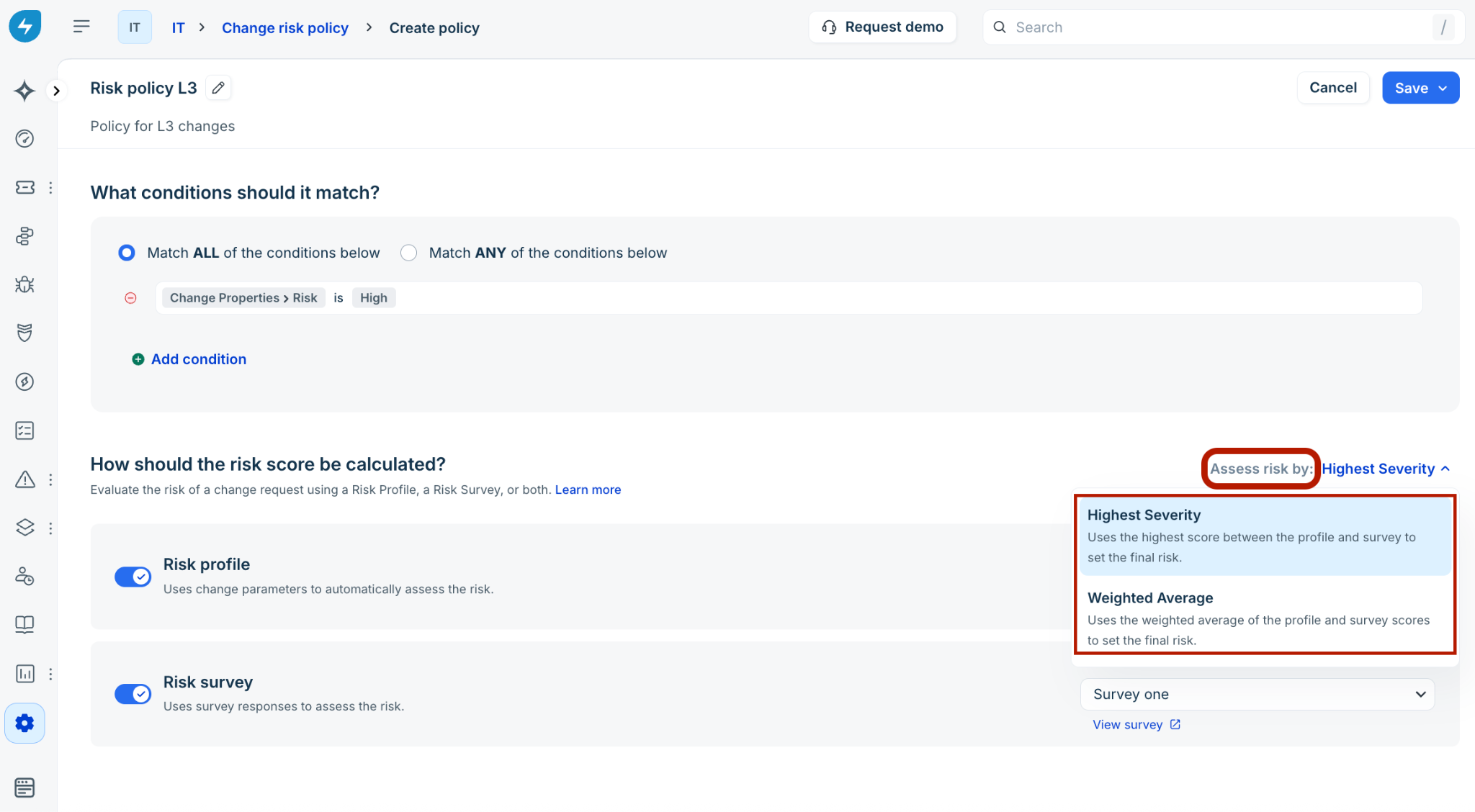
In the Assess risk by dropdown, select how the system should reconcile multiple scores.
Highest severity: The system applies the highest score recorded between the profile and the survey.
Weighted average: This allows you to assign a percentage-based importance to each method. If selected, enter the Weight distribution (for example, 70% Profile, 30% Survey). The total must equal 100%. To understand how computation logic works for this method, see Risk profile, risk survey, and overall risk score computation.
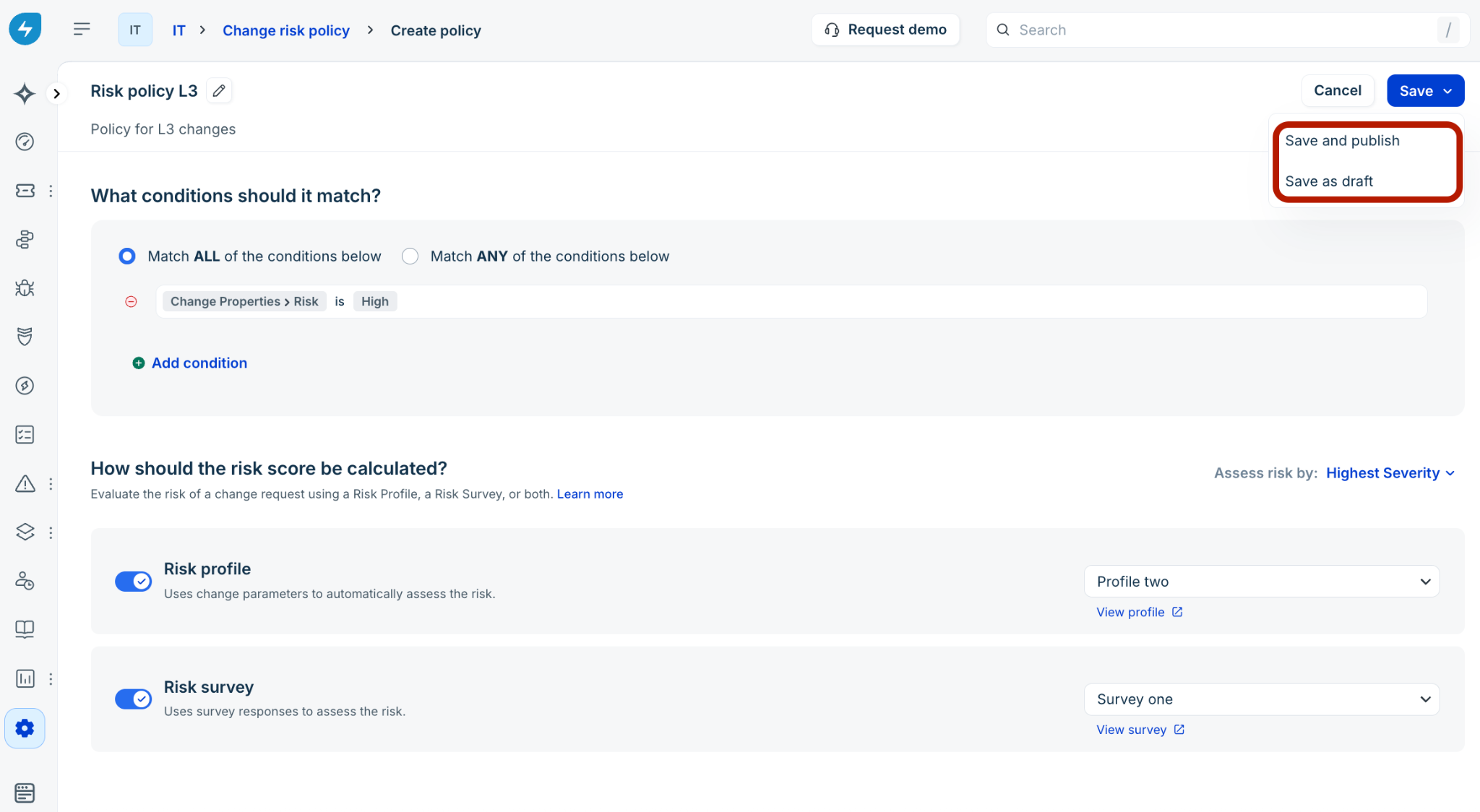
To finalize your policy, select the Save button, then select:
Save and publish: Activates the policy immediately for live Changes.
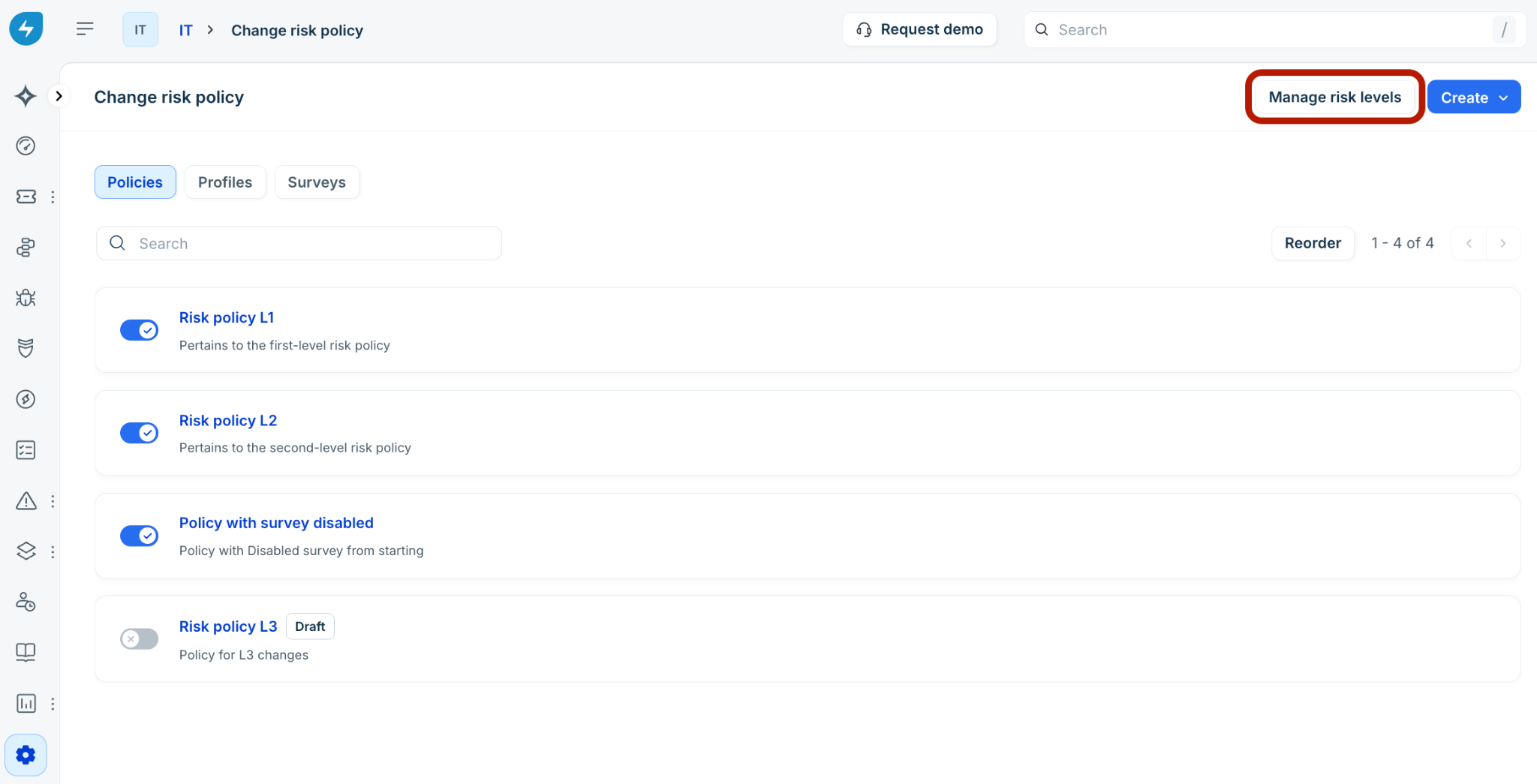
Save as draft: Saves your work without activating it. Draft policies are marked with a Draft badge in the list view.
Organize the policy list
Search: Use the Search bar in the Policies tab to find specific policies by name.
Toggle status: Use the toggle next to any policy to enable or disable it instantly.
Reorder priority: If a Change request matches multiple policies, the system follows the list order. Select Reorder and use the drag-and-drop handles to move high-priority policies to the top. The first matching policy from the list (top-down order) will be applied.
Clone or delete policies
Clone: Hover over a policy in the Policies tab, and select the Clone icon to clone a policy. Alternatively, select an existing policy in the Policies tab. Then, use the Clone option from the ellipses icon next to the policy name.
Delete: Hover over a policy in the Policies tab, and select the Delete icon to delete a policy. Alternatively, select an existing policy in the Policies tab. Then, use the Delete option from the ellipses icon next to the policy name.
Define global risk levels
Risk levels translate numerical scores into readable categories for agents and end-users.
On the Change risk policy page, select Manage risk levels.
In the side panel, define the numerical ranges for your organization:
Low: (for example, 0–25)
Medium: (for example, 26–50)
High: (for example, 51–75)
Very High: (for example, 76–100)
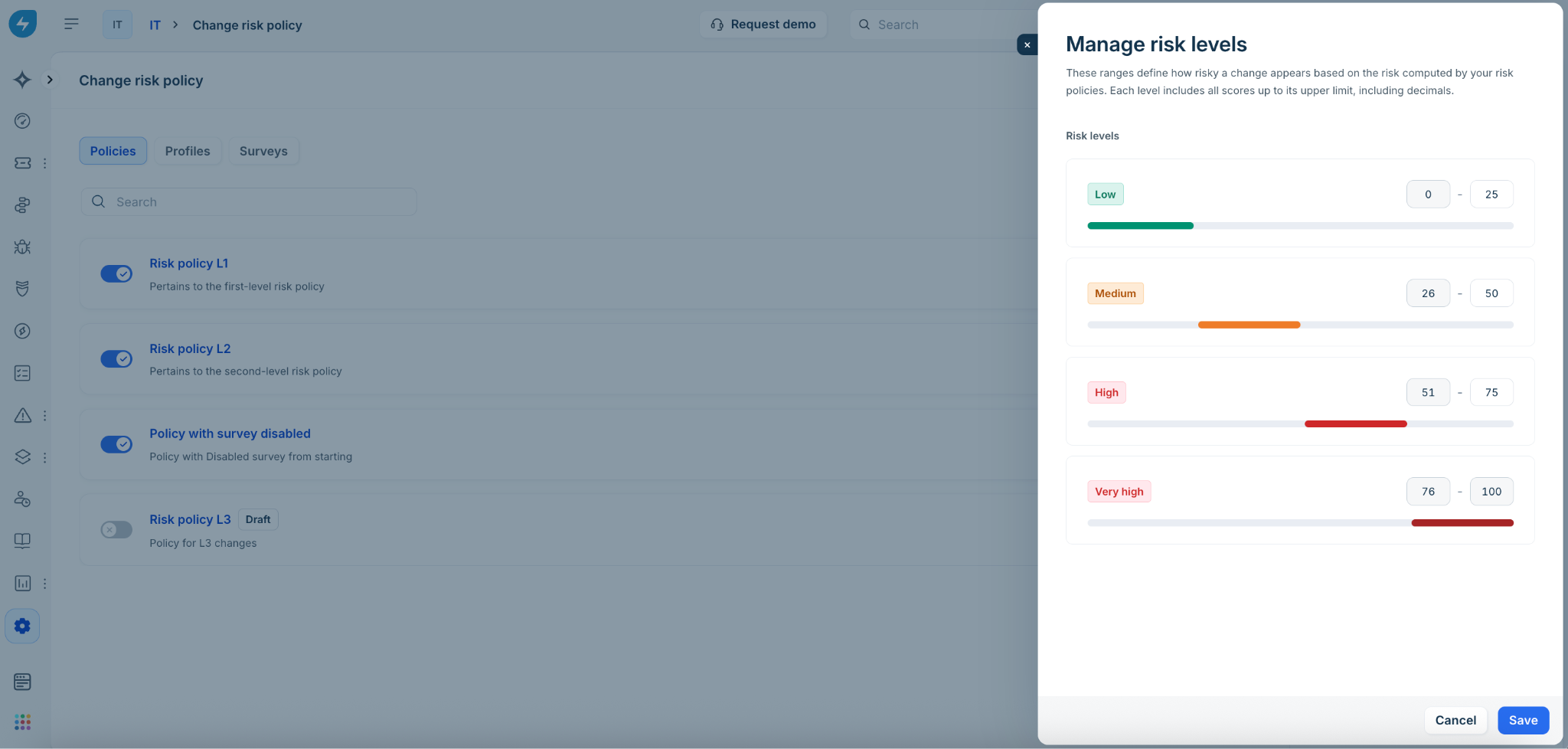
Select Save.
Note: These levels appear on the Change request sidebar, providing a visual indicator of the risk associated with the request.
How the risk score is calculated
Admins can choose how the final score is derived when both a Risk Profile and a Risk Survey are used:
Highest severity: The system looks at both scores and takes the higher one (conservative approach).
Weighted average: You can assign a percentage of importance to each (for example, 70% automated Profile data and 30% manual Survey responses). For information on how the computation logic works in the weighted average method, see Risk profile, risk survey, and overall risk score computation.
How risk policies are attached and evaluated in change requests
Risk policies are evaluated in ascending order. The first policy whose conditions match the change request is applied.
Risk evaluation continues only while the change request satisfies the conditions defined in the applied risk policy. To avoid unexpected behavior, ensure that conflicting policies are not configured.
Whenever a change request is updated, risk is re-evaluated automatically.
To restrict risk evaluation to specific stages of the change lifecycle, use the Status field within the policy conditions. If a status field is not configured in the policy conditions, then risk evaluation begins from the time the change request is created.
Risk evaluation stops once the change request reaches the Closed status.
Create a new risk profile
A change risk profile is the core of automated scoring, using system data and specific parameters to calculate a numerical risk value. The risk profile utilizes scoring rules and weighted attributes to evaluate the specific risk level associated with a change.
Parameters: Evaluates factors like maintenance window association, blackout window overlap, completeness of change documentation, or blackout periods.
Benefit: Delivers an objective, machine-calculated risk score prior to human review.
To create a risk profile, follow these steps:
Go to Admin > Service Management > Change Management, and select Change Risk Policy.
In the Change risk policy page, select the Profiles tab.
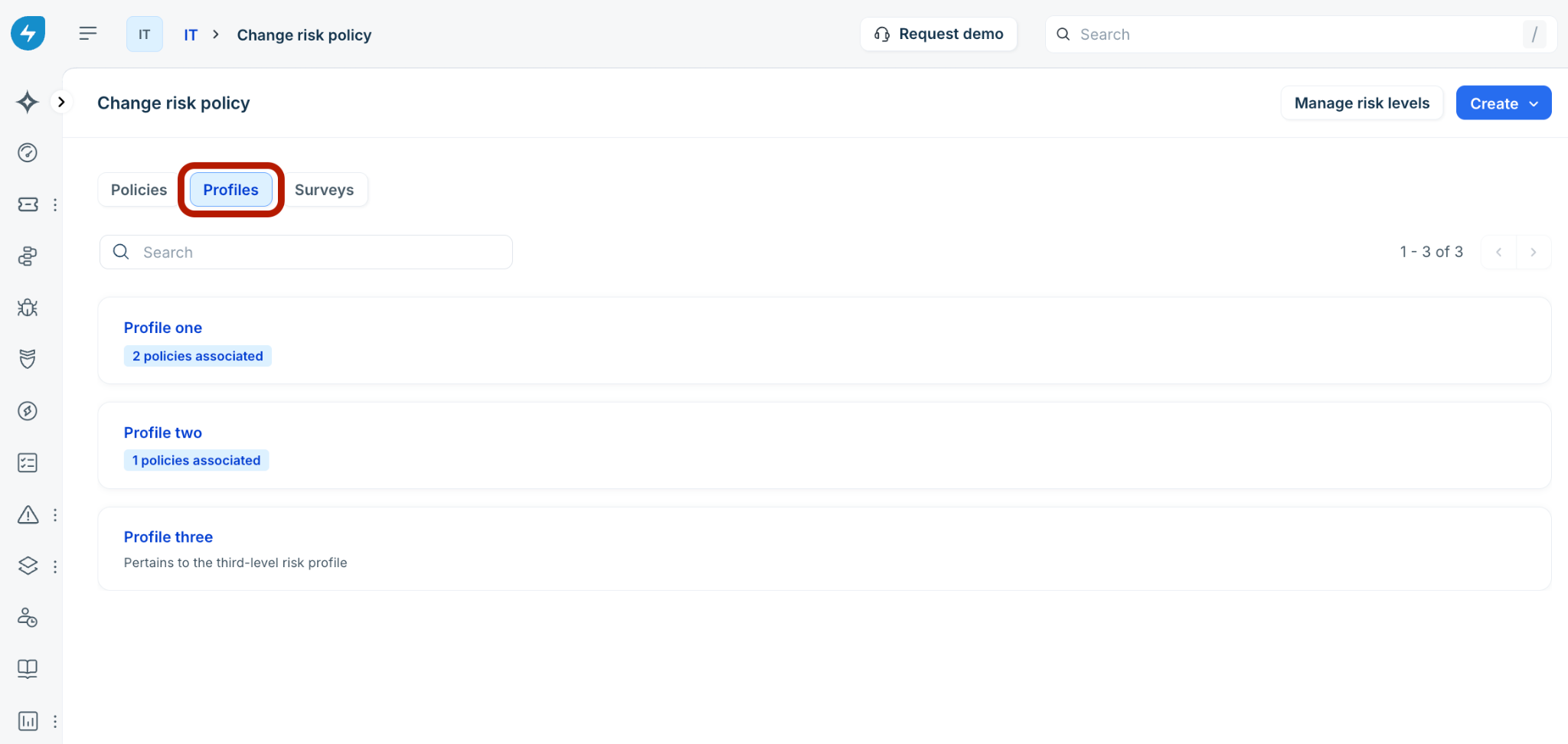
Select Create and choose New Risk Profile from the dropdown menu.
Select the Edit icon (pen icon) next to Untitled profile. In the Profile details dialog, enter a Title and a Description. Then, select Done.
On the profile configuration page, select Add parameter.
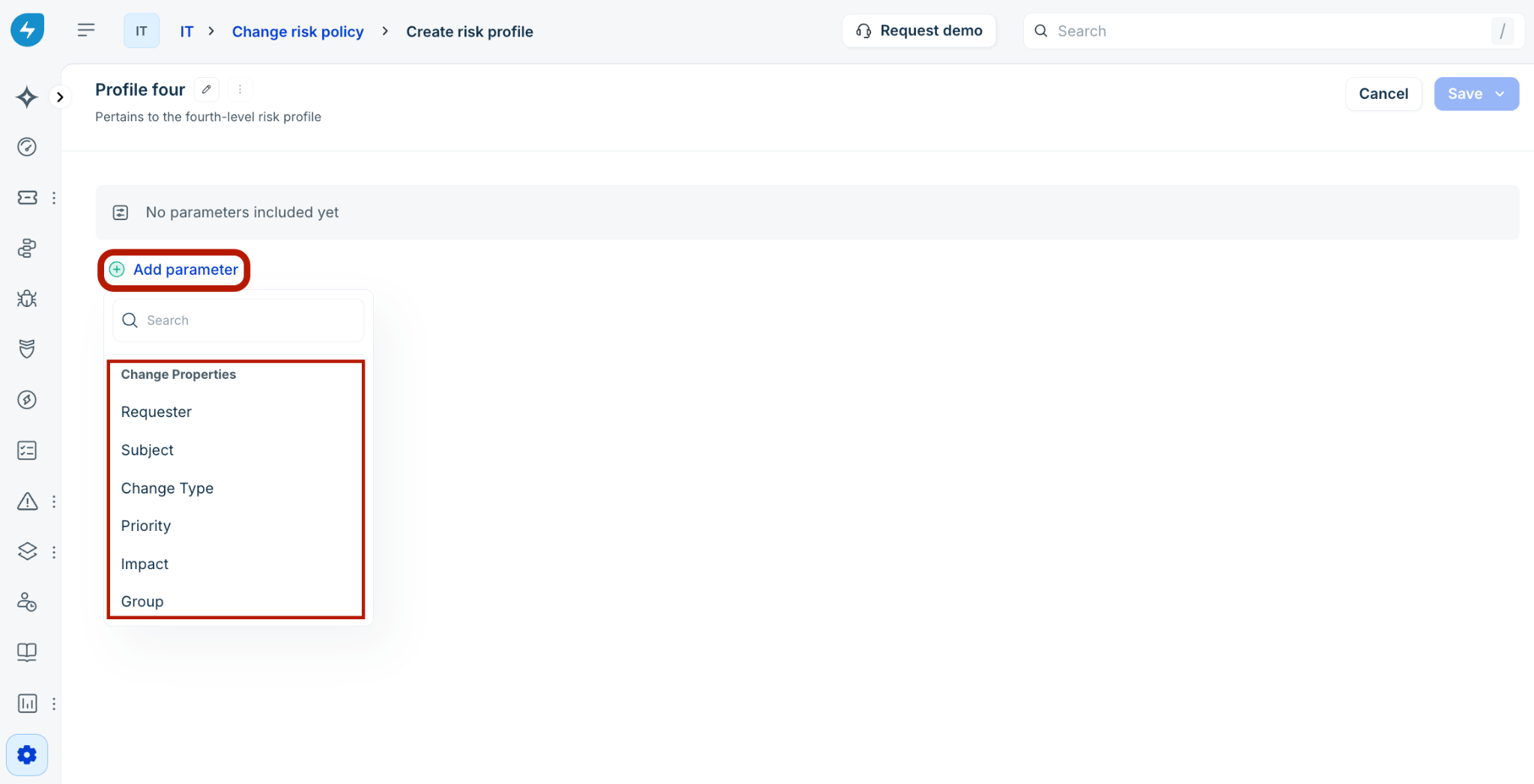
Choose a property from the dropdown list (for example, Priority). Once a parameter is added, select the Add rule option next to it.
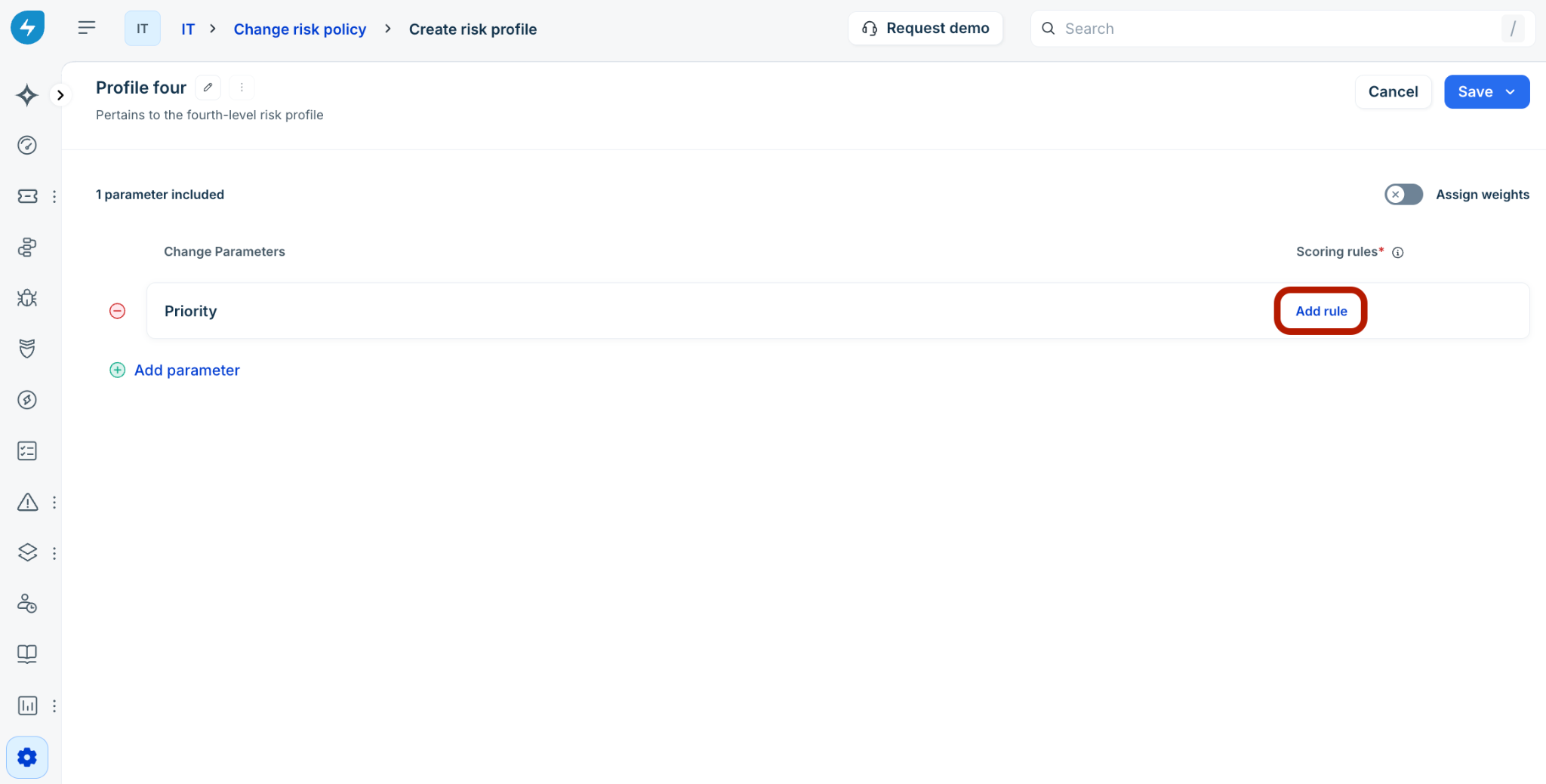
Note: Scoring rules determine the numerical score (0-10) a parameter contributes to the risk profile based on specific conditions.
In the Score for [Parameter Name] pane on the right, define your condition:
Select an operator (for example, is, is not, includes, is empty).
Select a specific value (for example, High).
Assign a Score from 1 to 10 for this condition (for example, 8). A higher score indicates a higher contribution to the final risk.
Select Done to save the rule.
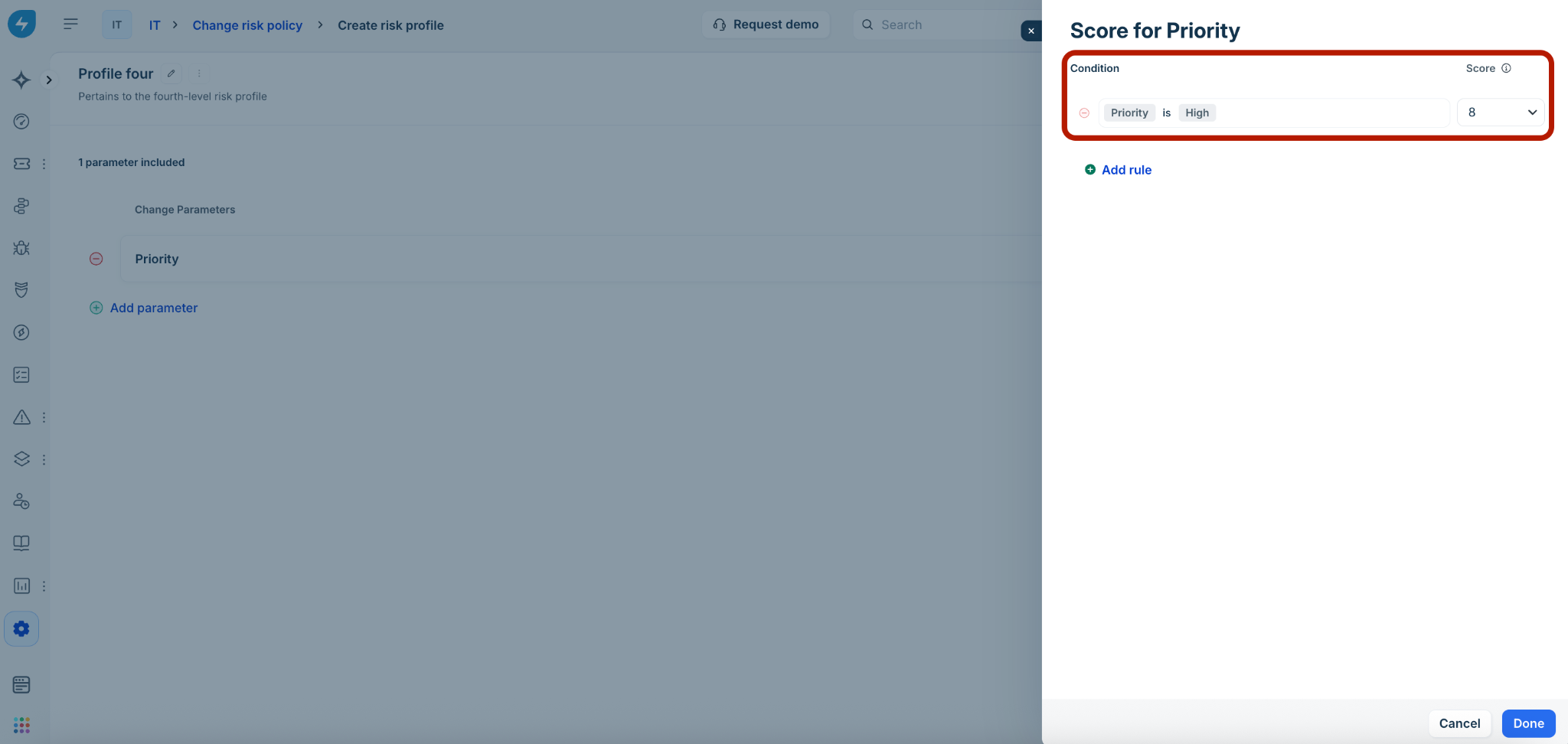
Note: If no rule matches, the parameter score is defaulted to ‘0’ in change request forms.
Assign weights (optional) and publish the risk profile
After defining your parameters and scoring rules, you can determine the relative influence of each parameter on the overall risk calculation.
On the Create risk profile page, enable the Assign weights toggle.
In the Assign weight column, enter a numerical value for each parameter.
Note: The total weight across all parameters must add up to exactly 100.
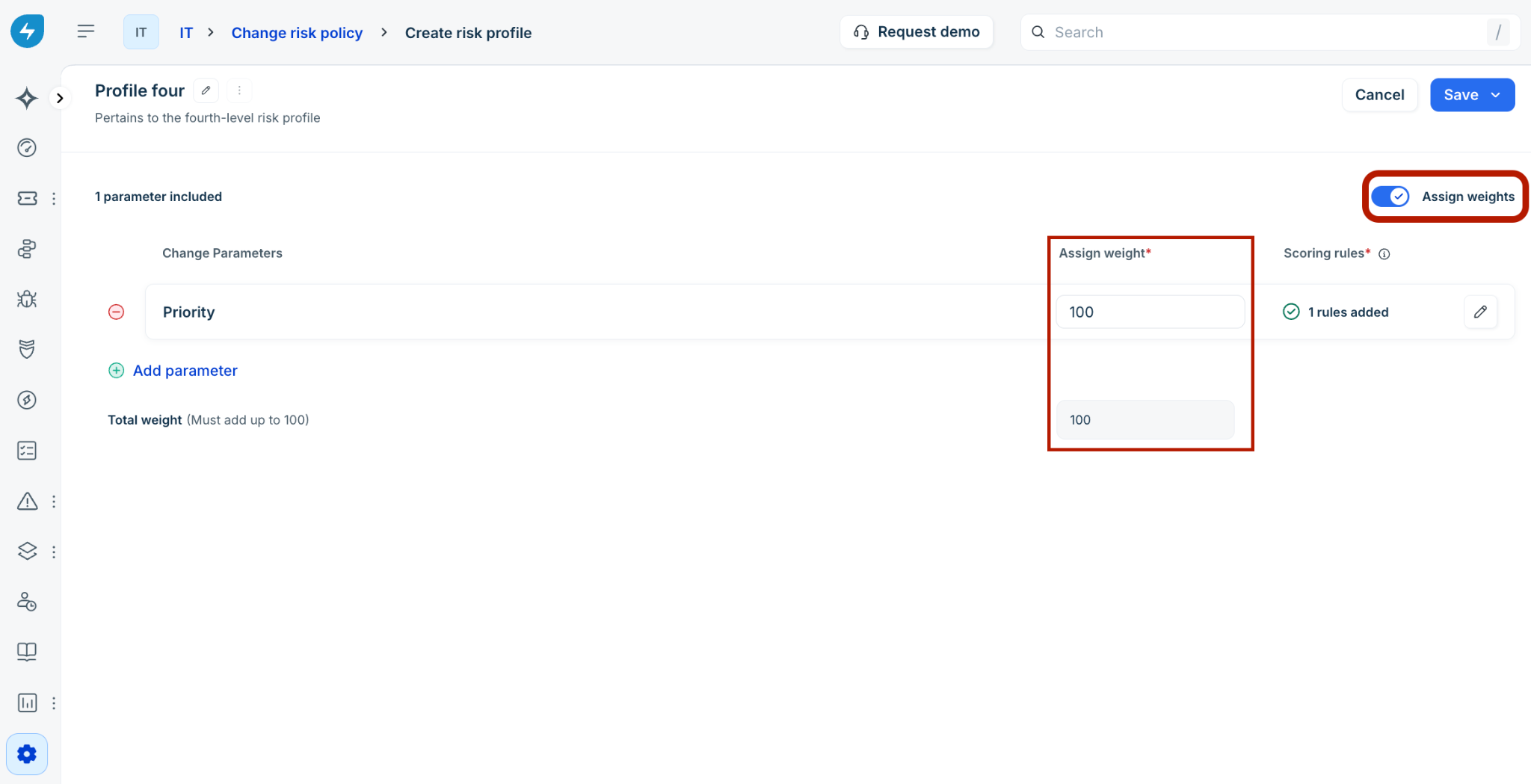
Review your scoring rules in the right-hand column to ensure they are accurate.
Select Save at the top-right corner and choose:
Save and publish: To make the profile available for use in policies immediately.
Save as draft: To save your progress without activating the profile.
Once saved, your new profile will appear in the Profiles list.
To understand how the scoring logic works for Risk Profile, see Risk profile, risk survey, and overall risk score computation.
Manage profiles
Delete: Hover over a profile in the Profiles tab, and select the Delete icon to delete a profile. Alternatively, select an existing profile in the Profiles tab. Then, use the Delete option from the ellipses icon next to the profile name.
Note: For deletion of profiles, all the published and activated policy associations for the given risk profile must be removed.
Create a new risk survey
Note: The Risk Surveys (qualitative assessments) capability is planned for a future release in Q3 2026 (actual release timelines will be communicated through the monthly release notes).
A change risk survey is a manual questionnaire sent to stakeholders or the change requester to capture subjective risks that data might miss.
Admins: Admins can build custom surveys with weighted questions. For example: "Does the team have experience with this technology?" might be a high-weighted question.
End users: You will see these questions directly on the Change form. Your answers contribute to the final risk score.
To create a risk survey, follow these steps:
Go to Admin > Service Management > Change Management, and select Change Risk Policy.
In the Change risk policy page, select the Surveys tab.
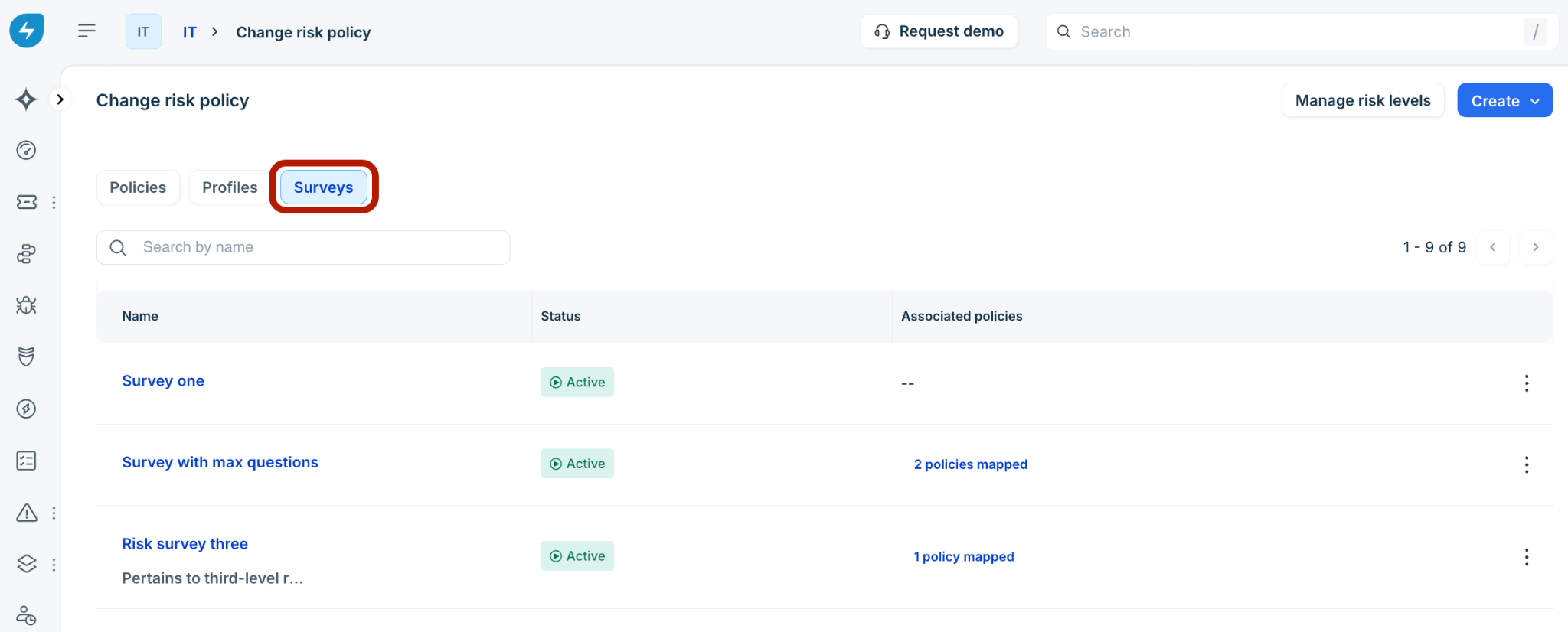
Select Create and choose New Risk Survey from the dropdown menu.
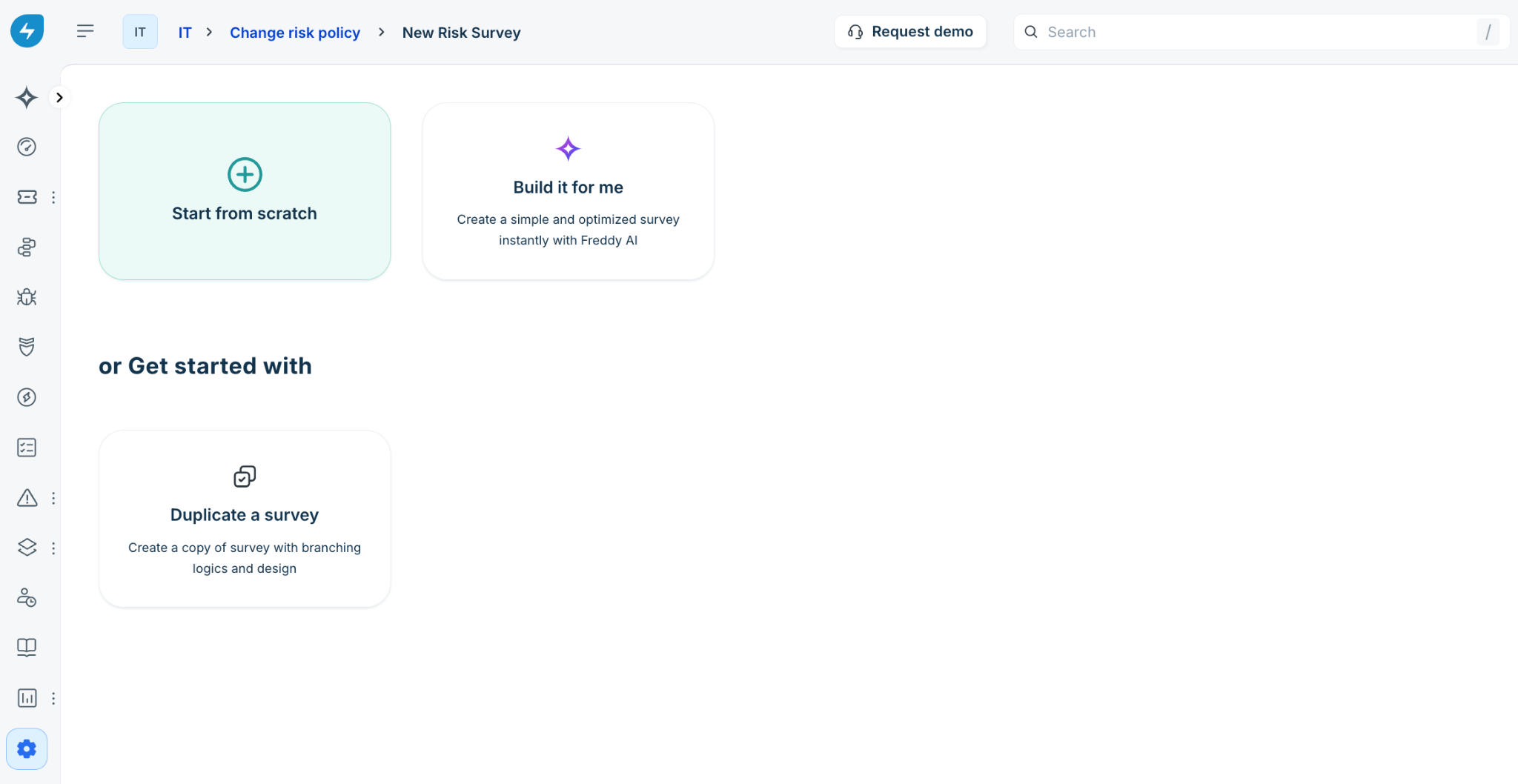
Choose a survey creation option:
Start from scratch: Build a custom survey from the ground up.
Build it for me: Use Freddy AI to generate an optimized survey instantly.
Duplicate a survey: Copy an existing survey template to save time.
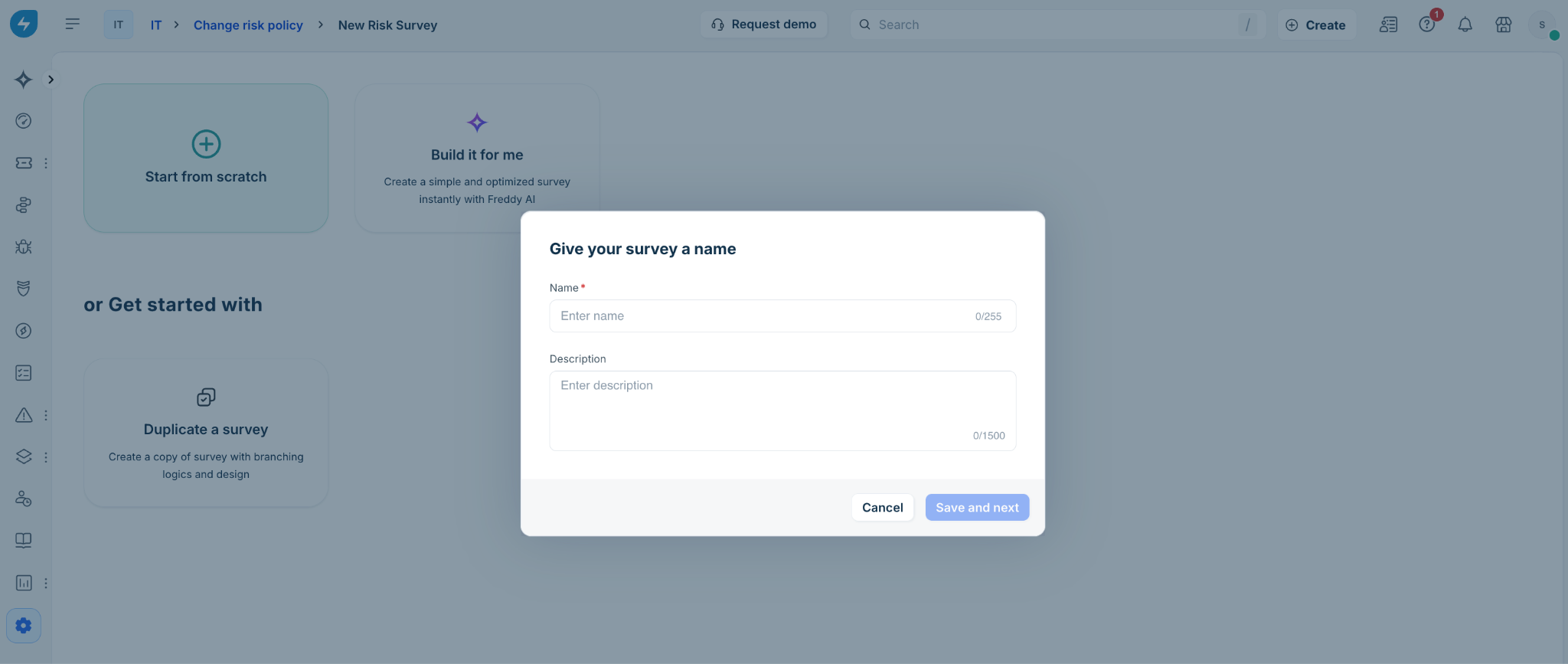
If you’ve selected the Start from scratch option, enter a Name and Description in the Give your survey a name dialog.
Select Save and next.
Build a survey
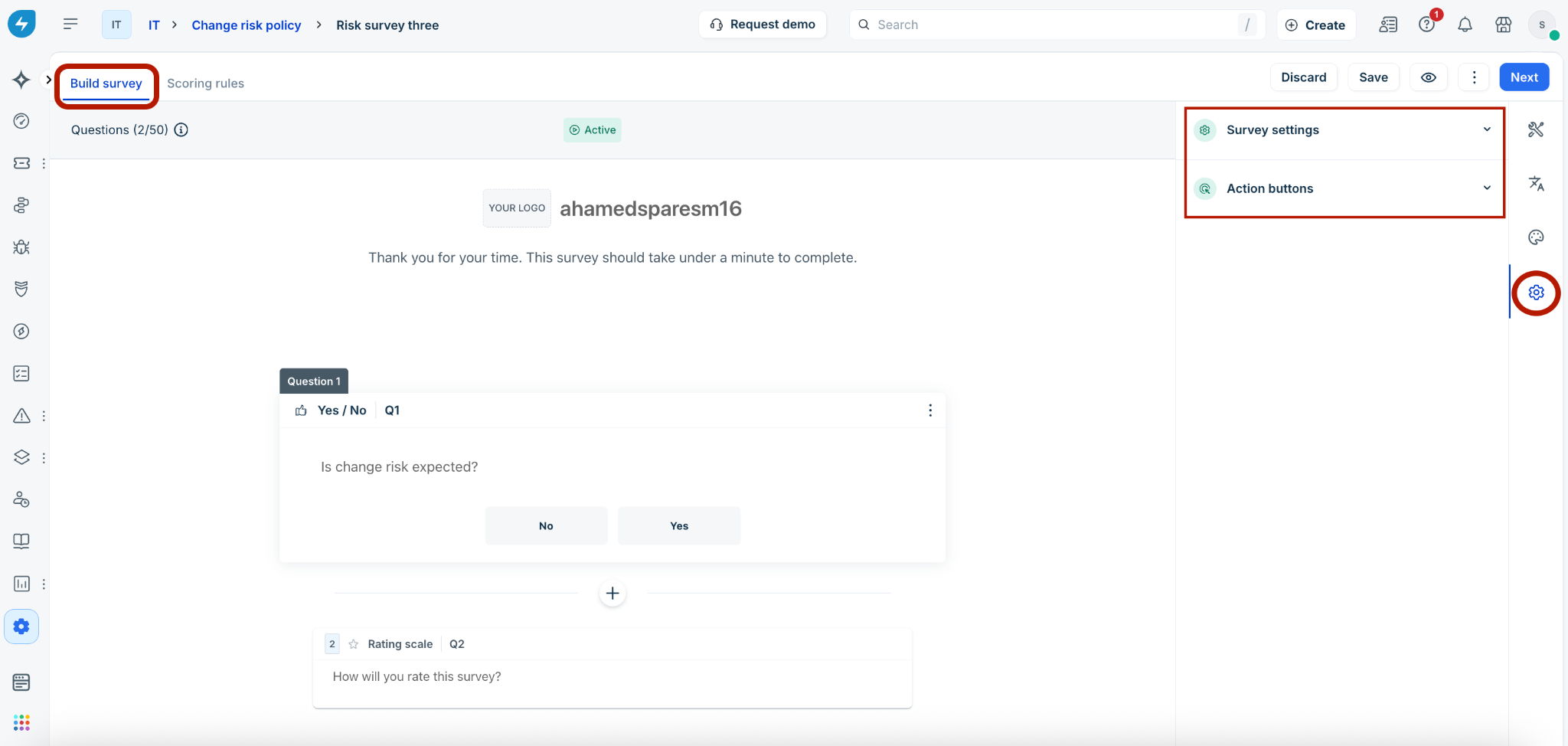
The Build survey tab is where you design the questionnaire and configure global settings.
Global survey settings
On the right-hand sidebar, use the Settings (gear icon) to manage general configurations:
Survey settings: Edit the survey name, add a description, and toggle the Progress bar on or off.
Action buttons: Customize the labels for the Submit, Next, Skip, and Clear selection buttons.
Add and configure questions
You can add up to 50 questions to a single survey.
Click the + (plus) icon to add a question.
Select a question type: Multichoice, Long text, Rating scale, Yes/No, or Message. Long text and message question types do not support scoring.
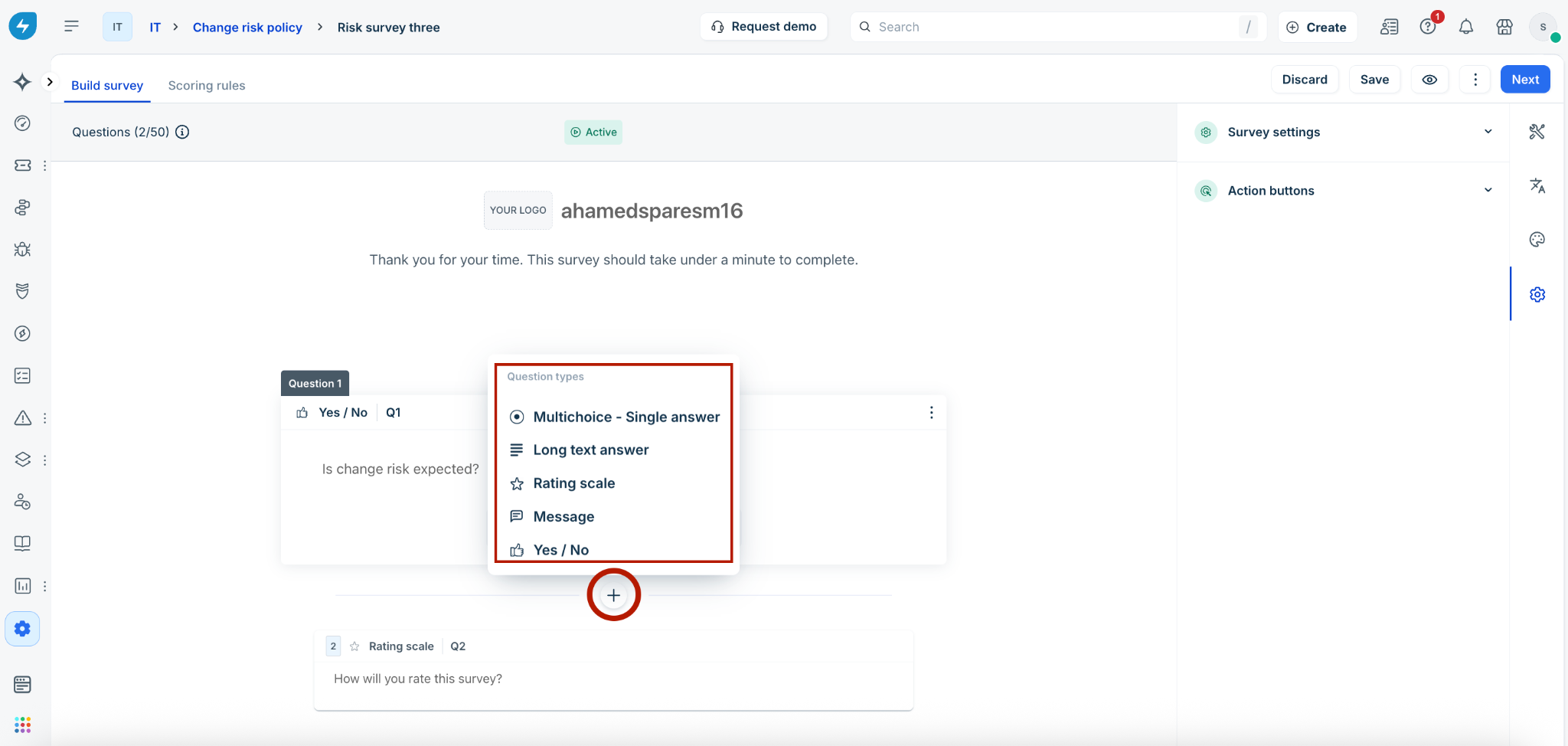
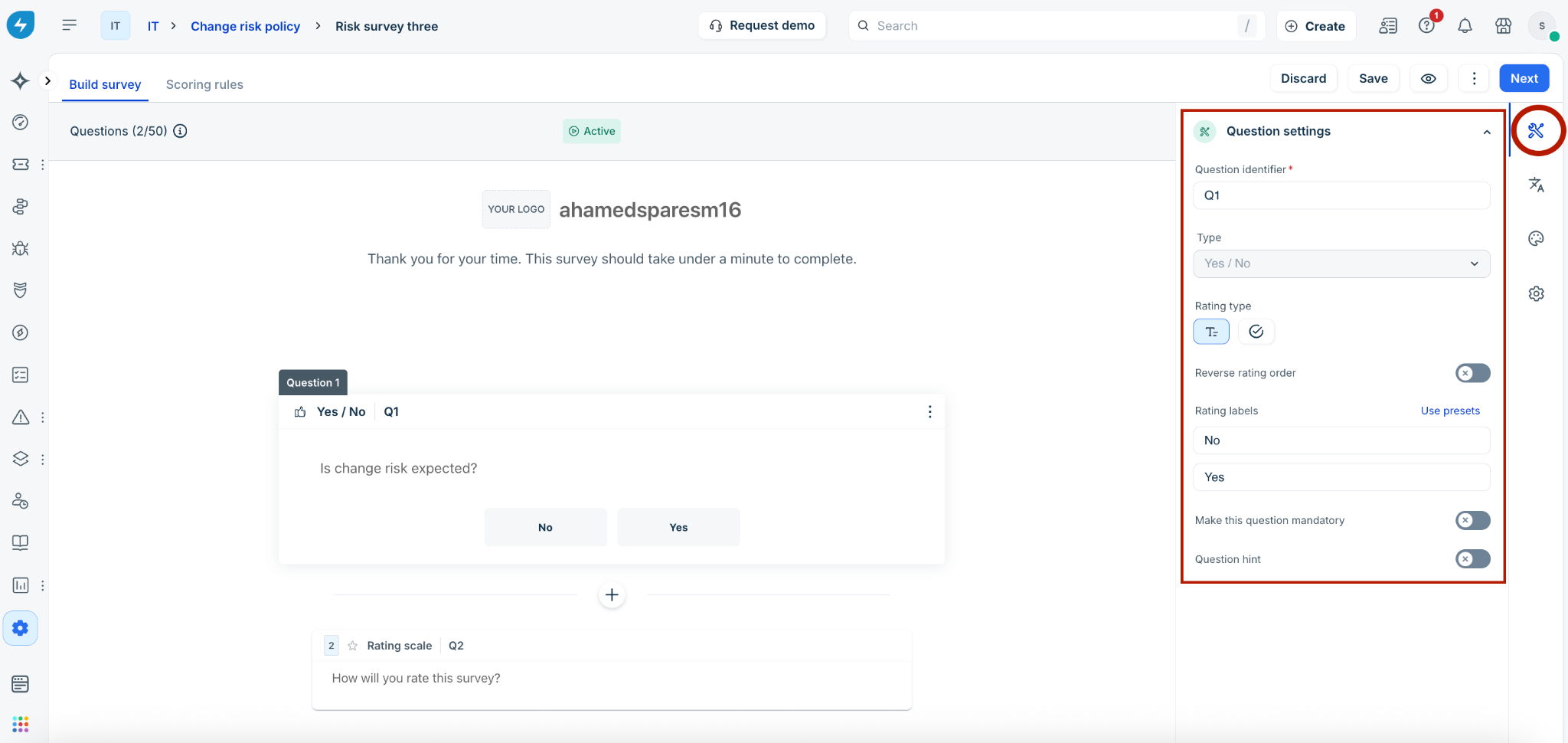
For each question, use the Question settings sidebar to:
Set a Question identifier (for example, Q1, Q2).
If required, enable the Make this question mandatory toggle.
Add a Question hint for extra context.
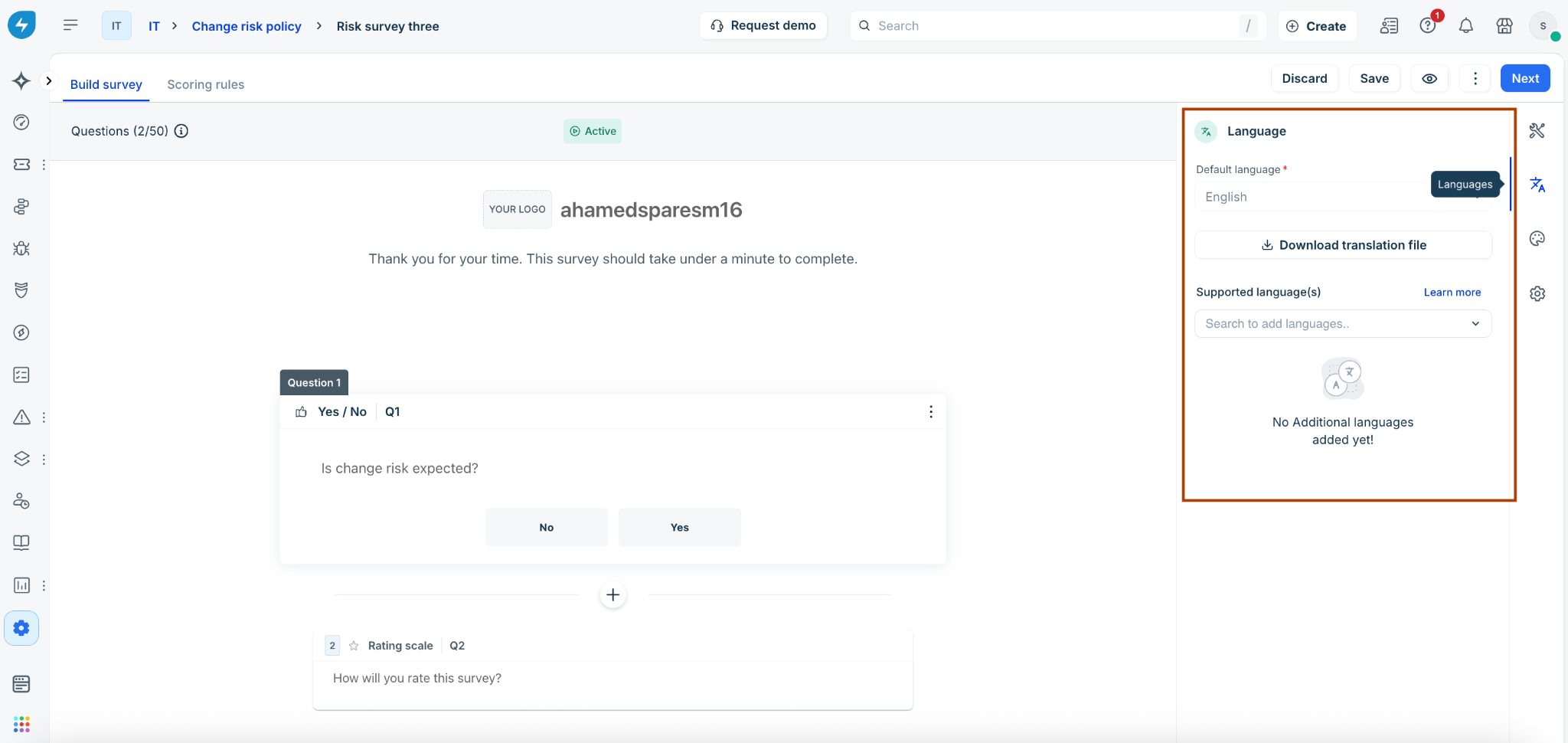
Manage languages
Select the Language (A icon) on the right sidebar.
Set the Default language.
Use Download translation file to manage localized content or add Supported language(s).
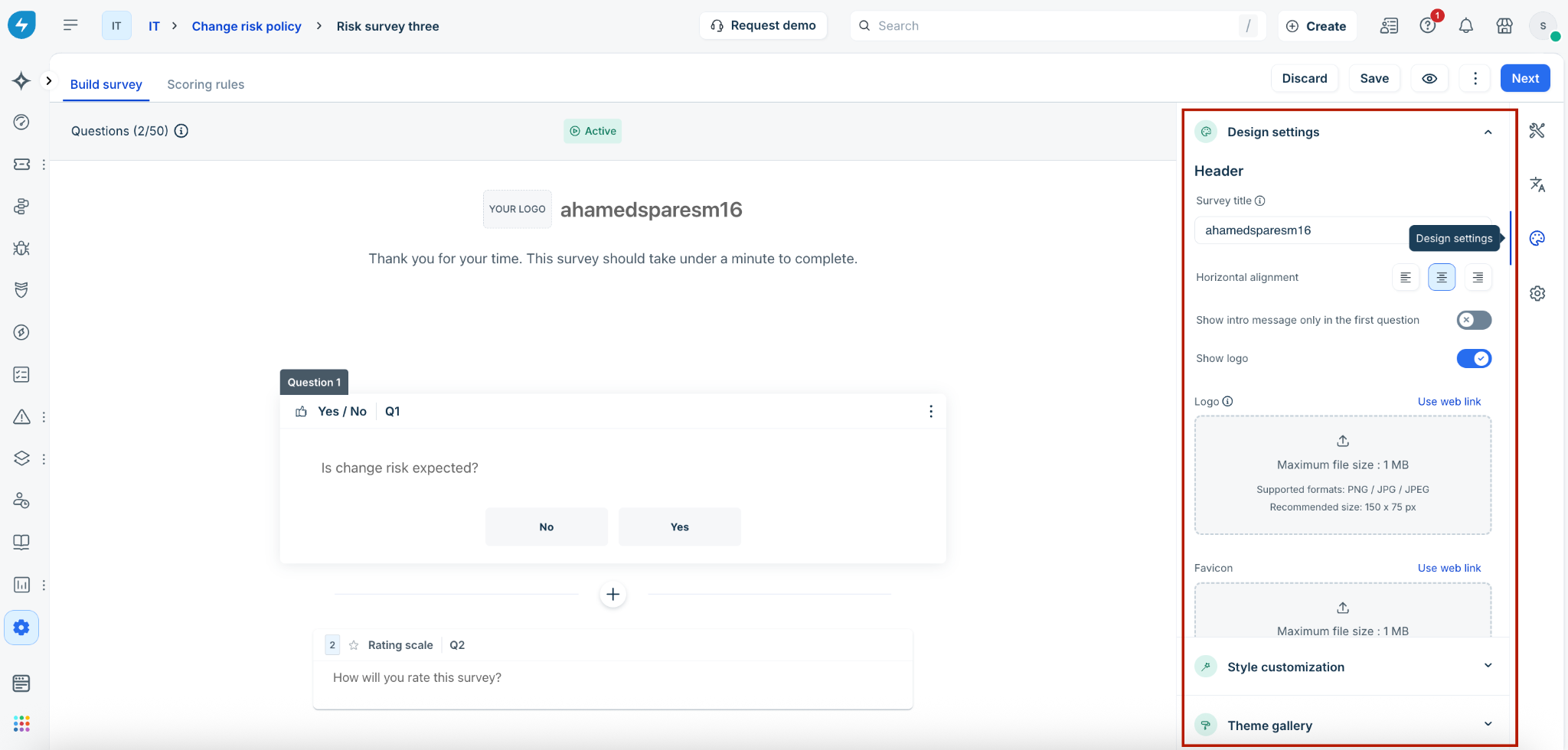
Customize survey design
Use the Design settings (palette icon) on the right sidebar:
Design settings: Toggle display options for the company logo and survey header.
Style customization: Modify colors, fonts, and button styles.
Theme gallery: Choose from pre-defined visual themes.
Preview a survey
Select the Preview (eye icon) at the top-right corner.
Toggle between Desktop, Mobile, or Tablet views to ensure the survey is responsive.
Reorder and view version history
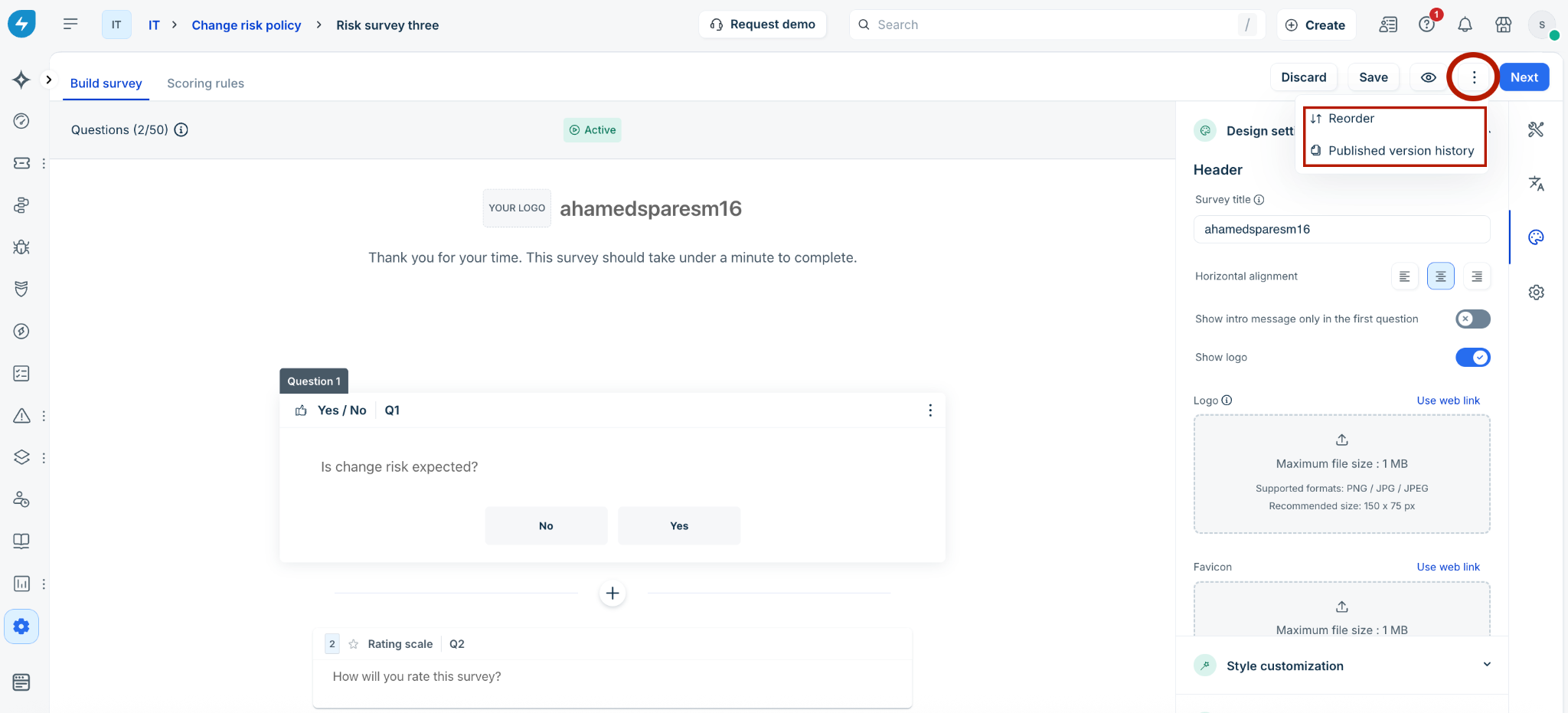
Reorder: Click the ellipses icon at the top-right corner, and select Reorder. Drag questions into sequence.
Note: Reordering questions will reset any applied branching logic.
Version history: Click the ellipses icon at the top-right corner, and select Published version history to track changes and timestamps.
Scoring rules
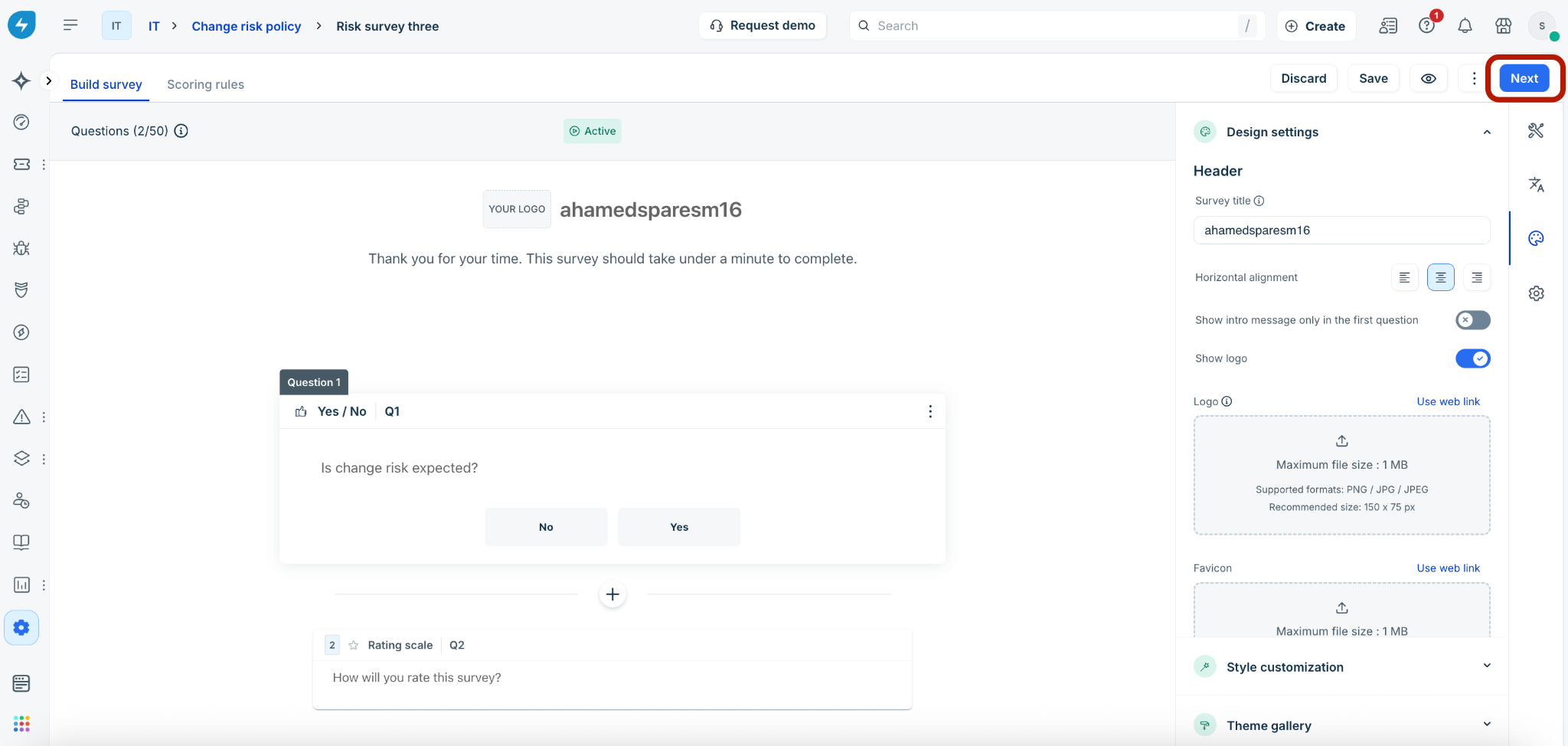
The Scoring rules tab translates qualitative answers into quantitative risk data.
Click Next at the top-right corner to go to the Scoring rules tab.
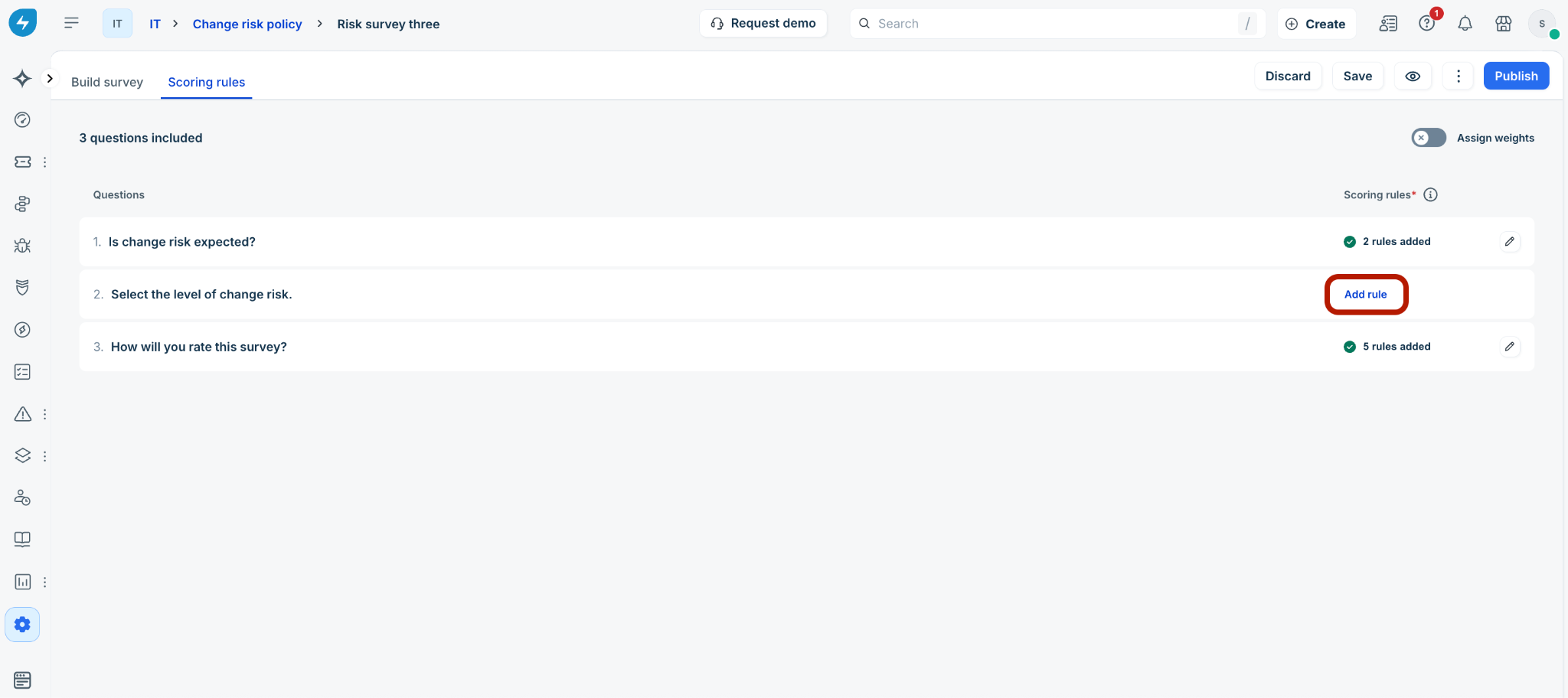
Select Add rule next to a question.
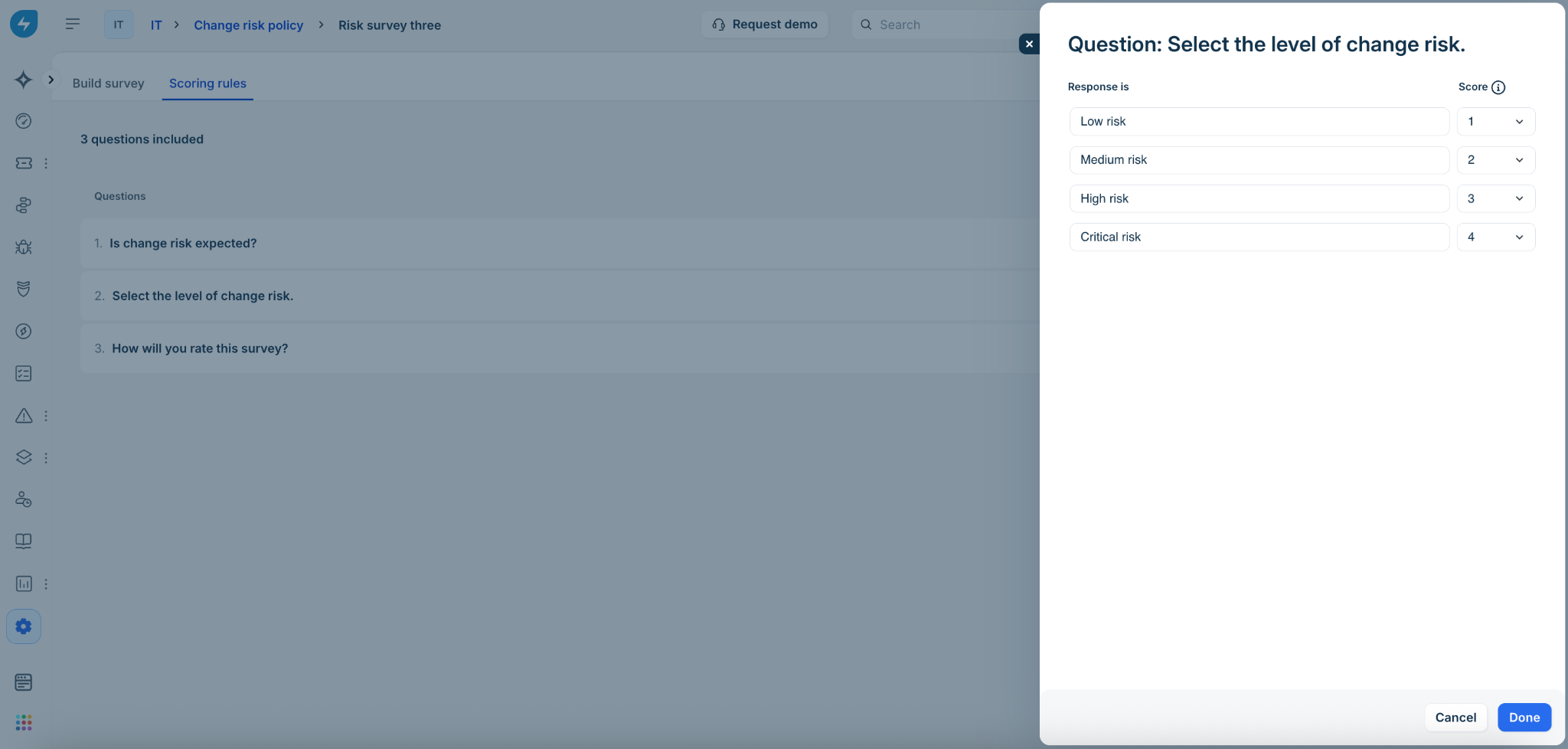
In the side panel, assign a numerical Score to each possible response, and select Done.
Weightage
To prioritize specific questions (optional), enable the Assign weights toggle.
Enter the weights for each question.
Note: The Total weight for all questions must add up to exactly 100.
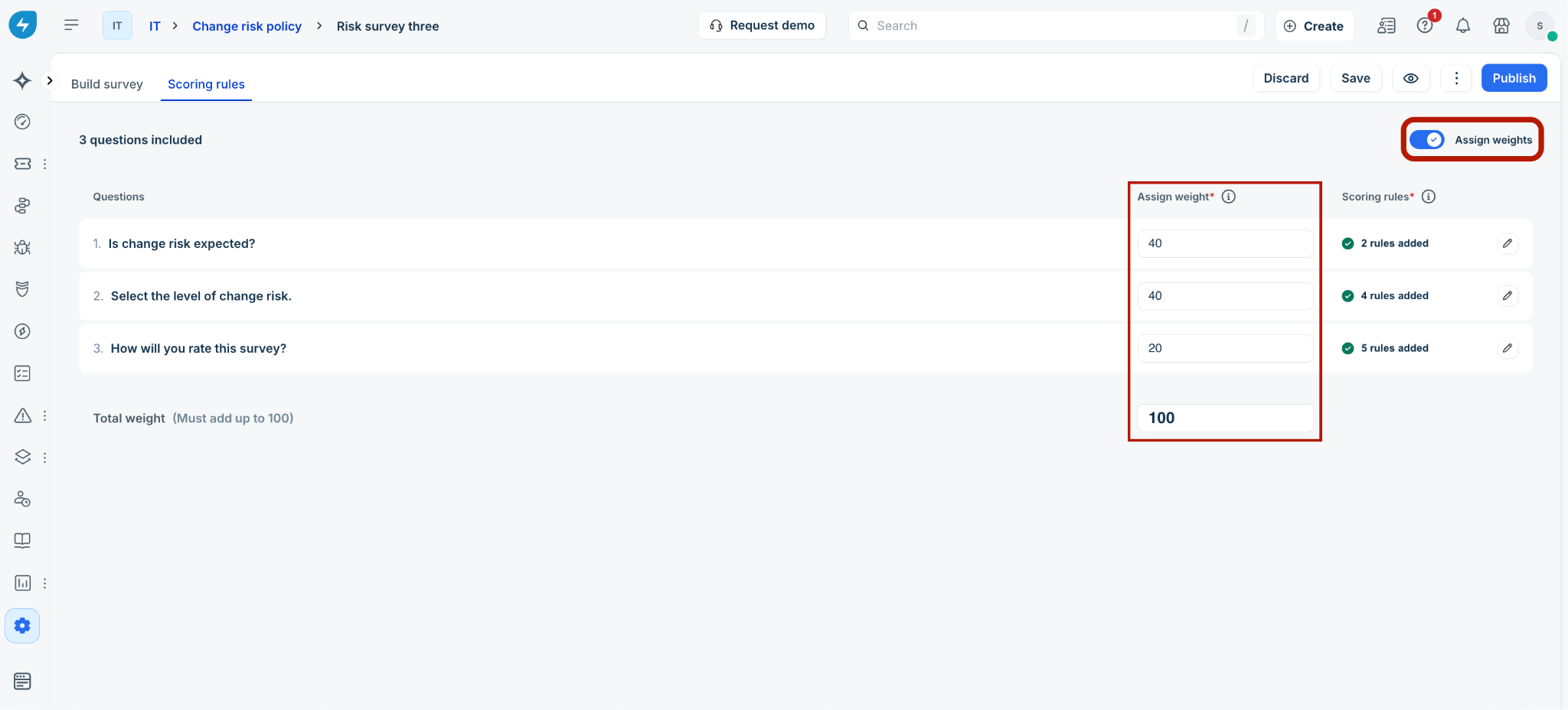
Select Publish to make the survey available for policies.
Other actions
Delete: Select the ellipses icon next to a survey in the list, and delete a survey. Ensure it is not mapped to any active policies before deleting.
Note: For deletion of surveys, all the published and activated policy associations for the given risk survey must be removed.
Business rules for change risk
Note: The business rules for change risk and risk surveys (qualitative assessments) capabilities are planned for a future release in Q3 2026 (actual release timelines will be communicated through the monthly release notes).
You can create various business rules related to change risk assessment.
This section guides you through a sample scenario for creating a new business rule for change based on specific conditions and actions.
Sample scenario
Conditions: Subject is Risk AND Attached risk survey response is Completed.
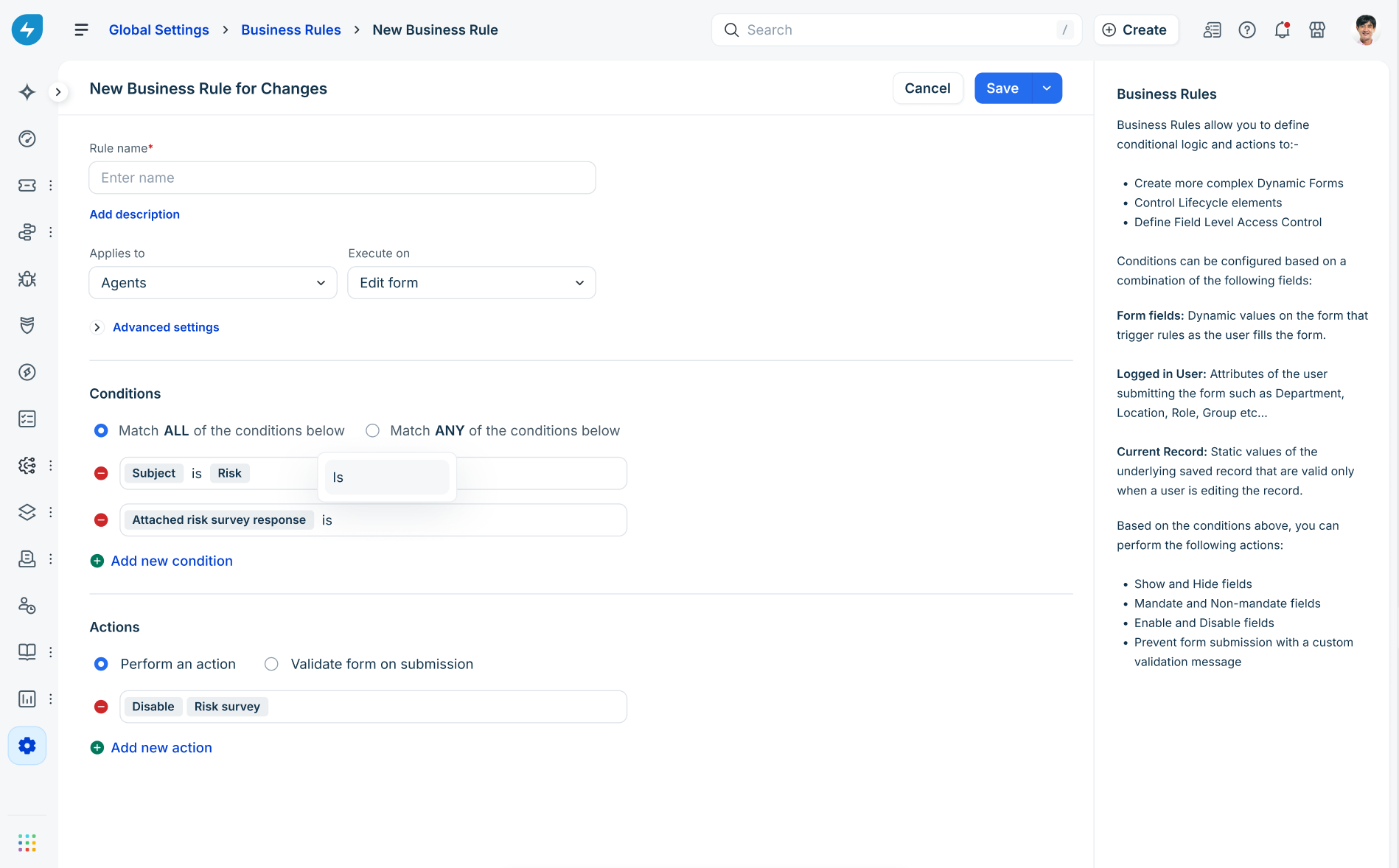
Actions: Disable the Risk survey, Manage survey settings, Cancel requested survey, and Retrigger responded survey to prevent redundant entries.
Access business rules
Log in to your Freshservice account.
Go to Admin > Service Management > Business Rules for Forms.
On the Business Rules page, select Create New Rule, then select Change.
Configure basic information and triggers
In the New Business Rule for Changes page, define when and for whom the rule should execute:
Rule Name: Enter a unique, descriptive name for your rule.
Description: Add details about what this rule accomplishes.
Applies to: Only Agents option is supported.
Execute on: Only Edit form option is supported.
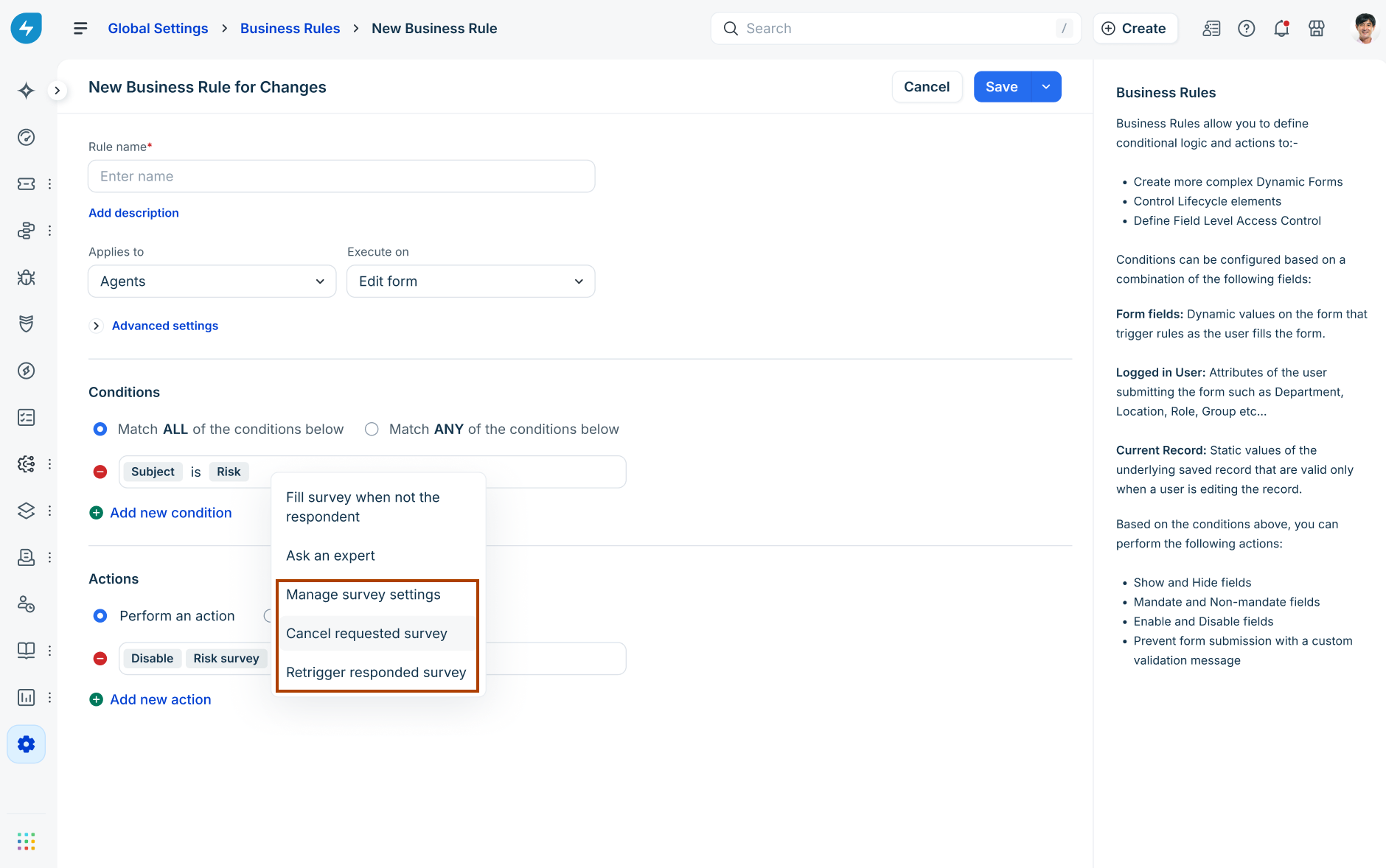
Then, define the necessary rule conditions and actions.
The following screen illustrates all the supporting conditions associated with change risk:
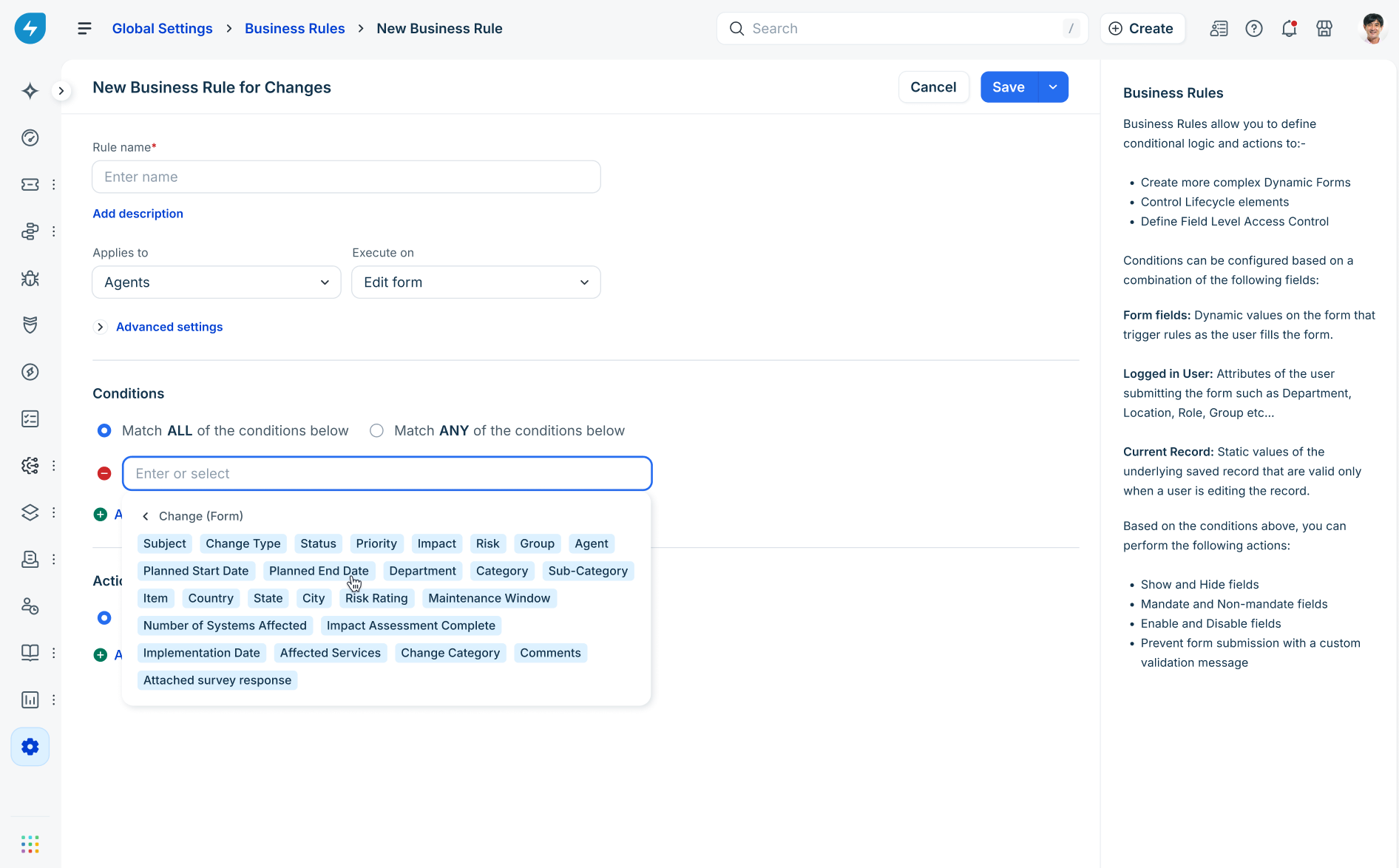
The following screen illustrates all the supporting actions associated with change risk:
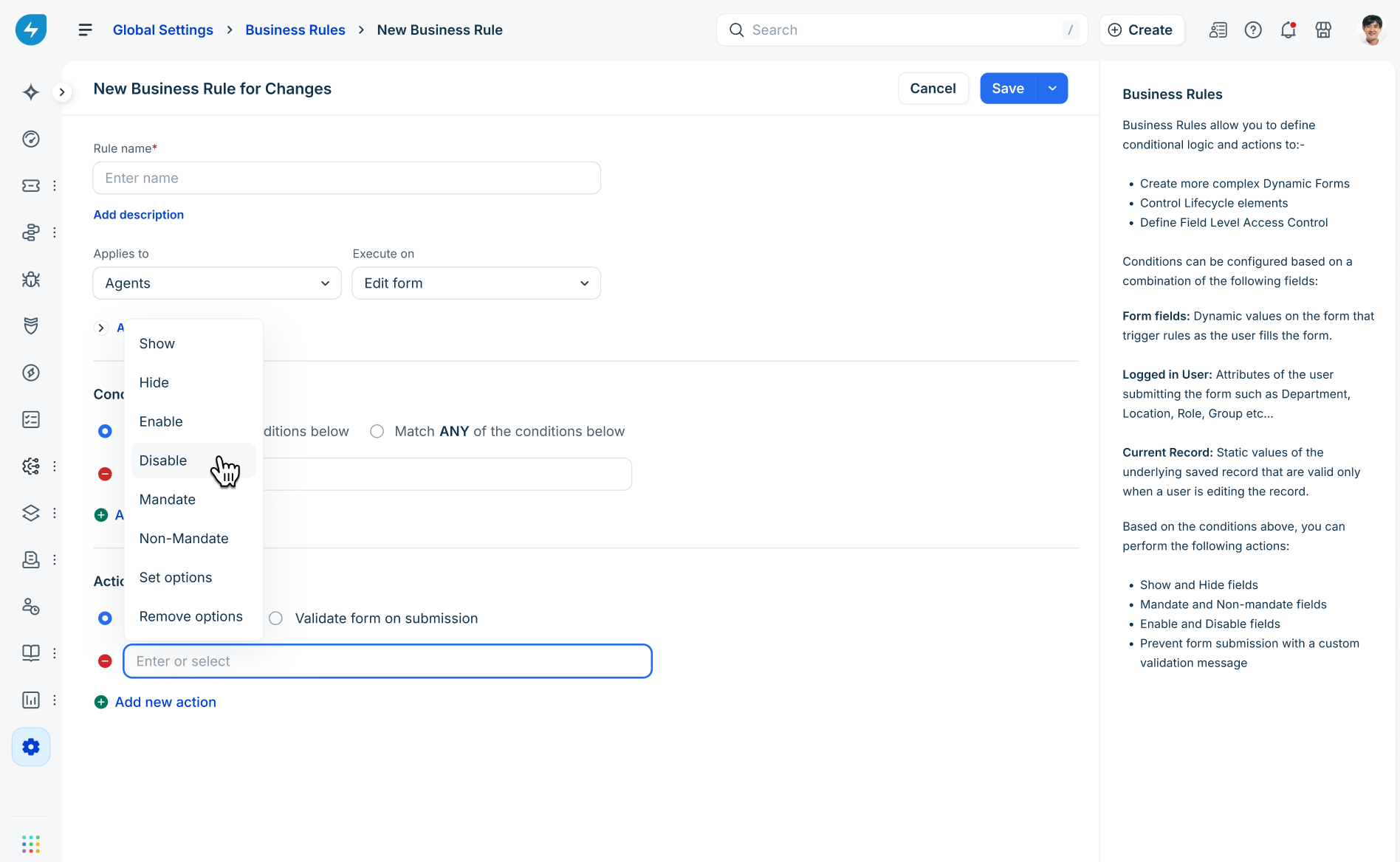
Review and save
Once your logic is finalized, click Save. You can also Save and Activate the rule immediately.
Note:
Business rules are executed in the order they are listed on the index page. Ensure your most critical rules are prioritized accordingly.
You can stack multiple conditions and actions to create complex logic.
Impact on change requests
For information on the impact of risk assessment for change requests, see Risk assessment and surveys in a change request: Agent experience.
Sandbox support
To ensure a seamless transition from configuration to production, the Change Risk Policy feature is fully supported within Sandbox environments. This allows admins to test risk logic, surveys, and synchronization without impacting live data.
Configuration and synchronization
The following components support both inward and outward syncs, allowing you to promote configurations from Sandbox to Production (or vice versa):
Change risk policies: Full support for Risk Policies, Profiles, Surveys, and Risk Levels.
Access control: Roles and Privileges associated with Change Risk management.
Testing and validation
Within the scope of the change request data created and maintained in your Sandbox, you can test the following capabilities:
View Basic Risk Awareness insights: In instances where no matching risk policy is identified, the system utilizes Basic Risk Awareness as a fallback mechanism, surfacing key risk signals without enforcing a formal numerical score.
View calculated Change Risk based on active Risk Policies.
Note: All testing and data visibility are contained within the specific change request data generated inside the Sandbox environment.