Community
 Video Library
 Agent Training
 Freshservice
 Freshdesk
 Freshchat
 Freshcaller
 Freshsales
 Freshteam
 Freshworks Neo
 Freshsurvey
 Freshservice for MSP
 The Freshservice’s integration with Risk Assessment for Change app helps IT organizations evaluate and manage potential risks before implementing changes in Freshservice.
Overview
You can standardize risk assessment by adding configurable questions, valid response options, and scoring rules that determine the overall risk level of a change. The app automatically records and displays the calculated risk rating on the Create Change page, giving Change Managers better visibility during planning and approval. With this app, teams can apply a consistent and data-driven approach to risk evaluation.
Standardized questions and scoring improve the accuracy of risk assessment, strengthen decision-making, and ensure that risks are reviewed before changes are implemented. This supports more predictable outcomes and improves the overall reliability of the change management process in Freshservice.
Install and set up Risk Assessment for Change app
Install the Risk Assessment for Change app to enable standardized risk evaluation and display risk scores while creating a change in Freshservice.
Prerequisites
You need admin access to install the Risk Assessment for Change app.
After you install the Risk Assessment for Change app, you can configure risk assessment questions, scoring rules, and rating thresholds. This will let your agents evaluate change risk consistently when creating a change. Follow these steps to install the Risk Assessment for Change app from the Freshworks Marketplace.
Log in to Freshservice as an administrator.
Go to Admin > Apps > Get More Apps.
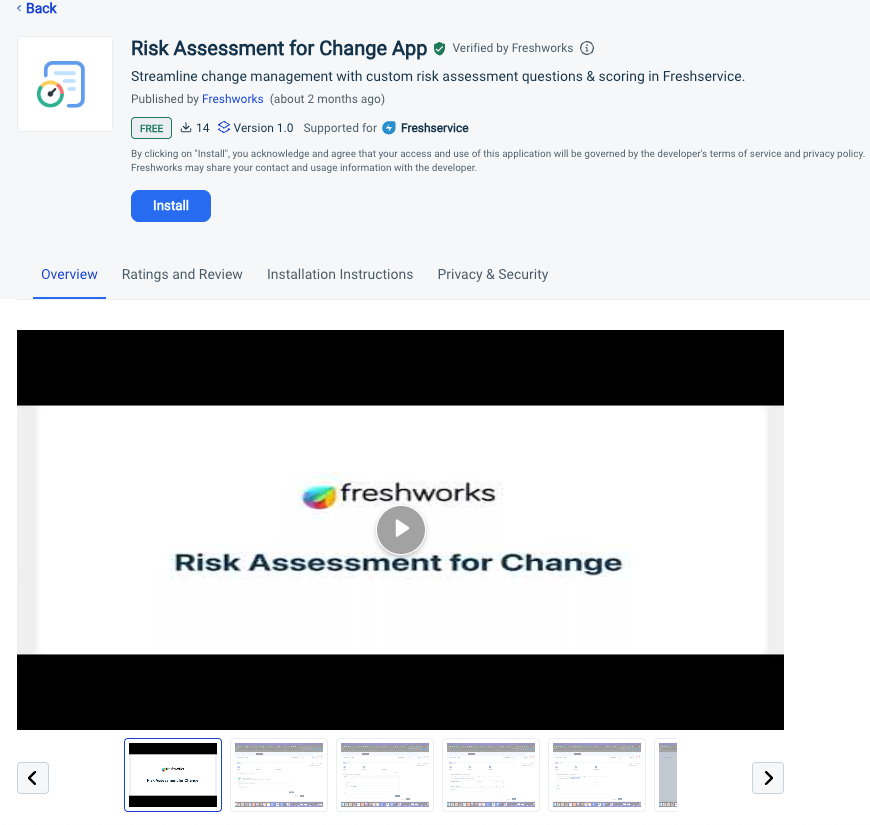
Search for the Risk Assessment for Change app and click Install.
Or, you can go to Freshworks Marketplace, search for the Risk Assessment for Change app, and install it.
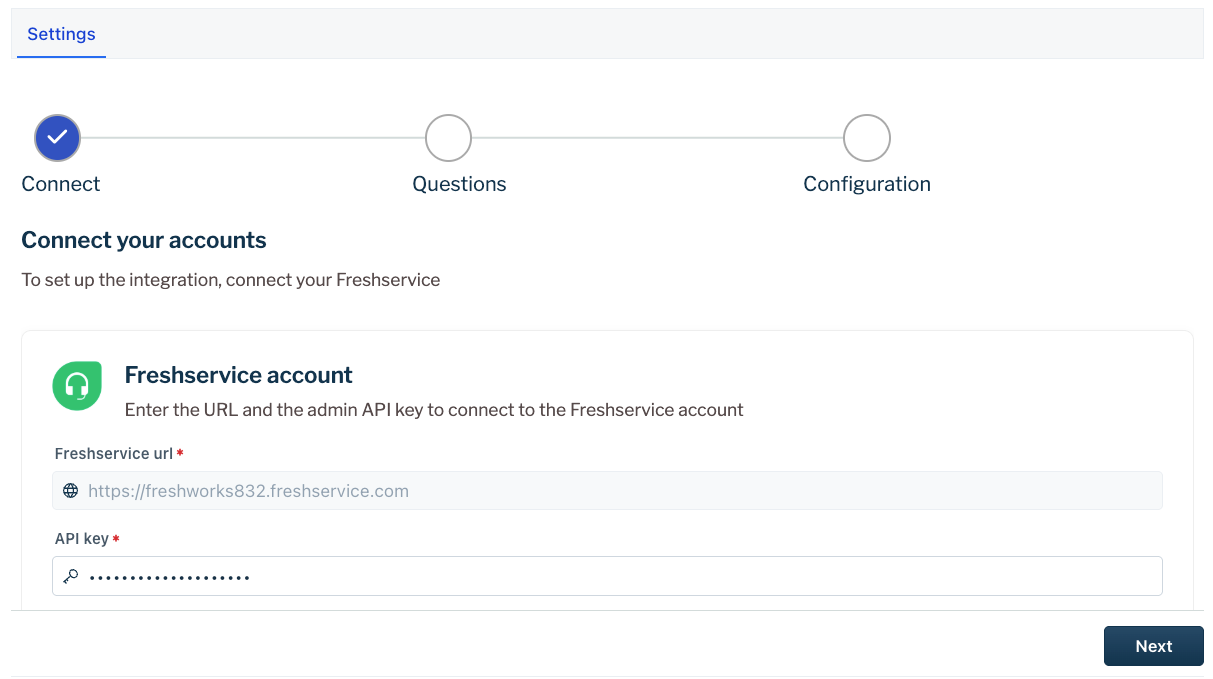
You are redirected to Global Settings > Apps > Configuration page.
The Freshservice url and API keys are auto-populated. But you can modify the API key field.If you want to update the API key field, enter your API key and click Next.
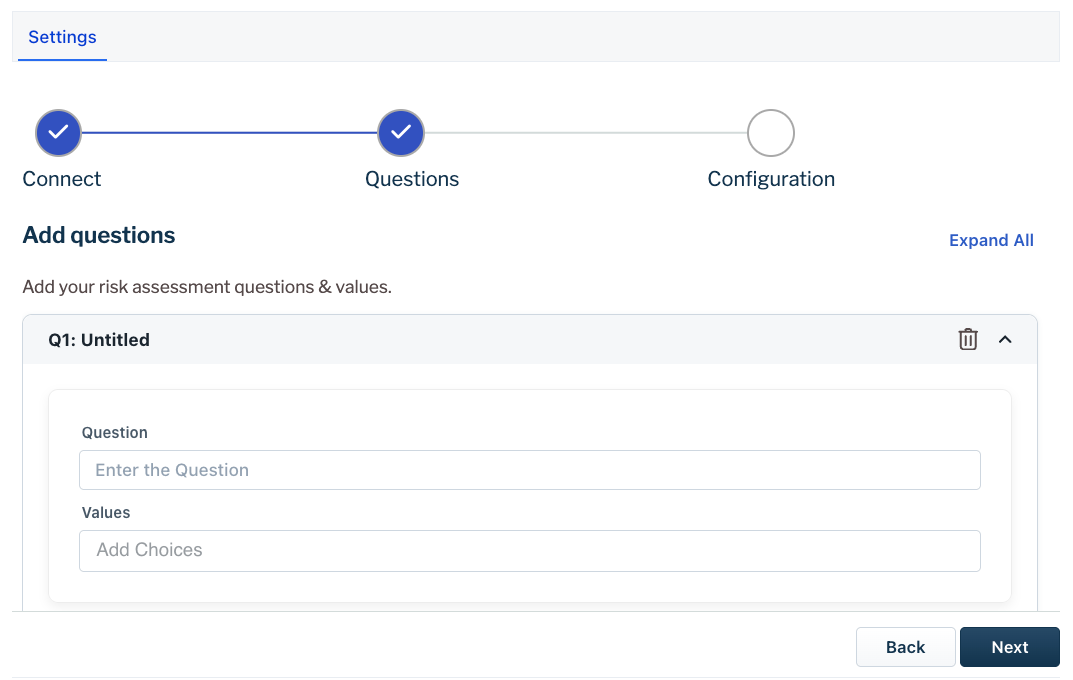
Configure your risk assessment questions.
Enter your question in the Question field.
Enter your response values in the Values field.
Click + Add Question to add new questions.
You can configure any number of questions and response values.
Click Next.
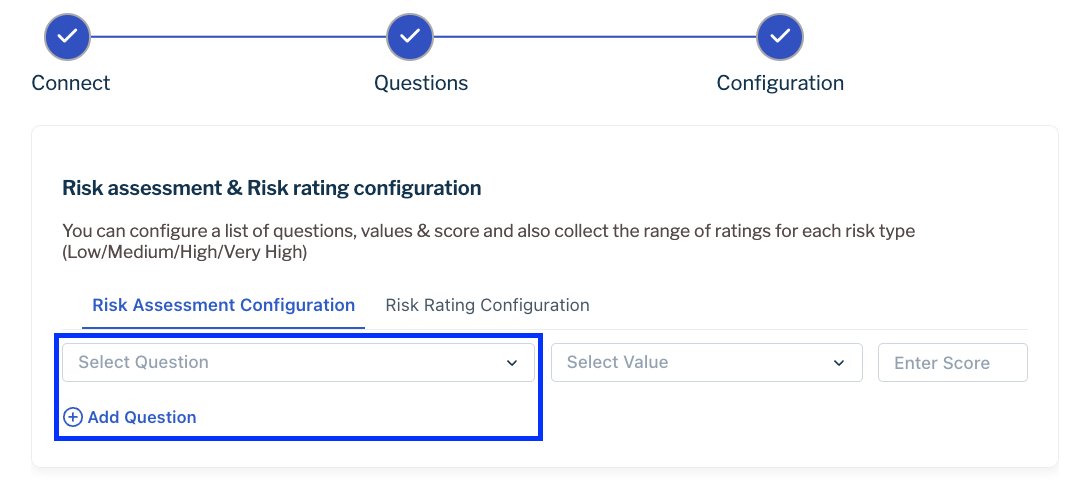
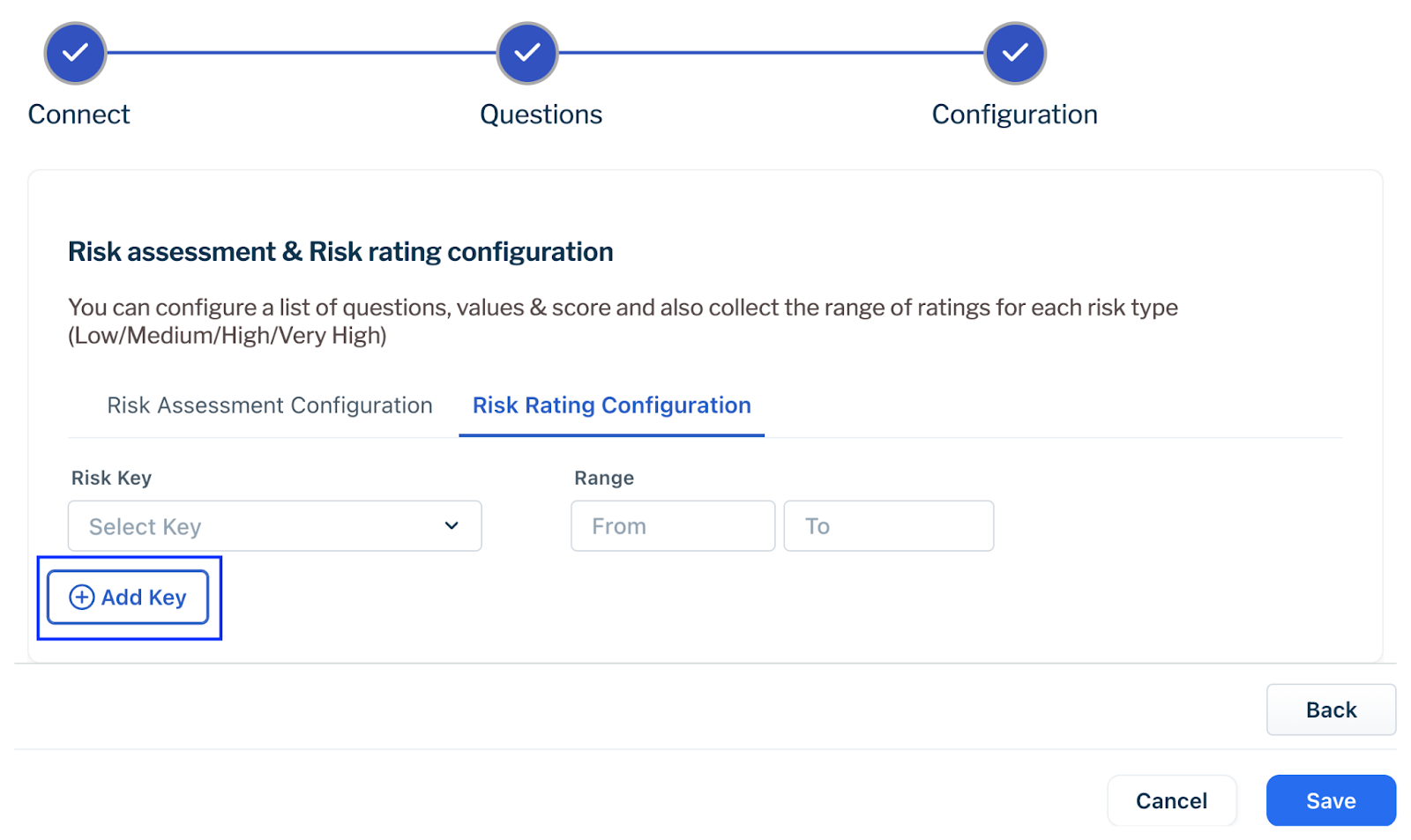
The Risk assessment & Risk rating configuration page appears where you can assign a score and risk key (risk threshold) to each question.Under Risk Assessment Configuration, click + Add Question and select a question from the list of questions you configured.
From the Select Value field, select a response value that you added with the question and enter a score in the Enter Score field.
Note - In a row, you can assign a score to only one response value. For example, If your question has three response values and you want to assign scores to all the three response values, then you have to create three rows.Under Risk Rating Configuration, click + Add Key and select a risk key: Low, Medium, High, and Very High.
In the Range fields, assign the minimum and maximum risk scores for the risk key.
Repeat this step for every risk key such as Low, Medium, High, and Very High.Click Save.
A success message appears to confirm installation of the Risk Assessment for Change app.
Whenever an agent creates a change, the questions you configured are displayed in the change form.
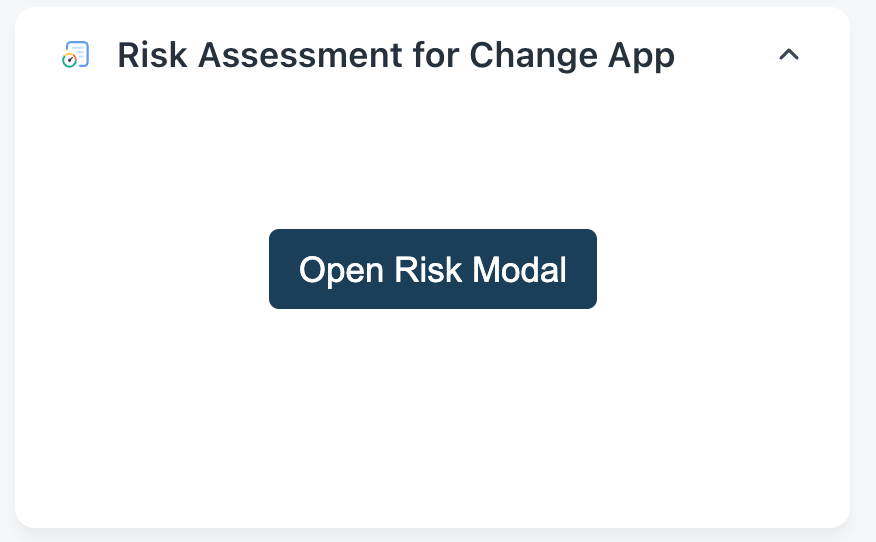
You can also see the Risk Assessment for Change App panel at the bottom right corner of the Change form.