Community
 Video Library
 Agent Training
 Freshservice
 Freshdesk
 Freshchat
 Freshcaller
 Freshsales
 Freshteam
 Freshworks Neo
 Freshsurvey
 Freshservice for MSP
 Use the following steps to invite individual agents by email. To import agents in bulk, contact Freshservice Support.
Log in to FireHydrant as an Owner.
Go to Settings > Users.
Click + Invite user button.
You are redirected to Invite a new user page.
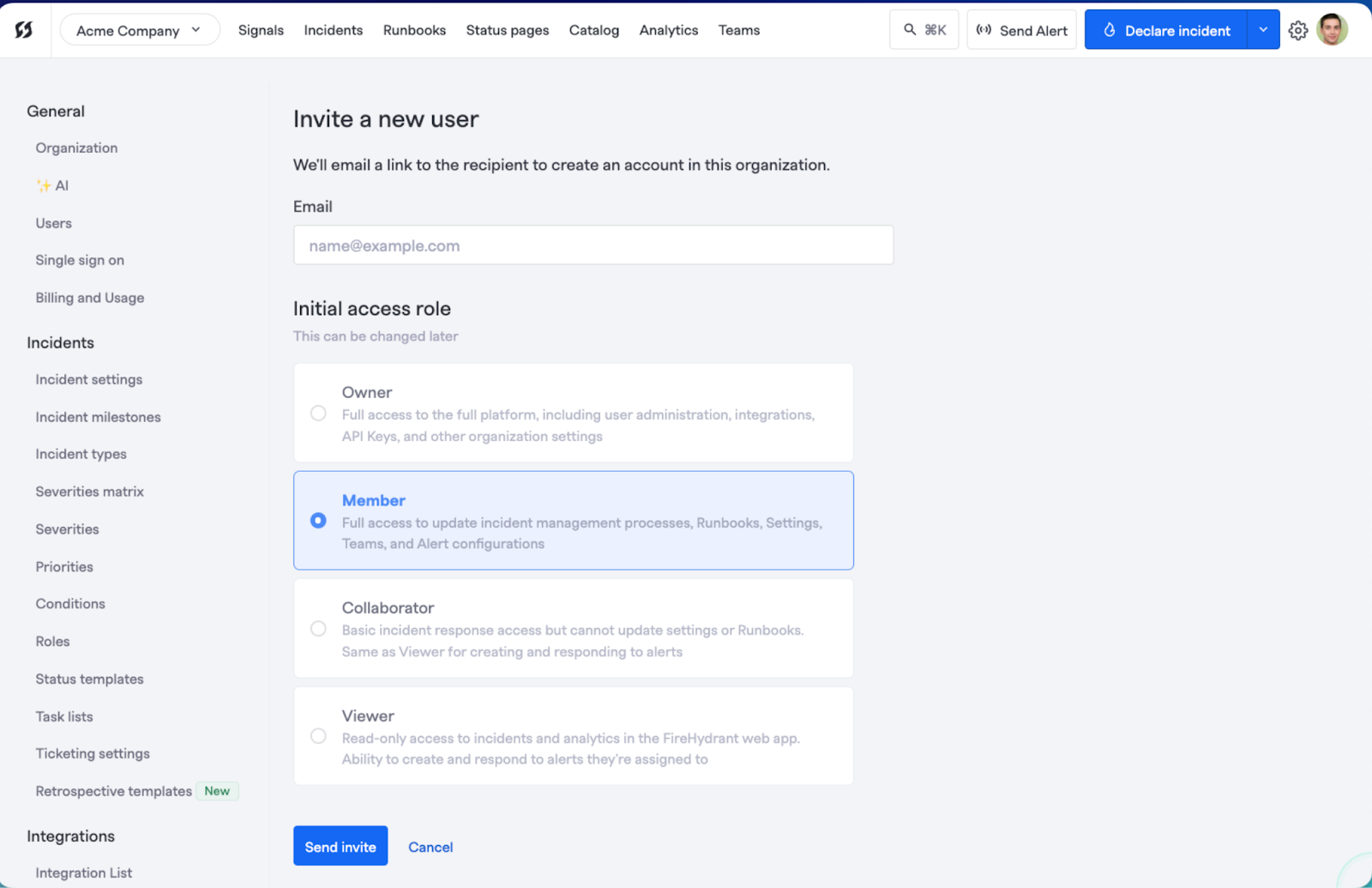
Provide the user's email address, select their starting access role, and click Send invite.
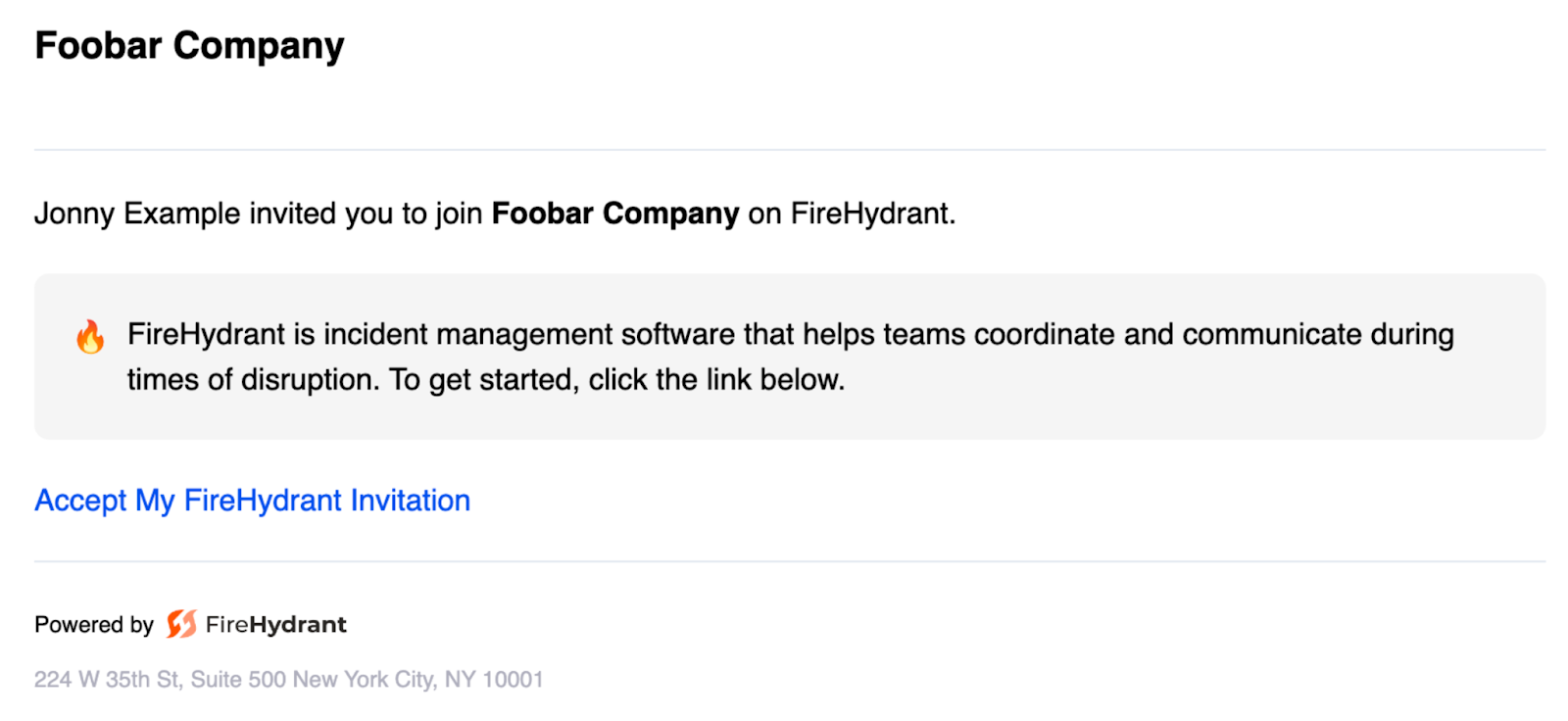
After you invite a user, they'll receive an email invitation as shown in the following image.
When users click the Accept My FireHydrant Invitation link in the email, they are prompted to provide their name and email, create a password, and accept the privacy policy. Then, they can accept the invitation and join your FireHydrant account.
Note: Ensure your team members accept your email invitation instead of signing up separately on the FireHydrant portal. Signing up on the website creates a new organization and account. FireHydrant enforces unique email addresses system-wide, so if someone accidentally registers on their own, they have to reach out to Support to disable the duplicate account or email before they can accept your invitation.
Note: Ensure that your team members are not part of another FireHydrant account belonging to a separate Freshworks org.